Home Dashboard Index
Click on any card to navigate to the corresponding documentation section.
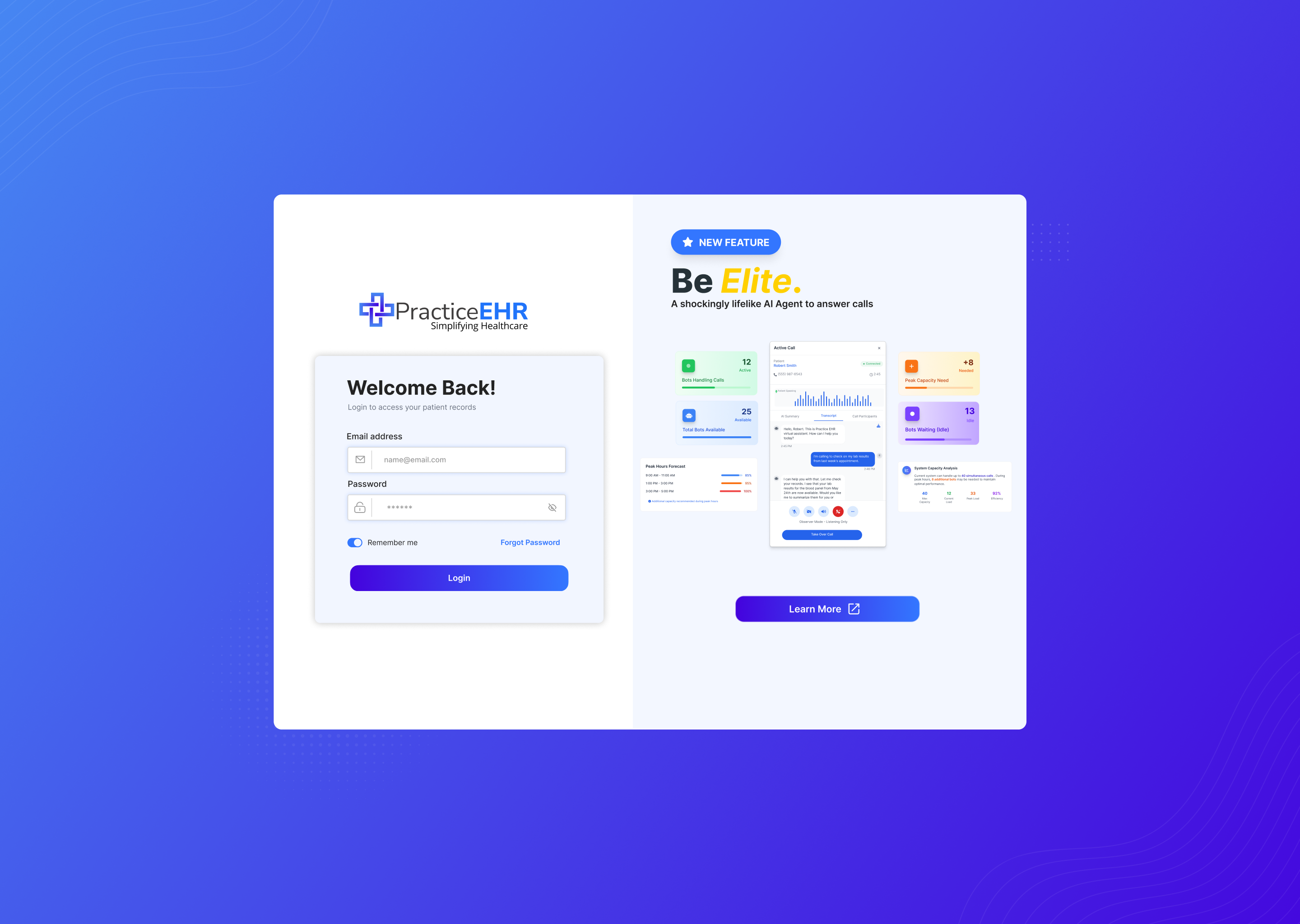
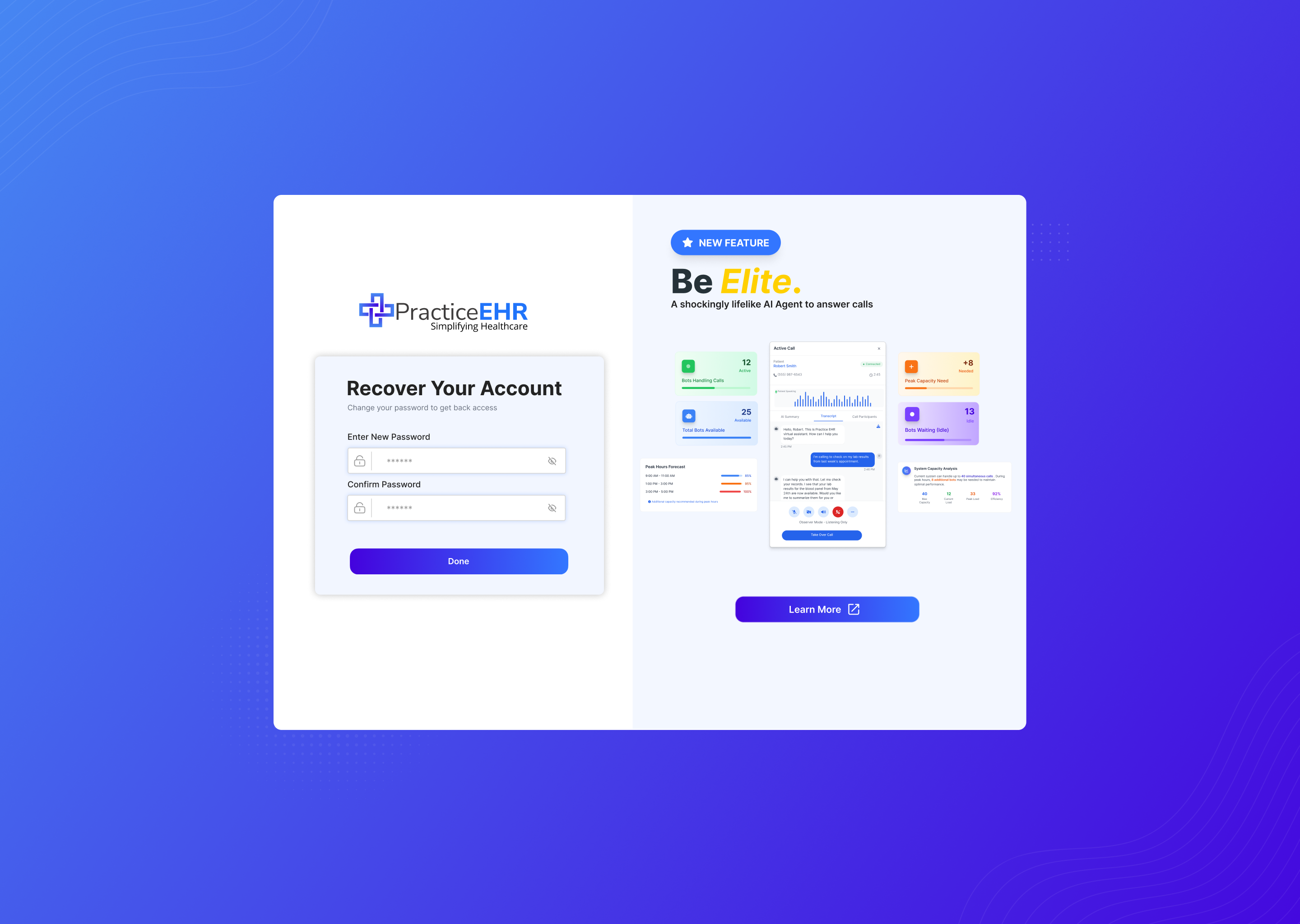
This screen is used to sign in to Practice EHR and enter the application.
Enter valid credentials to continue into the application. If the password is not available, continue through the forget password flow.
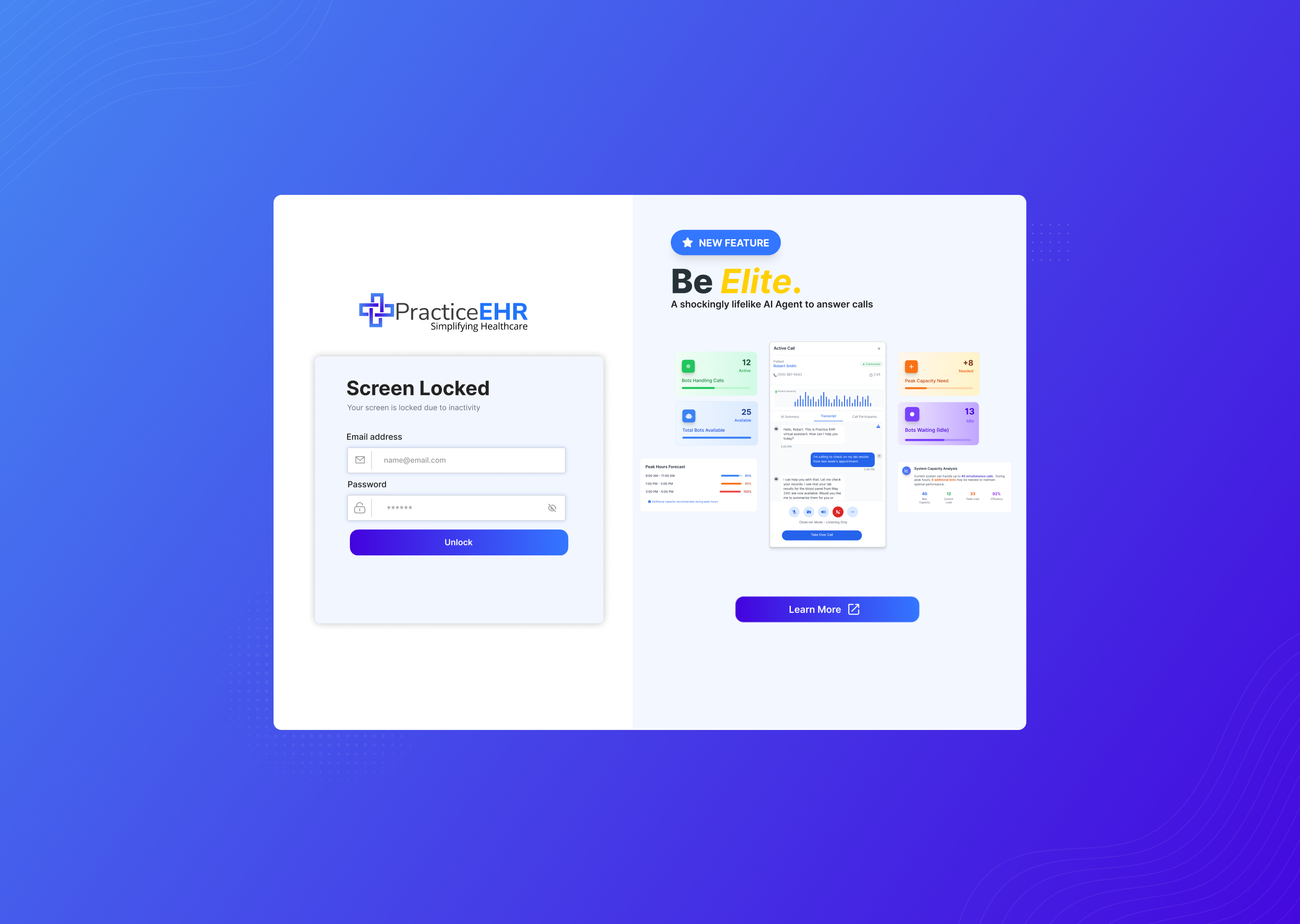
This screen protects the active session and requires the user to unlock before resuming work.
Unlock the screen to return to the prior view and continue the session safely.
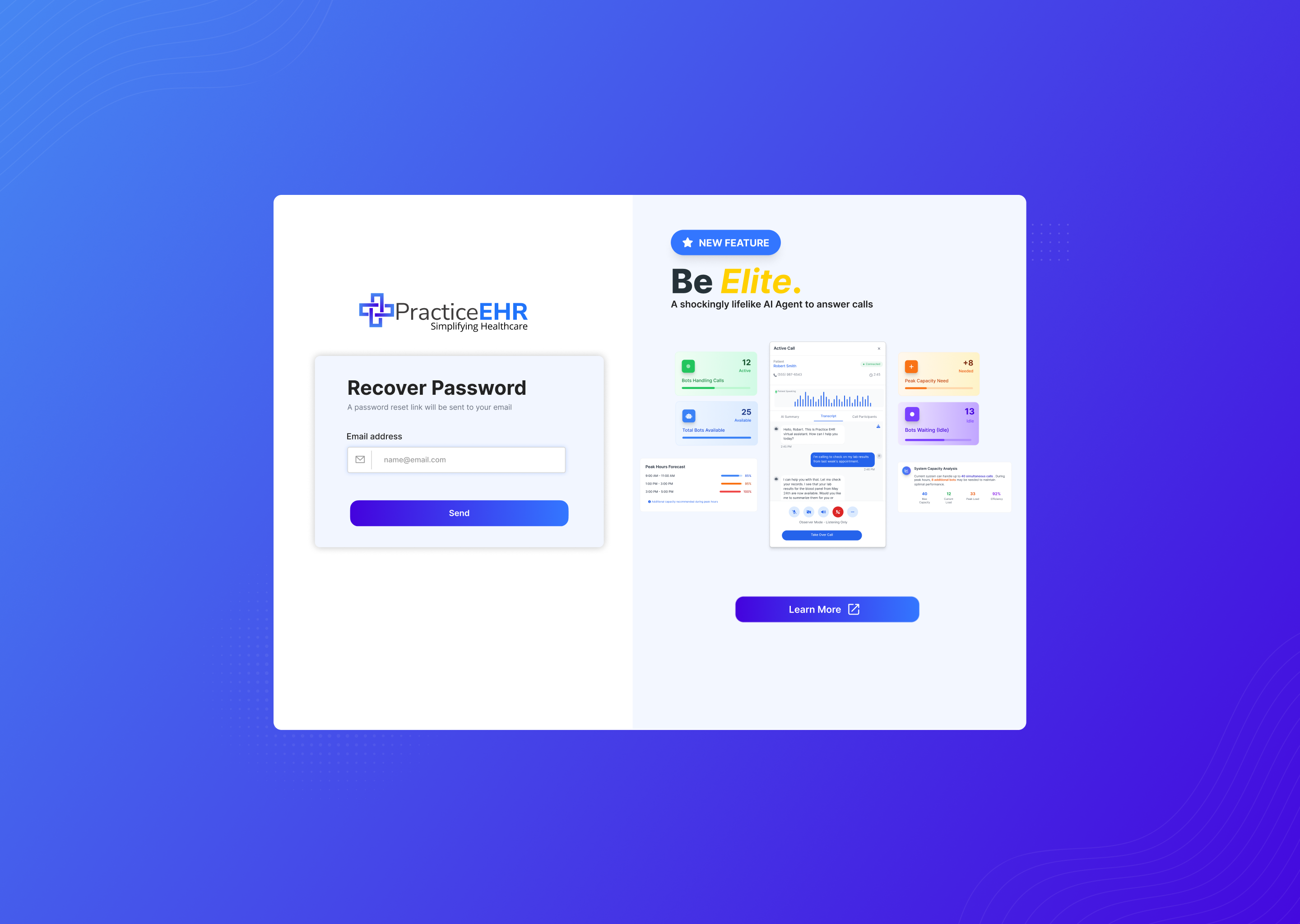
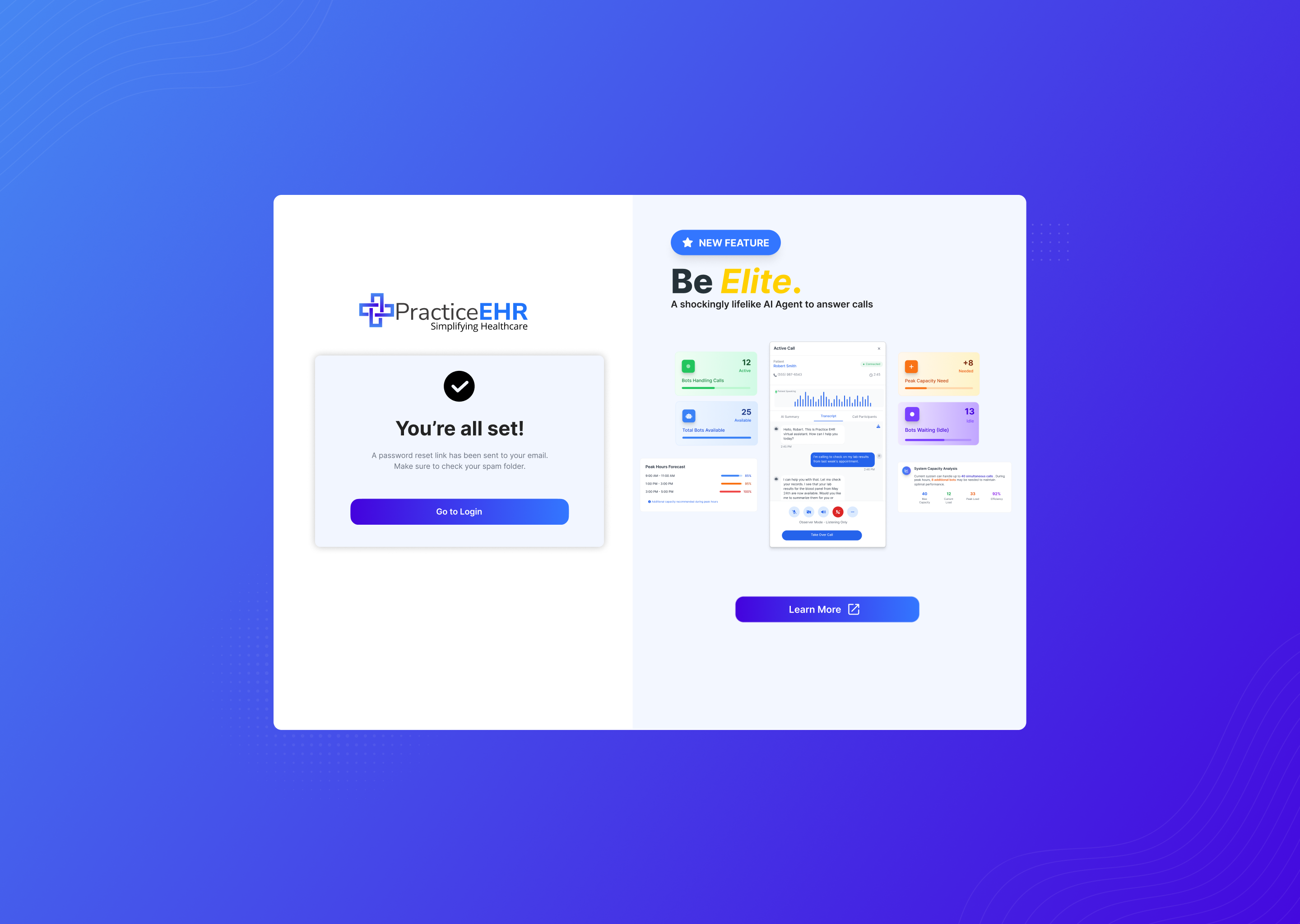
This flow shows the password recovery journey across the three reset screens.
Forget Password 1
Forget Password 2
Forget Password 3
Users move through these screens in sequence to recover access and return to the login screen with a new password.
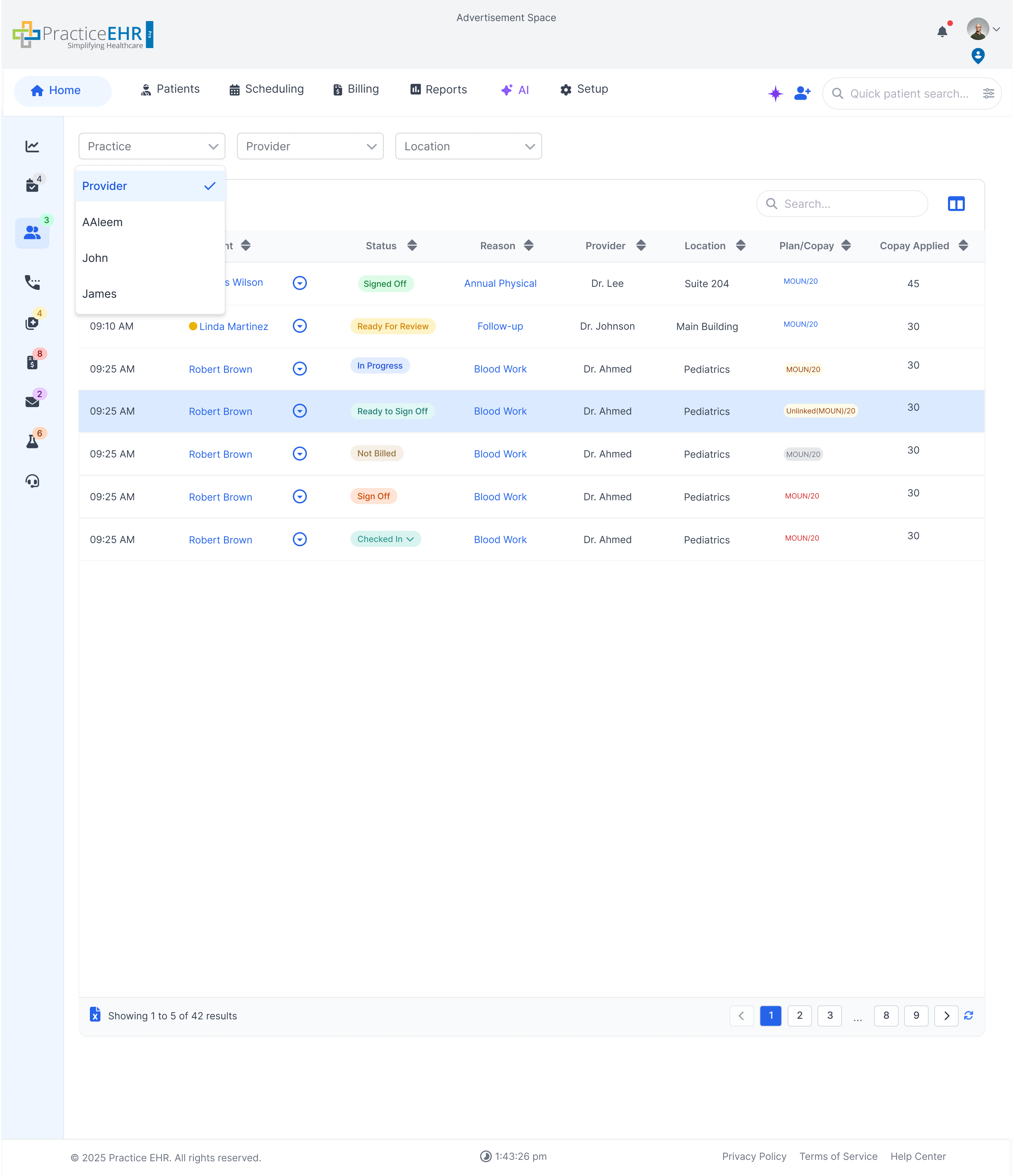
This section documents the top dropdown filters used on Home grids (e.g., Provider / Location / Practice).
Select any value to filter the grid. To remove the filter, open the dropdown and click the label option to reset.
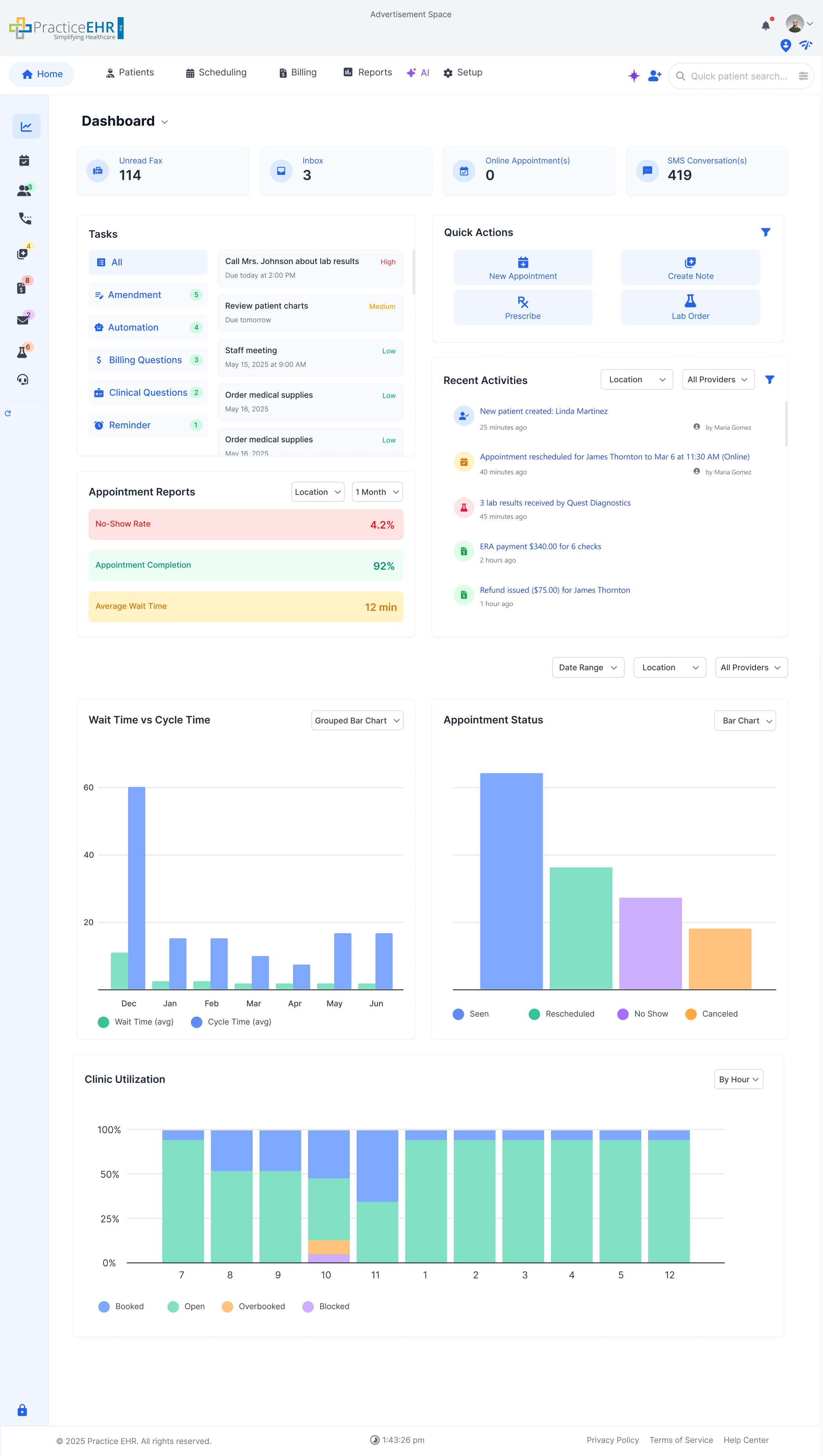
This documentation covers the home dashboard interface in Practice EHR. The dashboard has been redesigned to improve efficiency and user experience with new interactive features.
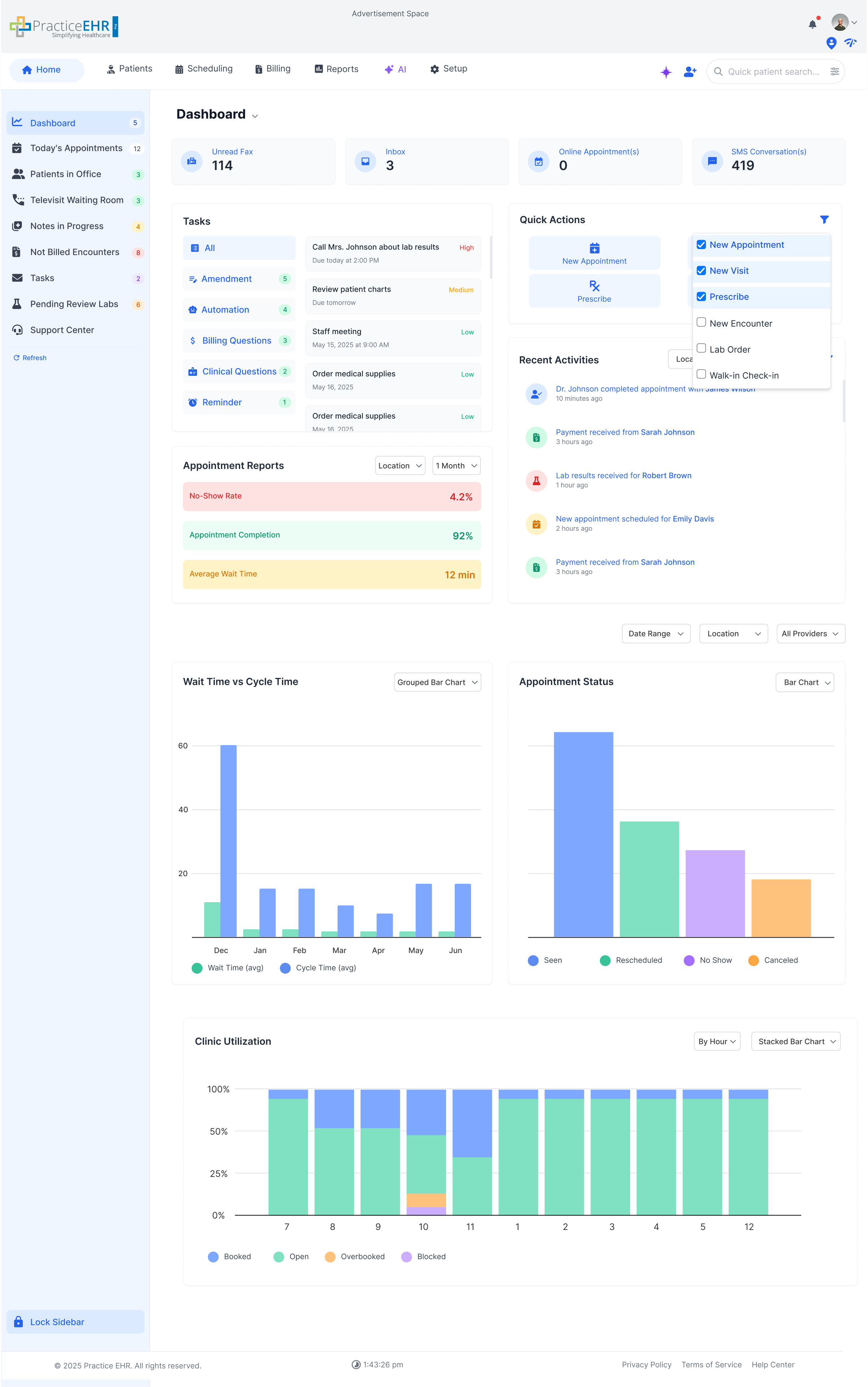
Quick action categories and what each one opens.
In the current image, the All category option is selected.
| Category | What It Does | Link |
|---|---|---|
| New Appointment | Opens Create New Appointment. The Patient Name field is enabled, allowing users to search and select patients directly from the modal. | Create New Appointment |
| New Visit | Opens the New Visit modal. The Patient Name field is enabled, allowing users to search and select patients directly from the modal. | New Visit |
| Prescribe | Opens Medication Main. The Patient Name field is enabled, allowing users to search and select patients directly from the modal. | Medication Main |
| New Encounter | Opens the New Encounter modal. The Patient Name field is enabled, allowing users to search and select patients directly from the modal. | New Encounter |
| Lab Order | Opens Order Lab and Pending Requisitions. The Patient Name field is enabled, allowing users to search and select patients directly from the modal. | Pending Requisitions |
| Walk-in Check-in | Opens the Walk-in Check-in modal. The Patient Name field is enabled, allowing users to search and select patients directly from the modal. | Walk-in Check-in |
Recent Activities includes a filter icon so users can choose which categories they want to see. Activities reset every 24 hours.
Filter Dropdown Preview
Sample Activity Cards
New patient created: Linda Martinez
25 minutes ago
by Maria GomezAppointment scheduled for James Thornton on Mar 5 at 10:00 AM (Online)
1 hour ago
by Maria GomezAppointment cancelled for James Thornton (Office)
50 minutes ago
by Maria GomezAppointment rescheduled for James Thornton to Mar 6 at 11:30 AM (Online)
40 minutes ago
by Maria GomezAppointment waitlisted for James Thornton (Office)
35 minutes ago
by Maria Gomez3 lab results received by Quest Diagnostics
45 minutes ago
ERA payment $340.00 for 6 checks
2 hours ago
Payment of $120 received from James Thornton
1 hour ago
Online payment of $120 received from James Thornton
1 hour ago
Refund issued ($75.00) for James Thornton
1 hour ago
New portal message received from Emily Carter
30 minutes ago
New SMS received from Emily Carter
20 minutes ago
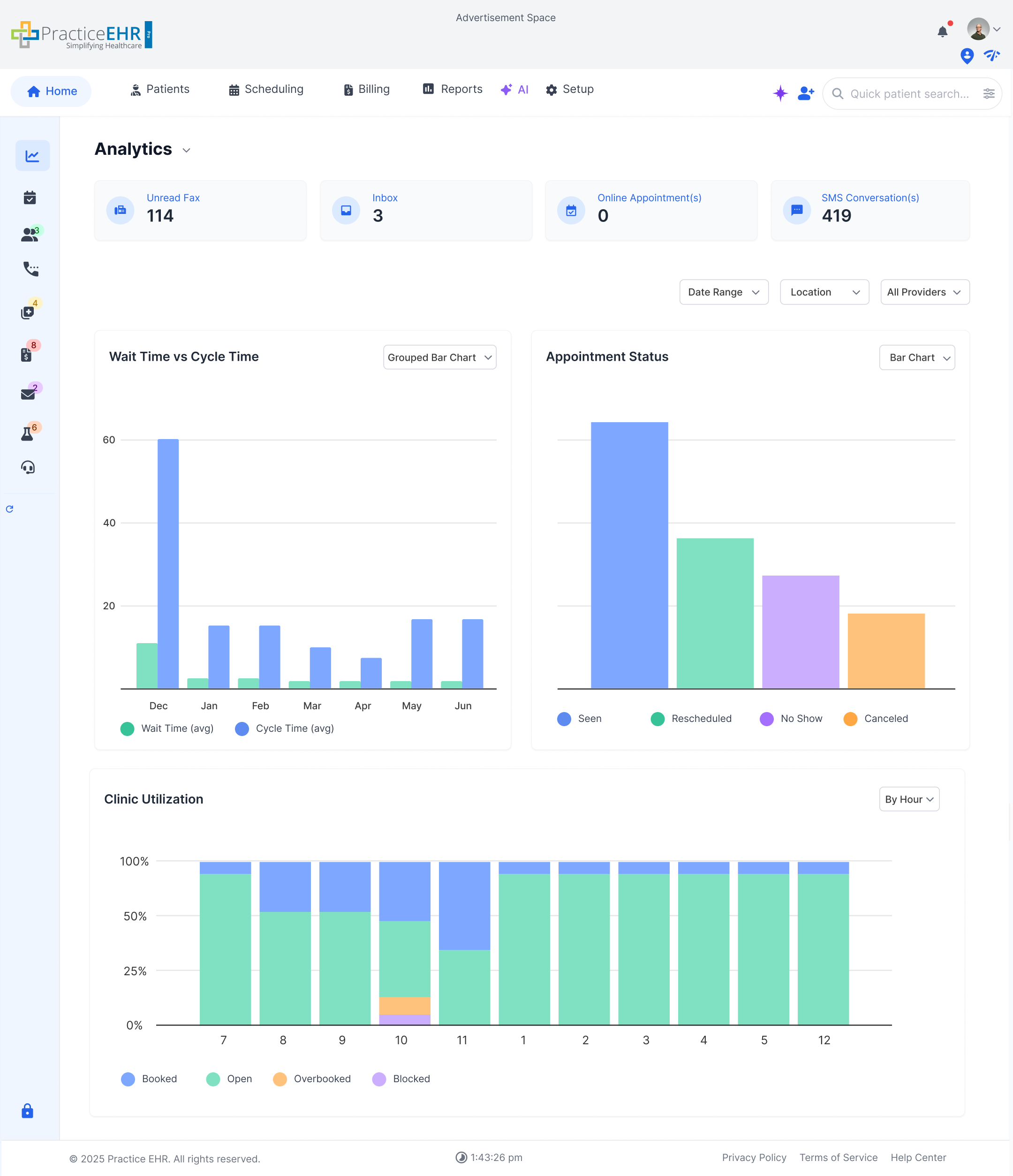
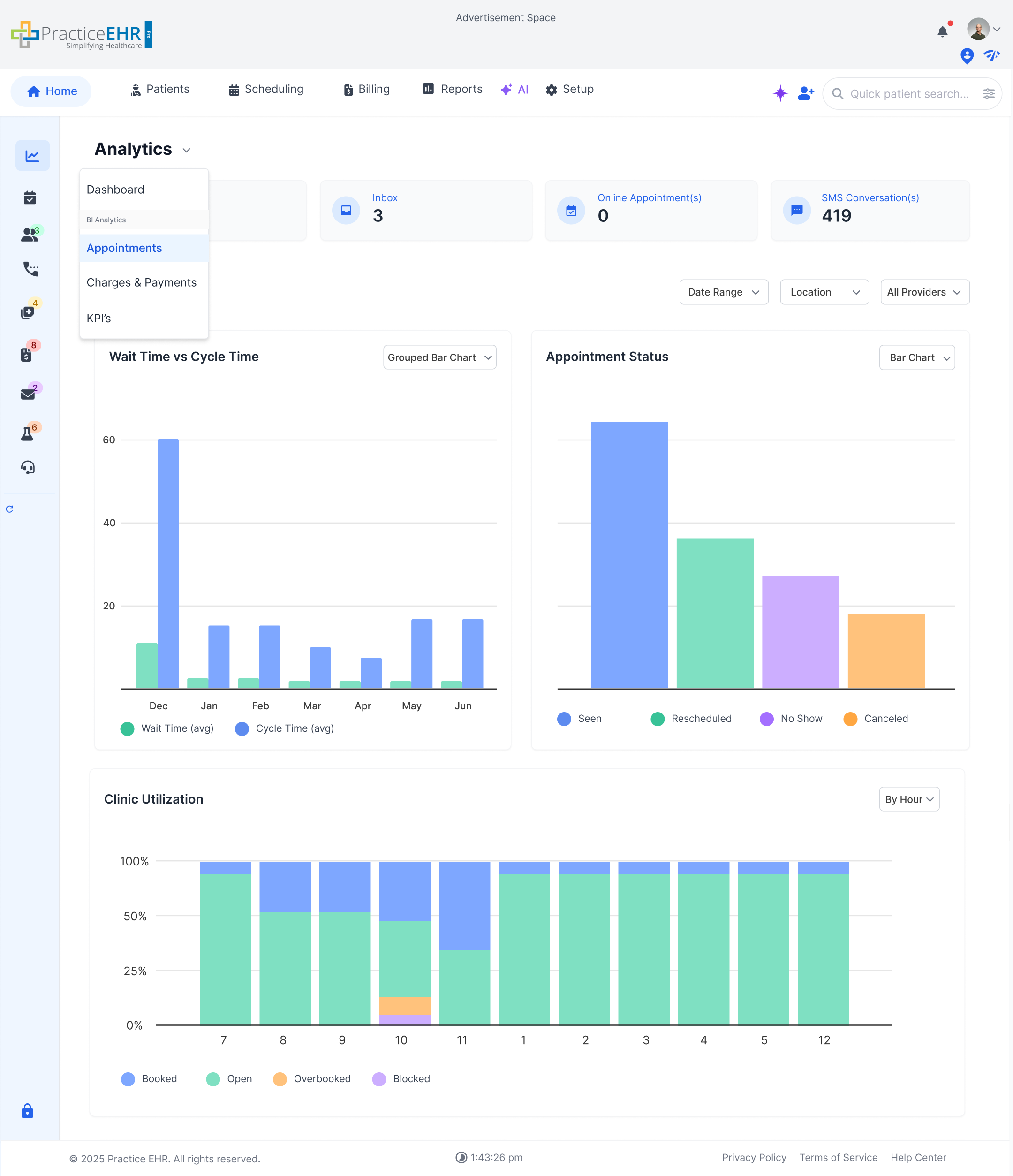
This section documents the Pro Dashboard view and analytics entry point.
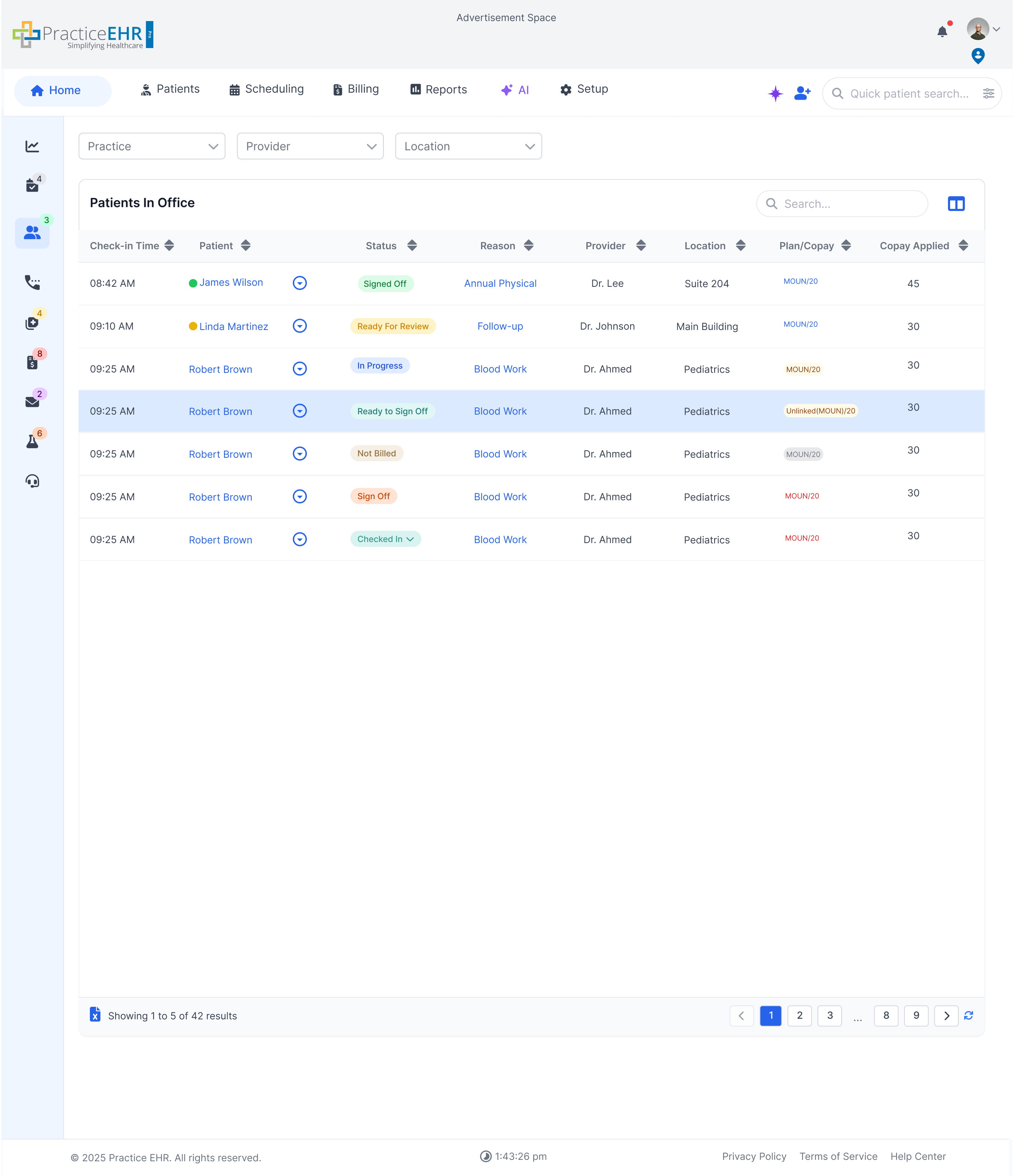
In a multi-practice environment, users can filter the Patients in Office grid by Practice, Provider, and Location.
Category: Grids in Case of Multi Practice
Users can quickly switch the grid context by selecting values from the Practice, Provider, and Location dropdowns.
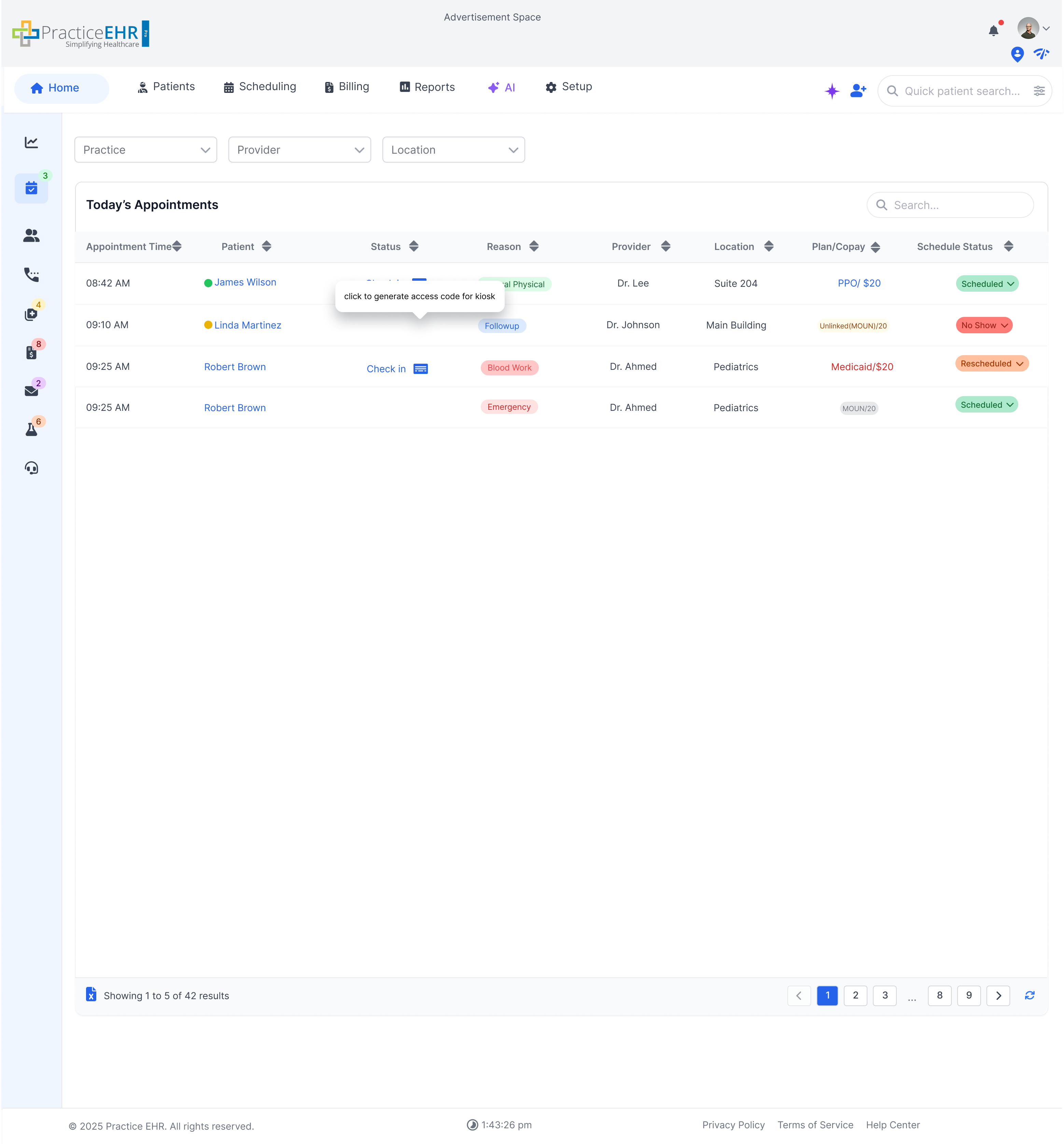
In a multi-practice environment, users can filter the Today's Appointments grid by Practice, Provider, and Location.
Category: Grids in Case of Multi Practice
Users can switch appointment visibility by choosing Practice, Provider, and Location from the dropdowns at the top.
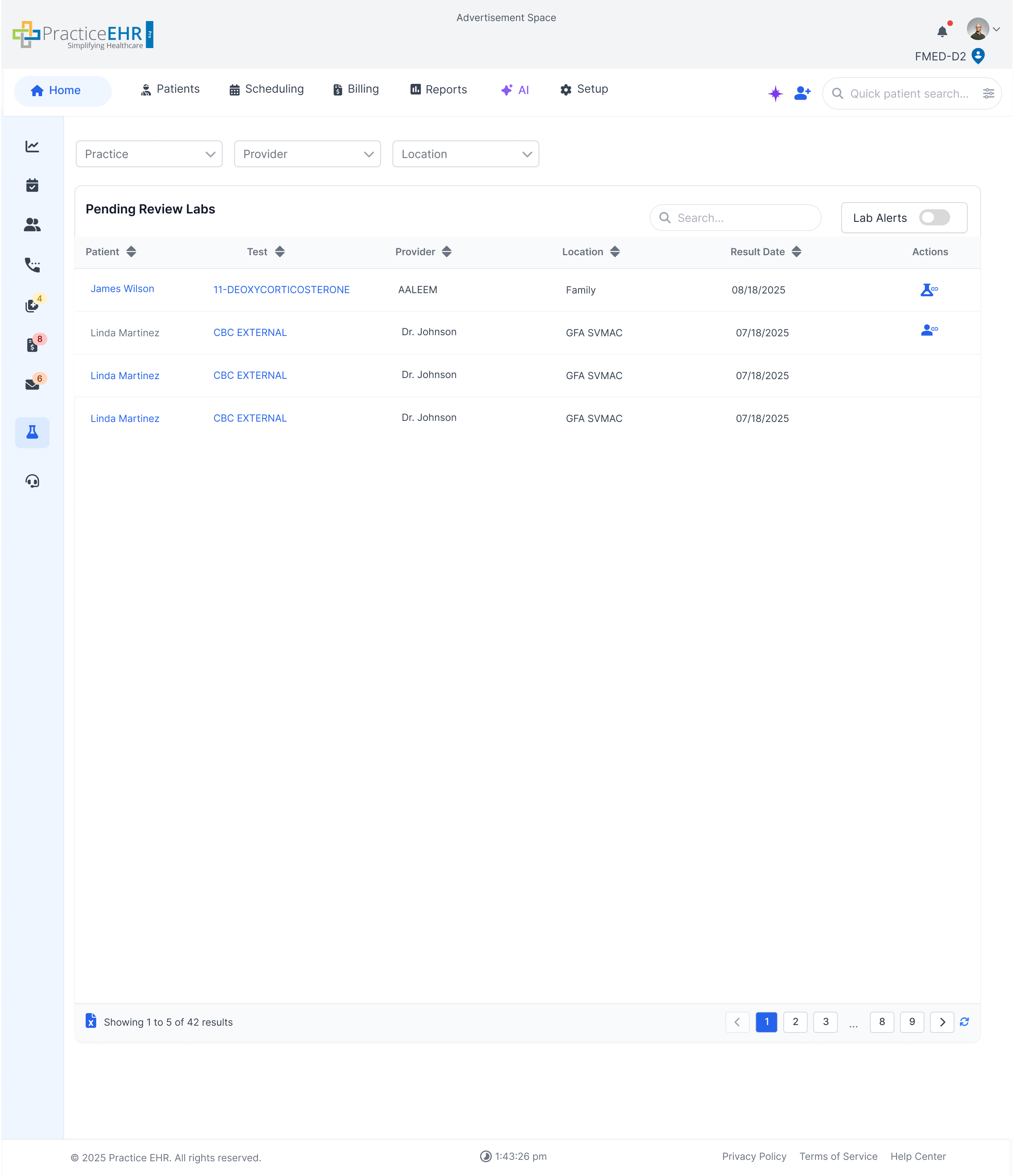
In a multi-practice environment, users can filter Pending Review Labs by Practice, Provider, and Location.
Category: Grids in Case of Multi Practice
Select Practice/Provider/Location from the dropdowns to switch which labs are shown”without leaving the grid.
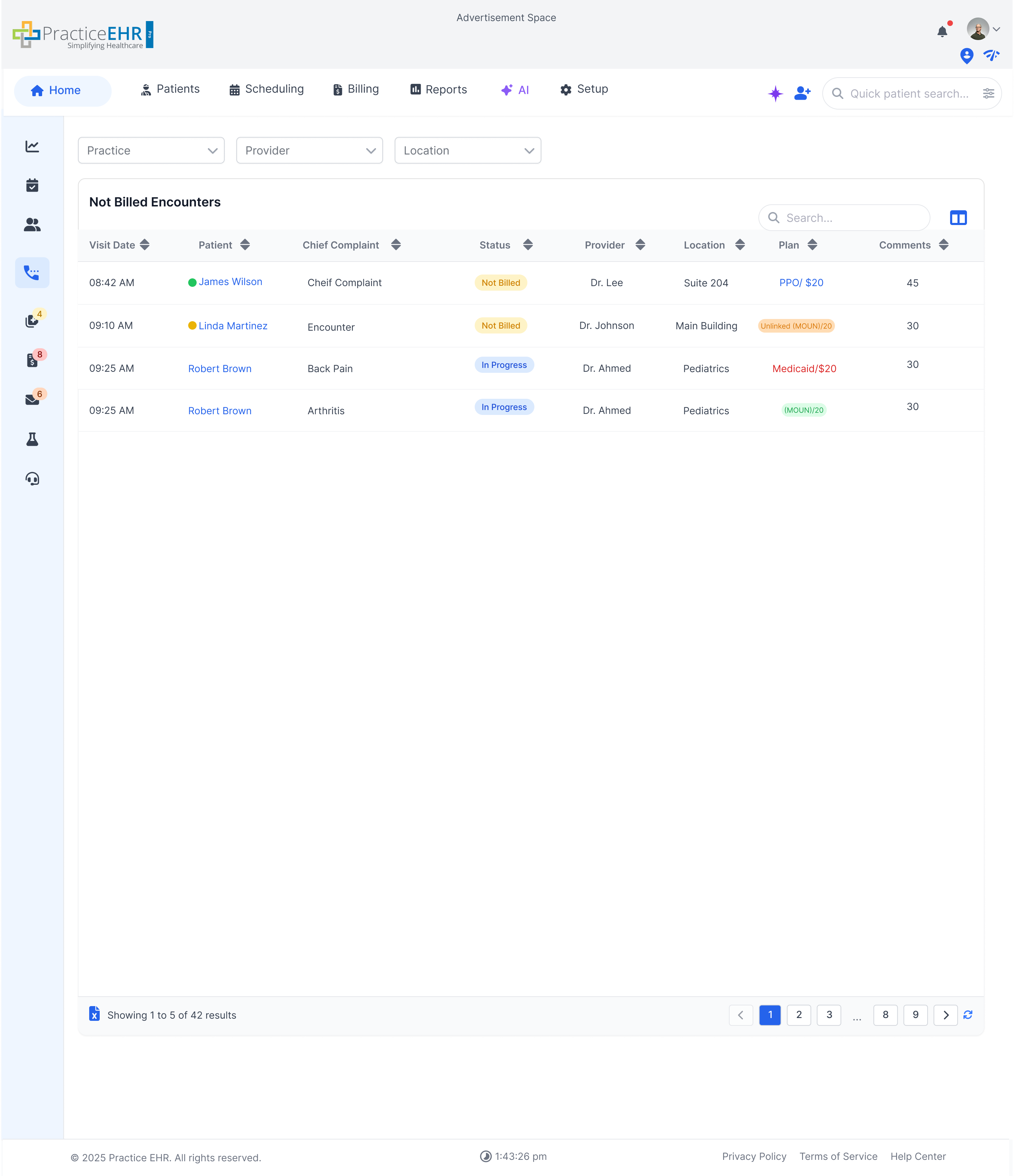
In a multi-practice environment, users can filter Not Billed Encounters by Practice, Provider, and Location.
Category: Grids in Case of Multi Practice
Use the dropdowns to change which practice/provider/location™s encounters are visible in the grid.
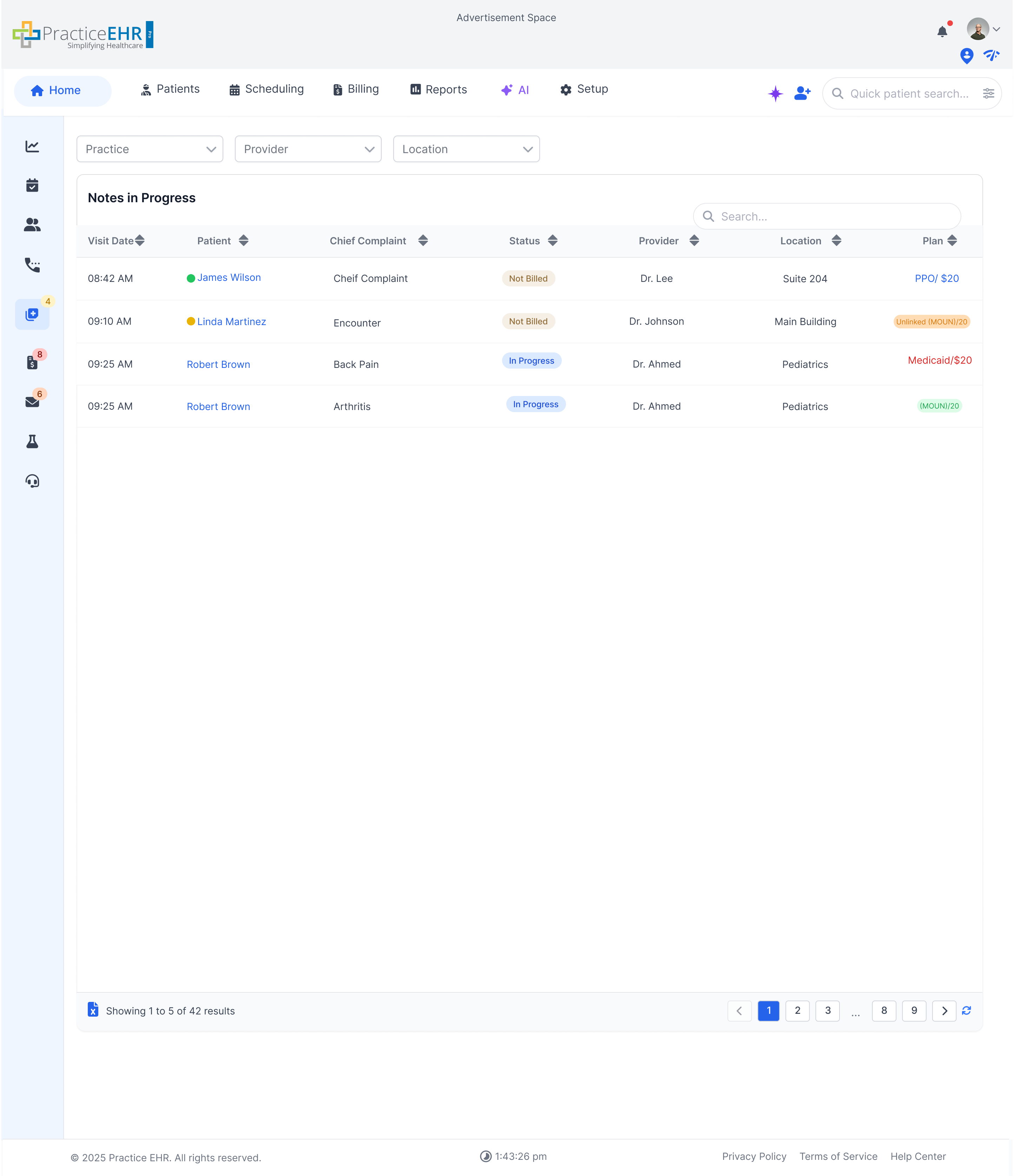
In a multi-practice environment, users can filter Notes In Progress by Practice, Provider, and Location.
Category: Grids in Case of Multi Practice
Switch between practices/providers/locations to view in-progress notes relevant to that context.
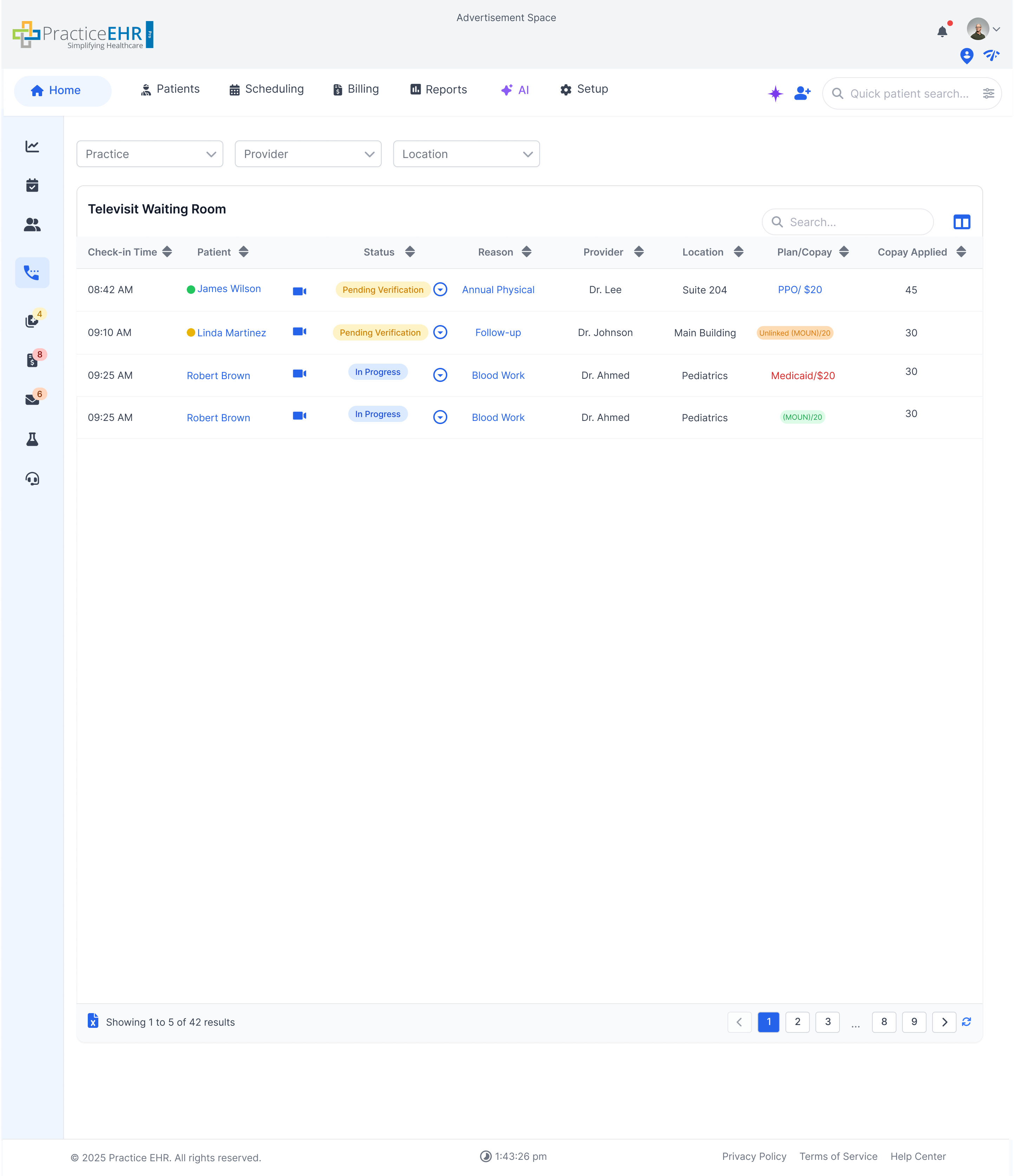
In a multi-practice environment, users can filter the Televisit Waiting Room by Practice, Provider, and Location.
Category: Grids in Case of Multi Practice
Use dropdowns to switch which waiting room queue is displayed (Practice/Provider/Location).
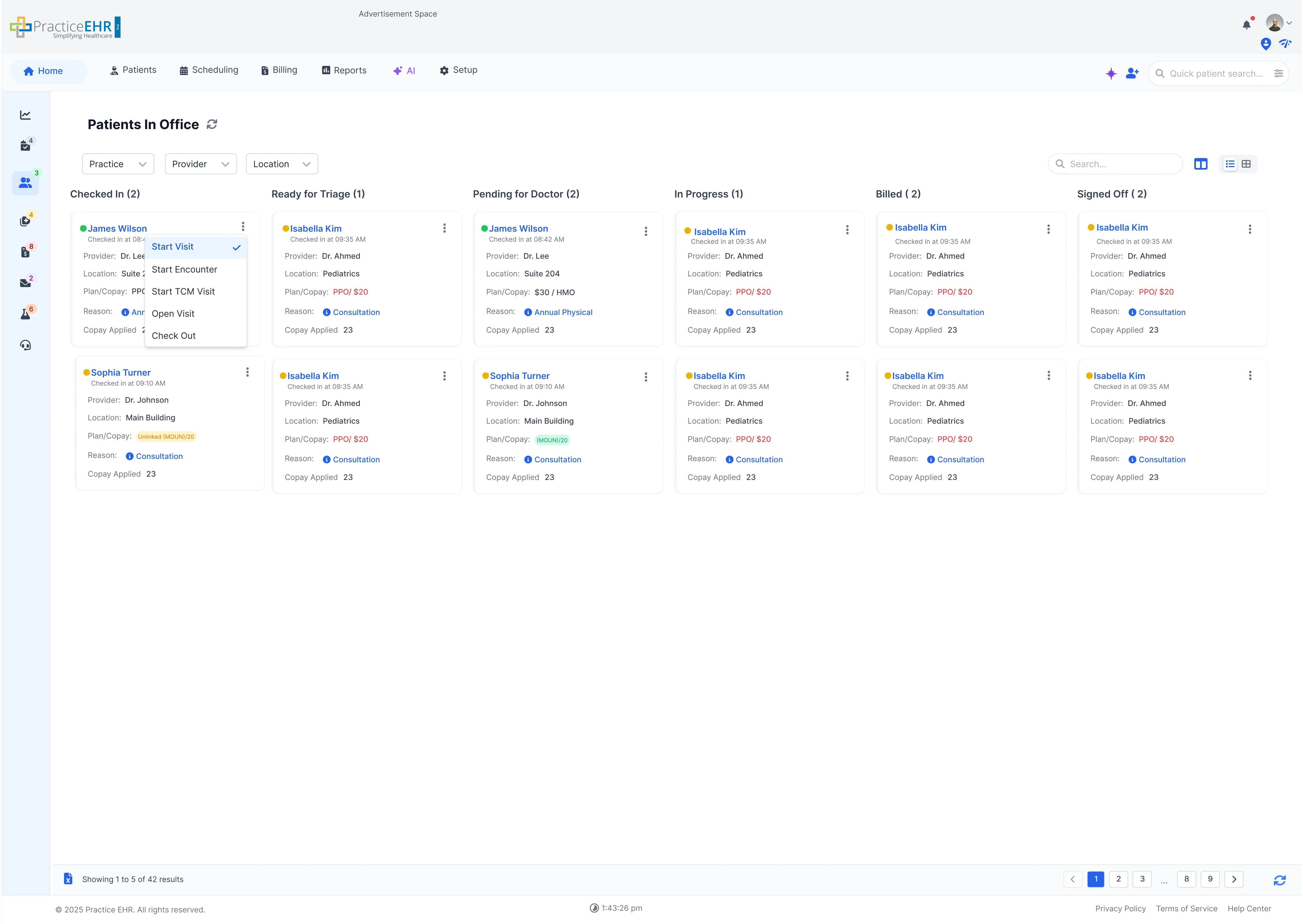
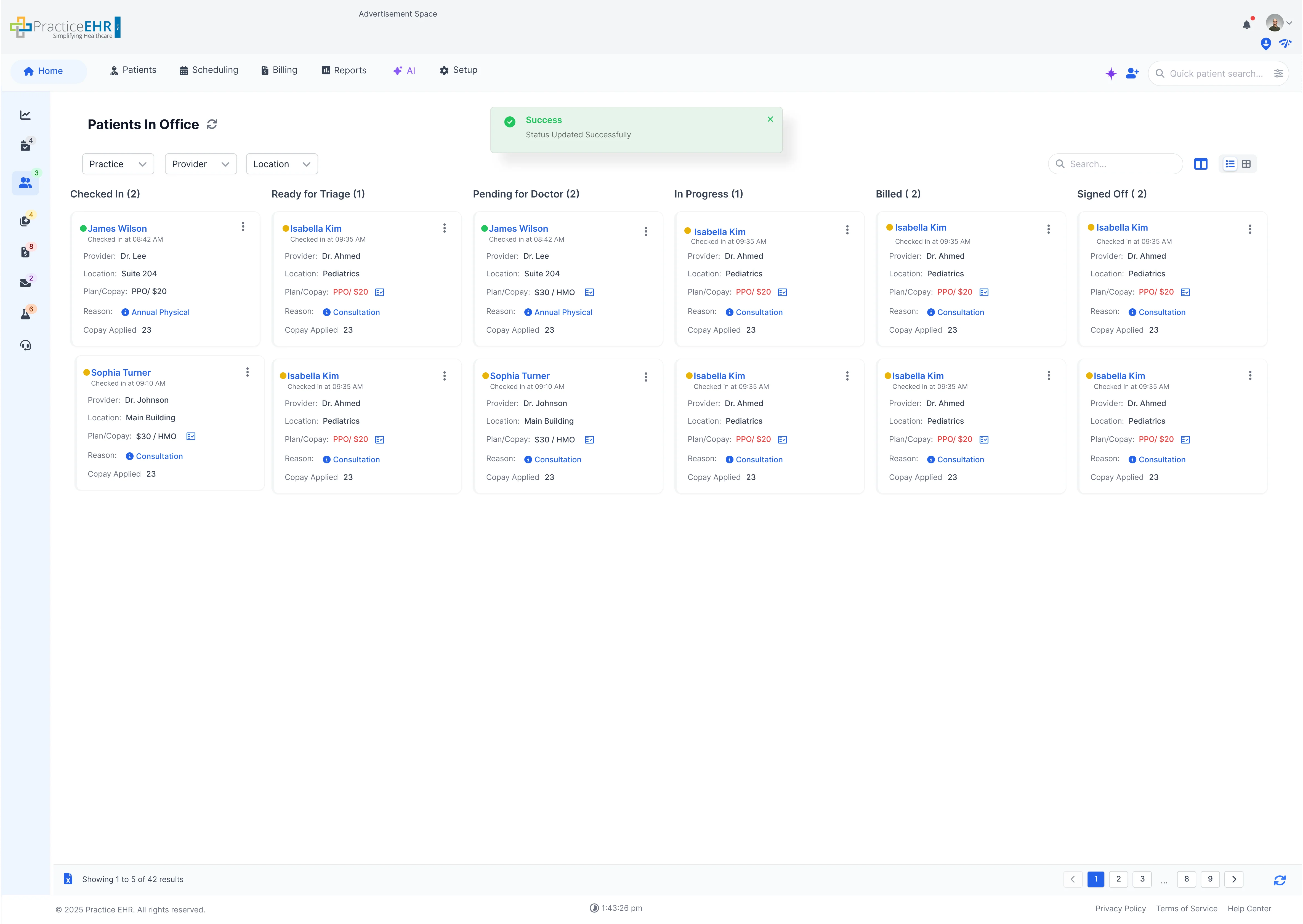
New UI of Patients in office of Practice EHR.
Users have option to change the status directly from the grid by clicking the status and selecting from dropdown. However statuses like in progress, signed off and not billed cannot be changed
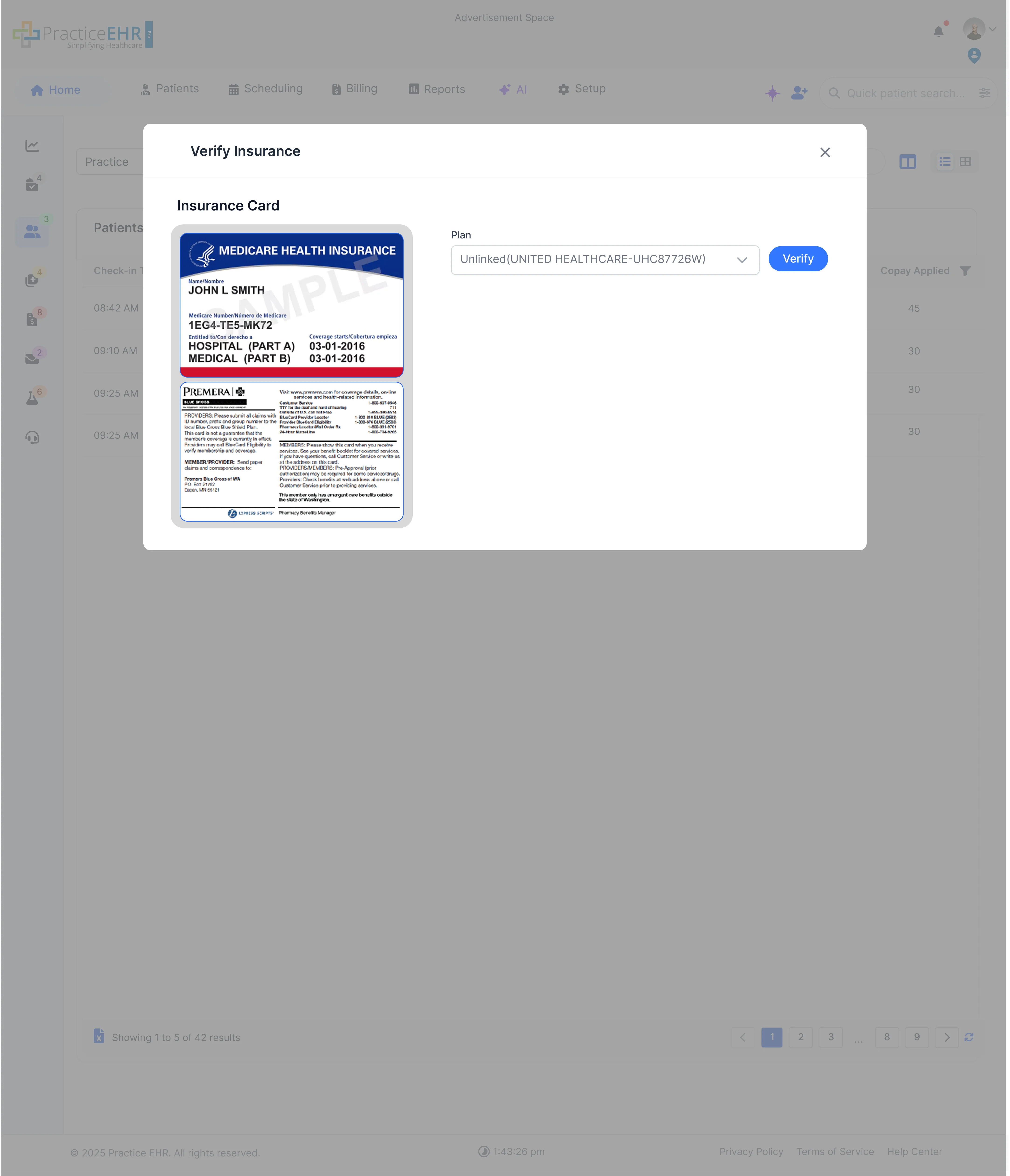
Clicking on a verified plans takes the user to the insurance screen while clicking on an unverified plan opens the verify insurance popup.
Click on the 3-dots menu of each card to change the status.
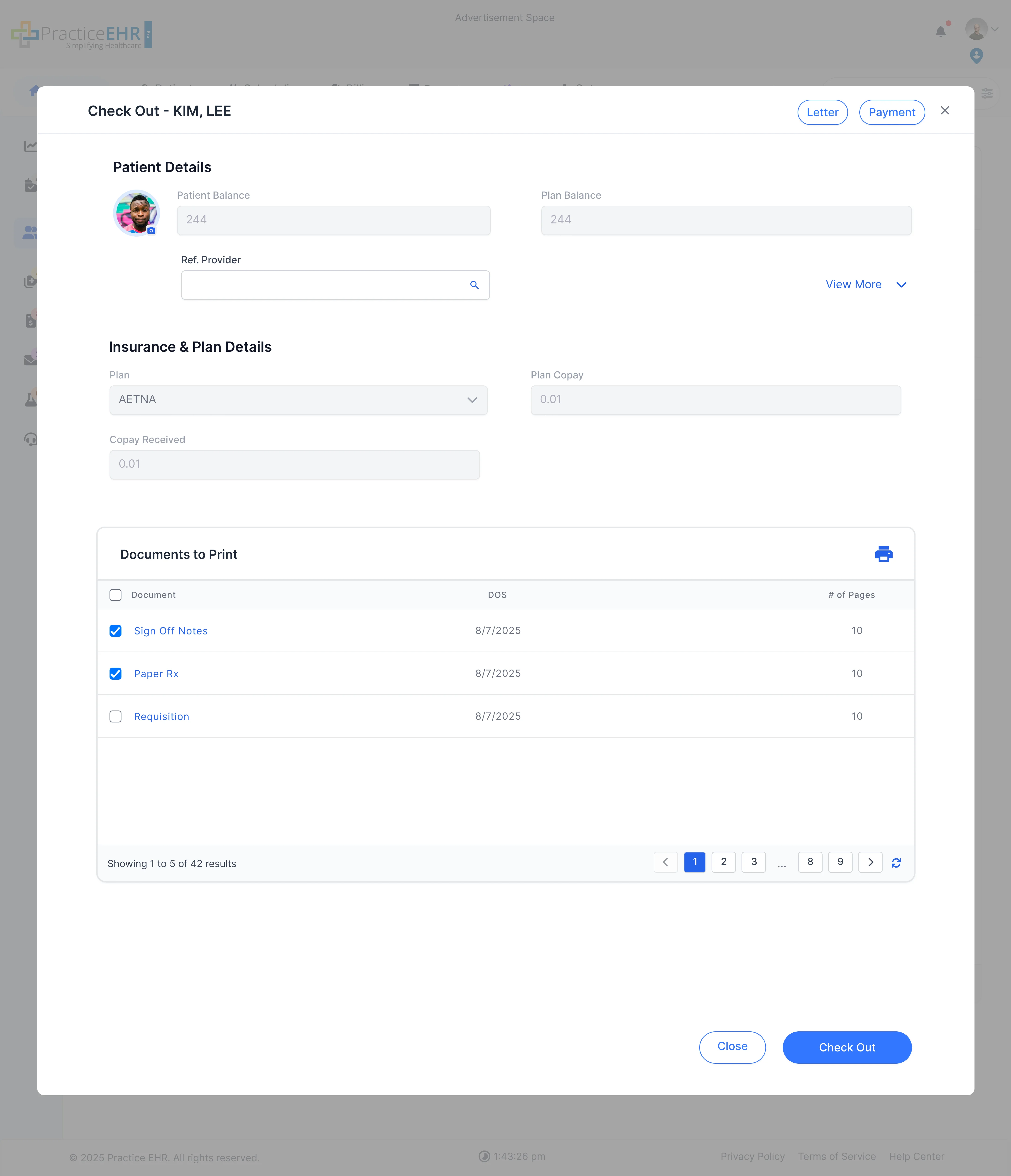
This section shows the updated checkout process for patients.
This section displays patients insurance.
Clicking on the verify button will verify the insurance.
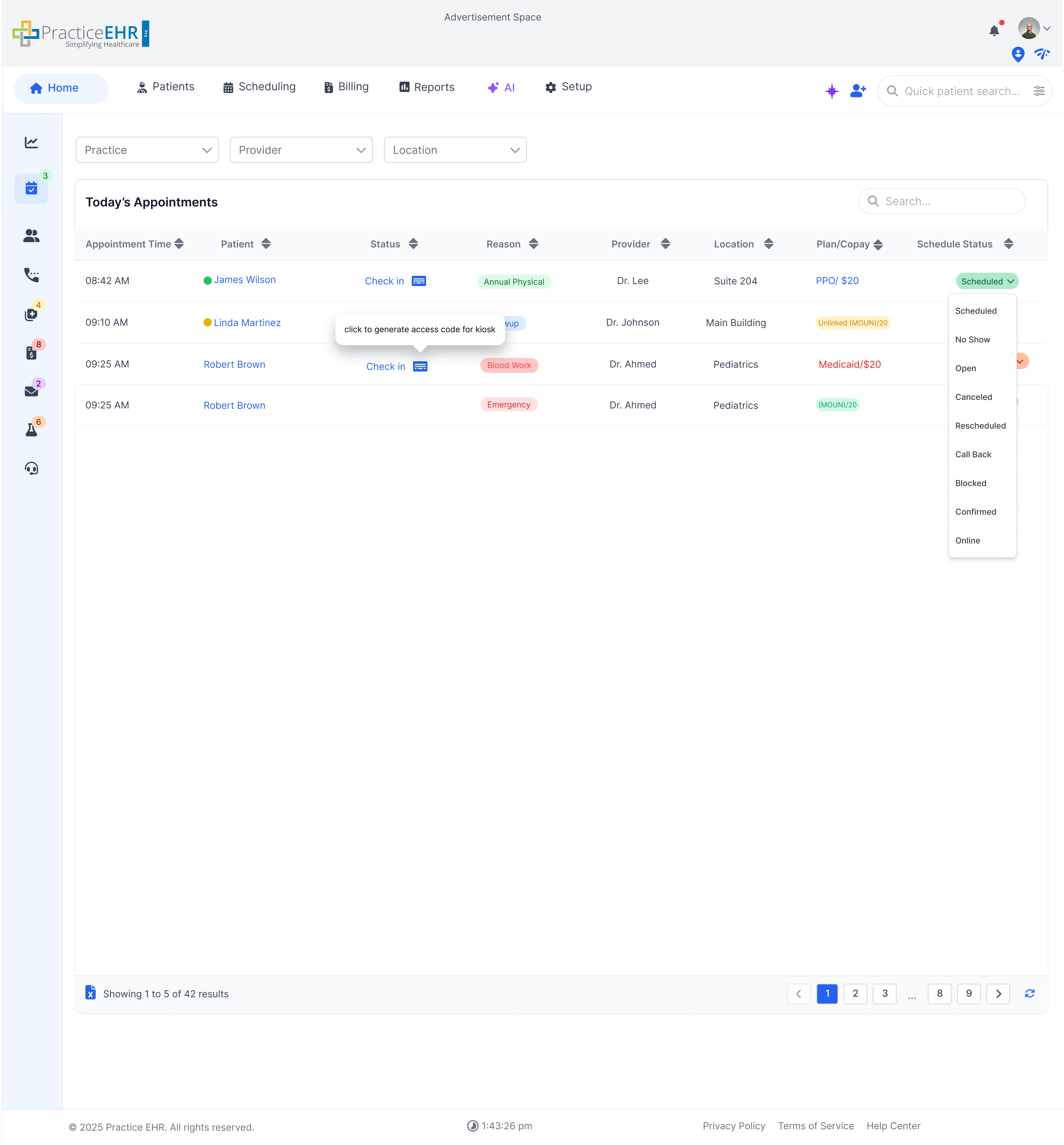
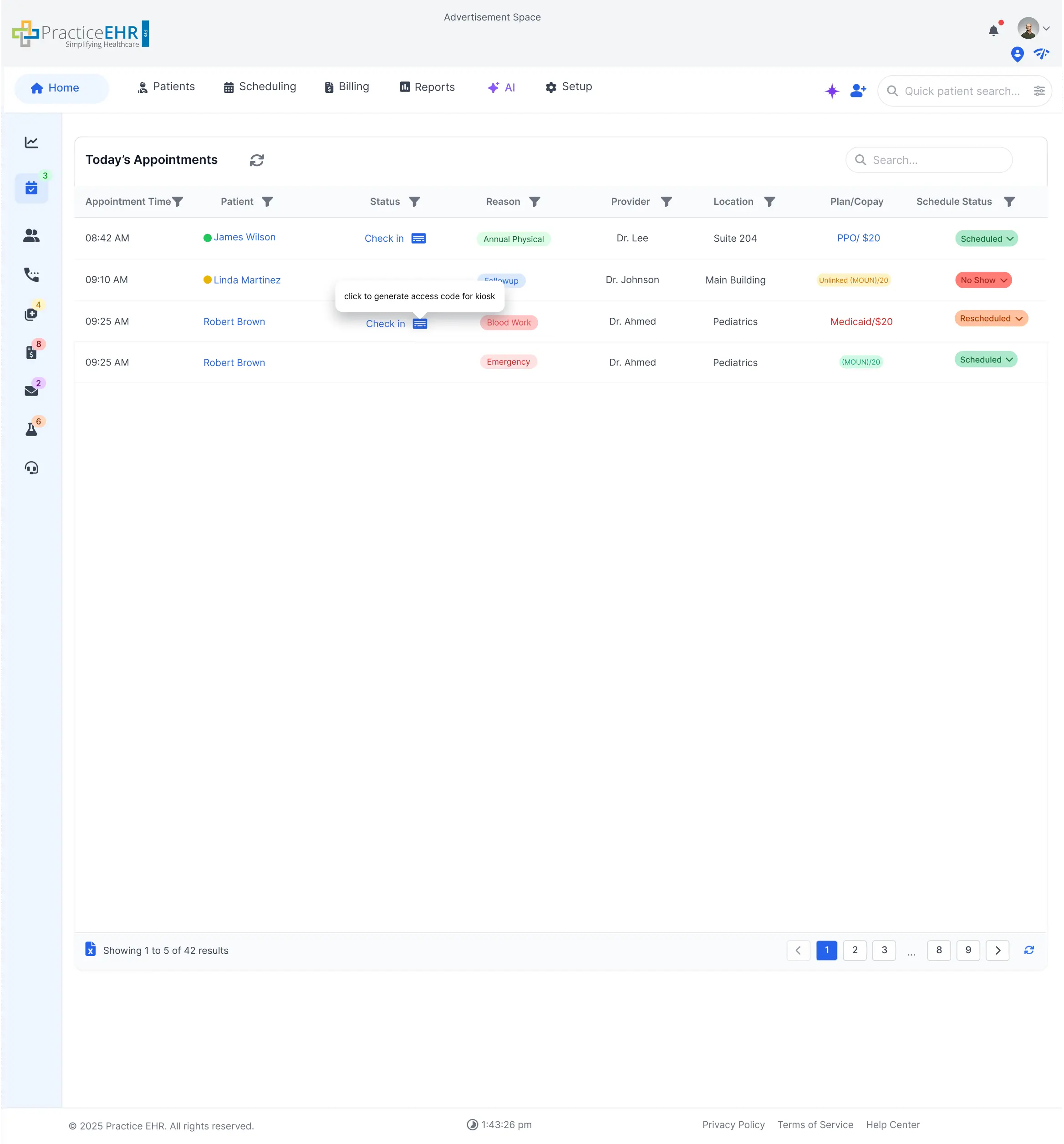
New UI of Today's Appointments in Practice EHR.
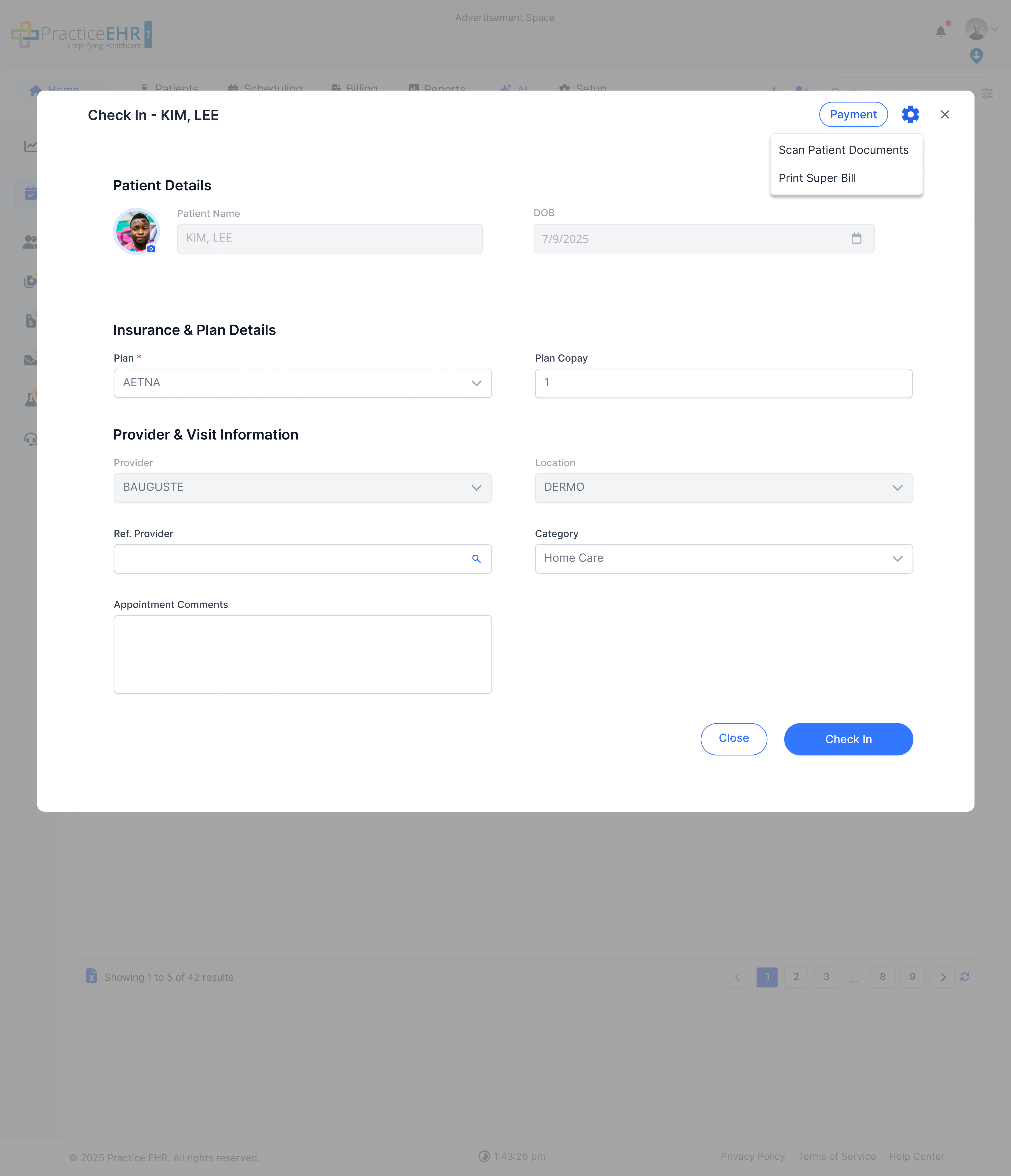
You can click the Check In button to proceed with document scanning or printing the superbill.
During check-in, users can scan patient documents or print the superbill by clicking the gear icon and selecting the relevant option from the dropdown menu.
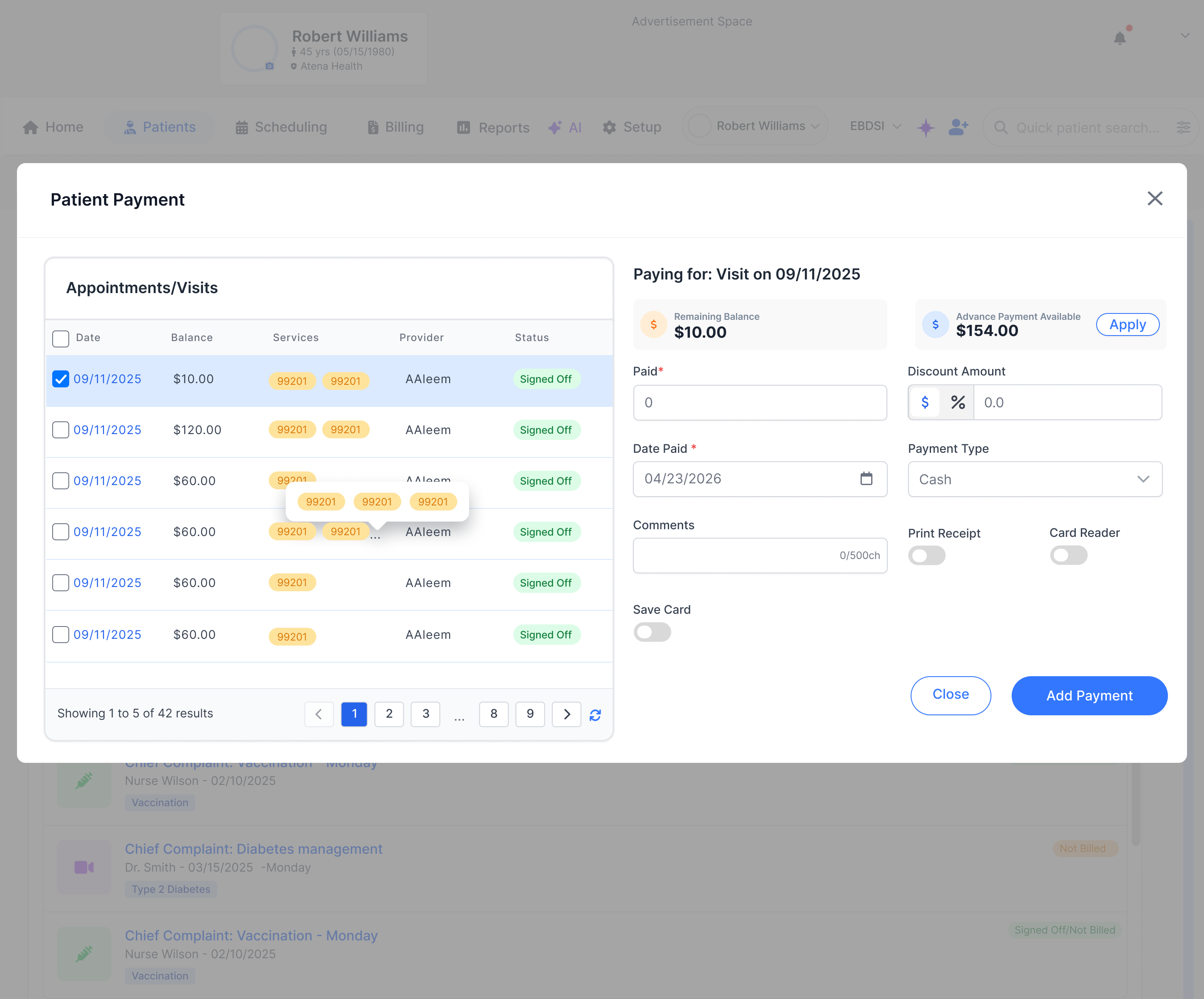
Previously we had copay button it is now changed to Payment Button. Clicking this button will take the user to the Payment window.
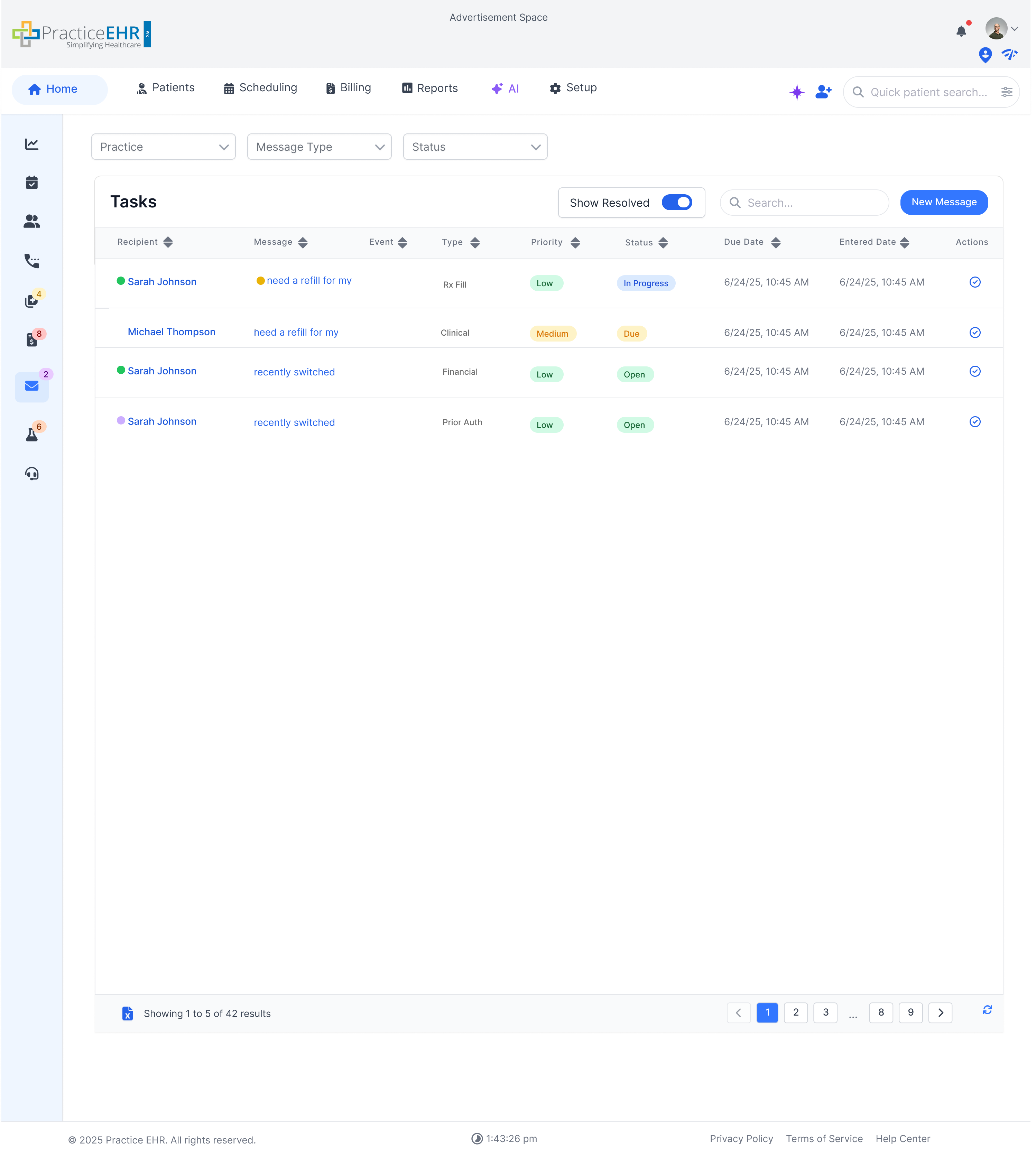
Open Payment ModalOpen the task screens from the buttons shown on the right.
Users can resolve the messages from the action column by clicking on the action button. The action button will not be displayed for resolved messages Clicking a message opens the Message Detail view.
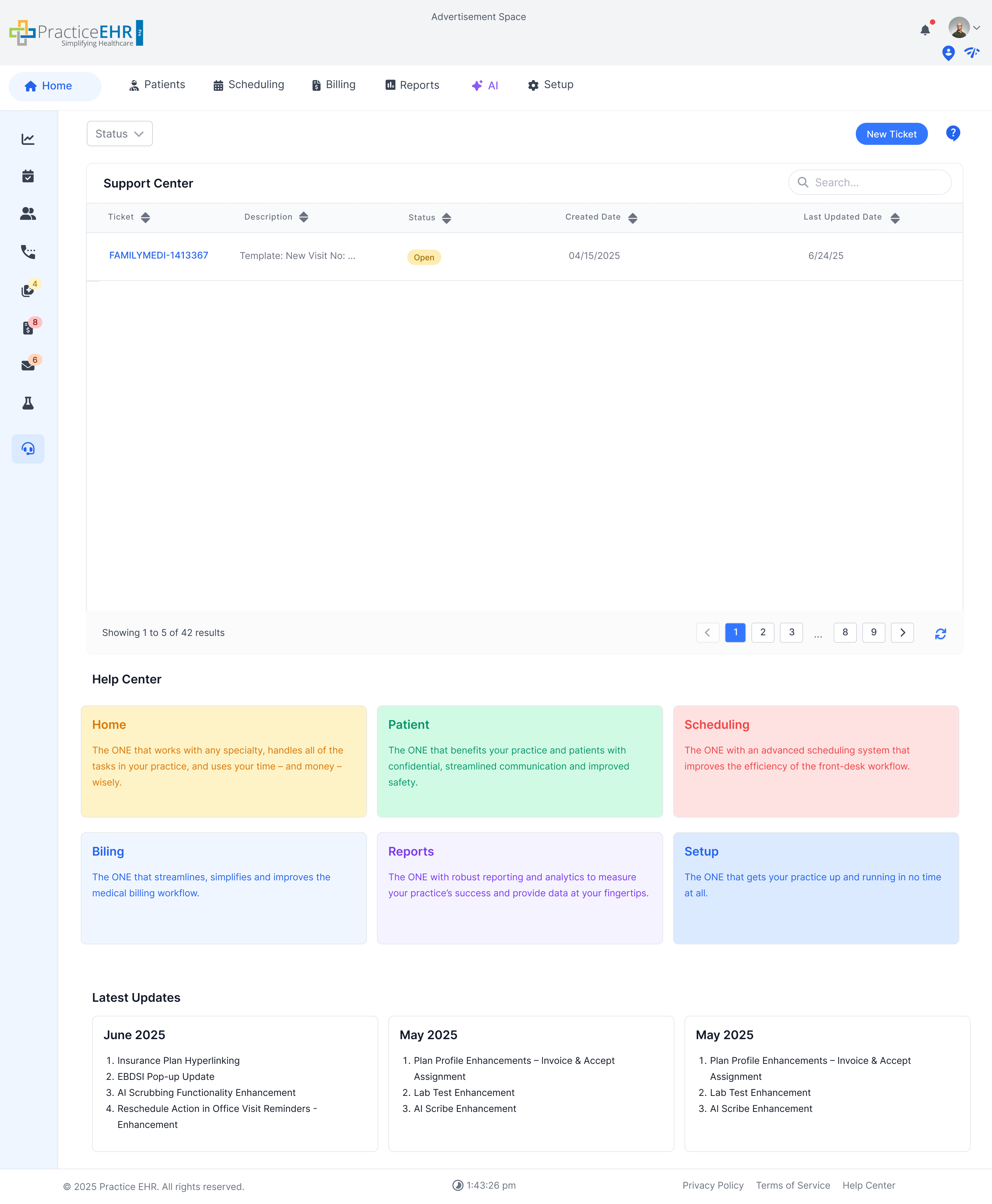
Browse existing tickets or create a new one.
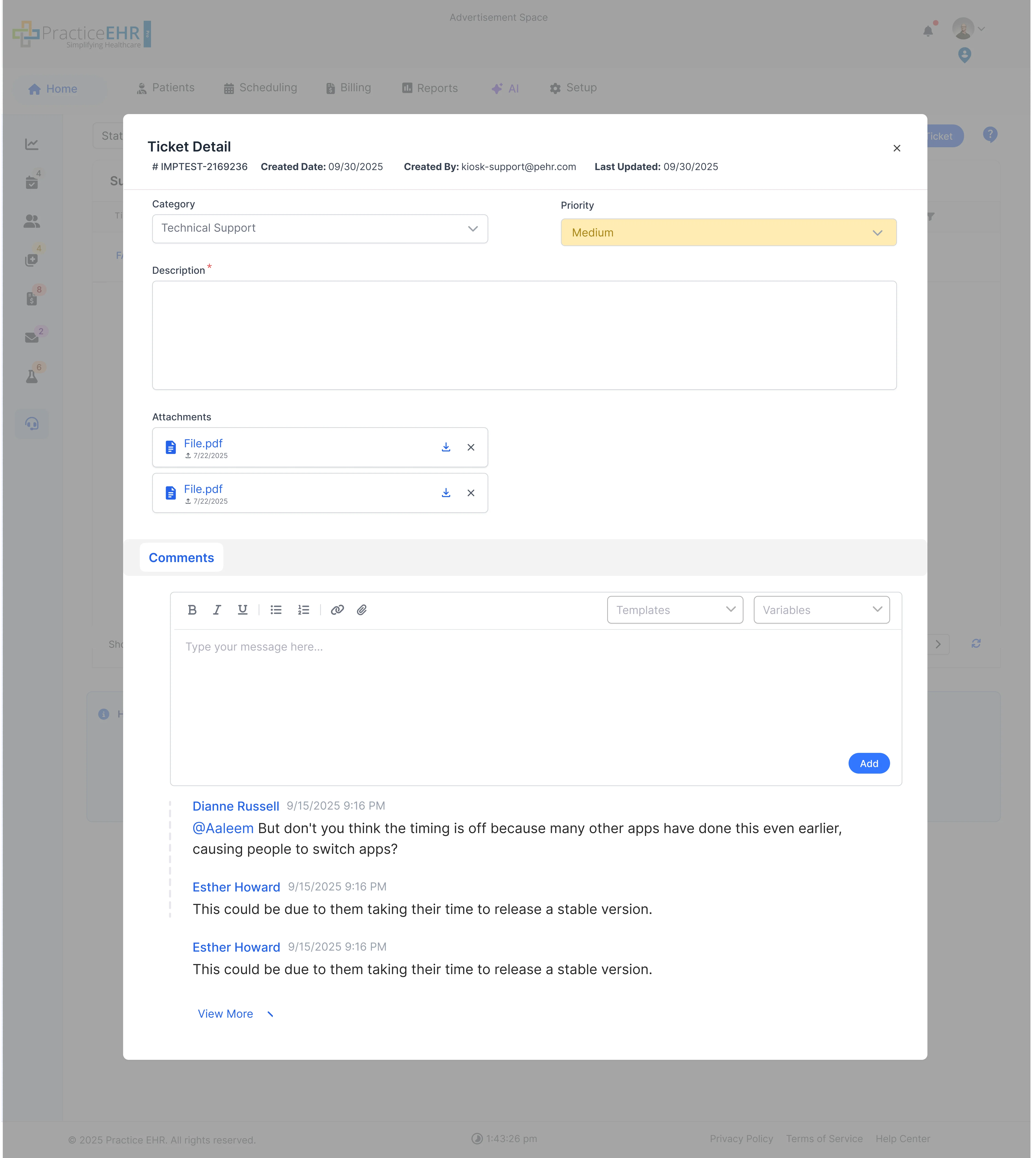
Click a ticket hyperlink to view details (see Ticket Detail). Click new ticket button for creating new ticket.
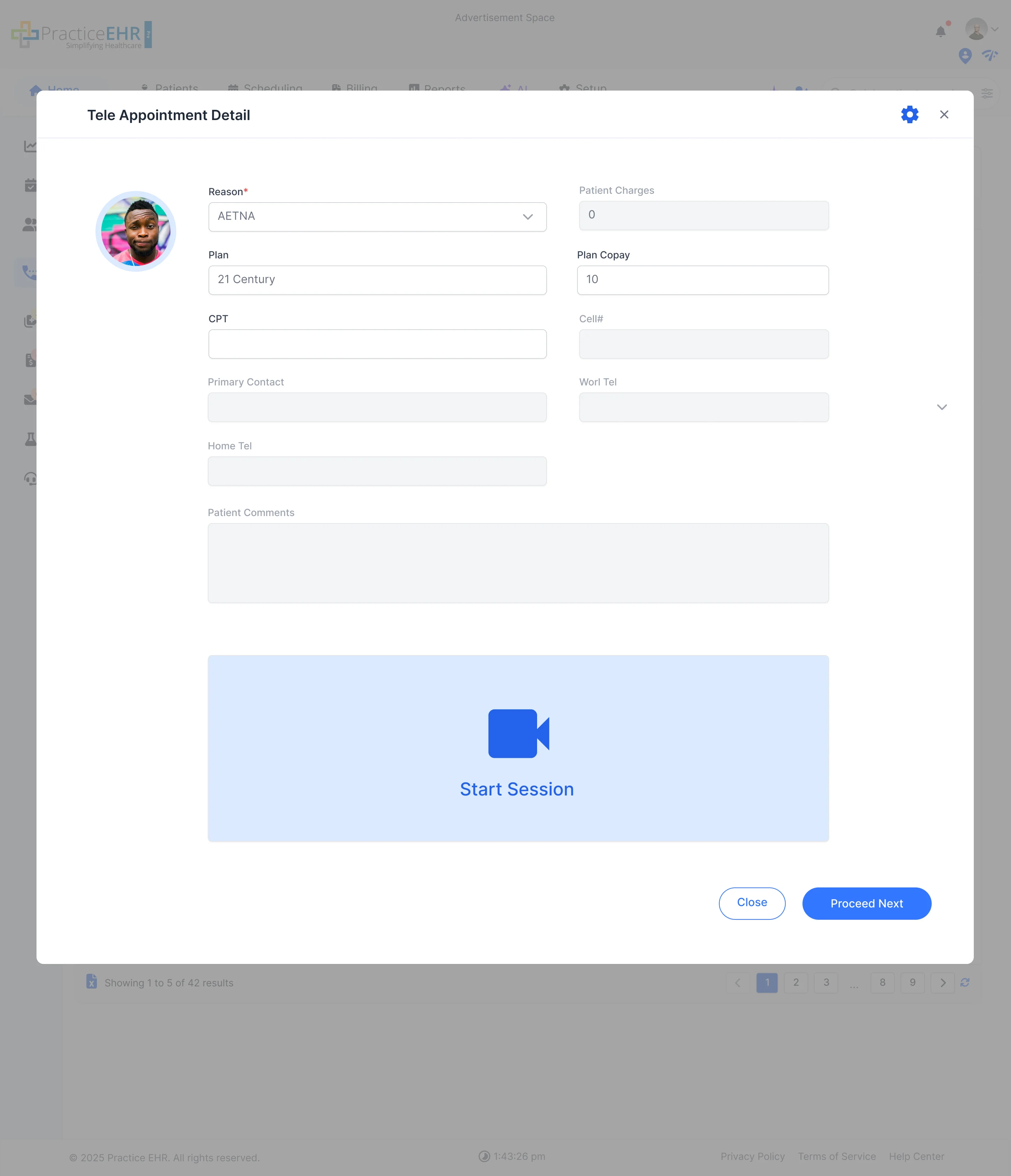
This section shows the Televisit Waiting Room interface.
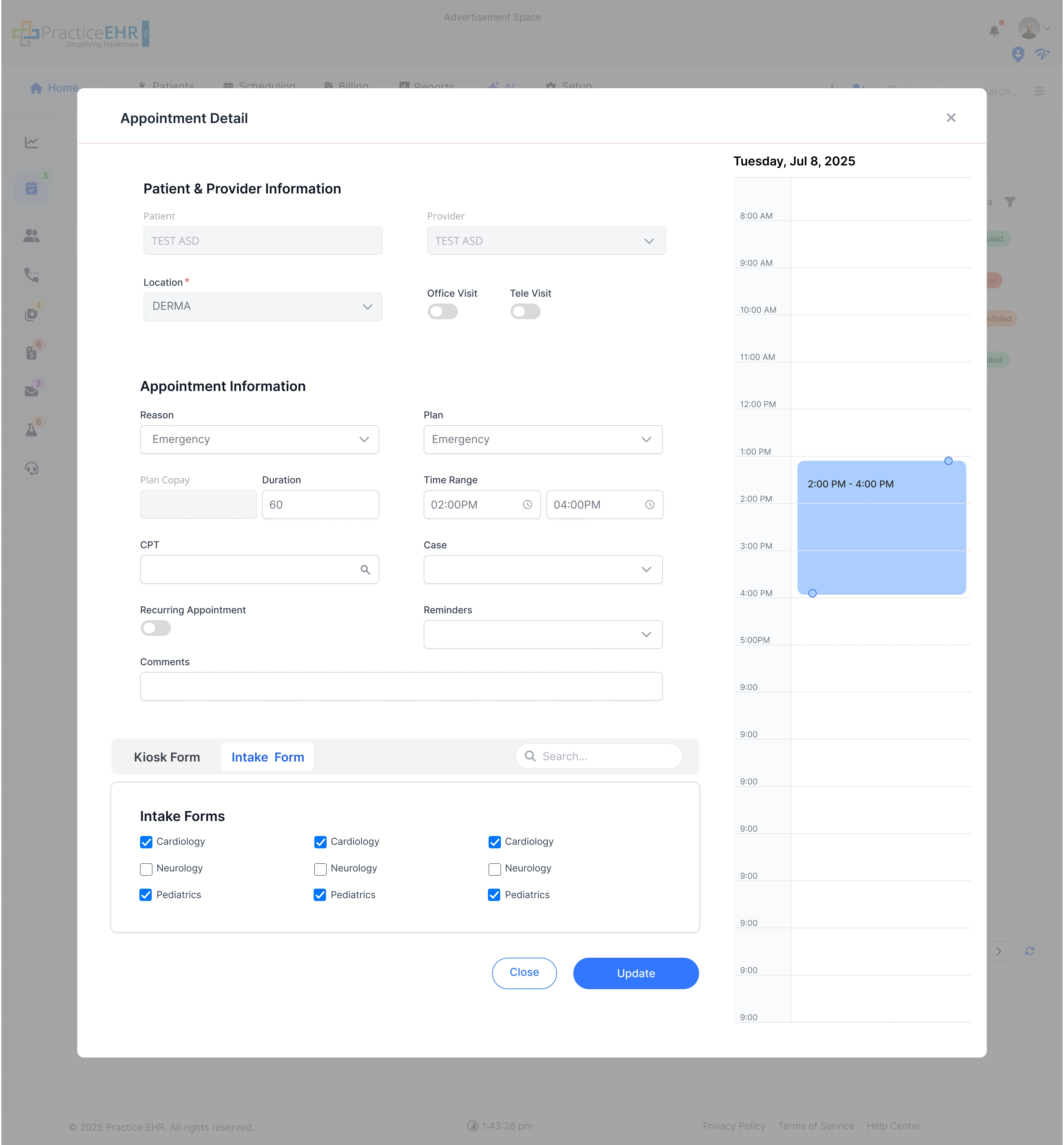
This modal screen appears when a user clicks on a Tele Appointment from the calendar or waiting room, allowing review of details and initiation of the video session.
¢ Click Appointment Card: Opens this detail modal from a calendar view.
¢ Start Session: Launches the video platform for the televisit.
¢ Proceed Next: Likely used to navigate to the next step in the clinical workflow (e.g., EMR charting).
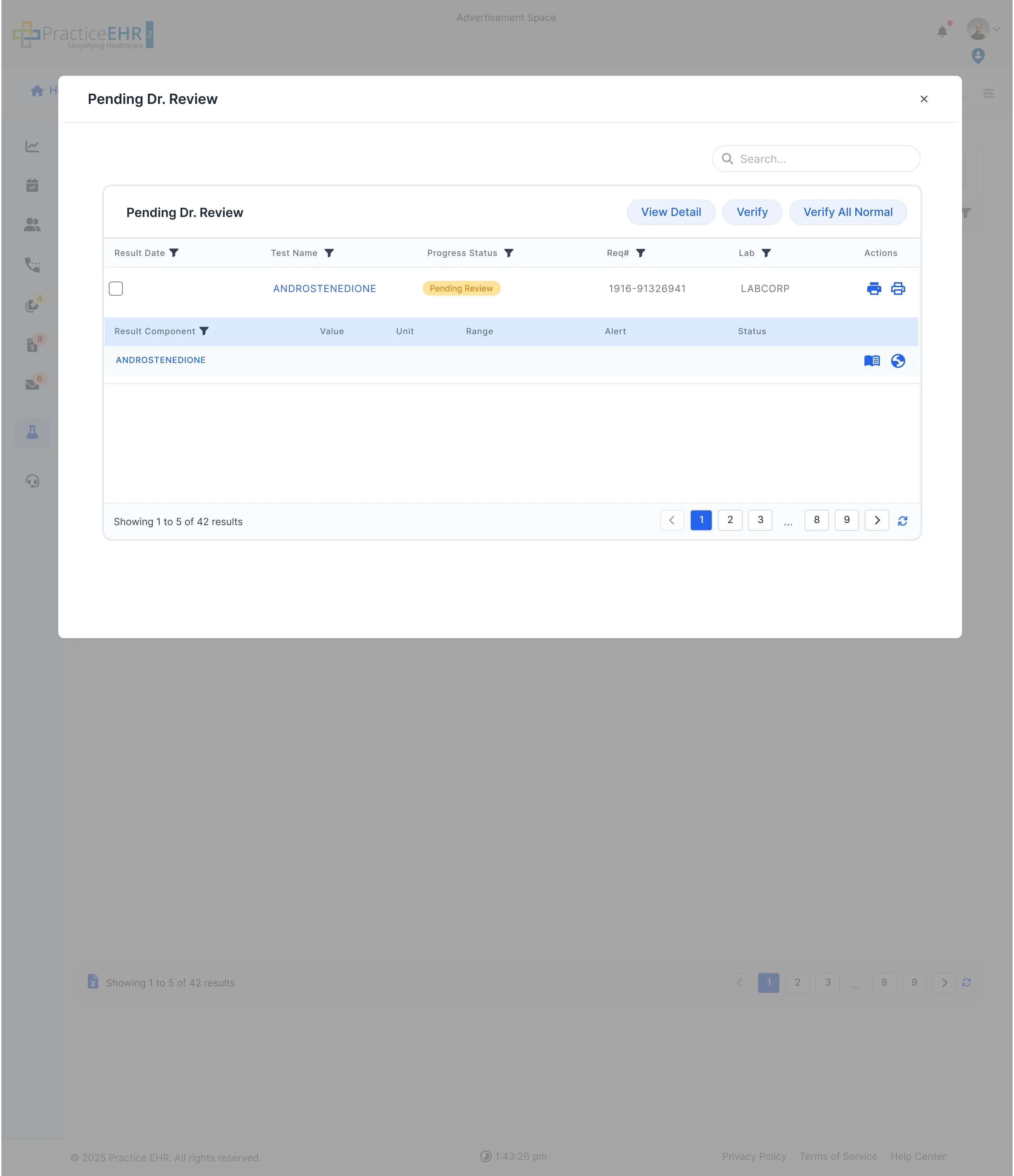
This section shows lab results that are pending review.
When a user clicks on a lab result from the main grid, this modal appears.
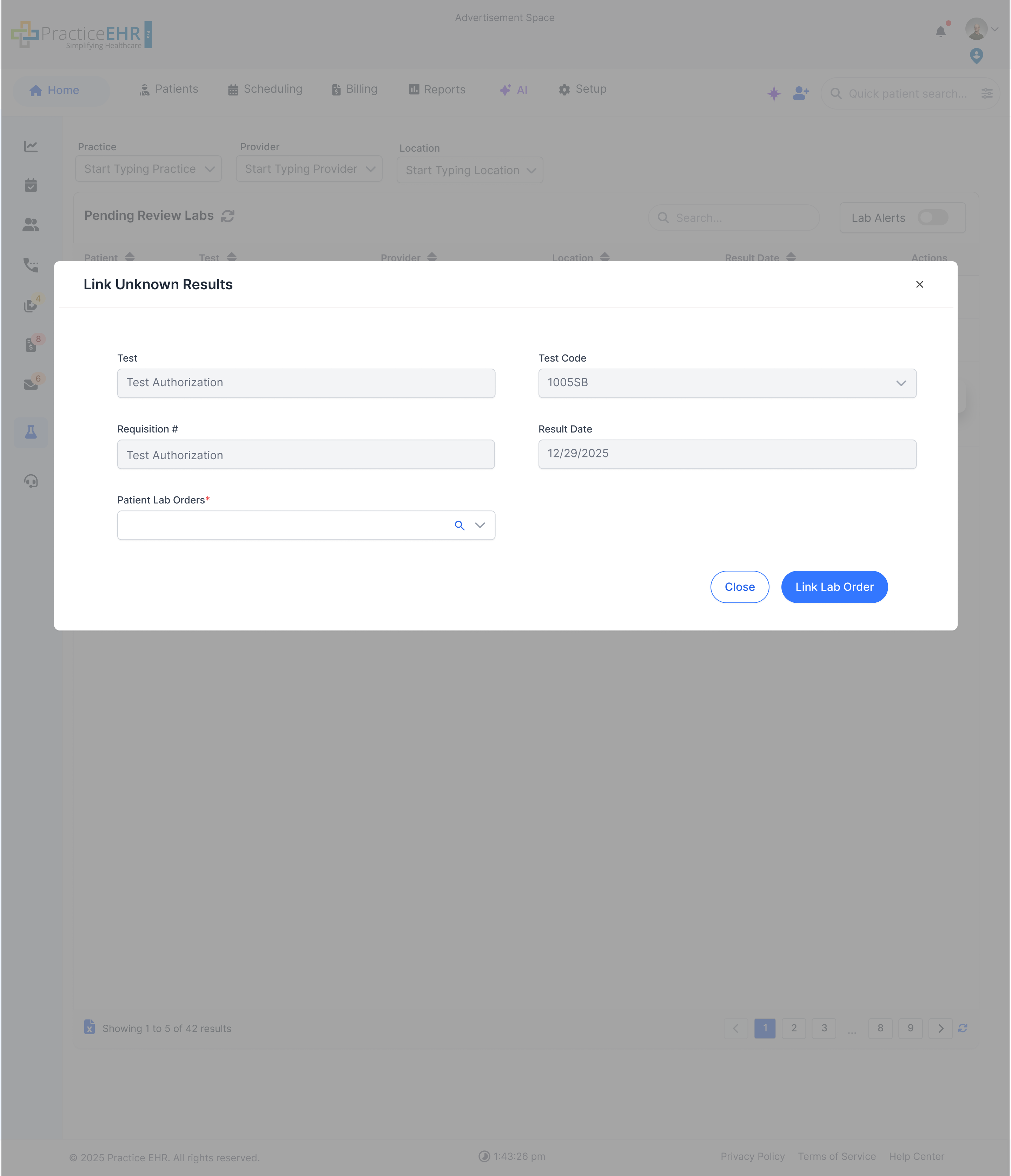
This modal appears when the user clicks on the Link Lab Result button from the Pending Review Labs grid (for an unlinked lab result).
From Pending Review Labs, click the Link Lab Result action on an unlinked row to open this modal.
This section shows patient encounters that have not yet been billed.
This section shows all clinical notes that are currently in progress and not yet finalized.
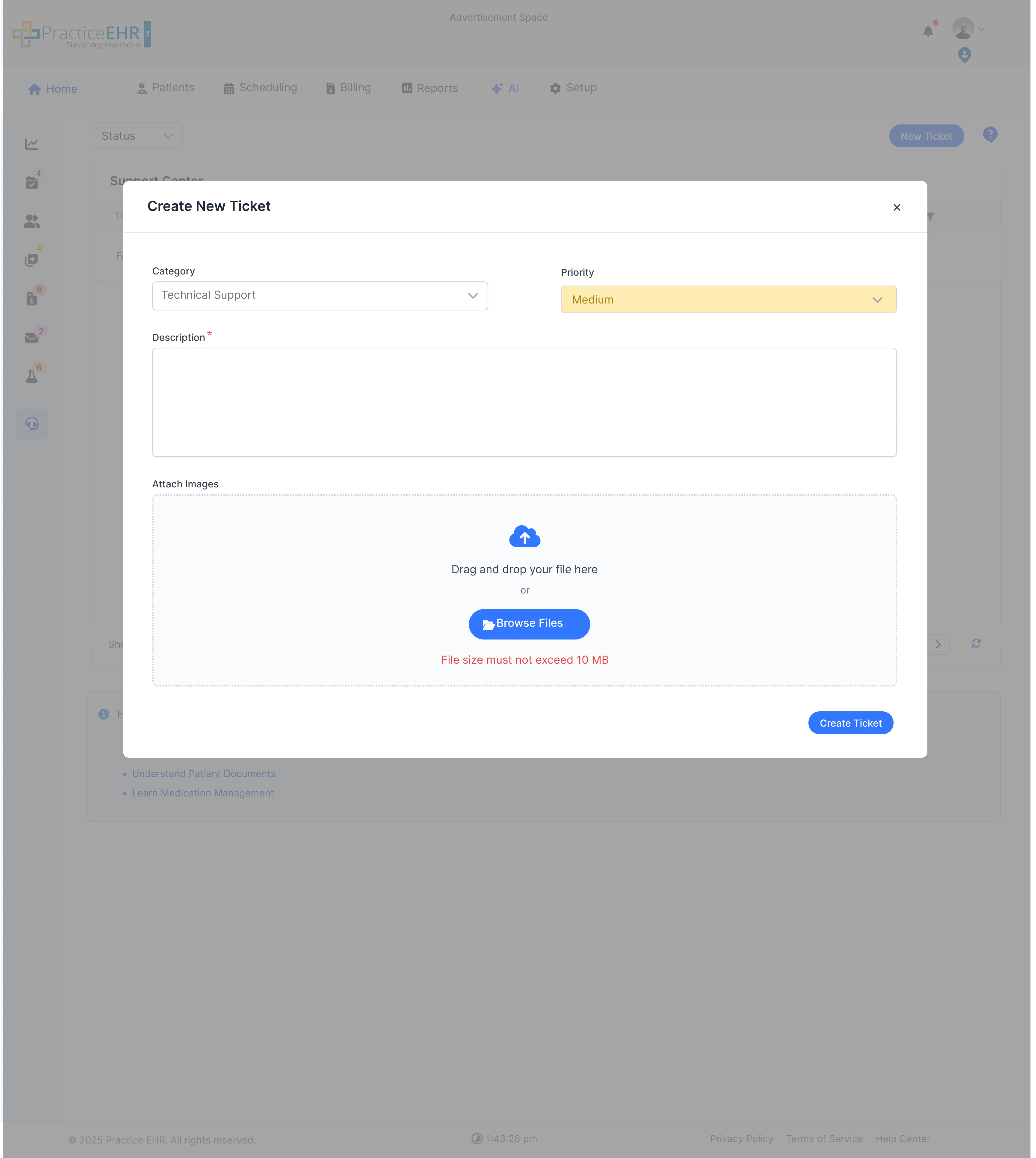
Fill out the form below to submit a new support request.
New dropdown added, having properties of drag and drop. File size limited to 10MBs.
This screen shows the details and comment thread for a single support ticket.
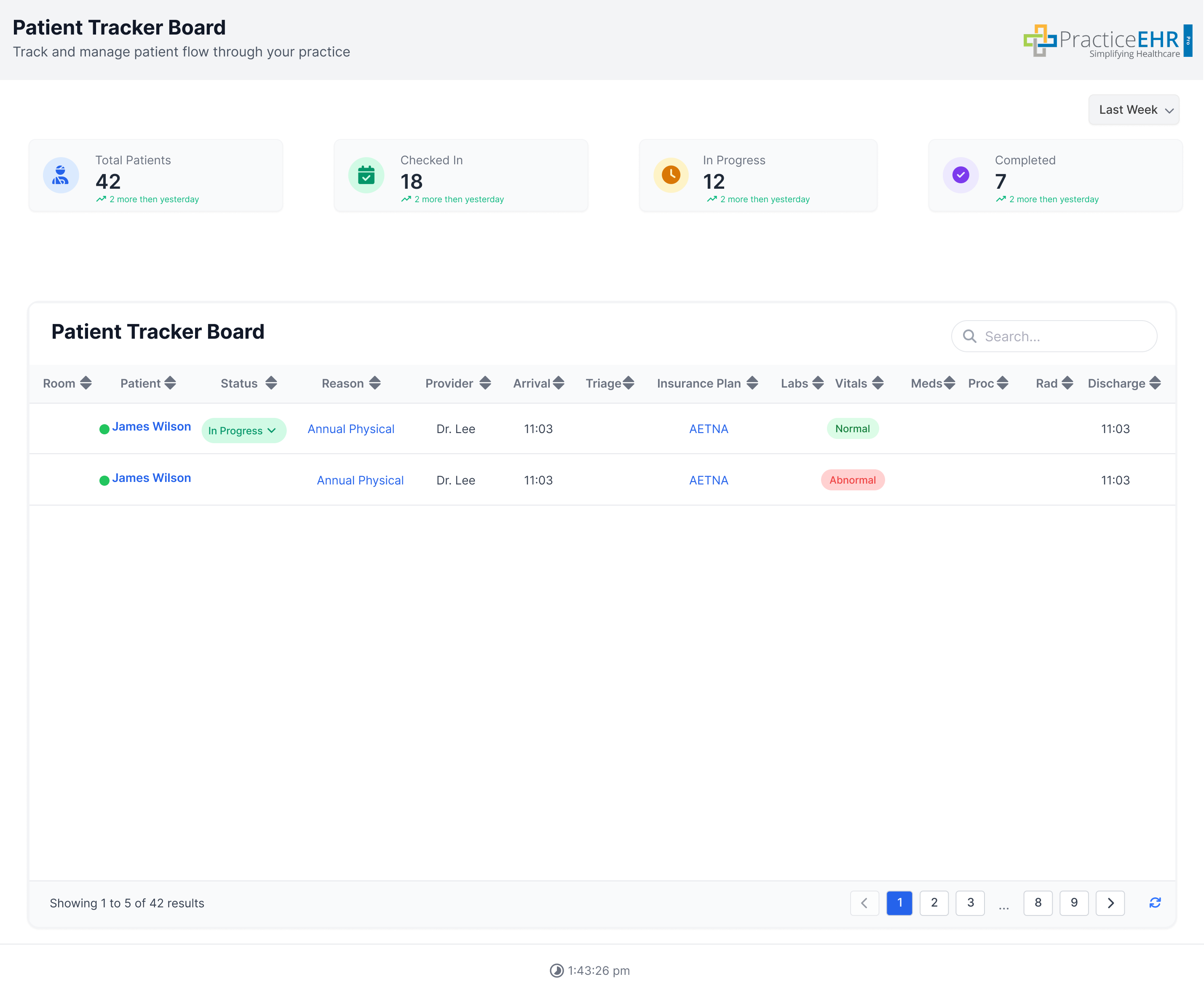
Search Bar is present at the top of the grid in order to search in patient tracker board.
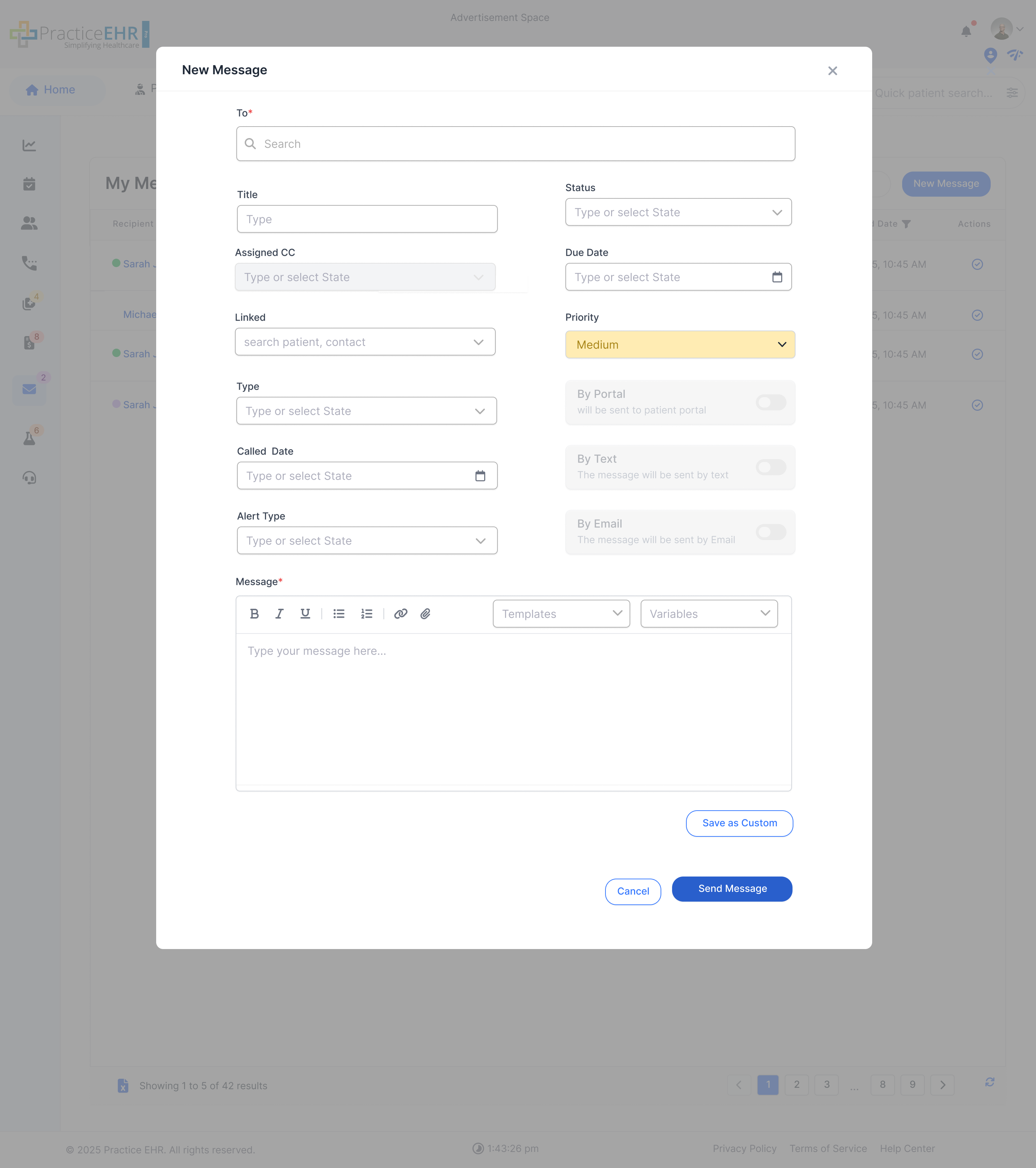
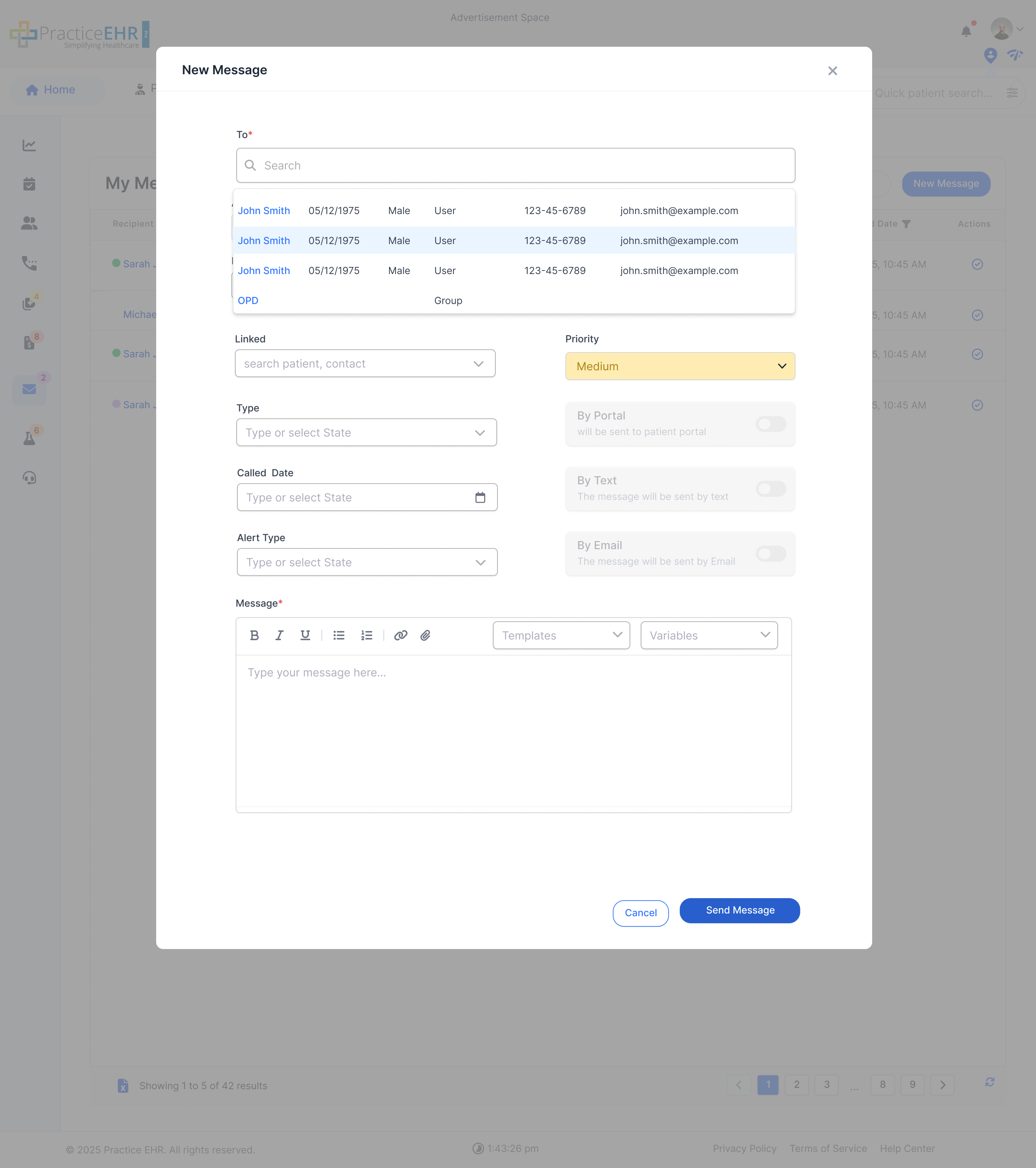
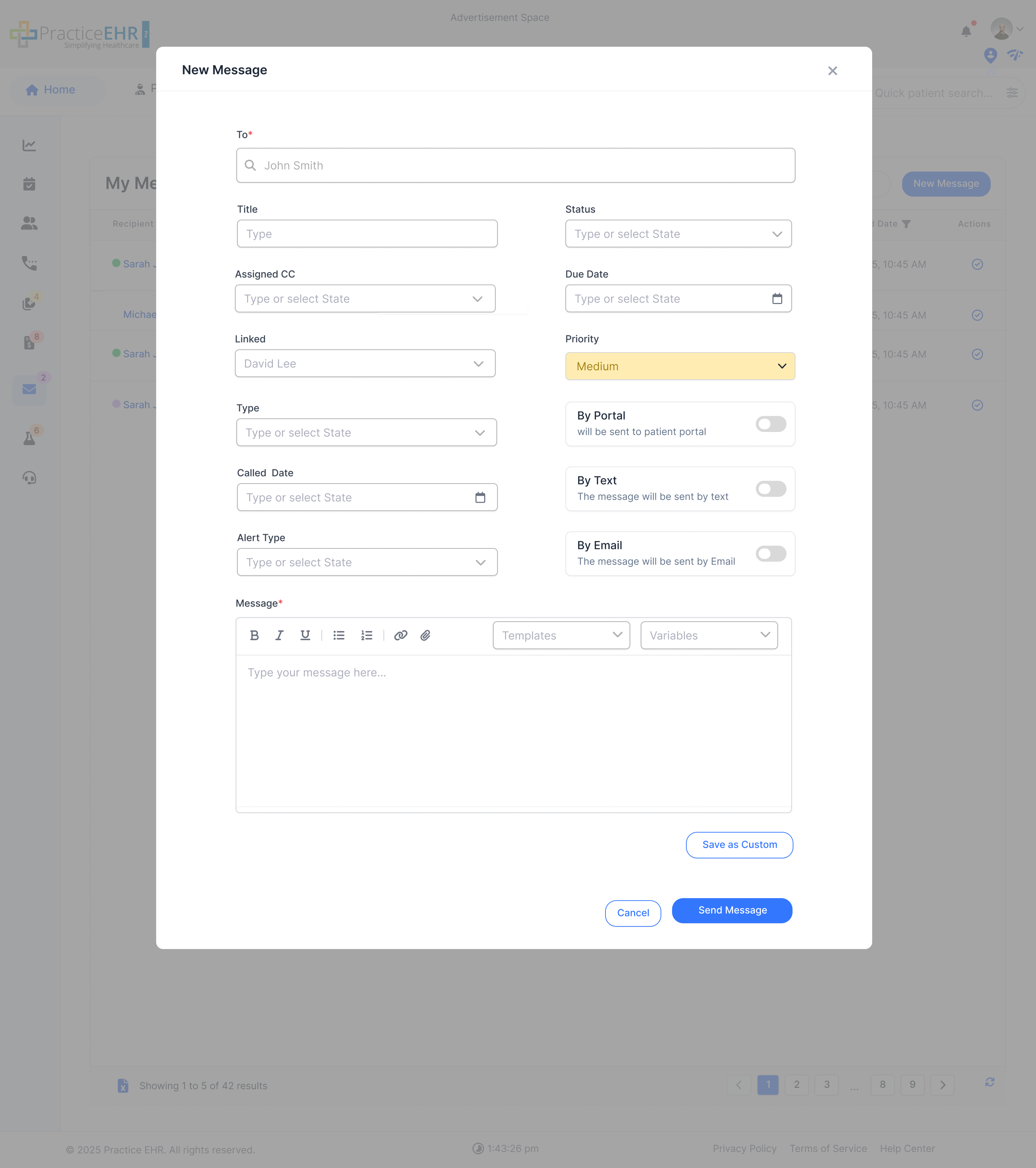
When the user clicks on new message, the following screen is shown:
Three toggles are disabled by default:
Toggles are enabled when the linked field is filled.
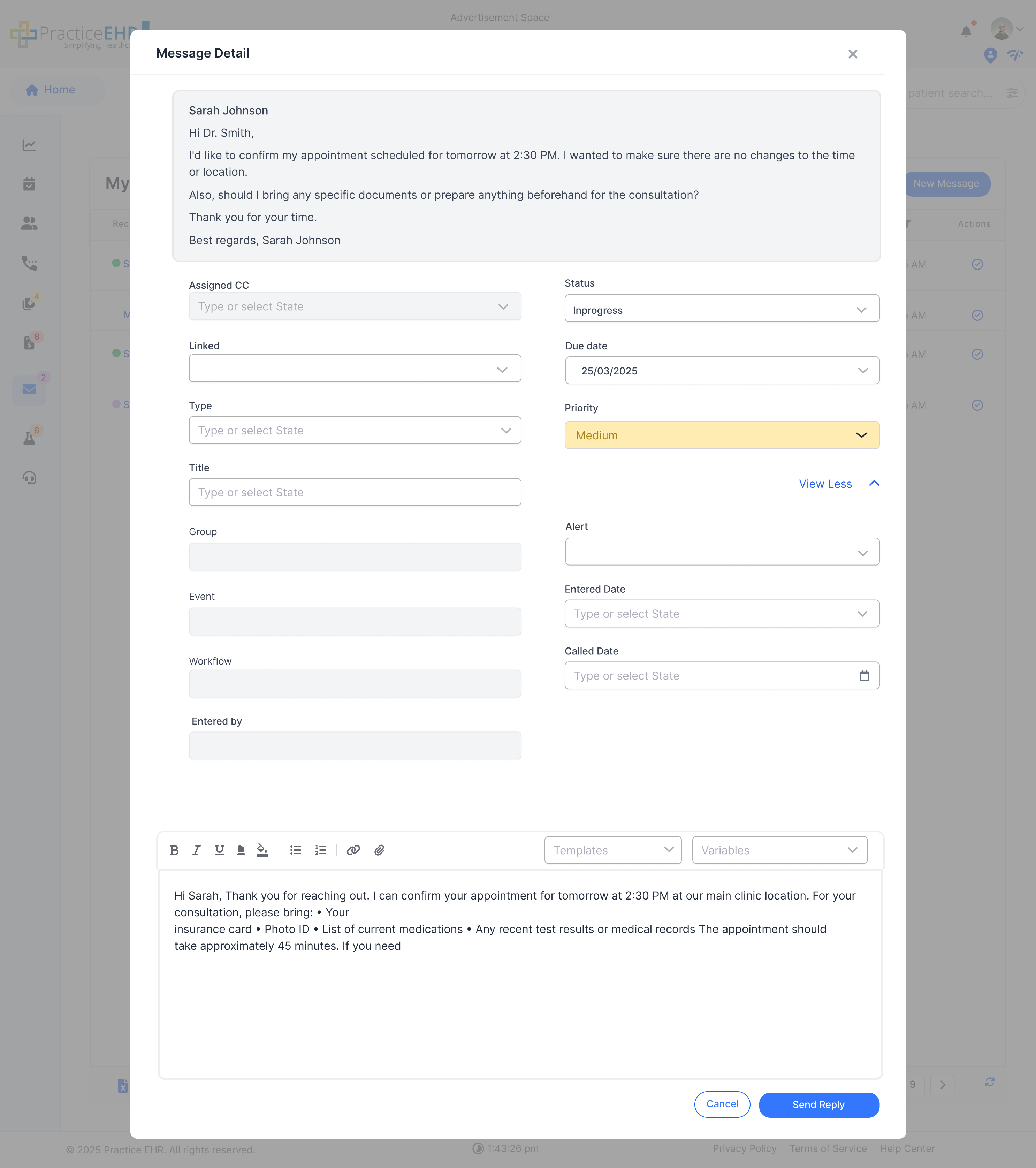
This screen shows the details of a single task, allowing the user to reply.
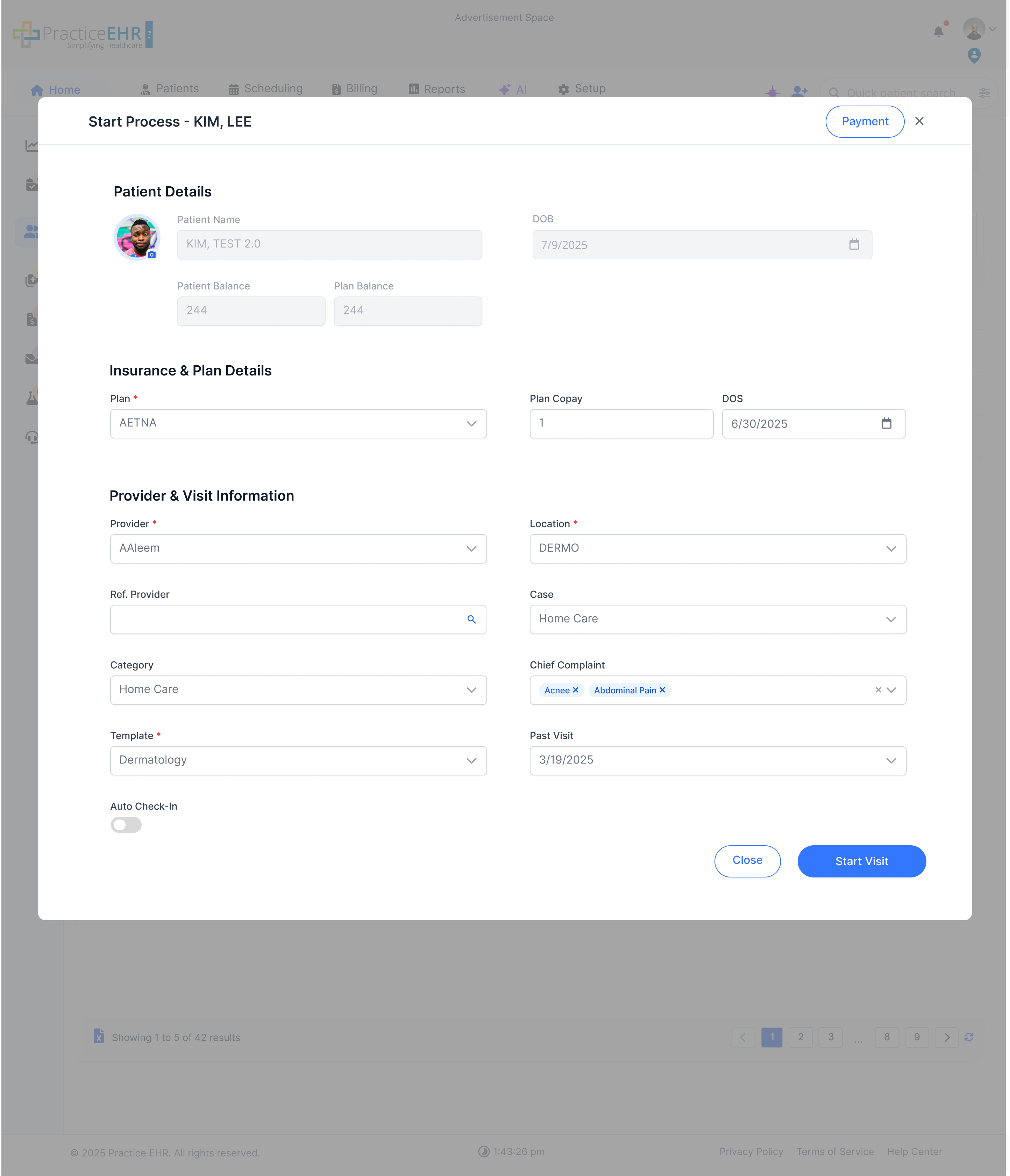
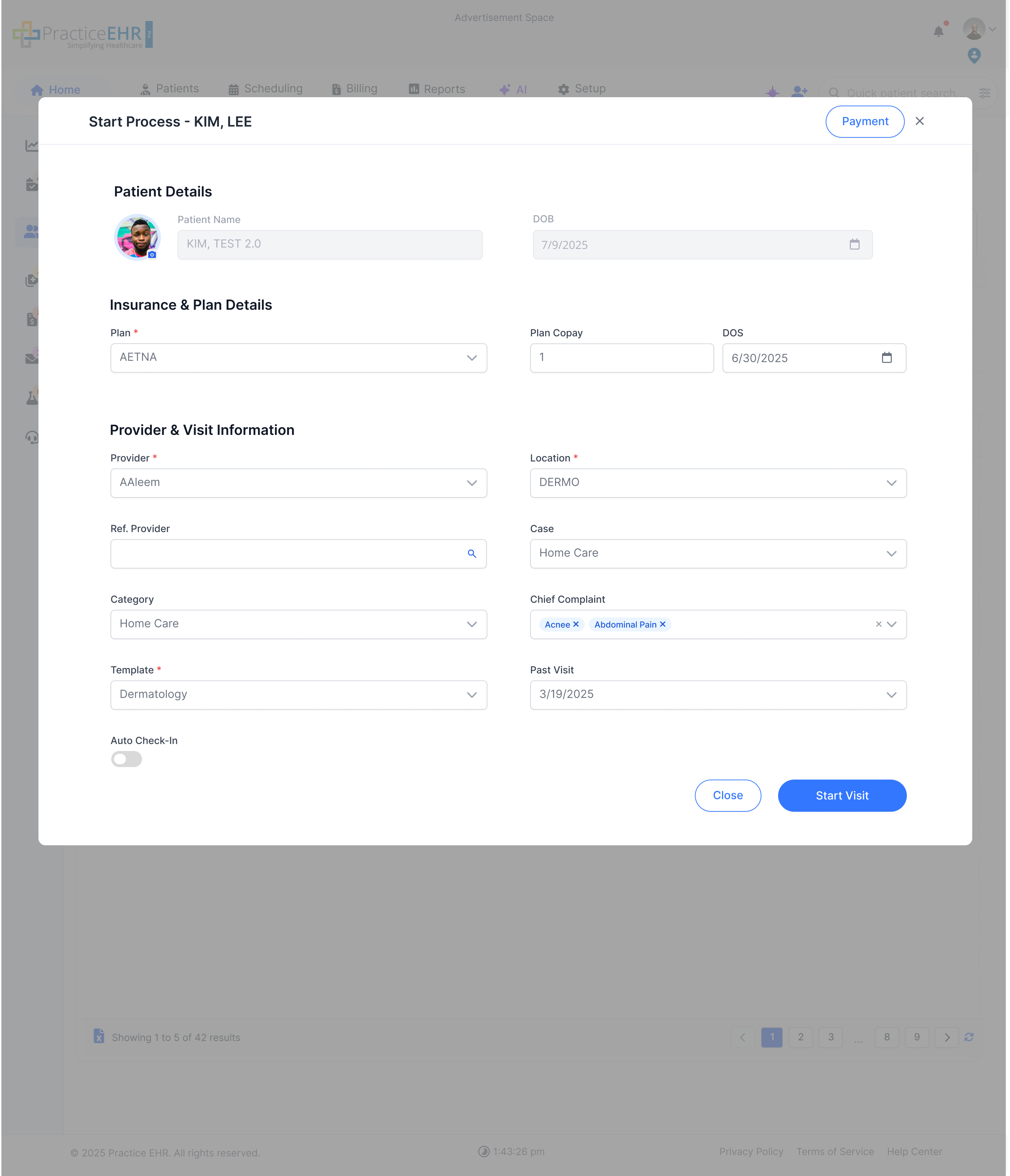
Modal screen for starting a new patient visit.
Previously we had copay button it is now changed to Payment Button. Clicking this button will take the user to the Payment window.
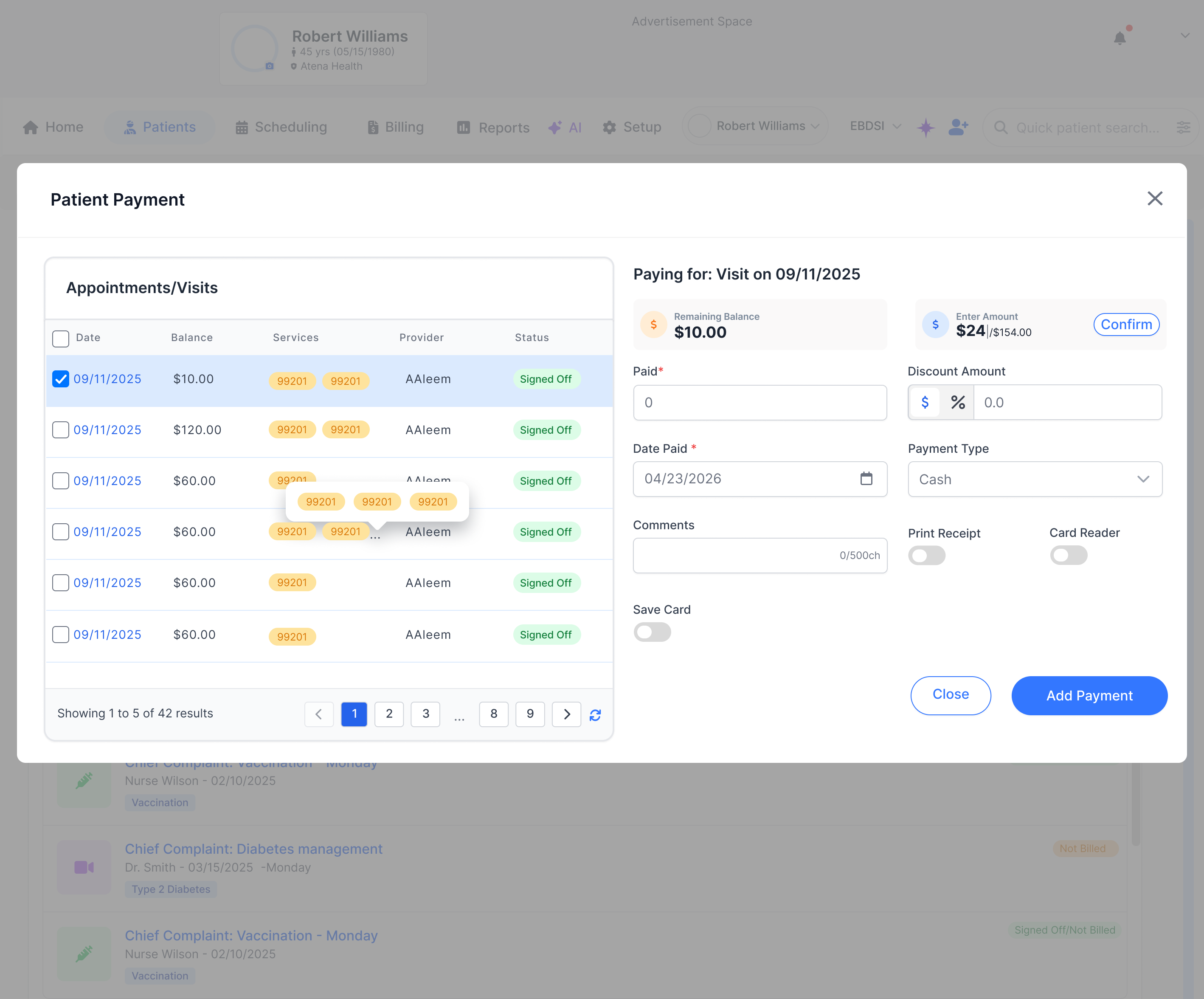
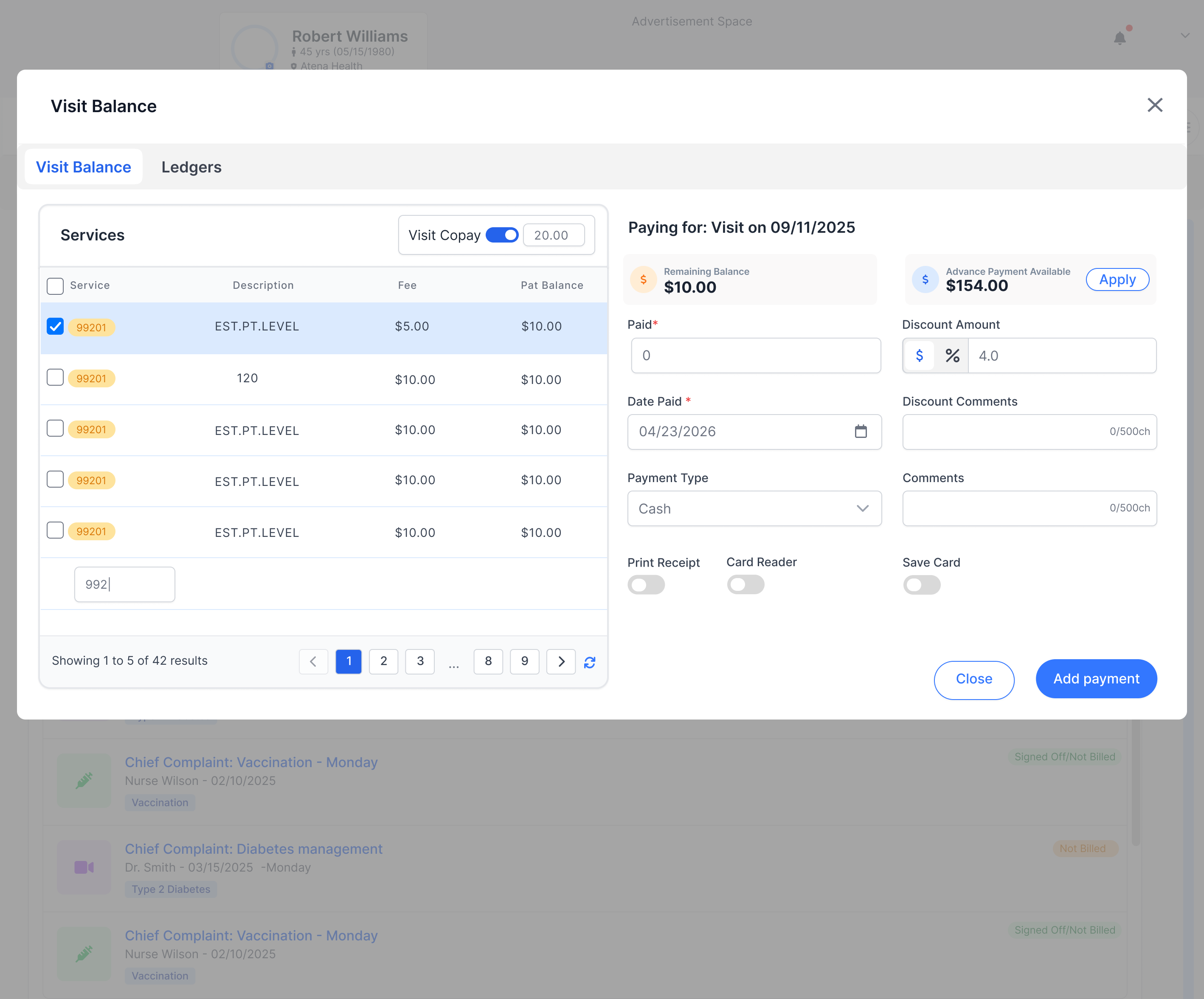
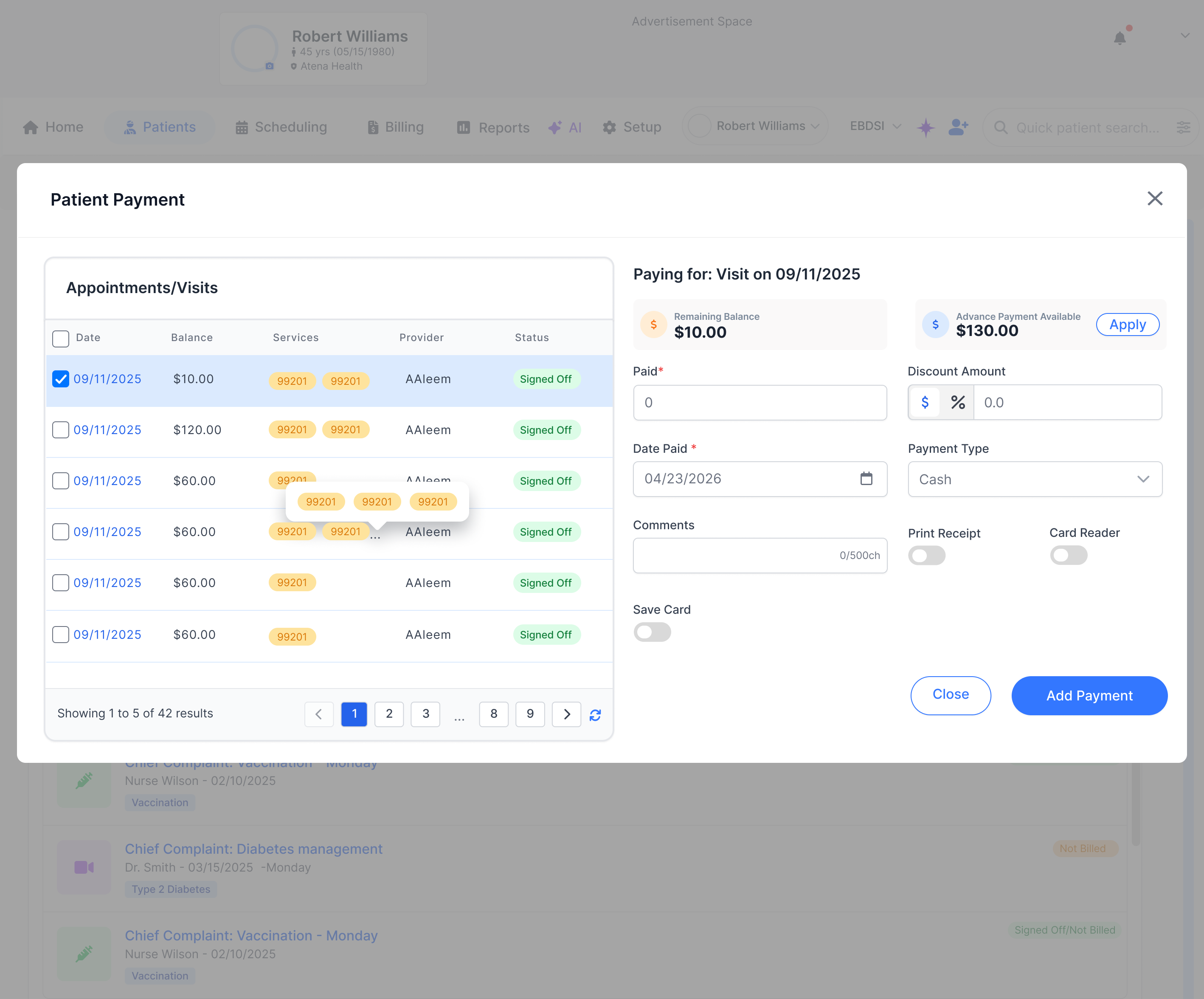
Open Payment ModalPayment window shown after clicking the Payment button in Check In or Start Visit.
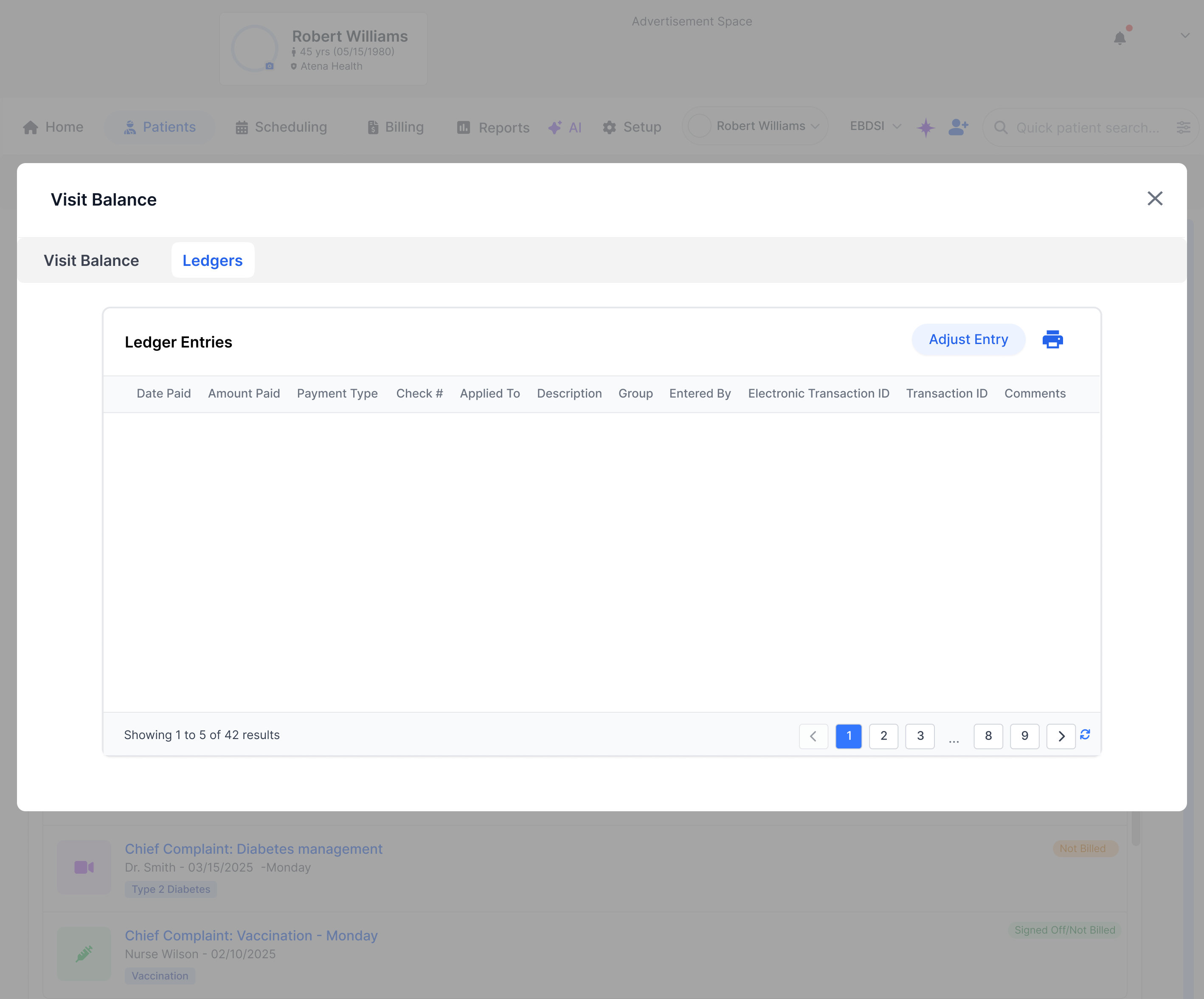
Use the Payment button to open this window, switch between Patient Balance and Visit Balance tabs, and enter the patient discount percentage when needed.
Open CashPayModal screen for starting a new patient encounter.
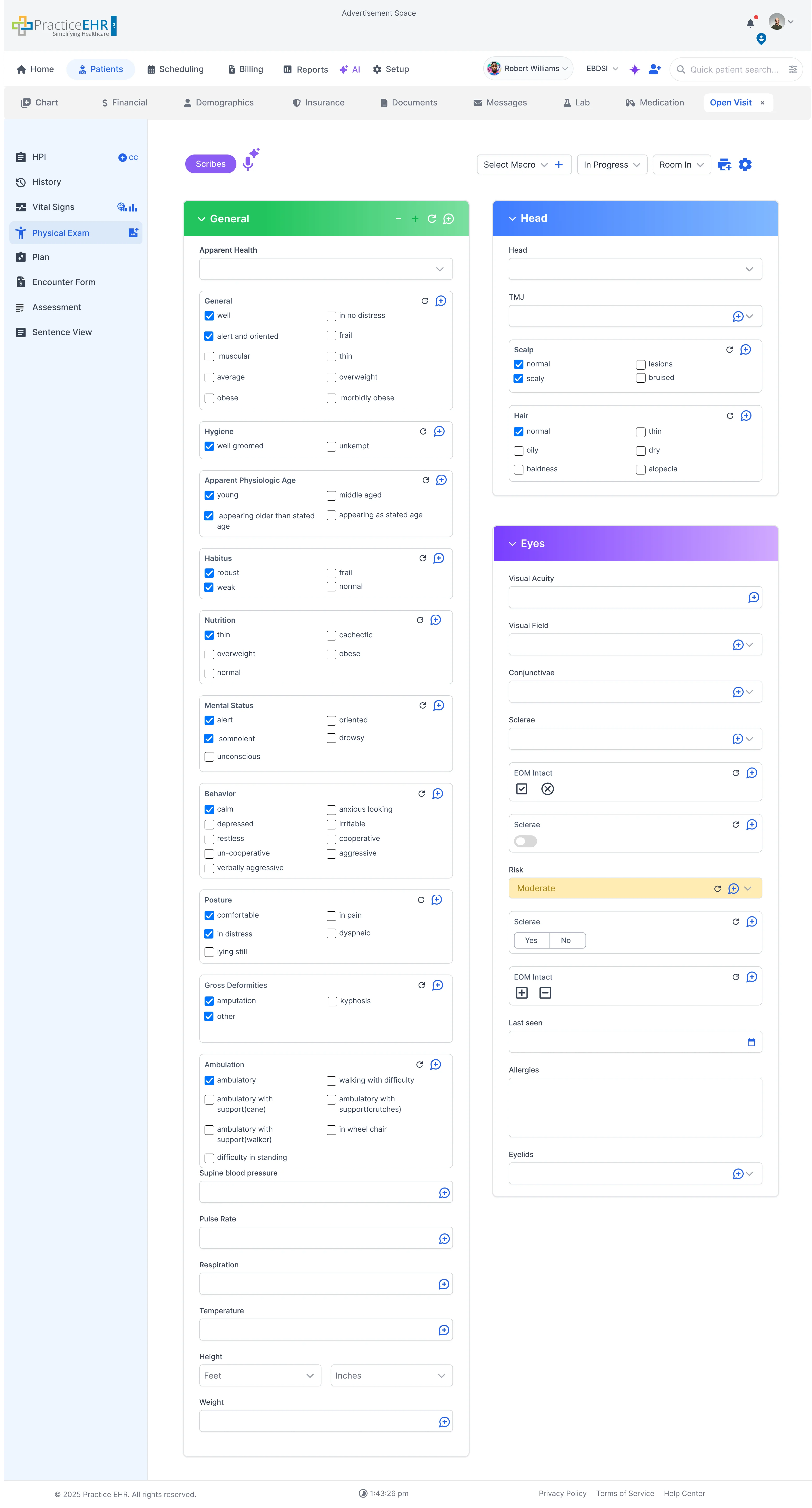
This screen shows an open visit, typically accessed from "Notes In Progress."