EHR UI Components Logo
PracticeEHR Phase 1

UI Standards/Components

Quick access to all of the tabs and sections of the New UI Screens.

Dashboard & Indicators

Cards and at-a-glance metrics

Navigation

Move across screens and sections

Feedback & Help

Notifications and guidance

Grids

Grid types and filtering

Grid Behaviors

  • All grids include a search bar.

  • Click a column name to sort; click again to flip ascending / descending. The arrow only appears on the active column. See example

  • Any grid that exposes a Due Date or Assigned To column is inline-editable — pick a date from the calendar popover or pick a teammate from the typeahead. See spec

Advanced Search

Interactive Guide

Advanced Search supports two UI types. Both types use the same behavior: users open Advanced Search to view additional criteria, then click Search. After Search, the criteria collapses and the Advanced Search button shows the applied filter count.

Grid action button sizing: both Search and Advanced Search buttons in this pattern should use 29px height with 12px text at 400 weight.

Type 1 Advanced Search Only (Button First)

Type 1

In Type 1, there are no visible fields by defaultonly an Advanced Search button. Clicking it reveals the fields and the Search button. After the user clicks Search, the panel collapses and the Advanced Search button shows the filter count (e.g., “Advanced Search (3)”).

Before

No criteria fields visible. Only the Advanced Search button is shown.

Type 1 before: only Advanced Search button visible

After

Clicking Advanced Search reveals fields and the Search button. After Search, the criteria collapses and the count appears on the Advanced Search button.

Type 1 after: fields and Search visible; after Search, Advanced Search shows applied filter count

Type 1: Key Rules

  • Default view shows only the Advanced Search button.

  • Clicking Advanced Search reveals all criteria fields + Search.

  • Click Search to apply filters and refresh results.

  • After Search, the panel collapses and Advanced Search shows the applied filter count.

Interaction Summary

  1. Start with only Advanced Search.
  2. Click Advanced Search to reveal criteria + Search.
  3. Select filters and click Search.
  4. Collapse criteria + show count on Advanced Search.

Type 2 Basic Fields + Advanced Search (Hybrid)

Type 2

In Type 2, the screen shows basic search fields with both Search and Advanced Search buttons. Clicking Advanced Search reveals additional fields. After the user clicks Search, the criteria collapses and the Advanced Search button shows the applied filter count.

KPI rule (Type 2): When KPI cards are displayed on the screen, only two fields remain visible by default; all other fields move under Advanced Search.

Before

Basic fields are visible with both Search and Advanced Search. (Additional fields remain hidden.)

Type 2 before: basic fields visible with Search and Advanced Search buttons

After

After clicking Advanced Search, more fields appear. After clicking Search, the panel collapses and the Advanced Search button shows the count.
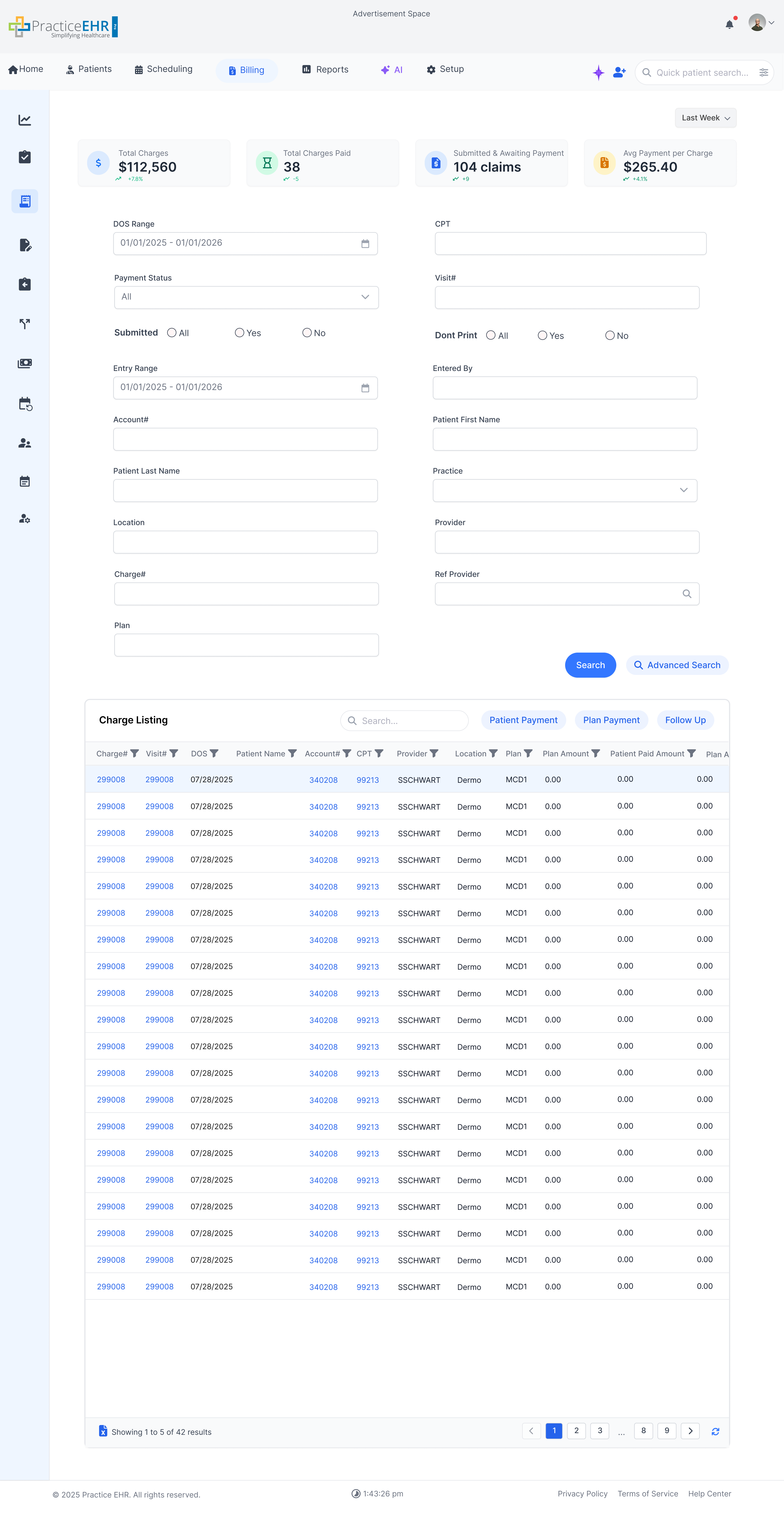
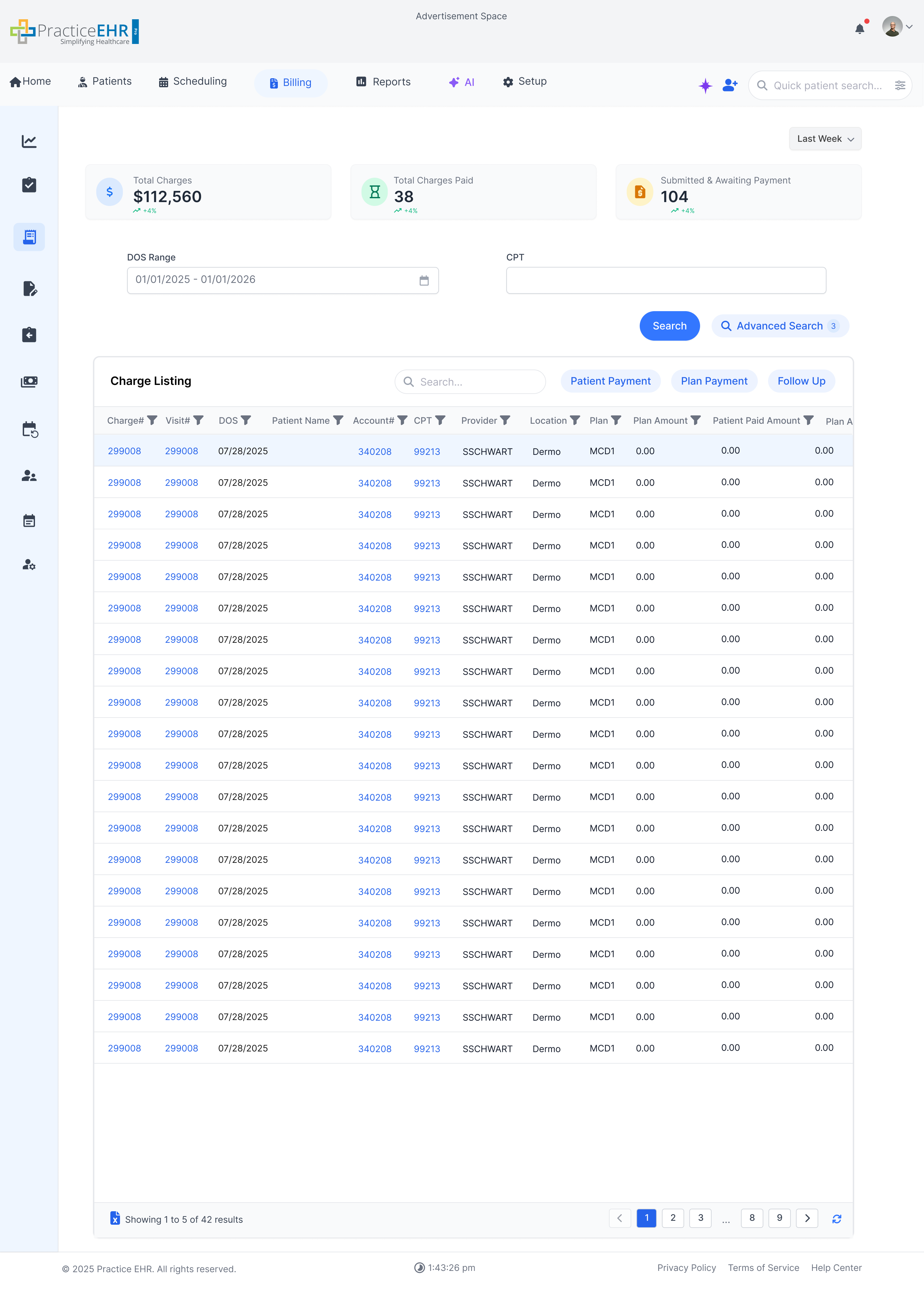
Type 2: Advanced Search expanded (additional fields visible)
Step 1: Advanced Search expanded (more fields visible)
Type 2: After Search, criteria collapses and Advanced Search shows applied filter count
Step 2: After Search, criteria collapses and count appears on Advanced Search

Type 2: Key Rules

  • Default view shows basic fields + Search + Advanced Search.

  • If KPI cards are visible, only two fields stay on screen; the rest move under Advanced Search.

  • Clicking Advanced Search reveals additional fields.

  • Click Search to apply filters and refresh results.

  • After Search, the criteria panel collapses to save space.

  • Advanced Search shows the applied filter count after Search (e.g., “Advanced Search (3)”).

Interaction Summary

  1. Start with basic fields + Search + Advanced Search.
  2. Click Advanced Search to reveal more fields.
  3. Select filters and click Search.
  4. Collapse criteria + show filter count on Advanced Search.

Advanced Search Action Specifications

Action Property Value Notes
Search Button Height 29px Use the compact search-action height from the sizing note above in both Type 1 and Type 2 layouts.
Typography 12px / 400 Keep the Search label compact and consistent with the Advanced Search action.
Advanced Search Button Height 29px Match the Search button height exactly in this pattern.
Typography 12px / 400 Use the same compact label treatment when the panel is collapsed or expanded.
Applied Filter Count Same measurements Showing the active-filter count changes text only; the control keeps the same metrics.

Action Cards

Interactive

Action Cards are clickable content blocks used to highlight grouped, billing-related or workflow-specific actions, such as pending encounters, follow-up tasks, or submissions. These cards visually prioritize content using color-coded icons and numbers, allowing users to quickly assess tasks that require attention.

Typography: action-card message text should use 13px type at 500 weight.

2 Electronic encounters are on hold for review

2 Electronic encounters are on hold for review

5519 Electronic encounters are not billed since last 2+ days

2 Clearinghouse Rejection(s), need to be reviewed

92 Visit(s) need to be fixed before submission

1094 Visit(s) in plan follow up bucket

243 ERA/Check need posting

236 Visit(s) in patient follow up bucket

12 Prior Auth(s) pending

552 Paper visit(s) to be submitted

Action Cards UI Specifications

Element Property Value Notes
Card Container Dimensions (W x H) Responsive width x 80px min height 2-column layout on desktop, single column on mobile.
Fill (Background) #FFFFFF (100%) Solid white background.
Corner Radius 8px Applies to all four corners.
Auto Layout Flow / Direction Horizontal Content flows from left to right.
Padding (Internal) 16px (Left/Right), 12px (Top/Bottom) Space from the edge to the content.
Gap (Internal) 12px Horizontal space between items inside the card.
Content Label Typography 13px / 500 Apply to the action-card message text in every card variant.
Appearance Stroke (Border) 1px, #F2D48A (warning) / #D1D5DB (neutral) Warning cards use yellow border; follow-up cards use neutral gray.
Effects None Updated cards use flat style without shadow.
Grid Spacing (External) 12px Gutter space *between* action cards in a list.
Colors Selection Palette #1D4ED8, #D1D5DB, #F2D48A, #059669... Updated palette for warning, follow-up, and success variants.

Alert Messages

Interactive

Alerts notify users about important workflow states. The component now supports success, error, warning, information, schedule-conflict, and long-message error states using the updated Figma layout and content.

Success

Patient saved successfully

Multi-line Error Message

PEHR Window Placement

Advertisement Space
Home Patients Scheduling Billing Reports AI
Practice
Provider
Location

Not Billed Encounters

Visit DatePatientChief ComplaintStatusProviderLocationPlanComments
08:42 AMJames WilsonChief ComplaintNot BilledDr. LeeSuite 204PPO/ $2045
09:10 AMLinda MartinezEncounterNot BilledDr. JohnsonMain BuildingMedicaid/$2030
09:25 AMRobert BrownBack PainIn ProgressDr. AhmedPediatrics(MOUN/20)30

Alert UI Specifications

Alert Type Property Value Notes
Success Dimensions (W x H) 529px x 83px Node `3138:4017`.
Surface BG `#E6F4EA`, border `1px rgba(0,0,0,0.1)`, radius `6px` Flat surface to match the Figma component.
Typography Title `16/600 #22C55E`, Message `14/400 rgba(0,0,0,0.56)` Leading check icon is `20px`.
Close Icon 24px, color `#22C55E`, top/right `10px` Single close control only.
Showcase BG Transparent Gray container background removed.
Error Dimensions (W x H) 529px x 118px Node `3138:4106`.
Surface BG `#FDEAEA`, border `1px rgba(0,0,0,0.1)`, radius `6px` Same shared card shadow token.
Typography Title `16/600 #EF4444`, Message `14/400 rgba(0,0,0,0.56)` Leading error icon size `20px`.
Actions Buttons `34px` high; `Dismiss` `85.328px`, `Fix Issue` `91px` Actions appear in the Figma order: secondary first, primary second.
Close/Icon Color `#EF4444` Close icon is 24px.
Warning Dimensions (W x H) 529px x 118px Node `3138:4130`.
Surface BG `#FFF8E1`, border `1px rgba(0,0,0,0.1)`, radius `6px` Close icon color `#F59E0B`.
Typography Title `16/600 #F59E0B`, Message `14/400 rgba(0,0,0,0.56)` Leading warning icon size `20px`.
Actions Buttons `34px` high; `Update Insurance` `154px`, `Remind Later` `126px` Pill radius `999px`.
Primary Accent `#F59E0B` Matches icon/title/primary action.
Information Dimensions (W x H) 529px x 118px Node `3138:4176`.
Surface BG `#EAF4FD`, border `1px rgba(0,0,0,0.1)`, radius `6px` Close icon color `#0EA5E9`.
Typography Title `16/600 #0EA5E9`, Message `14/400 rgba(0,0,0,0.56)` Leading info icon size `20px`.
Actions Buttons `34px` high; `Later` `104px`, `Update Now` `126px` Pill radius `999px`.
Primary Accent `#0EA5E9` Matches icon/title/primary action.
Cannot Create Schedule Dimensions (W x H) 529px x 219px Node `3138:4608`.
Typography Title `16/600 #EF4444`, body/label `14/400 rgba(0,0,0,0.56)` Leading error icon `20px`; close icon `24px`.
Conflict Fields Date fields `202x42`, time fields `186x42`, border `#D1D5DB`, radius `6px` Field text `16px #6B7280`, subtle field shadow `0 1px 2px rgba(0,0,0,0.05)`.
Divider `1x96` at x `471`, color `#D1D5DB` Right-side vertical divider in conflict area.
Multi Line Error Dimensions Full-width container, PEHR preview max `1254px`, min-height `200px` Matches node `11684:6614` and the PEHR window placement.
Text Wrapping Message width up to `1157px`, line-height `24px` Long copy wraps before the action row.
Actions `Dismiss` followed by `Fix Issue`, both `34px` high Action row stays under the wrapped message.
Placement Centered at top `22px` inside the PEHR shell Overlay width is `calc(100% - 186px)` with max `1254px`.

Buttons

Interactive

Buttons are used for actions. Choose the correct type based on importance and context of the task.

Primary Buttons

Main actions like "Save" or "Submit" with bold white text on a colored background.

Primary Button Specifications

Element / Group Property Value Style / Notes
Sizing Resizing (Width) Hug Width adjusts to content (e.g., 187px instance).
Height 29px Fixed height.
Typography Font Size 12px Compact primary label size.
Font Weight 400 Regular weight.
Appearance Corner Radius 9999px Results in a fully-rounded "pill" shape.
Fill (Background) #3377FF Solid primary blue.
Stroke (Border) None (Weight: 0) No visible border.

Secondary Buttons

Less critical actions like "Cancel". White background with a border and colored text.

Specifications

Element / Group Property Value Style / Notes
Sizing Resizing (Width) Hug Width adjusts to content.
Height 29px Fixed height.
Typography Font Size 12px Compact secondary label size.
Font Weight 400 Regular weight.
Appearance Corner Radius 9999px Results in a fully-rounded "pill" shape.
Fill (Background) #FFFFFF Solid white.
Stroke (Border) 1px, Inside, #3377FF 1px solid blue border.
Text/Icon Color #2563EB or #3377FF Inferred from selection/border colors.

Tertiary / Ghost Buttons

Minor actions like "Advanced Search". Light backgrounds and soft colors.

Tertiary Button Specifications

Element / Group Property Value Style / Notes
Sizing Resizing (Width) Hug Width adjusts to content.
Height 27px Fixed height.
Typography Font Size 12px Compact tertiary label size.
Font Weight 400 Regular weight.
Appearance Corner Radius 9999px Results in a fully-rounded "pill" shape.
Fill (Background) #EDF3FF Solid light blue.
Stroke (Border) 1px, Inside, #E2E8F0 1px light gray border.
Text/Icon Color #2563EB Inferred from selection colors.

Pill Buttons

Used for filtering/tagging. Color-coded background with full rounded appearance.

Pill Button Specifications

Element / Group Property Value Style / Notes
Base Sizing Width Hug Content Width adjusts to content.
Height Hug Content (e.g., 21px) Height adjusts to content.
Base Auto Layout Flow Horizontal Content flows left-to-right.
Padding 10px (L/R), 3px (T/B) Internal spacing from edge.
Gap 10px Space between internal items.
Base Appearance Corner Radius 9999px Results in a fully-rounded "pill" shape.
External Spacing 20px Space between pills in a group.
Variants (Examples) Active Patients Fill: #E0F2FE Light blue background.
Completed Fill: #DCFCE7 Light green background.
Pending Review Fill: #FEF3C7 Light yellow background.
All Records Fill: #F3F4F6 Light gray background.

Checkboxes

Multi-select

Checkboxes allow users to select one or more options. Use them when multiple selections are allowed in a group.

Basic Checkboxes

Basic unchecked checkbox

Indicates item is selected

Cannot be clicked

Selected but locked from changes

Checkbox with Label

You agree to our Terms of Service and Privacy Policy

Receive updates and promotions

Checkbox Groups

Vertical Layout

Horizontal Layout

Checkbox Specifications

State Property Value Notes
Default Dimensions (WH) 20px 20px Fixed size.
Corner Radius 4px Slightly rounded corners.
Fill (Background) #FFFFFF Solid white.
Stroke (Border) #6B7280 Default gray border.
Checked Dimensions (WH) 20px 20px Fixed size.
Corner Radius 4px Slightly rounded corners.
Fill (Background) #0075FF Solid blue.
Stroke (Border) None (Weight: 0) No border.
Hovered (Default) Dimensions (WH) 20px 20px Fixed size.
Corner Radius 4px Slightly rounded corners.
Fill (Background) #FFFFFF Solid white.
Stroke (Border) 2px, Inside, EHR Blue Thicker blue border on hover.
Hovered (Checked) Dimensions (WH) 20px 20px Fixed size.
Corner Radius 4px Slightly rounded corners.
Fill (Background) #0075FF Solid blue.
Stroke (Border) 1px, Inside, #6B7280 Gray border appears on hover.
Disabled (Default) Dimensions (WH) 20px 20px Fixed size.
Corner Radius 4px Slightly rounded corners.
Fill (Background) #6B7280 Solid gray.
Opacity 31% Semi-transparent.
Disabled (Checked) Dimensions (WH) 20px 20px Fixed size.
Corner Radius 4px Slightly rounded corners.
Fill (Background) #6B7280 Solid gray.
Opacity 31% Semi-transparent (indicates locked selection).

KPI Cards

Metrics

KPI Cards have two supported reference states here: a grid-driven variant that shows only the current totals, and a rolling-date variant that expands into wave cards with a shared date control that redraws the chart for the selected range.

KPI card specs

  • Grid-driven card shell: Each KPI fills its grid column and uses a fixed 60px height, 8px internal content gap, and 8px horizontal / 3px vertical padding. Keep the soft neutral surface, 16px radius, and subtle 1px border from the reference.
  • Grid-driven contents: Place a tinted circular icon on the left, then a compact text stack on the right with a muted 14px / 600 label and a dark 18px / 700 value.
  • Appointment reports mini-card variant: For Appointment Reports, use a 12px / 600 label, a 22px circular icon treatment, 12px 12px card padding, and render the No-Show Rate percentage at 14px.
  • Grid-driven variant: KPI values are calculated from the current grid results or visible row set. Show only the current label and value in this state, with no inline delta and no shared dropdown in the row.
  • Rolling-date wave variant: Keep the same four cards, but use a compact 82px shell, move the icon to the top-right, and replace inline deltas with a blue bottom wave that updates with the selected date range.
  • Filter and divider dimensions: In the rolling-date state, render the shared dropdown at 108px width, 36px height, with a 1px by 44px divider filled with #E8EDF3.
  • Tone mapping: Use blue for Total Appointments, green for Completed, red for No-Shows / Cancellations, and amber for Available Slots.
  • Responsive behavior: Keep both variants as a four-card row on wide screens. On smaller screens, let the cards wrap to two columns and then one column. In the rolling-date state, keep the expanded wave cards intact and move the shared filter below the grid when space gets tight.

KPI Card Sizing Specifications

Variant Property Value Notes
Grid-driven KPI Card Height 60px Fixed shell height for the standard KPI card.
Internal Gap 8px Use between the icon and the text stack.
Padding 8px (L/R), 3px (T/B) Preserve the compact shell spacing from the sizing notes.
Typography Label 14px / 600, Value 18px / 700 Use for the default card content stack.
Appointment Reports Mini-card Label 12px / 600 Smaller compact label styling for the mini-card variant.
Icon Treatment 22px circular icon Use the reduced icon shell size from the sizing note.
Padding 12px x 12px Square interior padding for the mini-card shell.
Percentage Value 14px Apply to the No-Show Rate percentage callout.
Rolling-date Wave Card Height 82px Expanded shell used only for the rolling-date variant.
Padding 12px (L/R), 10px top, 8px bottom Leaves room for the bottom wave while preserving the content stack.
Icon Treatment 30px circular icon Position the icon at the top-right corner of the card.
Typography Label 14px / 600, Value 18px / 700 Keep the type close to the grid-driven card so the two variants feel related.
Wave Visual 28px tall bottom wave Blue stroke and soft blue fill update to match the selected rolling date.
Rolling-date Controls Shared Dropdown 108px x 36px Use after the card grid in the rolling-date state.
Divider 1px x 44px Use the shared vertical divider with fill #E8EDF3.

Grid-driven Variant

Matched

Total Appointments

8

Completed

2

No-Shows / Cancellations

2

Available Slots

10

Rolling-date Variant

Matched

Total Appointments

8

Completed

2

No-Shows / Cancellations

2

Available Slots

10

Date Picker Component

Interactive

A Date Picker provides a visual calendar for choosing an exact date without manual typing. It supports month navigation, day selection, and keyboard-free entry; the selected day is highlighted in blue, reinforcing the design system.

Date Picker UI Specifications

Element Name Description Dimensions Style / Notes
Input Field Displays selected date; opens panel on click. 486px 42px Fill: #FFFFFF, Corner Radius: 6px, Opacity: 100%
Input Field (Appearance) Border and shadow for the input field. Stroke: 1px, Inside, #D1D5DB, Effect: Drop Shadow
Calendar Header (Inferred) Shows current month & year. Auto height Contains Prev / next buttons.
Day Cell (Inferred) Selectable day number. ~30 30 px Rounded; active = bg-blue-600 text-white.
Selection Behavior (Inferred) Selecting a day applies the date immediately. Auto No Set Date / Clear action buttons in the panel.
Panel Container (Inferred) Holds calendar & controls. ~486px width See table below for detailed specs.

Calendar Panel (Opened State)

Property Value Notes
Dimensions (WH) 362px 375px Fixed size for the dropdown panel.
Layout Flow Horizontal As specified in Figma (may apply to header/footer).
Fill (Background) #FFFFFF (100%) Solid white background.
Corner Radius 6px Applies to the panel container.
Stroke (Border) 1px, Inside, #E5E7EB Light gray border.
Effects Drop Shadow (x2) Two drop shadow effects applied for depth.

Date Range Component

Interactive

Behavior Notes

  • First click sets From; second click sets To.
  • The same date can be used for both From and To.
  • If both dates are already set, the next click updates To.
  • If To is left blank, the system treats it as infinity (open-ended range).
  • While choosing To, the hint shows MM/DD/YYYY - To date.
  • Click the X icon to clear the range.

Date and Time Picker Component

Interactive

A date picker is a compact calendar UI that allows users to choose a specific day and time without typing manually. The time picker appears inline under the calendar after a date is selected. Select any date to enable time properties

Time Picker Specifications

Element Name Description Dimensions Style / Notes
Input Field (Inferred) Displays selected date and time. Full width Rounded border, readonly, calendar icon inside.
Calendar Grid (Inferred) Clickable calendar dates (part of Date Picker). 7 columns 3232px buttons, rounded, highlight on select.
Time Picker Panel Inline panel for hour, minute, and AM/PM. 362px 221px Fill: #FFFFFF, Corner Radius: 6px, Opacity: 100%.
Time Panel (Layout) Auto layout for the time panel. Flow: Vertical, Padding: 10px (L/R) & 1px (T/B), Gap: 15px.
Hour / Minute List (Inferred) Selectable time units within the panel. Auto Scrollable, hover-highlight, selected state.
AM/PM Buttons (Inferred) Toggle between AM and PM. Auto Two rounded buttons, active highlighted.
Selection Behavior (Inferred) Select date first, then hour/minute and AM/PM to apply. Auto No Set/Clear buttons. Value applies automatically once AM/PM is selected.

Header Tabs

Interactive

Header Tabs allow users to navigate between major modules in the application. The active tab is highlighted using blue icon and background.

Header sizing notes

  • Typography: use Inter for header labels and related controls, with 14px text and 14px line height.
  • Header controls: standard control padding is 7px 14px, icon size is 18px by 18px, and the selected blue background shell uses 10px 14px padding.
  • Main header spacing: apply 5px outer padding on the header shell where this compact header pattern is used.
  • Patient search companion controls: quick search height is 22px, the patient add icon is 18px, and Import Patient uses 29px height with 6px 14px padding and 12px / 400 text.

Main Header Tabs Specifications

Element State Property Value Style / Notes
Active (Selected) Tab Typography Inter, 14px / 14px Use the same label sizing called out in the header notes.
Sizing (WH) Hug Content Width adapts to label length; height is driven by the selected-state padding.
Layout Flow Horizontal Icon and label stay on one line, left-to-right.
Padding 14px (L/R), 10px (T/B) Selected shell padding from the sizing notes above.
Icon Size 18px x 18px Use the standard header icon size.
Fill (Background) #EFF6FF Light blue selected background.
Text/Icon Color #2563EB Primary blue foreground for the active state.
Default / Inactive Tab Typography Inter, 14px / 14px Same text sizing as the selected tab.
Sizing (WH) Hug Content Width adapts to label length.
Layout Flow Horizontal Icon and label remain inline.
Padding 14px (L/R), 7px (T/B) Standard header-control padding from the sizing notes.
Icon Size 18px x 18px Use the same icon sizing as the selected tab.
Text/Icon Color Neutral gray Use the default non-selected header foreground.
Hover Foreground shifts to primary blue Hover changes color only; measurements stay the same.
Header Shell Outer Padding 5px Apply this compact shell padding wherever this header pattern is used.

Secondary Tabs

Secondary tabs are used within modules like Billing or RCM to switch between sub-views. The active tab appears white with a blue icon and label, elevated with a shadow.

Secondary Tabs Specifications

Element / State Property Value Style / Notes
Default / Inactive Secondary Tab Typography Inter, 14px / 14px Use the same header label sizing as the notes above.
Sizing (WH) Hug Content Width adapts to label length.
Layout Flow Horizontal Icon and label stay inline.
Padding 14px (L/R), 7px (T/B) Secondary tabs use the standard header-control padding.
Icon Size 18px x 18px Keep icon sizing aligned with the main header tabs.
Text/Icon Color #6B7280 Neutral foreground until hover or selection.
Active Secondary Tab Typography Inter, 14px / 14px Matches the default tab label sizing.
Sizing (WH) Hug Content Height is driven by the active-state padding.
Layout Flow Horizontal Icon and label stay inline.
Padding 14px (L/R), 10px (T/B) Use the selected-state padding from the sizing notes.
Icon Size 18px x 18px Same icon size as other header tabs.
Surface / Foreground #FFFFFF surface, #2563EB foreground Secondary selected tabs use a white shell with blue label and icon.
Tab Container Outer Padding 5px Use the same compact header-shell padding around the tab group.

Tertiary Tabs

Tertiary tabs are used within sub-modules to further divide views. Only one is active at a time and uses minimal space with bold blue text and white background.

Tertiary Tabs Specifications

Element Name Description Dimensions Style / Notes
Default / Inactive Tertiary Tab Label-only compact tab. Hug Content Inter 14px / 14px, padding 14px (L/R) and 7px (T/B), transparent surface.
Active Tertiary Tab Currently selected tab. Hug Content Inter 14px / 14px, padding 14px (L/R) and 10px (T/B), white surface with blue text.
Tab Container Houses all tabs horizontally. Full Width Use 5px outer padding on the shell and keep the row compact and scrollable when needed.

Patient Search Companion Controls Specifications

Control Property Value Style / Notes
Quick Search Height 22px Use for the compact patient-search companion field called out in the sizing notes.
Patient Add Icon Icon Size 18px x 18px Keep the patient-add affordance aligned with the header icon system.
Import Patient Height 29px Use the compact patient-search action height.
Padding 14px (L/R), 6px (T/B) Apply the button padding from the sizing notes above.
Typography 12px / 400 Keep the Import Patient label compact and light.

Loader Component

Status

This component includes three supported states: tab loading (inline on the selected tab), full-screen loading (centered in the content area), and login splash loading (next to the PracticeEHR logo).

Tab Loading

Show the loader on the right side of the selected tab label while data is loading.

Screen Loading

For a blank workspace or full-page wait state, center the loader in the visible content area.

Loading...

Login Splash Loading

For login, show the PracticeEHR logo with the loading animation to the right while the app initializes.

PracticeEHR

Loader Specifications

State Placement Loader Size Notes
Tab Loading Right of active tab text 18px x 18px Use inline with icon + label in the selected tab only.
Screen/Grid Loading Centered in content window 64px x 64px Use when the entire workspace is waiting on a response.
Login Splash Loading Right of PracticeEHR logo 34px x 34px Use on login splash while user session and app shell load.

File Uploader

The File Uploader lets users attach one or more documents (PDF, Word, images) right inside a form. It supports drag-and-drop or click-to-browse, shows a removable file list, and follows our accessibility and brand-blue standards.

Attach Documents

    File Uploader Specifications

    Element Name Dimensions (W H) Style / Notes
    Uploader Card 100% auto rounded-2xl, p-6, shadow-sm, white bg
    Dropzone 100% 160 px Dashed border, gray-50 bg, brand-blue hover
    Cloud Icon 48 48 px #1D4ED8 fill, white arrow stroke
    Instruction Text Upload Files bold; helper text underlined blue
    Accepted Types PDF, DOC/DOCX, JPG/JPEG, PNG
    Remove Action 16 16 px button Gray icon -> red on hover; deletes list item

    Grid Filters

    UI

    Grid Filters are present next to each column name as a funnel/filter icon. There are five types of grid filters based on the type of data in each column.

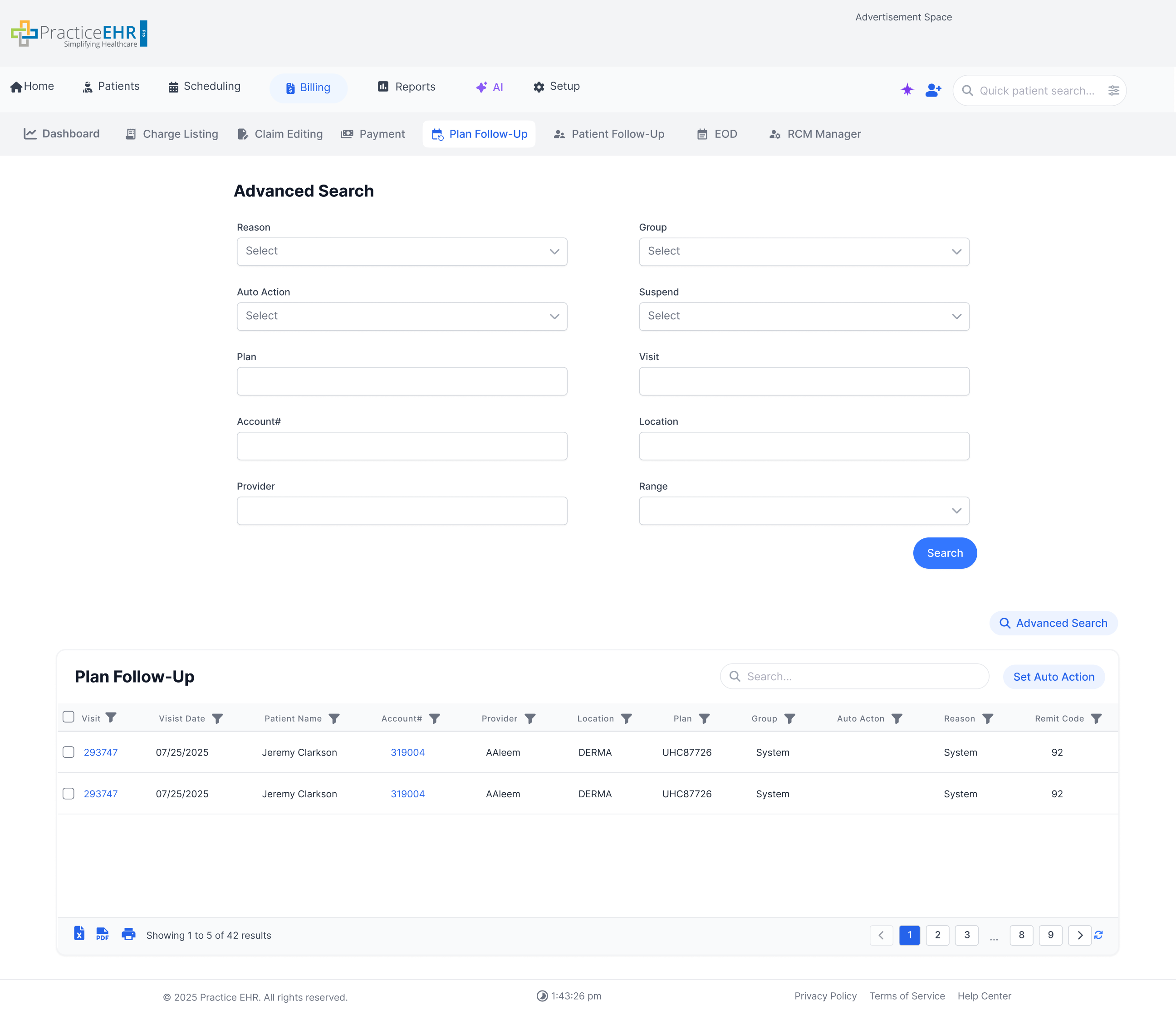
    Pre-defined Filters Grid example screenshot
    Filter icons next to column names

    Filter Type 1: Dropdown with Fixed Number of Options

    When the filter has a fixed number of options (typically 2“4), like priority levels (e.g., Medium, Normal, Urgent, High).

    Pre-defined Filters Grid example screenshot
    Type 1 example
    Action Behavior
    Click Dropdown Opens the options list (popover-style)
    Select Option Highlights row, shows checkmark or selected style
    Multi-select Support Checkbox may appear for multi-selection, or use single selection highlight
    Close on Click Outside Automatically closes when user clicks elsewhere

    Filter Type 2: Date Filter with Condition + Picker

    When filtering based on dates, a combination of a condition dropdown and a date picker is used to create flexible, accurate queries.

    Pre-defined Filters Grid example screenshot
    Type 2 example (state 1)
    Pre-defined Filters Grid example screenshot
    Type 2 example (state 2)
    Pre-defined Filters Grid example screenshot
    Type 2 example (state 3)
    Action Behavior
    Select Condition Opens a dropdown with options like Is equal to, Is before, Is null
    Enter Date Opens a calendar-style date picker to choose a specific date
    Click 'Today' Instantly sets the value to the current date
    Click 'Clear' Resets both condition and value fields to empty
    Click 'Apply' Confirms the selected date and condition
    Close on Outside Click Automatically closes dropdown or calendar if the user clicks elsewhere

    Filter Type 3: String Condition with Input Field

    This filter is used for string-based fields like Patient Name, Diagnosis, Email, etc., allowing users to apply conditions to text values.

    Pre-defined Filters Grid example screenshot
    Type 3 example
    Action Behavior
    Select Condition Opens a dropdown with string-based conditions: Contains, Does not contain, Is null, Is not null
    Enter Value User types in the desired search string to filter against
    Click 'Clear' Resets the condition and input field
    Click 'Filter' Applies the selected condition and input string to filter data
    Close on Outside Click Closes dropdown when user clicks outside

    Filter Type 4: Multi-Select from Contextual List

    Used when the column has many possible entries, but the dropdown shows only values relevant to the current grid view.

    Pre-defined Filters Grid example screenshot
    Type 4 example
    Action Behavior
    Open Dropdown Shows only those values currently found in the active grid view
    Select Multiple Allows multi-selection via checkboxes
    Highlight Selected Uses background color + checkmark to indicate active selections
    Scroll Support Vertical scrolling enabled for overflow (with max height constraint)
    Close on Outside Click Closes the dropdown when user clicks elsewhere

    Filter Type 5: Numeric Condition with Input Field

    Used for numeric-based fields (e.g., Balance, Amount, Charges) where the user can filter by comparing numerical values.

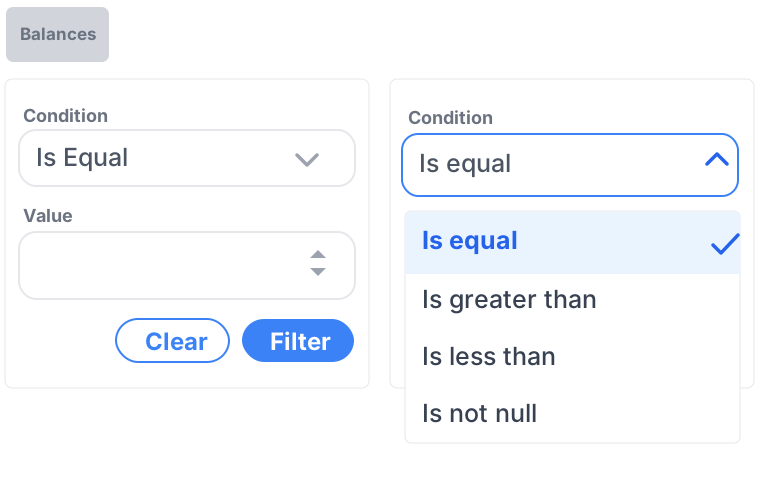
    Numeric condition filter example screenshot
    Type 5 example
    Action Behavior
    Select Condition Opens a dropdown with numeric comparison operators: Is equal, Is greater than, Is less than, Is not null
    Enter Numeric Value User inputs a number using a number-only input field
    Use Arrow Buttons (up/down) Increases or decreases the value by 1 using spinner controls
    Click 'Clear' Resets both condition and value
    Click 'Filter' Applies filter based on numeric condition
    Validation Prevents non-numeric input (e.g., letters, symbols other than numbers)
    Close on Outside Click Closes dropdown when user clicks outside

    Example Usage

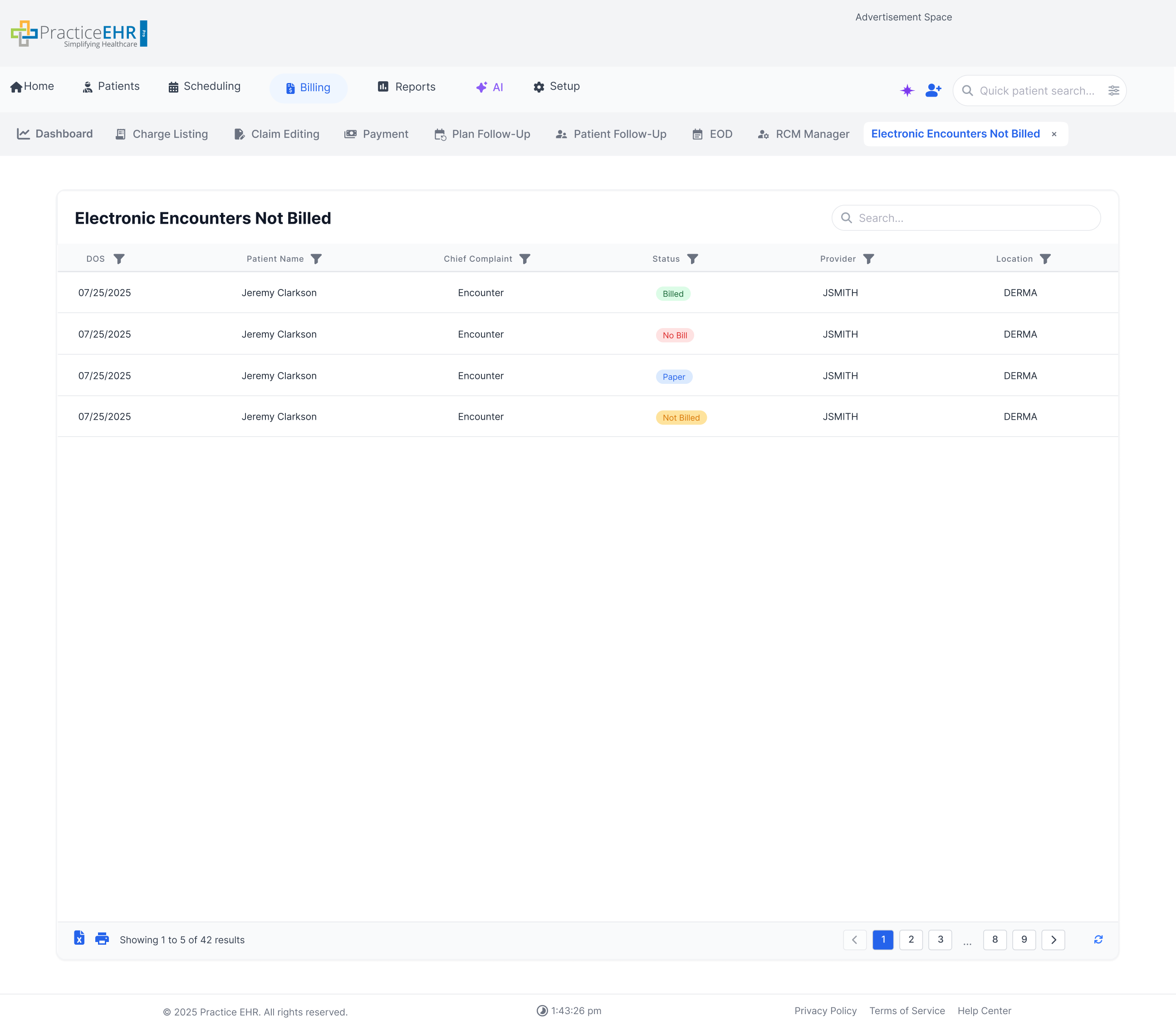
    Choose the filter type based on the column's data type. Example: Status -> Type 1; DOS -> Type 2; Patient Name / Chief Complaint / Provider / Location -> Type 3.

    Example usage screenshot
    Example grid with filter types referenced
    Status column filter example screenshot
    Status column -> Type 1
    DOS column date filter example screenshot
    DOS column -> Type 2
    String column filter example screenshot
    String columns -> Type 3

    Search Bar

    Component

    Use a dedicated <pehr-searchbar> tag wherever a search input is needed (especially inside grids). Grid search fields use a fixed height of 38px with the magnifying-glass icon on the left.

    Rendered example

    Props: variant="grid", placeholder, optional height (overrides).
    Selected (focus) state: blue.

    Search Bar Specifications

    Variant Property Value Style / Notes
    Grid Search Field Height 38px Default grid search measurement from the sizing note above. Optional overrides change the component only when explicitly passed.
    Grid Search Field Icon Left-aligned, 16×16px Magnifying-glass icon sits 14px from the left edge, vertically centered. Input has 40px left padding to clear the icon.
    Grid Search Field Border 1px solid #E5E7EB Light gray (gray-200) border, fully rounded (pill) corners. Focus state switches to a blue ring + blue border.
    Grid Search Field Typography Inter 16/24 Placeholder & value: Inter Regular (400), 16px size, 24px line-height, 0 letter-spacing. Placeholder color #9CA3AF (gray-400); typed text color #111827 (gray-900).

    Quick Search Fields

    Component

    Label indicators

    Blue link = hyperlink

    * = mandatory field

    Scenario 1

    Scenario 2

    Today's Assessment(s)

    Description ICD Snomed ID Detail Action

    Scroll Behavior

    Component

    Throughout PEHR, scrollbars should be hidden by default and only appear when hovering the scrollable area. Use <pehr-scroll-area> as the standard wrapper so behavior stays consistent everywhere.

    Rendered grid example

    Payment Batch

    Batch# Practice Deposit Date Plan Amt Plan Applied Writeoff Patient Amt Patient Applied Patient Discount Unapplied Amt Copay Applied Plan Amount P
    299008 Fresco 07/28/2025 100 348 34 34 0.00 0.00 0.00 0.00 0.00
    299009 Fresco 07/28/2025 120 352 18 42 0.00 0.00 12.00 0.00 0.00
    299010 North 07/29/2025 240 410 22 64 10.00 0.00 0.00 18.00 0.00
    299011 Fresco 07/30/2025 98 348 34 34 0.00 0.00 0.00 0.00 0.00
    299012 West 07/30/2025 310 512 44 89 25.00 8.00 0.00 21.00 0.00
    299013 Fresco 07/31/2025 100 348 34 34 0.00 0.00 0.00 0.00 0.00
    299014 South 08/01/2025 188 289 12 70 0.00 0.00 0.00 10.00 0.00
    299015 Fresco 08/01/2025 100 348 34 34 0.00 0.00 0.00 0.00 0.00
    299016 East 08/02/2025 144 365 28 57 0.00 0.00 5.00 0.00 0.00
    299017 Fresco 08/02/2025 100 348 34 34 0.00 0.00 0.00 0.00 0.00
    299018 North 08/03/2025 265 438 31 81 15.00 0.00 0.00 12.00 0.00
    299019 Fresco 08/03/2025 100 348 34 34 0.00 0.00 0.00 0.00 0.00
    Props: max-height controls the vertical scroll threshold; wide table columns trigger horizontal scrolling.

    Scrollbar Rules

    • Default: Both vertical and horizontal scrollbars are hidden until the user hovers the grid.
    • Vertical: Appears when the row stack exceeds the grid's max-height.
    • Horizontal: Appears when columns exceed the available card width.

    Grid Behavior

    • Header cells stay visible while the grid scrolls vertically.
    • Filter affordances remain attached to each column label.
    • The grid keeps the Figma-style payment batch toolbar, row height, pagination, and search field.

    Pagination

    Component Spec

    Pagination consists of a left info area and right controls (page navigation + refresh).

    “Showing 1 to 5 of 42 results” represents the visible range (1“5) and the total results count (42).

    Pagination UI: Excel icon + 'Showing 1 to 5 of 42 results' + page controls + refresh

    Key Rules

    • “Showing X to Y of Z results” indicates the visible range and the total results.

    • Left icon represents export/action context (Excel-style) and should render at 15px by 15px.

    • Refresh icon reloads the grid without changing pagination state.

    • For Patient Search result grids, pair this footer with 11px table headers.

    • Use 11px pagination icons and a 37px footer height in the compact Patient Search footer variant.

    Interaction Summary

    1. User reads total results from the left text.
    2. User navigates pages via previous/next and page numbers.
    3. User refreshes results using the refresh icon.

    Pagination Sizing Specifications

    Variant Property Value Style / Notes
    Standard Footer Left Action Icon 15px x 15px Use for the export or action icon shown at the left side of the footer.
    Compact Patient Search Footer Pagination Icons 11px Use for the compact Patient Search footer variant.
    Footer Height 37px Compact footer shell height from the sizing note above.
    Paired Grid Headers 11px Match the compact footer with 11px table headers in Patient Search result grids.

    Radio Buttons

    Single-select

    A radio button lets users pick one option from a list. Clicking one will automatically unselect the others in that group. Only one choice is active at a time.

    Vertical Layout

    Default

    Questions and answers are stacked one below the other.

    Does the patient have any allergies?

    Selected State

    Active

    One of the answer choices is clicked (like "Yes").

    Disabled State

    Locked

    The question is locked and can't be edited.

    This field cannot be modified

    Error State

    Required

    The user skipped the question, and the system shows a red warning.

    Please select an option

    Row drag & drop (reordering)

    UI

    This behavior can be used in any grid. The drag handle on the left lets users drag rows to reorder them.

    Example row drag using the handle
    • Click and hold the icon, then move the row up or down.
    • Dropping the row updates its position in the grid.
    • This reorders rows without changing the row data.

    Documentation: Kendo UI for jQuery Grid Row Drag & Drop

    Home Grids

    UI

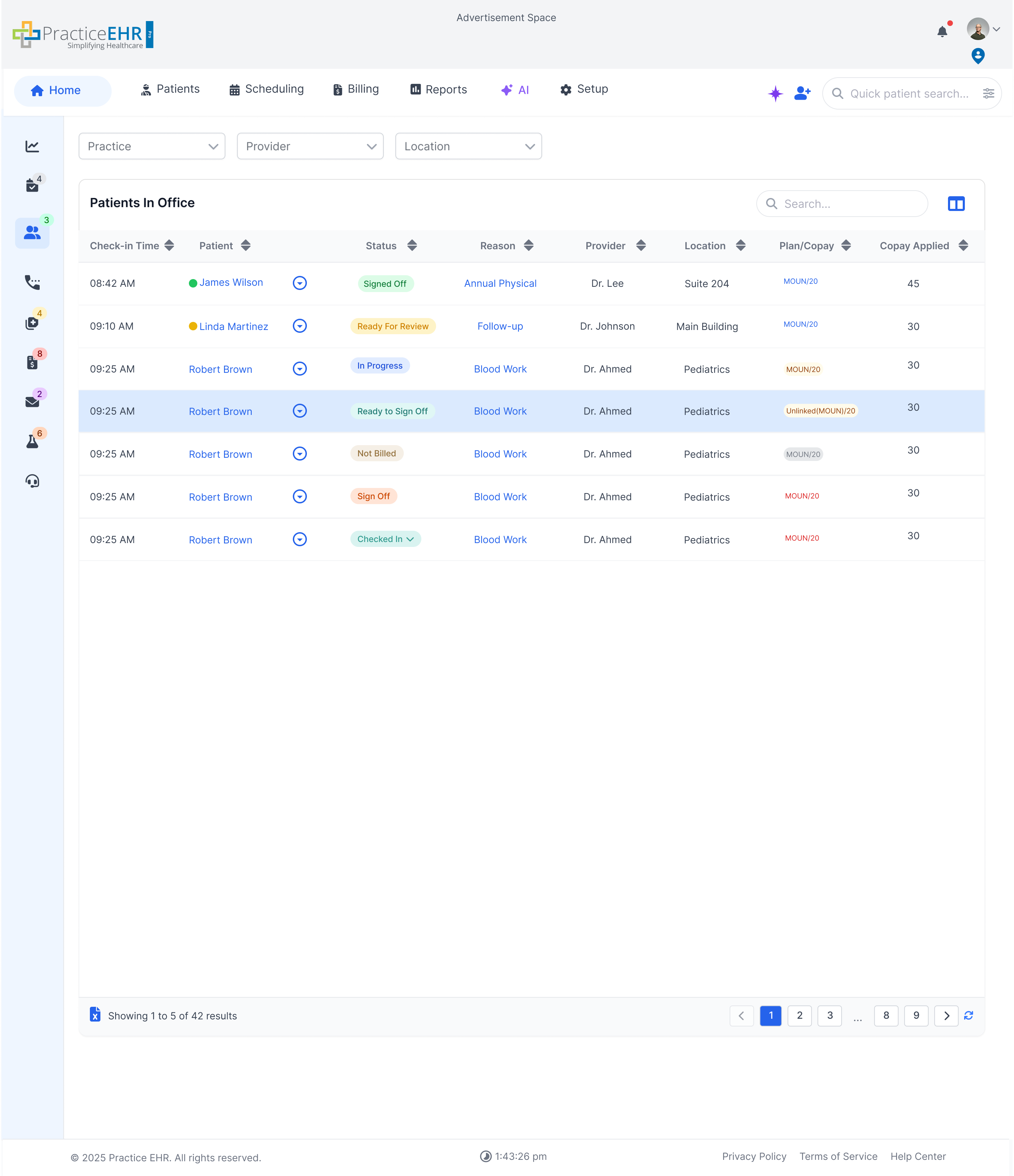
    Home Grids are tables that show important information like patients in the office. You can search, filter, and view data easily in these tables.

    Refresh: Re-loads the grid results using the current view. It keeps the current search text and sort order, and updates the rows.
    Top Dropdown Filters: Dropdowns are present at the top left of the grid allowing the user to filter through different providers, locations and practices. In case of single practice then the practice dropdown will be hidden and the remaining two dropdowns will be moved to the left.
    Patients in Office sizing: Keep 17px left-side grid spacing. Use 14px for the main grid heading, and 12px / 600 for table column headers. Row height should be refreshed to match the updated table density. For the Walk-In Check-In header variant, use 27px control height.
    Sorting: sort icons nex to each column name
    Home Grid example screenshot
    Home Grid example

    Home Grid Sizing Specifications

    Area Property Value Style / Notes
    Patients in Office Grid Left-side Spacing 17px Maintain the left-side spacing called out in the sizing note.
    Grid Heading Typography 14px Use for the main home-grid heading.
    Column Headers Typography 12px / 600 Apply to the compact table headers in the refreshed density.
    Walk-In Check-In Header Control Height 27px Use for the Walk-In Check-In header control variant.

    Auto Search Grids

    UI

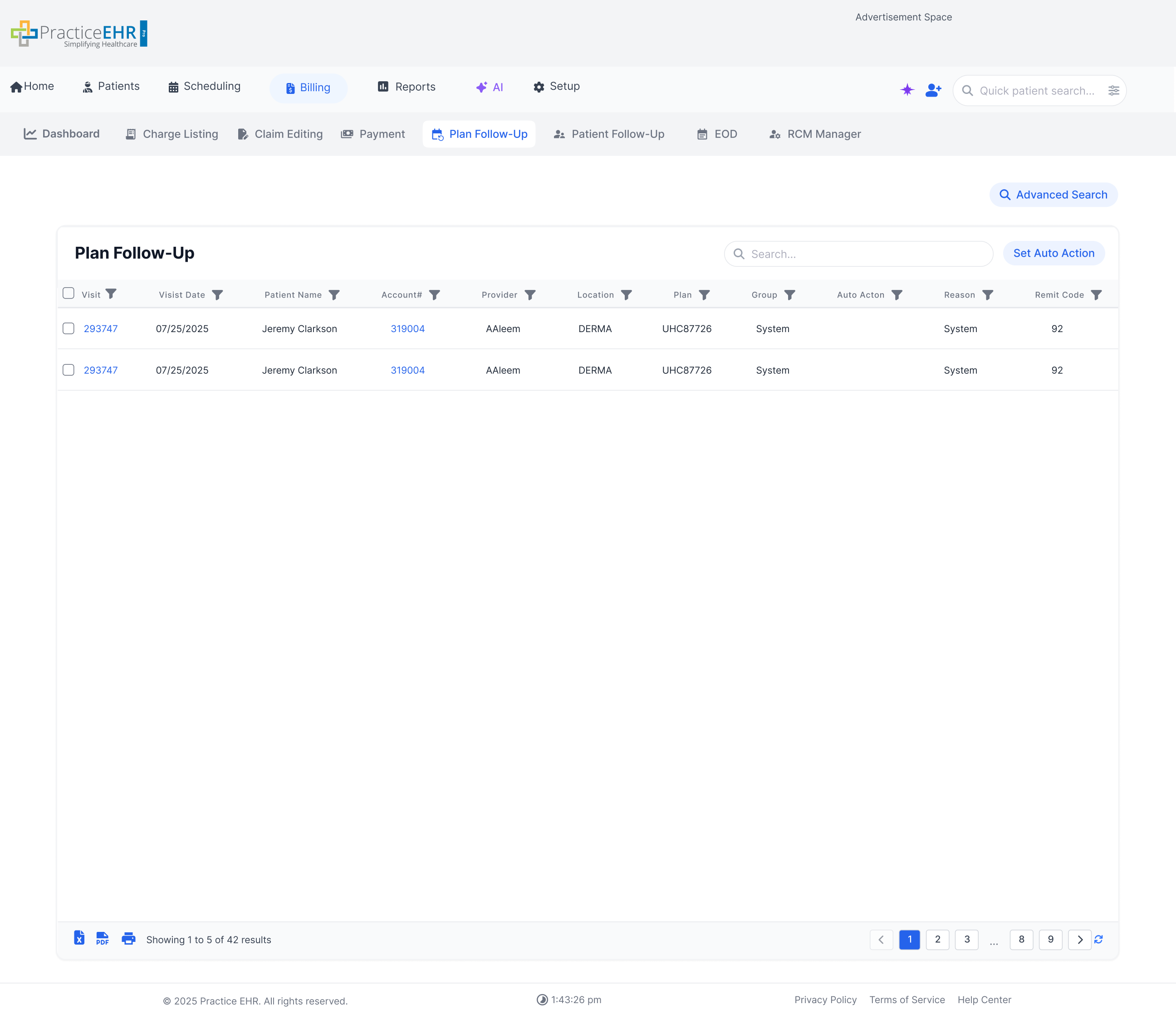
    Auto Search Grids are tables that automatically show important data (like claims, charges, etc.) when you open a screen.

    Refresh: Re-runs the current query and reloads the auto-loaded results without changing the active filters.
    Column filters: Filter icons in next to each column name
    Auto Search Grid example screenshot
    Auto Search Grid example

    Optional Auto Search Grids

    UI

    Optional Auto Search Grids allow the practice to enable or disable auto search through a toggle available in Setup -> Grid Manager for some grids.

    Refresh: Reloads results using the current toggle state and criteria. If auto-search is enabled, it refreshes the auto-applied date range results; otherwise it refreshes the last search.
    Column filters: Yes (filter icons in headers)Sorting: Yes (sortable + filterable headers)
    Optional auto-search disabled screenshot
    Toggle disabled: search + Advanced Search option
    Optional auto-search advanced search screenshot
    Advanced Search expanded

    Grids with Manual Search

    UI

    Manual Search Grids are tables that stay empty when you open the screen. You must fill in the search form and click the Search button to load data into the grid.

    Refresh: Re-runs the most recent search (using the last submitted criteria) and reloads the results.
    Sorting: Yes (sortable columns)
    Manual Search Grid example screenshot
    Manual Search Grid example

    Grids with Pre-defined Filters

    UI

    These grids include pre-defined filters or views near the general search bar, allowing users to switch the grid view quickly.

    Refresh: Reloads the grid results using the selected pre-defined view and the active search/filter state.
    Column filters: Yes (filter icons in headers)
    Pre-defined Filters Grid example screenshot
    Pre-defined Filters Grid example

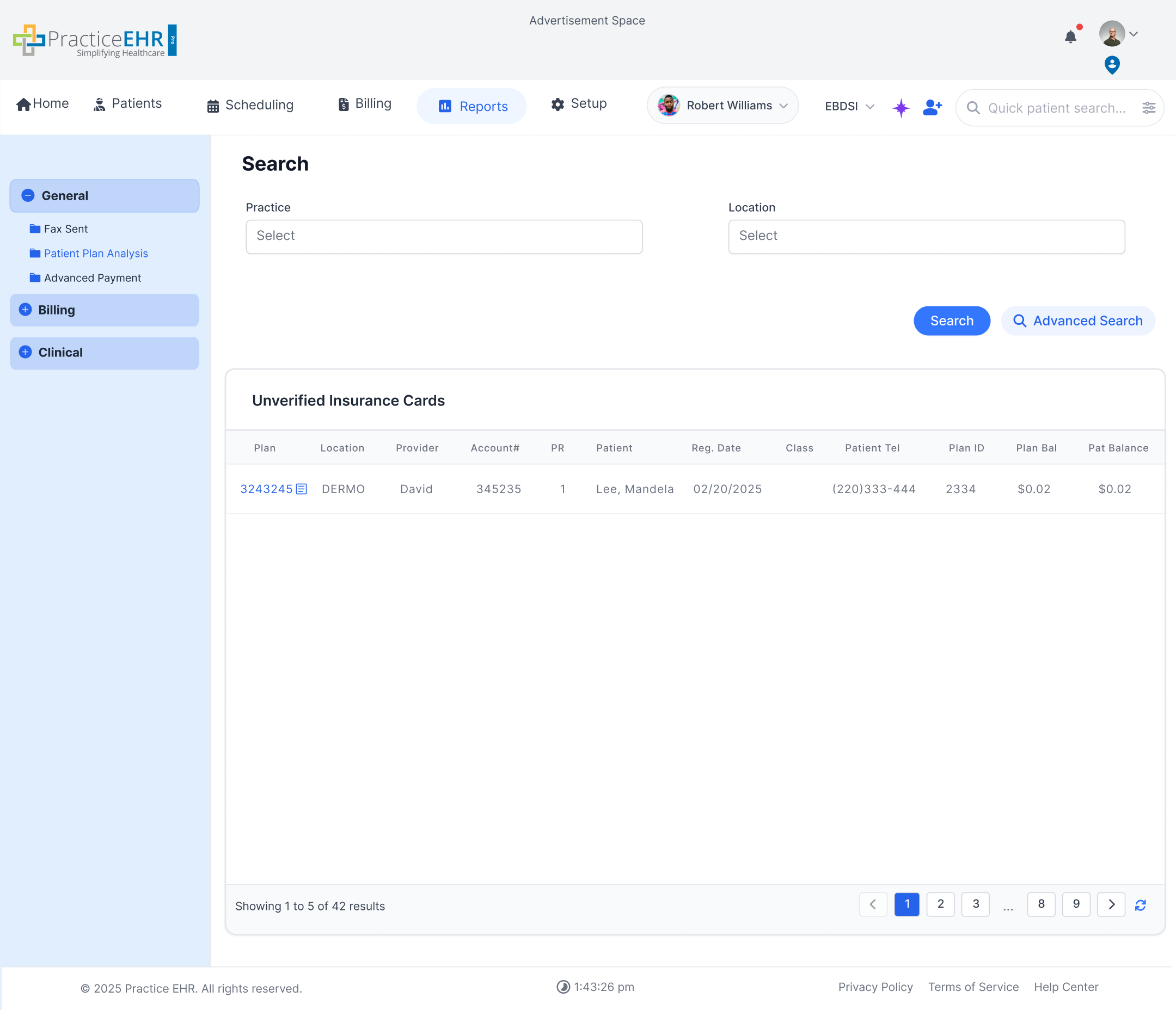
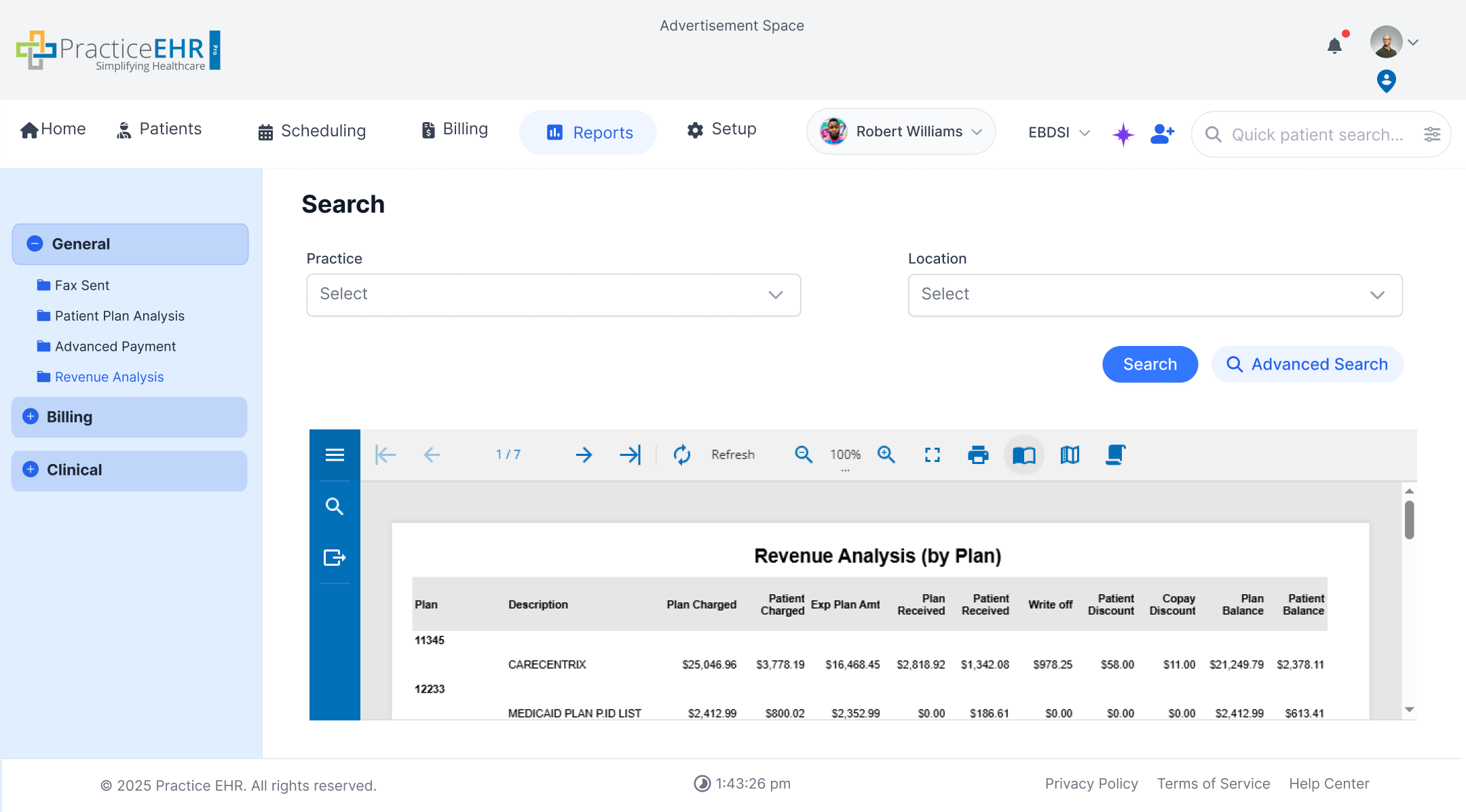
    Active Report Grids

    UI

    Active Report Grids display detailed report results. These grids are powered by a third-party reporting tool and are used mainly for viewing and exporting summaries.

    Active Report Grid example screenshot
    Active Report Grid example

    Inline Editors — Due Date & Assigned To

    UI

    Every PEHR grid that exposes a Due Date or Assigned To column is editable directly in the cell. The Due Date cell opens a Phase 1 datepicker popover; the Assigned To cell becomes a Phase 1 typeahead that searches the active teammate roster. Users no longer need to open the row's detail panel just to re-assign a row or push a due date.

    Applies to: Home Grids, Auto Search Grids, Optional Auto Search Grids, Manual Search Grids, Pre-defined Filter Grids, and any other PEHR grid whose row carries a dueDate and/or assignedTo field. The editors mutate the row's existing data and re-render through the grid's normal pipeline — no schema change is required.

    Live example — Appeal Management grid

    Open full prototype

    Only the Due Date and Assigned To cells are interactive in this embed — every other column, action, and row click is locked so the focus stays on the inline editors. The same editors drop into every PEHR grid with these columns.

    Embedded from the Appeal Management prototype (grid card only · read-only outside the two editors).

    Due Date editor

    A compact 36px-tall trigger button rendered inside the cell. Clicking it opens a single, page-level calendar popover anchored 4px below the trigger.

    • Open: click the cell.
    • Navigate: chevron_left / chevron_right step by one month.
    • Commit: click a day — popover closes immediately. No Set / Clear buttons.
    • Dismiss: click outside, press Esc, scroll any ancestor, or resize the window — value reverts to whatever was already saved.
    • Position: auto-flips above the trigger if there isn't enough room below; clamps to the viewport with an 8px horizontal margin.
    Day states: Default day = dark text on transparent · Hover = #F3F4F6 bg, #2563EB text · Today = 1px #2563EB ring · Selected = #0075FF fill, white text · Other-month spill = #9CA3AF muted text (still clickable; jumps month + selects).

    Assigned To editor

    A compact 36px-tall text input with a trailing expand_more chevron. Typing 3+ characters opens a typeahead dropdown of matching teammates.

    • Focus: clicking the cell focuses the input and selects its current text so the user can type to replace.
    • Search: case-insensitive substring match against the active roster, top 8 matches. Under 3 characters keeps the dropdown closed.
    • Commit: click a row, Enter on a keyboard-highlighted row, or blur while the typed value exactly matches a roster name (case-insensitive — committed with the roster's original casing).
    • Revert: Esc, or blur while the typed value does not exactly match any roster name. This editor is a selector, not a free-text field — typos can't silently create new users.
    • Keyboard: / move (wraps at ends), Tab triggers the match-or-revert blur rule.
    Roster: Union of a host-page COMMON_TEAMMATES constant (~50–70 names) and every distinct assignedTo value already in the grid, deduplicated and sorted alphabetically. Rebuilt every time an assignment changes, so newly used names become suggestions everywhere immediately.

    Visual tokens

    Token Value Purpose
    Field height 36px Grid-row-friendly compact variant for both editors.
    Due Date column width ~140px Trailing 16px calendar_month icon.
    Assigned To column width ~170px Trailing 14px expand_more chevron; 26px right-padding reserved so the chevron never overlaps text.
    Corner radius 6px Input + popover panel chrome.
    Input border 1px solid #D1D5DB Default border on triggers / inputs.
    Popover border 1px solid #E5E7EB Slightly lighter for floating panels.
    Focus ring 0 0 0 3px rgba(37,99,235,0.15) + border #2563EB Same for both editors.
    Body font Inter 500 · 12px Text inside the field.
    Selected day #0075FF bg · white text Picked date in the datepicker.
    Active item / today ring #2563EB Hover state, keyboard-highlighted typeahead row, today's outline.
    Hover bg #F3F4F6 Neutral hover on items and day cells.
    Muted text #6B7280 Placeholder, weekday labels, other-month days, empty state.
    Datepicker panel ~280px wide · content-sized height 7-column day grid, 32×32 circular day cells.
    Typeahead panel min-width = trigger width · max-height 220px Auto-grows for long names; native vertical scroll past 220px.

    Question Groups

    Section Design · New UI

    Question Groups are the labelled containers used inside the Section Design canvas. In the new UI each group has a thin coloured gradient header (green, blue, purple, or custom) with a chevron, group title, and right-aligned action icons. The body sits on a white card and stacks one question per row. A question is configured by its Question Type (Boolean, Single Line, Number, Date, etc.) and, for Boolean questions, a Display Control that decides how the Yes/No value is rendered.

    Anatomy

    Question Group Container

    Every group has a thin coloured header bar with the chevron, group title, and two action icons (refresh / add question). The body is a white card with each question rendered as a vertical row — label above the input, comment + refresh icons aligned to the right.

    expand_more Head maps_ugc
    maps_ugc
    maps_ugc
    expand_moreGeneral maps_ugc
    expand_moreHead maps_ugc
    expand_moreEyes maps_ugc

    Header bar

    • Gradient background — colour matches the section template (green / blue / purple are the canonical options).
    • Chevron on the left collapses / expands the body.
    • Right-aligned actions: refresh, and a circular plus to add a question.

    Body

    • White card, 18px padding, 18px gap between rows.
    • Each row stacks the label (14px Inter Medium #374151) above a 42px input.
    • Inputs have a circular blue "+" icon for adding a comment at the top right.
    Question Types

    11 supported types

    Each tile below maps to one entry in the right-rail Questions picker. Drag a tile onto a Question Group to add a question of that type. The chosen type drives which Display Control options appear in the Properties panel.

    Boolean
    Single Line
    Multi Line
    Pick List
    List
    Image List
    Image
    Number
    Date
    Date Time
    Pre-defined Questions
    Question Type Data captured Default control
    Boolean Yes / No (with optional comment) Yes No Image Radios (8 display variants — see below)
    Single Line Short free text (single line input) Single line text box
    Multi Line Long free text / clinical narrative Textarea (resize vertical)
    Pick List Single-select or multi-select value chosen from a hierarchical list (a parent plus one of its children may both be selected). Also supports numeric values. Tree dropdown with search
    List Single value chosen from a defined list Radio button group (single-select)
    Image List Selection from an image-based gallery Image picker (grid)
    Image Image attached to the visit through questions — image upload is not available from the question section; only an image already attached to the question can be selected. In the question group, the row shows a read-only text field displaying the attached image's name (or ID) that can be clicked to preview the image, with a checkbox next to it that enables or disables the image on the visit. Read-only image-name text field (click to preview) + enable/disable checkbox
    Number Numeric value (integer or decimal) Number input
    Date Date only Date picker
    Date Time Date + time Date & time picker
    Pre-defined Questions Reusable question template (mixed types) Inherits from the template definition
    Boolean

    Display Controls (8 variants)

    When the Question Type is Boolean, the Properties panel exposes a Display Control dropdown. Each variant below is shown as a real question row — same 8px-radius white card with a 1px #D1D5DB border, label + refresh + add-comment on top, and the control beneath. The underlying value is always the same Yes / No boolean.

    Yes No Image Radios
    Blue-filled tick = Yes, red-filled circle-x = No. Default boolean control.
    EOM Intact maps_ugc
    Check Box
    Uses our standard custom-checkbox component. Checked = Yes, unchecked = No.
    EOM Intact maps_ugc
    Radio Buttons
    Standard pair of radios labelled Yes and No.
    Sclerae maps_ugc
    Positive Negative Image Radios
    Blue-filled + = positive finding, red-filled − = negative finding.
    EOM Intact maps_ugc
    Present Absent Image Radios
    Blue-filled P = present, red-filled A = absent. Used on physical-exam sections.
    Tenderness maps_ugc
    P A
    TriState Check Box
    Three states: empty (unset) → check (Yes) → cross (No). Click cycles.
    Findings maps_ugc
    Normal Abnormal Image Radios
    Blue-filled smiley = normal, red-filled frown = abnormal. Used in exam findings.
    Hair maps_ugc
    Yes/No Buttons
    Joined pill pair — active Yes = light blue, active No = light red.
    Sclerae maps_ugc

    Rule: every Boolean variant uses the same card chrome (1px #D1D5DB border, 8px radius, white background) and the same right-aligned refresh + add-comment action set. Only the control beneath swaps between the eight variants.

    Number

    Display Controls (3 variants)

    When the Question Type is Number, the Properties panel exposes a Display Control dropdown with three options, plus additional Min, Max, Precision, and Unit properties.

    Number Field
    Standard numeric text box for direct entry. Default variant.
    Heart Rate maps_ugc
    bpm
    Drop Down
    Uses our standard Dropdown component, populated with a defined numeric range (driven by Min / Max / Precision).
    Pain Score maps_ugc
    Height
    Specialised feet + inches pair. Stores a single numeric value but accepts ft / in separately.
    Height maps_ugc
    ft
    in

    Extra properties: Number questions also expose Min, Max, Precision (decimal places) and Unit (label for the unit of measure, e.g. mg, lbs, bpm) in the Properties panel.

    Date

    Display Controls (2 variants)

    When the Question Type is Date, the Properties panel exposes a Display Control dropdown with two options. Both store a date-only value.

    Calendar
    Calendar picker widget. Click the field to open a month grid.
    Onset Date maps_ugc
    DateEditor
    Text-style date entry box. Accepts typed input with date masking — no picker popup.
    Onset Date maps_ugc
    Date Time

    Display Controls (2 variants)

    When the Question Type is Date Time, the Properties panel exposes a Display Control dropdown with two options. Both store a combined date + time value.

    DateTimeEditor
    Combined text-style date and time entry. Accepts typed input with masking — no popup.
    Event Time maps_ugc
    DateTimePicker
    Full date + time picker widget. Click the field to open a combined calendar + time selector.
    Event Time maps_ugc
    Time

    Display Controls (2 variants + 8 formats)

    Time is an internal sub-type accessible by switching the Question Type dropdown to Time while inside the Date Time Properties panel. It has its own Display Control dropdown (two options) plus an additional Format dropdown with 8 options.

    Time Editor
    Text-style time entry. Accepts typed input matching the chosen Format token.
    Dose Taken At maps_ugc
    Time Control
    Time picker widget. Click the field to open an hour / minute selector.
    Dose Taken At maps_ugc

    Format options (8):

    H:mm h:mm tt H:mm:ss h:mm:ss tt HH:mm hh:mm tt HH:mm:ss hh:mm:ss tt
    Question Rows

    All question types inside a real Question Group

    Every supported question type rendered inside a real Examples group (blue gradient header). Each row is fully interactive — type into the inputs, toggle the booleans, pick dates. Field-style types stack label-above-input; Boolean shows all 8 Display Control variants stacked as bordered cards with label + refresh + add-comment on top.

    expand_more Examples maps_ugc
    Boolean — Yes No Image Radios maps_ugc
    Boolean — Check Box maps_ugc
    Boolean — Radio Buttons maps_ugc
    Boolean — Positive Negative Image Radios maps_ugc
    Boolean — Present Absent Image Radios maps_ugc
    P A
    Boolean — TriState Check Box maps_ugc
    Boolean — Normal Abnormal Image Radios maps_ugc
    Boolean — Yes/No Buttons maps_ugc
    maps_ugc
    maps_ugc
    List maps_ugc
    maps_ugc
    maps_ugc
    Properties

    Question Properties panel

    Selecting a question in the canvas opens its Properties panel on the right. The same set of fields is shown for every question; only the Display Control options change with the chosen Question Type.

    Field Purpose Notes
    Question The text shown to the clinician at run time. Free text, single line.
    Question Type Data type of the answer. One of the 11 types listed above.
    Display Control How the answer is rendered. Boolean: 8 variants. Number: 3. Date: 2. Date Time: 2. Time: 2. Other types have a fixed control.
    Sentence / Clinical Code tabs Configures the auto-generated narrative sentence and ICD/SNOMED code mapping. Rich-text controls (B / I / U / T).
    Line Feed(s) Before / After Inserts 0 - 3 blank lines around the generated sentence. Radio group, 0 by default.
    Sentence for Yes / No The narrative text used for each boolean value. Boolean only.
    Show Comments When on, an inline comment box is rendered with the question. Checkbox, default Yes.
    Min / Max Lower and upper bounds for accepted values. Number only.
    Precision Number of decimal places shown / stored. Number only.
    Unit Label for the unit of measure (e.g. mg, lbs, bpm) appended to the answer. Number only.
    Format Time format token. 8 options: H:mm, h:mm tt, H:mm:ss, h:mm:ss tt, HH:mm, hh:mm tt, HH:mm:ss, hh:mm:ss tt. Time only.
    List Name Selects which pre-configured list (or image list) backs this question. Pick List, List, Image List only.

    Specifications

    Element Dimensions Style
    Group panel Full width × auto Border #E5E7EB, radius 12px, subtle shadow.
    Header bar ~44px height, 12px x 16px padding Gradient (green / blue / purple), white 15px Inter Medium.
    Header colors 3 canonical accents Green #16A34A → #22C55E, Blue #3B82F6 → #2563EB, Purple #8B5CF6 → #7C3AED.
    Header actions 14px icons, 14px gap White / 95% opacity. Order: refresh, add (circle-plus).
    Body 18px padding, 18px row gap White card.
    Field row label 14px Inter Medium Colour #374151, 8px gap above input.
    Field input Full width × 42px height Border 1px #D1D5DB, radius 6px, shadow 0 1px 1px rgba(0,0,0,0.05).
    Multi Line textarea Min height 114px Same border/shadow as field. Add-comment icon top-right.
    Add Comment icon 22px circle White fill, 1.5px #2563EB border, blue plus glyph.
    Boolean card row Full width, 8px radius Border 1px #D1D5DB, padding 12px x 16px, 10px gap.
    Boolean icon button 30 × 30 px Radius 4px. Active blue #2563EB. Active red #DC2626. Outline: #1F2937.
    Yes / No pill pair 2 × 68/70 px wide, 31px tall 1px #9CA3AF outer border, 6px radius. Active Yes #DBEAFE + #2563EB text. Active No #FFCCCC + #DC2626 text.
    TriState checkbox 22 × 22 px 2px #2563EB border. Indeterminate state shows a 12 × 2 px bar.
    Yellow severity field Full width × 40px Background #FFECB3, text #A78416, regular weight.
    Pre-defined Question row Standard 42px field Tinted field background #F0F7FF with border #BFDBFE.
    Pre-defined

    26 system-linked fields

    Clicking the Pre-defined Questions tile opens a picker of system-linked fields that auto-populate from the EHR record. These are read-only display fields that pull live data into the note.

    Patient DOB
    Patient First Name
    Patient Last Name
    Patient Middle Initial
    Patient Title
    Patient Sex
    Patient Age
    Patient Age (Years)
    Patient Provider First Name
    Patient Provider Last Name
    Patient Provider Short Name
    Patient Provider Qualification
    Patient Referring Provider First Name
    Patient Referring Provider Last Name
    Patient Referring Provider Short Name
    Patient Referring Provider Qualification
    Patient Practice
    Patient Location
    Clinical Visit Date
    Last Seen Date
    Current Date
    Current Date Time
    Current Time
    Account #
    Treatment Protocol
    Compute Question

    Note: Pre-defined fields are read-only at run time — the clinician cannot edit them. The value is resolved from the patient / visit / provider record when the section is rendered, and is inserted directly into the generated narrative using the row's Sentence prefix.

    Patient Cards

    Summary Card

    This component provides a quick summary of key patient details including preferred pharmacy, critical alerts, last visit, and next appointment. It is optimized for readability and visual scanning using icons and color-coded sections.

    Pharmacy

    Shollenberger Pharmacy

    2002 S. McDowell Blvd Ext

    Alerts & Flags

    Penicillin Allergy, Fall Risk, Needs Flu Shot

    Last Visit

    04/28/2025

    Annual Physical
    Dr. Johnson

    Next Appointment

    06/15/2025

    Follow-up Visit
    Dr. Smith

    Patient Cards UI Specifications

    Element Description Dimensions Style / Notes
    Container Wraps all patient cards Full width auto height Border: #E5E7EB, Radius: 12px, Padding: 16px, Shadow
    Heading Title of the section Auto Font: Bold, Color: #111827
    Explanation Text Descriptive paragraph Max width: 640px Font: text-sm, Color: #4B5563
    Card Info box for each category ~260“300px wide Rounded: 10px, Border: #E5E7EB, BG: #F9FAFB
    Icon Container Colored circle with icon 40 40 px Rounded-full, background varies by section
    Main Text Primary content (e.g. name/date) Auto Font: Semibold, Color: #1F2937
    Labels Category titles (e.g. Pharmacy) Auto Font: text-xs, Color: #6B7280
    Plus Button Add action in Pharmacy card 24 24 px Rounded-full, BG: #DBEAFE, Color: #2563EB

    Text Box

    Interactive

    A text box is a blank area where you can type words, numbers, or messages. It's like a small writing space on a screen.

    Label indicators

    Blue link = hyperlink

    * = mandatory field

    Default State

    Empty

    The textbox is empty and shows placeholder text. It's ready for the user to start typing.

    0/500 characters

    Focused State

    Active

    The user has clicked into the textbox. The border changes color to show it's active.

    0/500 characters

    Filled State

    Content

    Text has been entered. The character count updates to show how much has been typed.

    342/500 characters

    Error State

    Required

    The textbox is required but left blank. It shows a red border and an error message.

    Clinical notes are required

    0/500 characters

    Disabled State

    Locked

    Textbox is locked, users can't type anything. It looks faded and shows a message below.

    Field disabled

    Text Box UI Specifications

    Element Name Description Dimensions Style / Notes
    Text Box Field Input area for user text 486 114 px Border: 1px solid #D1D5DB, Radius: 8px, Padding: 12px
    Placeholder Text Hint text shown inside empty box Font: 14px, Color: #9CA3AF
    Character Count Displays current and max characters Font-size: 12px, Color: #6B7280
    Focused State When user clicks into the box 486 114 px Border: 2px solid #3B82F6, Ring: 2px on focus
    Error State When required field is empty 486 114 px Border: 1px solid #EF4444, Message text in red
    Disabled State Box is inactive and non-editable 486 114 px Background: #F9FAFB, Text color: #9CA3AF

    Text Field

    Interactive

    A text field is a single-line input used for short-form entries like names, emails, or subjects.

    Label indicators

    Blue link = hyperlink

    * = mandatory field

    Enabled State

    Active

    The text field is active and ready for input. You can type in the field below.

    Disabled State

    Locked

    The text field is locked and cannot be edited. It has a light gray background as specified.

    Text Field UI Specifications

    Property Value Tailwind Class / Notes
    Component Input Field <input type="text">
    Dimensions 486 42 px w-full. Height is 42px. Using p-3 results in ~44px, which is consistent with the Text Box.
    Corner Radius 6 px rounded-md
    Disabled Fill #F3F4F6 bg-gray-100

    Comments Component

    Interactive

    This component supports rich text comments, @mentions, and threaded updates for team collaboration.

    | |
    But don't you think the timing is off because many other apps have done this even switch apps? @A

    Allowed characters list

    • All letters
    • Numbers
    • Whitespace (spaces, tabs, newlines)
    • Punctuation: . , ! ? : ; ' " ( ) [ ]
    • Symbols: @ # $ % & * - _ + = / \
    • Line breaks

    Validation rule: If a user enters any special character that is not in the allowed list, the system shows a validation error and does not allow the user to proceed.

    Time Picker Component

    Interactive

    A Time Picker lets users choose a precise time without typing. It presents scrollable hour / minute columns plus an AM / PM toggle. Selected values turn blue to reinforce your design system.

    Time Picker Specifications

    Element Name Description Dimensions Style / Notes
    Input Field (Inferred) Displays selected date and time. Full width Rounded border, readonly, calendar icon inside.
    Calendar Grid (Inferred) Clickable calendar dates (part of Date Picker). 7 columns 32x32px buttons, rounded, highlight on select.
    Time Picker Panel Inline panel for hour, minute, and AM/PM. 362px 221px Fill: #FFFFFF, Corner Radius: 6px, Opacity: 100%.
    Time Panel (Layout) Auto layout for the time panel. Flow: Vertical, Padding: 10px (L/R) & 1px (T/B), Gap: 15px.
    Hour / Minute List (Inferred) Selectable time units within the panel. Auto Scrollable, hover-highlight, selected state.
    AM/PM Buttons (Inferred) Toggle between AM and PM. Auto Two rounded buttons, active highlighted.
    Selection Behavior (Inferred) Selecting hour, minute, or AM/PM updates input instantly. Auto No Set/Clear buttons; selection commits immediately.

    Time Range Component

    Interactive

    Behavior Notes

    • First selection sets From; next selection sets To.
    • If both values are already selected, opening the picker updates To by default.
    • While choosing To, the guiding text is HH:MMAM/PM - To time.
    • Choose hour and minute first, then click AM or PM to apply and move to the next step.

    Toggle Controls

    Interactive

    Toggles let users enable or disable specific settings. Best used when only two options are available. Practice EHR uses three toggle variants depending on where they appear — each variant differs in how the toggle is positioned relative to its label and surrounding container.

    Variant 1

    Standalone (Gapped) Toggle

    Positioning: Label sits above the toggle (stacked vertically with a small gap). Used as a lightweight standalone control on forms, filter rows, and quick settings — anywhere a single switch needs a short caption but no card frame.

    Gapped Default (off)
    Gapped Active (on)
    Variant 2

    Settings Card Toggle

    Positioning: Wrapped in a bordered white card (1px #E5E7EB border, 8px radius, 17px padding). Title and helper text are anchored to the left; the toggle is anchored to the right of the card and vertically centered. Used in settings panels, preference lists, and configuration screens. Supports an “enlarged” state where additional inputs appear directly below the toggle row.

    By Portal

    will be sent to patient portal

    By Portal

    will be sent to patient portal

    By Portal

    will be sent to patient portal

    By Portal

    will be sent to patient portal

    Allow Overbooking

    Multiple patients per slot allowed

    Variant 3

    Grid Header Toggle

    Positioning: A compact pill that sits in the grid/table header bar, typically beside the search input and other filters. Label and toggle render inline horizontally inside a bordered container (1px #D1D5DB border, 6px radius, 17px horizontal × 10px vertical padding, with a subtle drop shadow). Used to filter grid rows, e.g. “Show Resolved”.

    Show Resolved

    Sits above the grid headers (Priority / Status / Due Date, etc.)

    Toggle Controls UI Specifications

    Element Description Dimensions Style / Notes
    Toggle Track (Off) Default unchecked state — thumb sits on the left 44 × 22 px Background: #D9D9D9, border-radius: 16px
    Toggle Track (On) Active checked state — thumb sits on the right 44 × 22 px Background: #2563EB, border-radius: 16px
    Toggle Thumb White circle that slides between off and on positions 14 × 14 px Background: #FFFFFF, border-radius: full, shifts 22px on activation
    Disabled State Variant 2 only — entire card dims, toggle is non-interactive opacity: 30%, pointer-events: none. Toggle on/off colors retained underneath
    V1 — Standalone Label stacked above toggle, no card frame Auto width Label: Inter 14px / 500, #374151. Gap between label and toggle: ~6–8px
    V2 — Settings Card Title + subtext on left, toggle pinned to right inside a bordered card ~330 × 64 px Background: #FFFFFF, border 1px #E5E7EB, radius 8px, padding 17px. Title: Inter 16px / 500 #1E293B. Subtext: Inter 14px / 400 #64748B
    V2 — Enlarged Same as V2 but reveals extra controls (e.g. number input) below the toggle row ~330 × auto Extra row separated by ~24–35px gap; nested input follows standard input styling
    V3 — Grid Header Inline pill: label and toggle on the same row, lives in the grid header bar Auto × ~44 px Background: #FFFFFF, border 1px #D1D5DB, radius 6px, padding 10px 17px, drop-shadow 0 1px 1px rgba(0,0,0,0.05). Label: Inter 16px / 400 #1F2937. Gap: 16px

    Day Selector

    Multi-select

    A horizontal row of day pills used to capture which days of the week a setting applies to (e.g. provider working days, recurring schedule, automation cadence). Multiple days can be active at once, and the All toggle selects every day at once. Selected pills use the primary blue #2563eb; unselected pills are white with a light gray border.

    Default with Selection

    Default

    Working Days*

    Click a pill to toggle the day on or off. Turn on All to select every day.

    All Days Selected

    Active

    Working Days*

    Disabled State

    Locked

    Working Days

    Field is read-only. Pills retain their on/off color but lose interaction.

    Error State

    Required

    Working Days*

    Please select at least one day

    Day Selector UI Specifications

    Element Description Dimensions Style / Notes
    Day Pill (Default) Unselected day — clickable, two-letter weekday 32 × 32 px Background: #FFFFFF, border 1px #E5E7EB, radius 9999px (full circle), text #6B7280
    Day Pill (Selected) Active day — pill is filled with primary blue 32 × 32 px Background: #2563EB, border #2563EB, text #FFFFFF. Hover: #1D4ED8
    All Toggle Inline switch that selects all seven days when enabled 34 × 18 px Label: All. Off track #D9D9D9, on track #2563EB, white thumb
    Day Pill (Hover) Hover affordance on unselected pills only Background shifts to #F9FAFB; border and text unchanged
    Day Pill (Disabled) Field is locked — pills are non-interactive opacity 50%, pointer-events: none. On/off colors retained underneath
    Pill Label Two-letter weekday abbreviation: Mo Tu We Th Fr Sa Su Inter 12px / 500, line-height 1. Centered horizontally and vertically. Use aria-label with the full weekday name for accessibility
    Group Layout Row of 7 pills, one per day of week Auto width Gap between pills: 6px. Field label and All toggle share the top row. Pills wrap on narrow viewports
    Field Label Caption above the pill row (e.g. “Working Days”) Inter 14px / 500 #374151. Required marker uses red asterisk #EF4444

    Tree View Navigation

    Interactive

    Hierarchical navigation with expandable groups. Click a group to expand/collapse. The badge switches between “+” and “−”.

    + Administration
    + Billing
    + Clinical
    + Scheduling
    + Others

    Tree View Specifications

    Element Description Dimensions Style / Notes
    Group Header (Pill) Clickable summary row for each group Auto width 44“48 px height BG: #BFDBFE (~Tailwind bg-blue-200 with 70%); Radius: 12px; Font: 600; Text: #1F2937
    Plus/Minus Badge Indicates collapsed/expanded 24 24 px Circle, BG: #2563EB (bg-blue-600), Text: white; “+” hidden on open, “−” shown
    Children Row Nested item inside a group Auto 28“32 px Left padding 40px (visual indent), Hover BG: #F3F4F6, Clickable
    Folder Icon Blue folder next to each child 16 16 px Font Awesome fa-folder, Color: #2563EB
    Selected State (Optional) Active/selected item style Apply active class to child: BG #EFF6FF, Rounded 8px

    Tooltips

    Information

    The Tooltip helps identify which dashboard or workspace the user is currently in. It's styled like a speech bubble to make the section stand out clearly.

    Interactive Example

    Hover over the element to see the tooltip appear.

    Tool Tips Specifications

    Element Description Dimensions Style / Notes
    Tooltip Container Holds the tooltip content on hover Auto width ~32 px height Rounded-md, Shadow-sm, Padding: 6px 12px
    Tooltip Text Descriptive message inside tooltip Auto Font: Inter, Size: 14px, Color: #374151
    Trigger Element Element that shows tooltip on hover Depends on usage Typically a button, icon, or label
    Arrow Pointer Small triangle that points to trigger ~8 8 px Rotated square, same bg as container
    Positioning Location of tooltip relative to trigger Top, bottom, left, or right Managed by JS/utility (e.g., Tailwind or Popper.js)

    AI Buttons

    Standard button pair for all AI-related actions in PracticeEHR.
    Use the Primary (filled purple) style for the main AI action and the Secondary (outlined purple) style for alternate or less-prominent actions.

    Specification

    Element Dimensions (W H) Style / Notes
    Primary Button Auto 40 px bg-purple-600 text-white, rounded-full, hover shade purple-700
    Secondary Button Auto 40 px 1 px purple-600 border, text-purple, hover bg-purple-50
    Star Icon 20 20 px #8B5CF6 fill; aligns left of label
    Upload Icon 20 20 px 1.5 px stroke, follows text color

    AI Toggle

    AI toggle will have the functionality of the toggle same as the other Practice EHR toggle but it is purple.

    Specification

    Element Dimensions (W  H) Style / Notes
    Track 56 32 px Off: gray-300 ¢ On: purple-600
    Thumb 28 28 px Slides 24 px right on enable

    AI Pagination Component

    Navigation

    Pagination lets users move through AI-generated note history, conversation logs, and other multi-page AI views. It includes page numbers, previous/next buttons, and an optional refresh control.

    Pagination Example

    ...

    Specification

    Element Dimensions (W  H) Style / Notes
    Page Button 32  32 px Border purple-300; active page bg-purple-600 text-white