Billing Dashboard
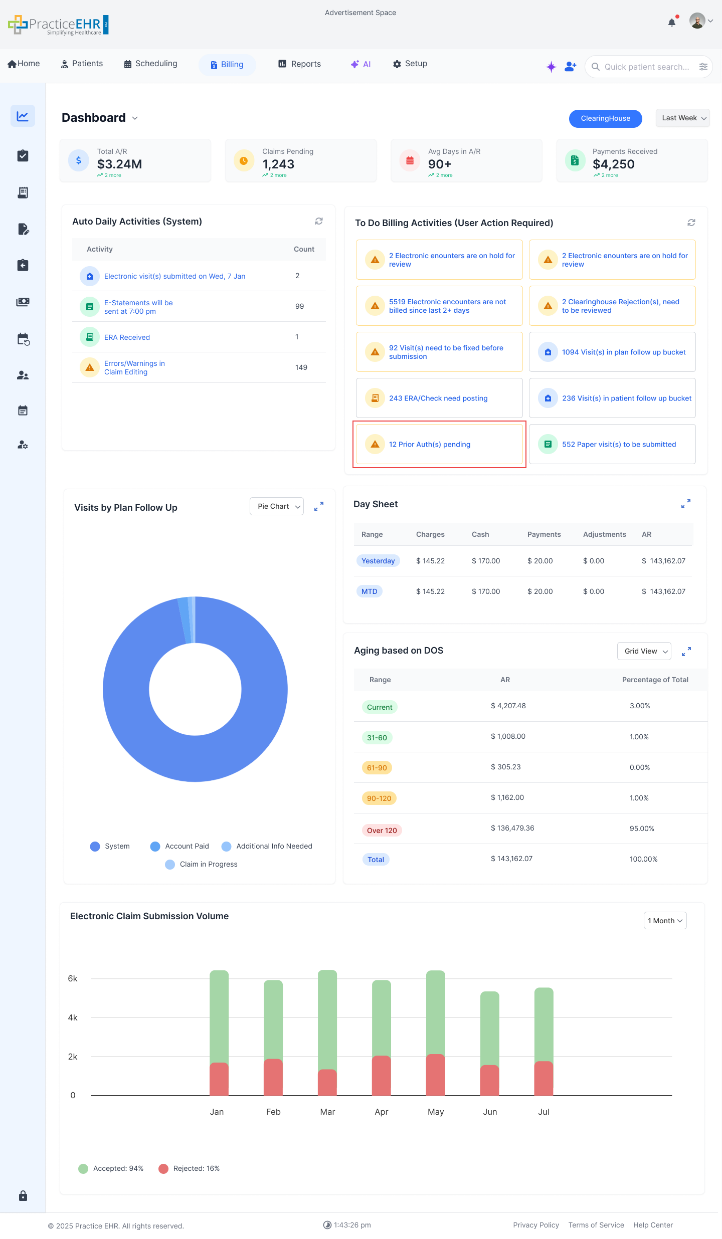
In the Billing Dashboard, when User Clicks on "Prior Auth Pending" under the "To Do Billing Activities (User Action Required)", System will navigate user to the "Prior Auth Tab".
Prior Auth Tab
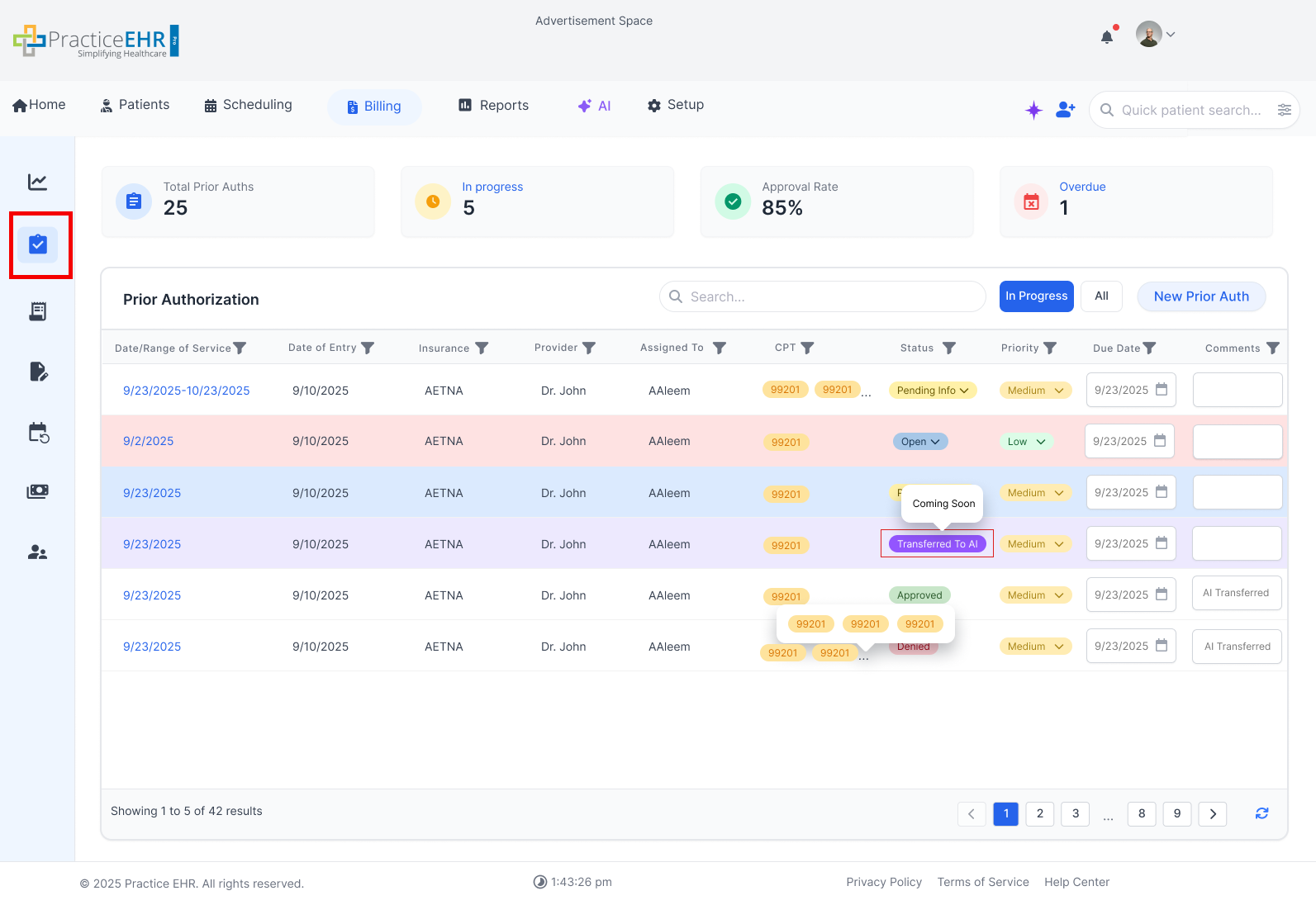
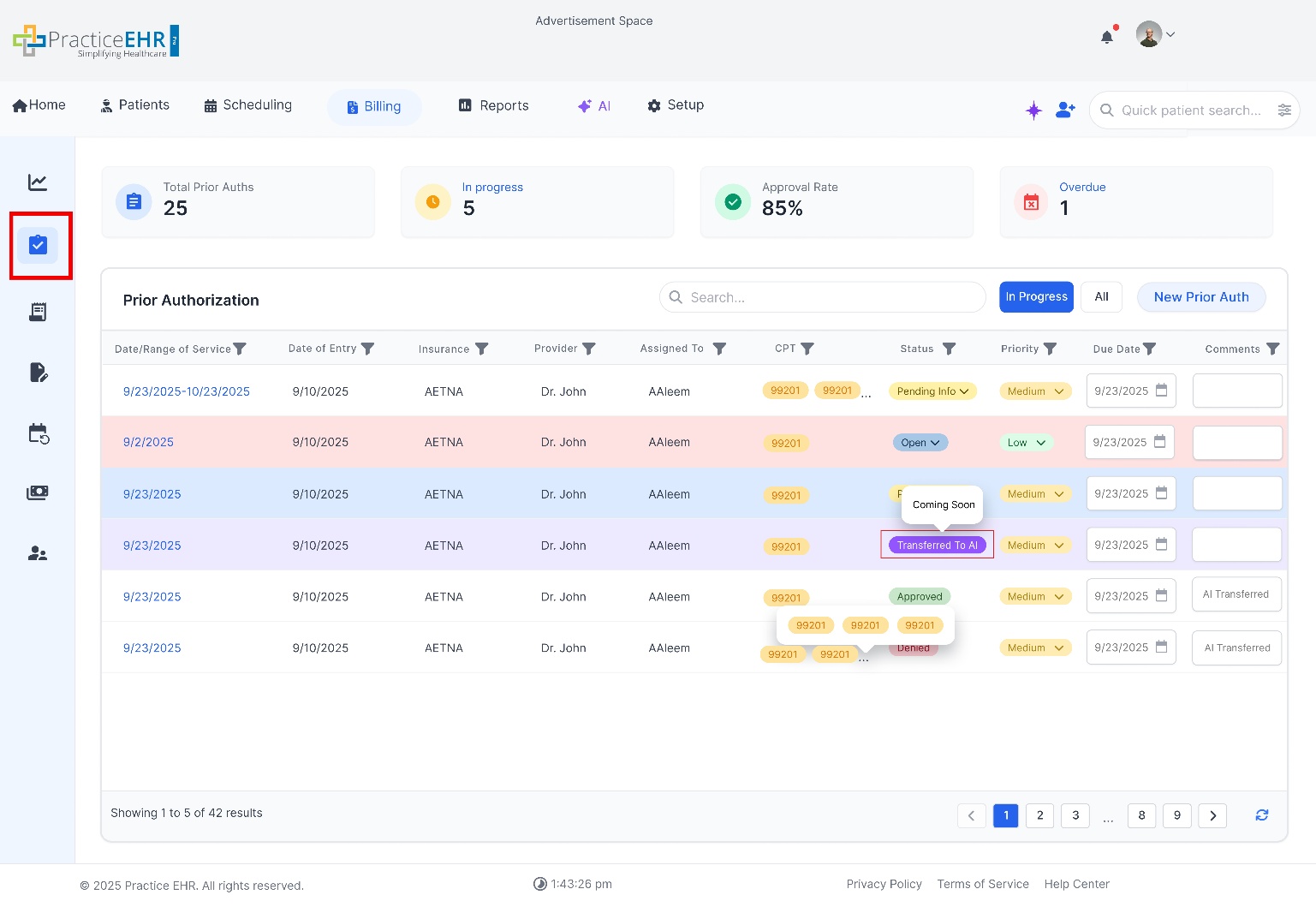
System will navigate user to the Prior Auth Tab, which shows.
- KPI Cards, which "shows" and "Update" the card values based on the Prior Auth Grid data. (KPI cards will be visible only in the "Prior Auth Tab", neither in Appointments nor in Case Management)
- The Priority Column in the Grid shows, three Priority levels, i.e., High , Medium and Low.
- In the Grid there will be filters based on the "Status" as explained in the Grid.
| Filters | Definition |
| All | System will show the all Grid values with all statuses upon "All" Filter Selection. |
| In Progress | System will populate all the In Progress Status values in the Grid at high level. |
- In the Grid, Comments columns will show the Comments.
- The Status "Transferred to AI" is in Coming Soon State.
Note:
- The whole line item will be red if the prior auth is overdue. The status and priority can be changed directly from the grid using the provided dropdowns.
- Prior Auth created/added from anywhere will be added to the Prior Auth Grid, shown in the Prior Auth module/tab.
Status and Definition
| Category | Status | Definition |
| Pre-Submission | New | Request has been created but not yet submitted to the payer. (In progress) |
| Pre-Submission | Pending Internal Review | Awaiting internal staff or provider validation before submission. (In progress) |
| Submitted to Payer | Submitted | Request has been sent to the payer and is awaiting an initial response. (In progress) |
| Submitted to Payer | In Progress / Pending Review | Payer is actively reviewing the request; no decision has been made yet. (In progress) |
| Submitted to Payer | Escalated | Request has been escalated for expedited handling or higher-level review. (In progress) |
| Information Gathering | Additional Information Required | Payer has requested additional details to continue processing the request. (In progress) |
| Information Gathering | Pending Provider Action | Waiting on the provider to submit required documentation or clarification. (In progress) |
| Information Gathering | Pending Patient Action | Waiting on the patient to provide required input, such as consent or records. (In progress) |
| Payer Decision | Approved | Authorization has been fully approved by the payer. (Final) |
| Payer Decision | Partially Approved | Authorization approved for only some services or units. (Final) |
| Payer Decision | Denied | Authorization has been denied by the payer. (Final) |
| Appeal Process | Appeal in Progress | An appeal has been submitted following denial and is under payer review. (In progress) |
| Appeal Process | Appeal Approved | Appeal decision overturned in favor of the provider. (Final) |
| Appeal Process | Appeal Denied | Appeal was rejected; no further payer review is available. (Final) |
| Operational Closure | Closed / Completed | Request has been fully resolved and archived. (Final) |
| Operational Closure | Cancelled | Request was withdrawn before a final decision was made. (Final) |
| Operational Closure | Expired | Authorization timeframe elapsed without use or final decision after 2 days. (Final) |
New Prior Auth (Button)
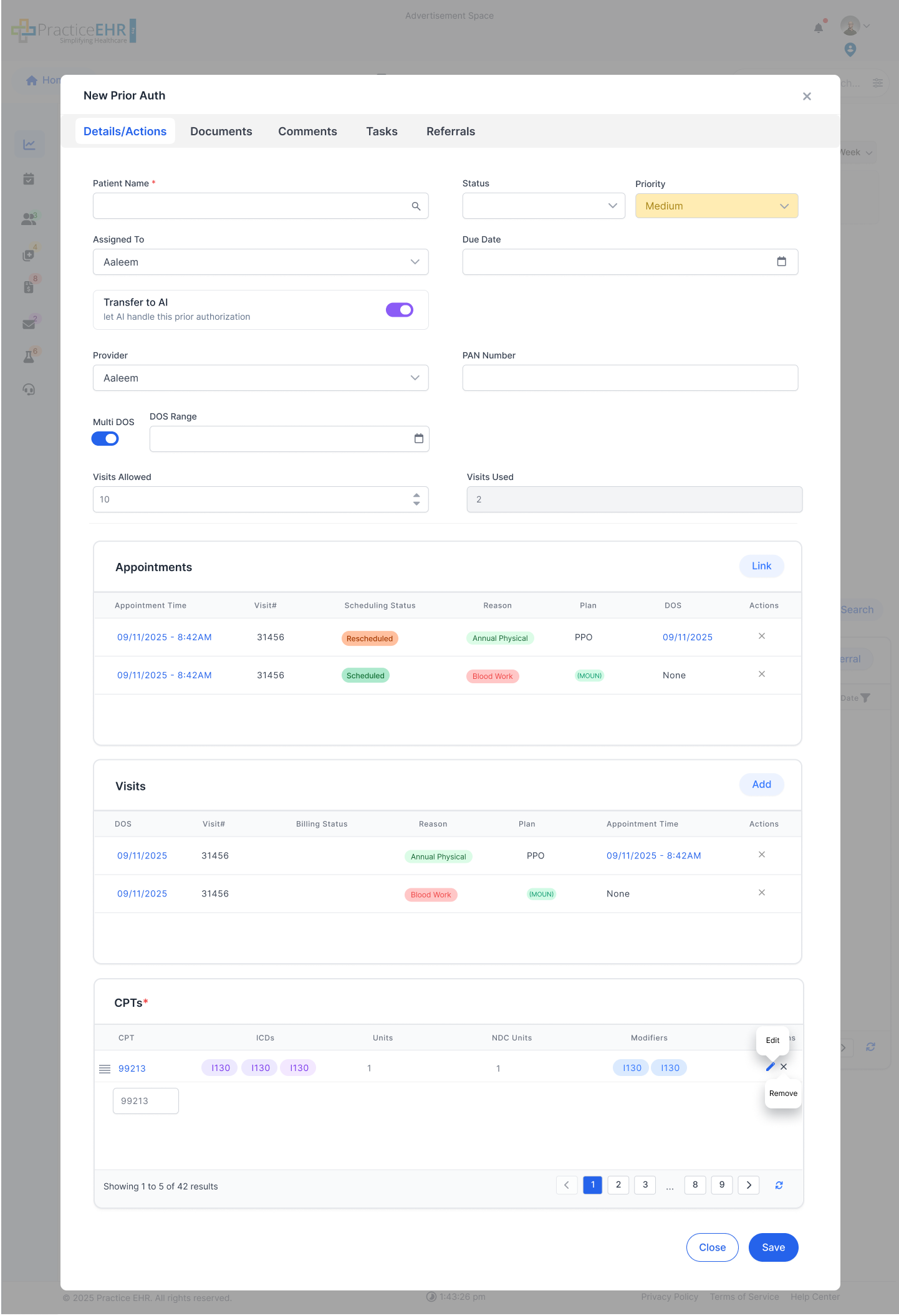
When the user clicks the New Prior Auth button, the system navigates to the New Prior Auth modal.
The modal includes three tabs: Details/Actions, Documents, and Comments.
Reference Links: CPT Details/Information
Details/Actions Tab
- Complete all required fields in the Details/Actions tab.
- Use the Link button on the appointments grid to link an existing appointment for the selected patient.
- The appointments grid shows only appointments for the selected patient, and only with Scheduled or Confirmed status.
- If no patient is selected, the appointments grid is not shown.
- If a visit is already added for an appointment and the user tries to link it again, the system shows an error.
- If an appointment is already linked to a prior auth, linking it again shows an Appointment already linked error.
- If a linked appointment changes to Cancelled, No Show, or Rescheduled, it is removed automatically.
- If the appointment is moved back and becomes active again (for example, Scheduled), it appears again automatically.
- Appointments in Scheduled, Confirmed, or Online status (and not cancelled) are counted for visit tracking.
- When an appointment is converted into a visit, it moves to the Visit Detail grid and follows the selected DOS.
- In the Visit Detail grid, the DOS column is a hyperlink. Clicking the hyperlink opens the Progress Note if the visit is Open, and opens the PDF document if the visit is Closed.
- If a visit is deleted, its related progress note is also deleted.
- When a visit is added from New Prior Auth, the prior auth PAN number is automatically added to that visit.
Link Appointments:
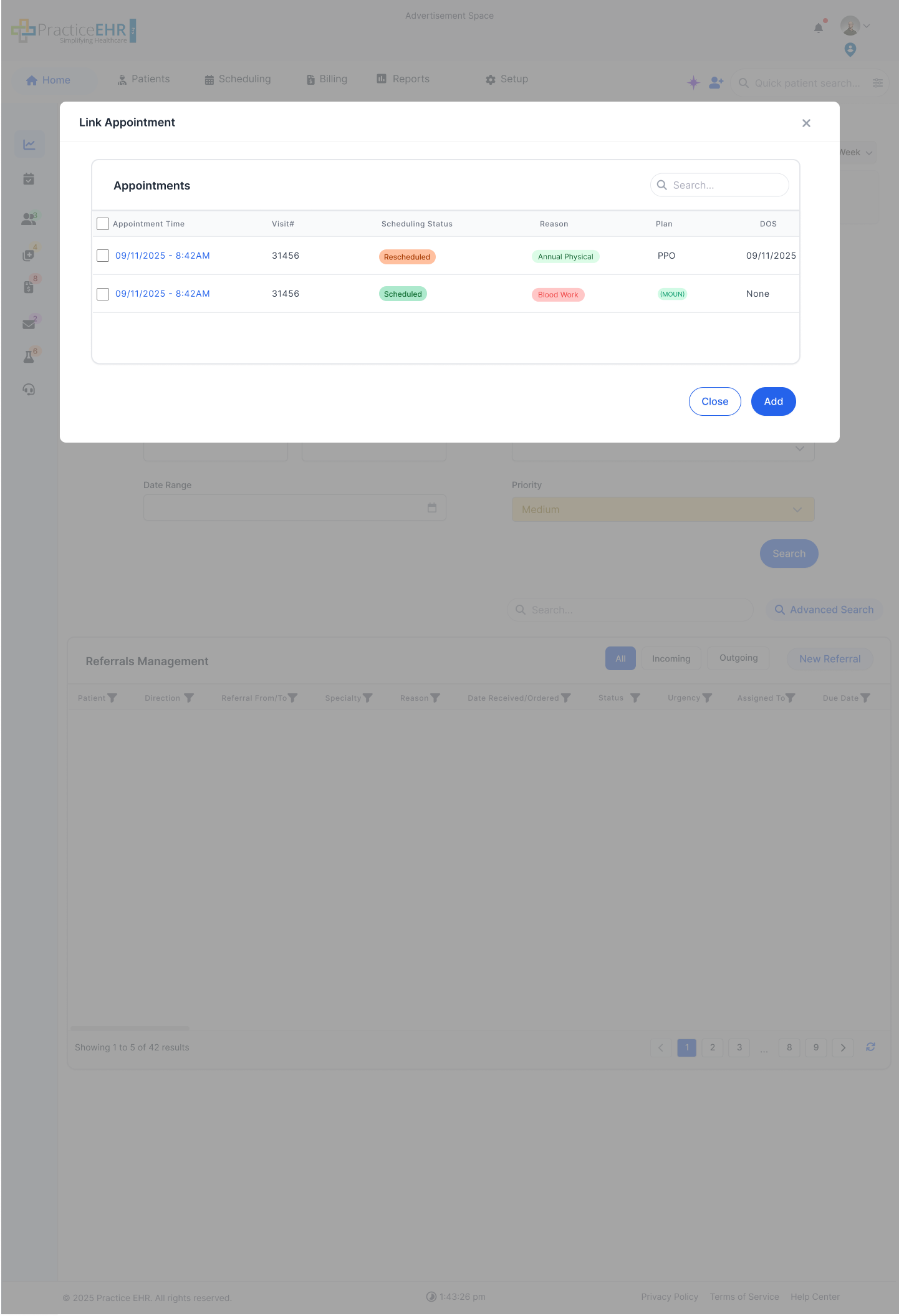
Use the Link action in the appointments grid to associate the selected appointment with the current Prior Auth.
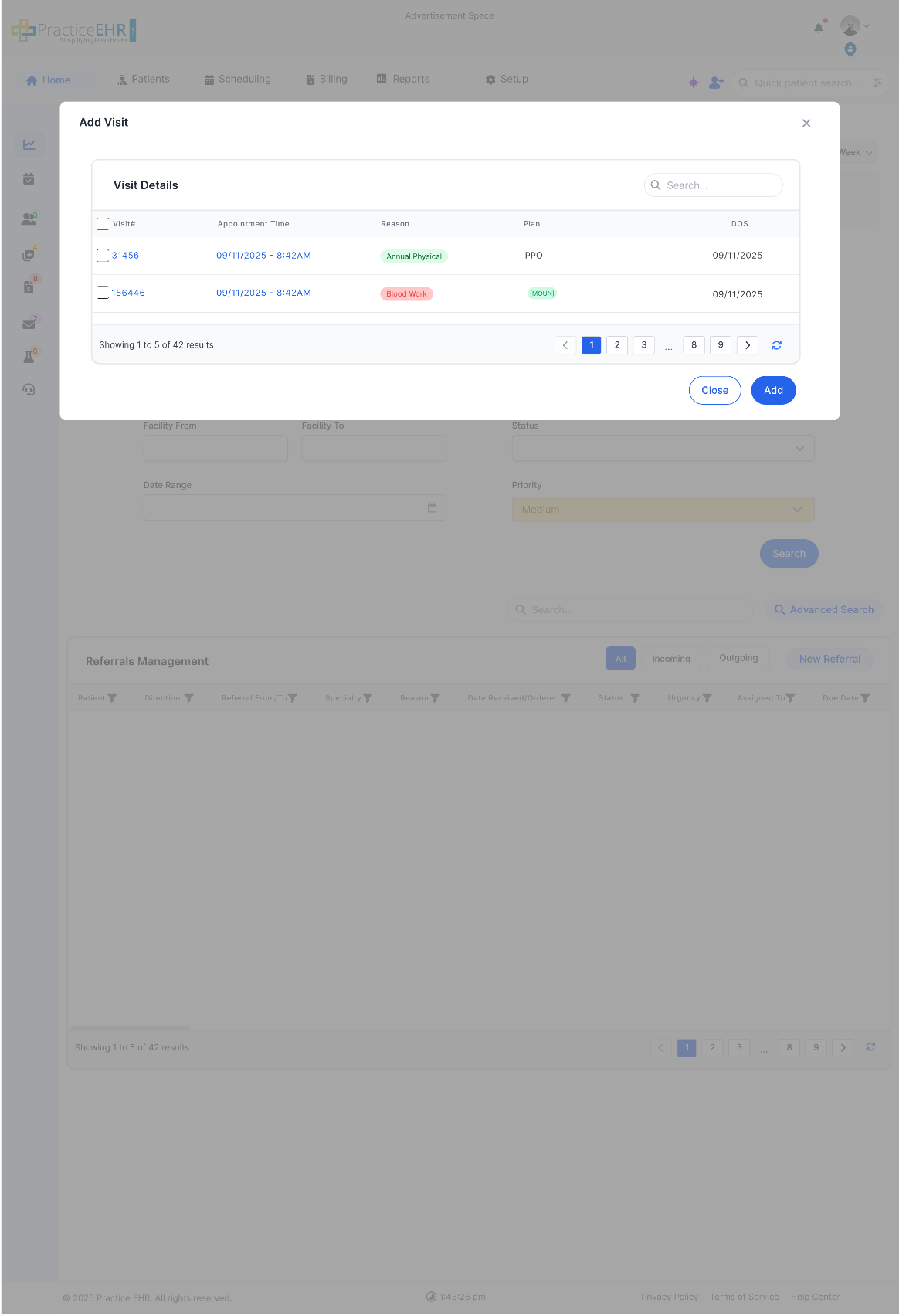
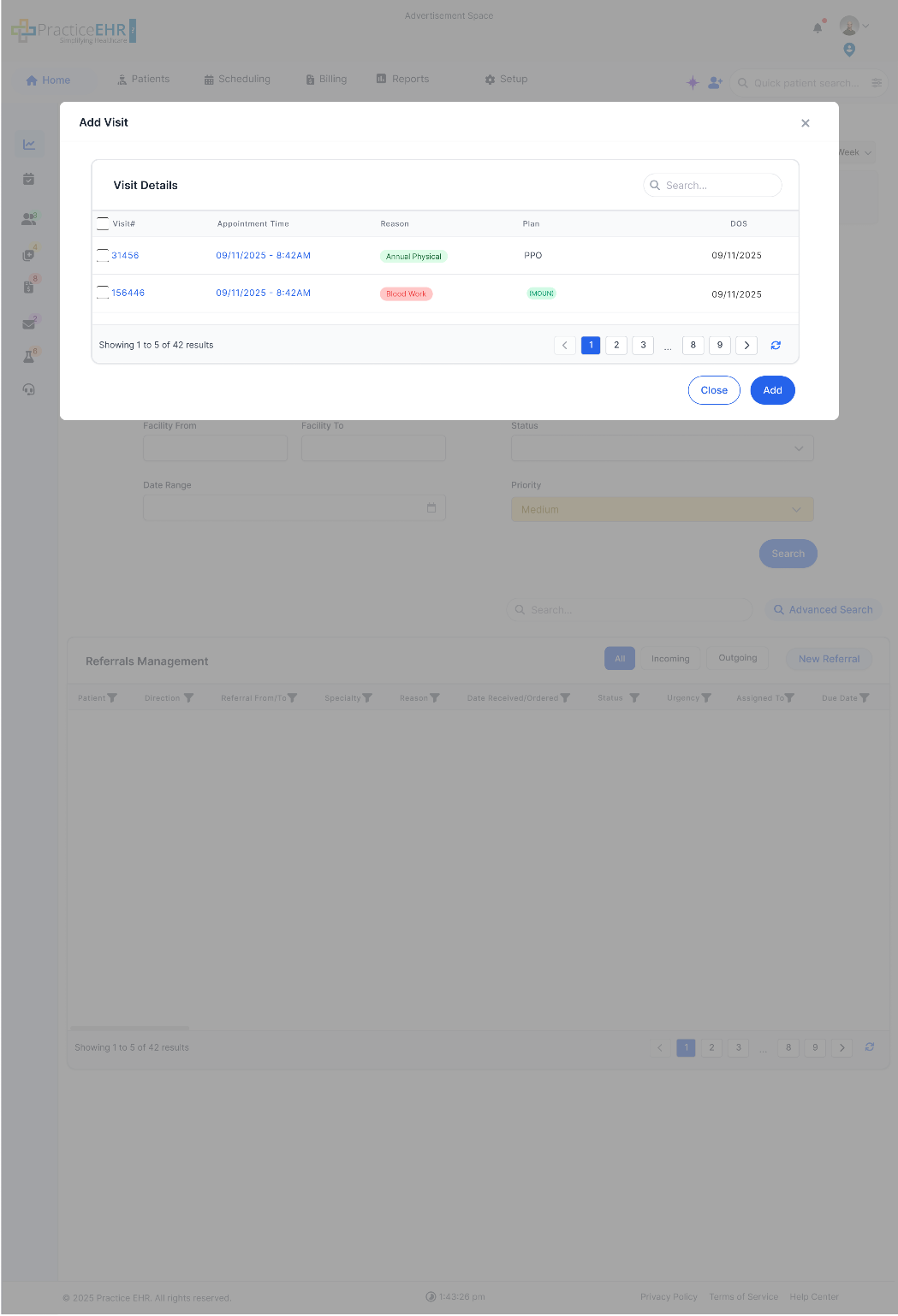
- Upon Clicking the Add button, system will open the Add Visit Modal where user selects the visits and adds them to the grid.
Edit CPT
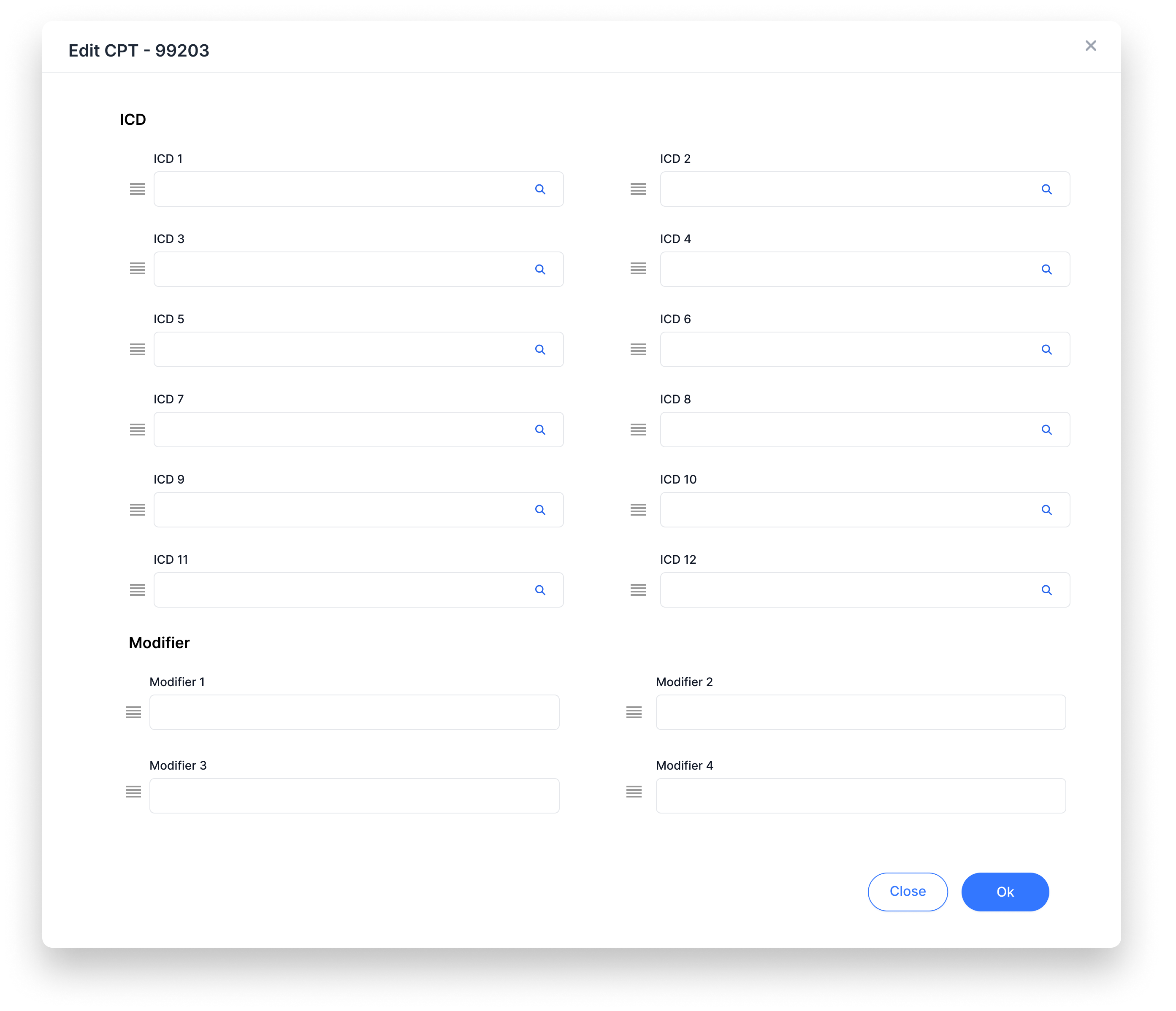
This screen open when the user clicks the Edit icon in CPTs Grid button from the CPTs grid. The user can modify or add relevant ICDs and modifiers.
Reference Link: ICD Search
Case 1: Multi DOS Toggle is Active/Enable
- When the Multi DOS toggle is enabled, the DOS field changes to a DOS Range.
- The Visits Allowed and Visits Used fields become visible.
- The Visit Detail grid is displayed on the screen.
- When the user clicks the Add button in the Visit Detail Grid, past and future visits based on the DOS range, should be added to the grid, ensuring that the total number of visits does not exceed the allowed visit limit.
- If a Prior Auth has 2 or more visits linked, the Multi DOS toggle cannot be disabled unless those visits are removed first.
Case 2: Multi DOS Toggle is inactive:
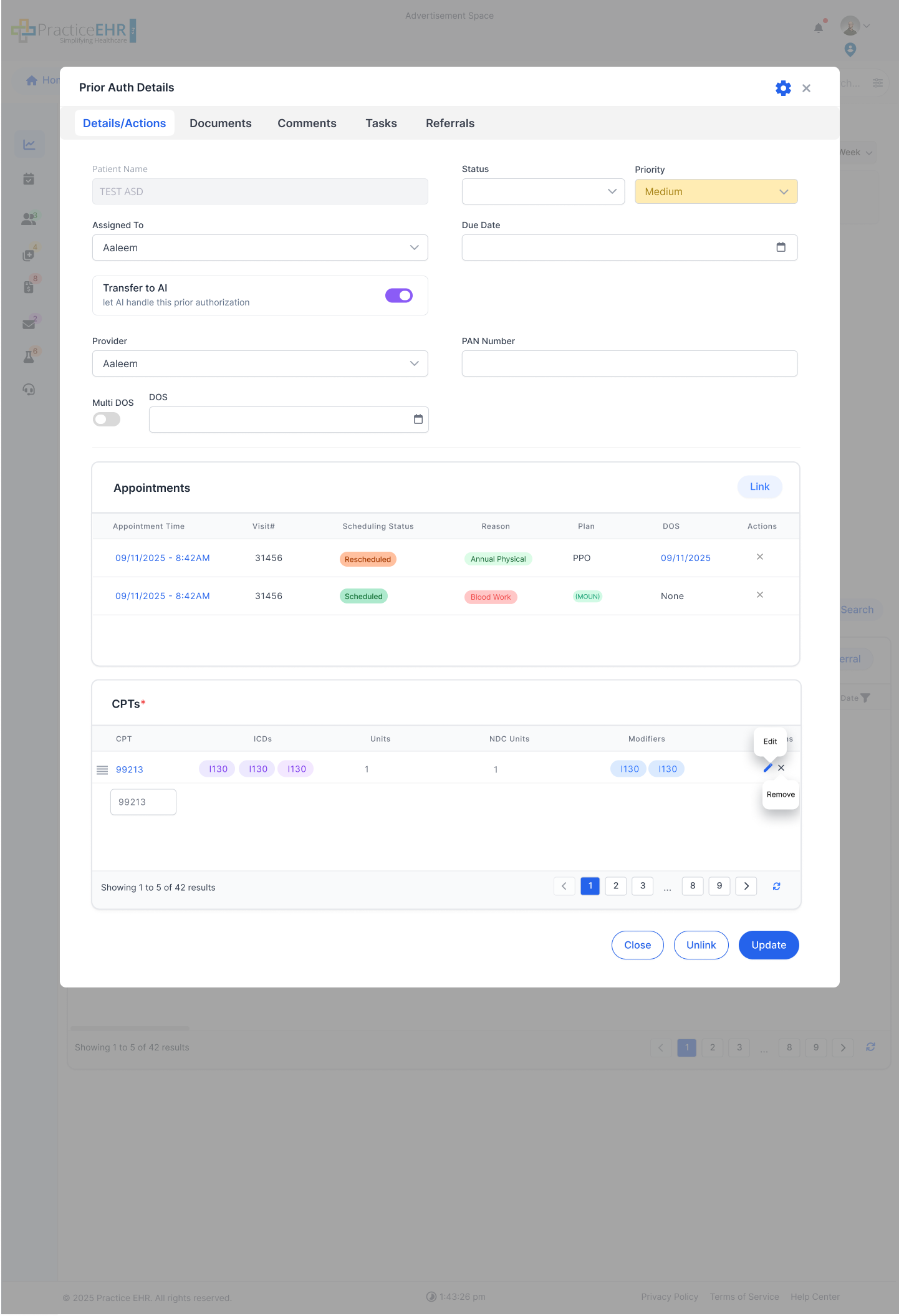
- If the toggle is inactive, the system displays only the single DOS field. The Visits Allowed, Visits Used, and Visit Detail grid are not visible to the user.
Error State:
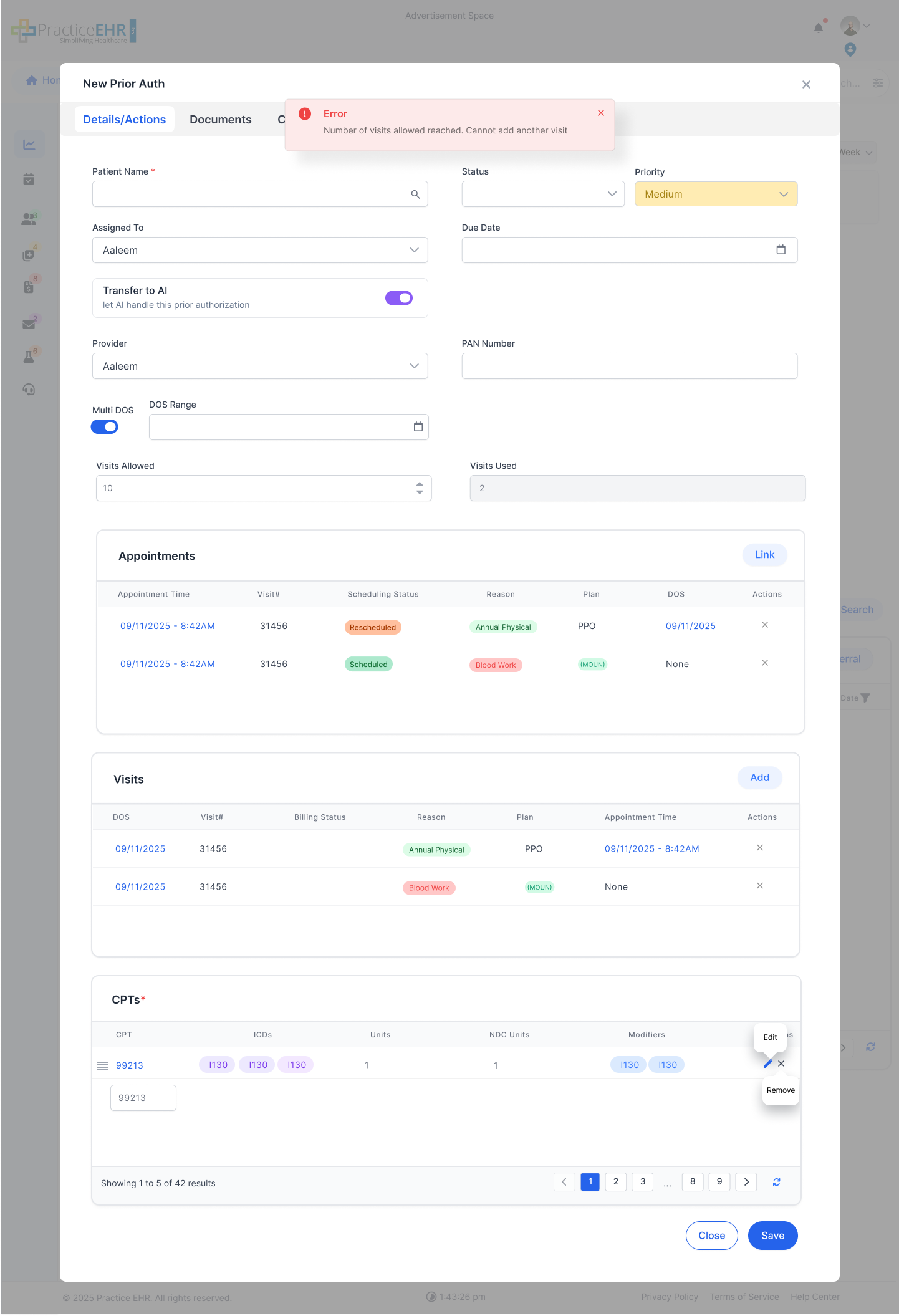
System will popup the Error Notification, if Number of Visits allowed reached to its maximum in Mult DOS.
Documents Tab
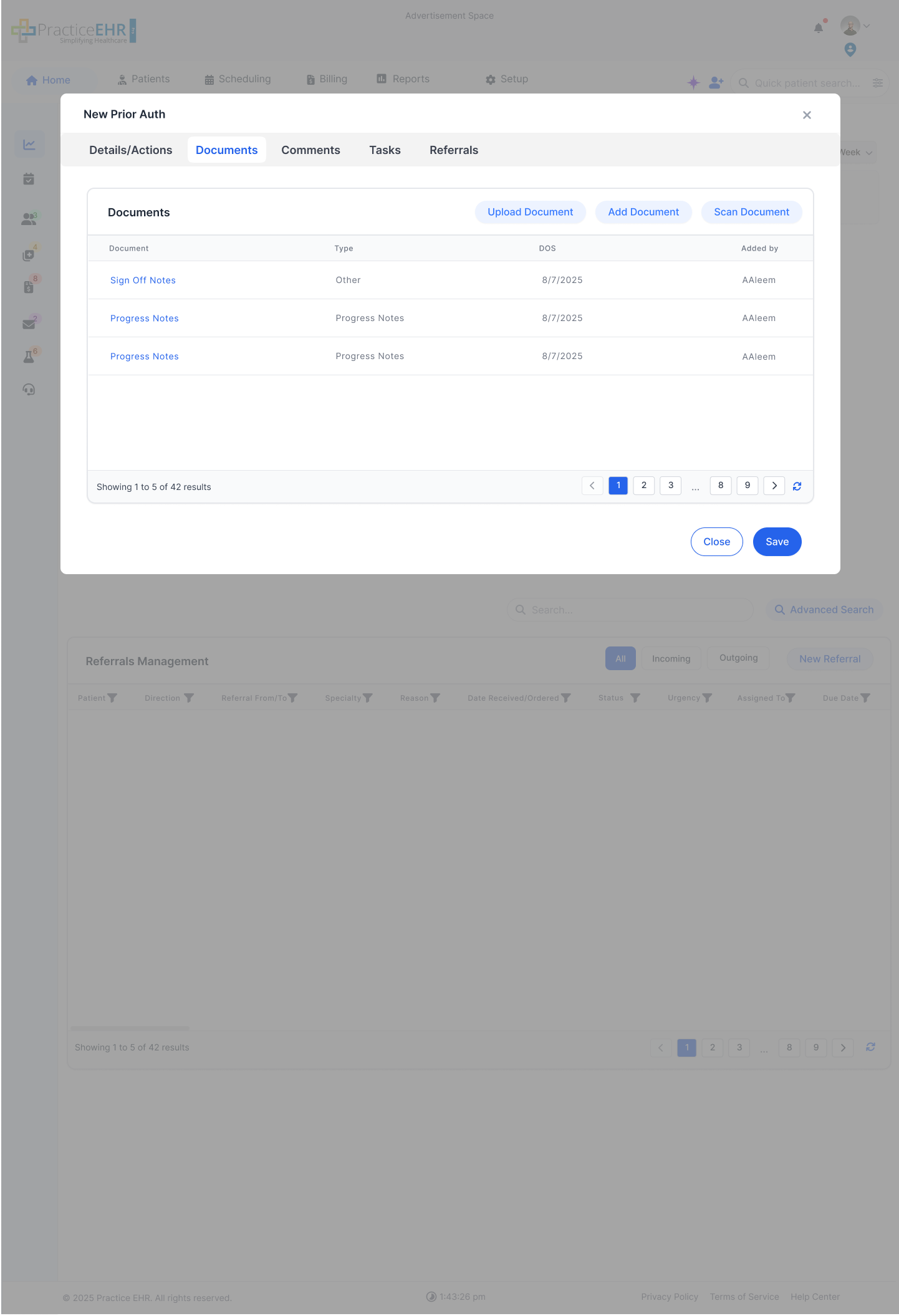
- Documents Tab shows the Document Grid and Visit Detail grid.
- All the documents attached for the Prior Auth will be listed in the Documents grid.
- User can also view All Type of Visits in the Visit Detail Grid.
- If there is any Progress note attached it should be added above in the Documents grid.
Upload Documents Button:
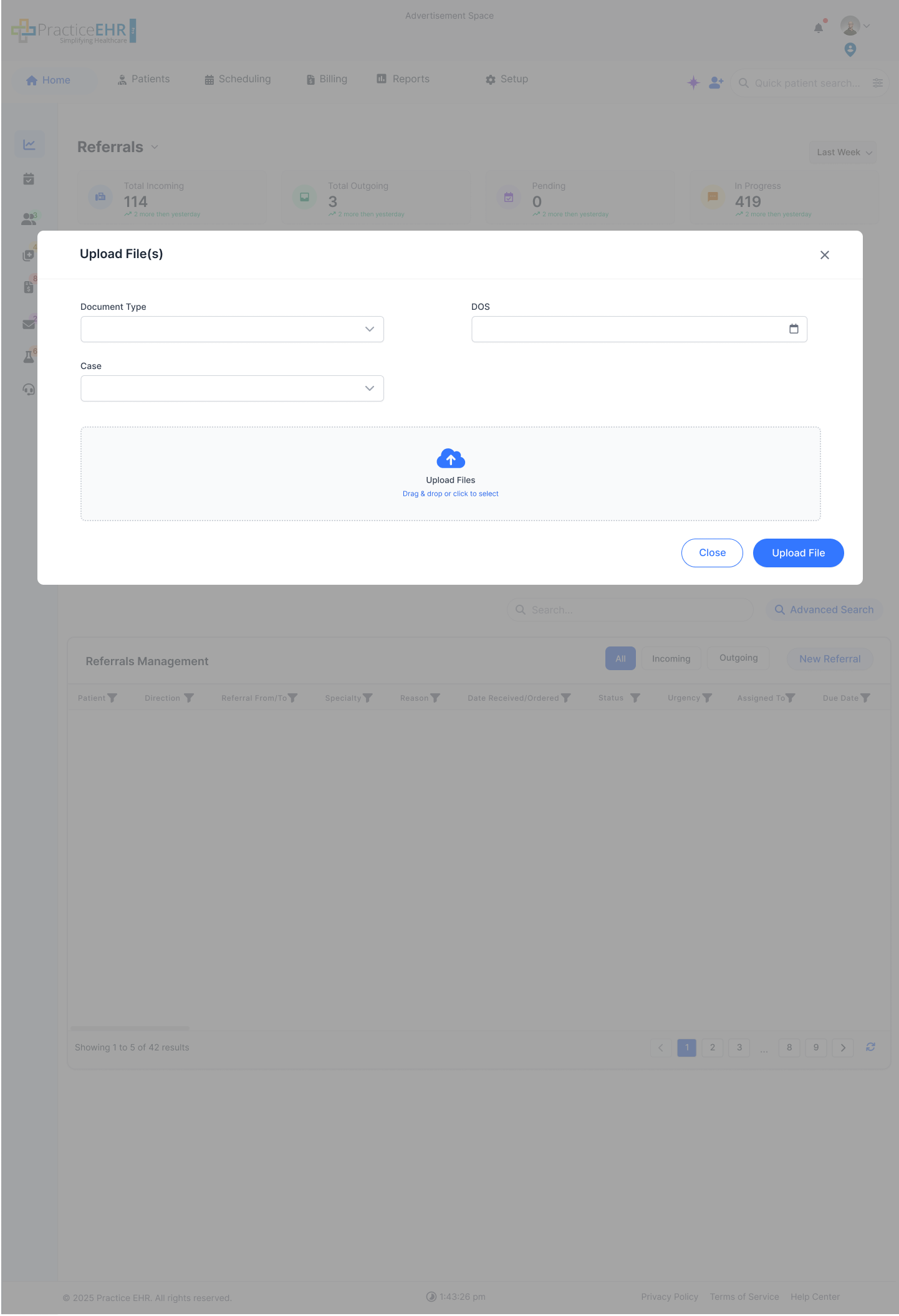
- System allows user to upload document files against a selected document type and upload them to the Grid.
- Case field is flag-based and only shows when enabled from the backend.
Add Documents Button:
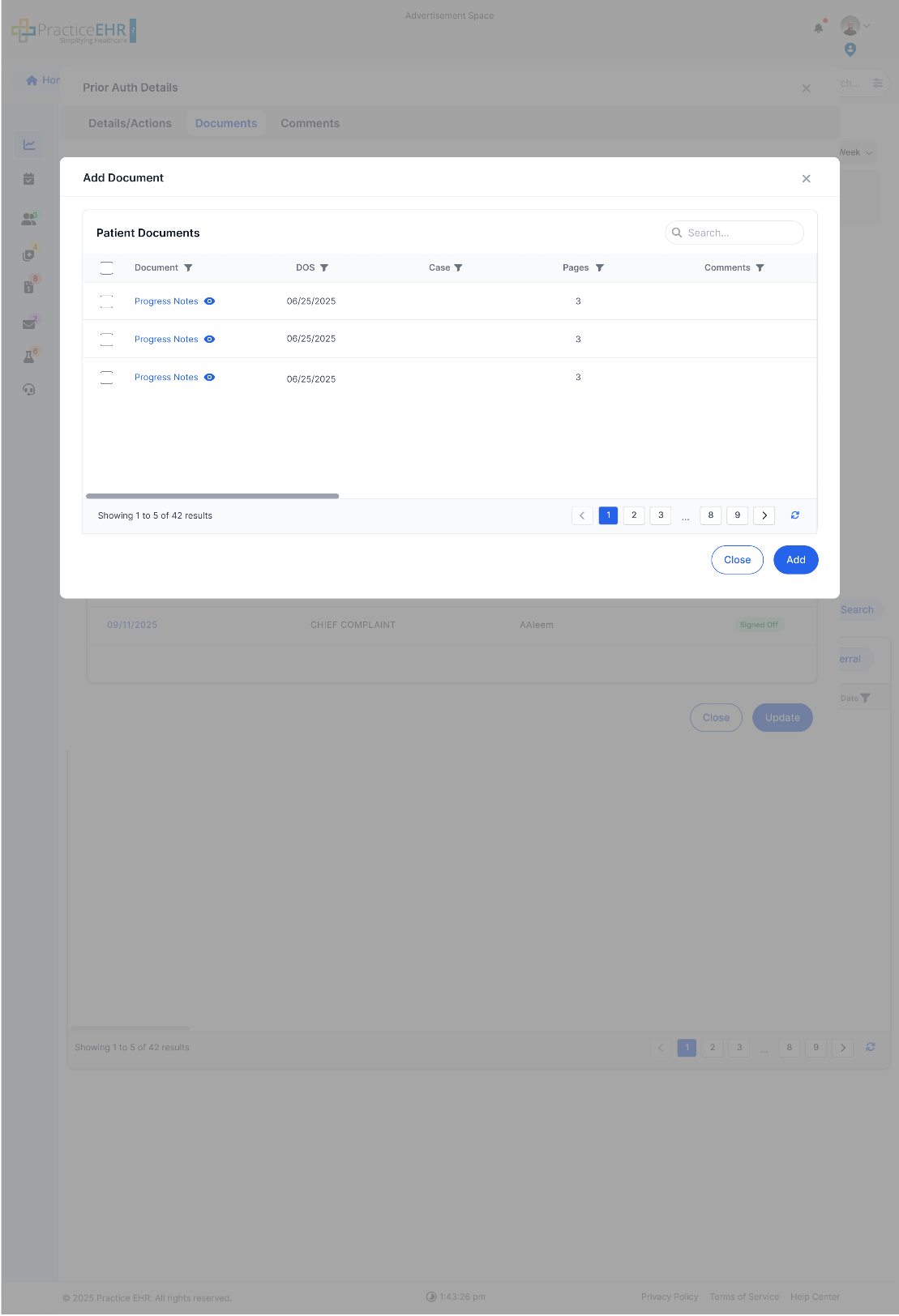
- Upon click, system will open the Modal, where user can view the existing Patient Documents and add the selected documents to the Document Grid for Prior Auth.
Comments Tab:
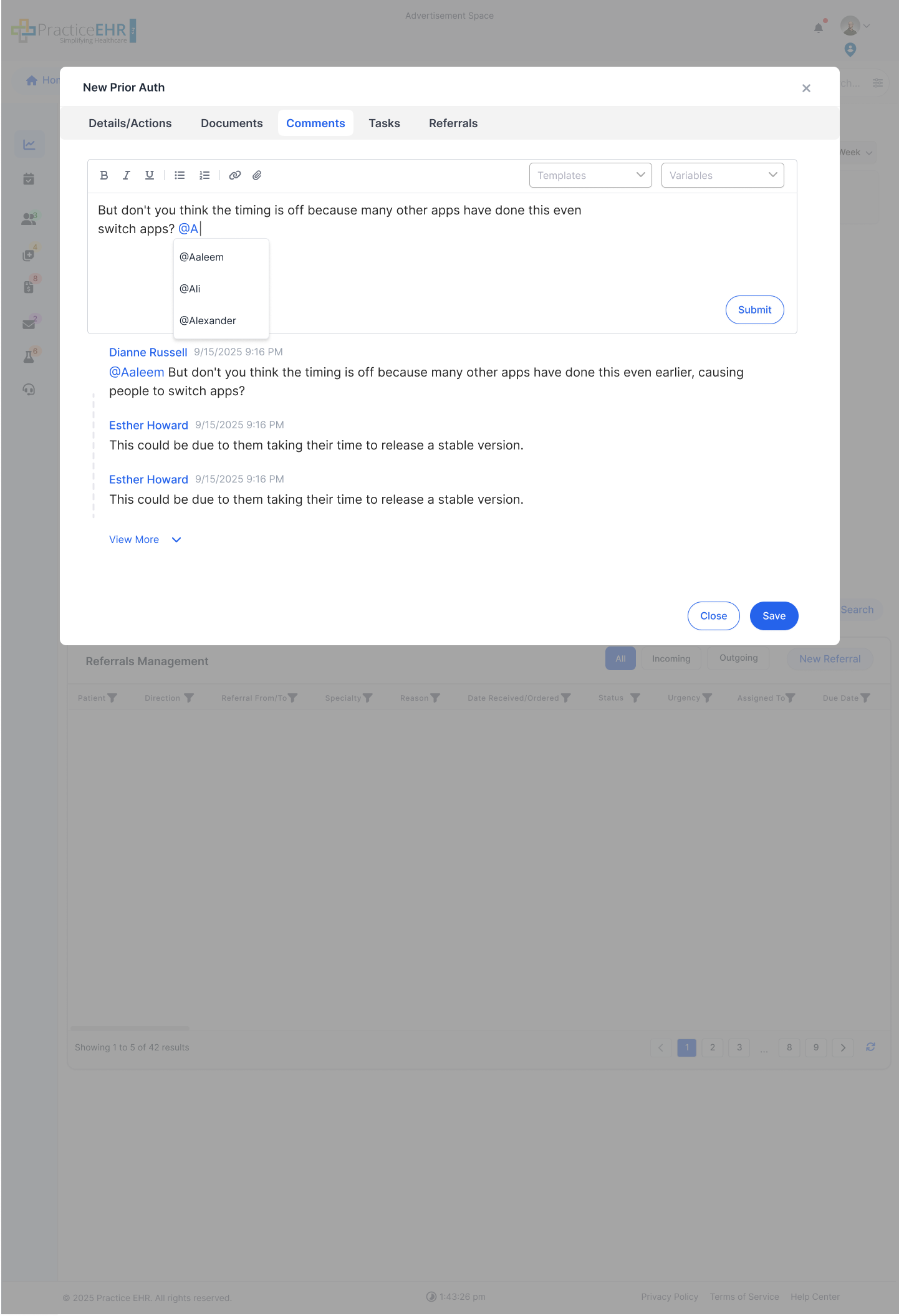
The Comments tab includes a comment composer with a running thread below it. It supports @mentions and timestamps.
Prior Auth Details
Navigation:
Prior Authorization > Date/Range of Services
- Click the Date/Range of Services (DOS) hyperlink to open the Prior Auth Details modal.
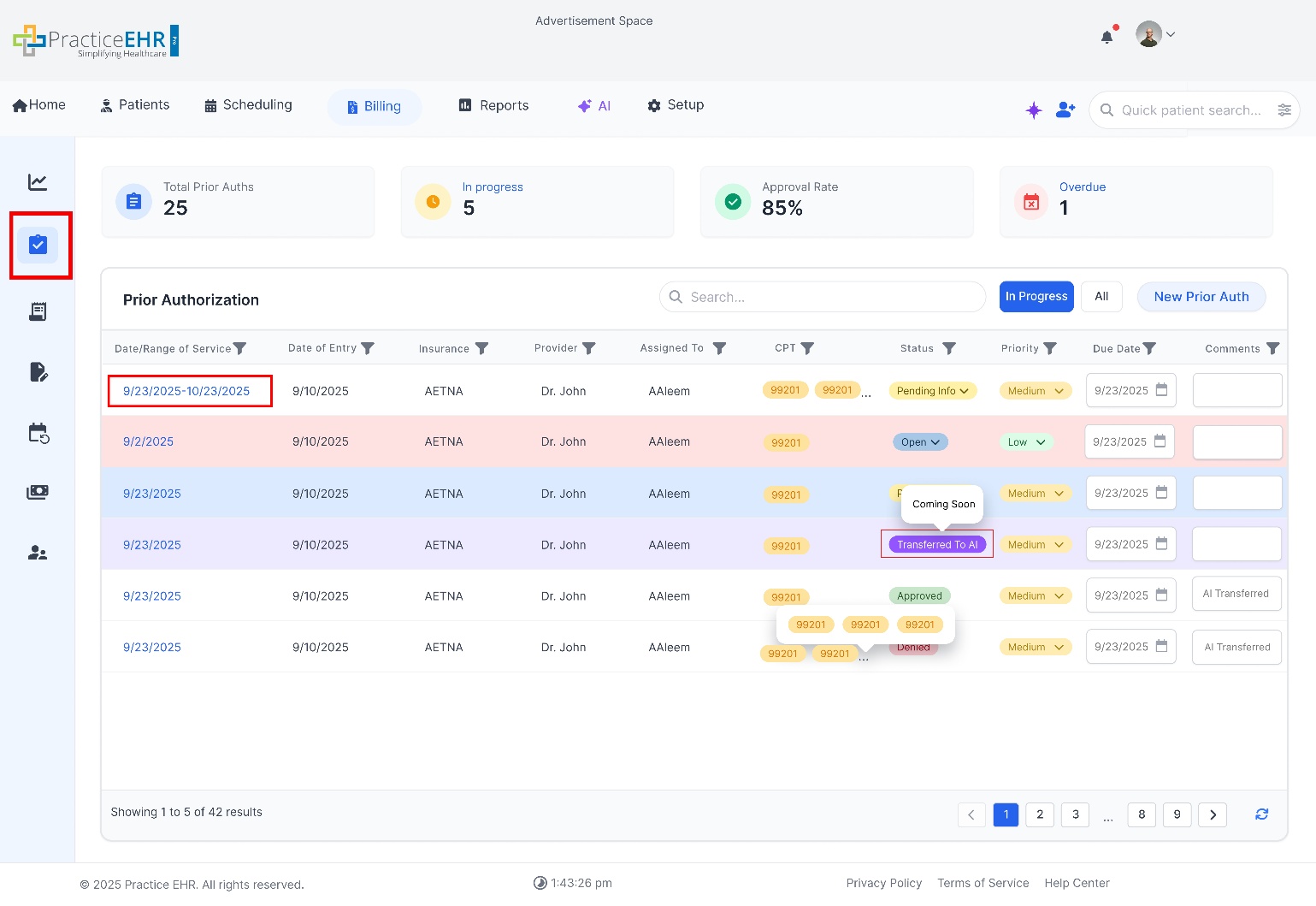
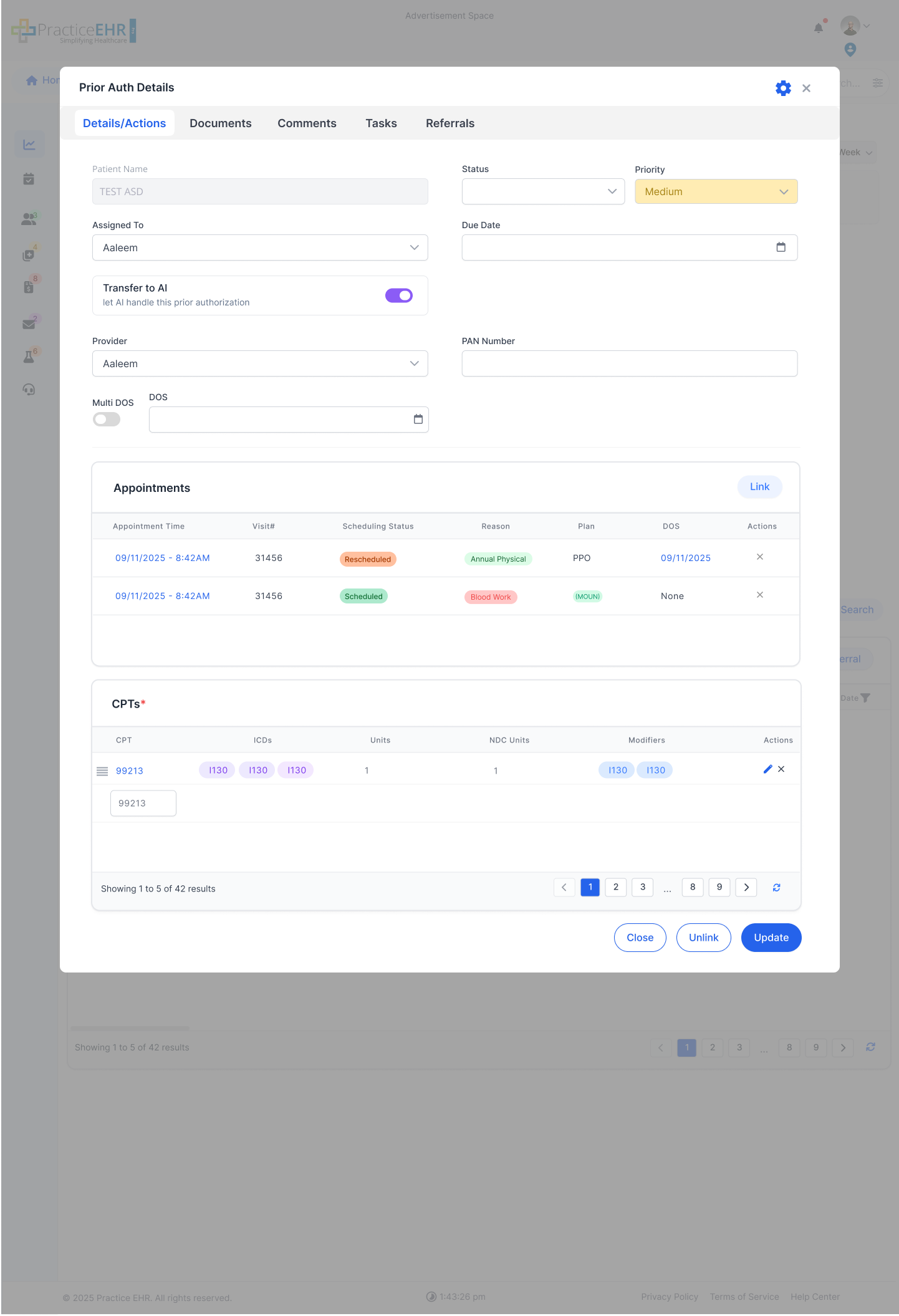
Click the DOS hyperlink to open the Prior Auth Details modal.
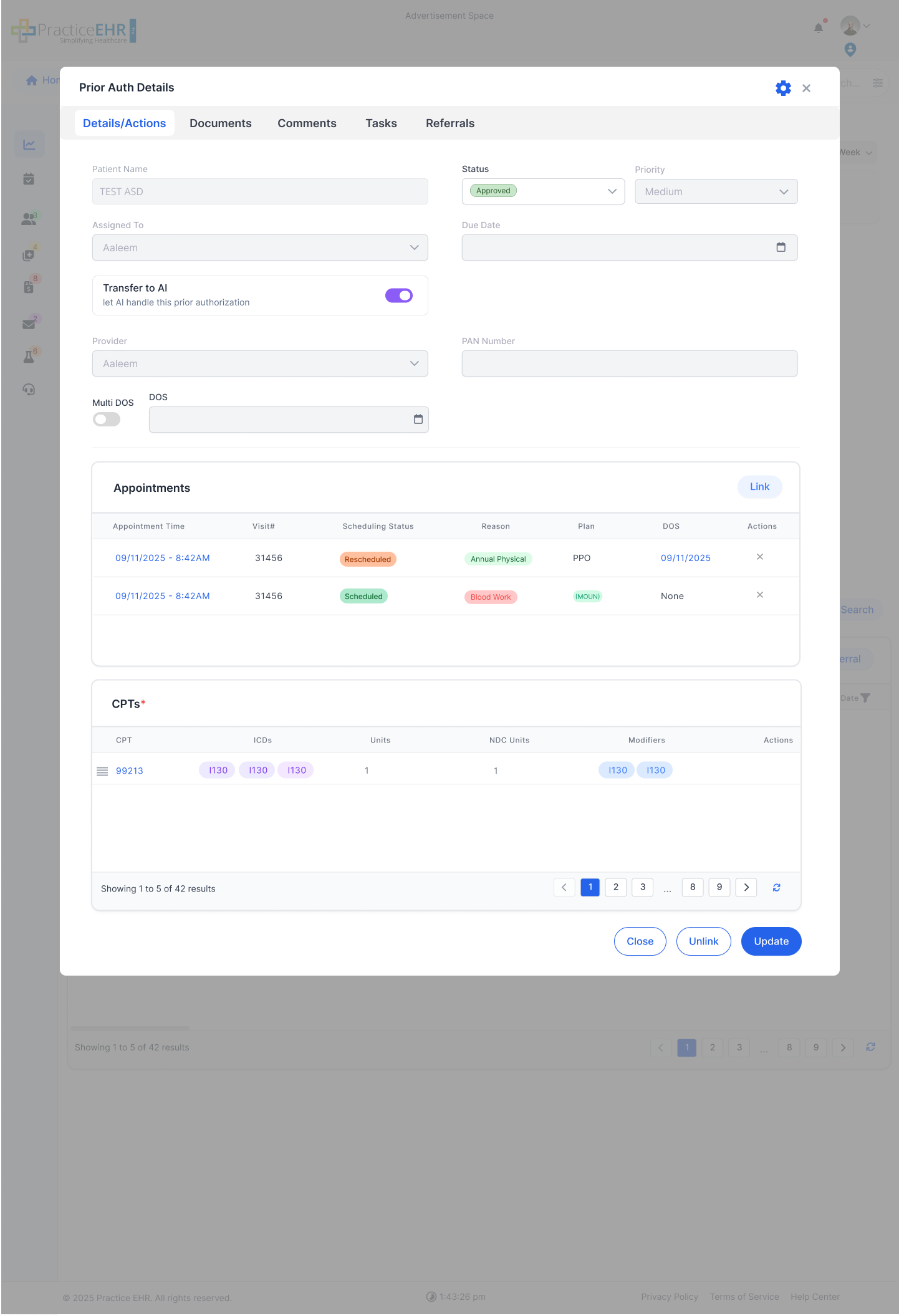
Once a Prior Auth is approved, it stays editable for 2 days. After 2 days from approval, it becomes non-editable.
Gear Icon - Audit Log
- In Prior Auth Details, the Gear (Settings) icon includes an Audit Log option.
- When the user clicks Audit Log, the system opens the Audit Log grid for that specific Prior Auth.
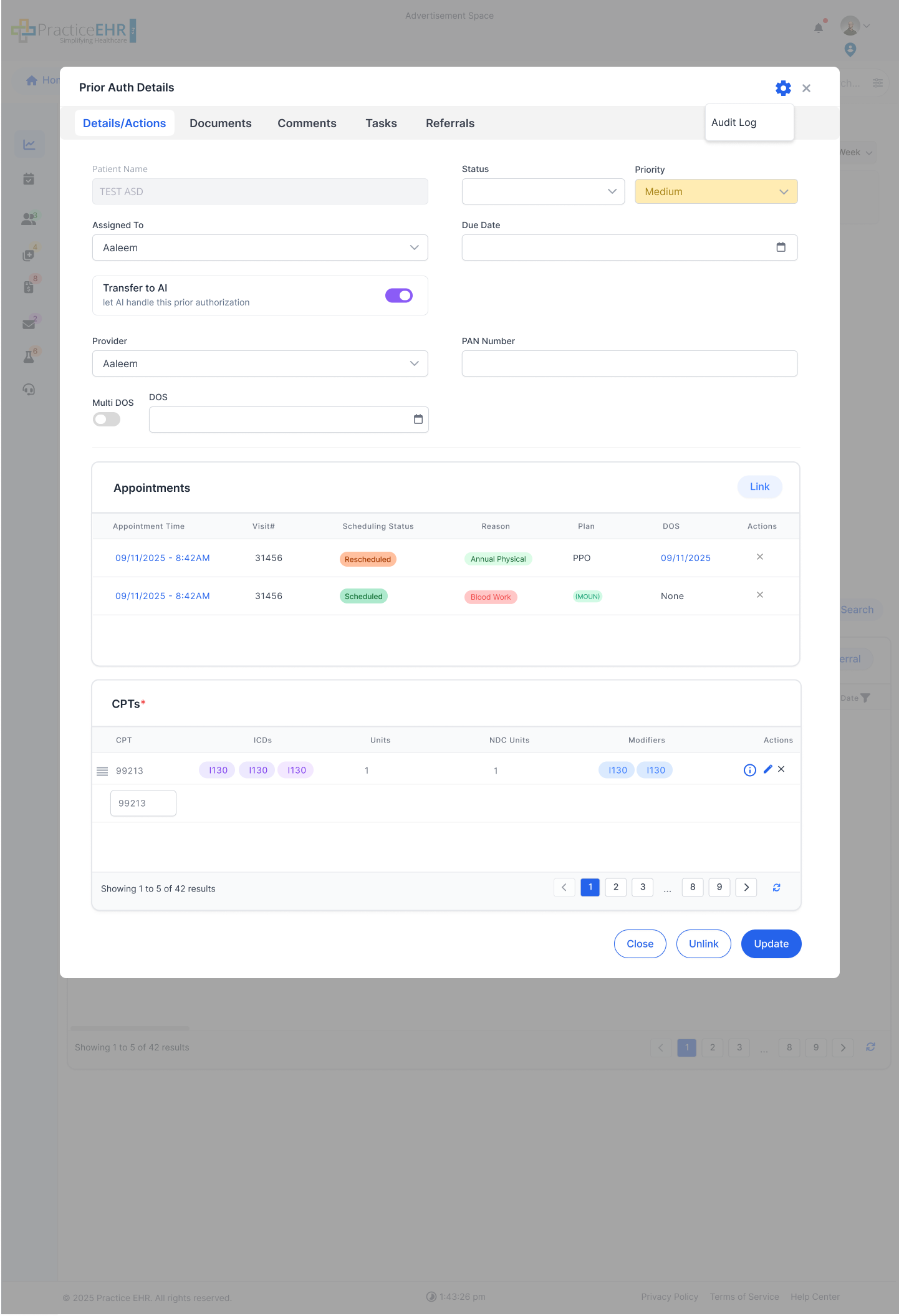
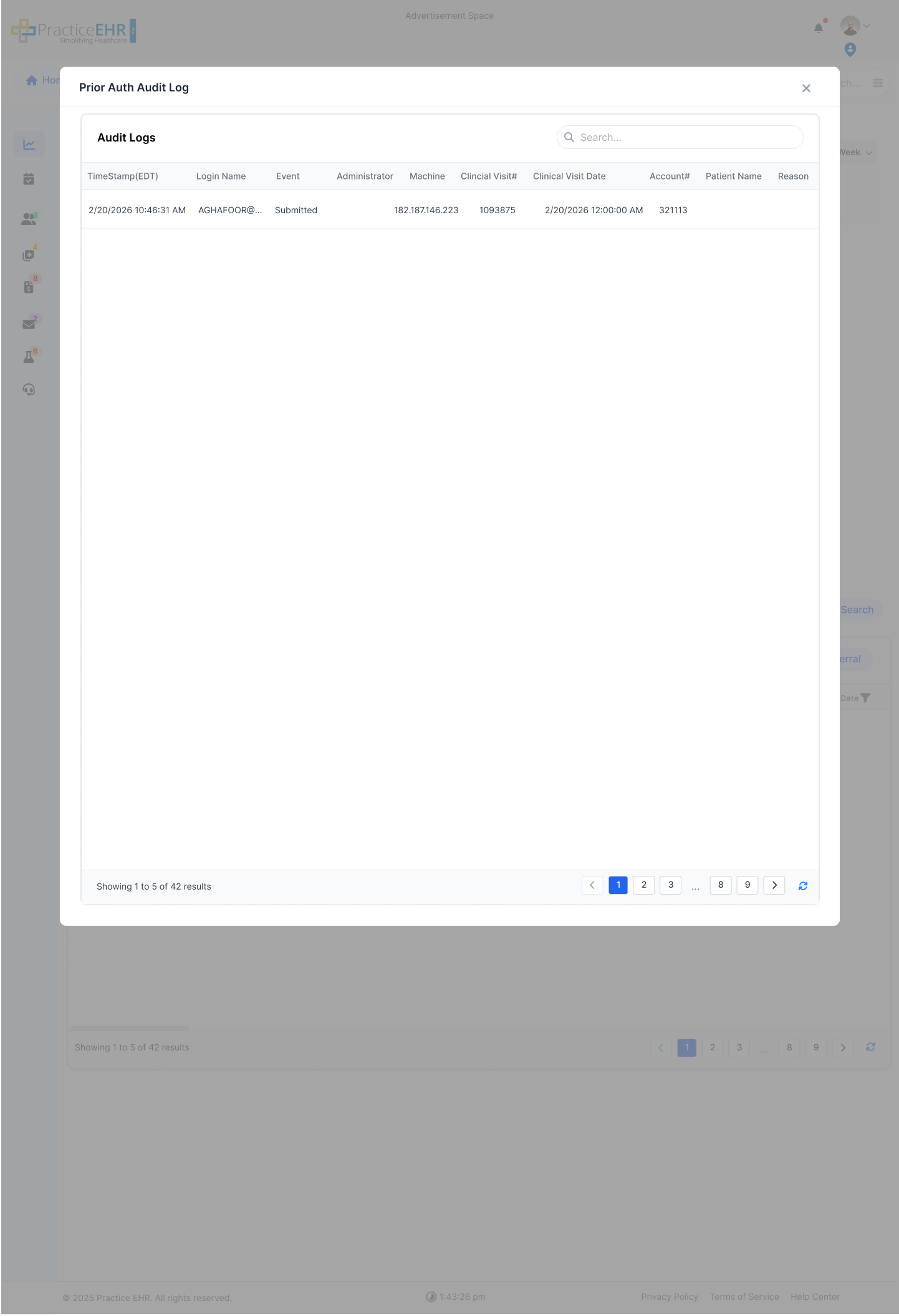
Use the gear icon on the selected Prior Auth record, choose Audit Log, and review all logged updates for that same Prior Auth in the grid view.
Tasks Tab
- When the user opens the Tasks tab in Prior Auth Details, they can view all tasks associated with that Prior Auth.
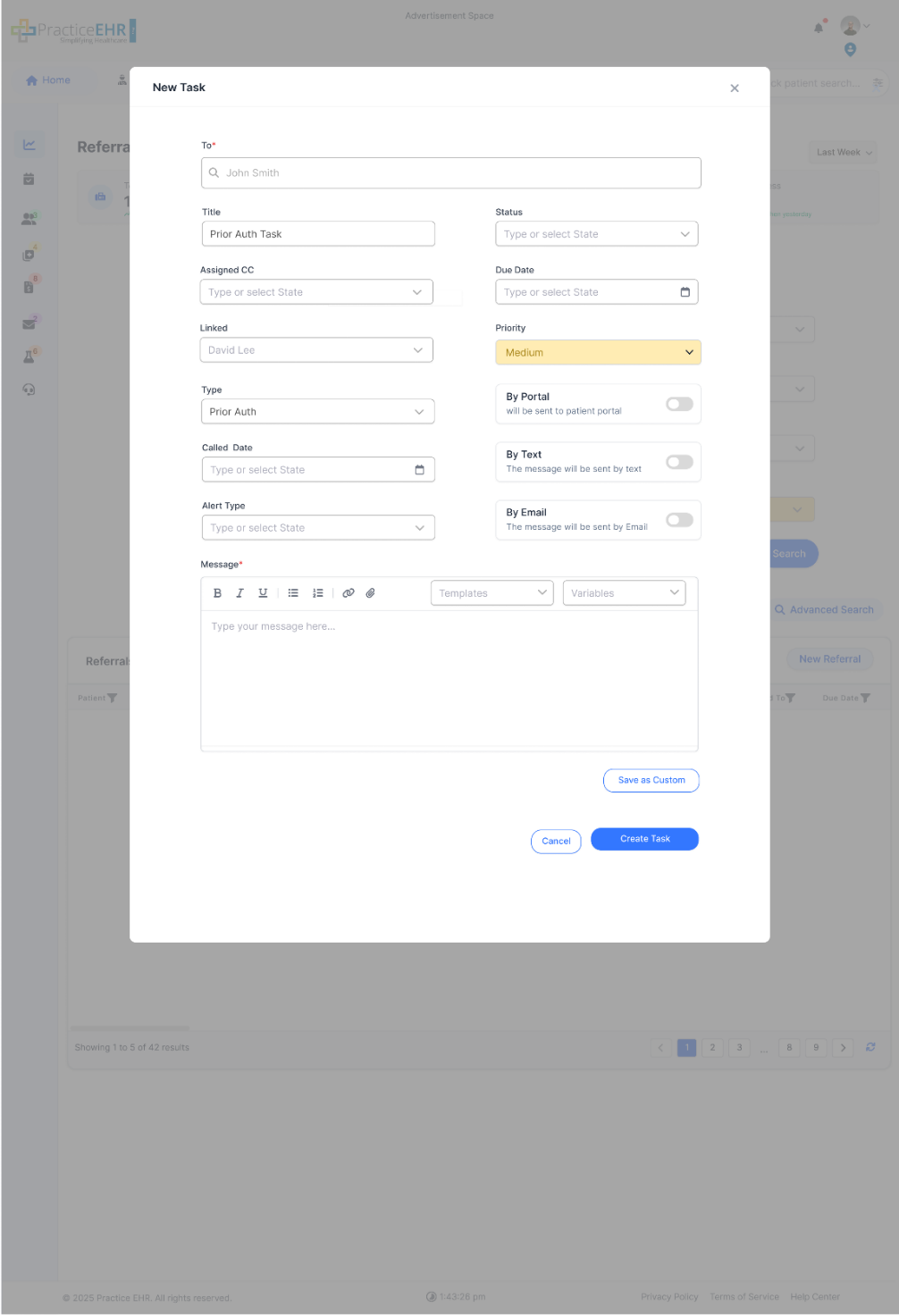
- From the same tab, users can create new messages to follow up and coordinate on that Prior Auth.
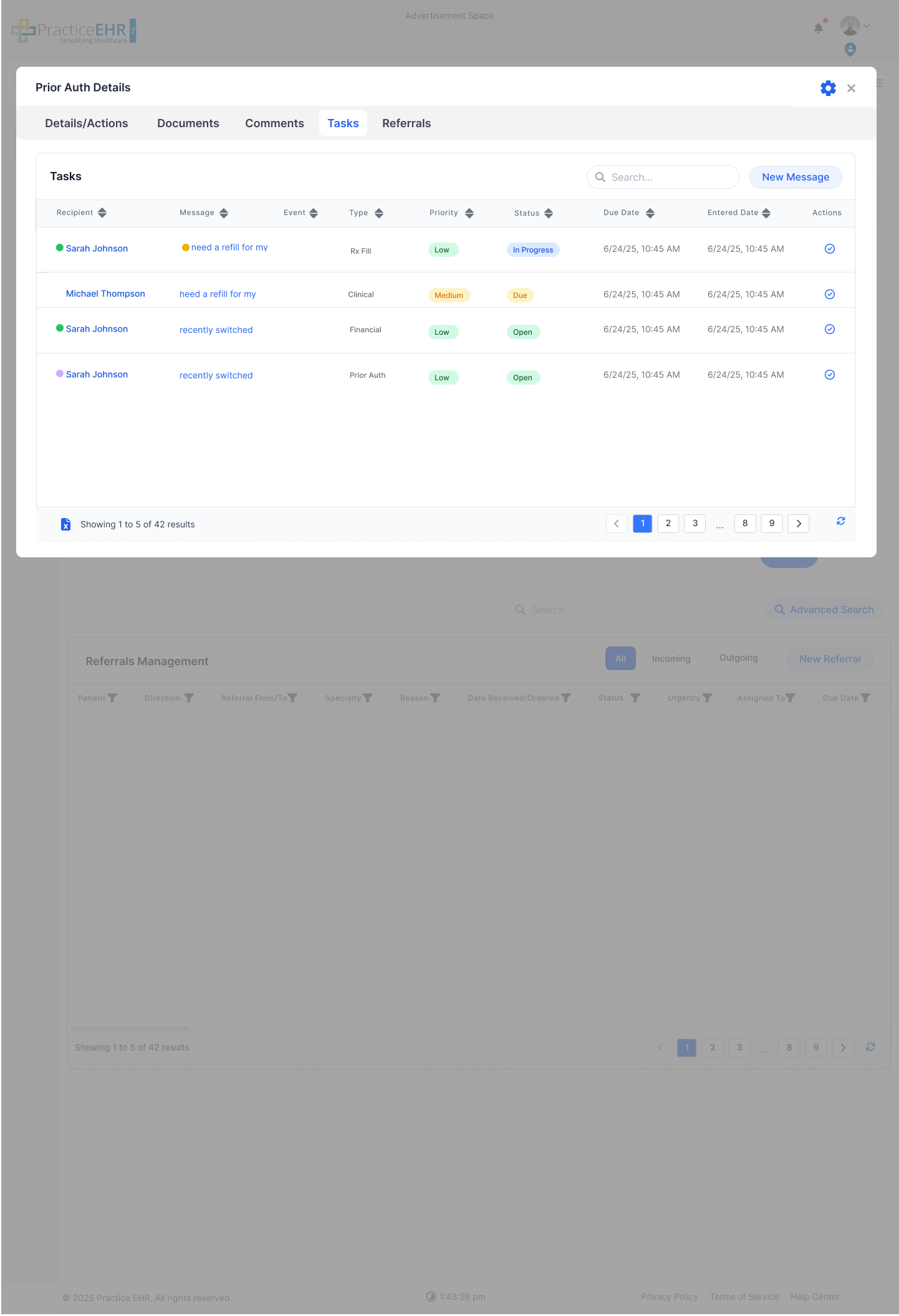
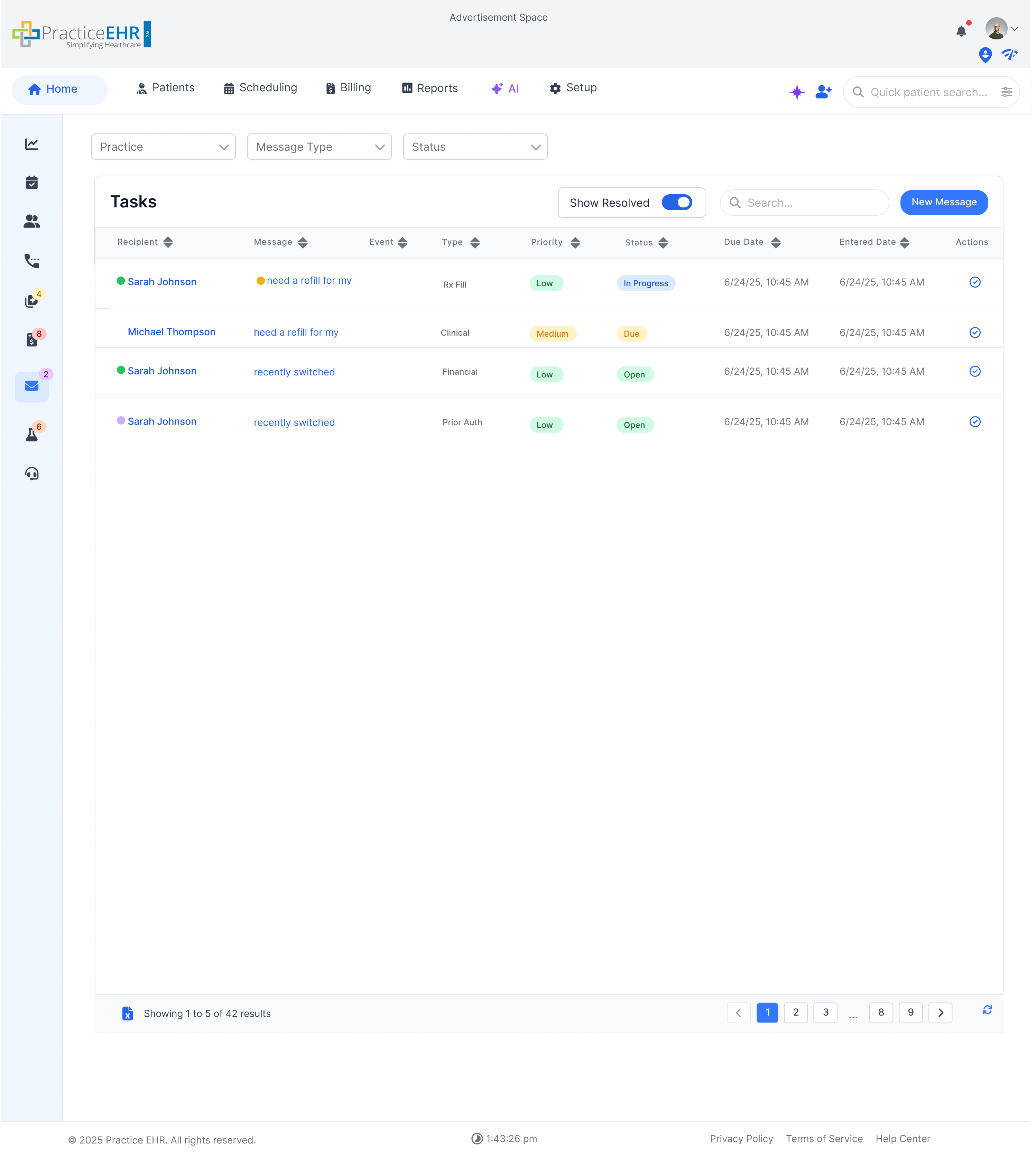
The Tasks tab keeps follow-up work in one place, showing linked tasks and allowing users to create new messages directly for that Prior Auth.
Appointment
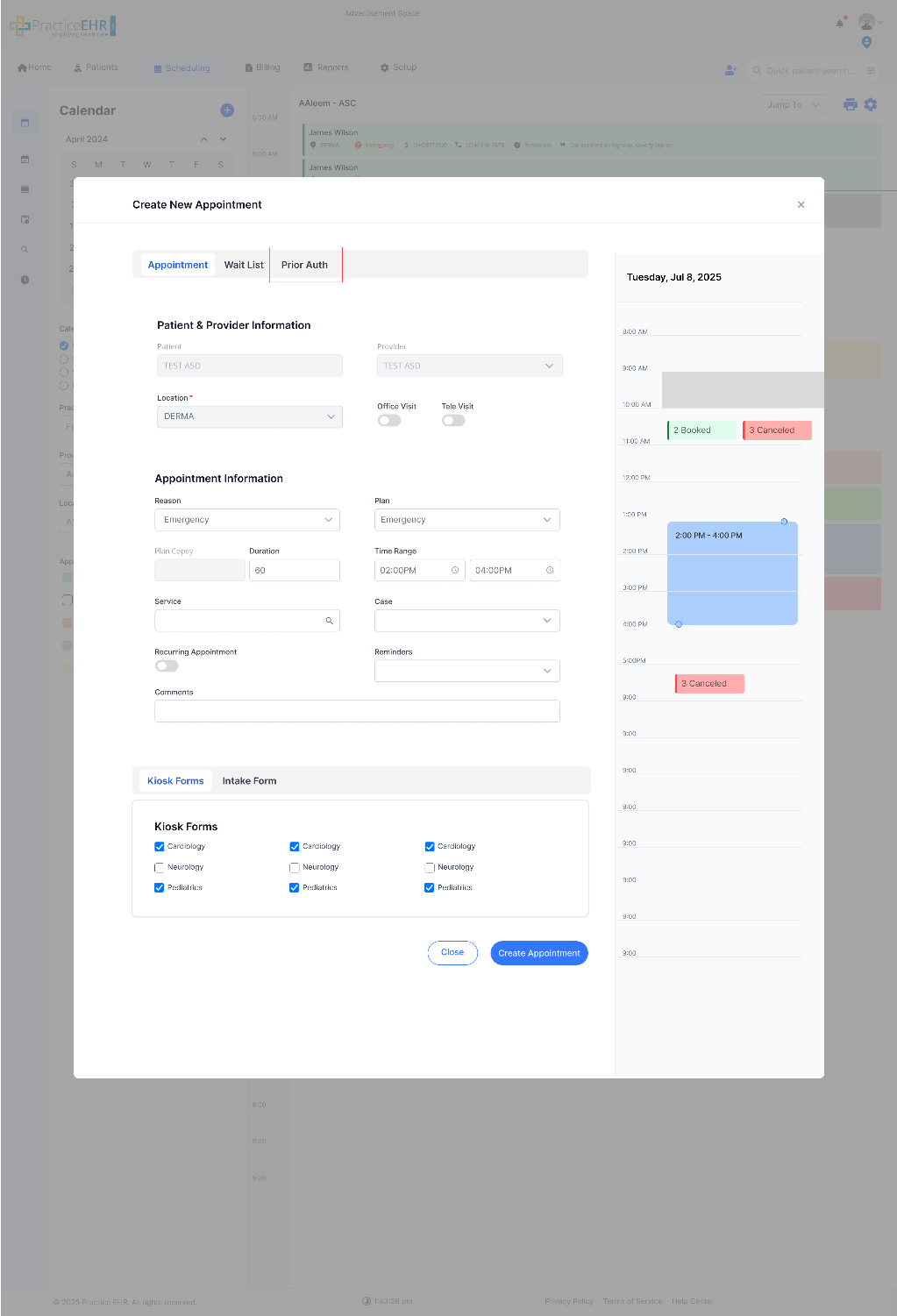
From the Create New Appointment screen, the new tab for Prior Auth is added as shown. Clicking this tab will open the grid shown in the next image.
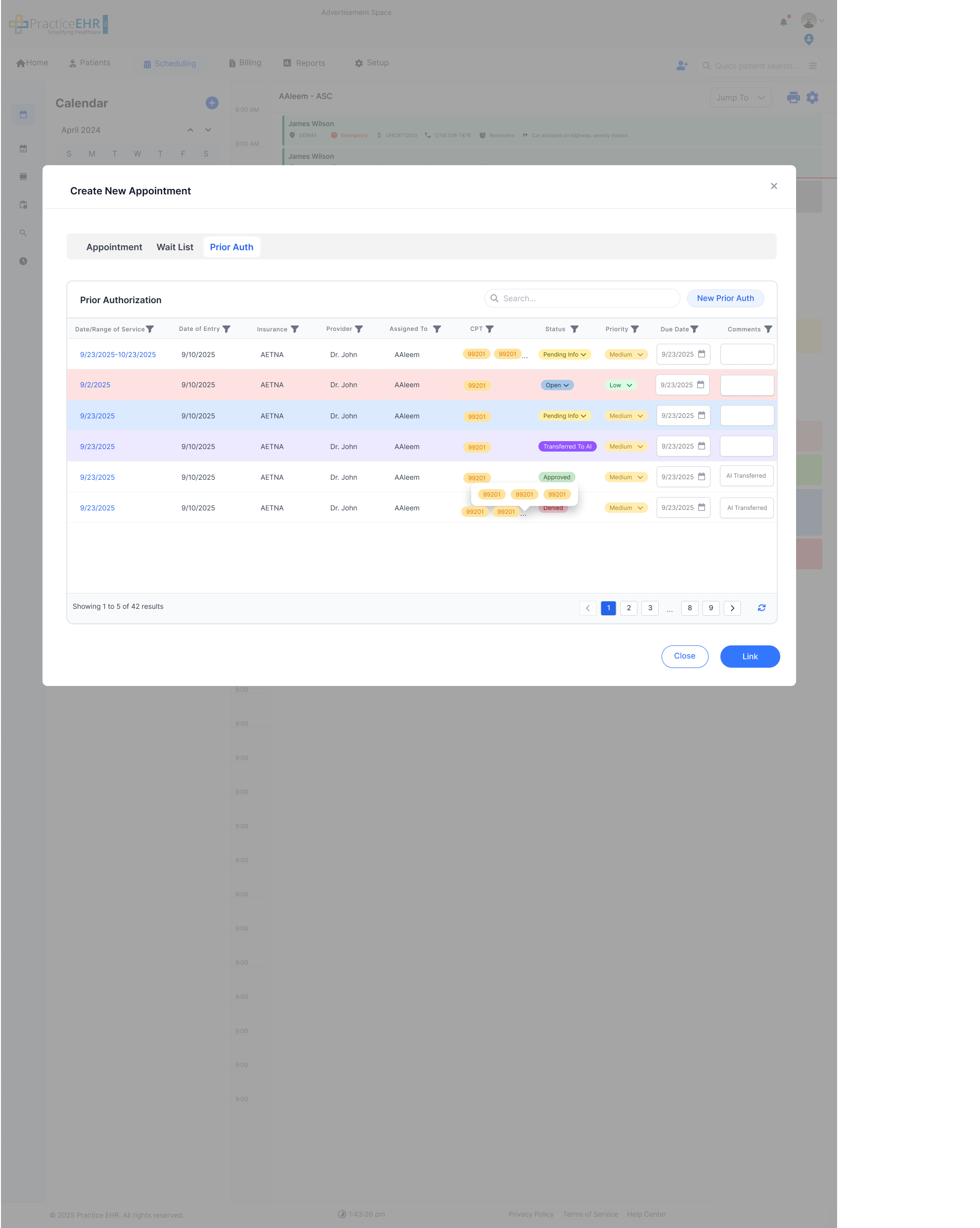
Upon selecting the Prior Auth tab, the system displays the Prior Authorization grid, allowing you to review and manage linked authorizations.
Appointment Detail > Prior Auth
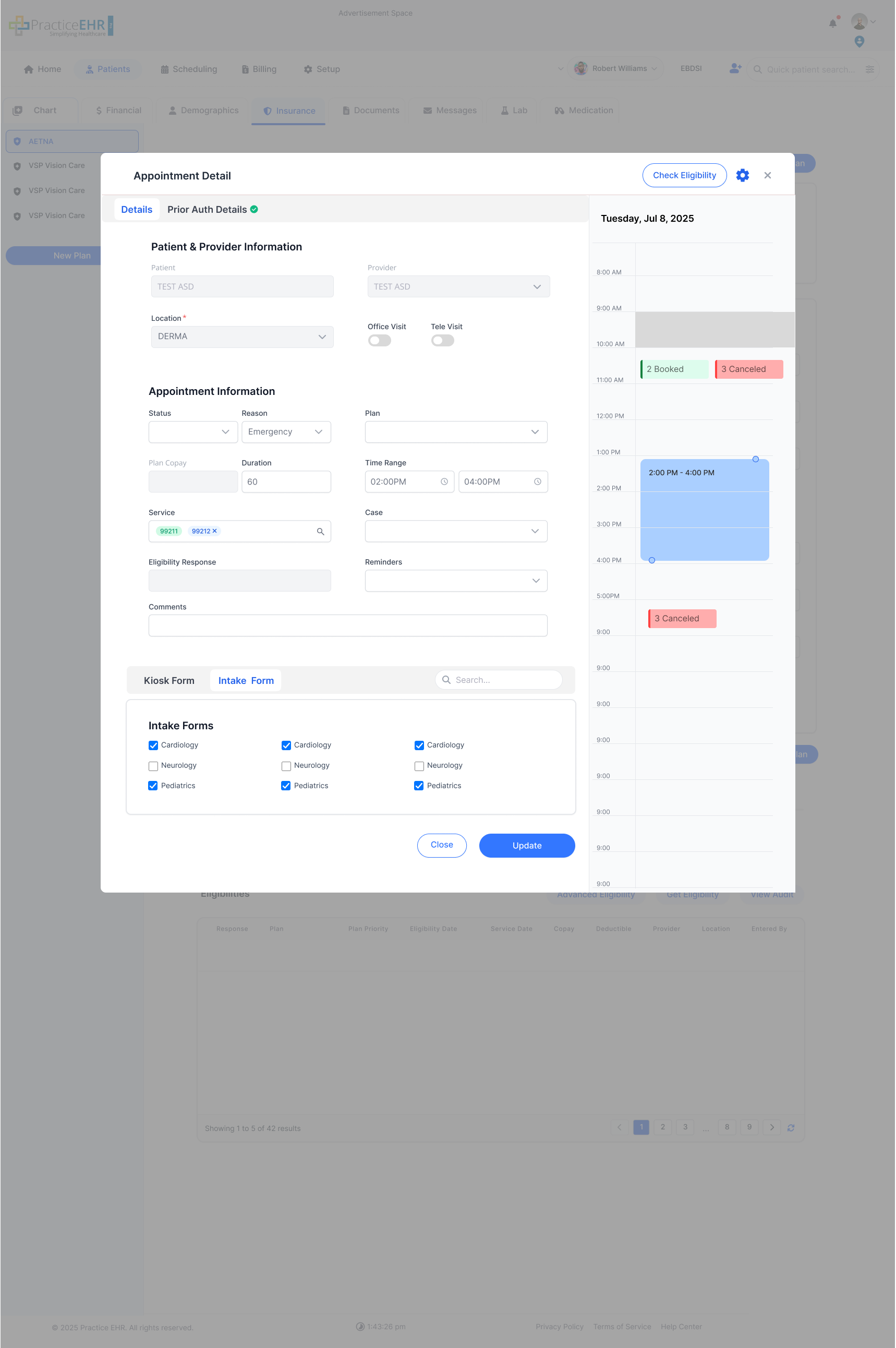
- In Appointment Details, a Prior Auth tab is available.
- A small checkmark appears on the tab when a prior auth is linked to the appointment.
- Clicking the tab opens the linked Prior Auth details with an option to Unlink.
- When a Prior Auth is attached, the associated CPT (Service) is shown in green in Appointment Details and cannot be removed there. It can only be removed by unlinking the Prior Auth.
- If no prior auth is linked, the tab opens the same Prior Auth grid used in New Appointment, so users can link one to the existing appointment.
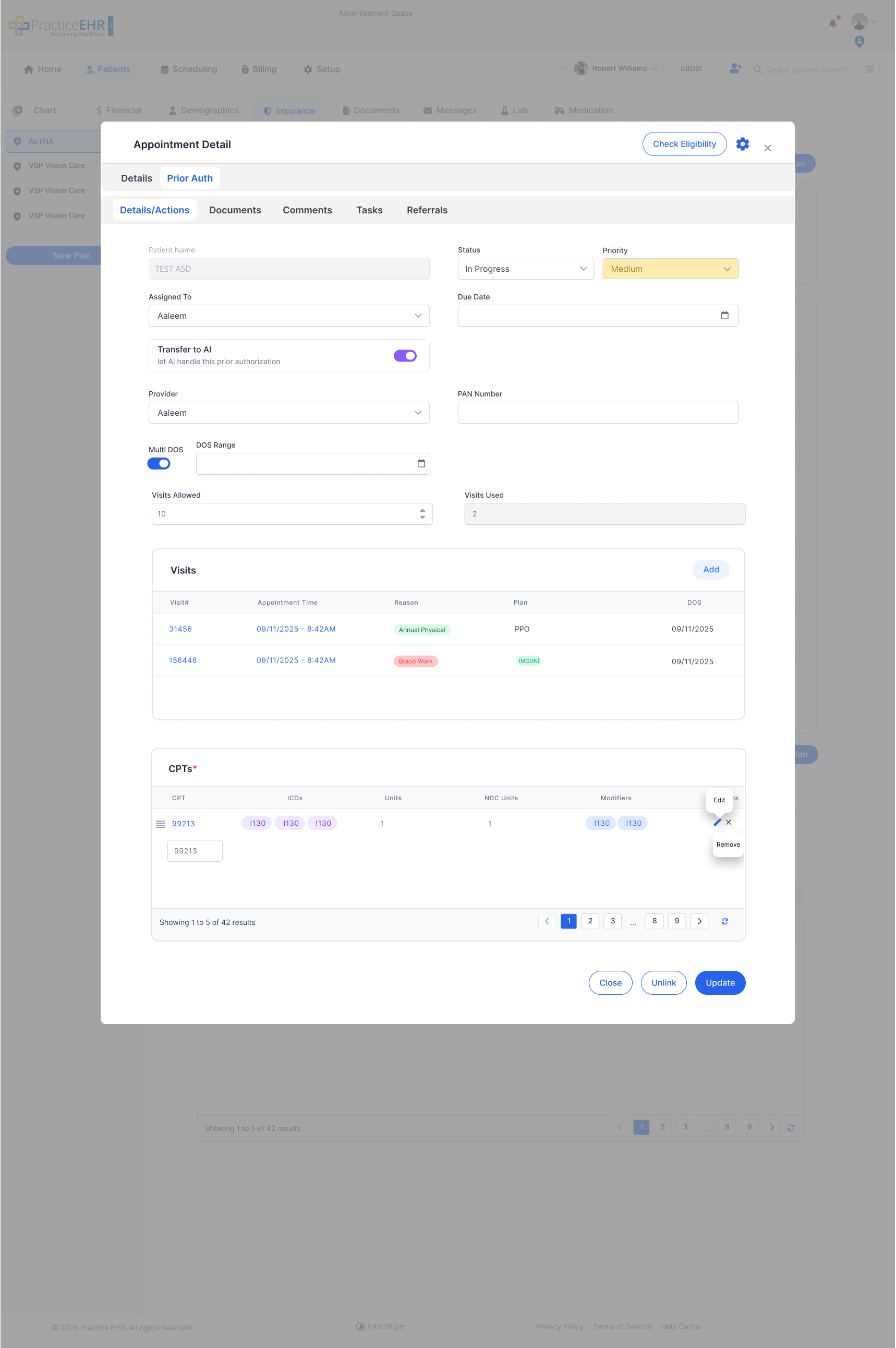
- Patient Name and Provider are prefilled from the appointment information in Appointment Details.
- Patient Name must be disabled and the Status field should be prefilled accordingly.
- When the user clicks the Unlink button, they are navigated back to the grid.
Case Management
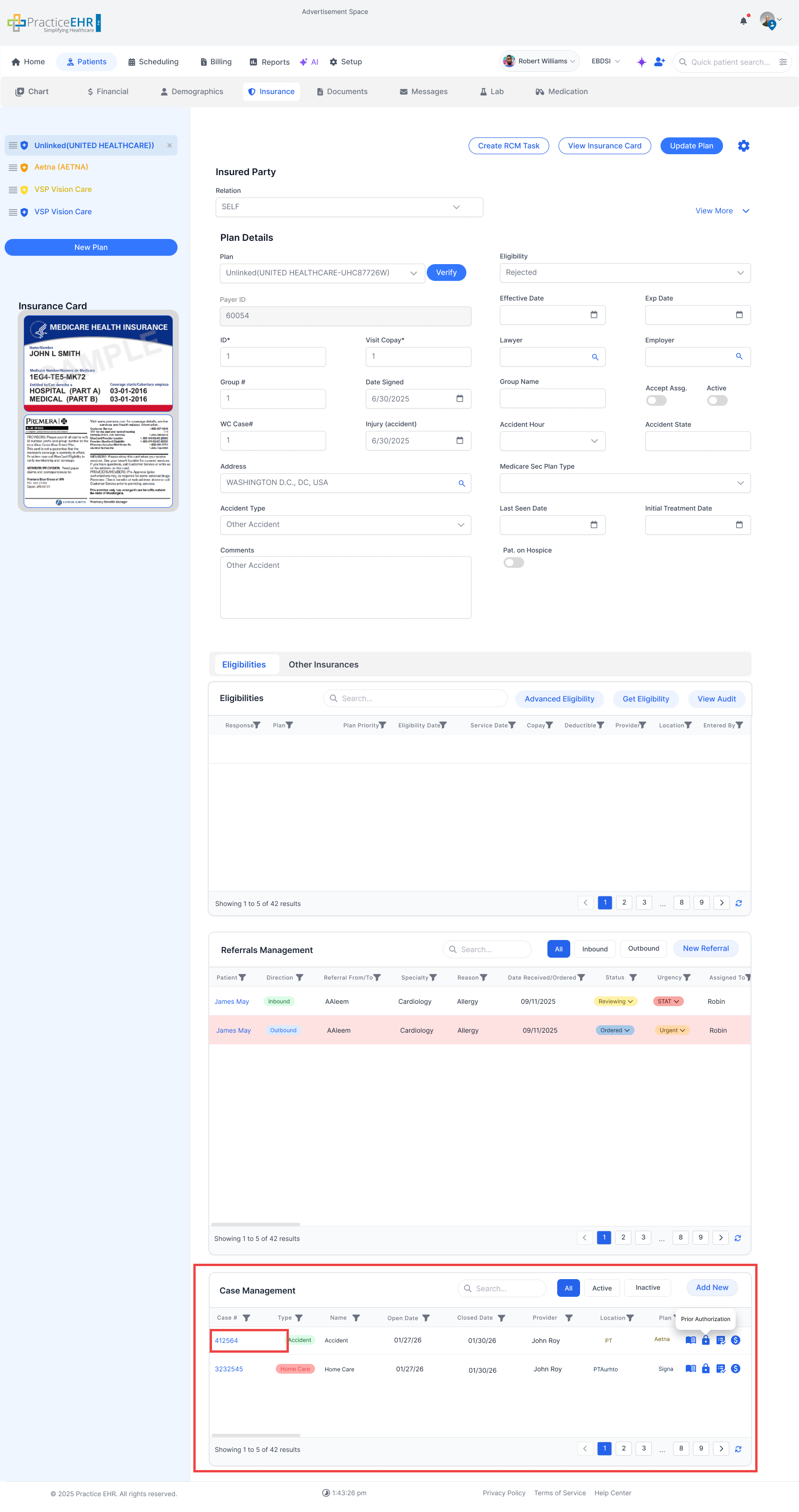
From Case Management, when a user clicks on the Case#, the system opens the Case Details modal as shown.
When user clicks on Prior Auth Icon from the grid it will open prior auth tab from case details.
Link Prior Auth to Case
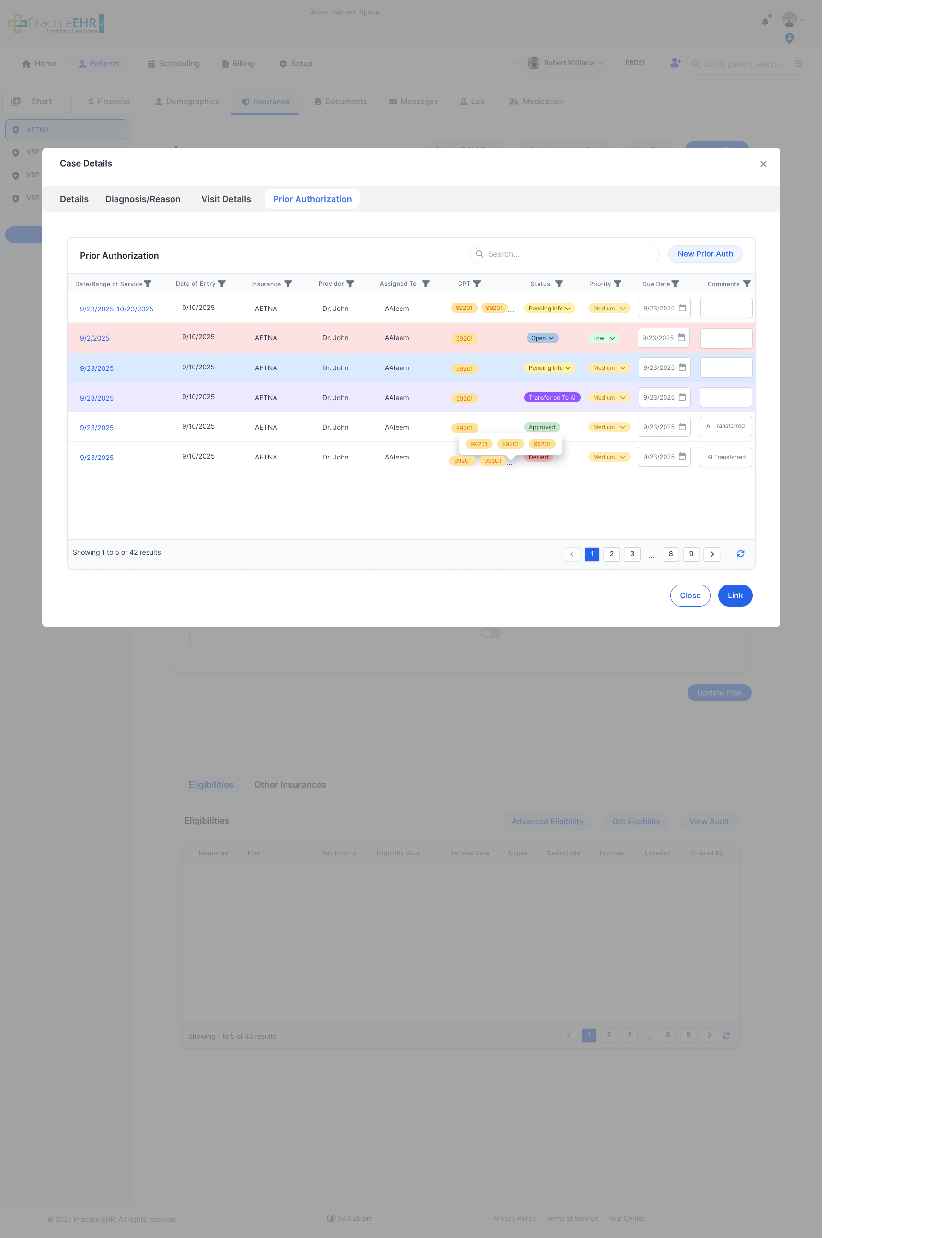
- When the user opens the Prior Authorization tab from Case Details and no Prior Auth is attached, the system shows the Prior Authorization Grid.
- From this grid, the user can either link an existing Prior Auth or create a new Prior Auth and attach it to the case.
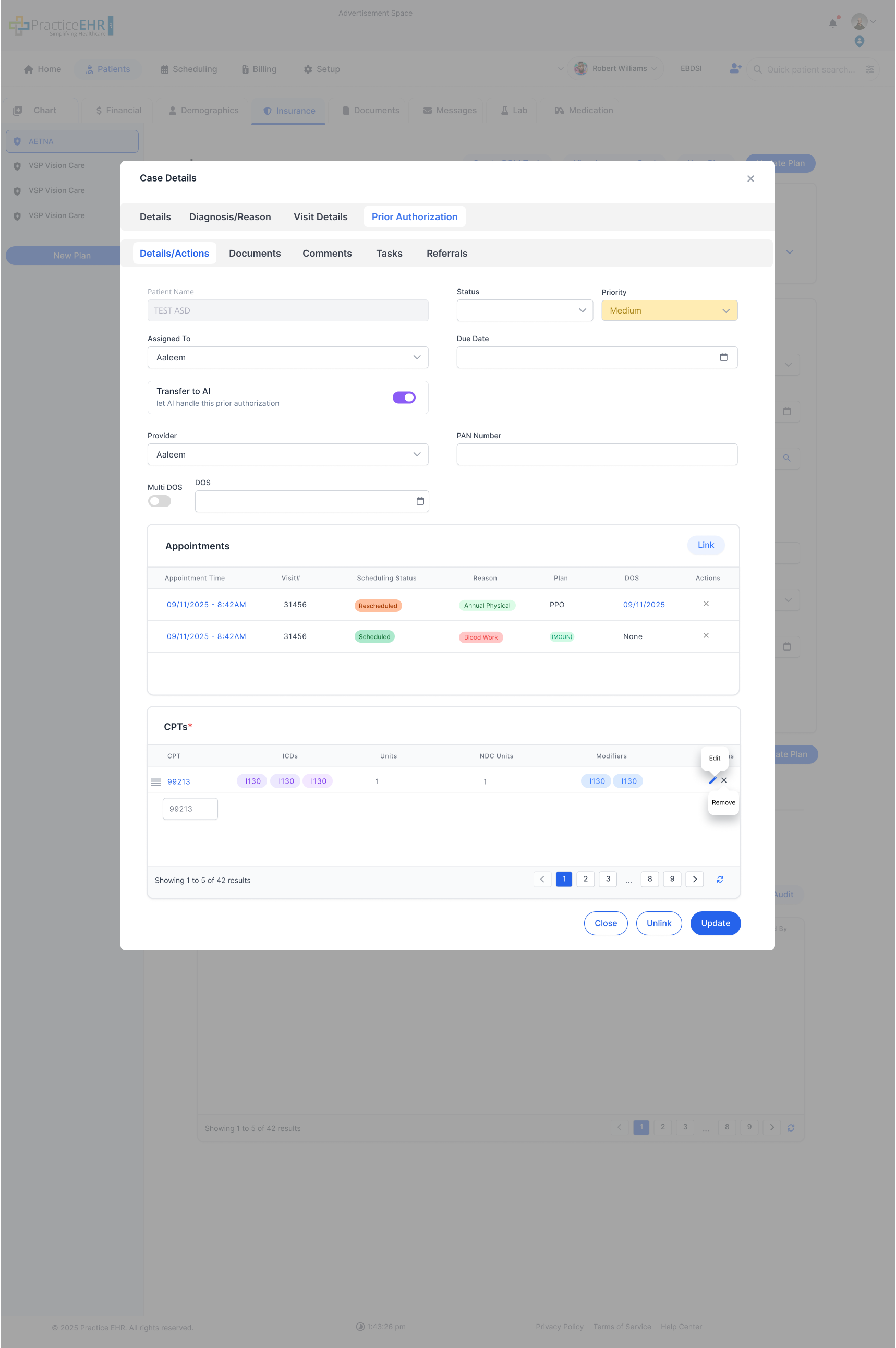
Case > Prior Auth Details
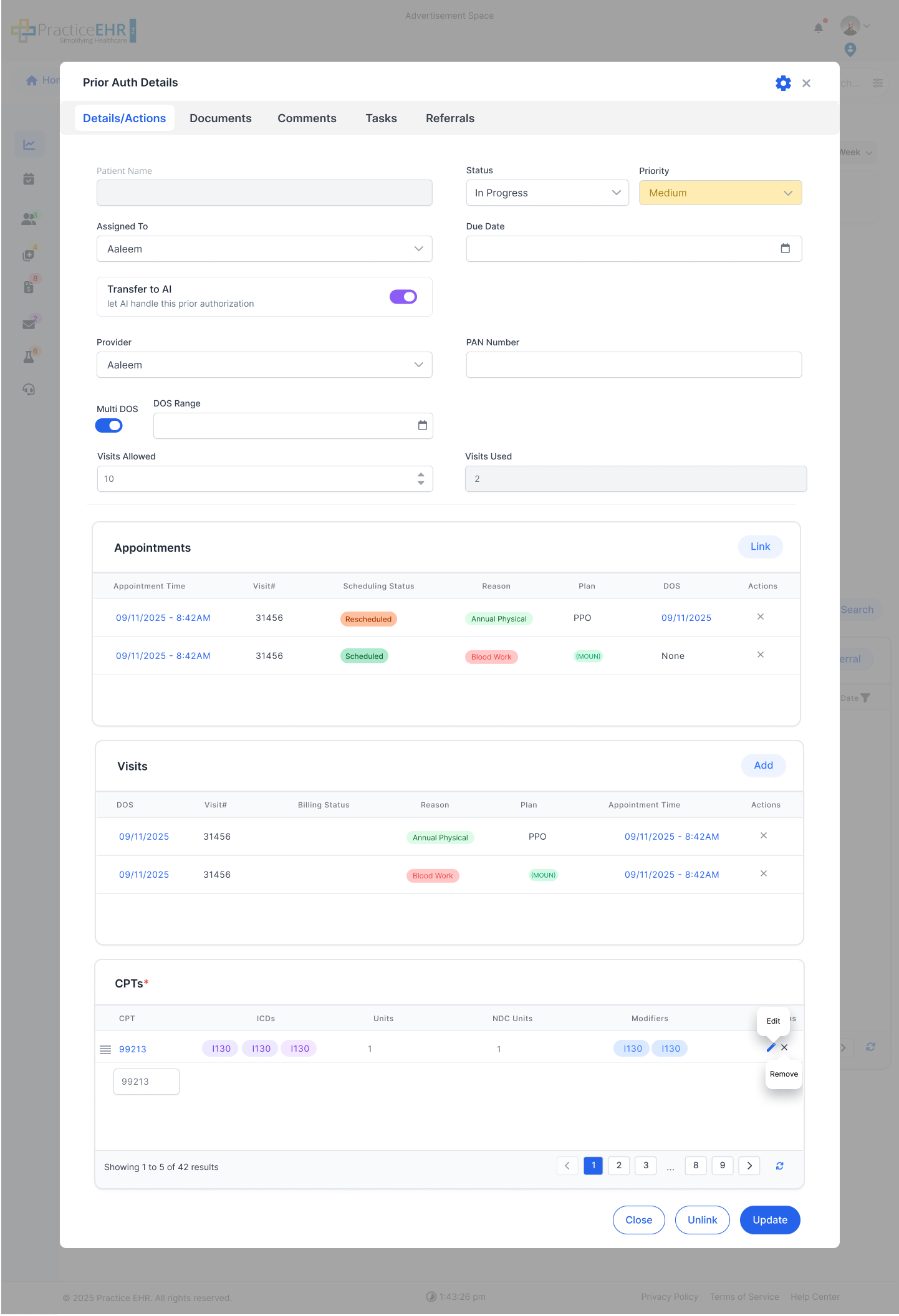
When the user clicks the DOS hyperlink in the Prior Auth grid, this Prior Auth Details screen will open.
Referrals
Reference Link: Referral Management
New Prior Auth
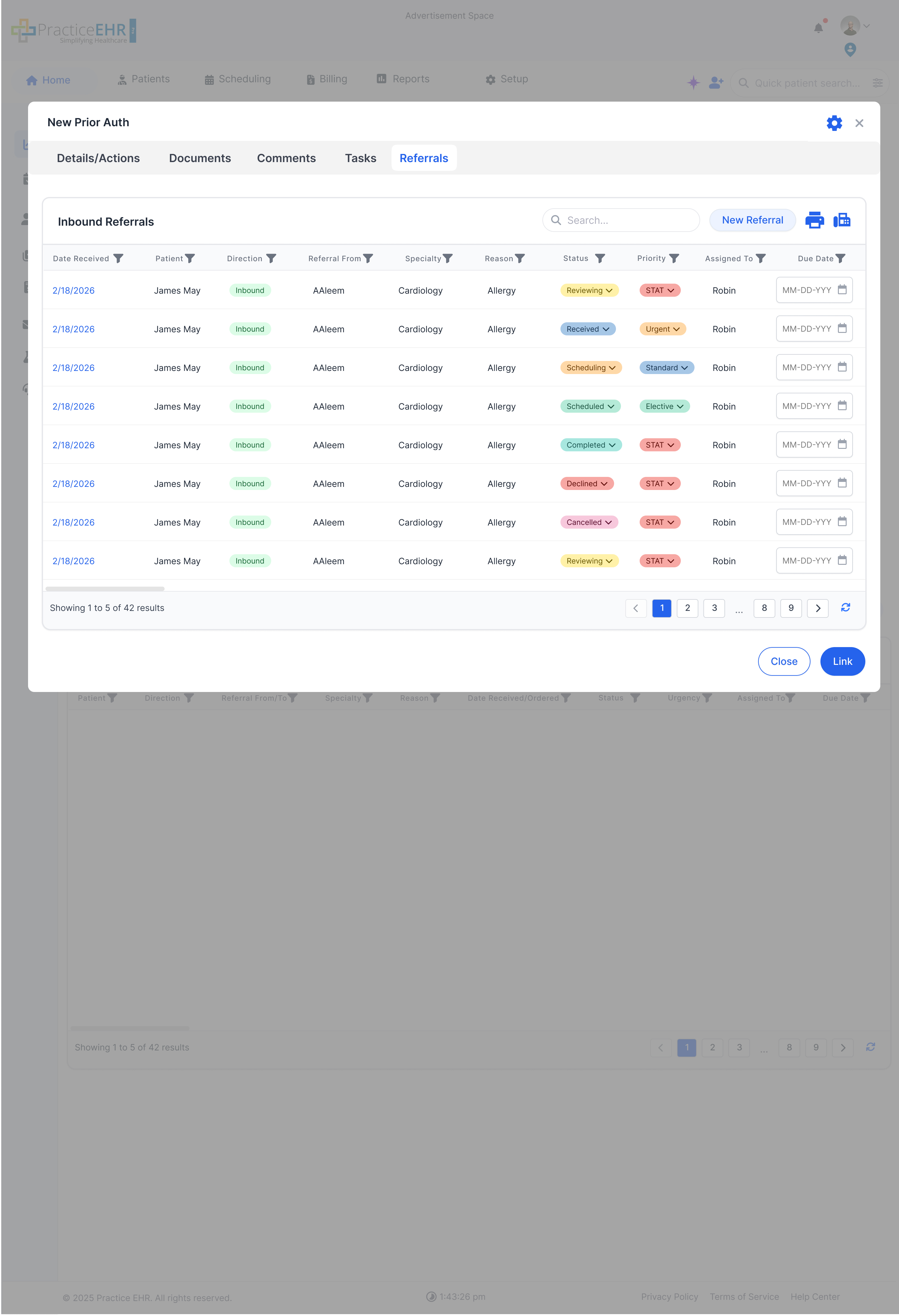
Users can link referrals when creating new prior auth through the referrals tab.
Prior Auth Details
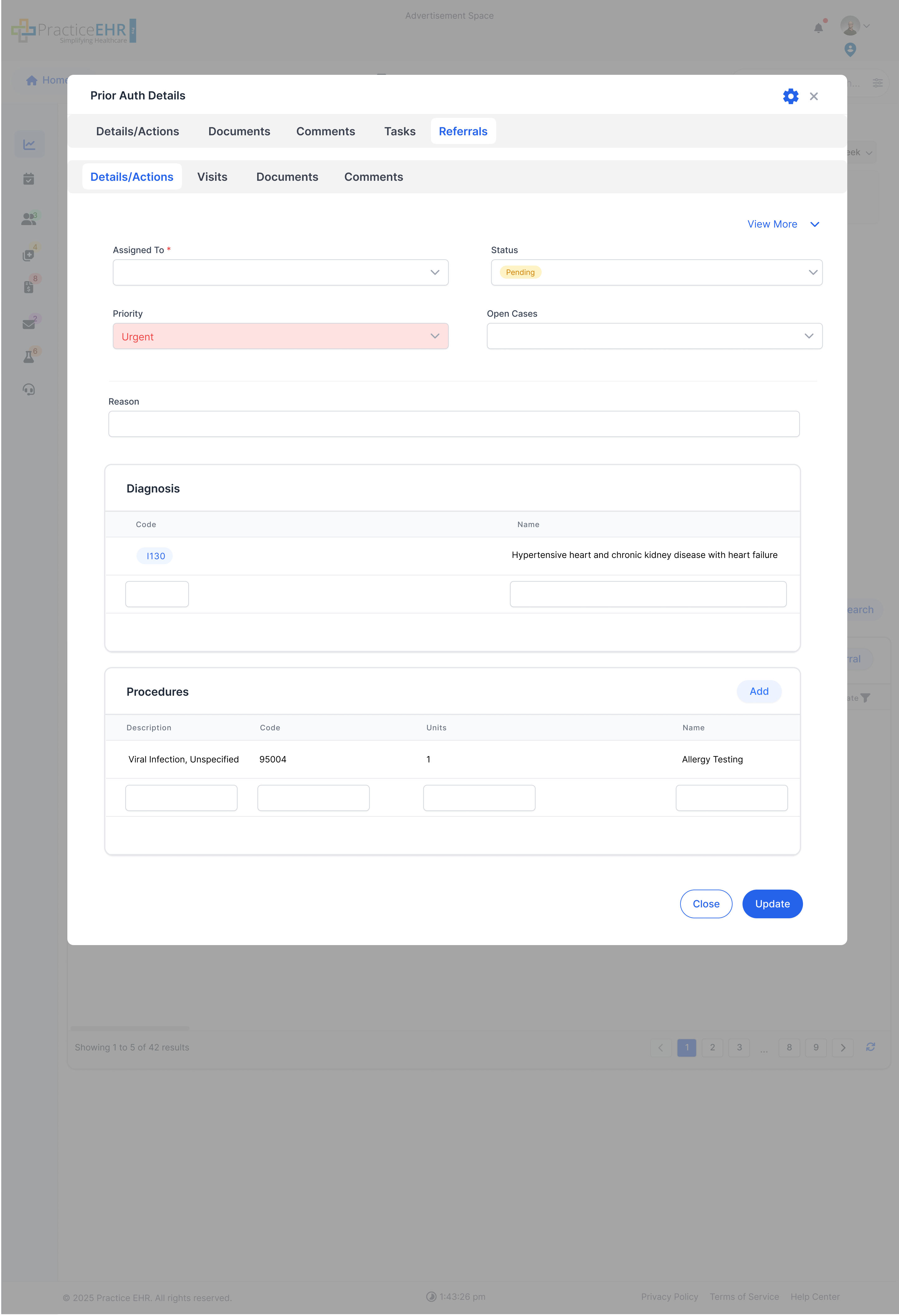
Users can view linked ref details directly from prior auth details through the referrals tab.
Prior Auth Details (No Ref Linked)
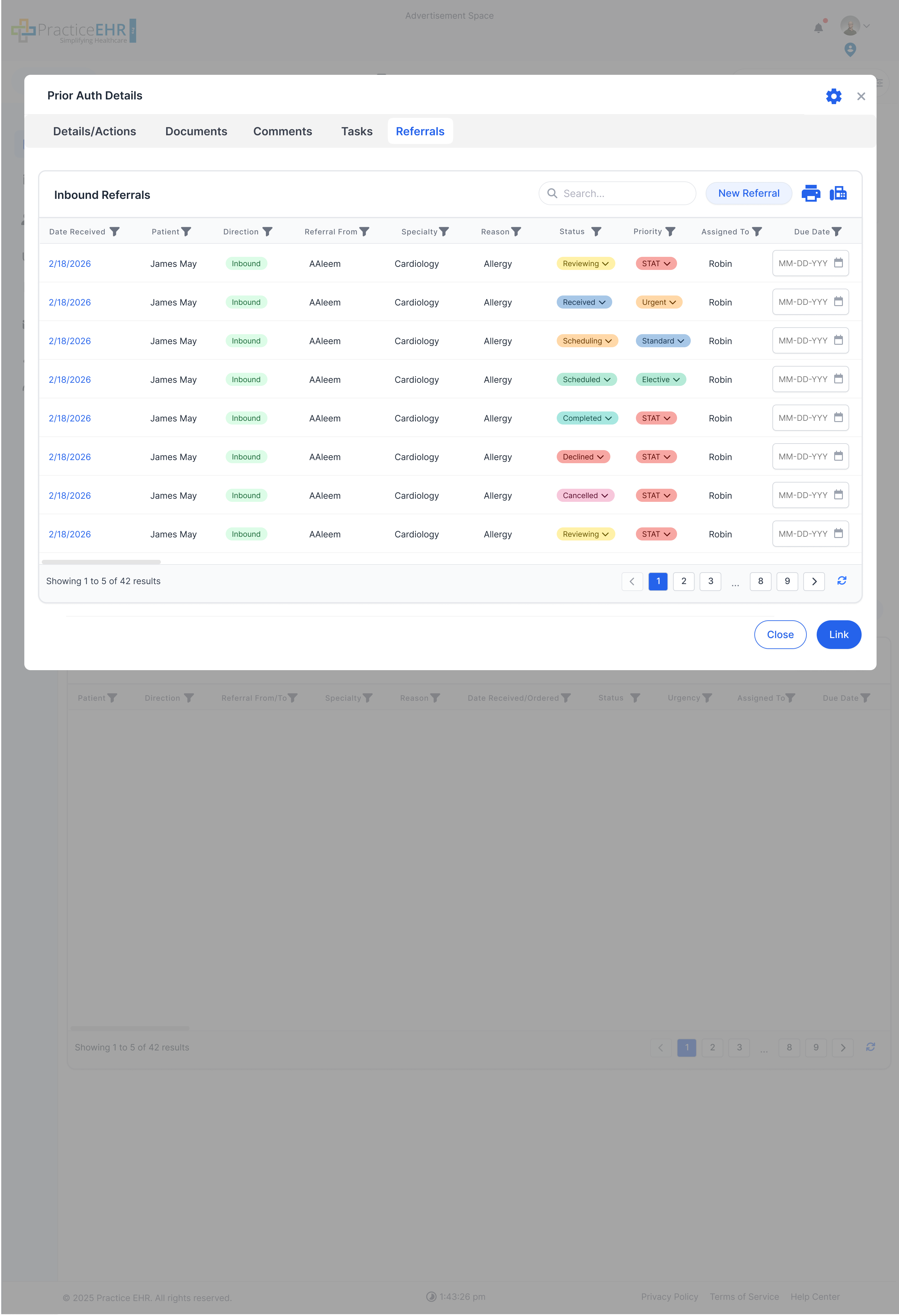
In case if a referral is not linked to a prior auth then the user can link the referral through the same referrals tab in prior auth details.
Enhancements
Enhancements in the New Visit Screen
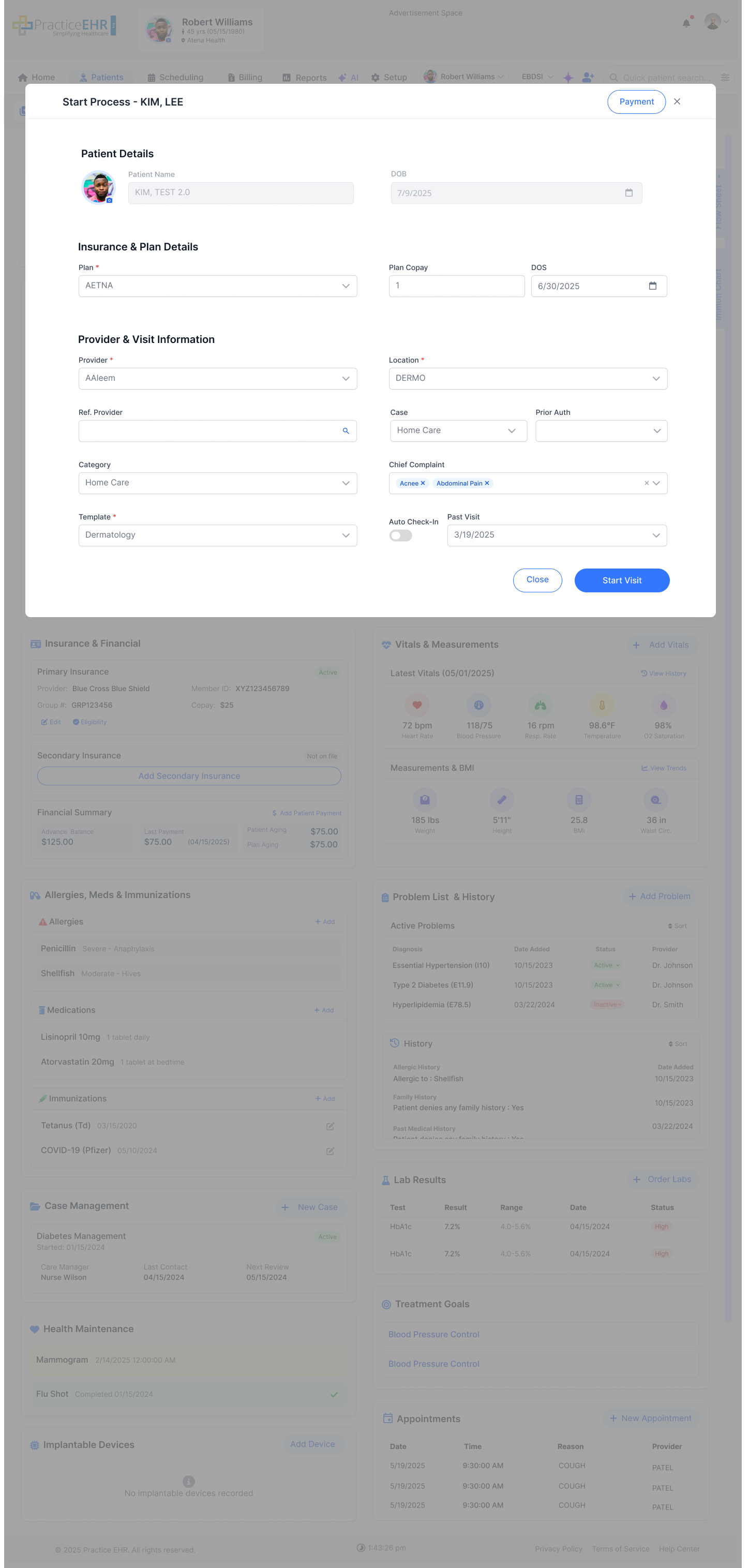
The Prior Auth field has been added to the New Visit screen. It displays the Prior Auth Number and is available based on your PM tab configuration (for organizations using Billing).
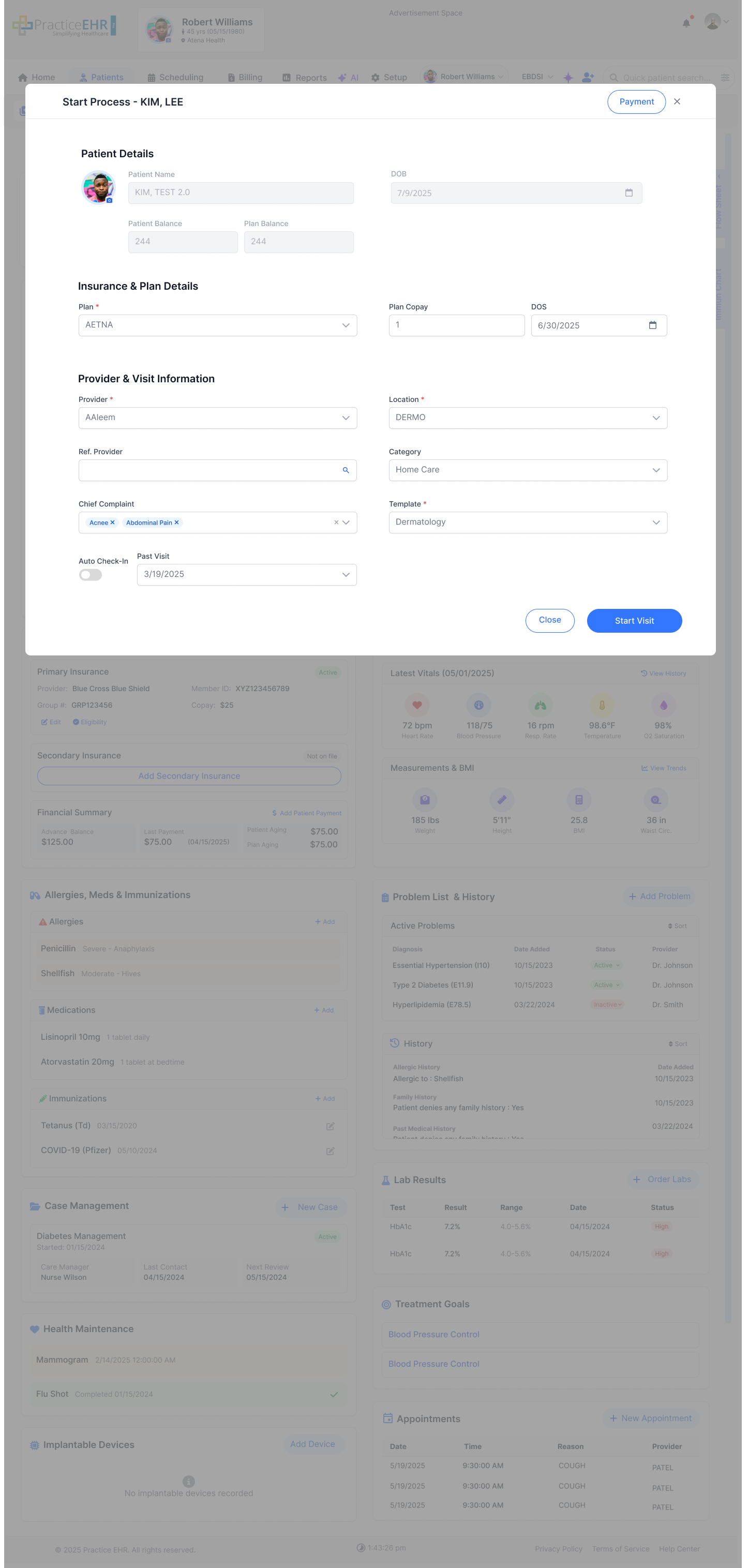
The Prior Auth dropdown will list the values according to the selected Case.
- New Visit - Case and Prior Auth fields are not visible.
Prior AUTH Status
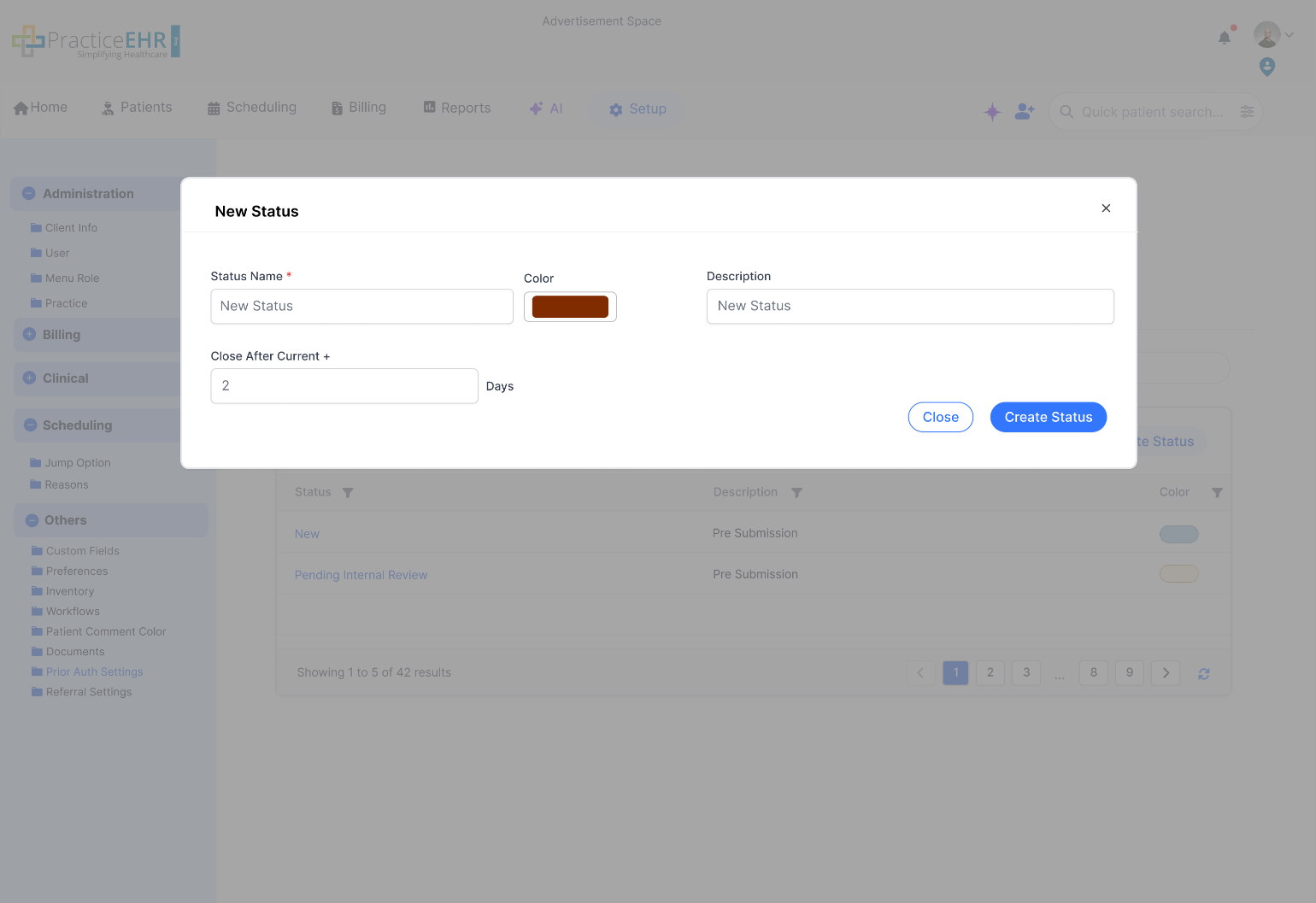
- The system allows users to view existing Prior Auth Statuses and create a New Status from the following screen.
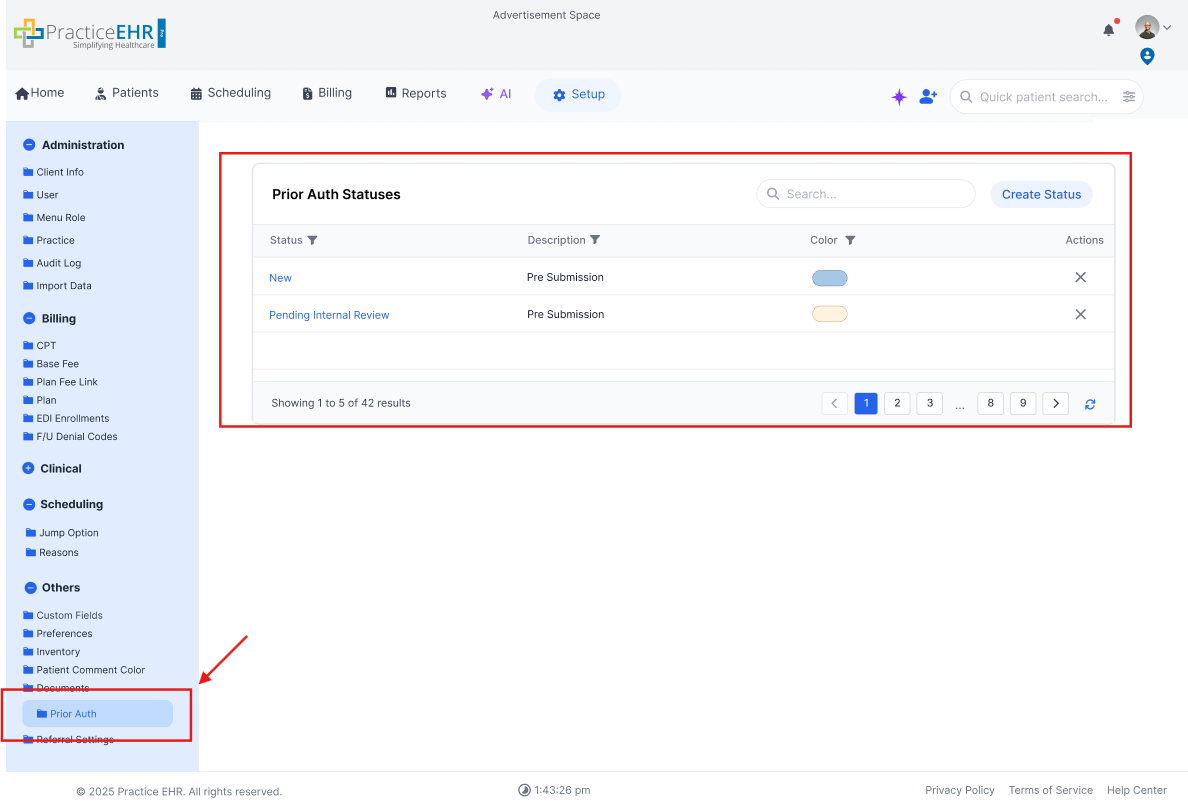
- In the New Status screen, users can set a time for the status to automatically expire/close.
Visit Details
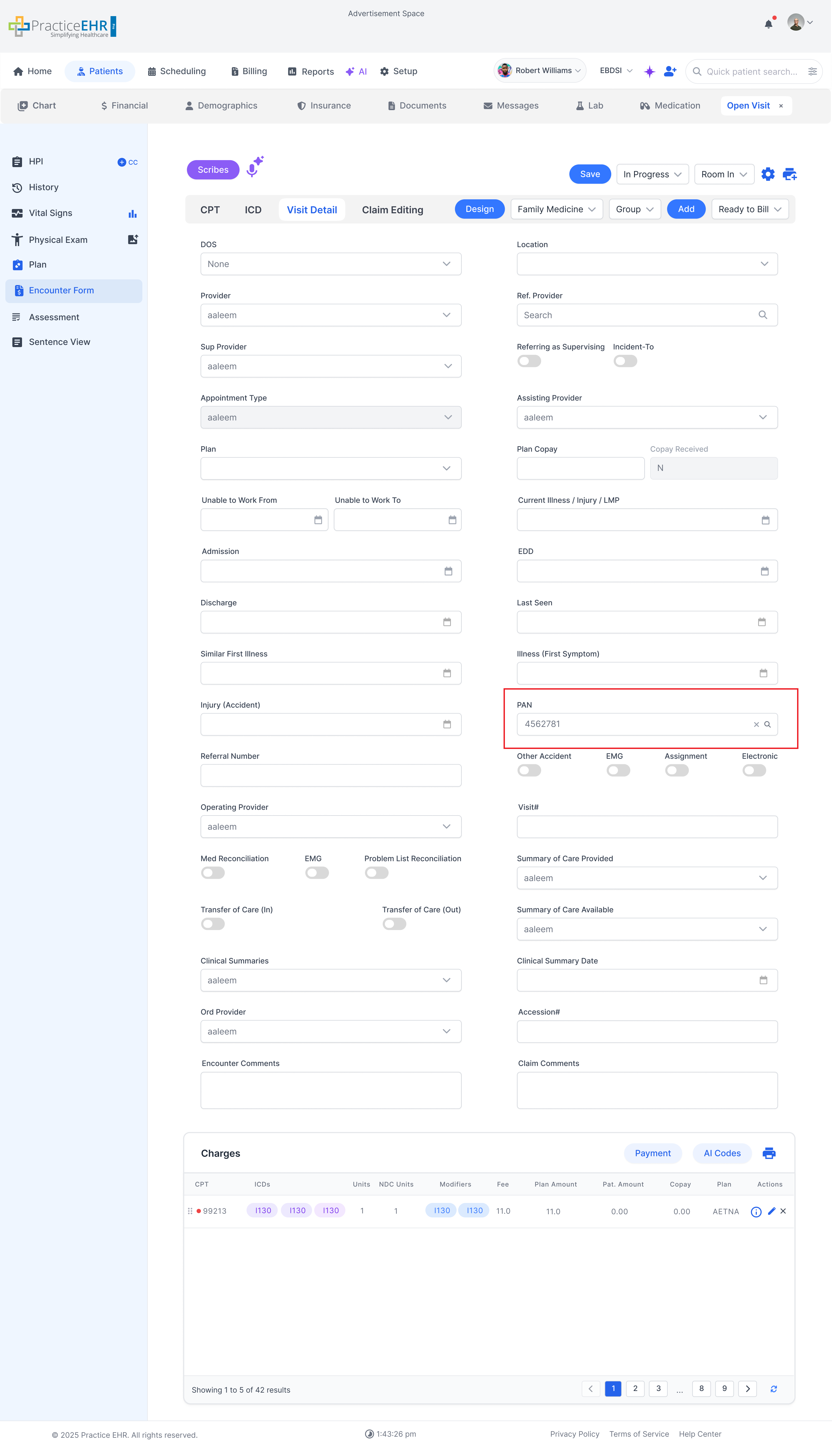
When the user clicks on the search icon present in the pan Field then a modal will be shown with the prior auth grid and the user can select and link.
Users can change the PAN or prior auth unless the status of the encounter has been set to Ready to Bill; in that case, the PAN will be locked.
If user has added prior auth in visit creation, then the pan number will be autofilled and have ability to change it.
.