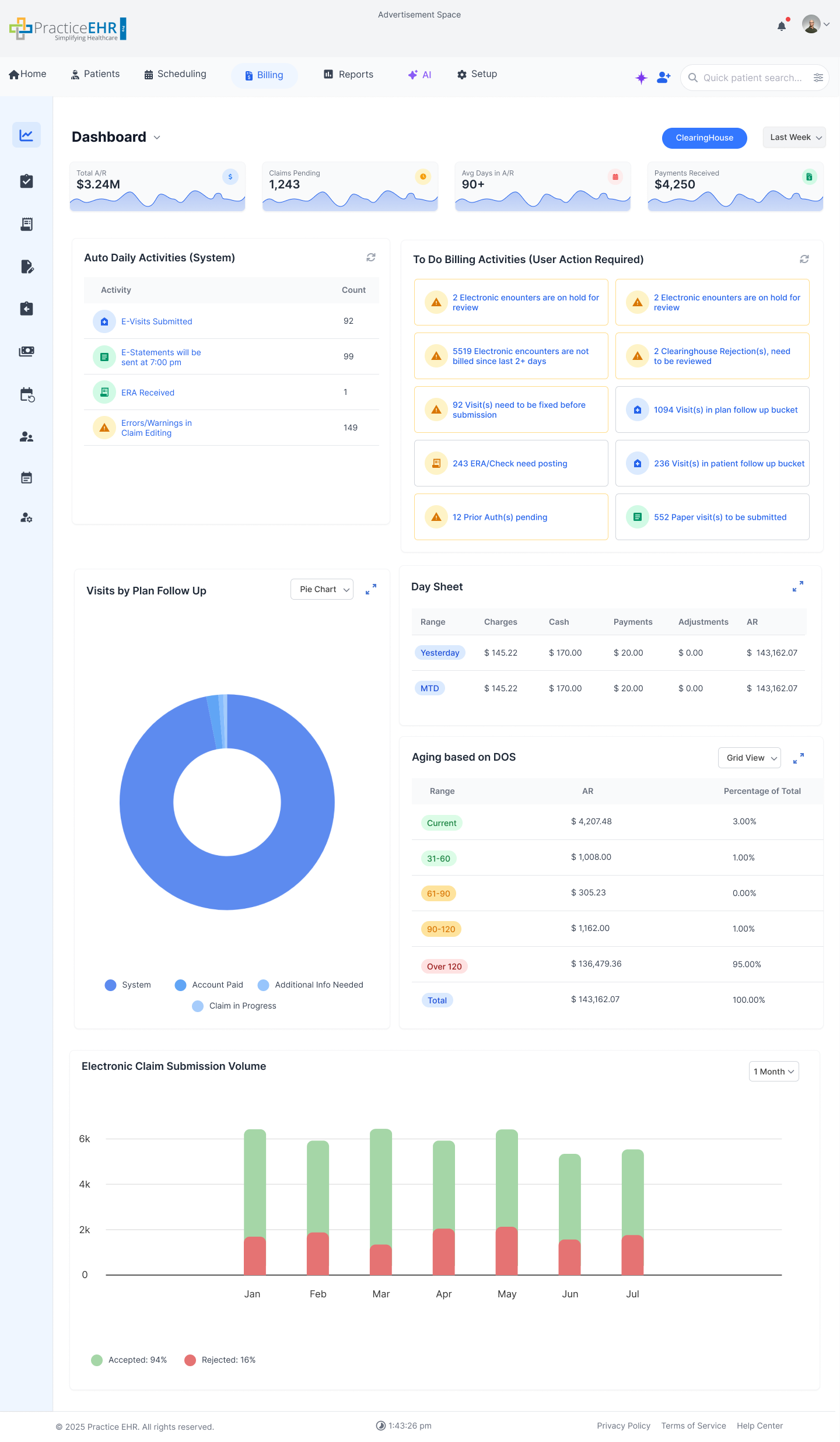
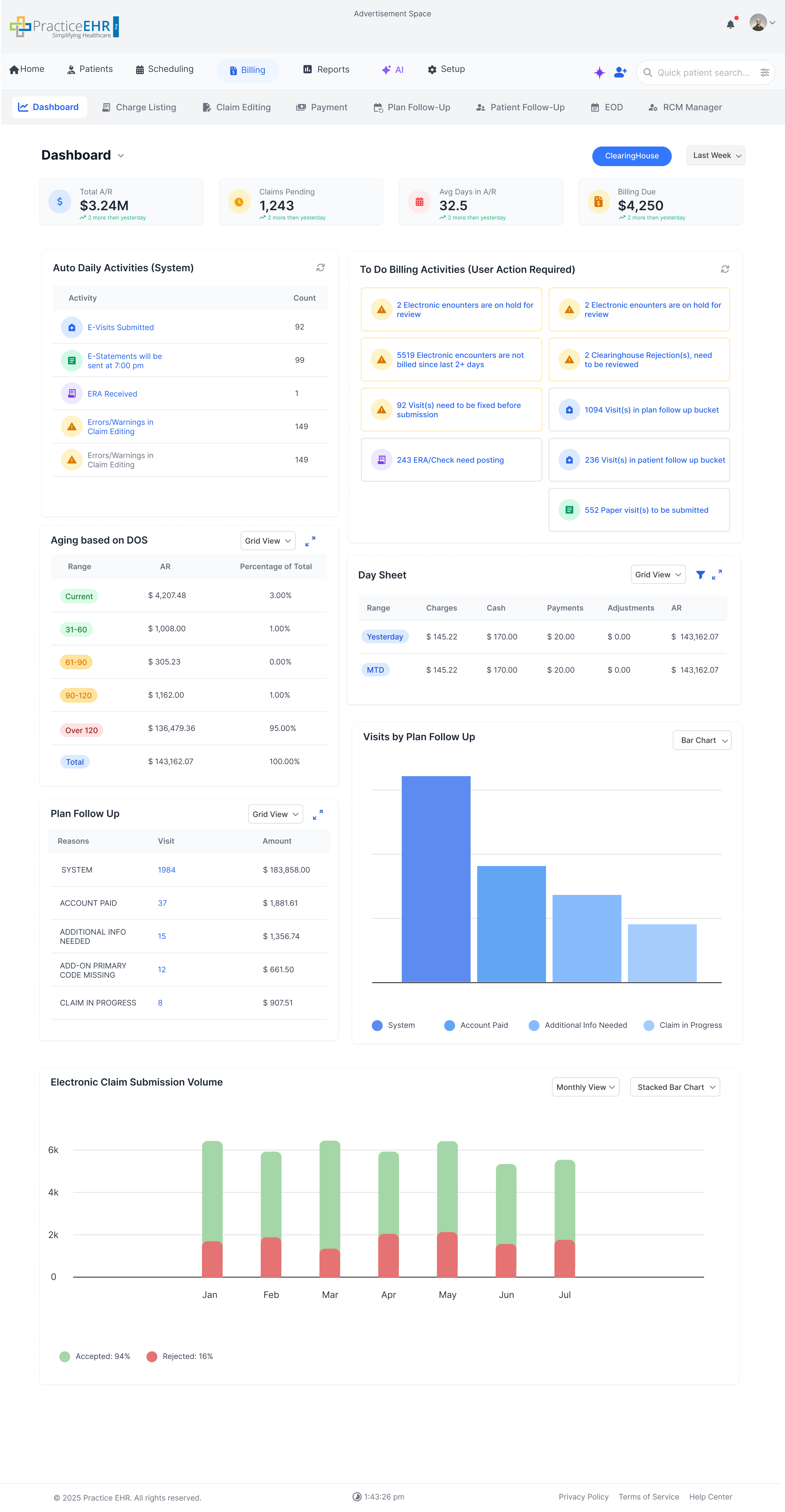
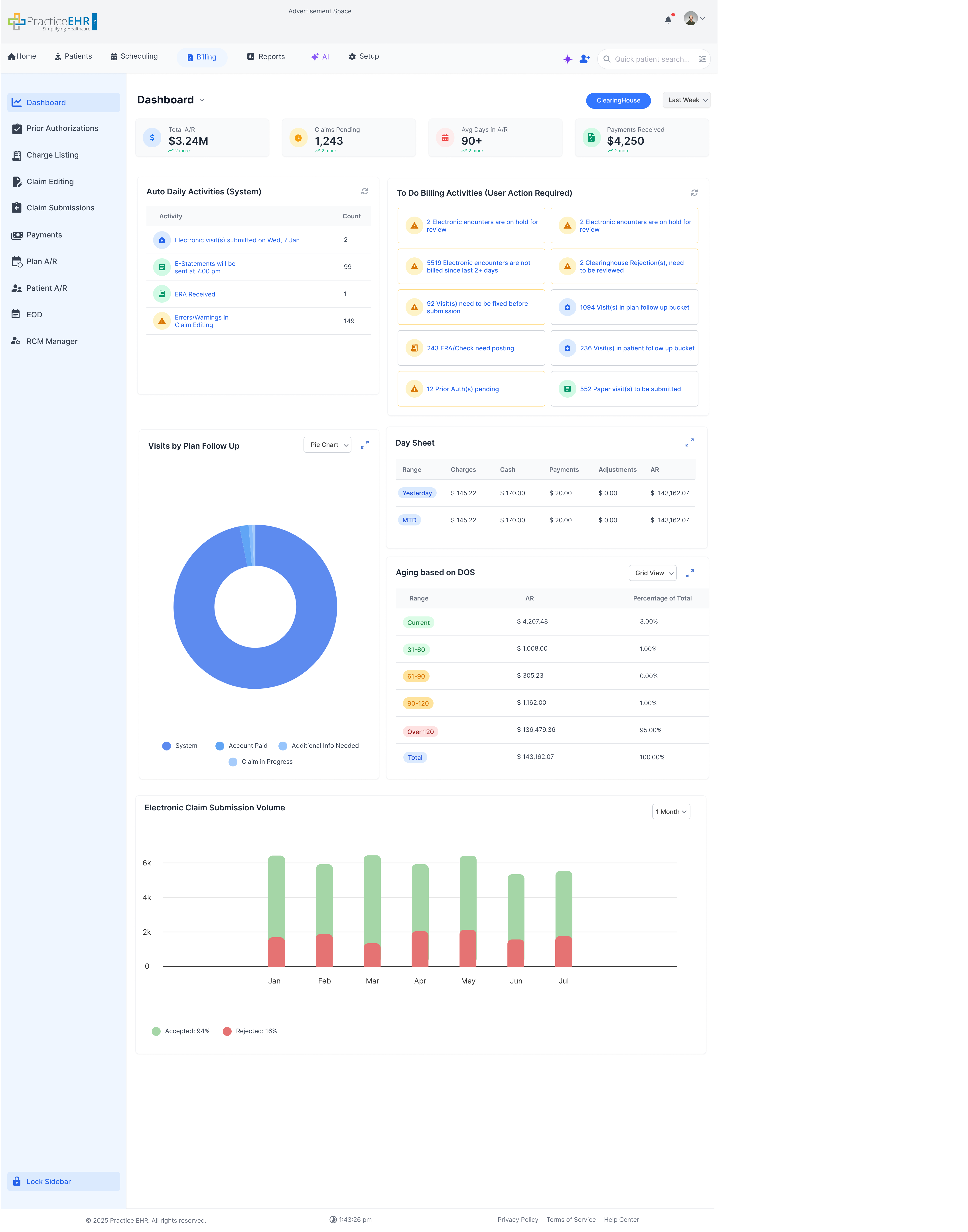
1st KPI: This KPI measures the net growth or reduction in Accounts Receivable over a rolling date. For 7 days selected: It is calculated by taking the current AR balance and subtracting the balance from exactly seven days ago.
When AR is negative, the graph line is shown at zero; hovering on that point reveals the actual negative value in the tooltip.
2nd KPI Charges: Total number of charges rolling date.
3rd KPI Average Days in AR: Measures the average number of days it would take to collect current outstanding receivables based on recent charge volume.
4th KPI Payments recieved: Calculates the total number of payments recieved.
Key Features
When Advanced Search is open, all filter fields are available.
Click Search to apply the filters and refresh the results.
After Search, Advanced Search collapses automatically to give more space to the grid.
The Search button shows the number of applied filters (for example,
Search (3)).
Users can expand Advanced Search again to change or clear filters.
The Billing
Screens navigation has been changed from horizontal navigation to a vertical sidebar,
This means that the tertiary tabs are now Secondary tabs and Secondary tabs are in the
sidebar
Billing KPI Dropdown
Dashboard Dropdown
Dropdown Explanation
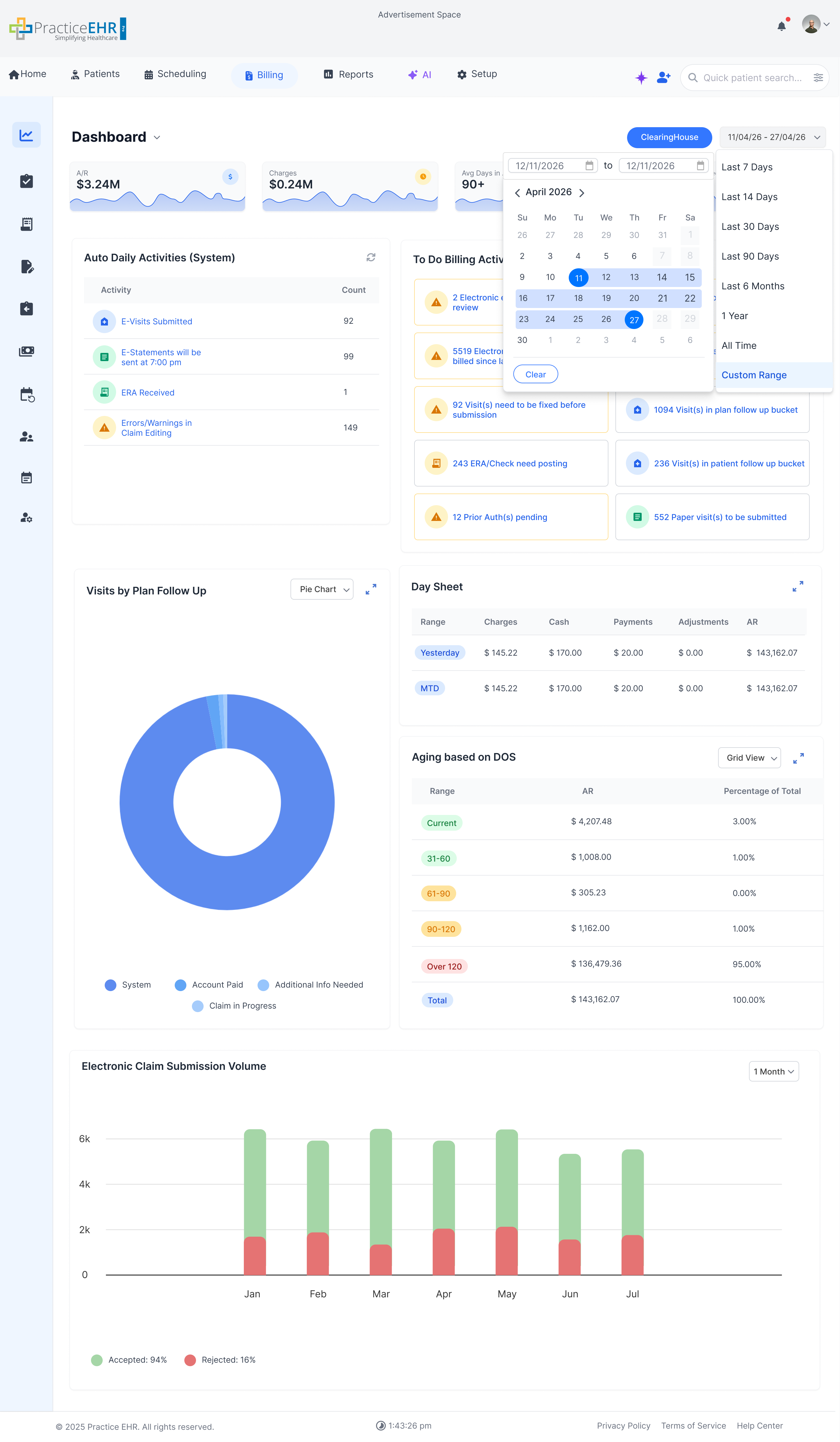
This dropdown allows users to filter the billing dashboard data by various rolling date ranges.
The available options include:
Last 7 Days (From current date to previous last 7 days)
Last 14 Days
Last 30 Days
Last 90 Days
Last 6 Months
1 Year
All Time
Custom Range (users can type or pick the From Date and To Date directly)
Note: Current Week and Last Week have been updated/removed as per latest requirements.
This dropdown will only become active when we have the wave graph KPI cards.
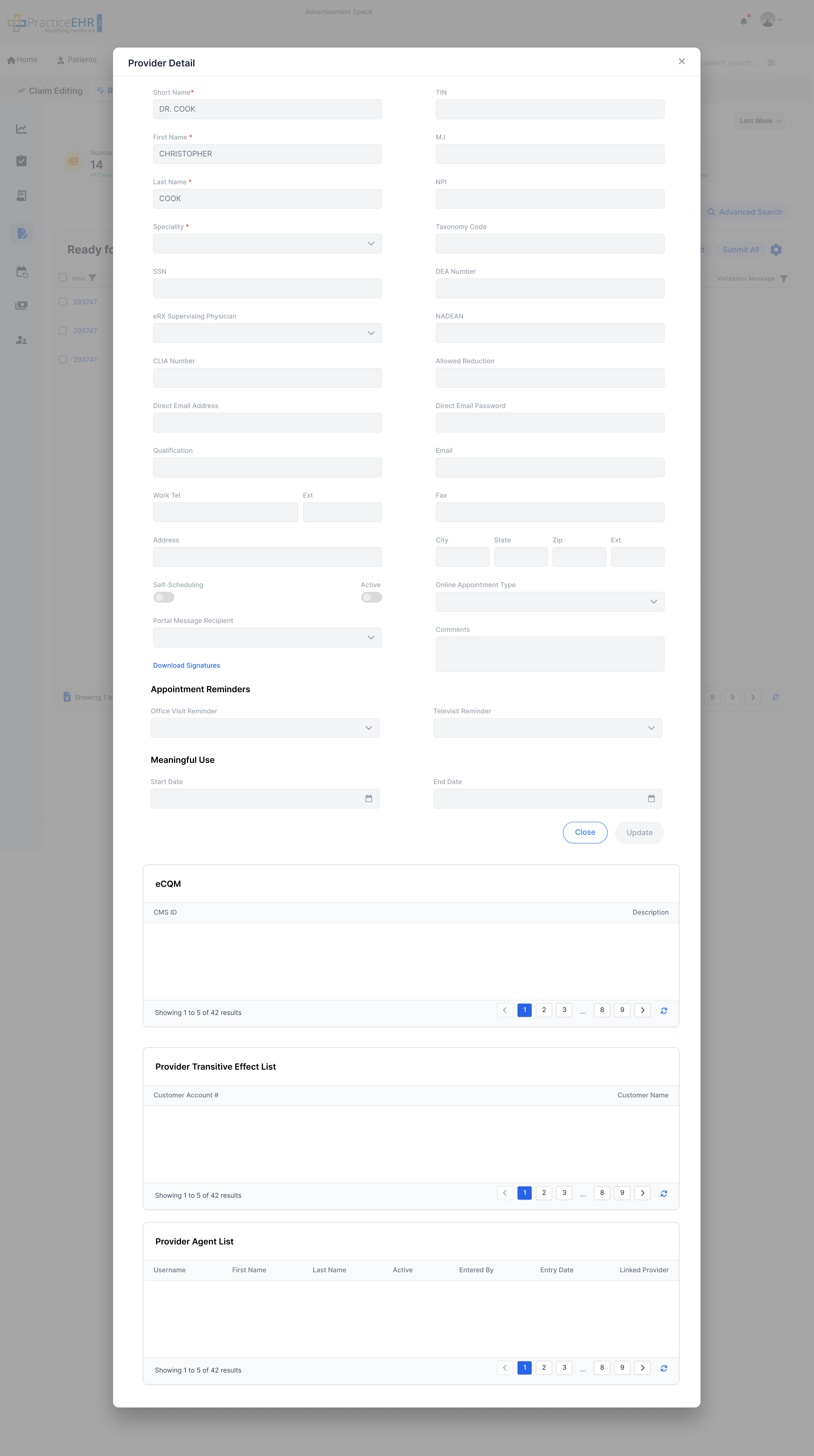
Provider Detail
Interactive Guide
Key Features
Accessible when the user clicks on the Provider hyperlink in the
Visit Detail screen.
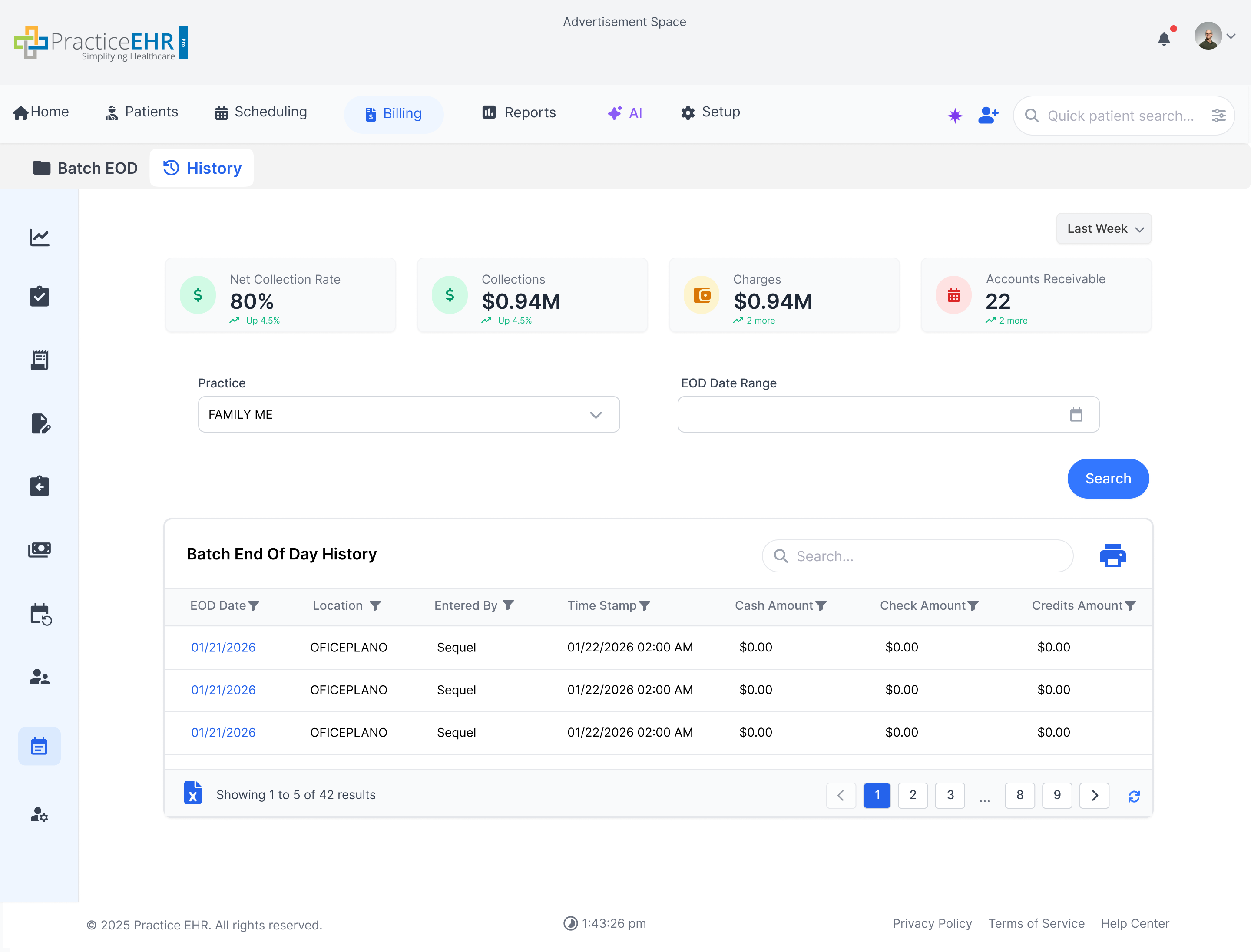
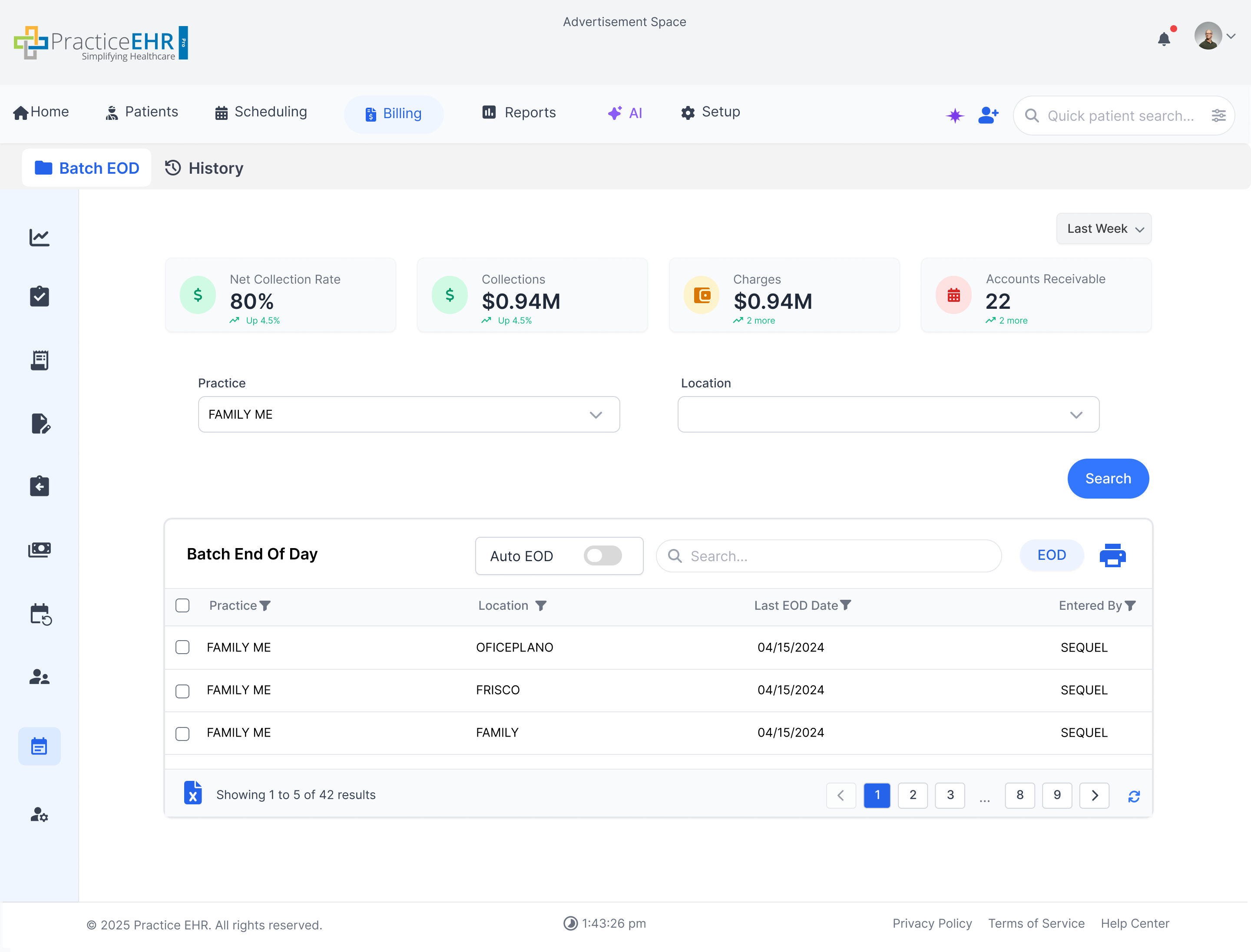
Batch EOD History
Key Features
View historical Batch EOD runs with status and timestamps
Filter by date range / batch / status
Drill down into batch totals and processed items
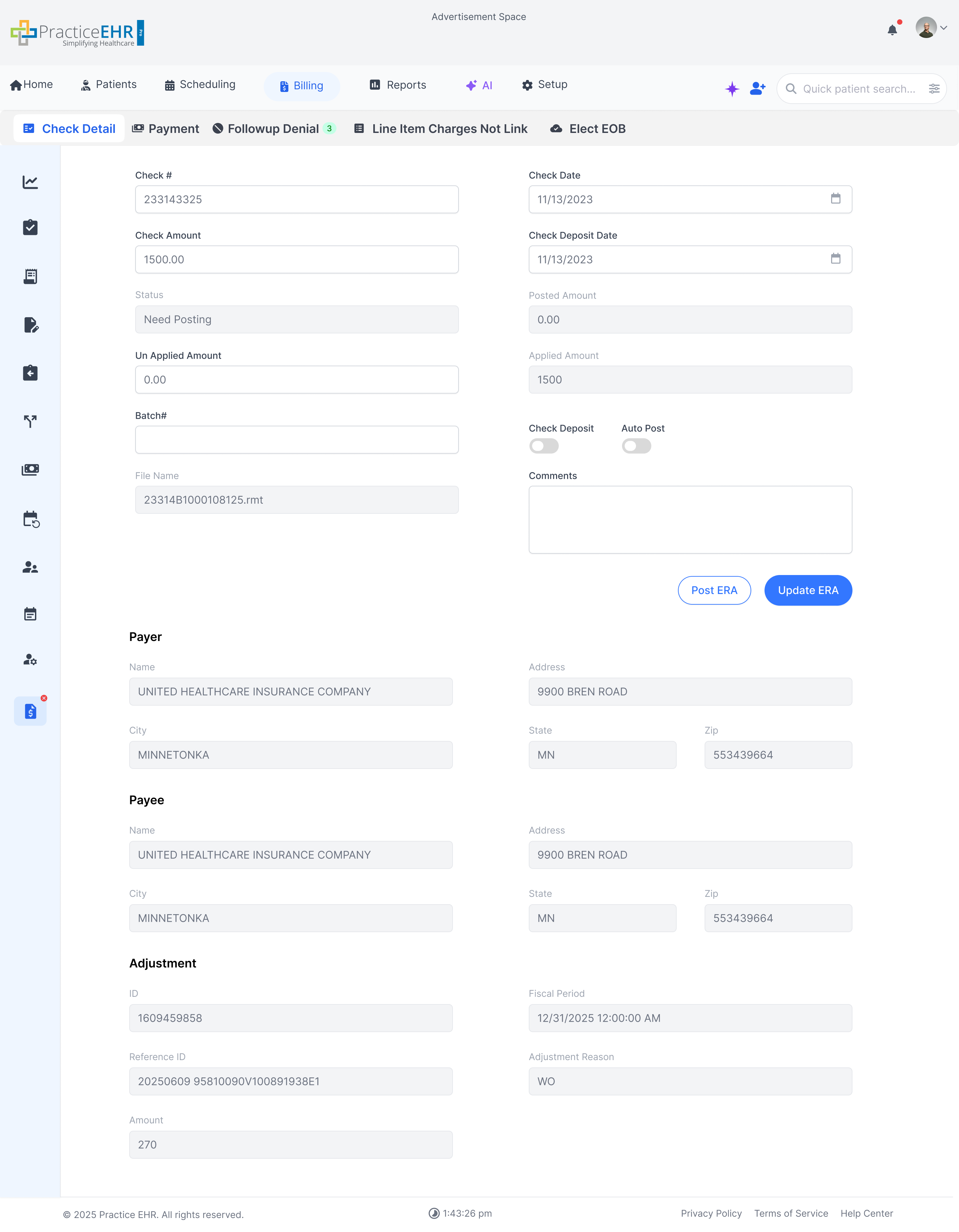
EOB Payment Posting - Check Detail
Interactive Guide
Check Detail is where users enter the payment check information before posting payments.
Key Features
Enter the check date and payment amount.
Save the check details to continue payment posting.
Interaction Guide
Open Check Detail when starting a new EOB posting.
Fill in all required fields (check number, date, amount).
Continue to allocate/post payments after saving.
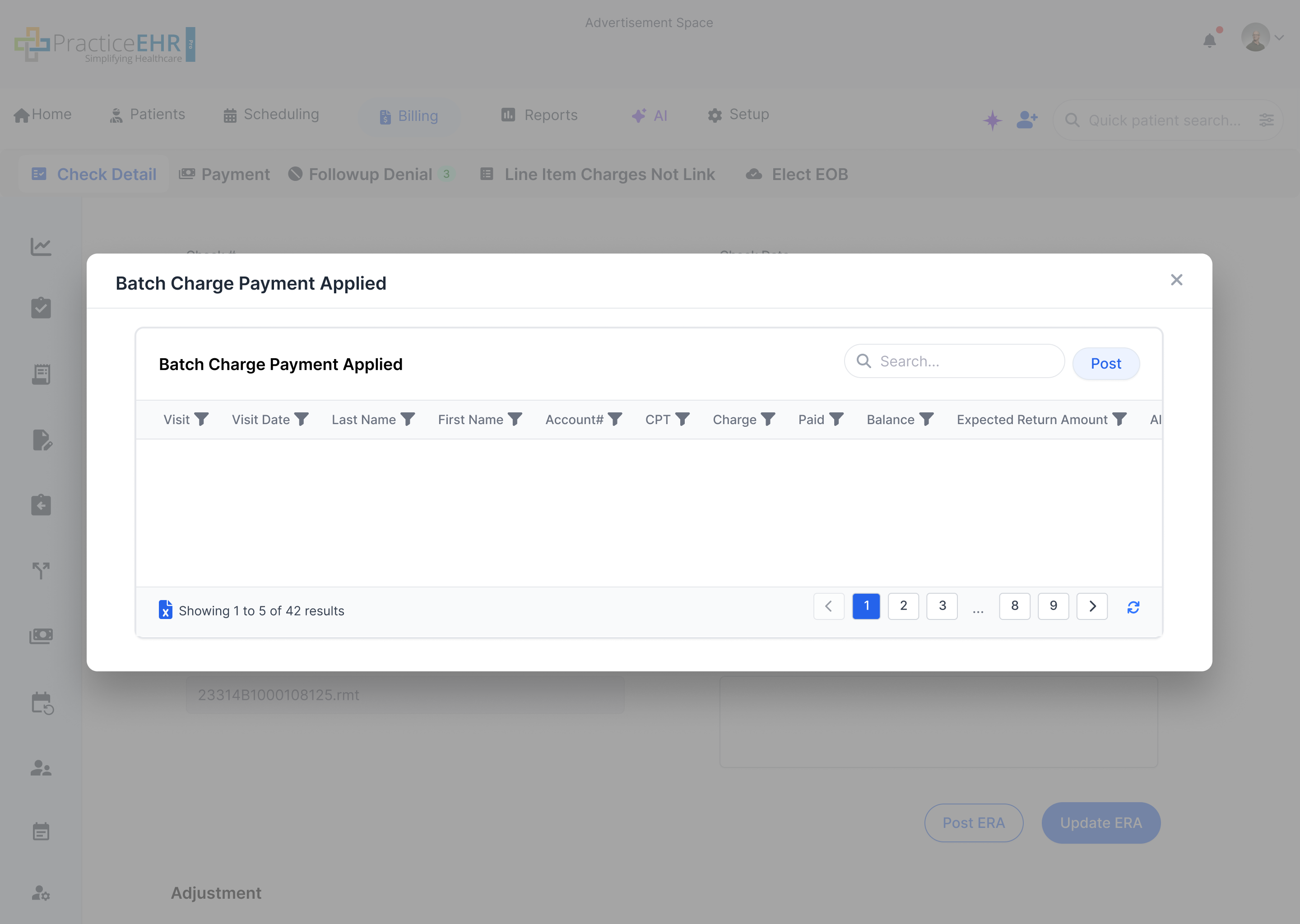
EOB Payment Posting - Post ERA
Interactive Guide
Post ERA lets users load an ERA file and apply payments and adjustments to claims.
Key Features
Upload or select an ERA file to post payments.
Review claim lines, payments, and adjustments from the ERA.
Post the ERA to apply results to patient accounts and claims.
Interaction Guide
Open Post ERA from the EOB Payment Posting workflow.
Choose the ERA file and load it.
Review details and click Post to finish.
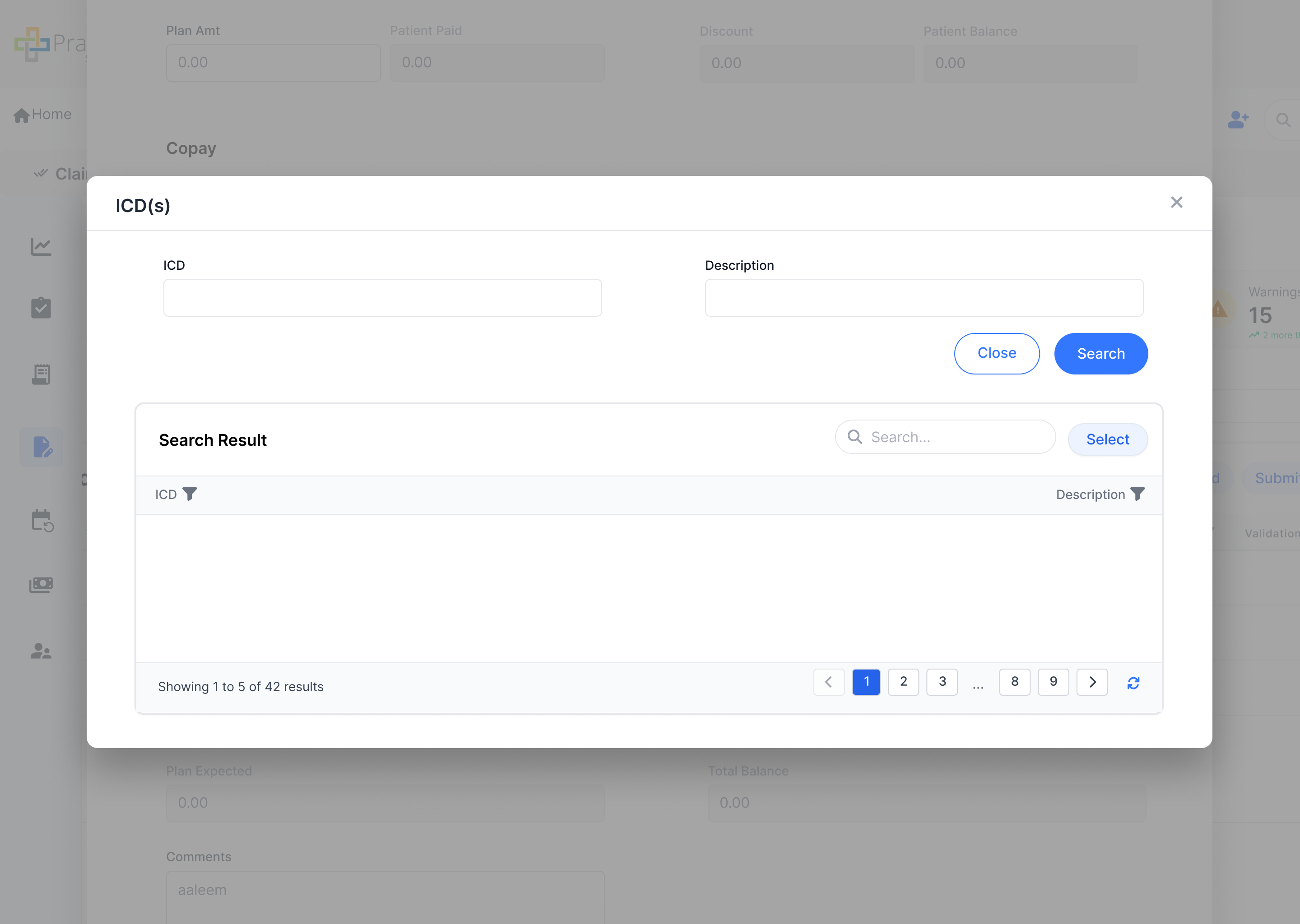
ICD Search
Interactive Guide
ICD Search helps users find the right ICD code quickly and add it to a charge.
Key Features
Search ICD codes by keyword or code.
Select an ICD from the results.
Add the selected ICD to the charge.
Interaction Guide
Open ICD Search from the ICDs area.
Type your search text.
Pick the correct ICD and confirm.
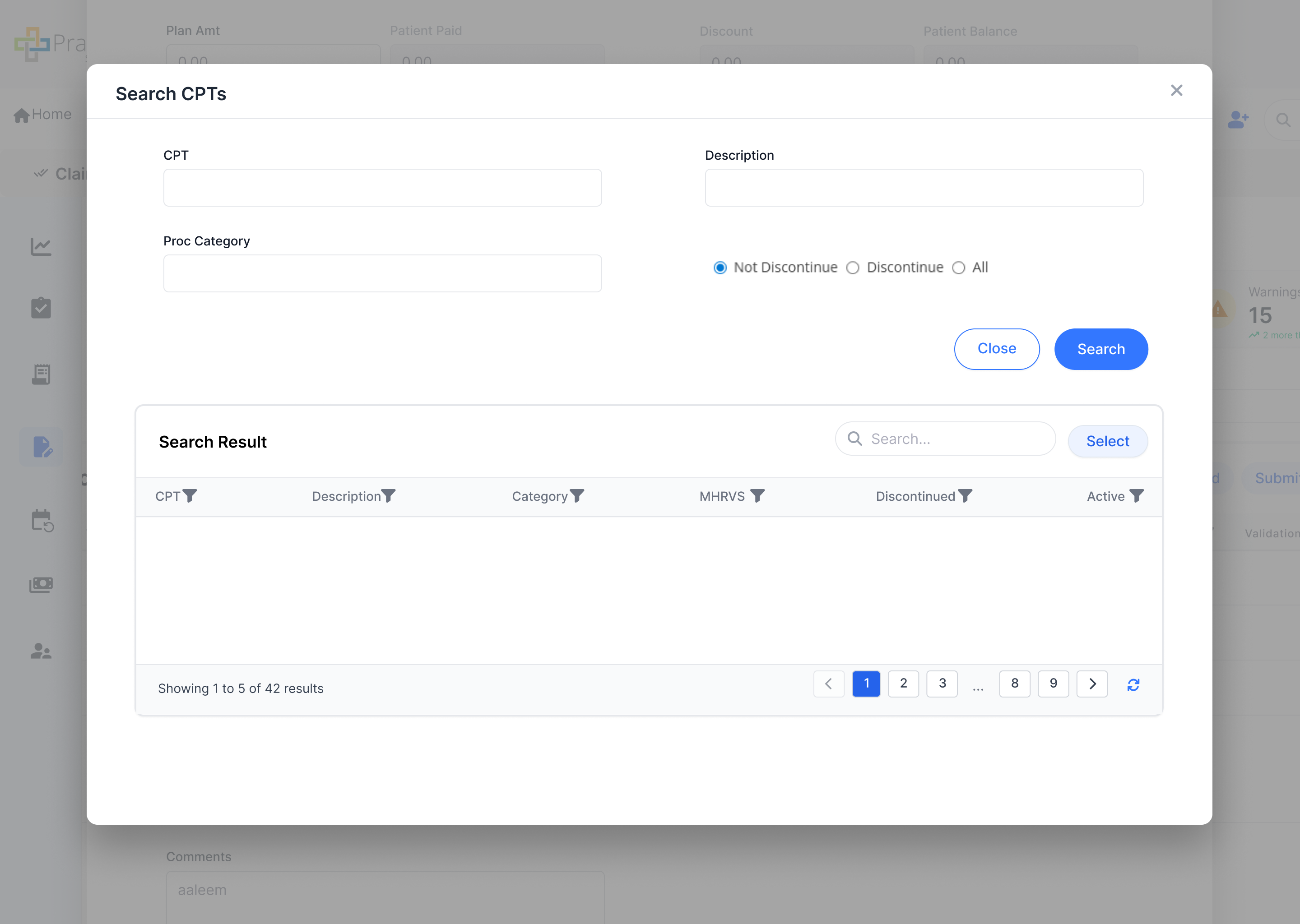
CPT Search
Interactive Guide
CPT Search helps users find the right CPT code quickly and add it to a charge.
Key Features
Search CPT codes by keyword or code.
Select a CPT from the results.
Add the selected CPT to the charge.
Interaction Guide
Open CPT Search from the Procedures/CPT area.
Type your search text.
Pick the correct CPT and confirm.
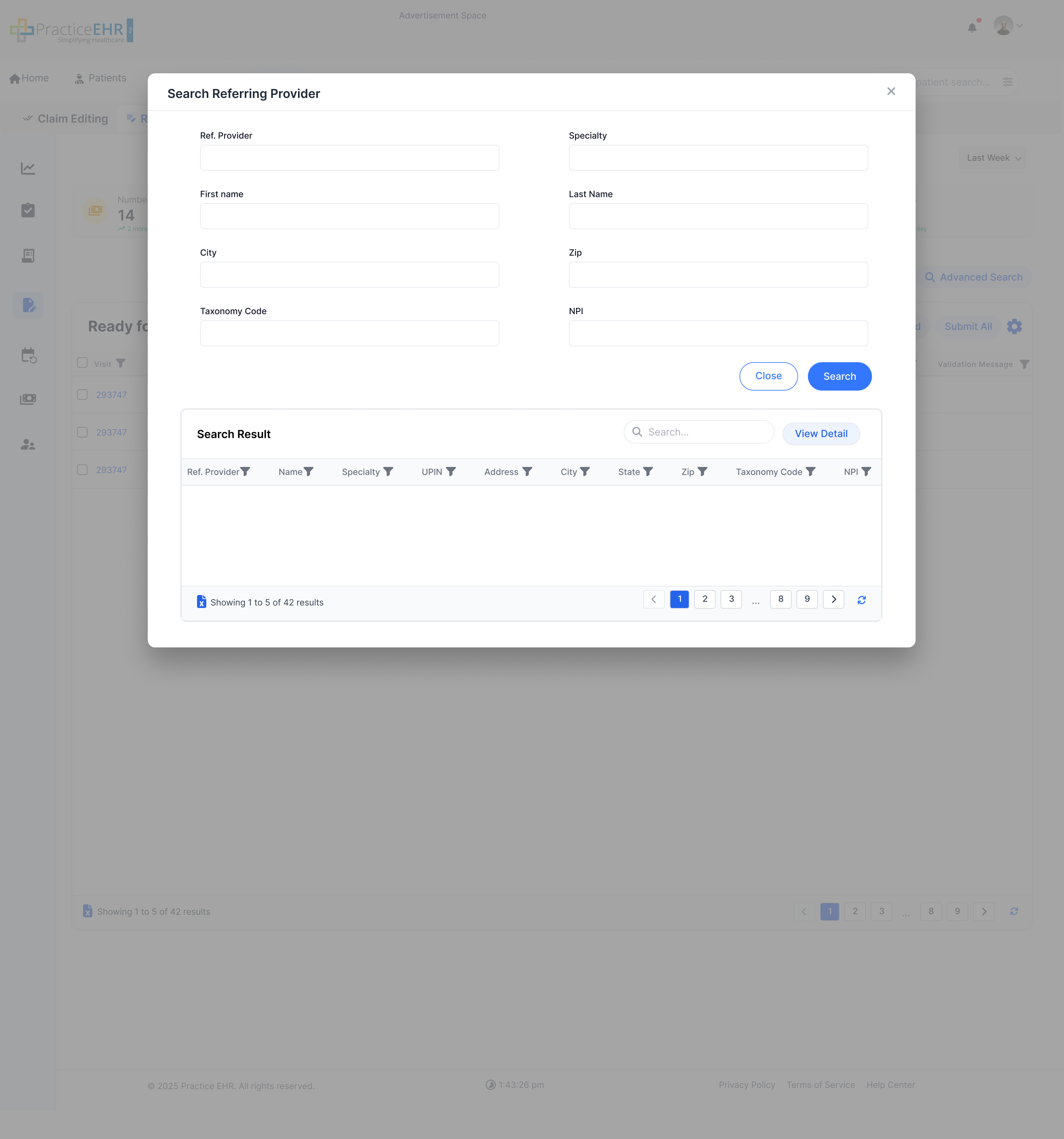
Ref Provider Search
Interactive Guide
Ref Provider Search helps users find and select the correct referring provider for a charge.
Key Features
Search providers by name, NPI, or specialty (if available).
Select the correct provider from the results list.
Apply the selected provider to the charge.
Interaction Guide
Open Ref Provider Search from the Ref Provider field.
Enter search text to narrow results.
Choose a provider and confirm to fill the field.
Advanced Search Collapse
Interactive Guide
Advanced Search lets users pick filters and run a search.
After they click Search, the panel collapses to save space and the grid updates.
The Search button also shows how many filters are applied.
Before
After
Key Features
Collapses Advanced Search after the user triggers Search.
Refreshes the grid to reflect the applied filters.
User can expand Advanced Search again to refine criteria.
Interaction Guide
Open Advanced Search.
Select one or more filters.
Click Search.
Panel collapses after Search.
Grid refreshes with the applied filters.
Advanced Search button shows the filter count.
Patient Followup Visit Detail
Interactive Guide
Detailed snapshots for Patient A/R followup visit detail screens. Use the controls to switch
between views.
1 / 7
Detail view of patient followup visit information.
Views
Key Features
Accessible from Patient A/R by opening a visit.
Includes multiple updated patient followup visit detail screens.
Patient Follow-up Documents tab is linked to visit documents attached to that
visit. If you add a document in Patient Follow-up, it will go only to Charts and
not Visits.
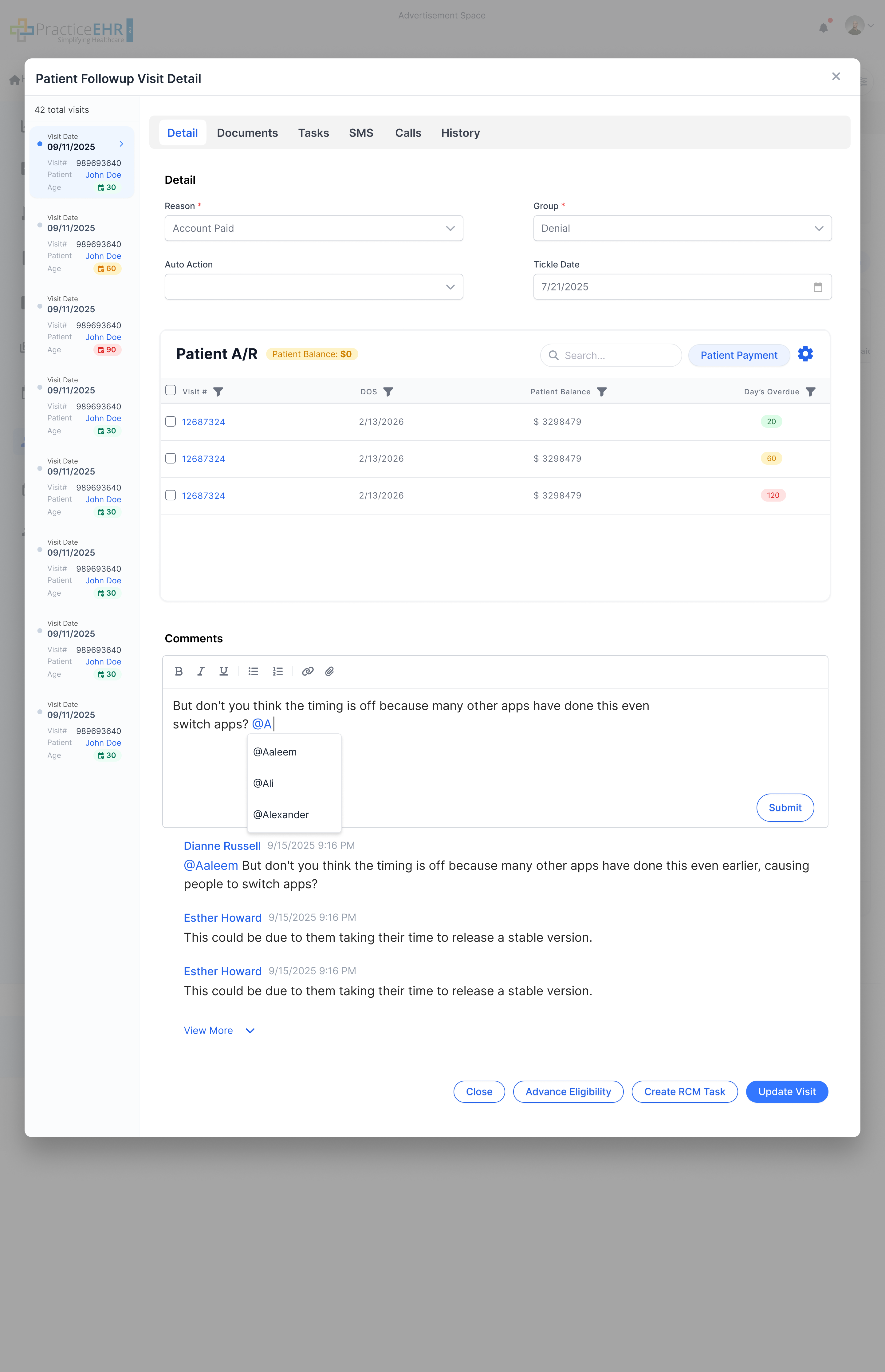
Days Overdue pill color criteria:
0 - 3030 - 6090+
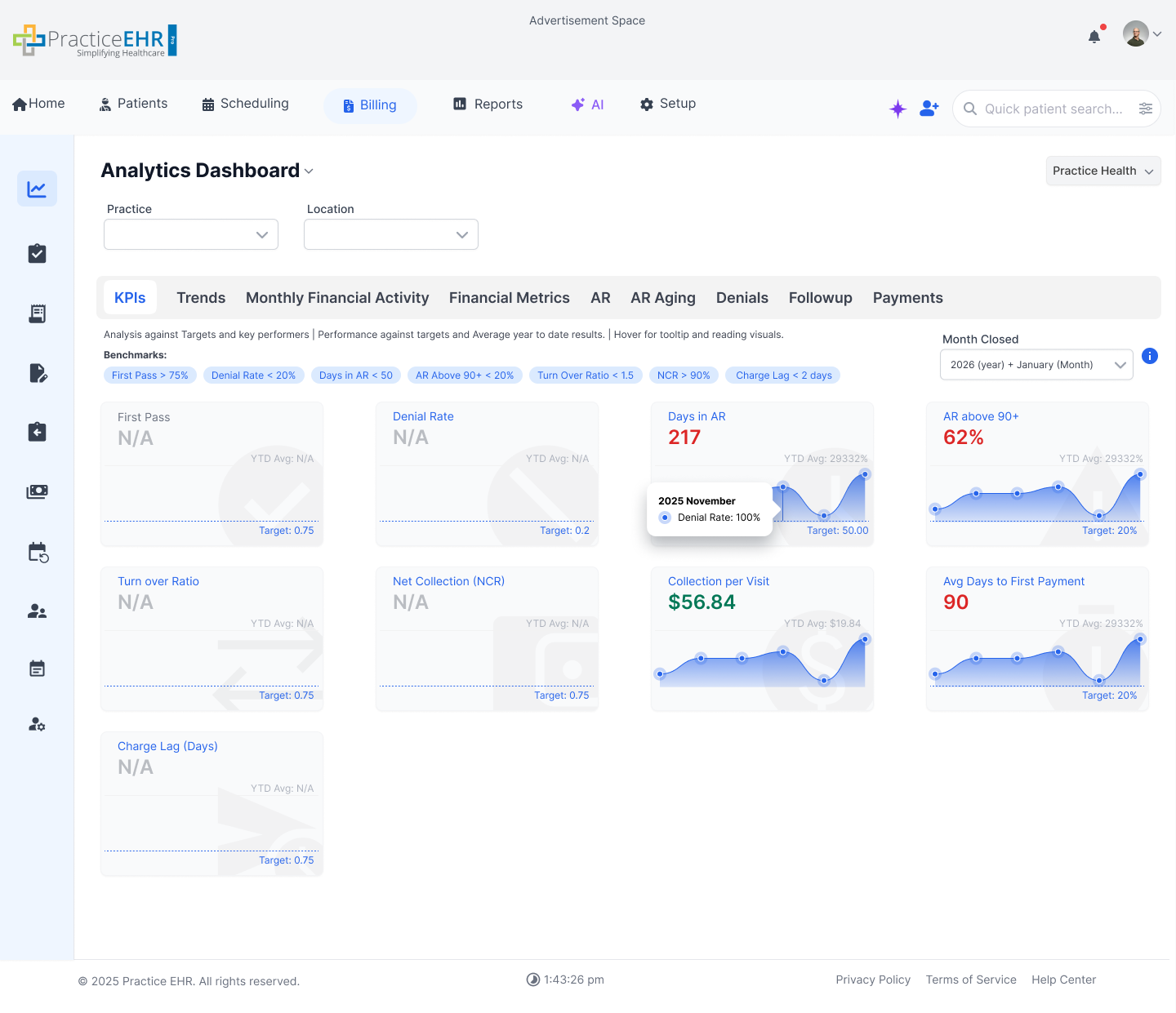
Analytics Dashboard
Dashboard Dropdown
This dashboard is accessed from the dropdown next to Dashboard.
It provides KPI snapshots, trends, and month-by-month financial summaries.
KPIs
What this shows
Practice /
Location / Date filters at the top.
High-level
KPI tiles with targets + benchmarking indicators.
Mini-trends
and YTD averages for quick performance context.
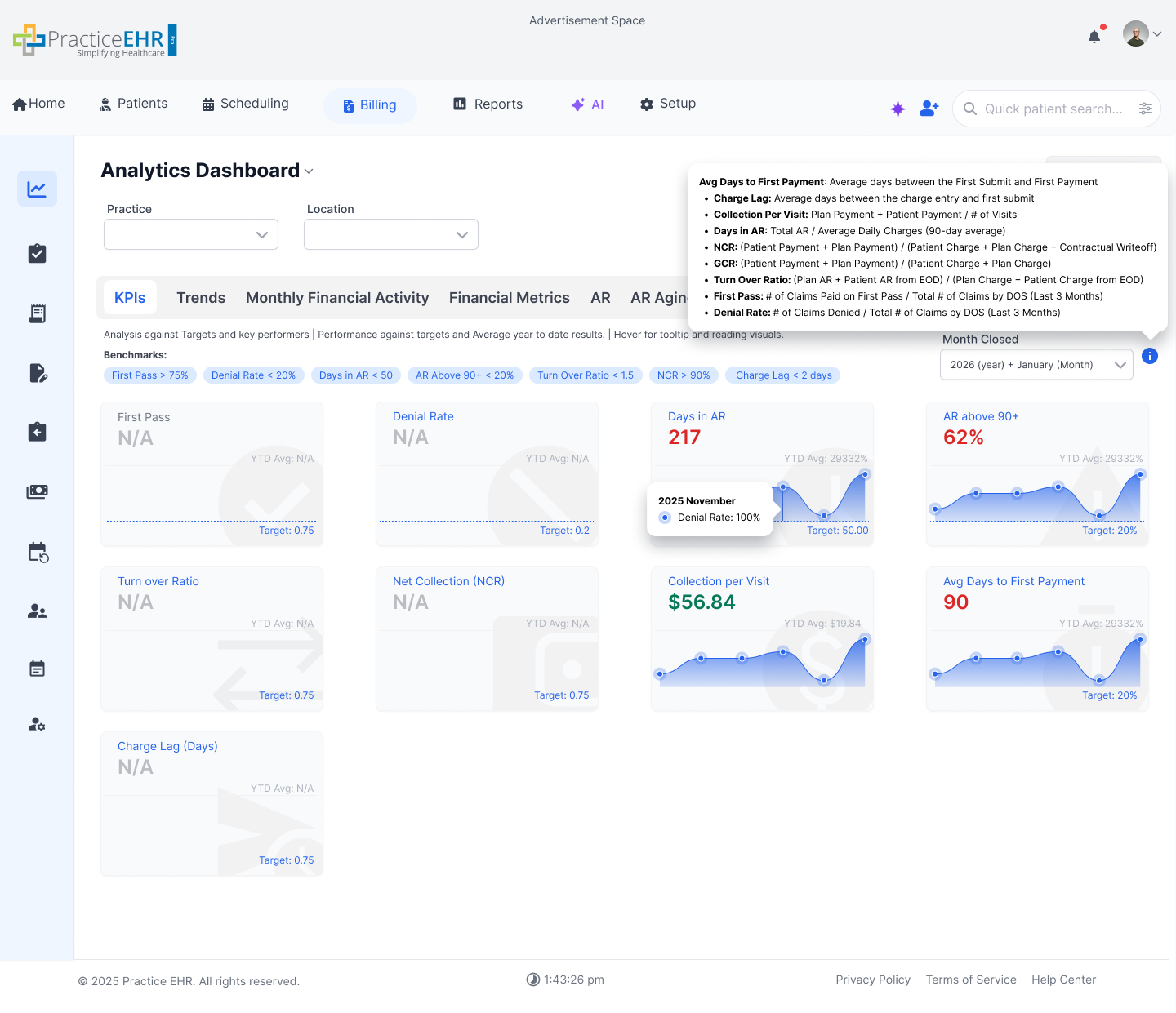
KPI Tooltip / Definitions
What this shows
Info
tooltip explains KPI meaning / calculation.
Helps
users interpret benchmarks and thresholds consistently.
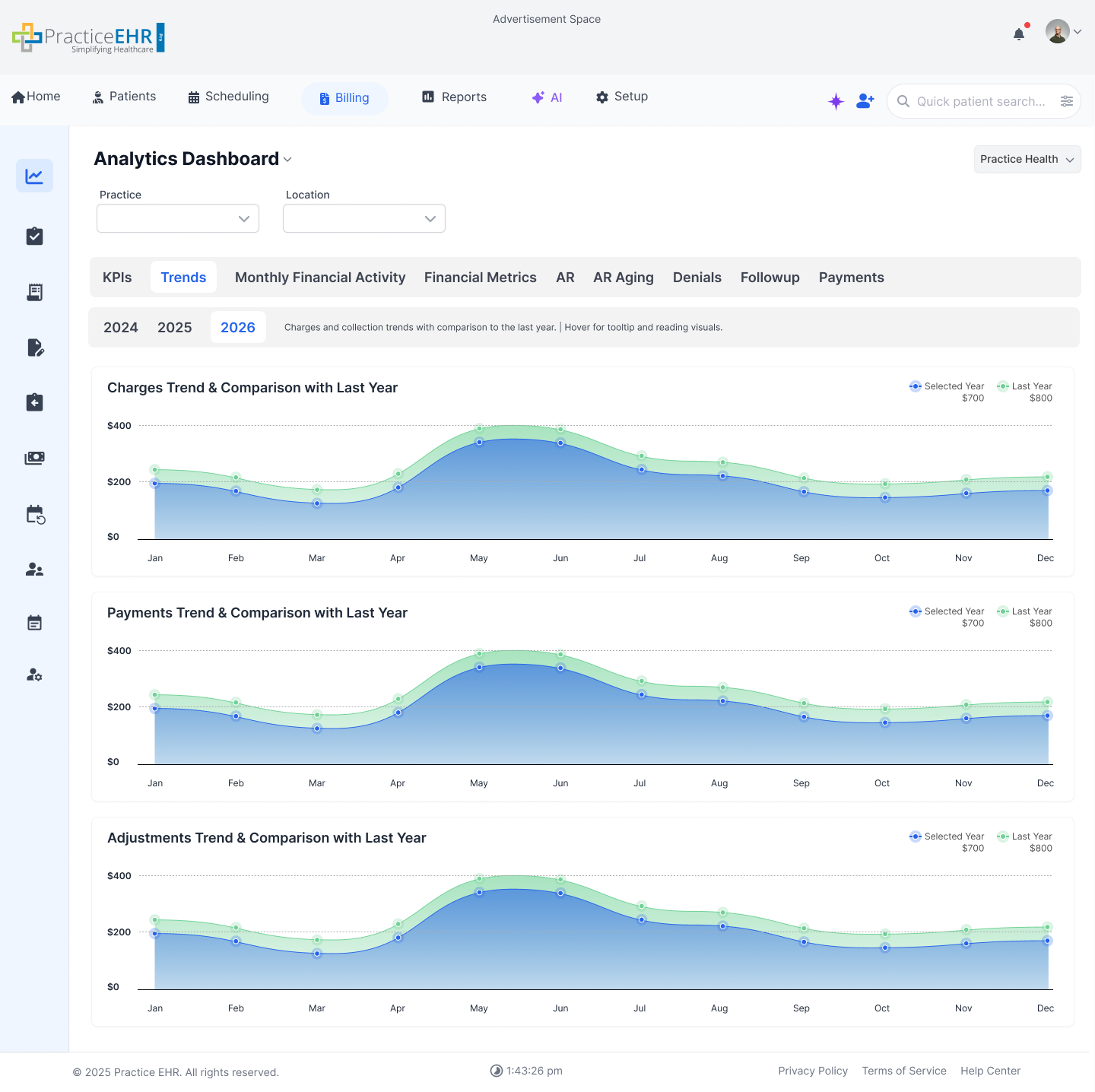
Trends
What this shows
Year
selector pills for quick switching.
Trend
charts for Charges, Payments, and Adjustments.
Compare
selected year vs last year for the same period.
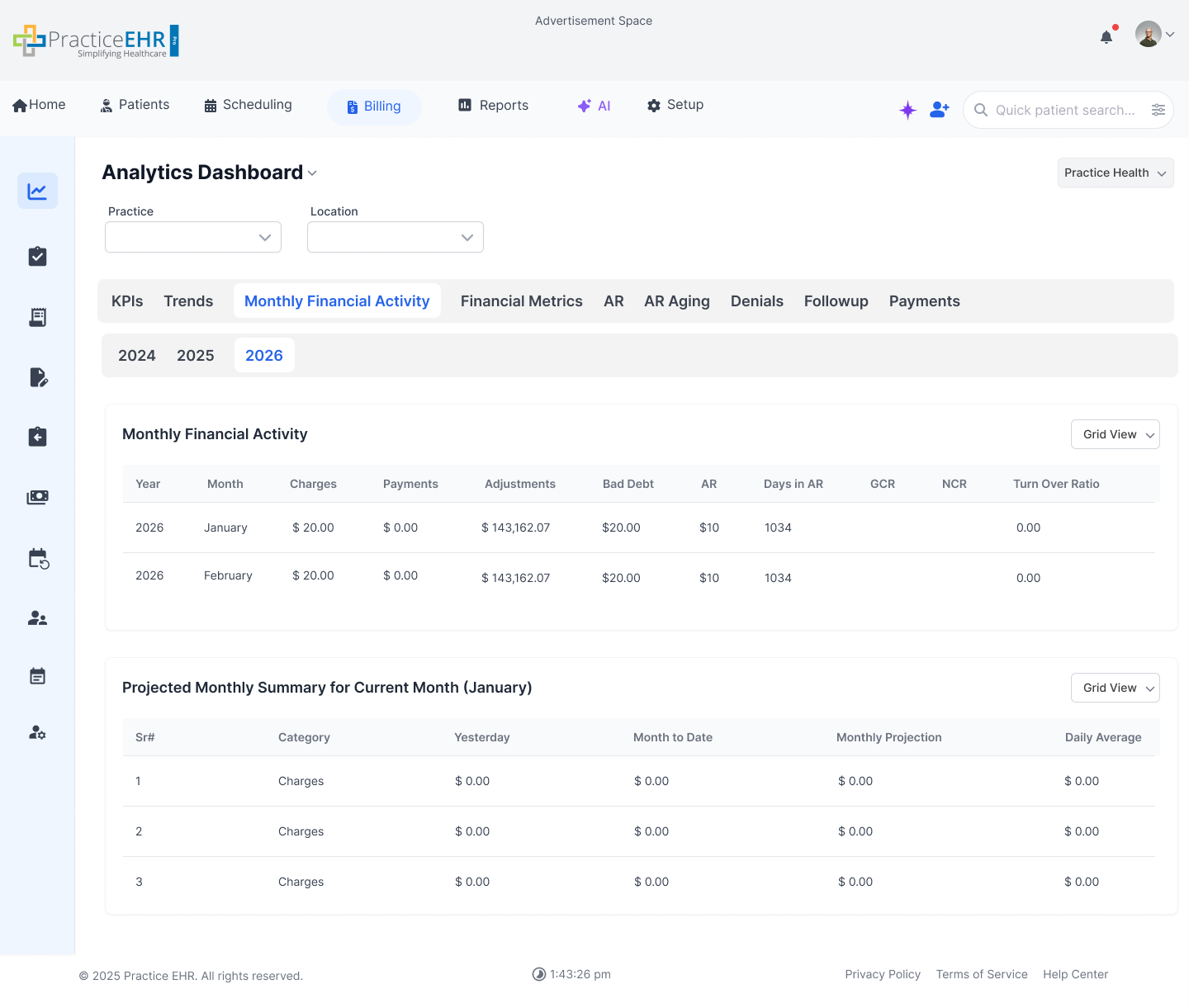
Monthly Financial Activity
What this shows
Month-by-month
table for Charges, Payments, Adjustments, A/R and ratios.
Projected
Monthly Summary with MTD, projections, and daily averages.
View
options (table-style controls) for scanning and comparison.
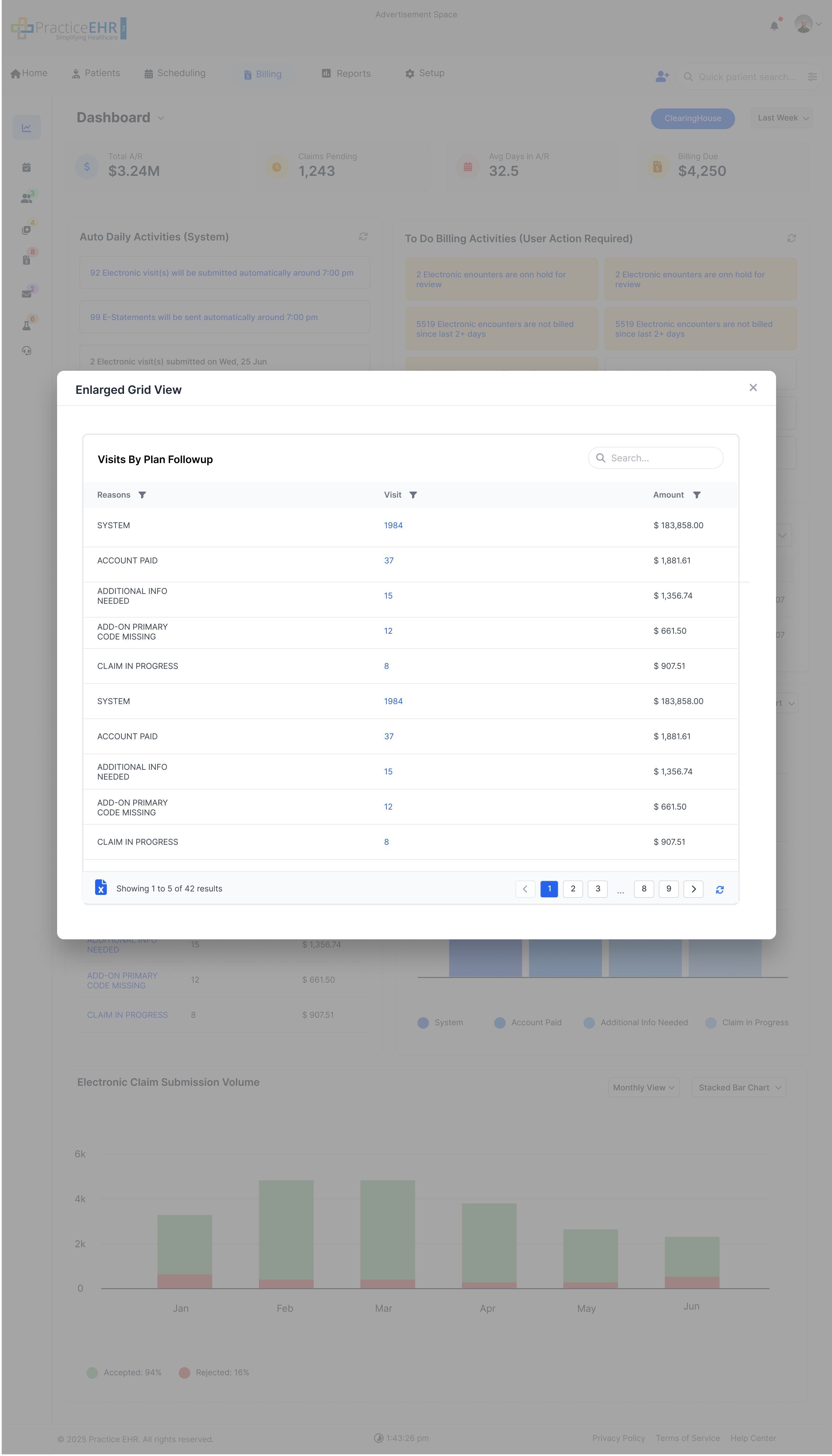
Monthly Financial Activity Grid Dropdown values: Grid View, Bar Chart, Line Chart
Project Monthly Summary Dropdown values: Grid View, Stacked Bar Chart, Grouped Bar
Chart, Line Chart
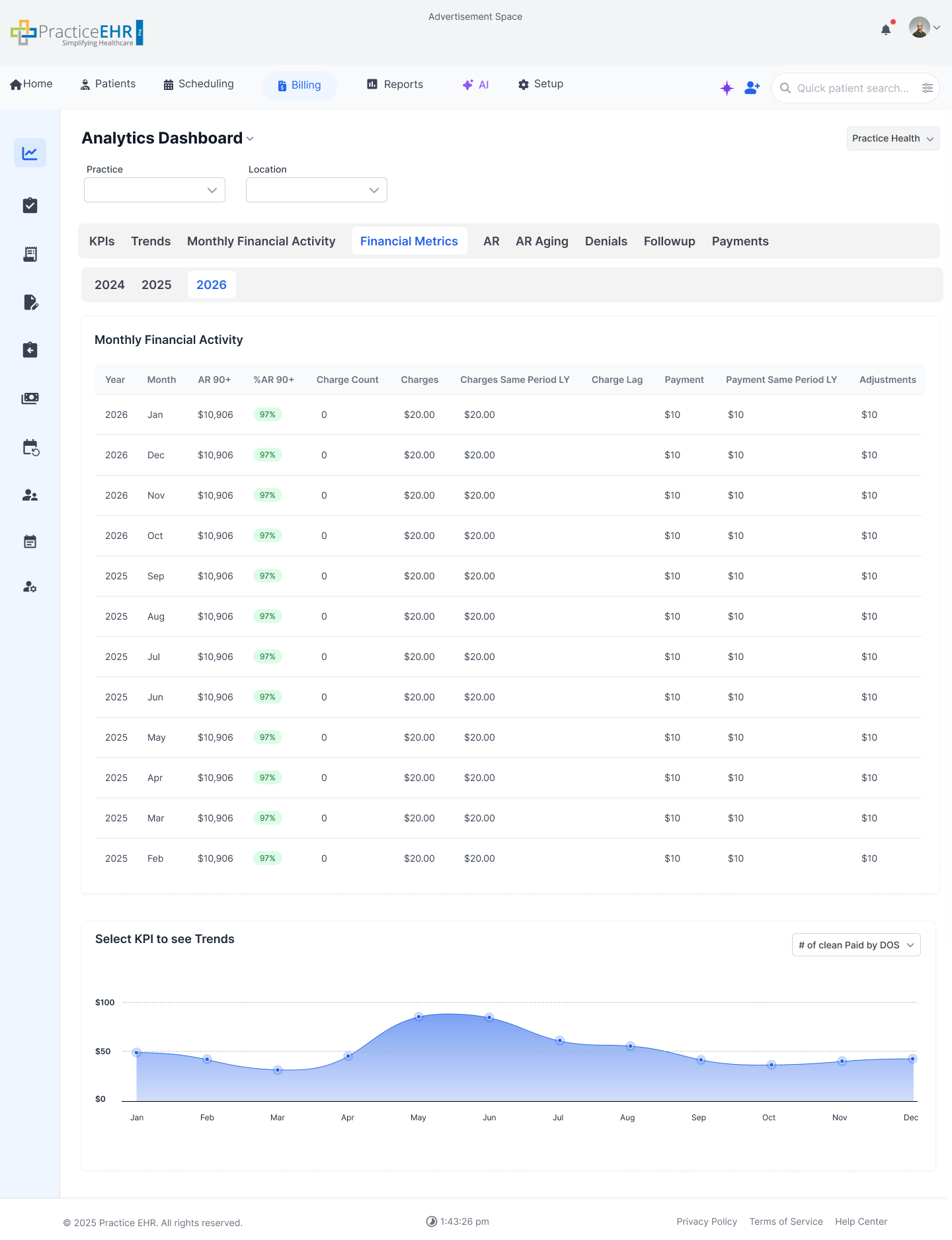
Financial Metrics
What this shows
AR 90+
and % AR 90+ tracking for aging risk.
Same-period
last year comparisons for charges and payments.
Select
a KPI to render its trend chart below.
Select KPI to see Trends Dropdown Values
#
of
clean Paid by DOS
# of
Denied Claims by DOS
# of
Submitted Claims by DOS
% AR
90+
AR 90+
Charge
Lag
Denial
Rate
FPPR
Over Time
CPR
Average
Days to First Payment
Charge
Count
Turn
Over Ratio
Expanded Sidebar
Interactive Guide
The Billing sidebar expands on hover to reveal labels for faster navigation.
Key Features
Sidebar expands on hover to show menu labels.
Active item stays highlighted for orientation.
Interaction Guide
Hover over the sidebar to expand; click an icon/label to navigate.
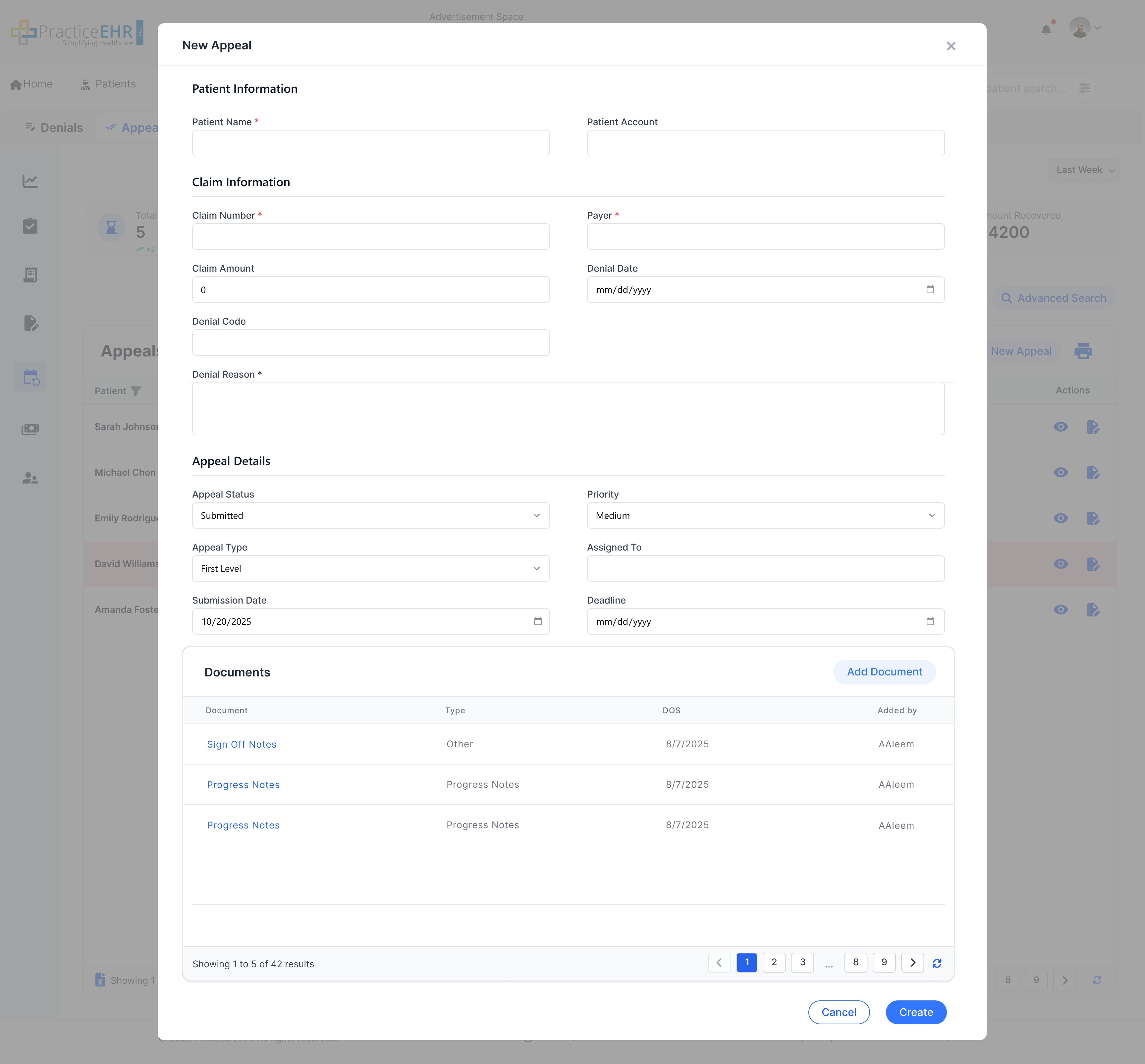
New Appeal
Interactive Guide
Create a new appeal by entering required details, attaching documents, and submitting for review.
Key Features
Appears when the user clicks New Appeal from Appeal
Management.
Add supporting documents before saving/submitting the appeal.
Interaction Guide
Fill required fields, attach documents, then click Save / Submit.
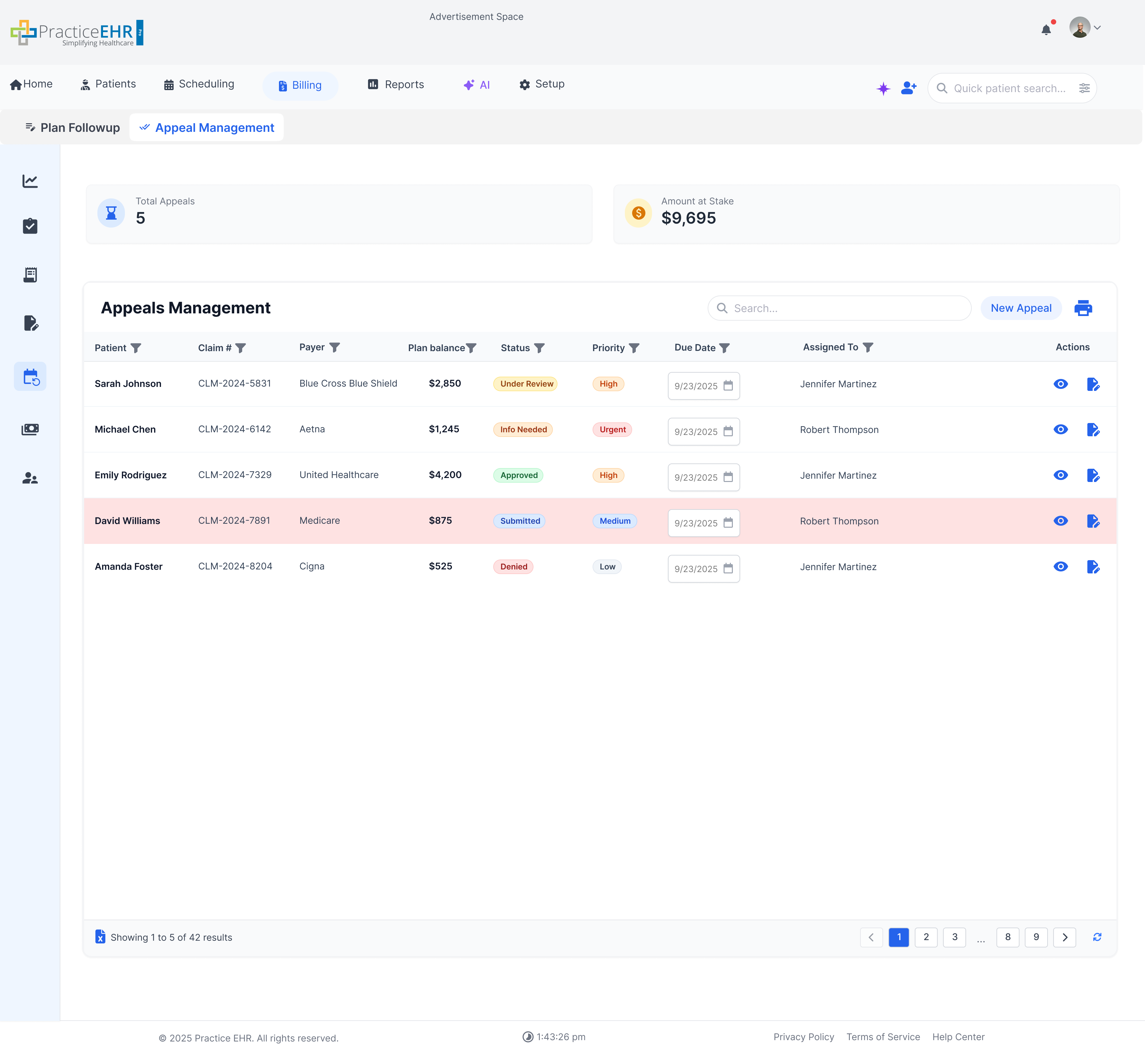
Appeal Management
Interactive Guide
Manage and track insurance appeals, including follow-ups, documentation, and status updates.
Key Features
Centralized appeal worklist to review, update, and track appeal progress.
Attach and manage appeal-related documents for each case.
KPI Source & Logic
Total AppealsCOUNT
Source: Row Count — Count of visible/filtered rows (active appeals only, not full dataset).
Amount at StakeSUM
Source: Plan Balance — Sum of Plan Balance for all active appeals.
Interaction Guide
Open an appeal row to view details, add notes/documents, and update status.
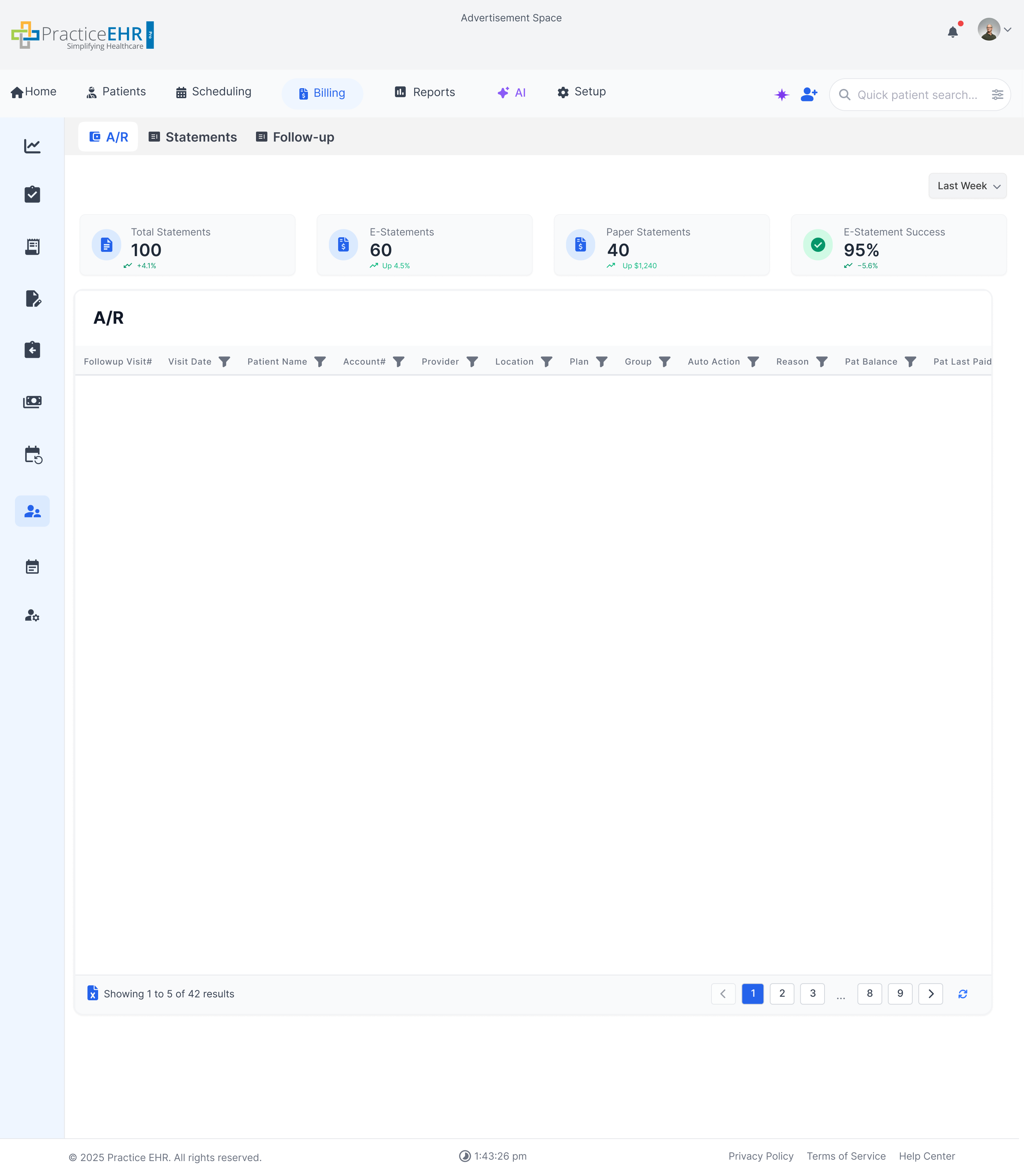
Patient A/R
Interactive Guide
Patient Accounts Receivable (A/R) helps track outstanding patient balances and follow up on unpaid
amounts.
Key Features
View and manage outstanding patient balances and A/R details.
KPI Logic
1st KPI Claims: Total number of patient A/R claims in the grid. This is the row count of the full dataset and reflects every claim currently sitting in patient A/R.
2nd KPI Recurring Statements: Count of claims where more than one statement has been sent to the patient. This highlights patients who have already been billed repeatedly and still have an outstanding balance.
3rd KPI Outstanding A/R: Sum of patient balances across all claims in patient A/R. This is the total dollar amount patients currently owe the practice.
4th KPI Tickle Date: Number of followups where the Tickle Date field on the Followup Visit detail is populated (not null). It shows how many accounts have a scheduled followup reminder set.
KPI Source & Logic
ClaimsCOUNT ALL
Source: Row Count — Total row count of the full dataset.
Recurring StatementsCOUNT
Source: Backend — Count of rows where more than one statement was sent.
Outstanding A/RSUM
Source: Patient Balance — Sum of all claims in patient A/R.
Tickle DateCOUNT
Source: Tickle Date Field in Followup Visit detail — Number of followups where Tickle Date field is populated (not null).
Interaction Guide
Use filters/search to locate specific patients or balances quickly.
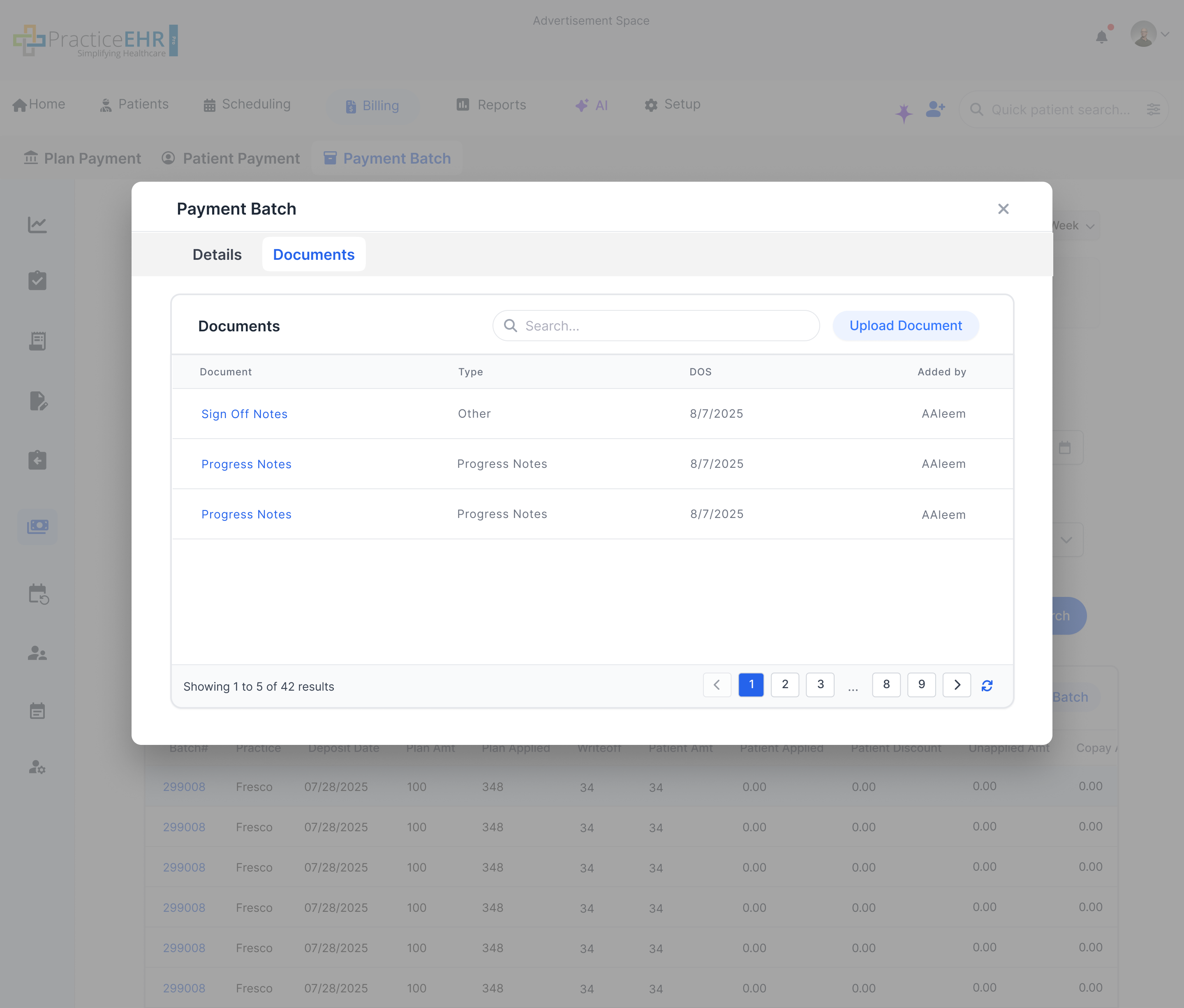
Batch Detail - Documents
Interactive Guide
Documents tab within Batch Detail where users can view and manage batch-related files.
Key Features
View uploaded documents related to the selected payment batch.
Add or manage attachments within the Batch Detail workflow.
Interaction Guide
Open Batch Detail, then switch to the Documents tab to review files.
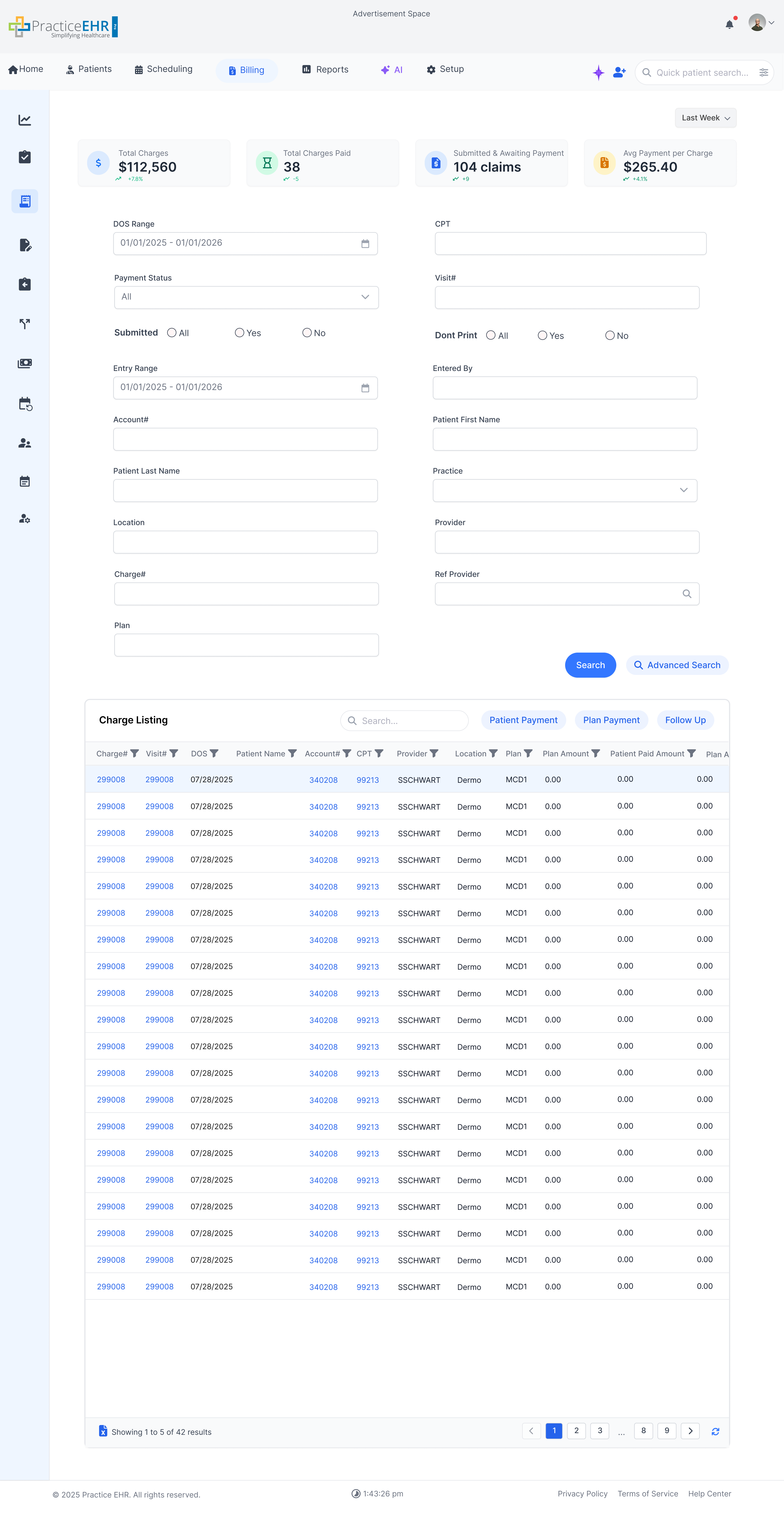
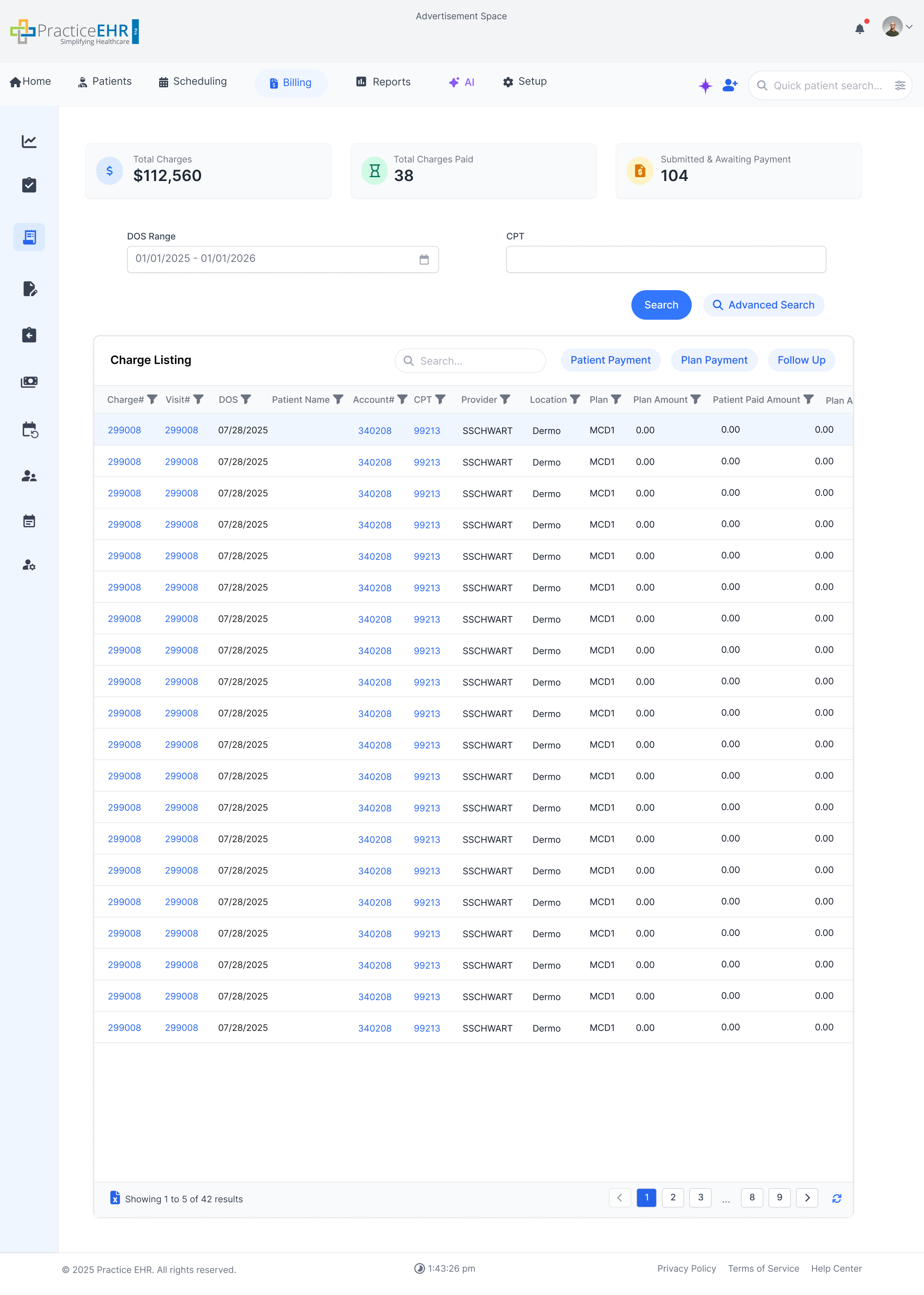
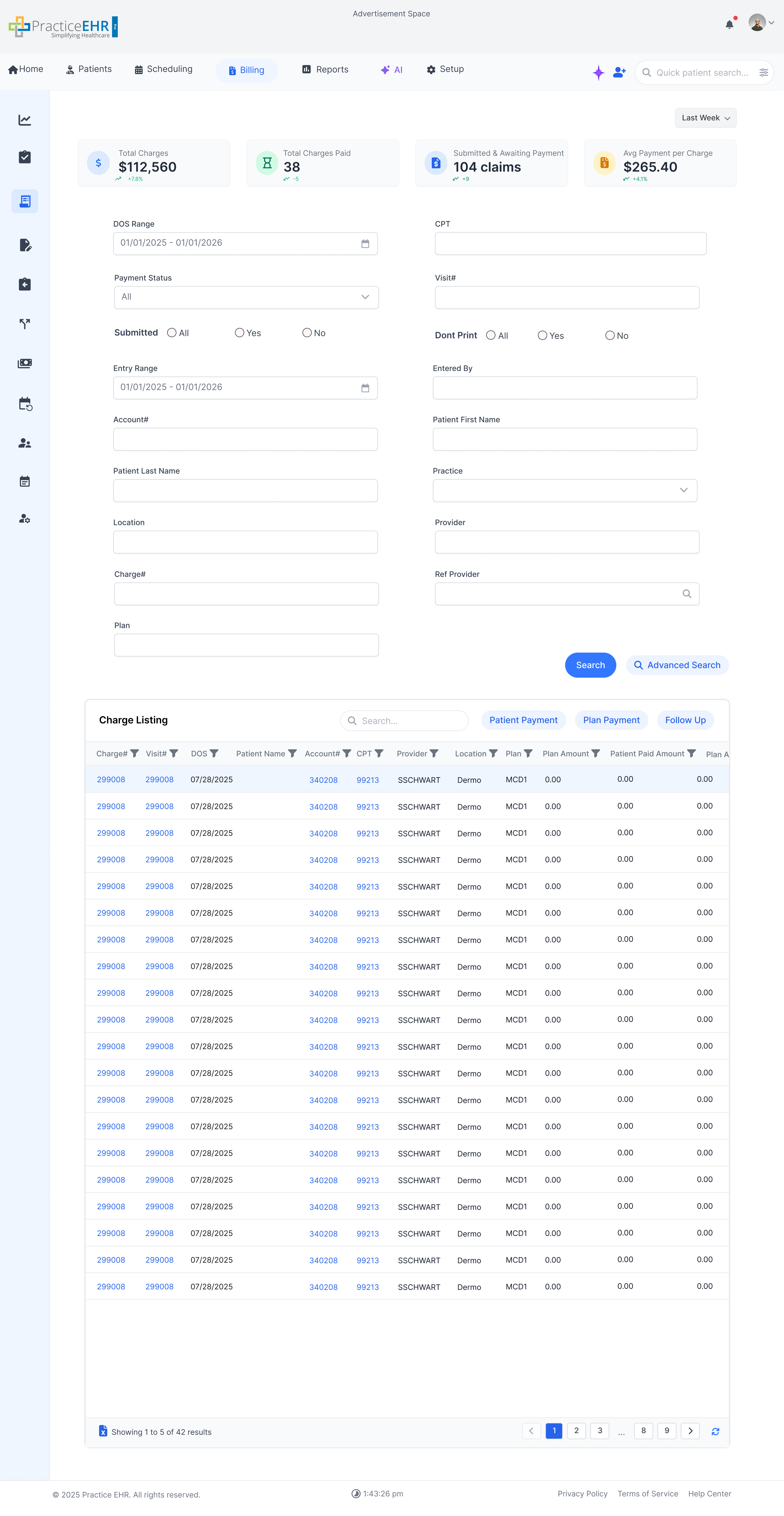
Charge Listing
Interactive Guide
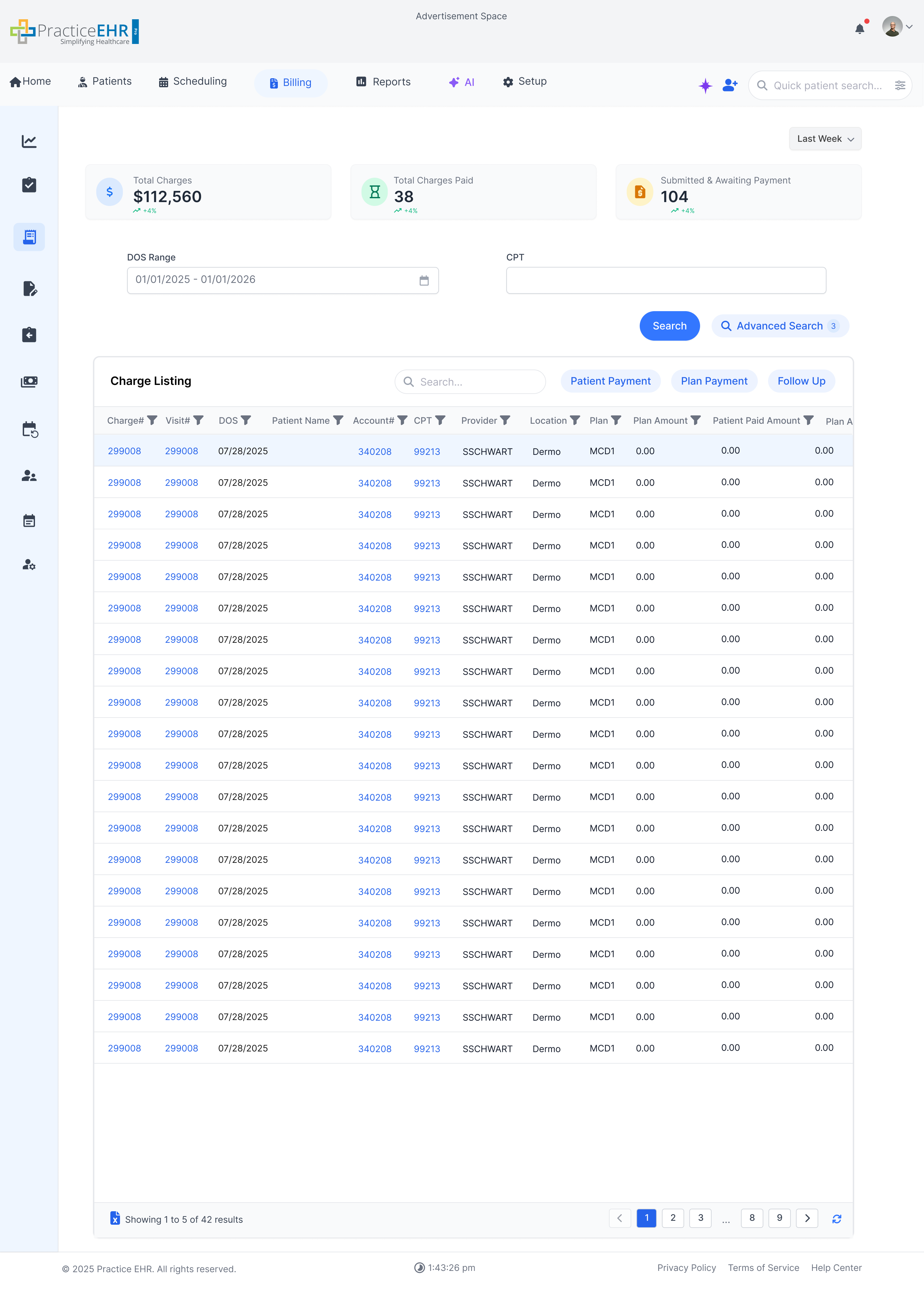
The Charge Listing module allows you to manage and review all charges within the system.
You can filter, search, and take actions on charges from a manual search grid.
Billing Charge Listing
Key Features
Manual Search grid is used on the Charge Listing screen.
Direct access to charge details via the listing grid.
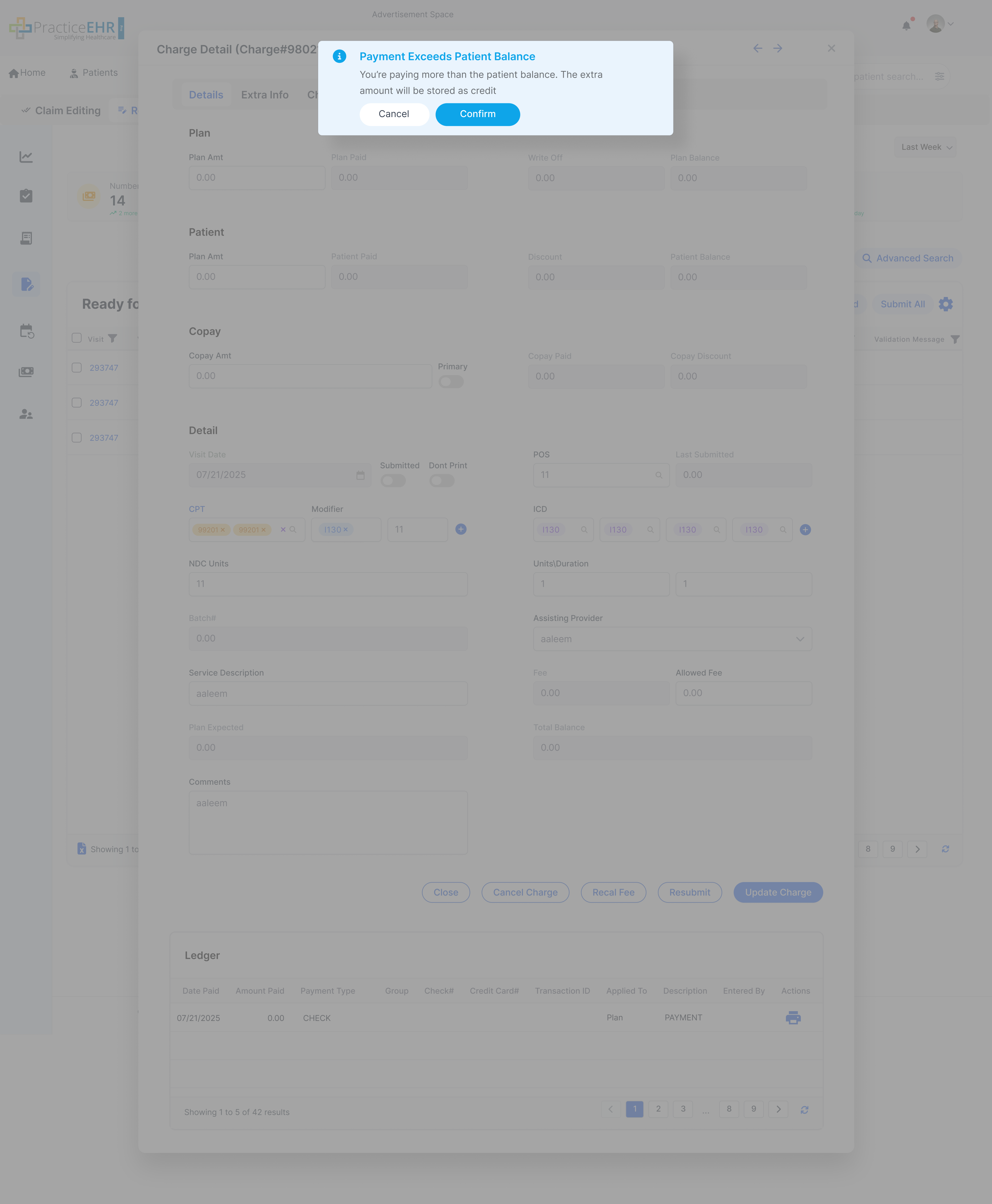
A popup is displayed if payment exceeds the patient balance.
The Payment modal opened from Charge Listing uses the Financial variant — the Patient Balance grid is filtered to visits only; no appointment rows are shown.
This will be displayed when the user clicks on Advance Search.
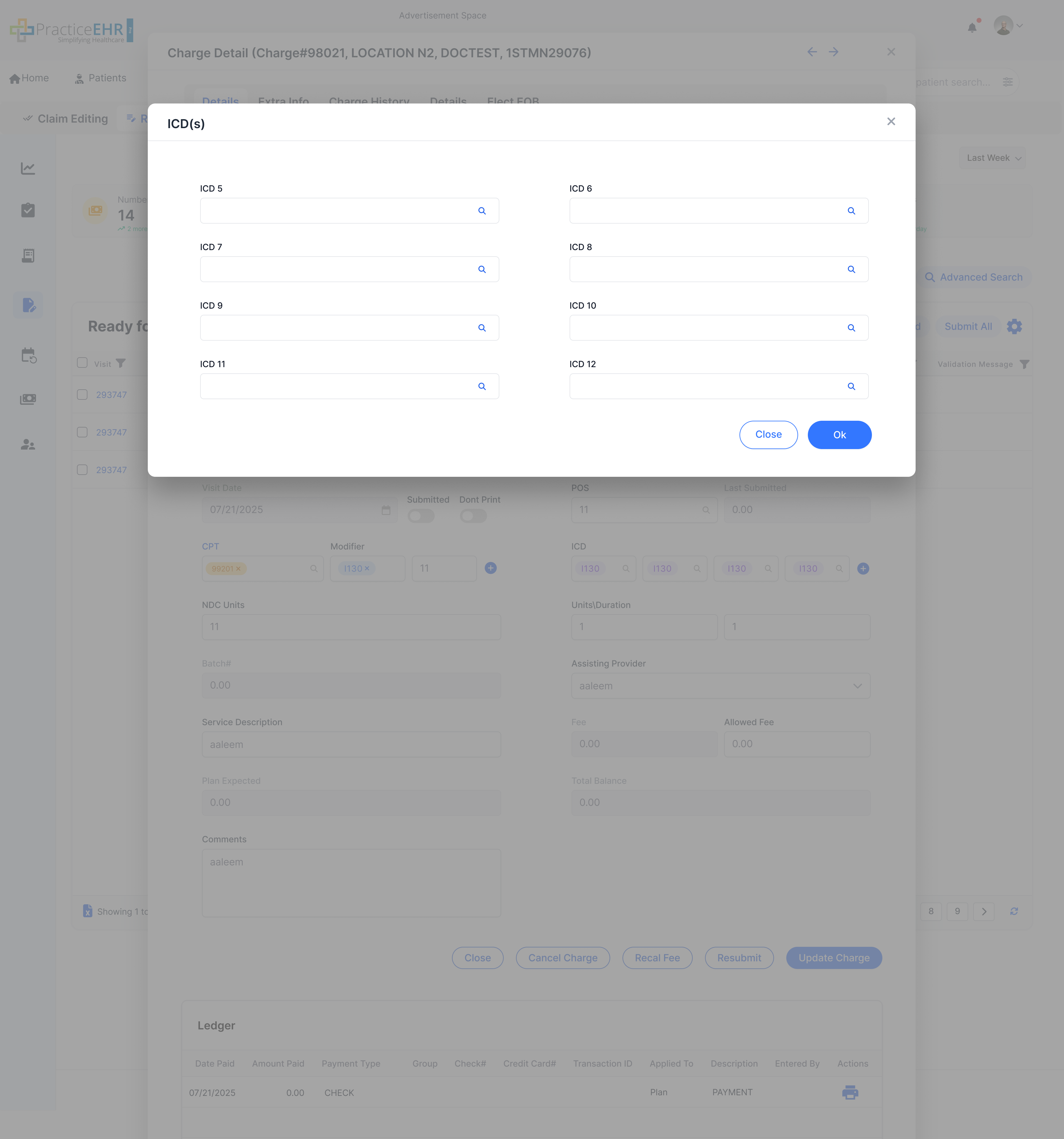
ICDs
Interactive Guide
Key Features
This screen appears when the user clicks on the plus button next to
the ICDs in the Charge Detail screen.
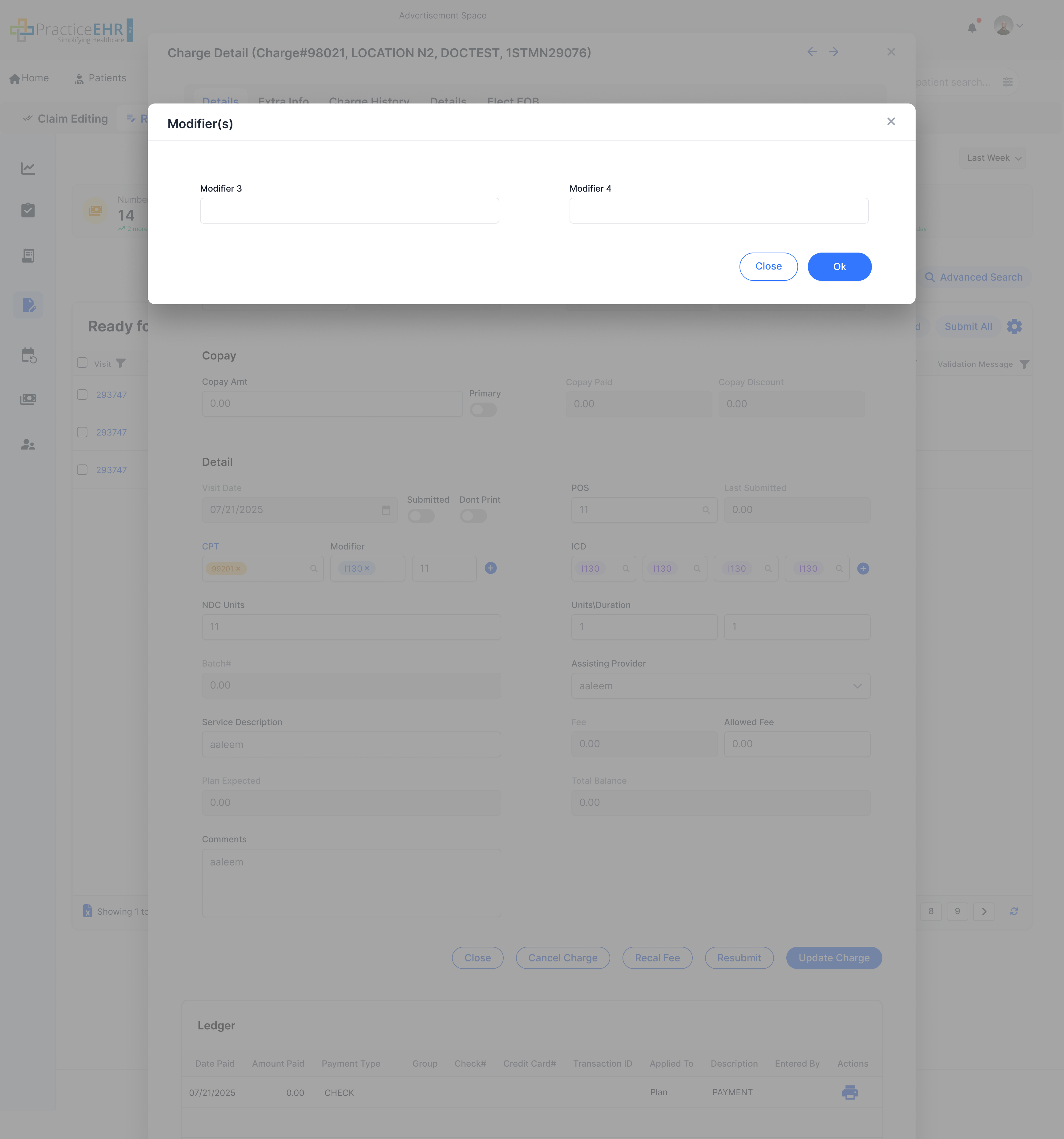
Modifiers
Interactive Guide
Key Features
This screen appears when the user clicks on the plus button next to
the
Modifiers in the Charge Detail screen.
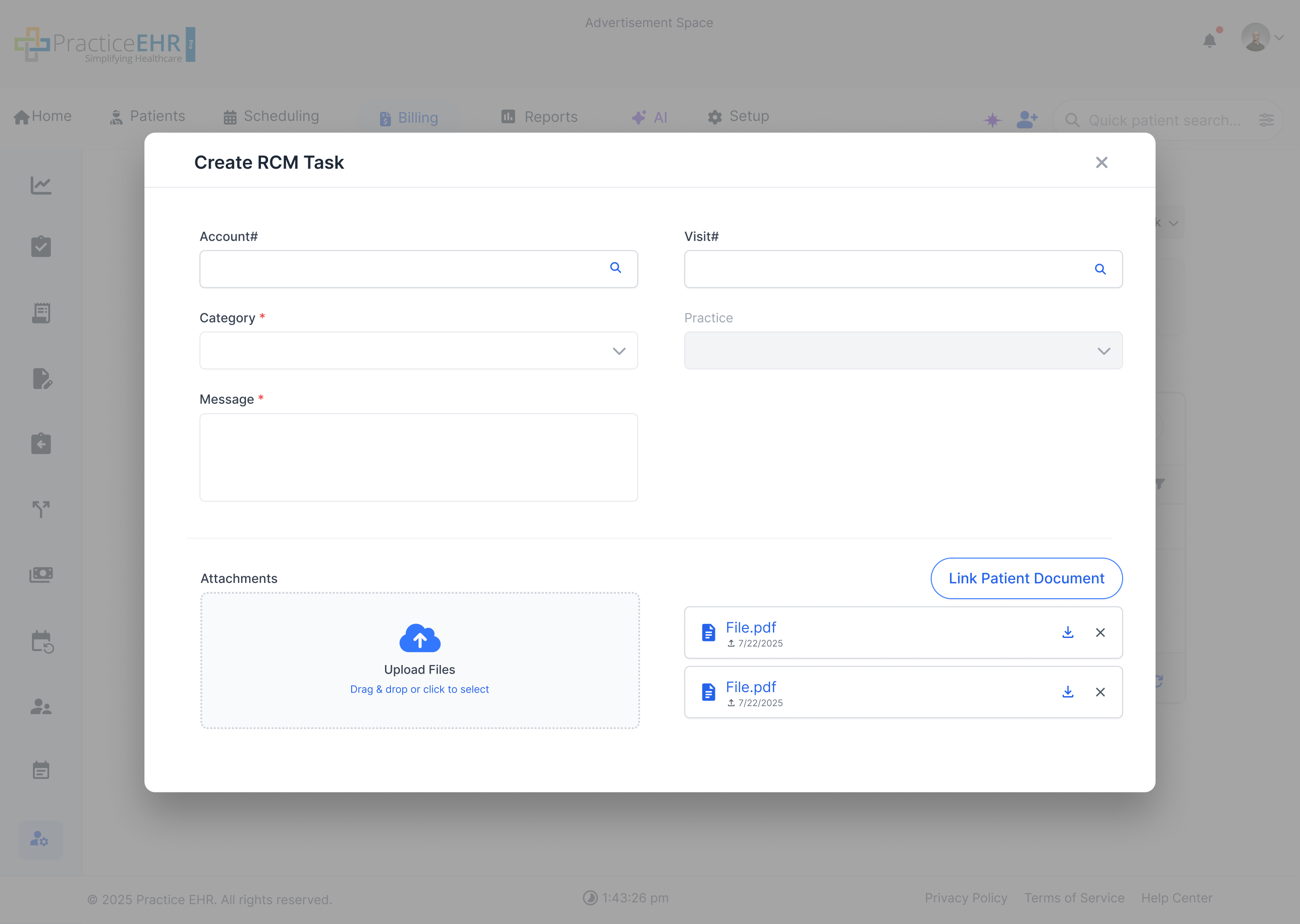
Create RCM Task
Interactive Guide
Key Features
This screen will be accessed when user clicks on the gear icon in
Visit Details and clicks Create RCM Task.
Create RCM Task
Interactive Guide
Key Features
This appears when the user clicks on New Task from Billing ->
RCM Manager.
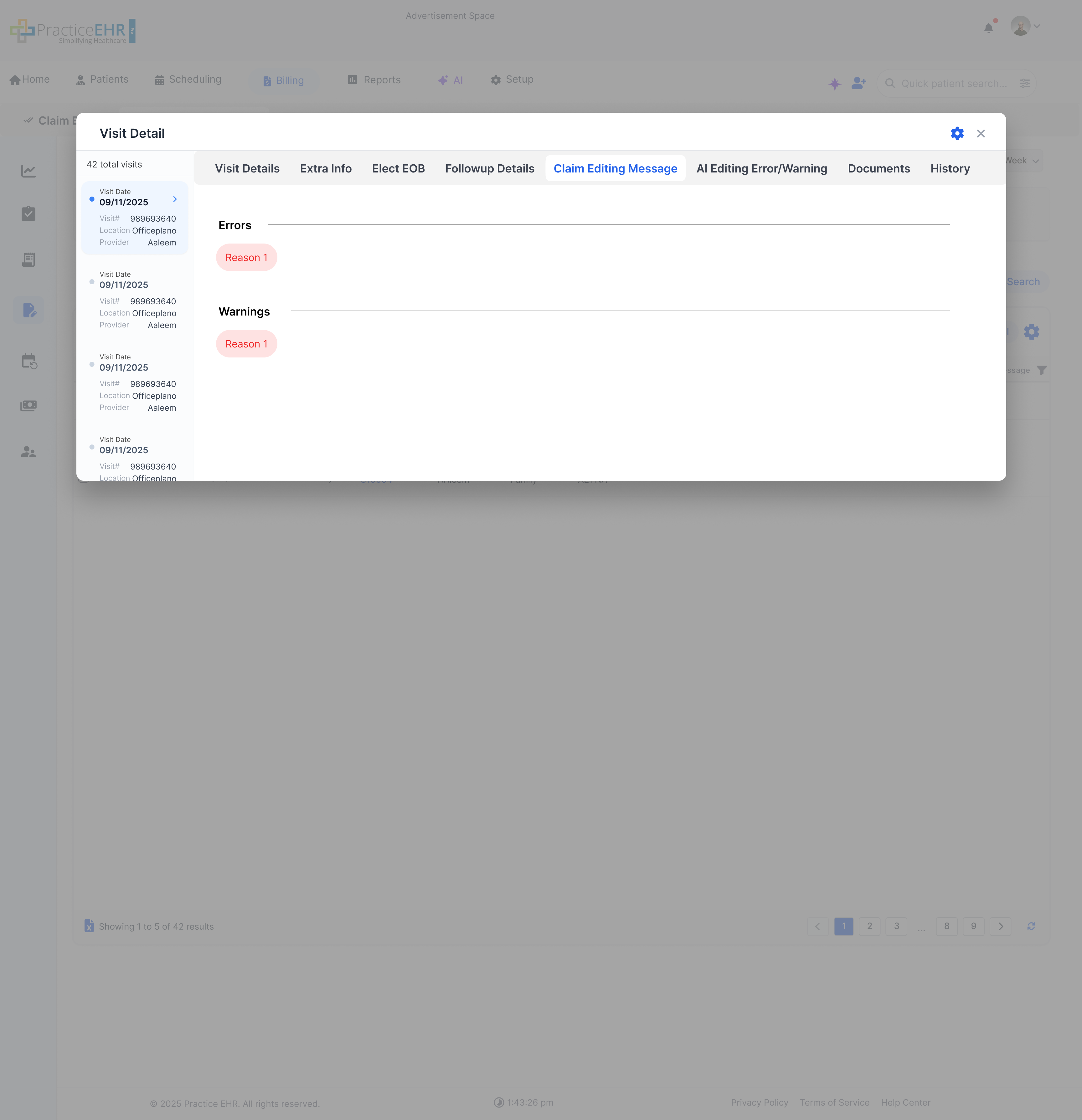
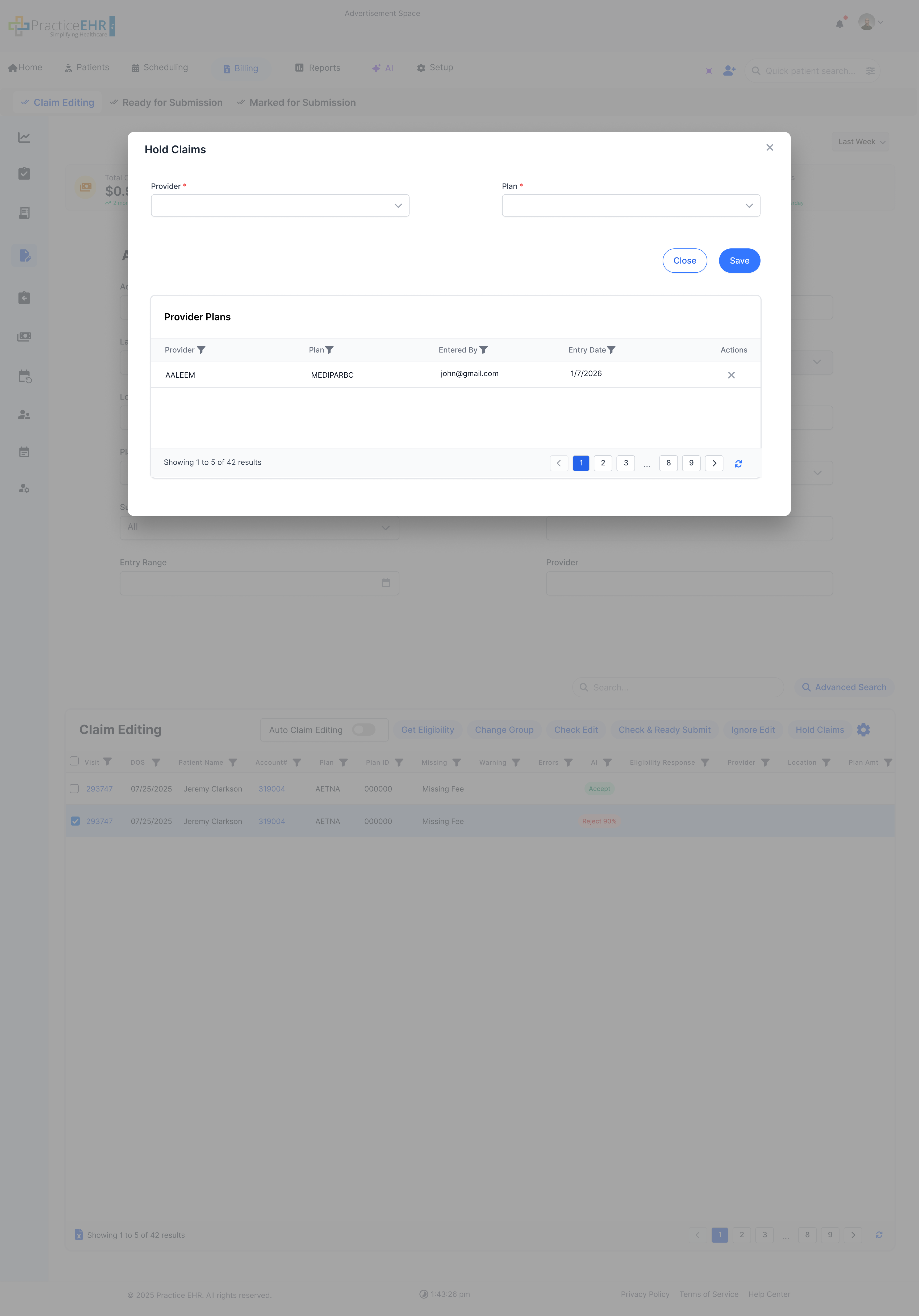
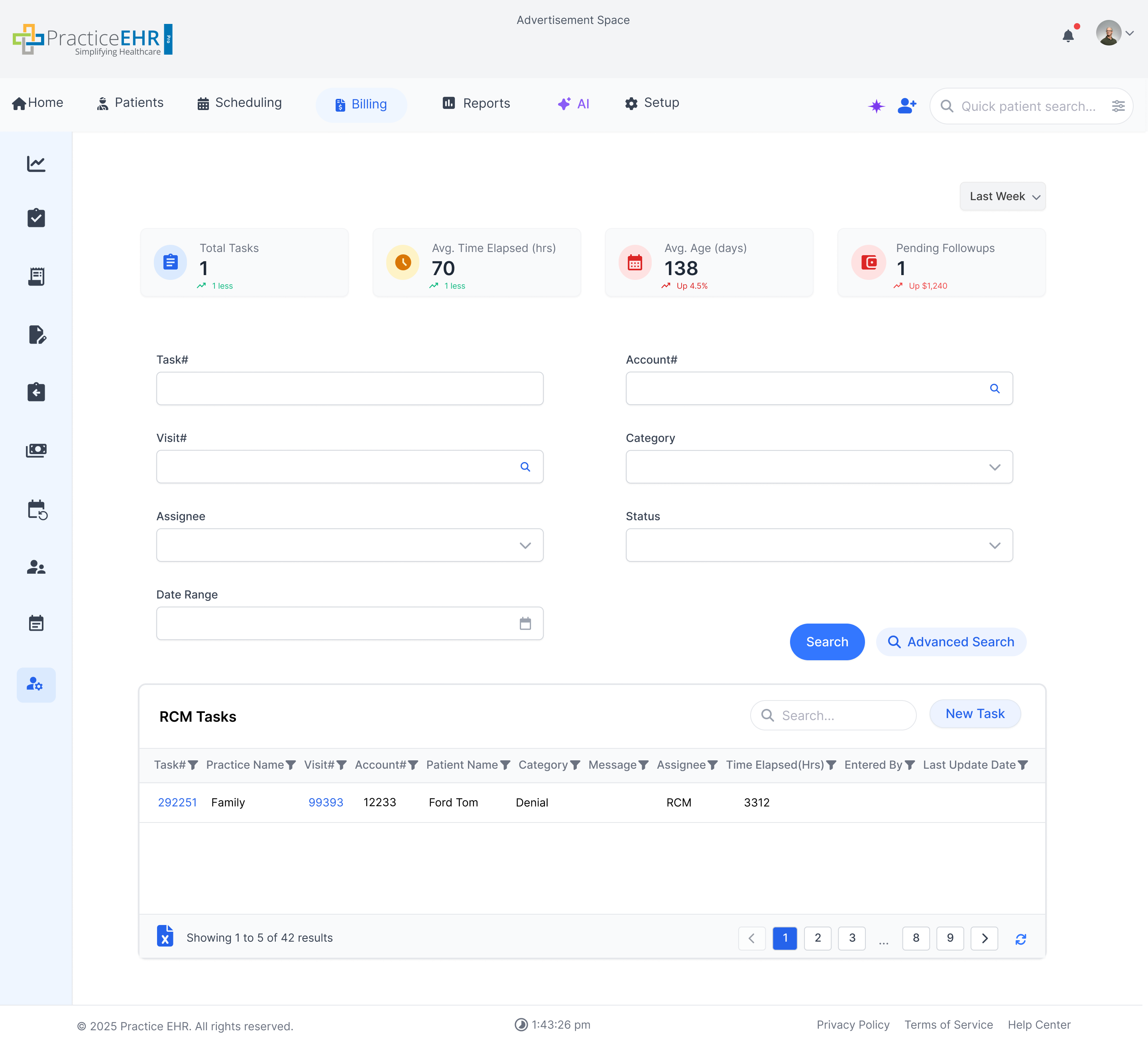
Visit Detail Claim Editing Message
Interactive Guide
Key Features
Accessible when the user opens the Visit Detail.
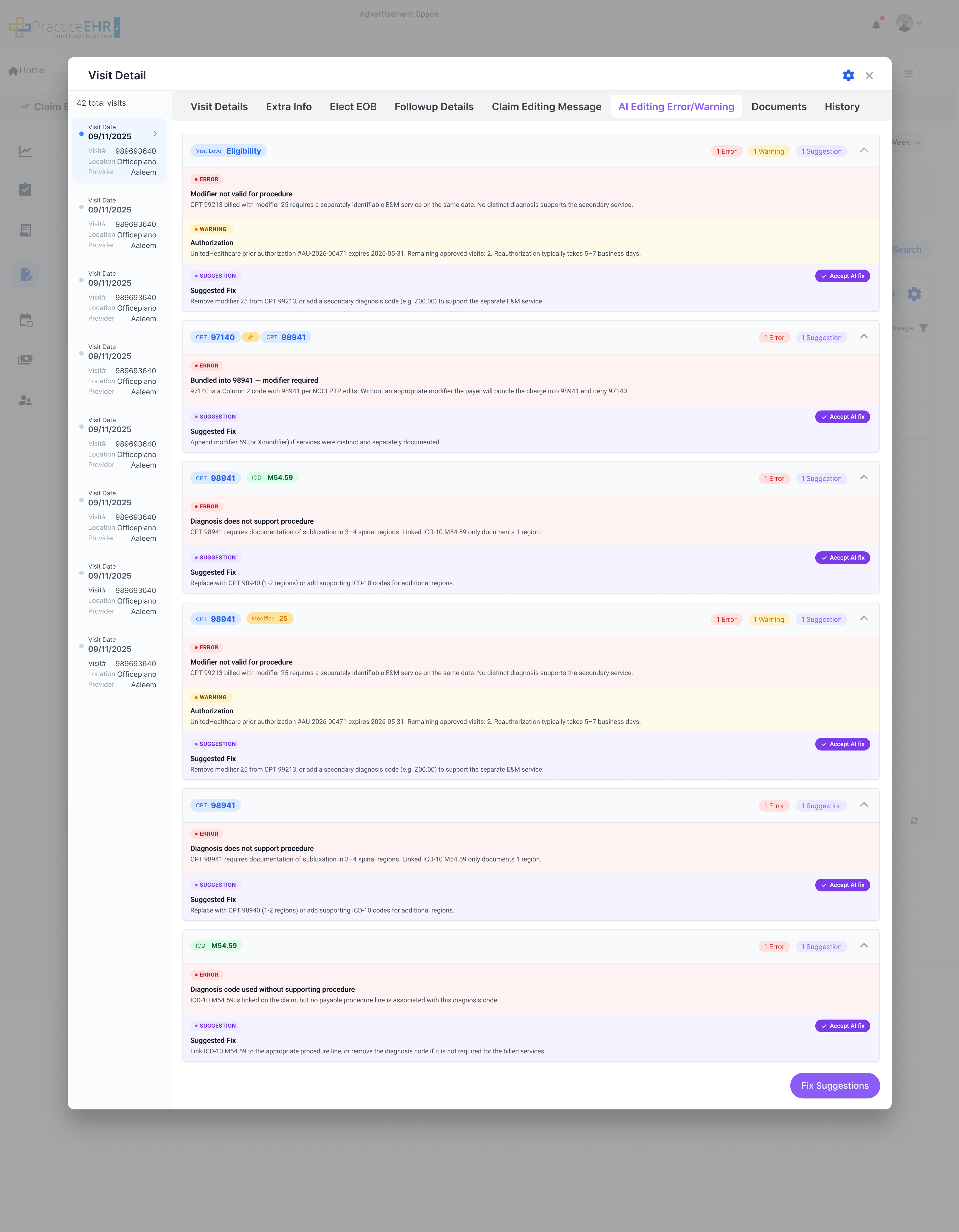
Visit Detail AI Editing Error/Warning
Interactive Guide
Key Features
Grouped Claim Findings: Issues are grouped by visit-level checks or by the related claim line, with code chips for items such as CPT, ICD, and modifier values.
Severity Counts: Each group shows count badges for Error, Warning, and Suggestion so the user can quickly see what needs review before submission.
Color-Coded Review: Red Error panels identify claim blockers, yellow Warning panels call out items that need attention, and purple Suggestion panels show the proposed fix.
Detailed Issue Information: Each item includes a clear issue title, a plain-language explanation, and the affected billing details, such as modifier 25, bundled CPT codes, authorization timing, or diagnosis support.
AI Fix Actions: The user can accept an individual recommendation with Accept AI fix or use Fix Suggestions to act on the available suggestions from the panel.
Accessible from the AI Editing Error/Warning tab inside the Visit Detail modal.
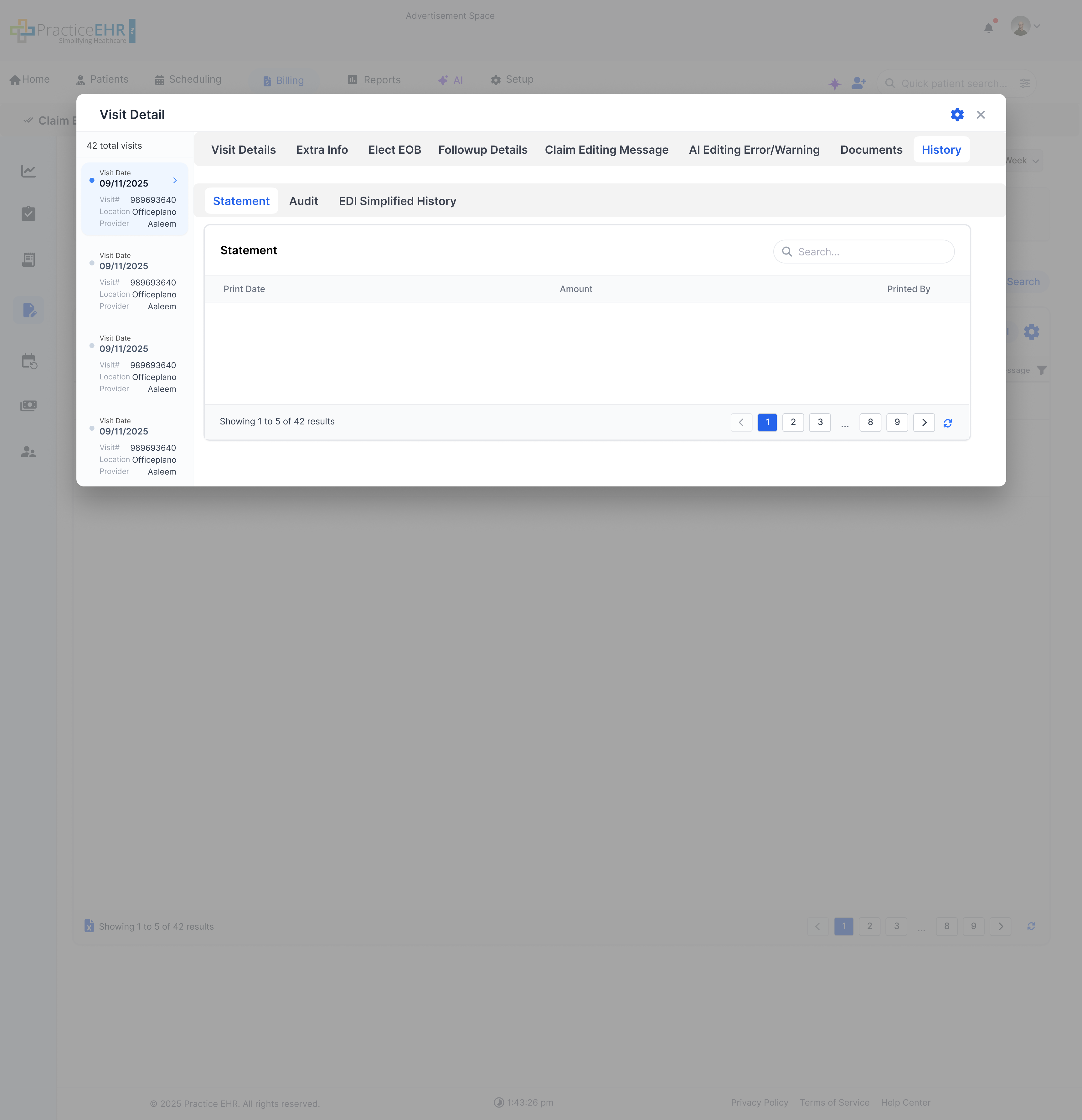
Visit History (Statement)
Interactive Guide
Key Features
Accessible when the user opens the Visit Detail -> History tab.
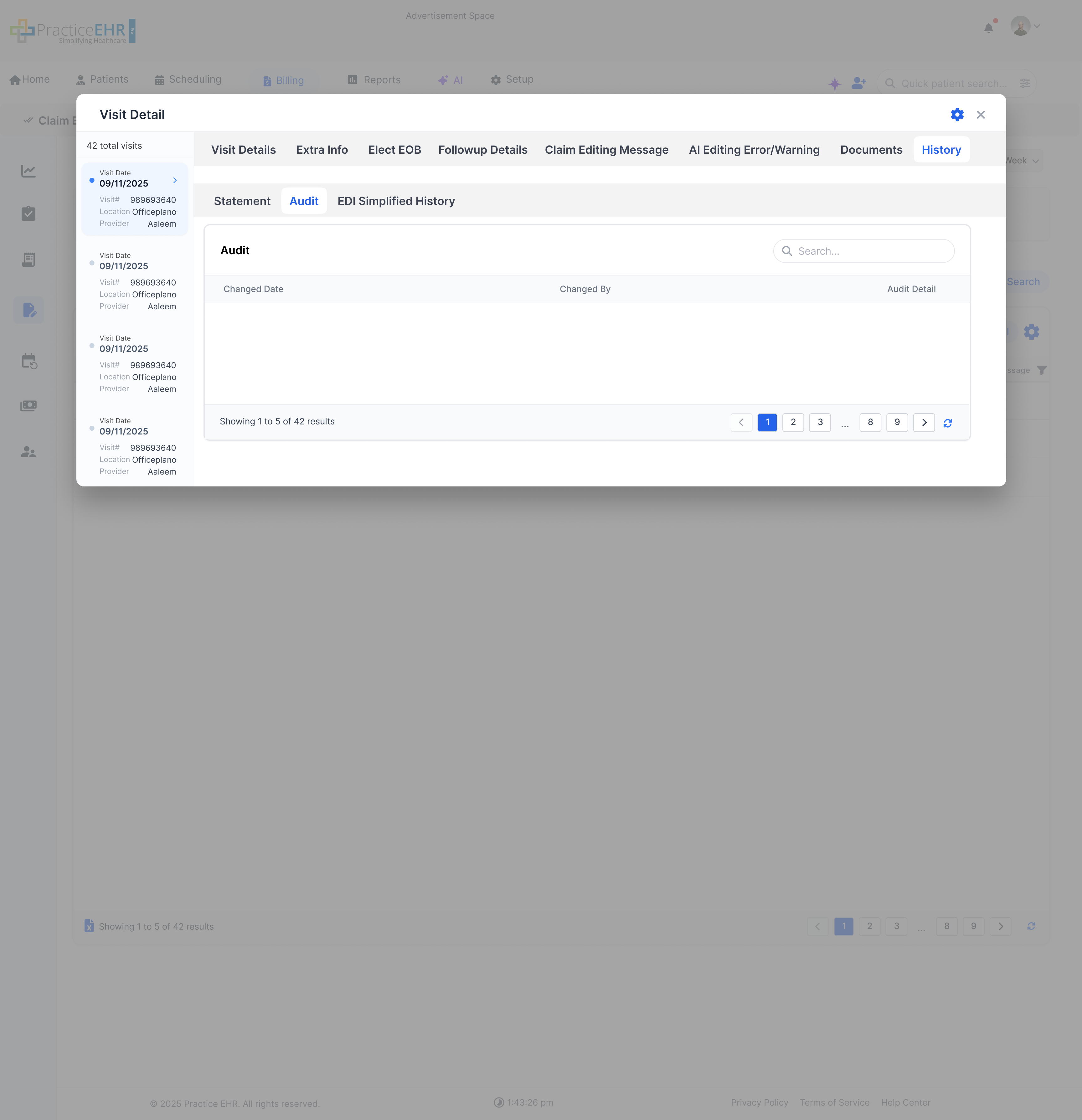
Visit History Audit
Interactive Guide
Key Features
This is a subtab of Visit Detail -> History.
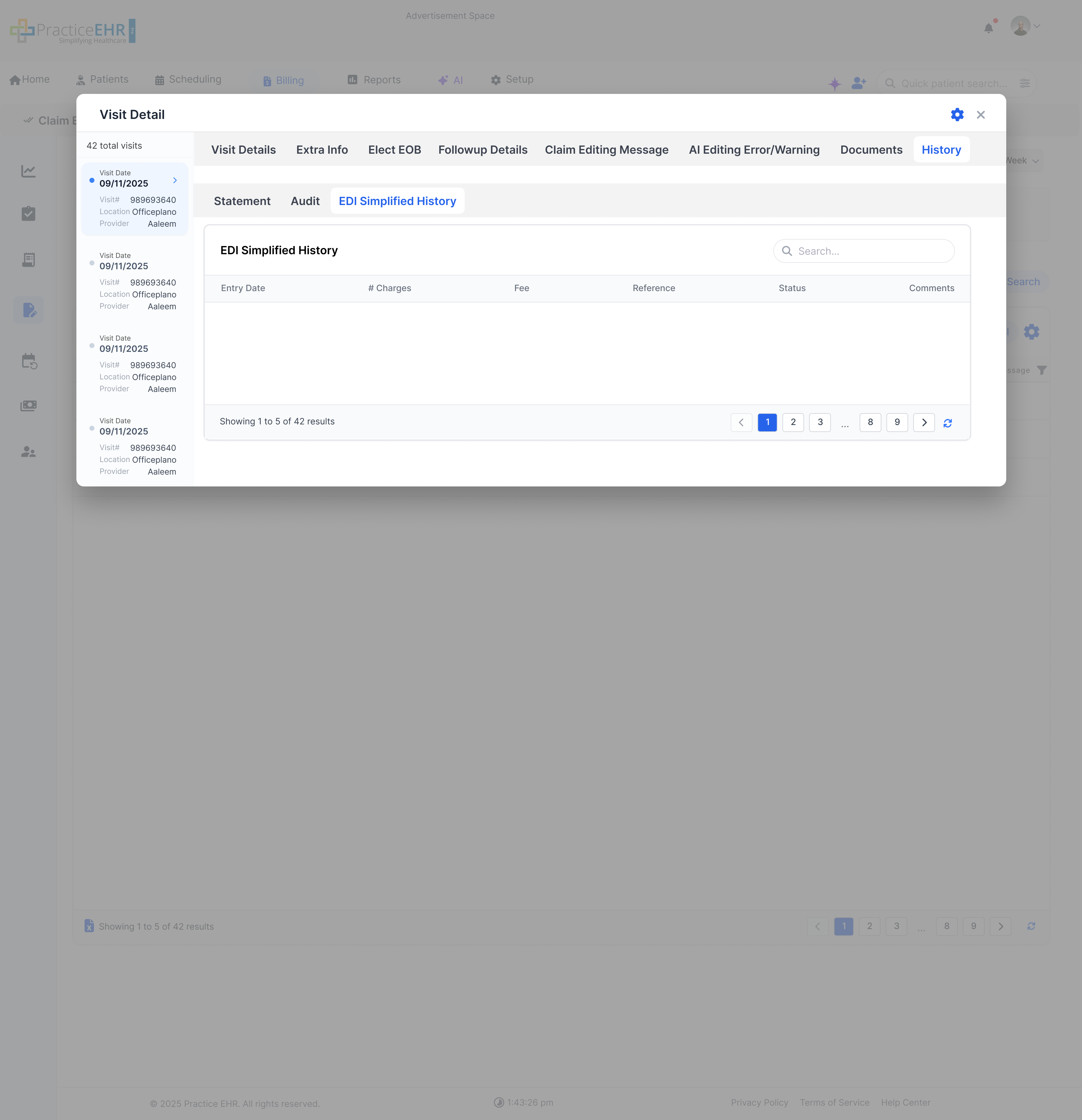
Visit History EDI Simplified History
Interactive Guide
Key Features
This is a subtab of Visit Detail -> History.
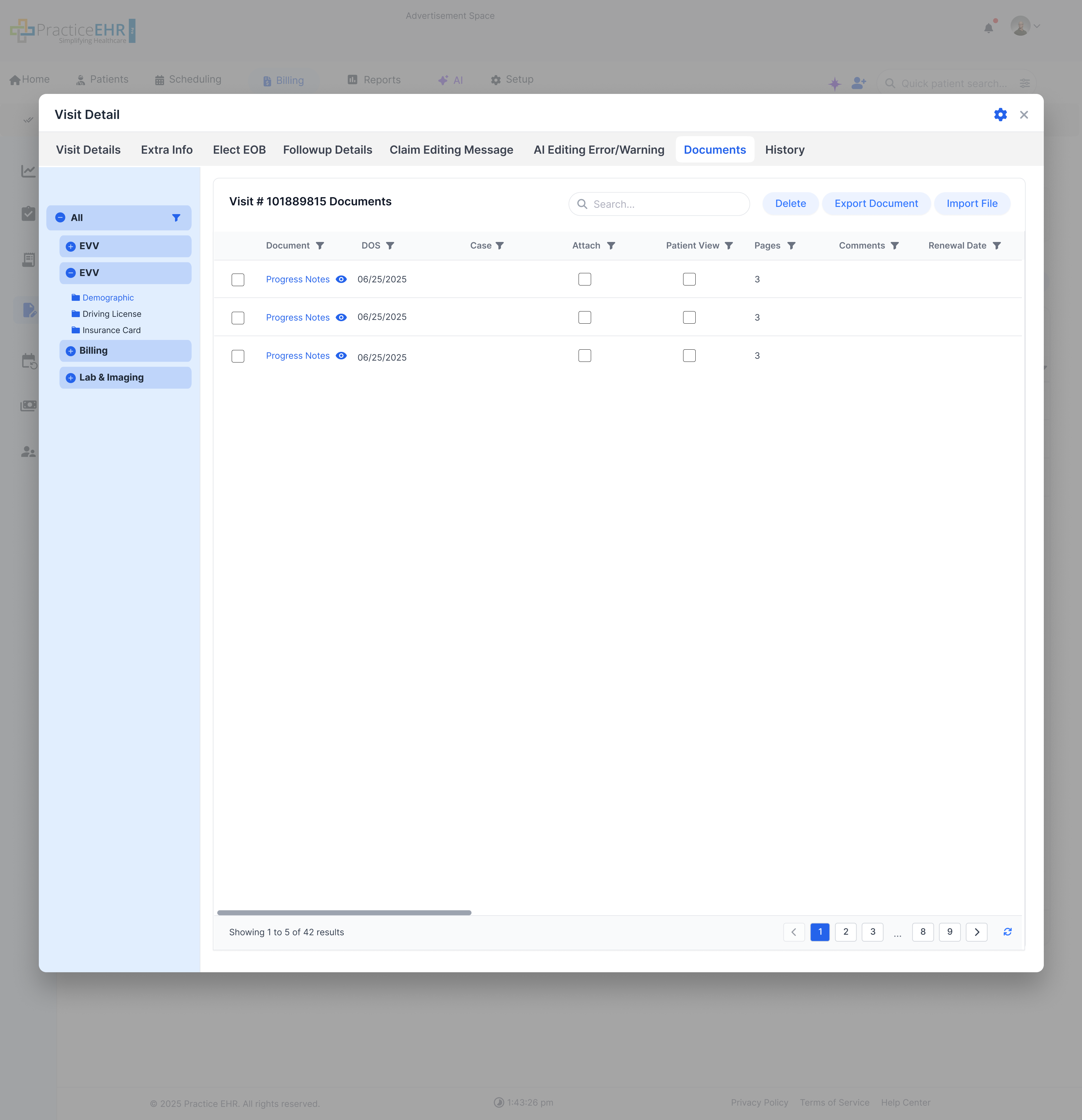
Visit Detail Documents
Interactive Guide
Key Features
Accessible when the user clicks on the Documents Tab in visit Detail
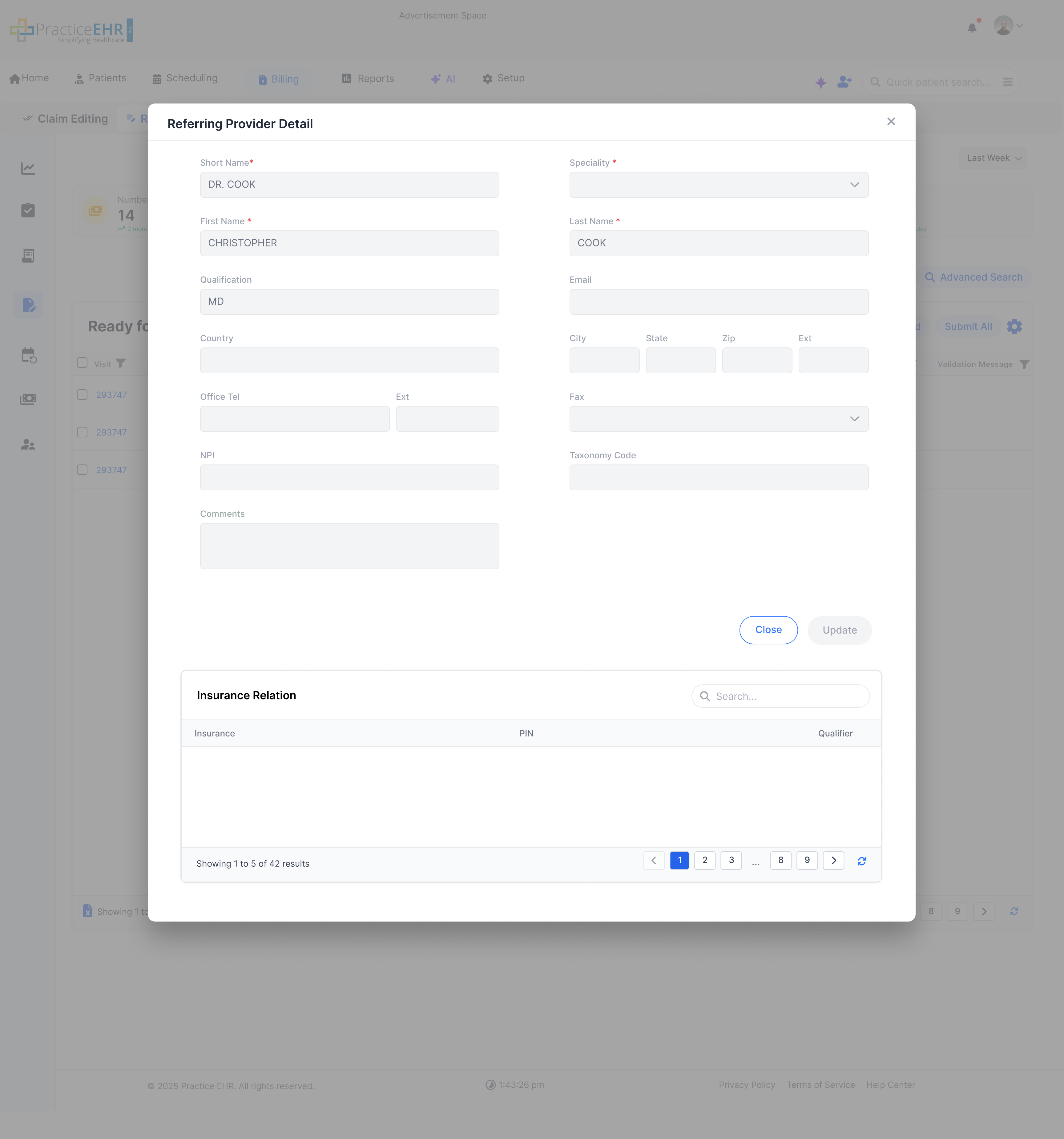
Ref Provider Detail
Interactive Guide
Key Features
Accessible when the user clicks on the Referring Provider hyperlink in the
Visit Detail screen.
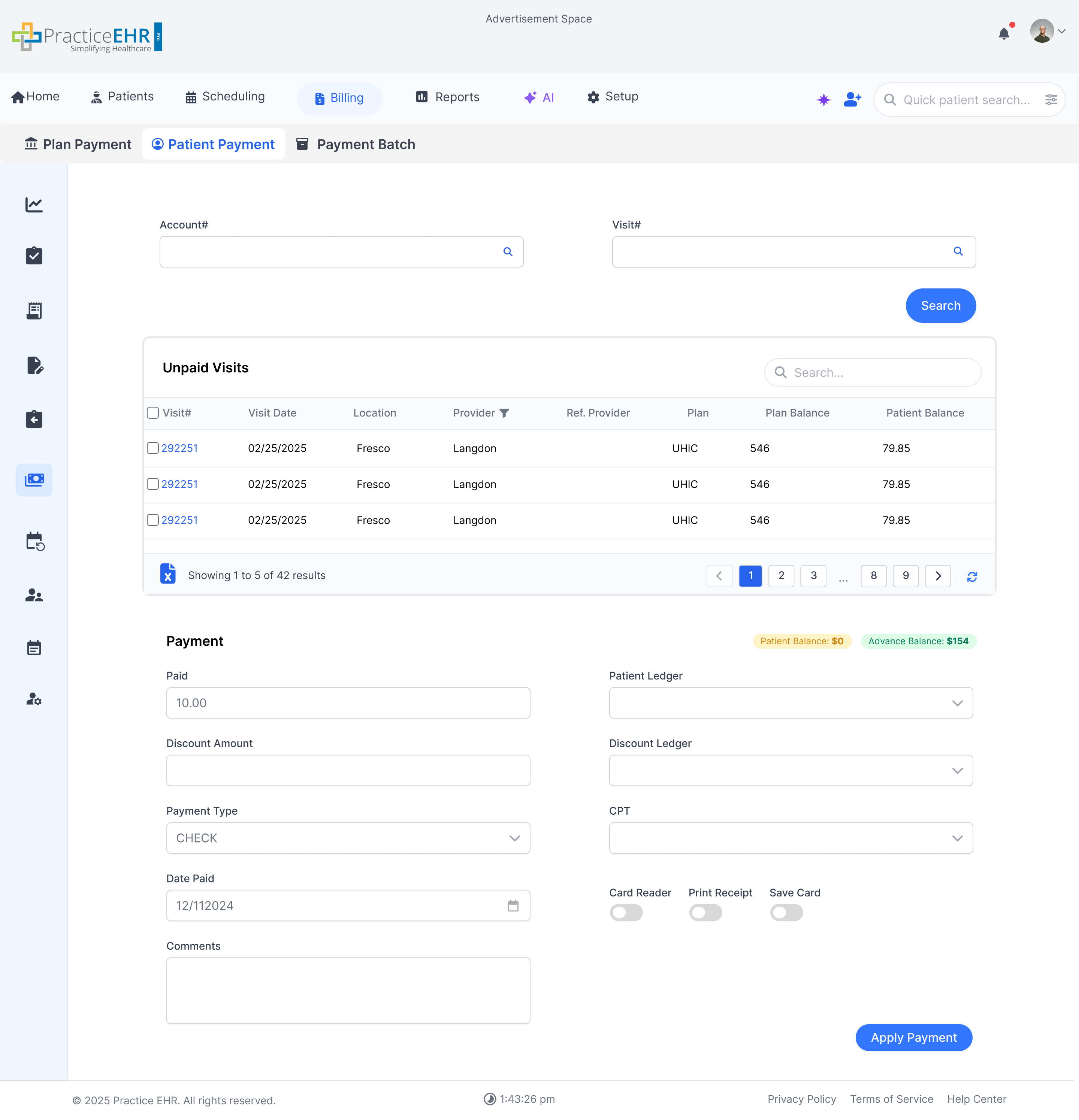
Patient Payment
Interactive Guide
Key Features
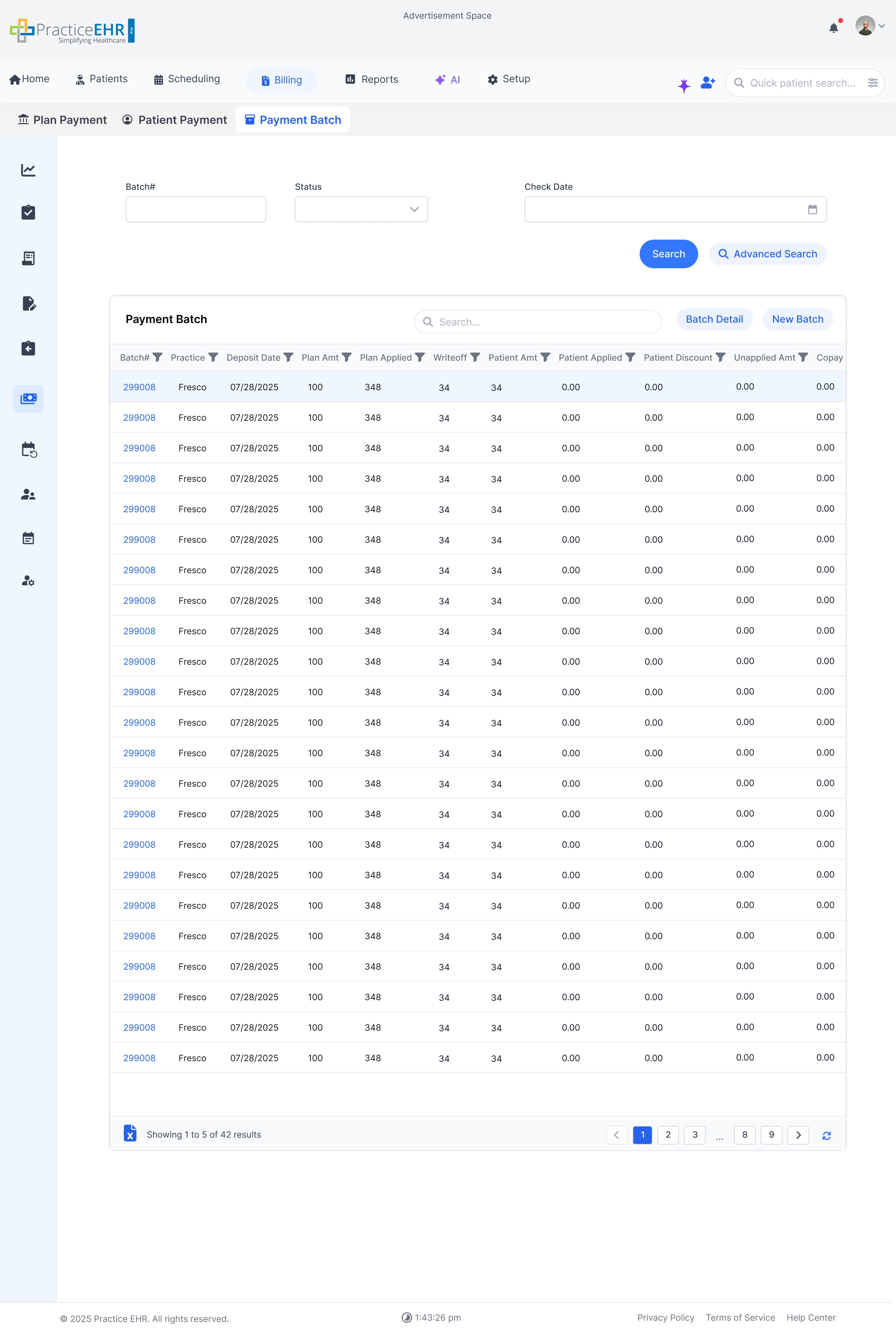
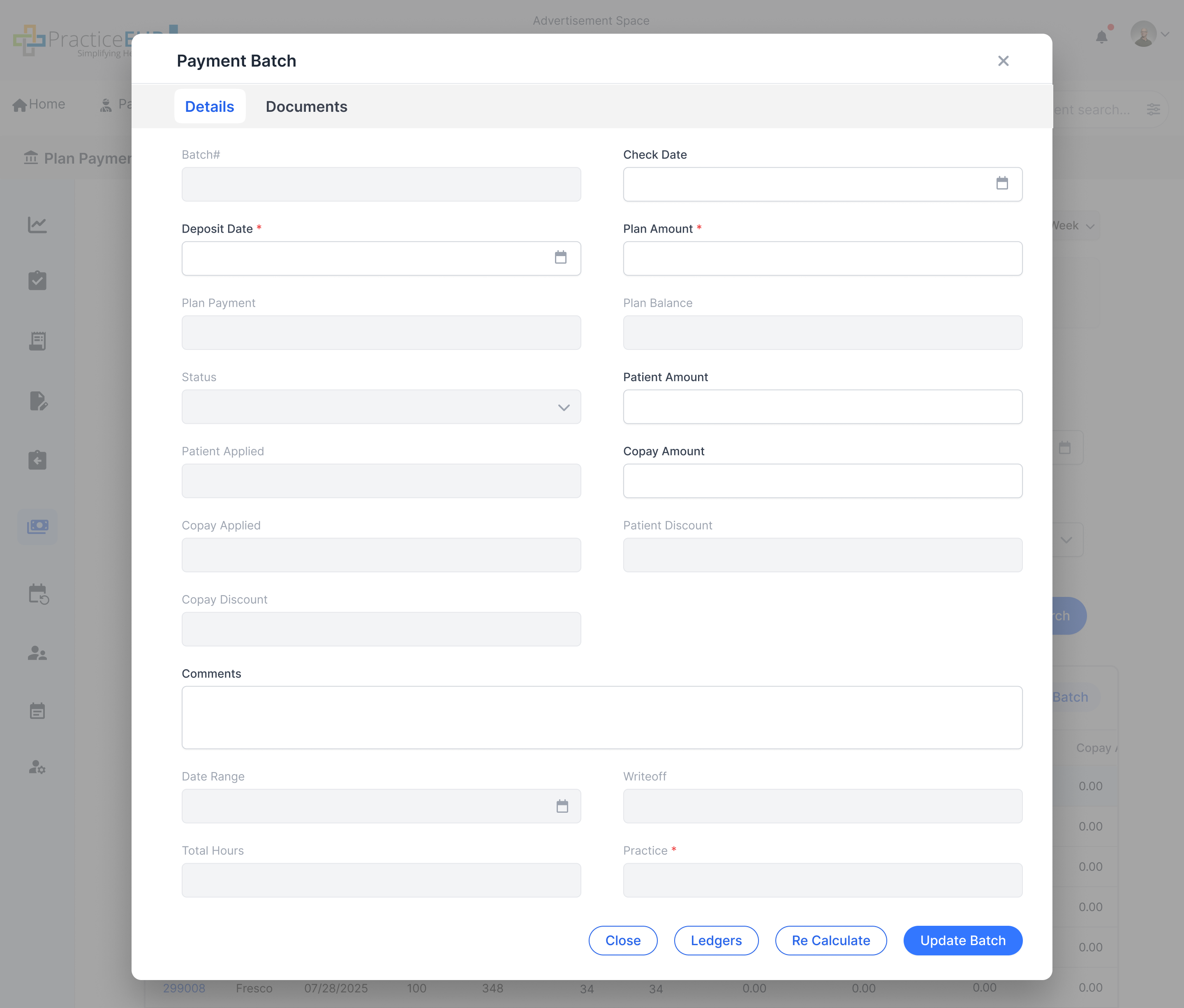
Payment Batch
Interactive Guide
Key Features
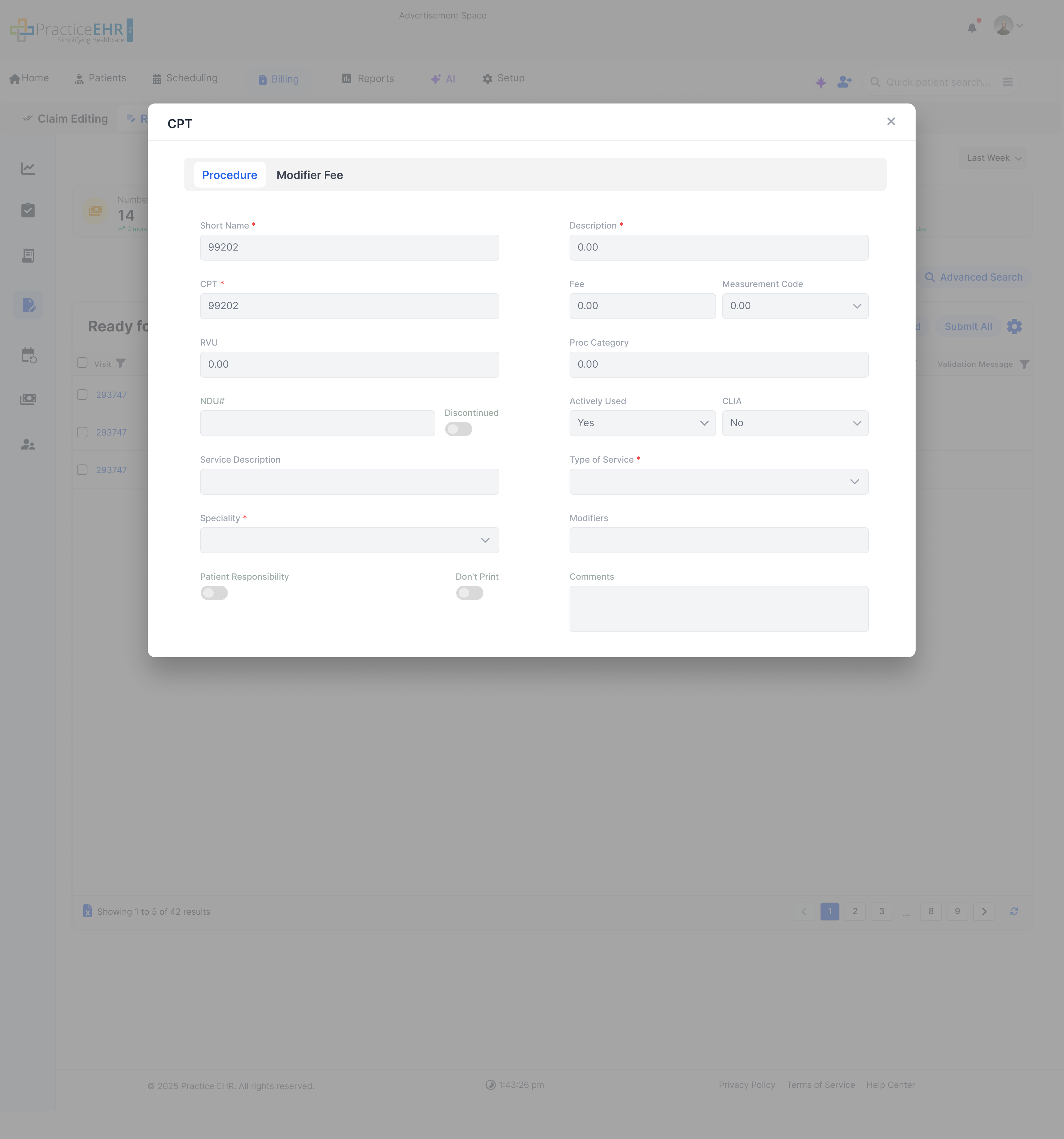
CPT
Interactive Guide
Key Features
appears when the user clicks on the CPT hyperlink in the Charge
Detail modal.
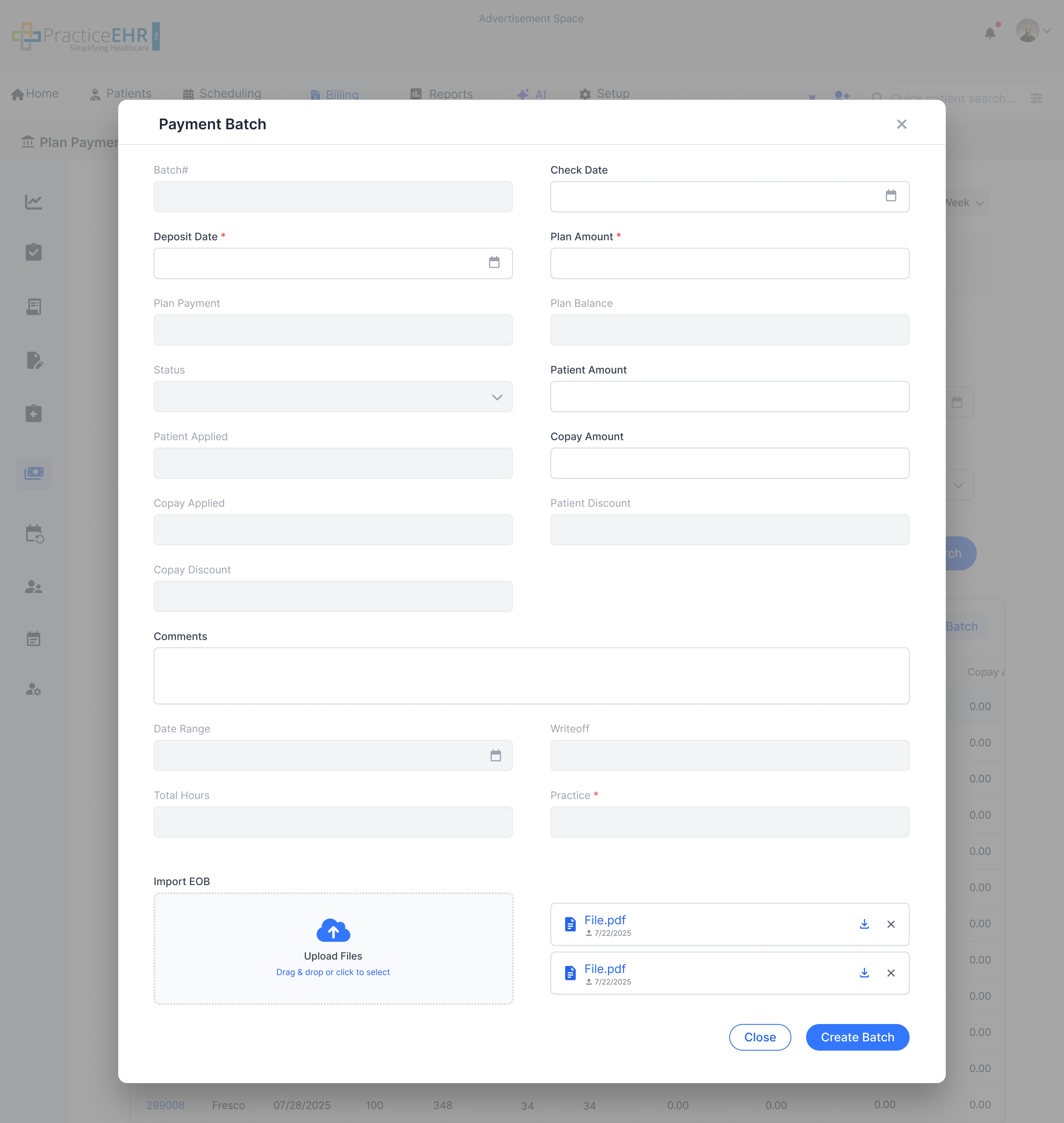
New Batch
Interactive Guide
Key Features
Accessible when the user clicks on the New Batch button from the
Payment Batch grid.
Charge History
Interactive Guide
Key Features
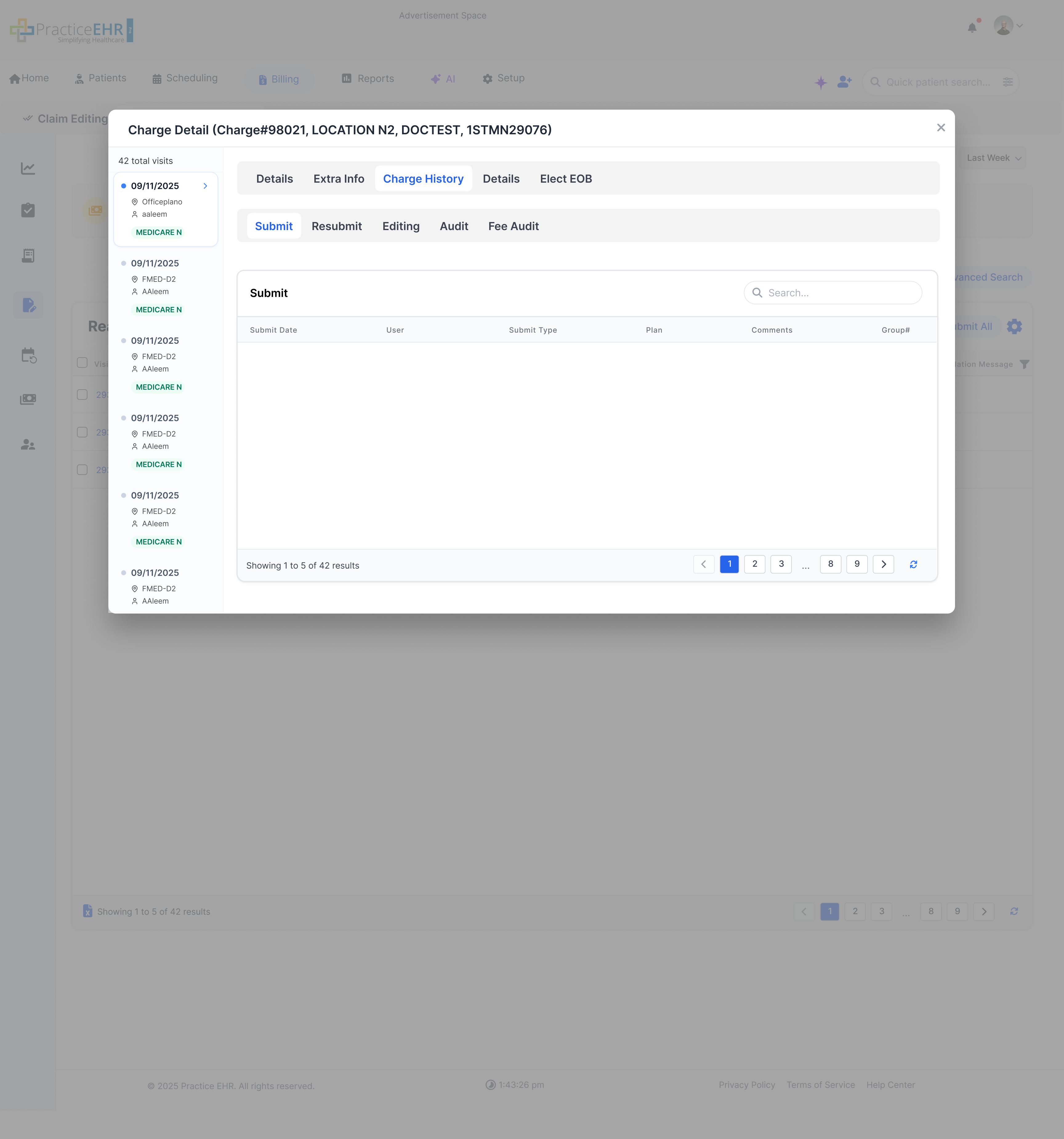
Contains secondary tabs for Submit, Resubmit,
Editing,
Audit, and Fee Audit.
Charge Detail
Interactive Guide
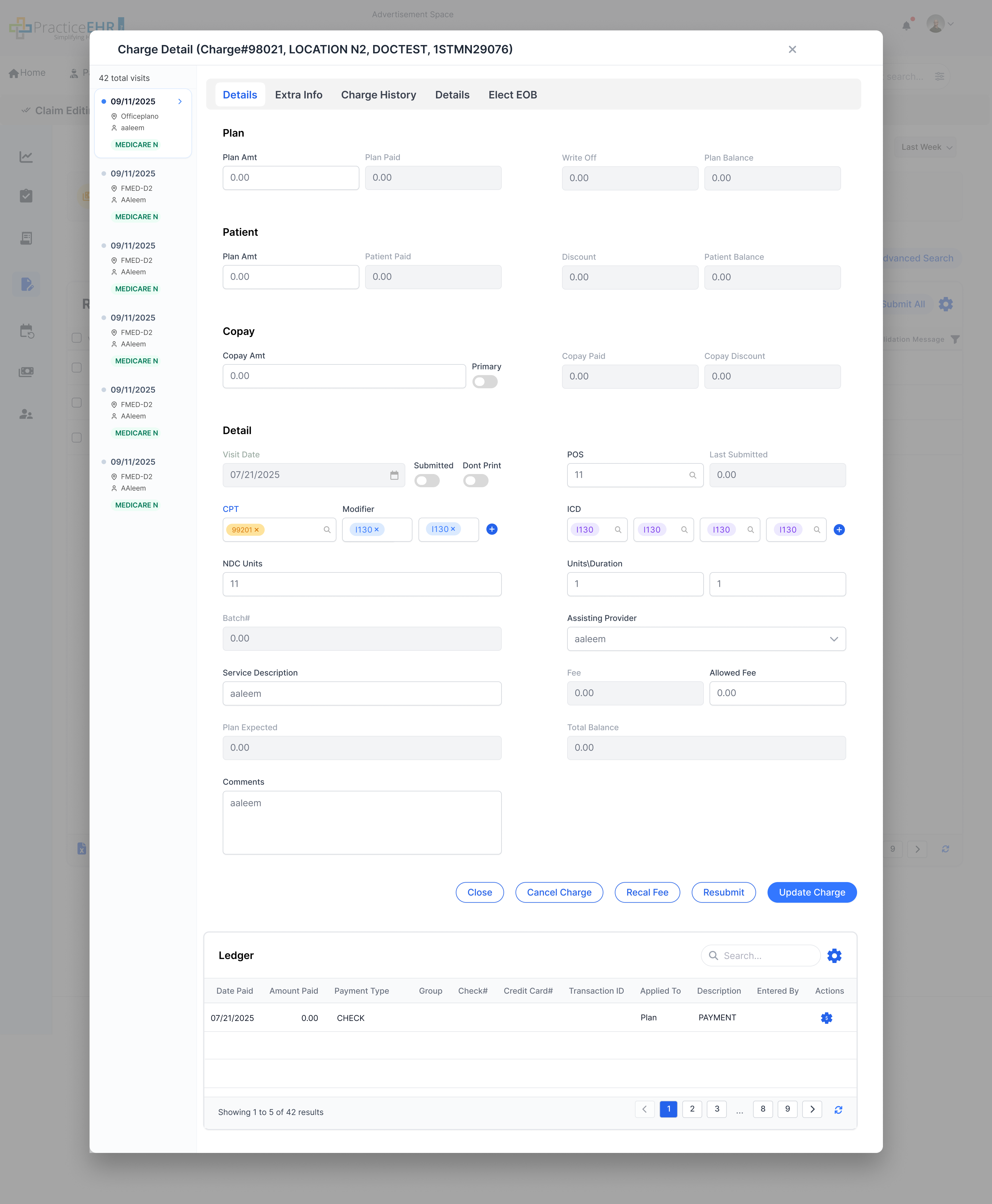
The Charge Detail screen allows you to review and edit individual charge information
such as CPT, units, amounts, and related visit details.
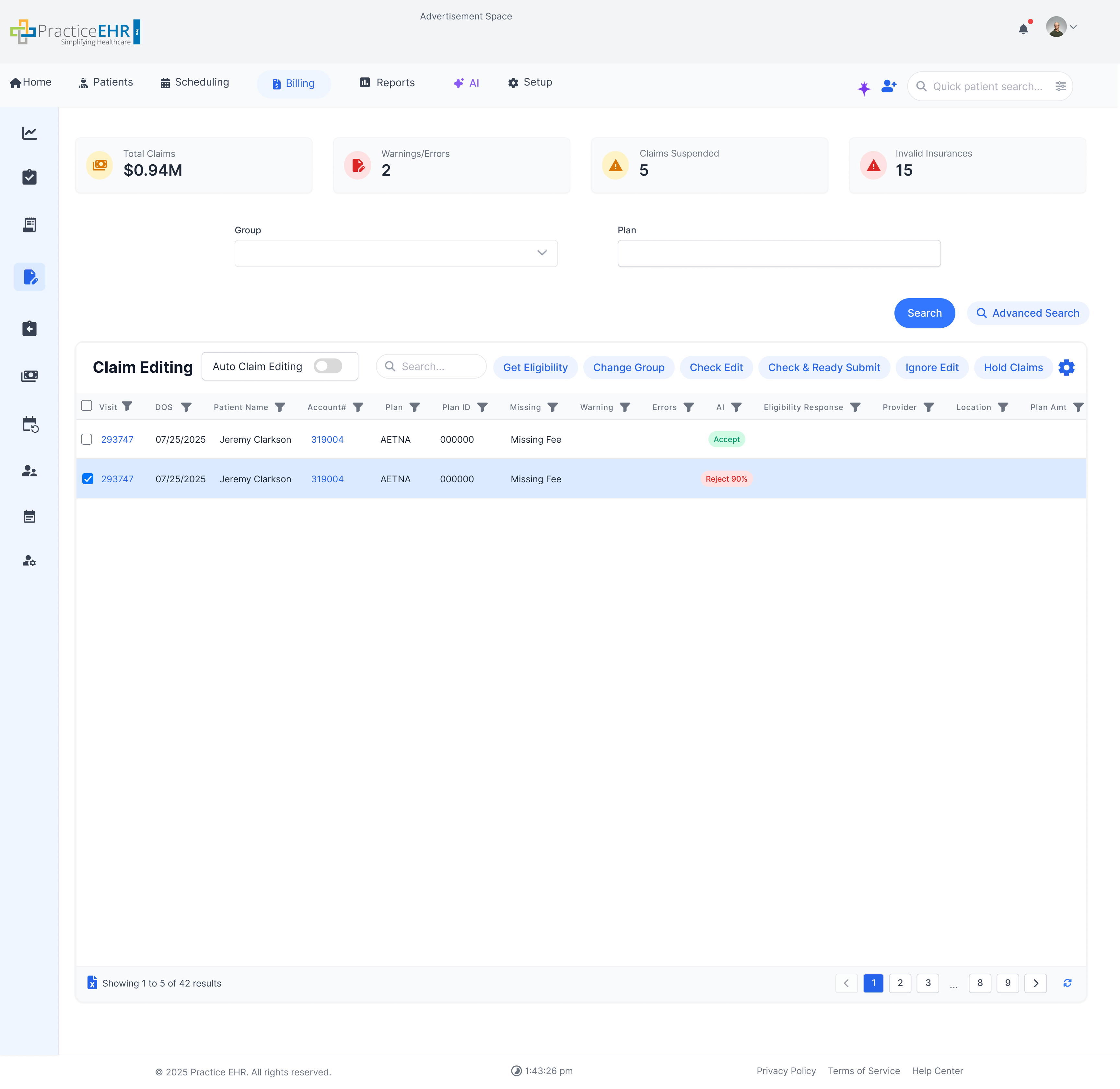
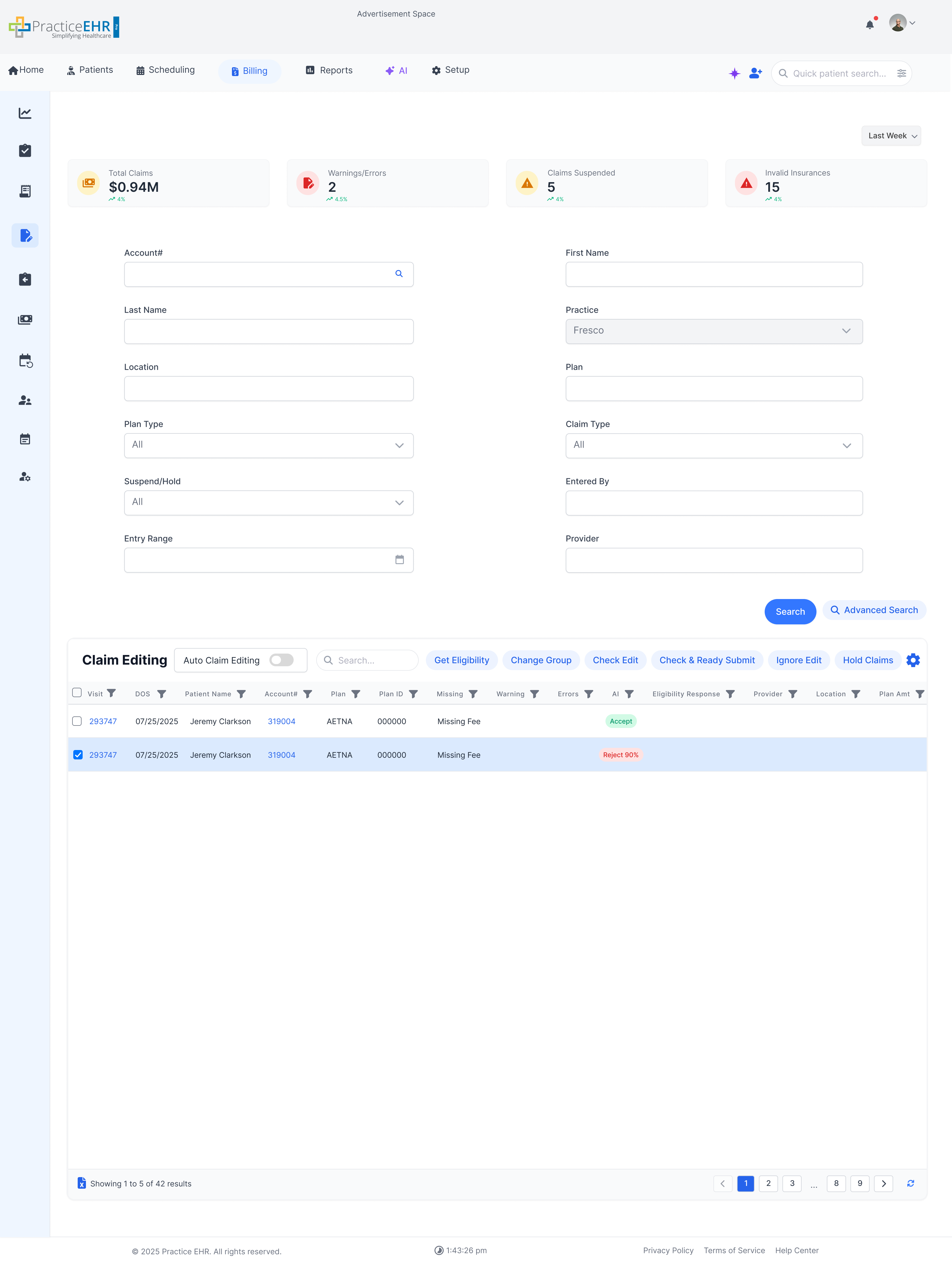
Source: Plan Amt — Sum of Plan Amt column across all records.
Warnings/ErrorsCOUNT
Source: Warning + Errors — Count of rows where Warning or Errors column is non-empty.
Claims SuspendedCOUNT
Source: Internal Status — Count of records with status = Suspended/On Hold (via Hold Claims action).
Invalid InsurancesCOUNT
Source: Eligibility Response — Count of rows where Eligibility Response returns a failed/invalid result.
Interaction Guide
General
Search: Can be used to search anything within the grid
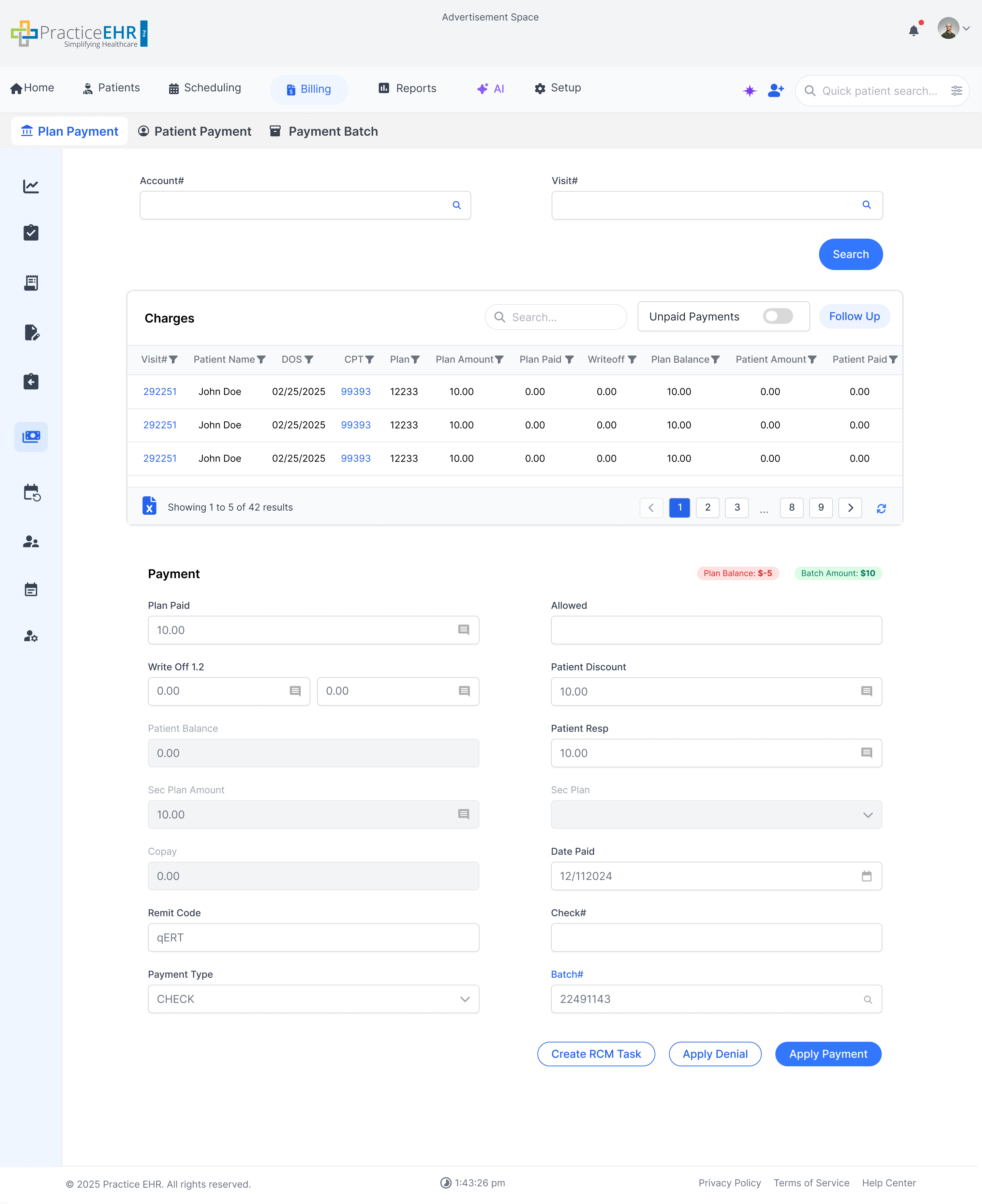
Plan Payment
Interactive Guide
Key Features
Includes smart search. The grid will be initially empty and when the user uses the
search
bar or
the advance search then the grid will populate with relevant data
Interaction Guide
General
Search: can be used to search anything within the grid
Patient Payment
Interactive Guide
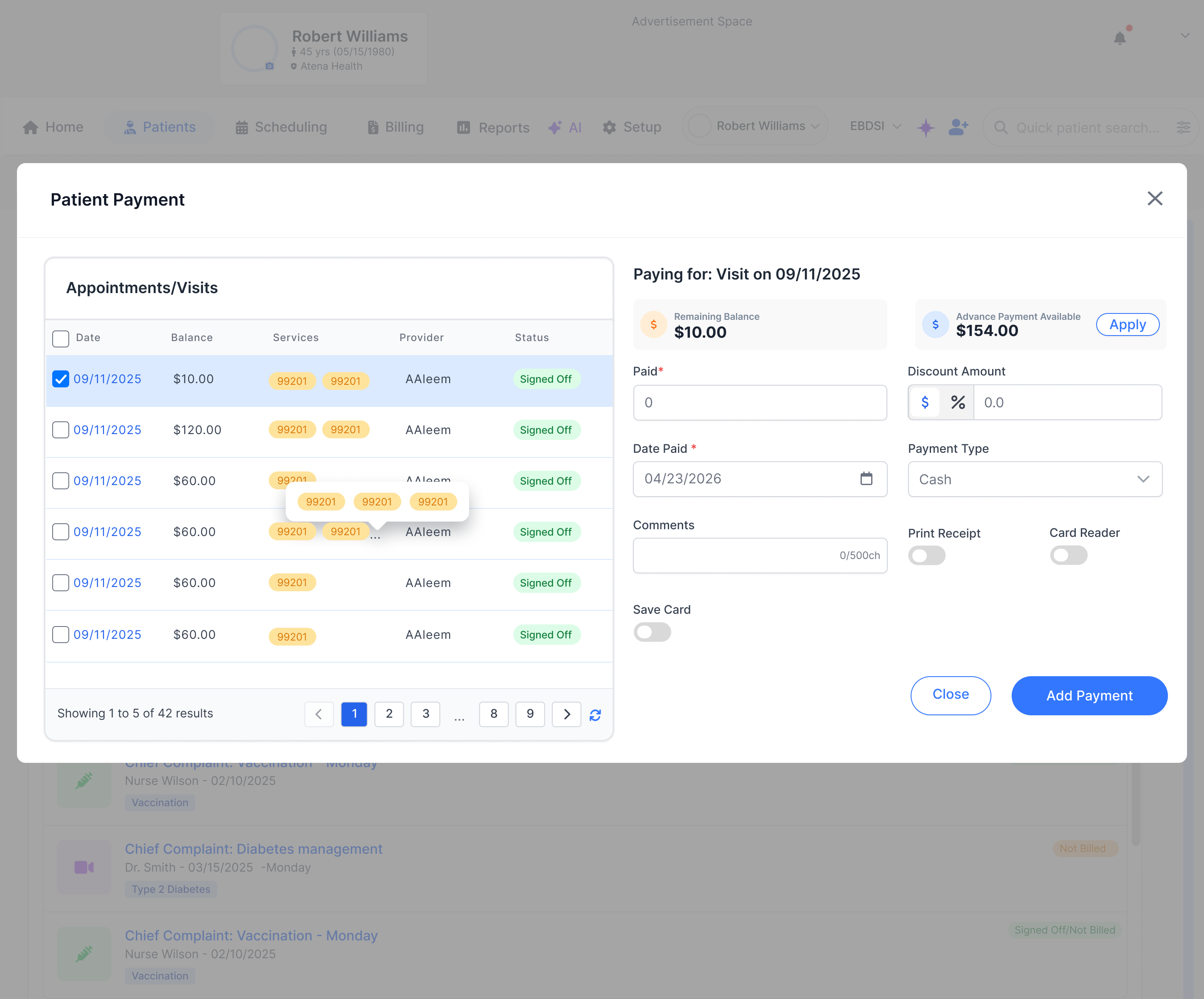
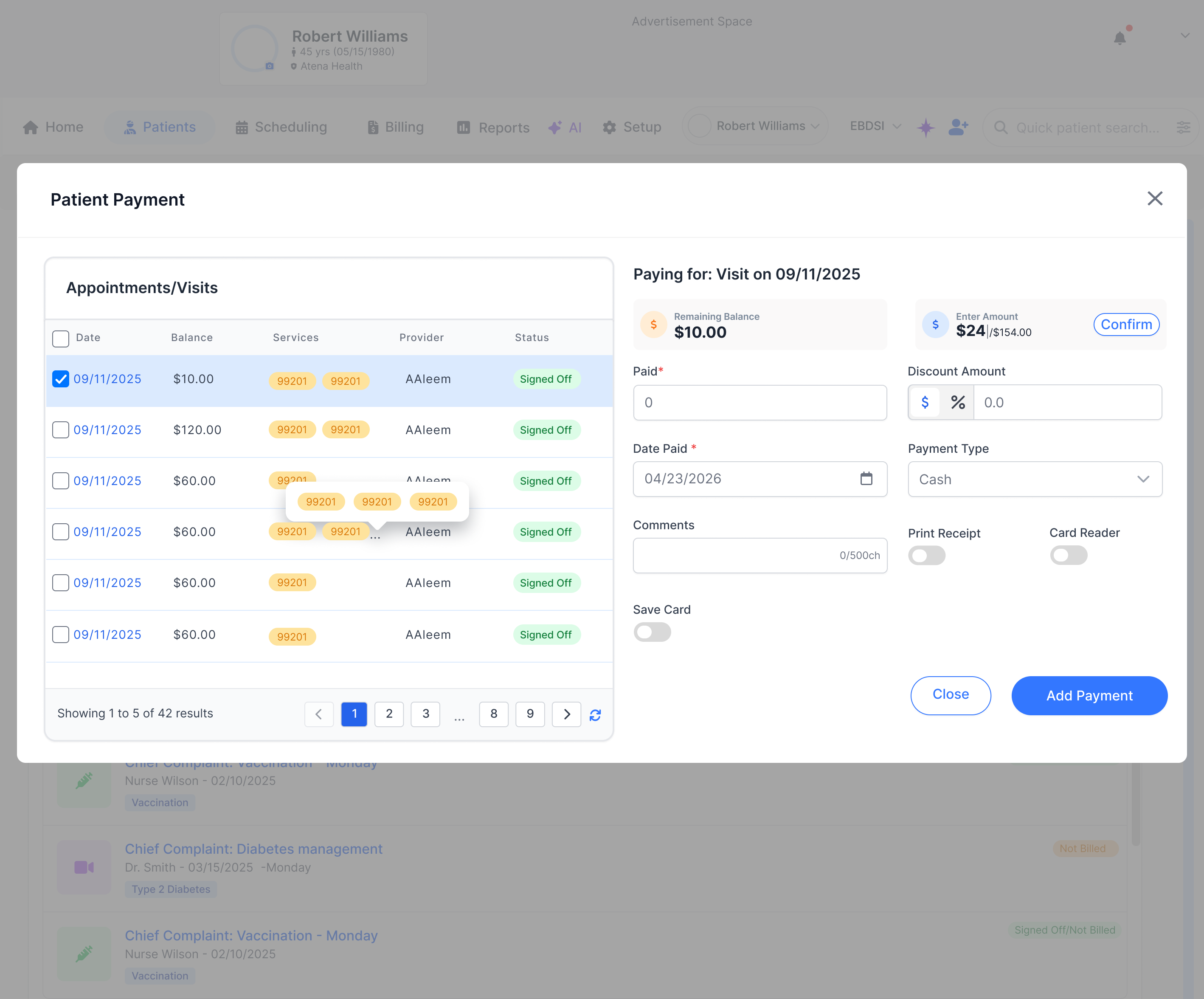
The unified Payment modal with four tabs: Patient Balance, Visit Balance, Advance Apply, and Ledgers. Payment allocation priority is oldest first. Tabs below are synced with the screenshot.
1. Initial — Advance Payment Available with Apply button2. After clicking Apply — editable input with Confirm button
The old standalone patient payment modal has been replaced by the unified Payment modal with four tabs: Patient Balance, Visit Balance, Advance Apply, and Ledgers. Payment allocation priority is oldest first. Tabs below are synced with the screenshot.
Discount distribution. Discount Amount accepts $ or % via the inline toggle.
$
Flat dollar. The entered amount is applied as-is.
%
Percent. Calculated against the remaining balance, not the Paid amount.
e.g. $20 balance × 20% = $4, even if Paid is $10
Either mode is then distributed top-down across the selected visits and their CPT codes: topmost row first, with any remainder cascading down. The split is not uniform and not bottom-up; row order drives where the discount lands.
Discount Comments is a conditional field — it is only rendered once a value is entered in Discount Amount. With no discount entered, the comments box is hidden.
Modal header3
Visit Copay pillBadge
Read-only badge showing the visit copay amount for the selected visit.
Advance Balance pillBadge
Read-only badge showing the patient's current advance (credit) balance.
Close (×)Action
Dismisses the modal without saving.
Visits grid8
Grid scopeFinancial variant
Filtered to visits only when launched from Patients › Financial or Billing › Charge Listing — no appointment rows are shown. Other entry points (Appointments / Check-In / Check-Out / Encounter Form) show both appointments and visits.
Row checkboxCheckbox
Selects the visit for payment. Multi-select supported; current day's row selected by default.
DateHyperlink
Clicking it switches to the Visit Balance tab for that visit.
BalanceRead-only
Outstanding patient balance for that visit.
ServicesCPT pills
CPT codes billed on that visit.
ProviderRead-only
Rendering provider for the visit.
StatusStatus pill
Encounter status (Signed Off, Not Billed, etc.).
Grid footerInfo
Showing 1 to N of M, pagination, and refresh icon.
Paying-for panel12
HeaderDynamic
Single row → "Paying for: Visit on [date]". Multiple rows → "Paying for: 'X' number of Visits".
Remaining BalanceRead-only
Sum of the selected rows' balances.
Advance Payment AvailableChip + Apply
Read-only chip showing the patient's current advance (credit) balance. Click Apply to spend any portion of the advance against the Paying-for total before the new payment is recorded. Applying the advance does not lock the form — the user can still enter a Discount and a new Paid amount in the same submission.
Paid*Required
Currency input for the amount collected.
Discount Amount$/% toggle
Optional discount on this payment. The inline $/% toggle switches between a flat dollar amount and a percent of the remaining balance. With %, the percent is computed against the remaining balance, not the Paid amount (e.g. $20 balance × 20% = $4, even if Paid is $10). The resulting discount is then applied top-down across the selected visits and their CPT codes: topmost row first, with any remainder cascading down. The distribution is not uniform and not bottom-up; row order in the grid drives where the discount lands.
Date Paid*Date
Required date picker; defaults to today.
Payment TypeDropdown
Cash, Check, Credit/Debit, etc.
CommentsText area
Always a text area. 500 characters max.
Discount CommentsConditional
Text area (500 ch). Only shown when Discount Amount is filled.
Print ReceiptToggle
Prints a receipt after saving.
Card ReaderToggle
Routes the charge to the attached card reader.
Save CardToggle
Stores the card on file for future payments.
Footer actions2
CloseAction
Dismisses the modal without saving.
Add PaymentPrimary
Posts the payment using the selected allocation (oldest first).
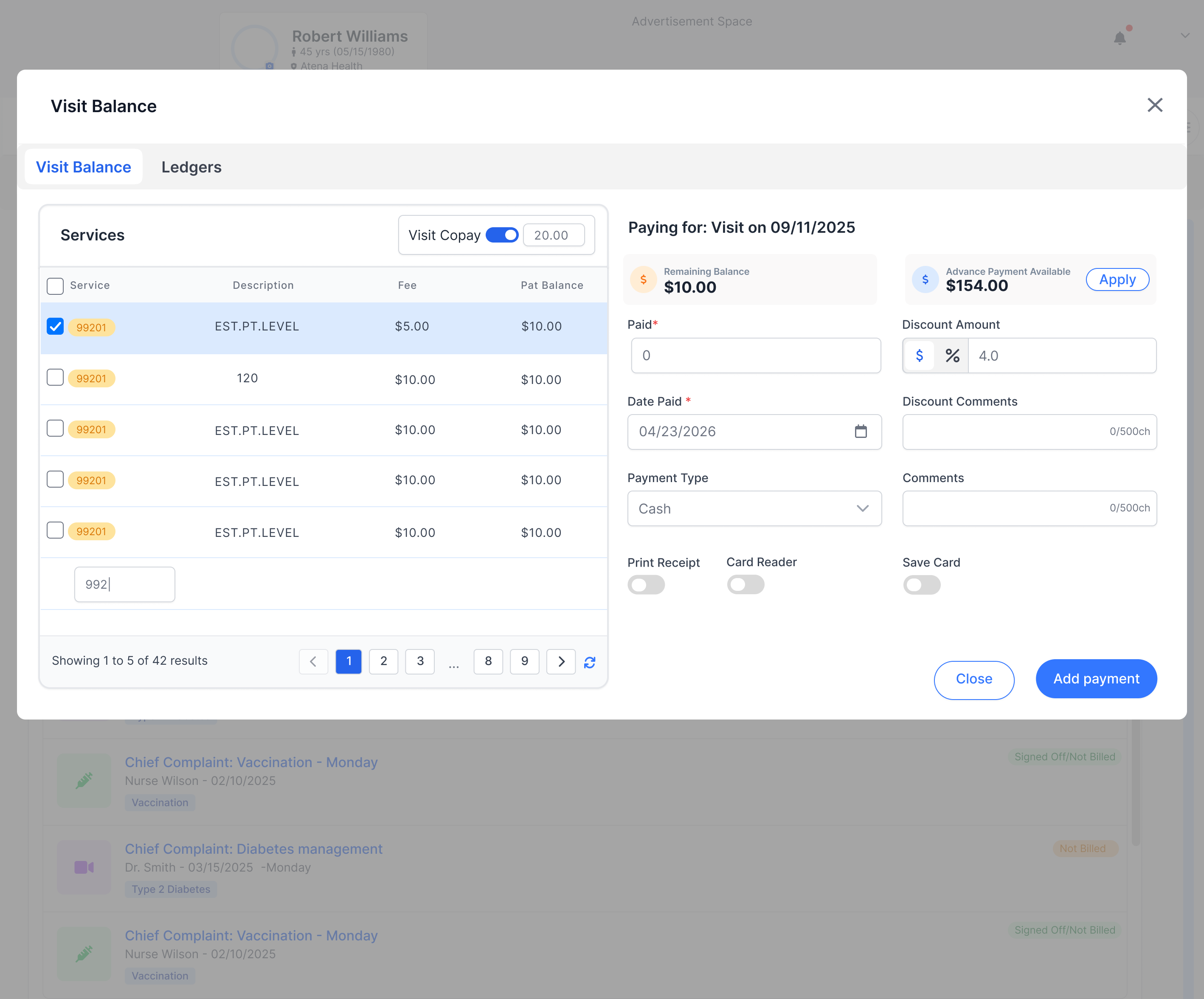
Allocation rules. Copay has priority. The visit copay is held against the primary CPT; deselecting the primary service removes the copay.
Discount distribution. Discount Amount accepts $ or % via the inline toggle.
$
Flat dollar. The entered amount is applied as-is.
%
Percent. Calculated against the remaining balance, not the Paid amount.
e.g. $20 balance × 20% = $4, even if Paid is $10
Either mode is then distributed top-down across the services grid: the primary CPT (top row) absorbs first, with any remainder cascading down. The split is not uniform across CPTs and not bottom-up; CPT order drives where the discount lands.
Discount Comments is a conditional field — it is only rendered once a value is entered in Discount Amount. With no discount entered, the comments box is hidden.
Modal header2
Visit Balance titleScope
Indicates the view is scoped to the current visit.
Close (×)Action
Dismisses the modal without saving.
Services grid8
Visit Copay (grid header)Toggle + input
Turns the copay on/off with an editable amount. Changing this updates the entire visit copay (same behavior as the Encounter Form charges grid).
Row checkboxCheckbox
Selects the service for payment. On open all services are selected.
ServiceCPT pill
CPT code. Ordered primary first (top-down).
DescriptionRead-only
Short description of the service (e.g. EST.PT.LEVEL).
FeeRead-only
Charged fee for the service.
Pat BalanceRead-only
Outstanding patient balance on that service.
Add service inputCPT search
Search and append a CPT row to the grid.
Grid footerInfo
Showing 1 to N of M, pagination, and refresh icon.
Paying-for panel12
HeaderInfo
"Paying for: Visit on [date]" for the current visit.
Remaining BalanceRead-only
Outstanding balance across selected services.
Advance Payment AvailableChip + Apply
Read-only chip showing the patient's current advance (credit) balance. Click Apply to spend any portion of the advance against the visit total before the new payment is recorded. Applying the advance does not lock the form — the user can still enter a Discount and a new Paid amount in the same submission.
Paid*Required
Currency input for the amount collected.
Visit CopayInput + rule
Copay amount being collected now. If already applied (e.g. 20.00), entering a lower value shows "Visit Copay Already Applied". Users can only increase the applied copay.
Discount Amount$/% toggle
Optional discount on this payment. The inline $/% toggle switches between a flat dollar amount and a percent of the remaining balance. With %, the percent is computed against the remaining balance, not the Paid amount (e.g. $20 balance × 20% = $4, even if Paid is $10). The resulting discount is then applied top-down across the services grid: the primary CPT (top row) absorbs first, with any remainder cascading down to the next service in order. The distribution is not uniform and not bottom-up; CPT order in the grid drives where the discount lands.
Payment TypeDropdown
Cash, Check, Credit/Debit, etc.
CommentsText area
Always a text area. 500 characters max.
Discount CommentsConditional
Text area (500 ch). Only shown when Discount Amount is filled.
Print ReceiptToggle
Prints a receipt after saving.
Card ReaderToggle
Routes the charge to the attached card reader.
Save CardToggle
Stores the card on file for future payments.
Footer actions2
CloseAction
Dismisses the modal without saving.
Add paymentPrimary
Posts the payment using copay-first, primary-first allocation.
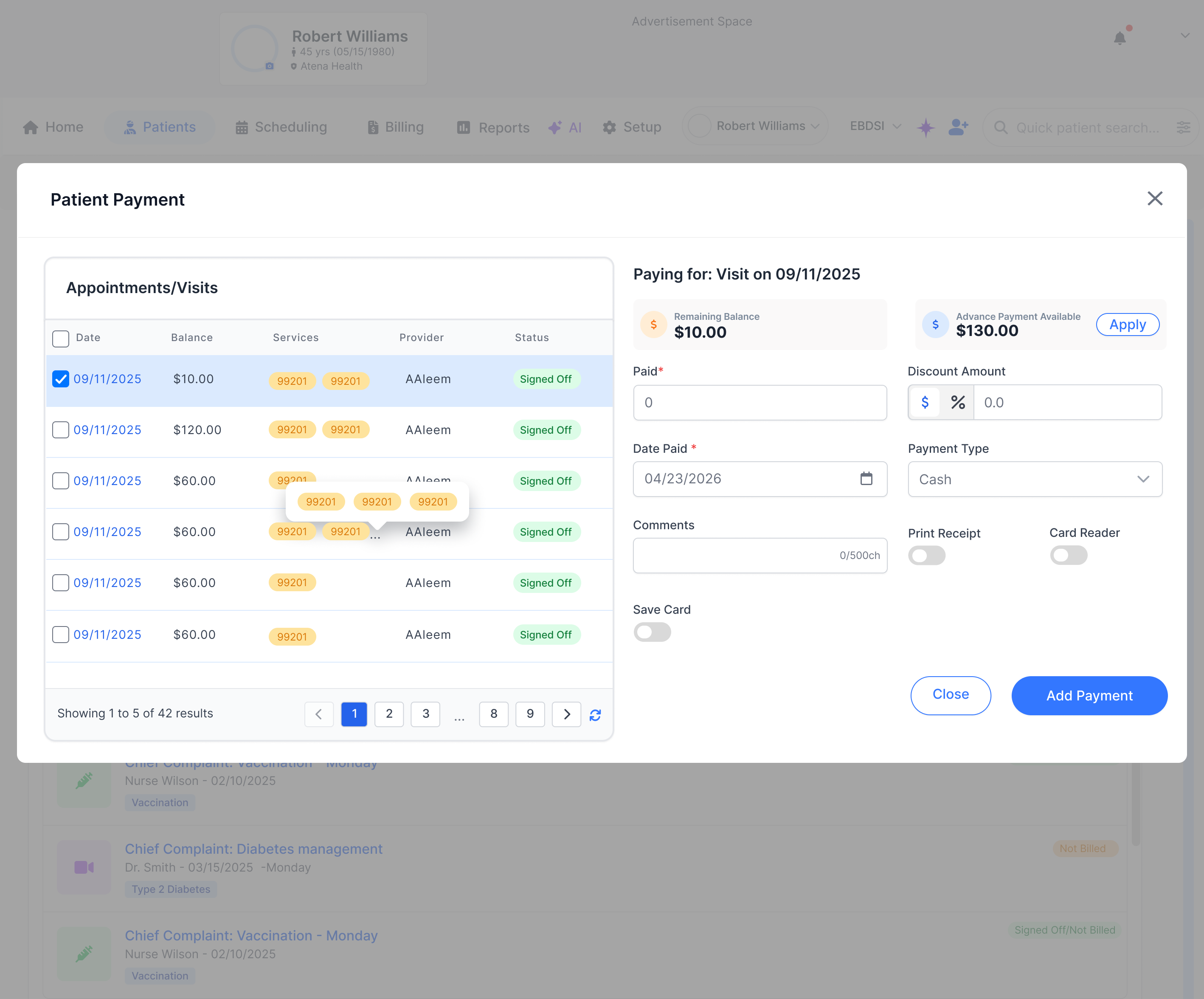
Apply → Edit → Confirm. The Advance Payment chip in the Paying-for panel has two states. Clicking Apply swaps the read-only chip for an editable input so the user can spend any portion of the available advance — not just the full balance.
1
Initial. Chip reads "Advance Payment Available: $130.00" alongside an Apply button. The chip is read-only.
2
After Apply (editable). Chip swaps to "Enter Amount: $24 / $154.00" — an editable input pre-filled with a default, paired with the maximum available. Button changes to Confirm.
format: entered / available
On Confirm, the entered amount is allocated against the Paying-for total and the chip reverts to Advance Payment Available, showing previous available − amount just applied. The form is not locked: the user can still enter Discount and a new Paid amount in the same submission.
Initial state2
Advance Payment AvailableRead-only chip
Shows the patient's current advance (credit) balance, e.g. $130.00.
ApplyAction
Switches the chip into the editable state.
After Apply (editable)3
Enter AmountCurrency input
Editable amount to spend from the advance. Pre-filled with a default (e.g. $24) and capped at the available balance shown to the right.
Available capHint
Suffix in the input (/ $154.00) showing the maximum the user can spend. Entering more than this is not allowed.
ConfirmPrimary
Commits the entered amount, applies it to the Paying-for total, and refreshes the chip back to Advance Payment Available with the new balance (previous − entered).
Behavior3
KPI refreshLive update
After Confirm, the visible Advance Payment KPI re-renders with the latest balance — the value just spent is subtracted in place.
Form not lockedRule
Applying the advance does not disable the rest of the form. Paid, Discount, and other fields remain editable so the user can combine an advance application with new payment in the same submission.
Partial spendRule
The user is not required to spend the full advance — any value ≤ available is accepted. The remainder stays on the patient's advance balance.
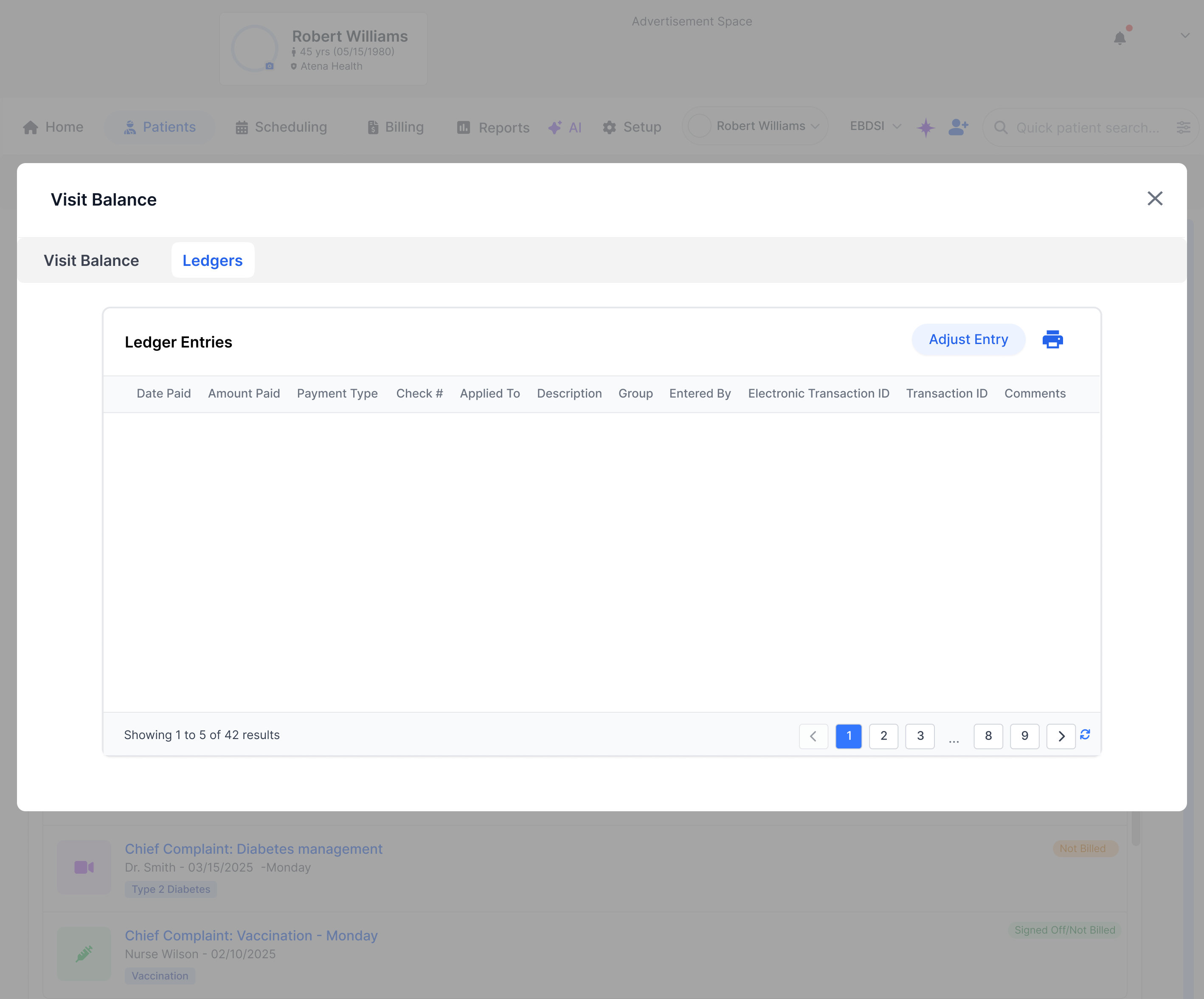
Ledger Entries grid11
Date PaidRead-only
Date the payment was applied.
Amount PaidRead-only
Amount recorded on the ledger entry.
Payment TypeRead-only
Method of payment (Cash, Check, Credit/Debit, etc.).
Check #Read-only
Reference number for check payments.
Applied ToRead-only
Service / charge the entry is allocated to.
DescriptionRead-only
Free-text description of the entry.
GroupRead-only
Ledger grouping (e.g. Copay, Adjustment).
Entered ByRead-only
User who recorded the entry.
Electronic Transaction IDRead-only
Gateway / processor transaction identifier.
Transaction IDRead-only
Internal transaction identifier.
CommentsRead-only
Notes attached to the entry at save time.
Actions2
Adjust EntryAction
Opens the adjustment flow for the selected entry.
Print iconAction
Exports / prints the ledger.
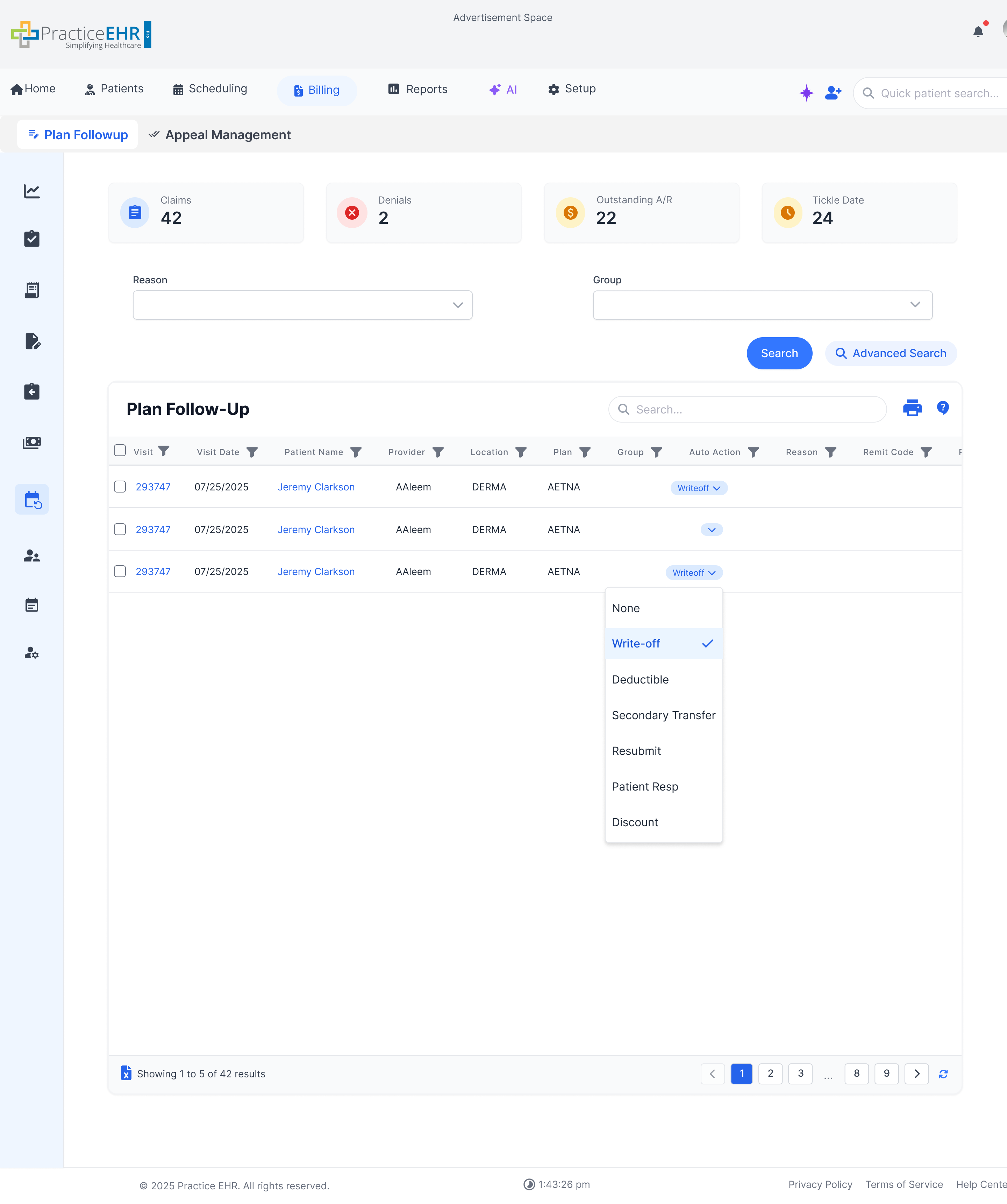
Plan Follow-Up
Interactive Guide
The Plan Follow-Up screen allows staff to manage and track insurance claim denials and appeals
efficiently.
Key Features
Grid-based
worklist for tracking claim follow-ups.
Includes
both a general search bar and an "Advanced Search" option.
'Set Auto
Action' button allows for bulk processing of selected items.
Each
column header has filtering and sorting capabilities.
Tabs
for switching between 'Plan Followup' and 'Appeal Management' views.
Auto Action: Pill shape auto actions allowing users to set auto
actions directly from the
pill.
The KPI cards on this screen calculate metrics based on data from the grid so the
dropdown is not needed
Some KPI labels are hyperlinked.
Clicking on a hyperlinked KPI will filter the grid accordingly.
An option will be available in setup to convert the grid into an auto search
grid. In that case the search criteria above will be removed and only the general search
and an advance search button will remain.
Source: Row Count — Total row count of the full dataset.
DenialsCOUNT
Source: Reason — Count of rows where Reason is non-SYSTEM (user-assigned value).
Outstanding A/RSUM
Source: Plan Balance — Sum of all claims in plan follow-up.
Tickle DateCOUNT
Source: Tickle Date — Count of rows where Tickle Date column is populated (not null).
Interaction Guide
Click
on a hyperlinked 'Visit' or 'Account' number to navigate to the detailed view.
Followup Visit Detail
Interactive Guide
This screen shows detailed information for a specific follow-up item, including claim history,
notes, and available actions. (Auto Action has moved to the top)
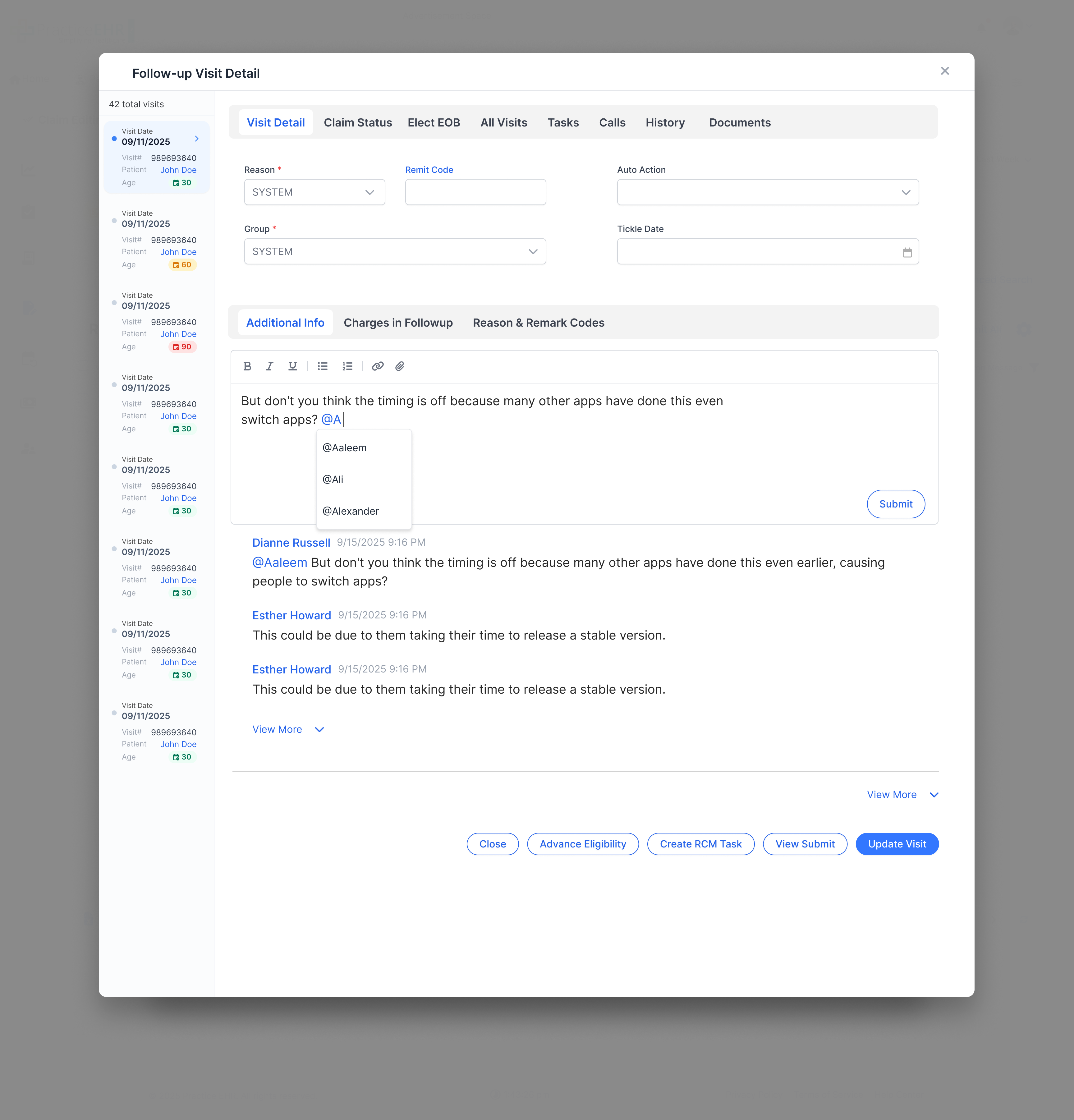
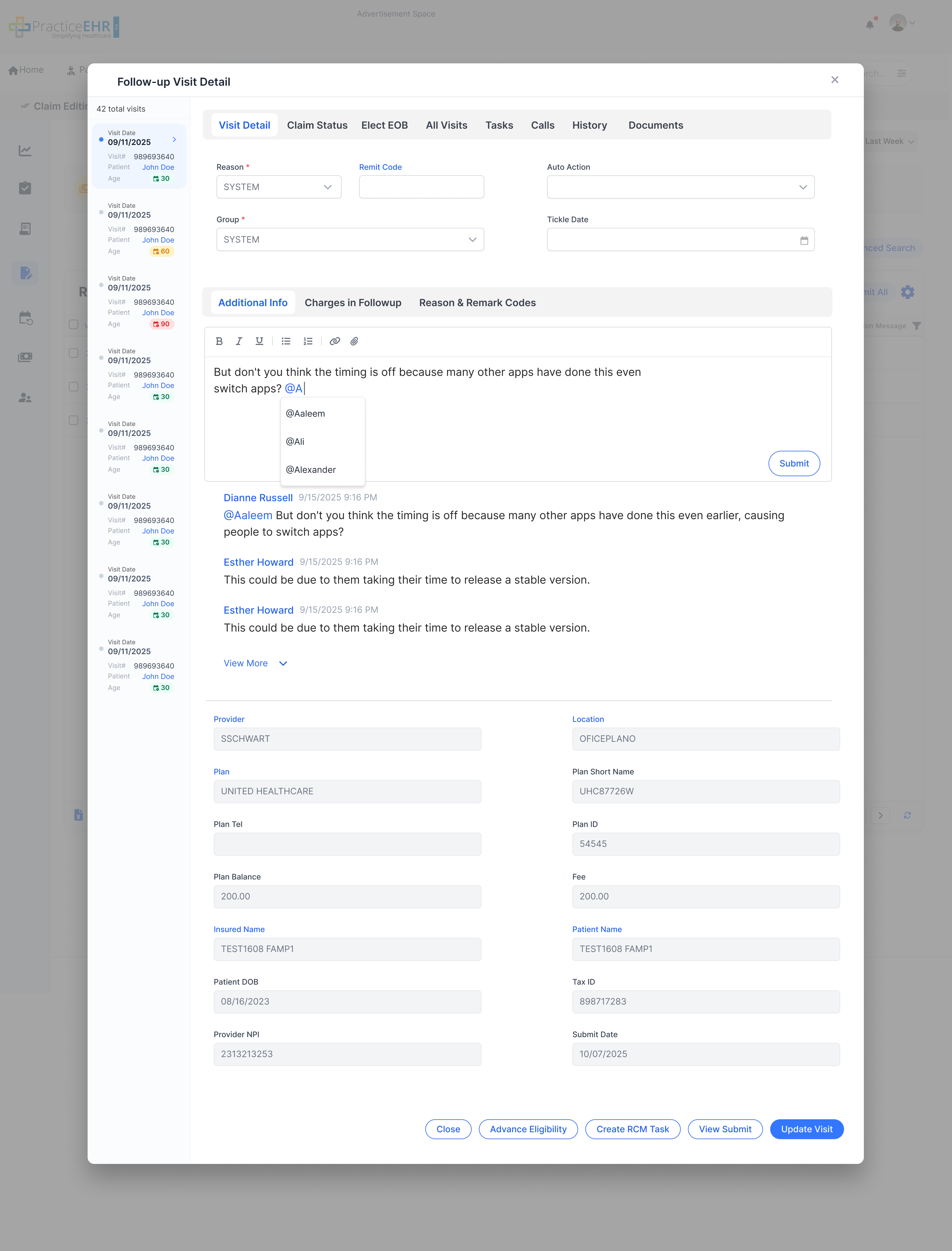
Feature: Threaded Comments &
@Mentions
Key Features
A new
thread-based comment system has been added to the 'Visit Detail' tab.
Users can now
@mention specific colleagues in their comments for better collaboration.
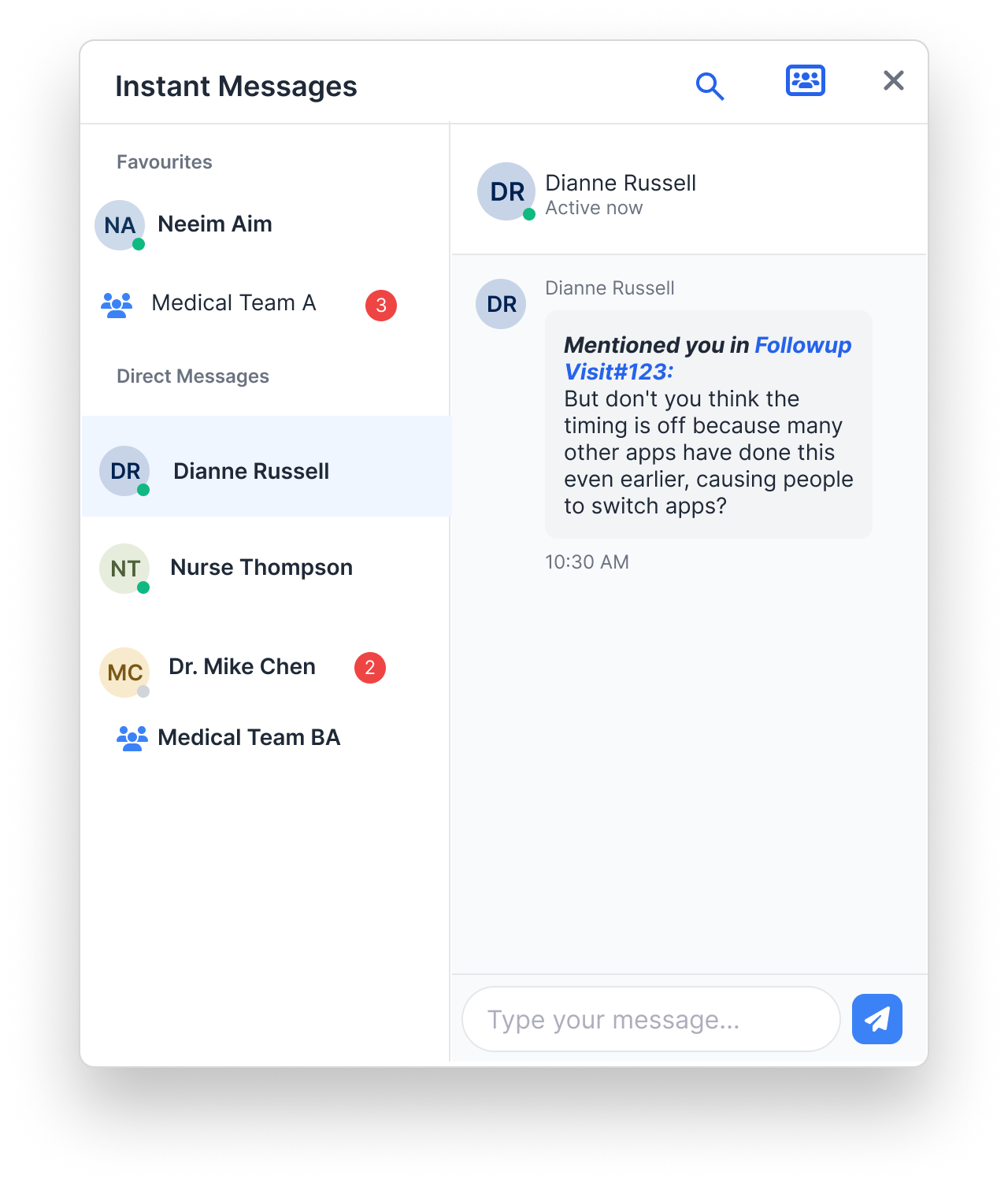
The mentioned user will receive a message in instant messaging telling him that he is
has been mentioned and a link for the followup visit detail will be available.
@mention Message in Instant Messaging
This is
how the message will look like
Visit number will be hyperlinked. CLicking on it takes you to the followup visit detail
window
Feature: View More / View Less Fields
Key Features
'View More'
and 'View Less' toggles are available to expand or collapse sections with many fields.
This image
shows the expanded state where additional provider and plan details are visible.
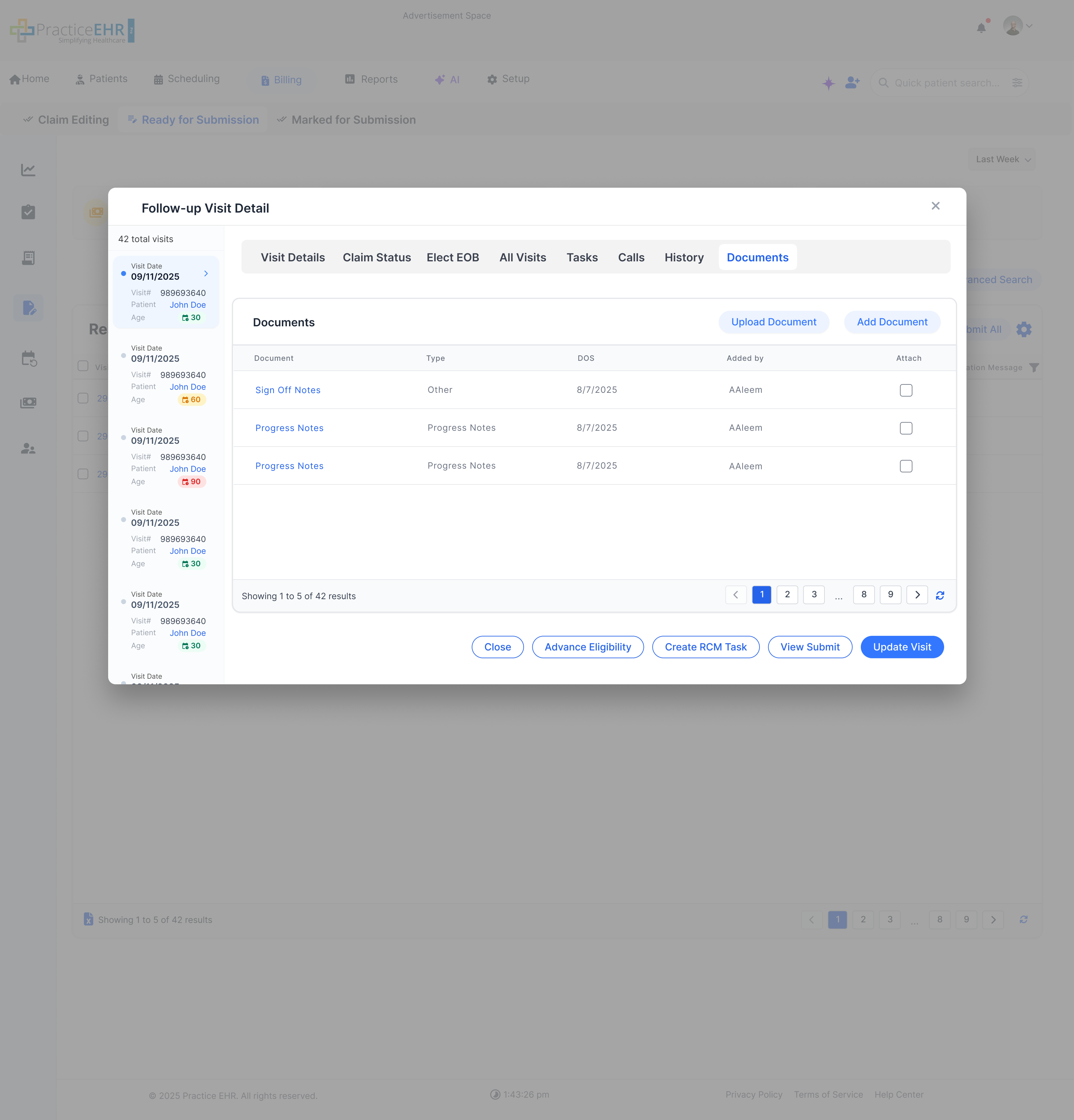
Feature: New 'Documents' Tab
Key Features
A new
'Documents' tab has been introduced to the modal.
This
section allows users to upload, add, and manage documents directly related to the
follow-up visit.
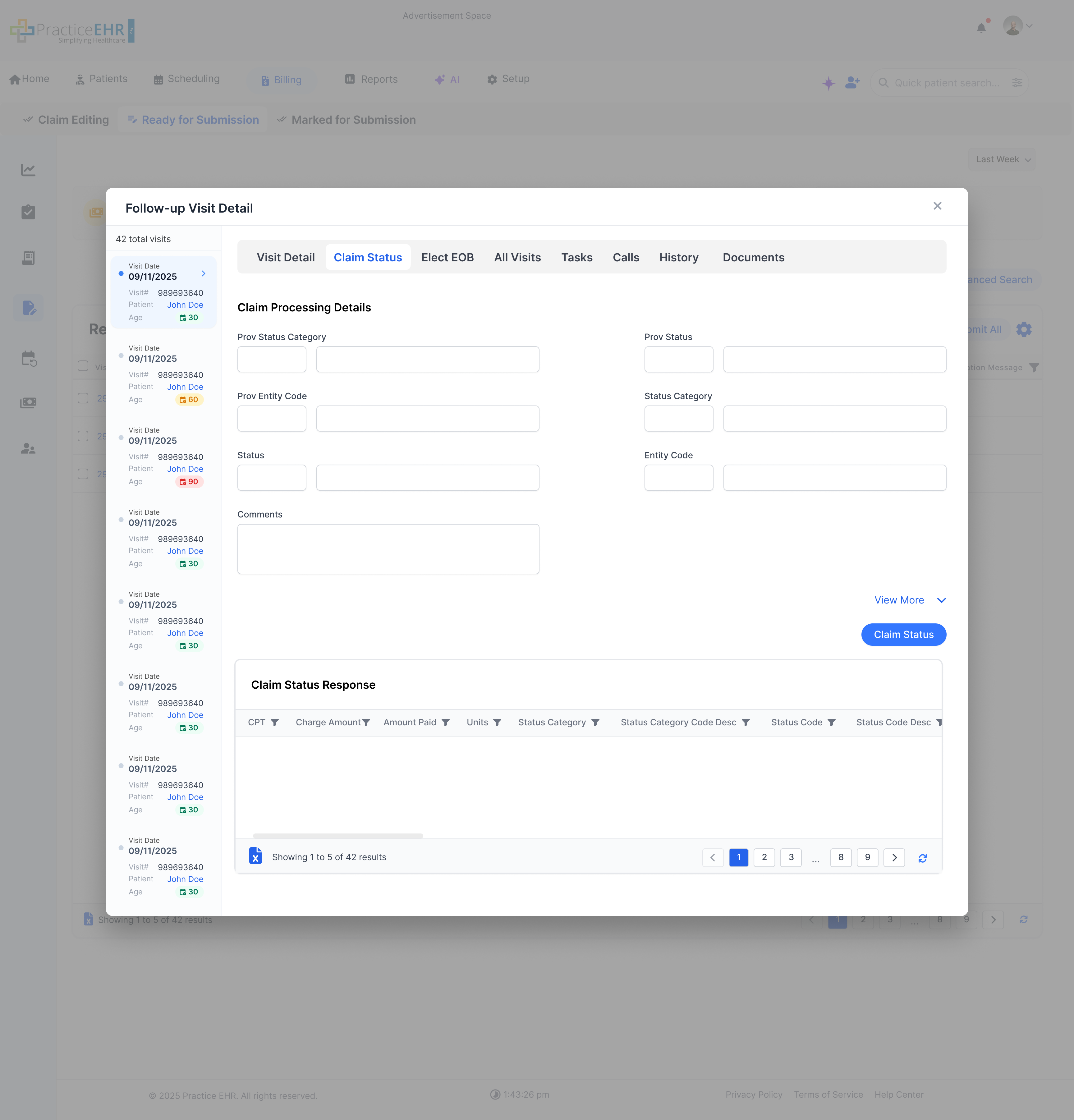
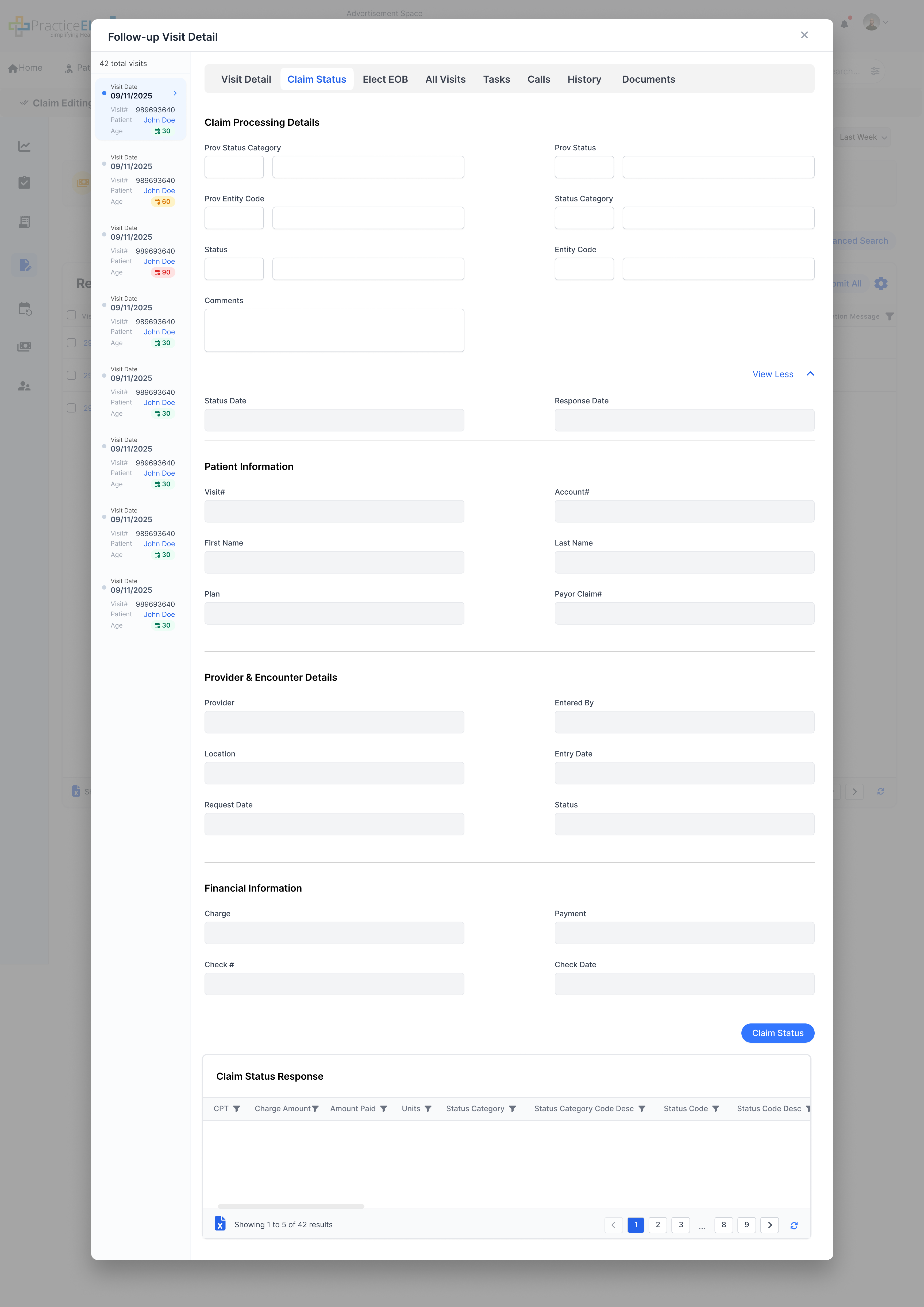
Feature: Smart Fields in 'Claim Status'
(Default View)
Feature: Smart Fields in 'Claim Status'
(Expanded View)
Key Features
The 'Claim
Status' tab now shows essential, active fields by default (top image).
Disabled
or less-common fields are hidden behind the 'View More' filter.
Clicking
'View More' reveals all fields, including disabled ones, for a complete overview (bottom
image).
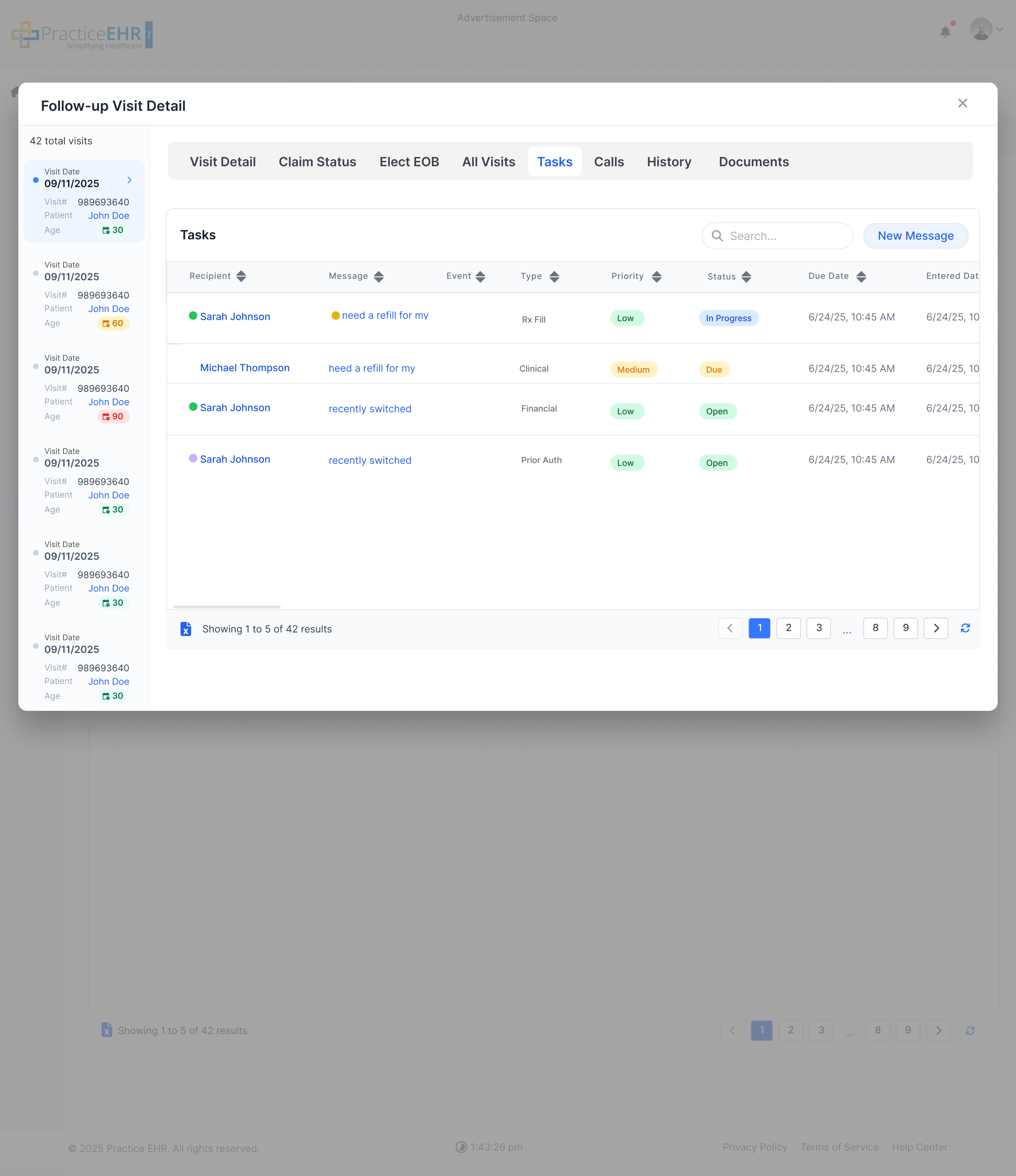
Tasks Tab
Key Features
The new
'Tasks' tab lists all tasks associated with the selected followup visit.
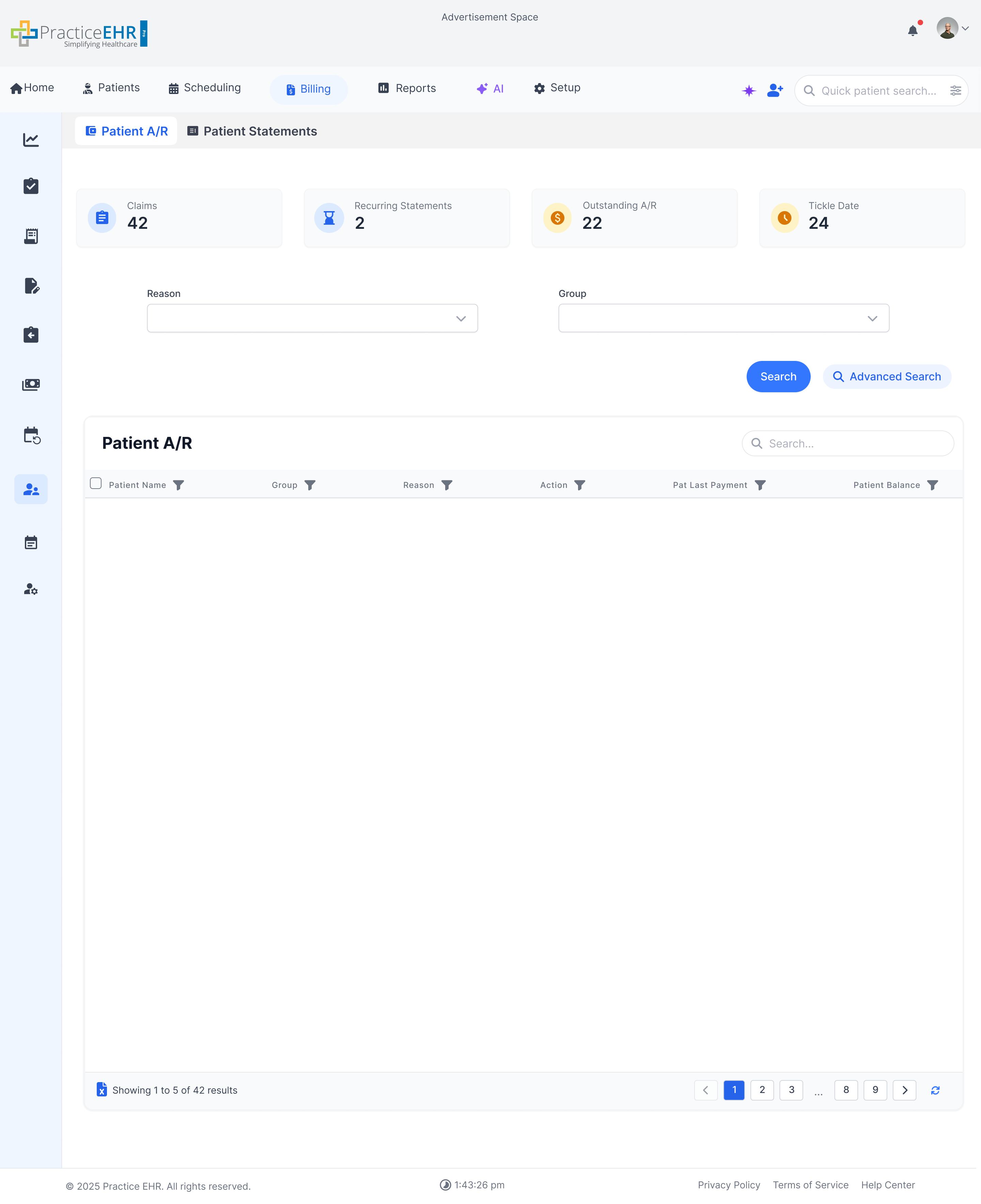
Patient A/R
Interactive Guide
Patient Followup has been converted to Patient A/R bucket
Key Features
The
screen shows patient A/R grid
The KPI cards on this screen calculate metrics based on data from the grid so the
dropdown is not needed
Some KPI labels are hyperlinked.
Clicking on a hyperlinked KPI will filter the grid accordingly.
An option will be available in setup to convert the grid into an auto search
grid. In that case the search criteria above will be removed and only the general search
and an advance search button will remain.
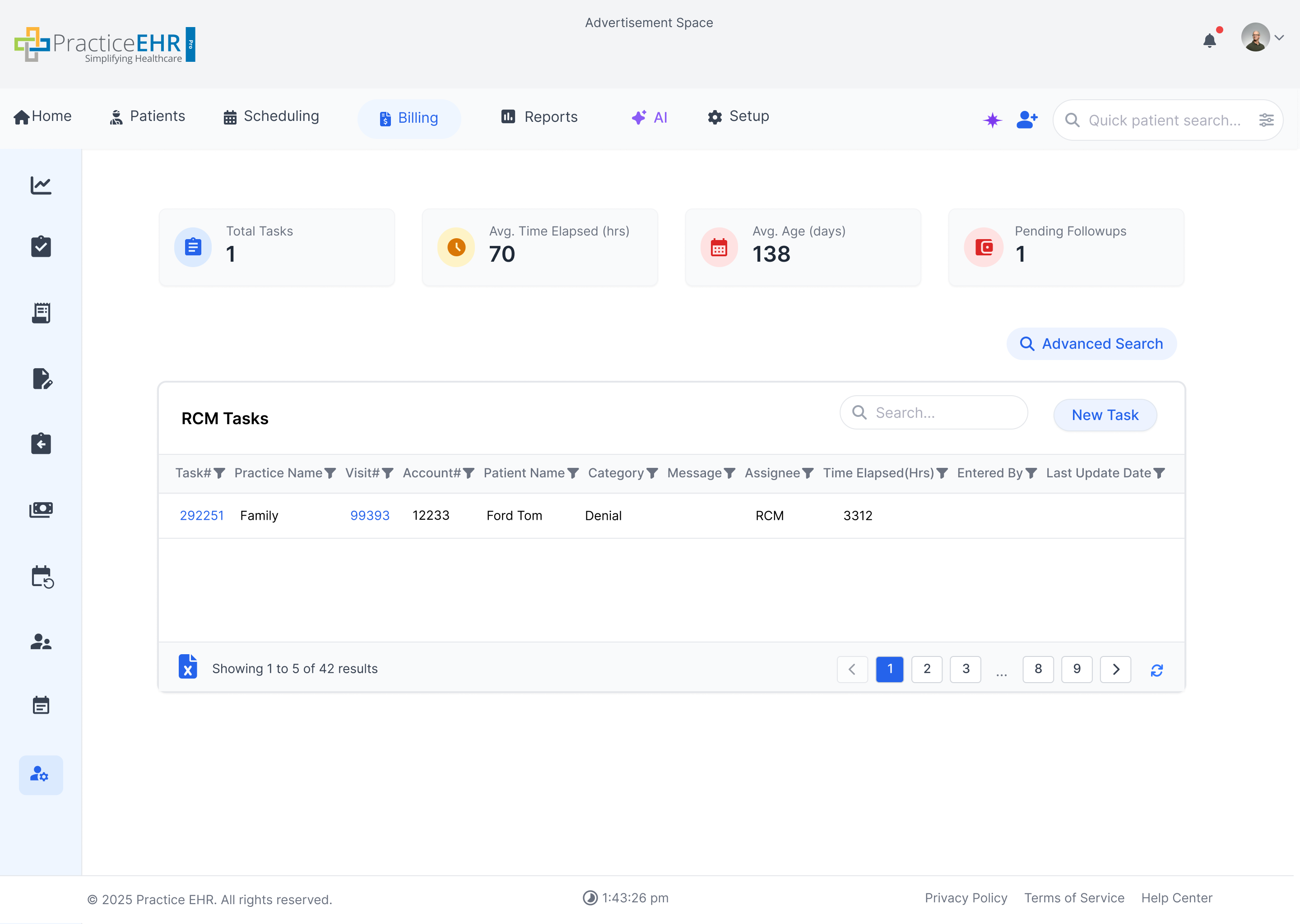
RCM Manager
Interactive Guide
Following window shows new UI of RCM (Revenue Cycle Management) Manager:
RCM Manager
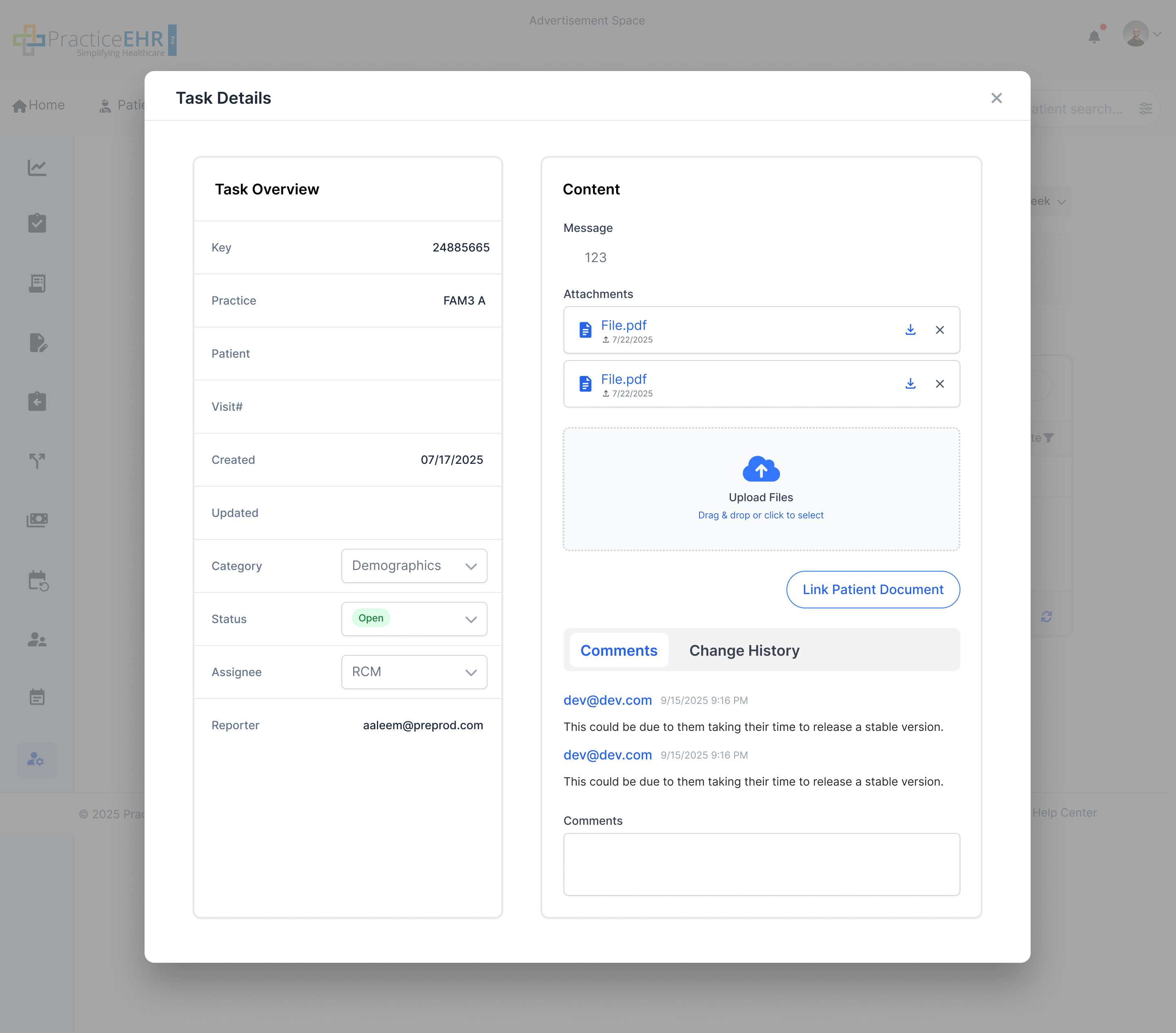
Task Detail
Key Features
Task
details and assignment overview.
Improved
drag-and-drop file upload area.
This is an auto search grid. No search criteria will be present unless advanced search
is clicked.
Source: Row Count — Total number of RCM tasks currently in the grid.
Avg. Time Elapsed (hrs)AVG CALC
Source: Time Elapsed (Hrs) — Average of the Time Elapsed column across all open tasks. Indicates how long tasks are sitting unresolved.
Avg. Age (days)AVG CALC
Source: Created Date — Average number of days since each task was created (Today − Created Date), showing how old the workload is on average.
Pending FollowupsCOUNT
Source: Followup Flag — Count of tasks that have a pending follow-up action scheduled and not yet completed.
Interaction Guide
Easily
upload files by dragging them into the upload area, Alternatively, click on the upload
area to open a file picker.
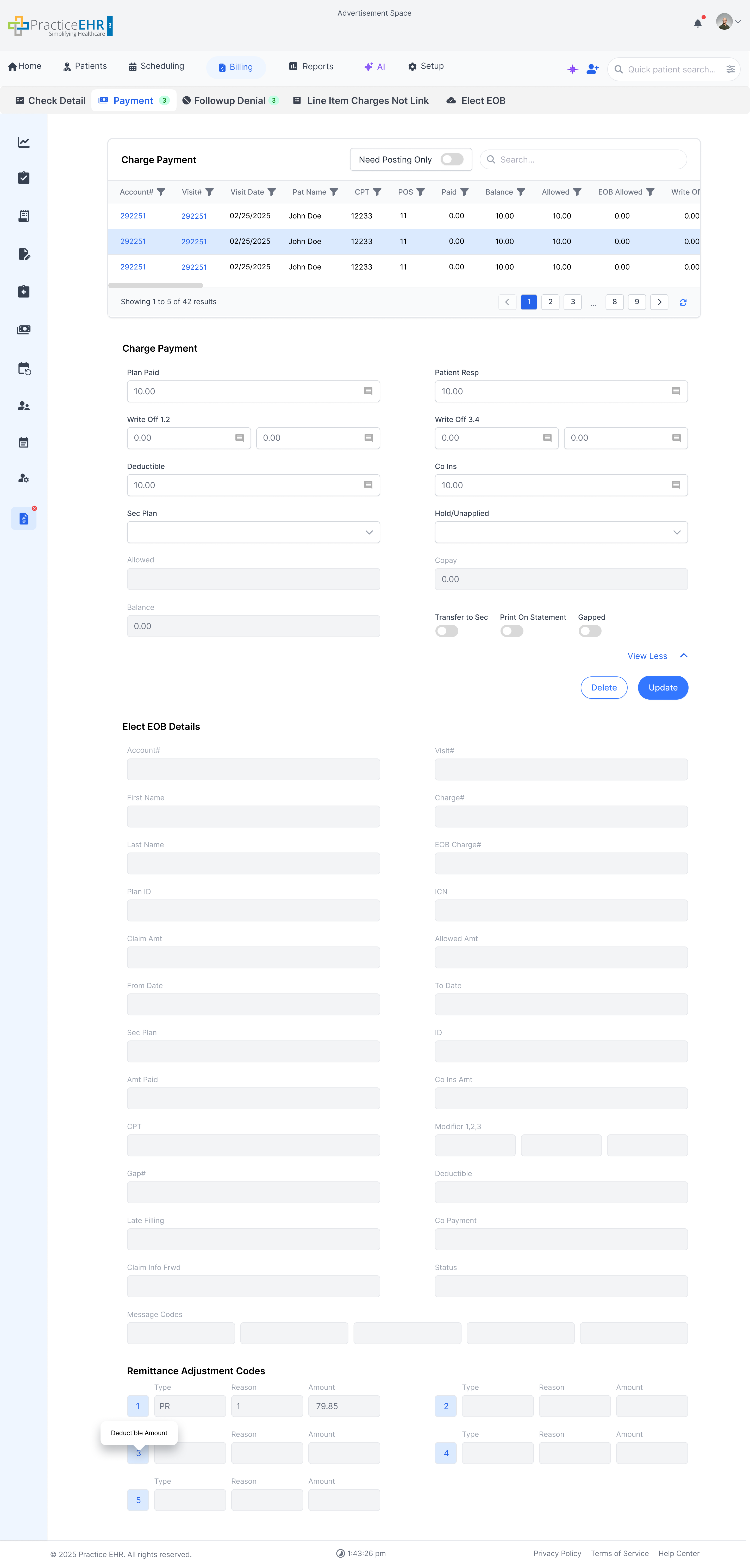
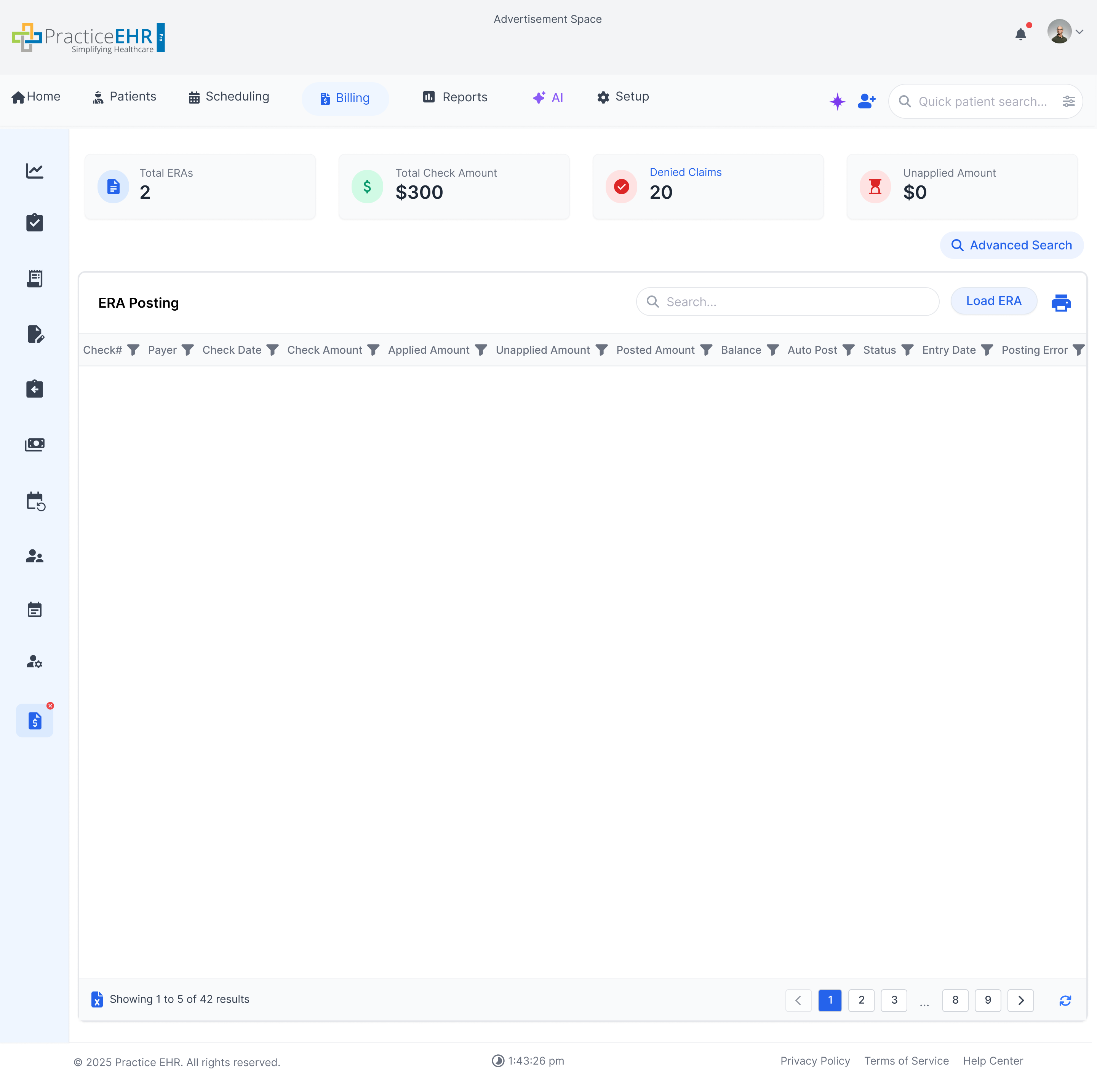
Explanation of Benefits (EOB)
Interactive Guide
Dashboard -> ERA check/need posting -> Check# -> Payment
EOB Payment
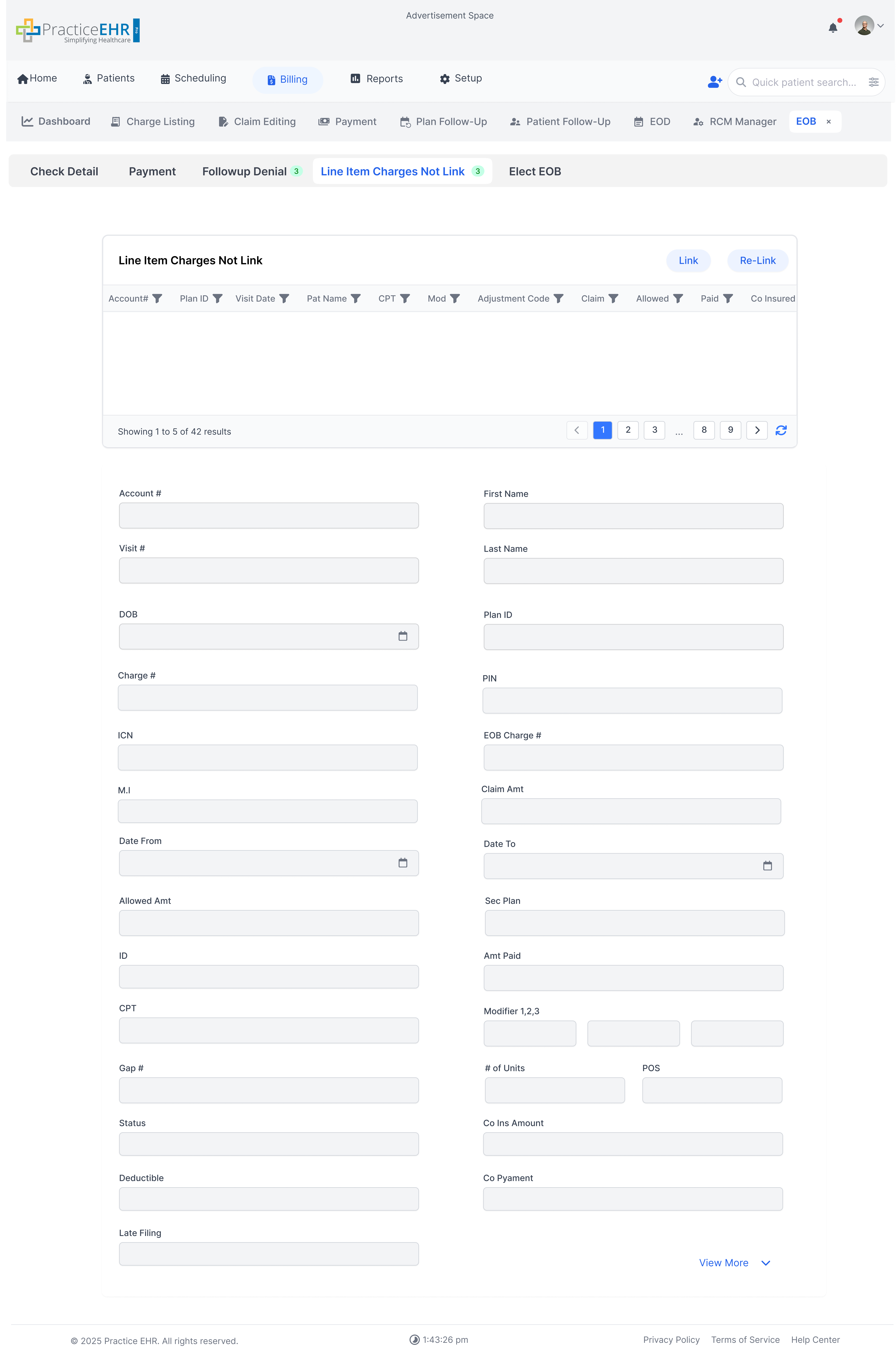
Line Item Charges Not Link
Key Features
Grid view
displaying EOB payment details.
When a
check is not selected then the following tabs will be disabled: Followup Denial, Line
Item Charges not Link, Elect EOB.
Quick filters on each column.
updated the layout to make it more
user-friendly. Divided the fields into three categories Charge Payment, Elect EOB
Details, Remittance
Adjustment Codes
Hovering over a Remittance
Adjustment Code shows its
description in a tooltip
Interaction Guide
Use column
filters to narrow down EOB entries.
Select a
check first so the related review tabs, including Line Item Charges Not Link, become
available for reconciliation.
Line Item Charges Not Link
This
view highlights remittance line items that were not linked automatically to a charge.
Use
it to compare the incoming EOB line with the available charge context before posting or
fixing the payment.
Common
reasons for landing here are missing charge matches, mismatched service lines, or
incomplete posting data on the selected check.
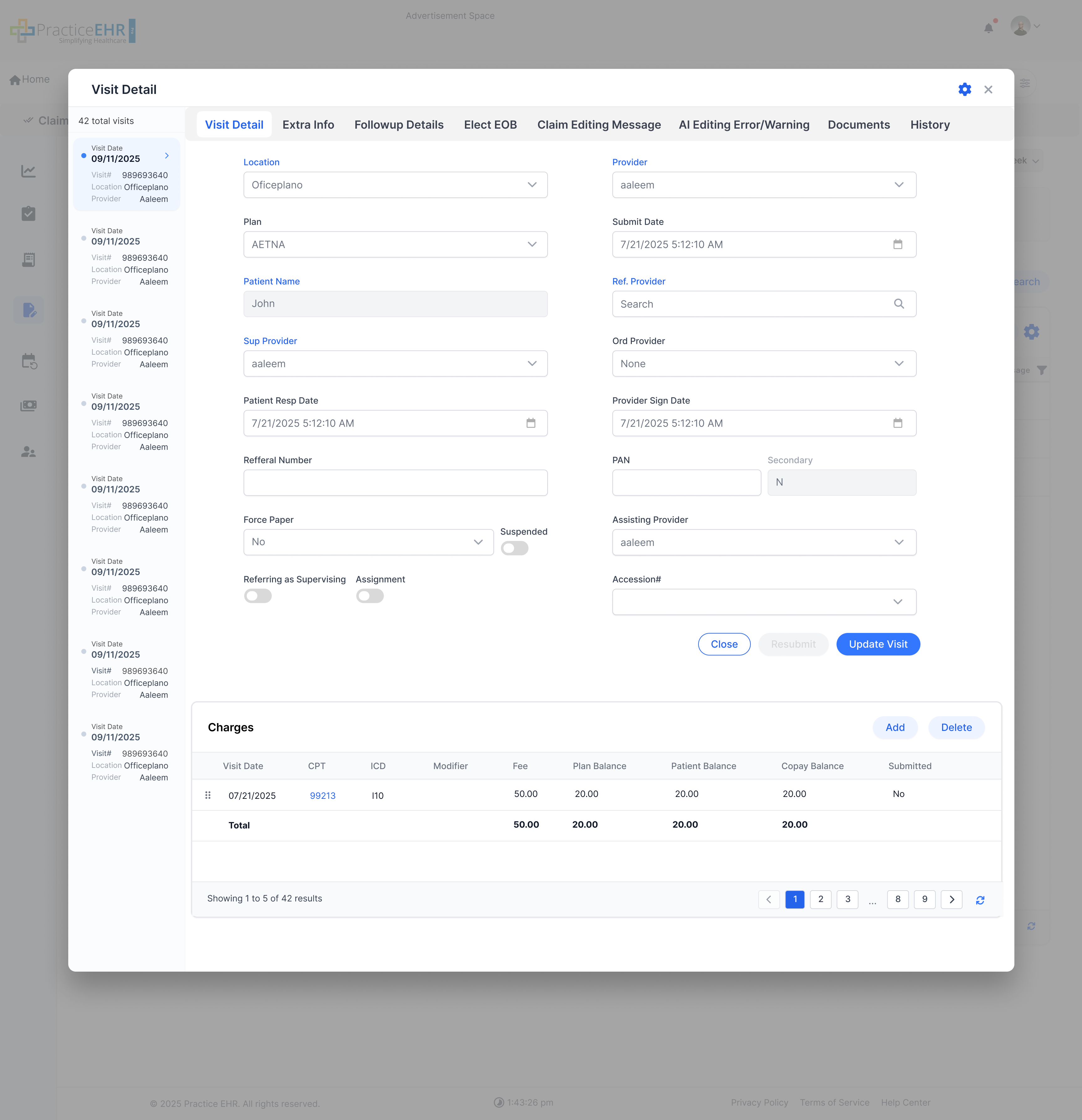
Visit Detail
Interactive Guide
This screen shows detailed information about a patient visit, including procedures, diagnosis, and
actions.
Visit Detail (Scroll down to view Superbill
popup)
Superbill Popup
Key Features
Shows
complete visit detail including Charges grid
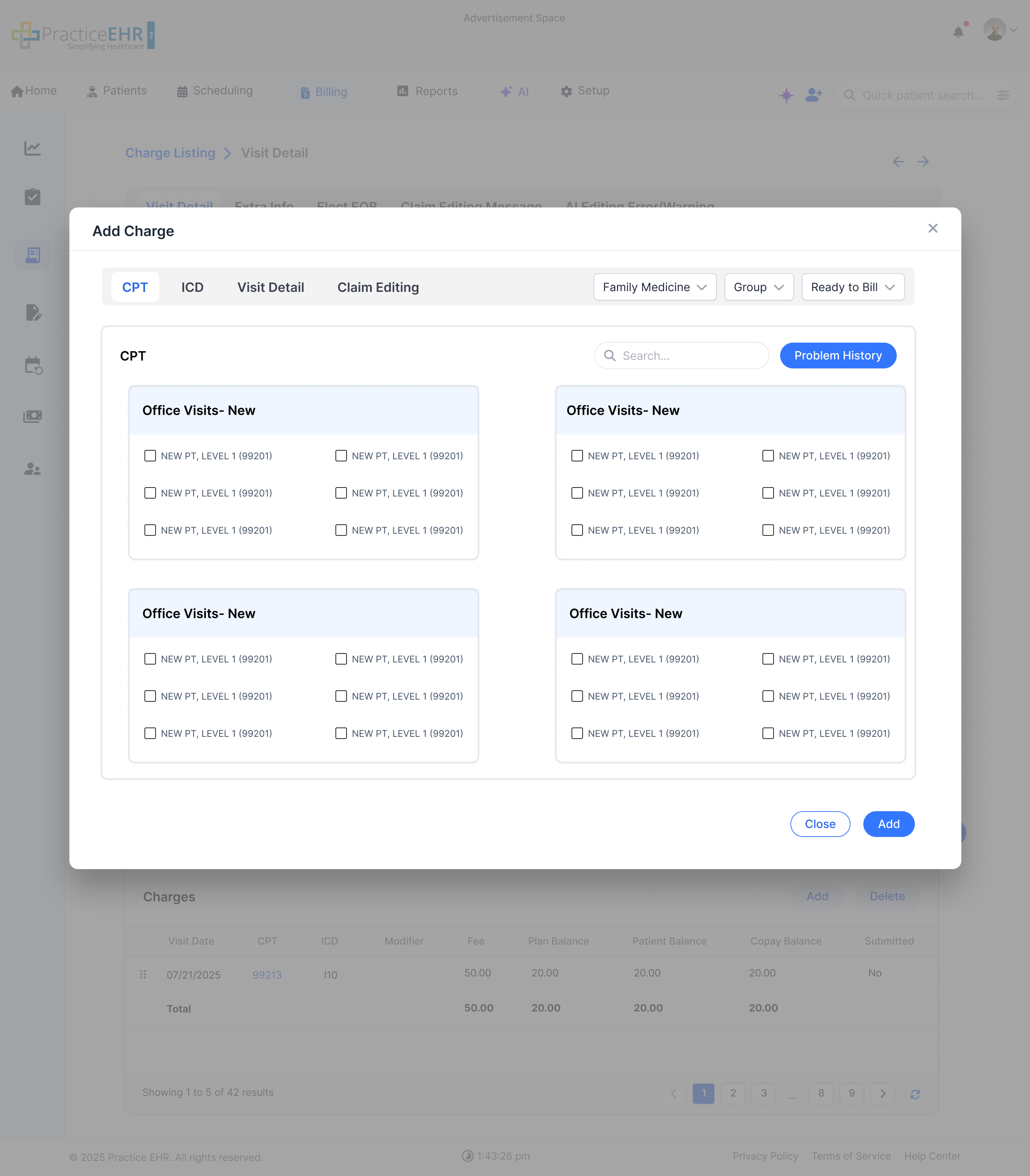
A sidebar has been added to the left
allowing users to easily switch between different visits.
An Add button has been added to the charges grid. CLicking on this
button opens the superbill in a popup allowing users to easily add a charge directly
from this screen.
Followup Details, Documents and History Buttons have converted to tabs and moved to the
nav bar.
The remaining buttons except for Close, Resubmit and Update Visit have been moved to the
gear icon
Visits shown in the left sidebar are fetched from the previous grid e.g if visit detail
is opened from charge listing grid then visits are fetched from the charges grid.
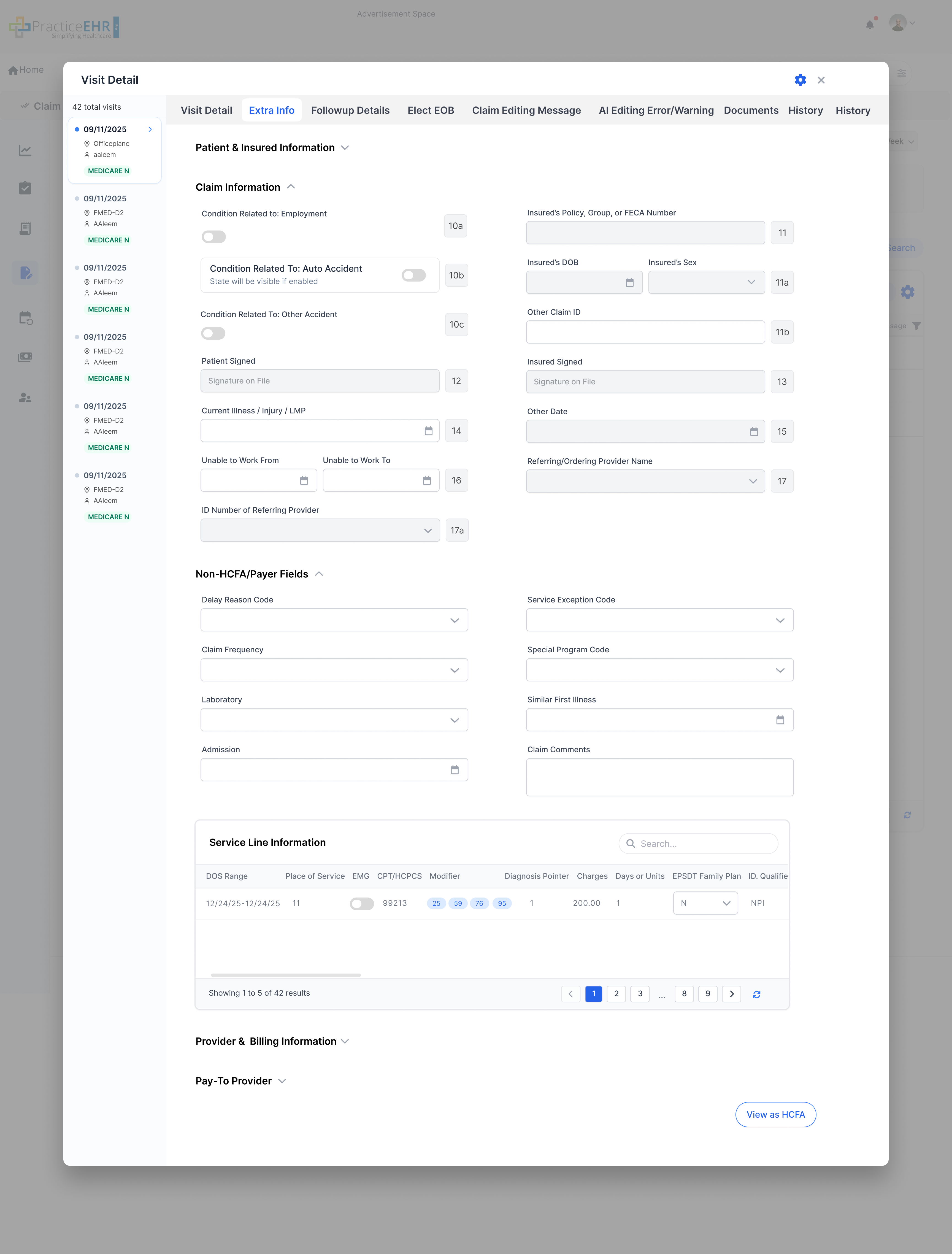
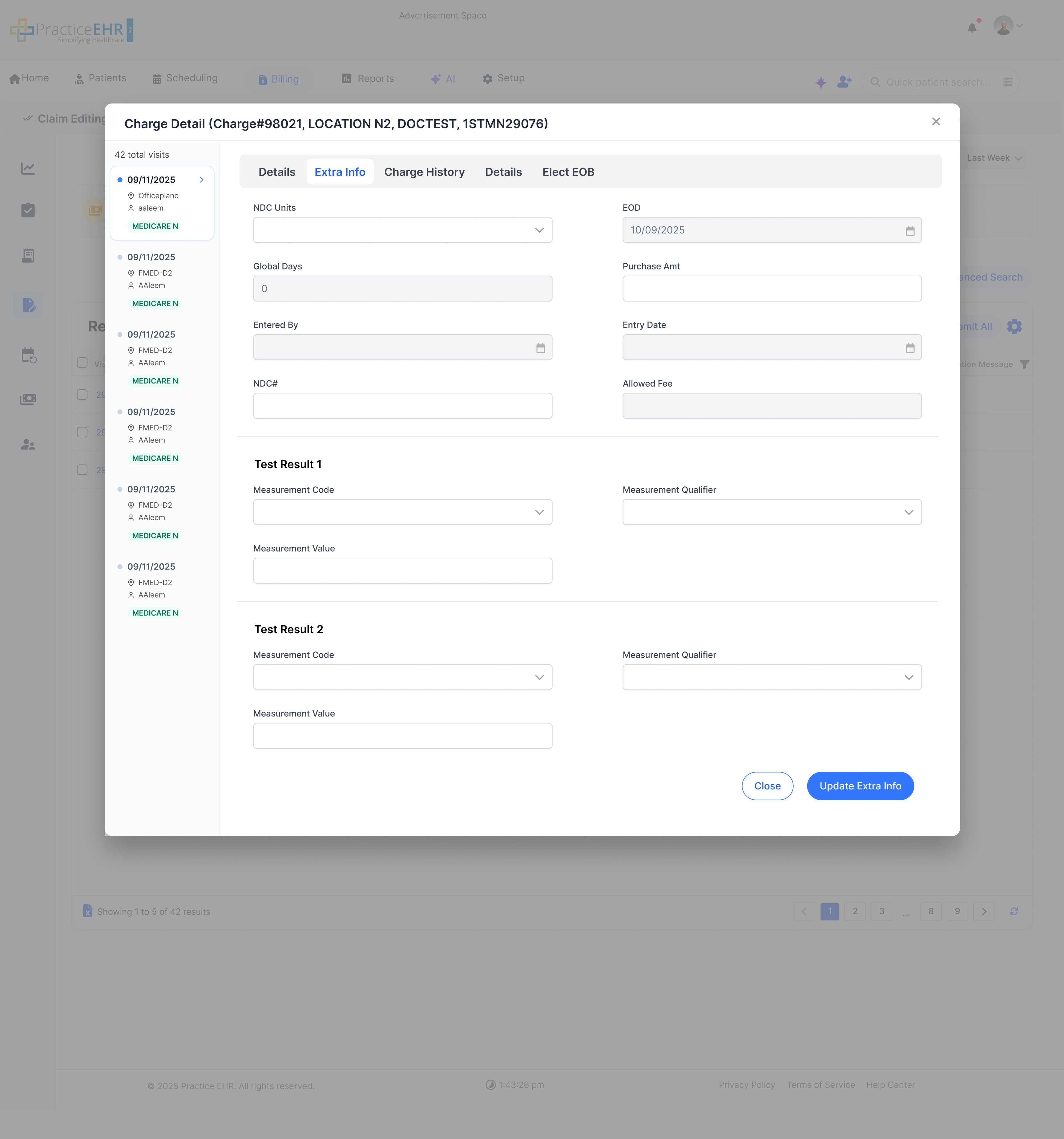
Visit Detail (Extra Info)
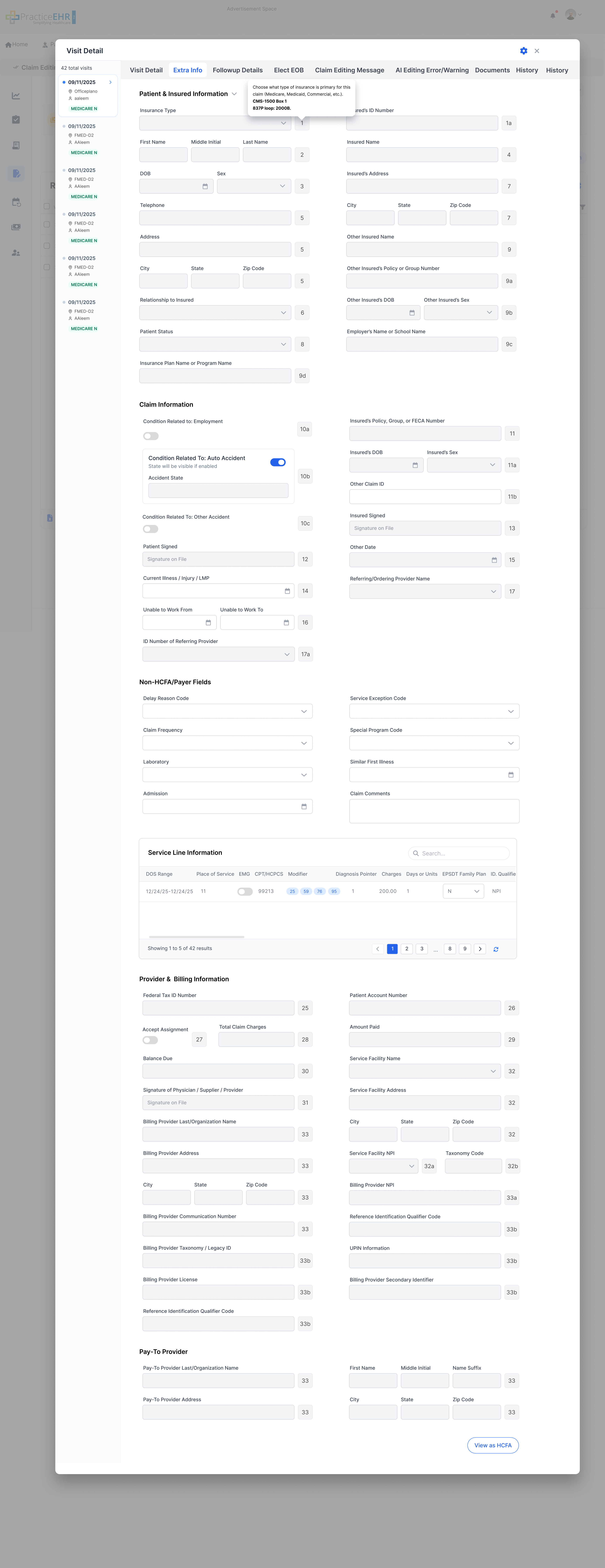
Interactive Guide
The extra info section contains fields present in the CMS 1500 form, and the box number shown next
to each field is its box number in CMS 1500. When a user hovers on this box, a tooltip will appear
which
displays brief information about the field including its CMS 1500 box number and loop id.
Extra Info (Scroll down to see
tooltip)
Extra Info Tooltip
Key Features
Fields are aligned with the CMS 1500 form.
The small box number shown next to each field represents its CMS 1500 box number.
Hovering the box shows a tooltip with a brief field description, CMS 1500 box number,
and loop id.
Source: Measures the percentage of collectible revenue that was actually collected. Formula: NCR = Total Payments ÷ (Total Charges − Contractual Adjustments) × 100.
Avg Daily CollectionsSUM
Source: Payments — Total payments collected ÷ number of days in the selected date range.
Avg Daily ChargesSUM
Source: Charges — Total charges generated ÷ number of days in the selected date range.
Avg Days in ARMAX CALC
Source: Measures the average number of days it would take to collect current outstanding receivables based on recent charge volume.
Interaction Guide
Select
date range to view specific EOD reports.
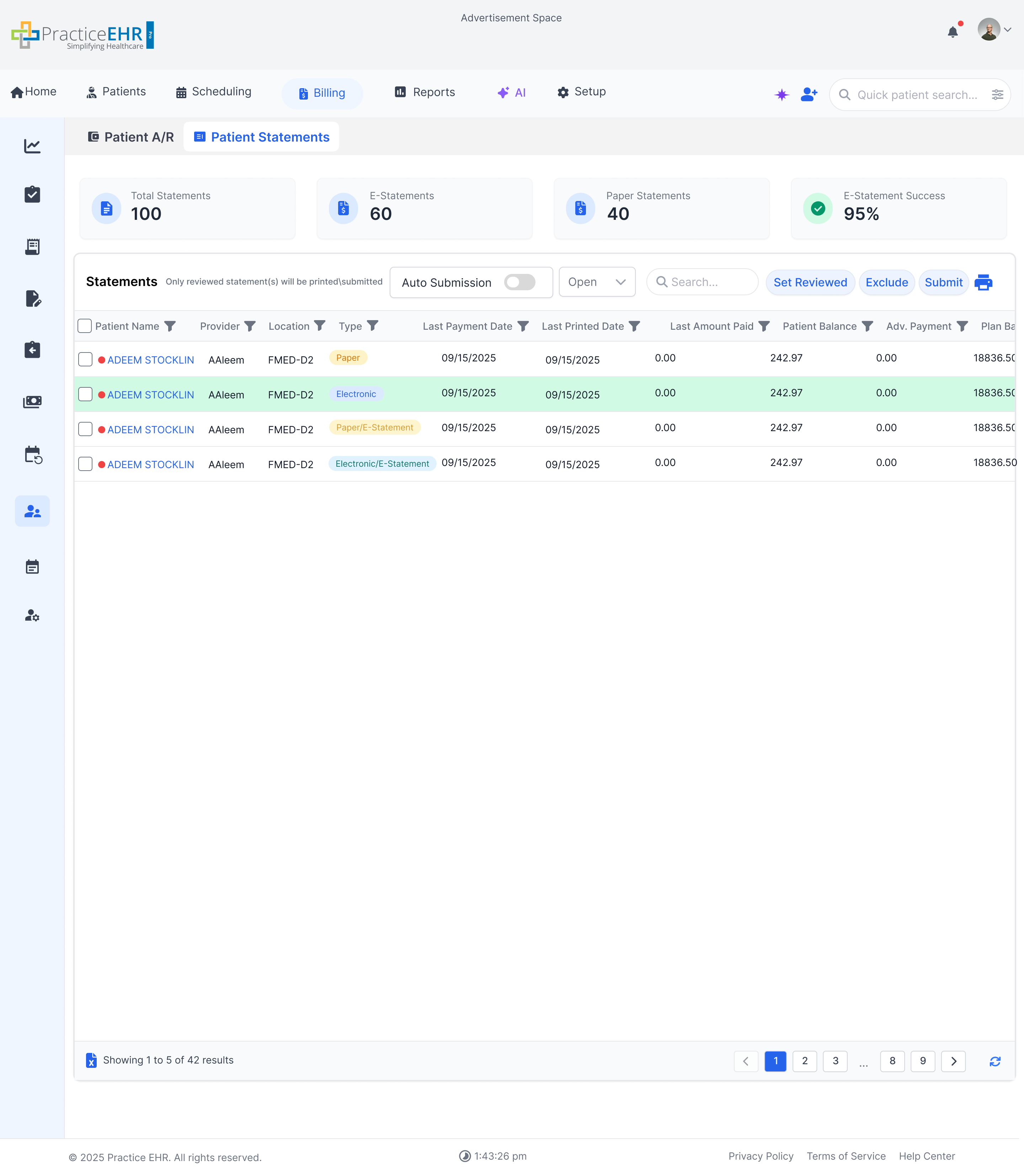
Patient Statements
Key Features
Review and submit
patient statements.
Grid with
filters for all columns.
Set Flag has been renamed to
Exclude.
A yellow
background will be shown for on hold statements.
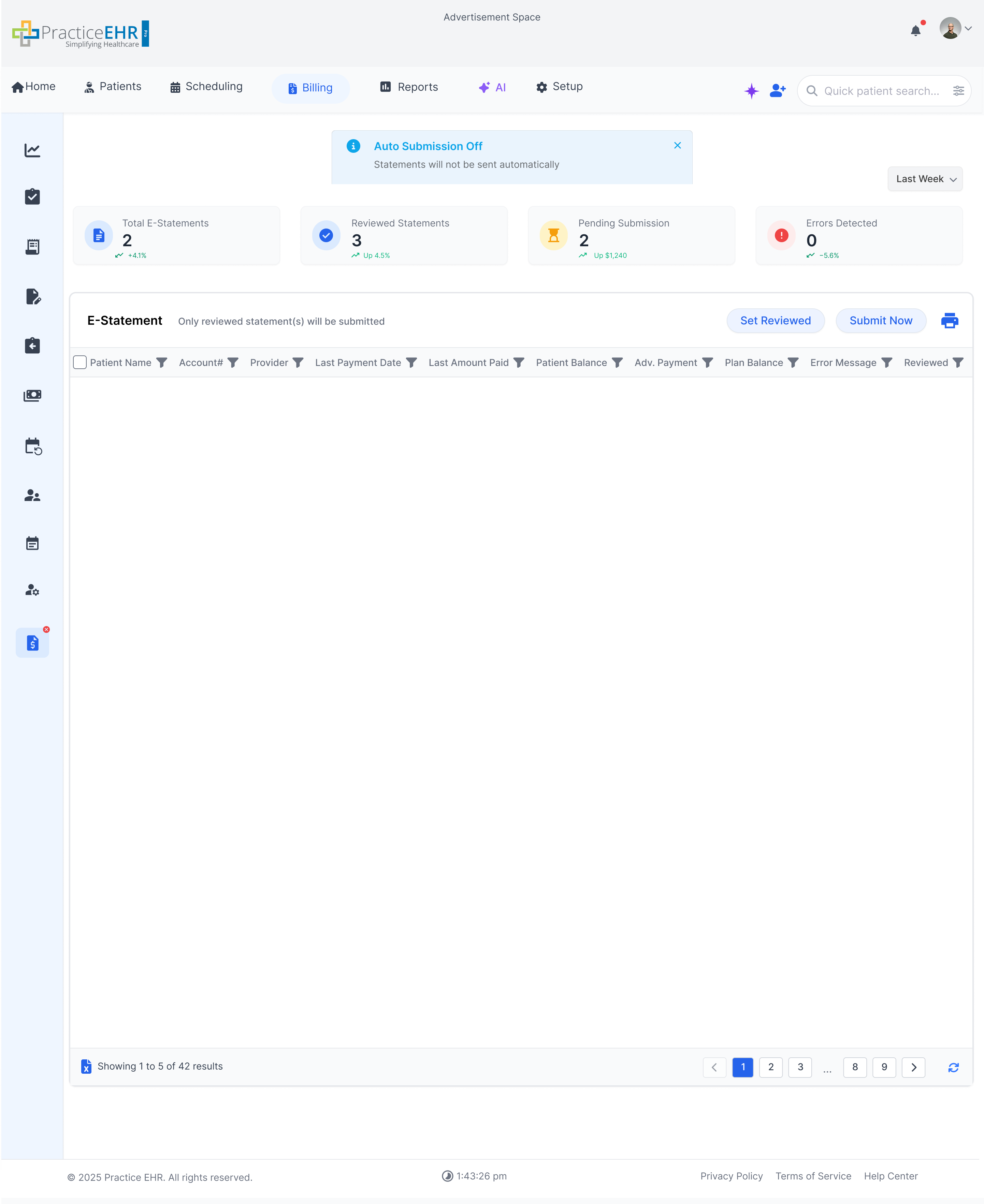
Toggle
auto-submission settings via the alert link.
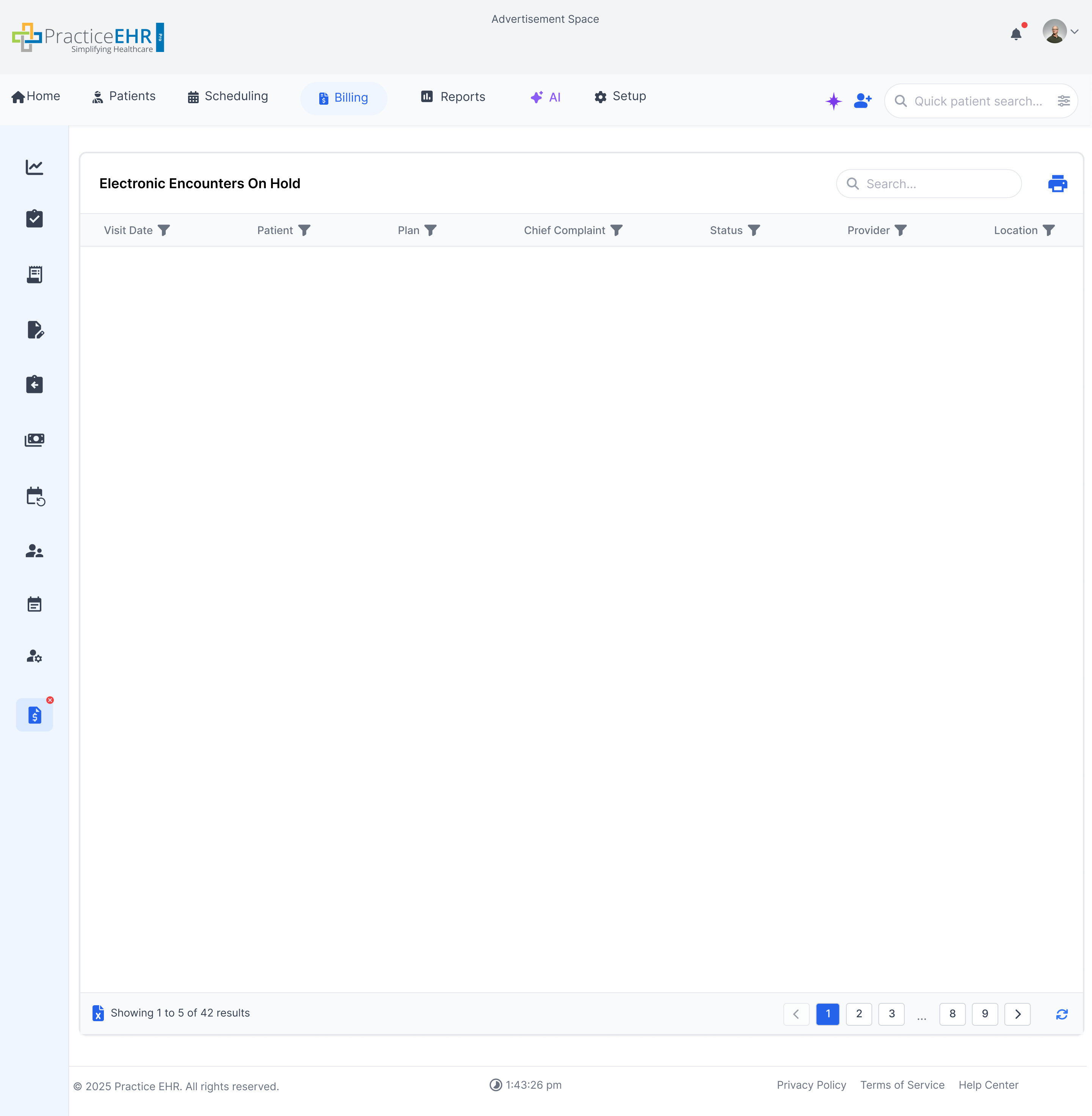
Electronic Encounters On Hold
Key Features
Track
encounters that are currently on hold.
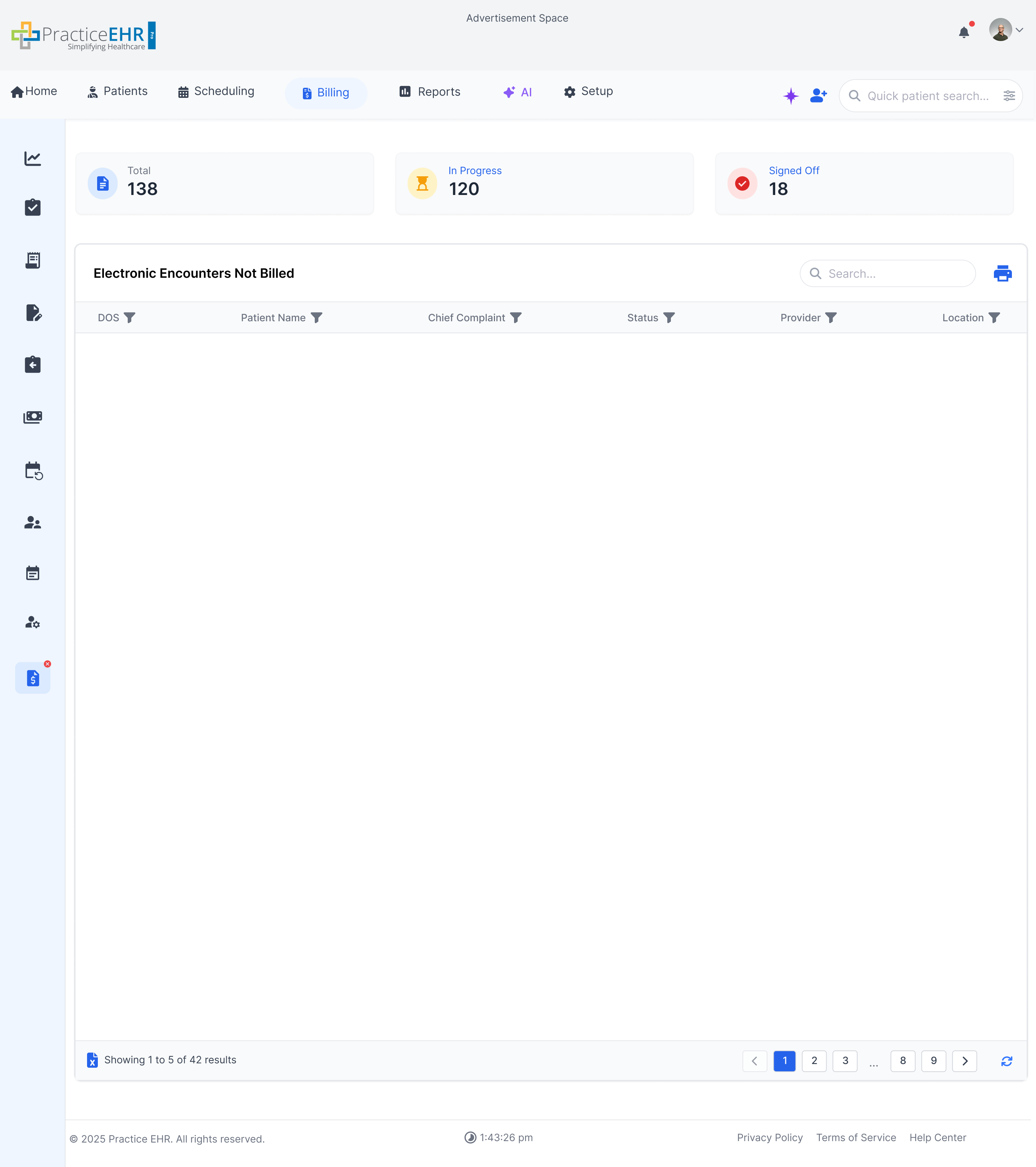
Electronic Encounters Not Billed
Key Features
Identify
encounters that haven't been billed.
The KPI cards on this screen calculate metrics based on data from the grid so the
dropdown is not needed
Some KPI labels are hyperlinked.
Clicking on a hyperlinked KPI will filter the grid accordingly e.g., clicking on In
Progress KPI will filter the grid to only show in progress encounters.
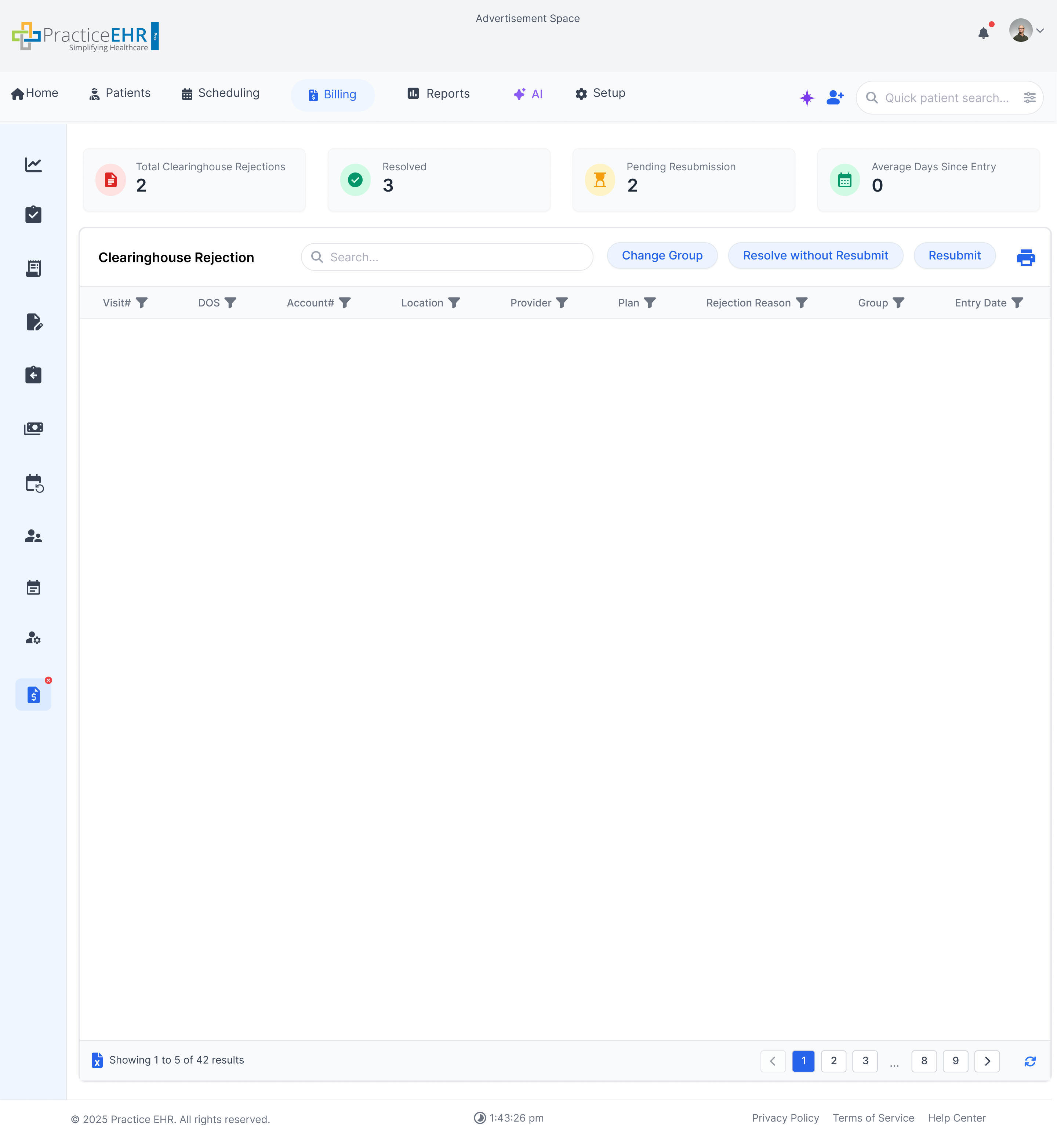
Select
rejected claims and choose appropriate actions from the header.
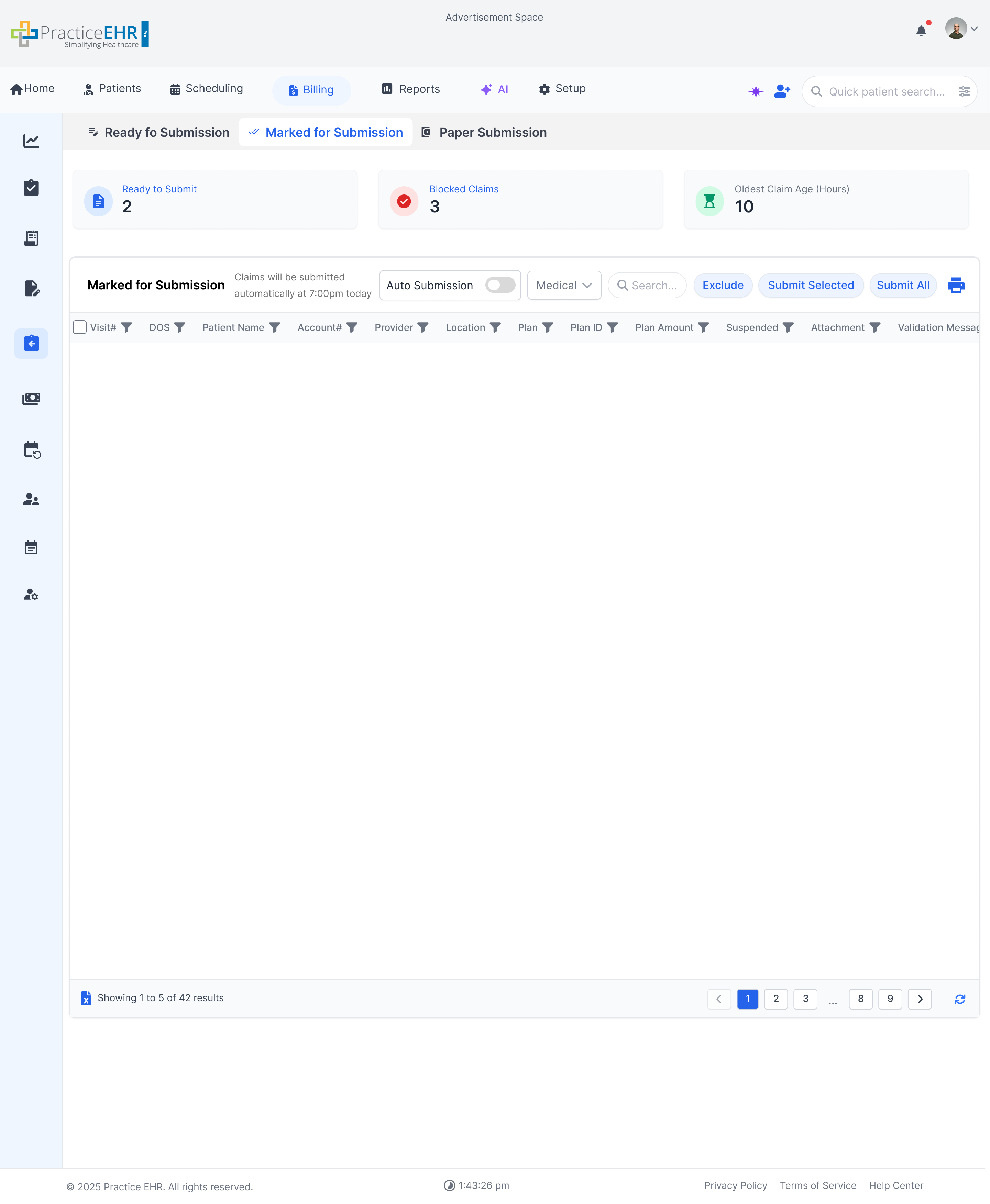
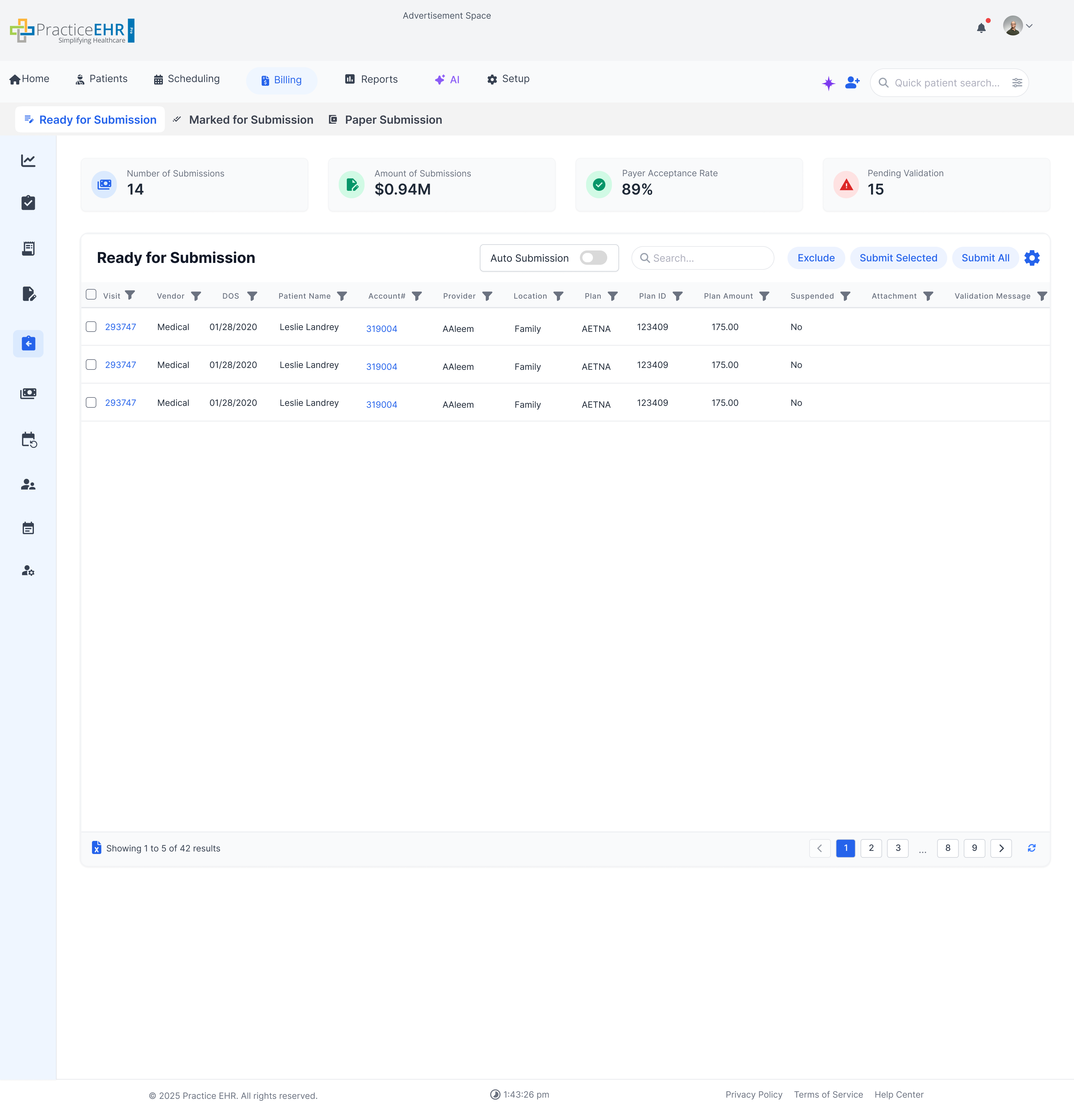
Marked for Submission
Key Features
Submit claims electronically and track submission progress.
The KPI cards on this screen calculate metrics based on data from the grid so the
dropdown is not needed
Some KPI labels are hyperlinked.
Clicking on a hyperlinked KPI will filter the grid accordingly e.g., clicking on
blocked claims KPI will filter the grid to only show blocked claims.