Referrals Management - Setup & Usage
Manage incoming/outgoing referrals, search and filter by status/provider, and create new referrals via a guided form.
Navigation
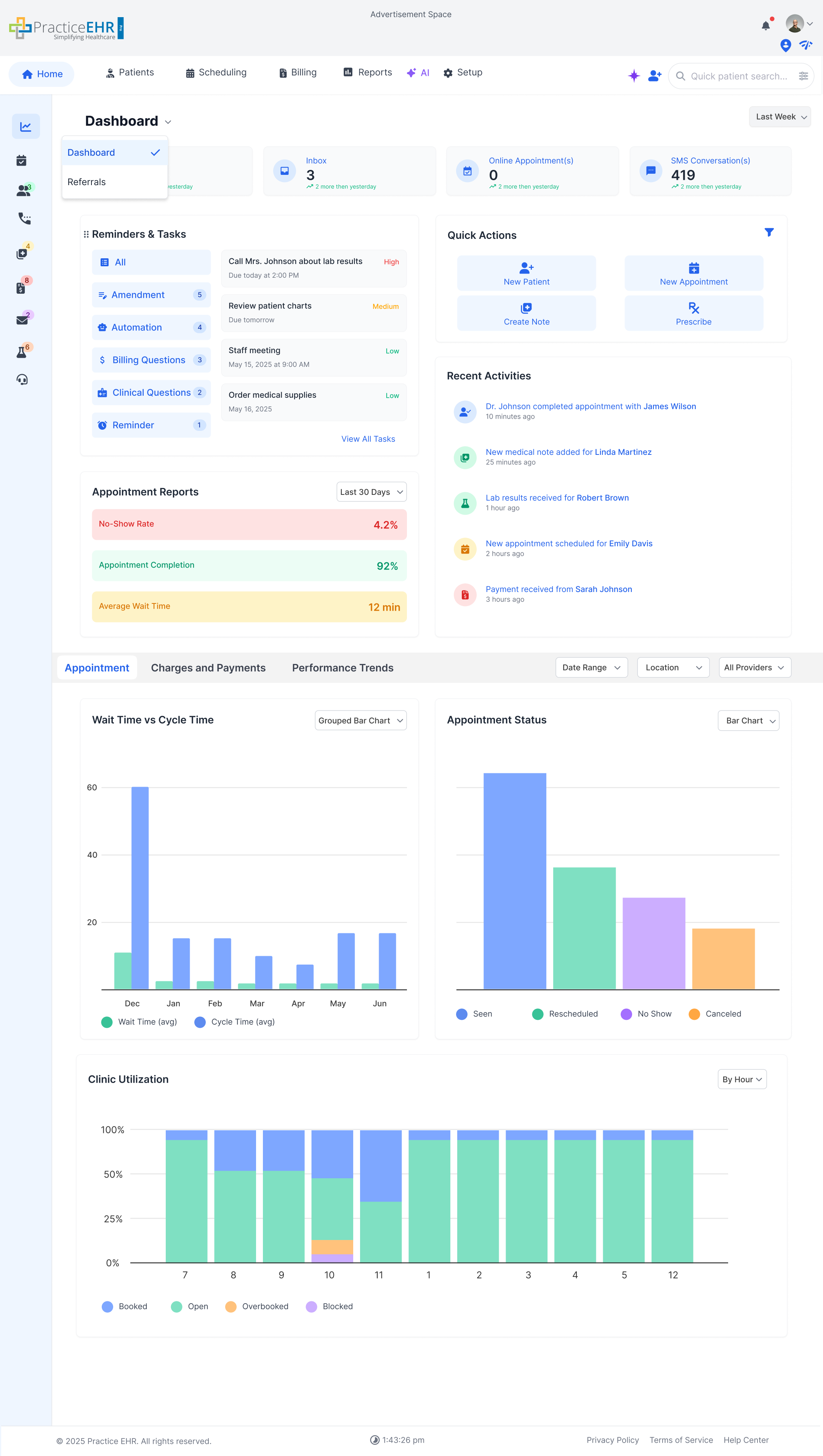
From the Home Dashboard, click the Dashboard dropdown (see image). Two options are available:
- Dashboard
- Referral Management
Selecting Referral Management takes the user directly to the Referrals Management screen.
Scope
This page documents the Referrals grid (list), Advanced Search, and the New Referral flow.
Dashboard
The dashboard displays KPI cards and the main Referrals grid.
Overview
The grid lists all referrals with key details like Patient, Provider, and Status. You can search, sort, and filter results using the toolbar.
Columns
Common: Patient, Direction, Specialty, Reason, Status, Urgency, Assigned To, Due Date.
- Inbound: Referral From, Date Received.
- Outbound: Referral To, Date Ordered.
Quick Actions
Update these fields directly in the grid:
Fax
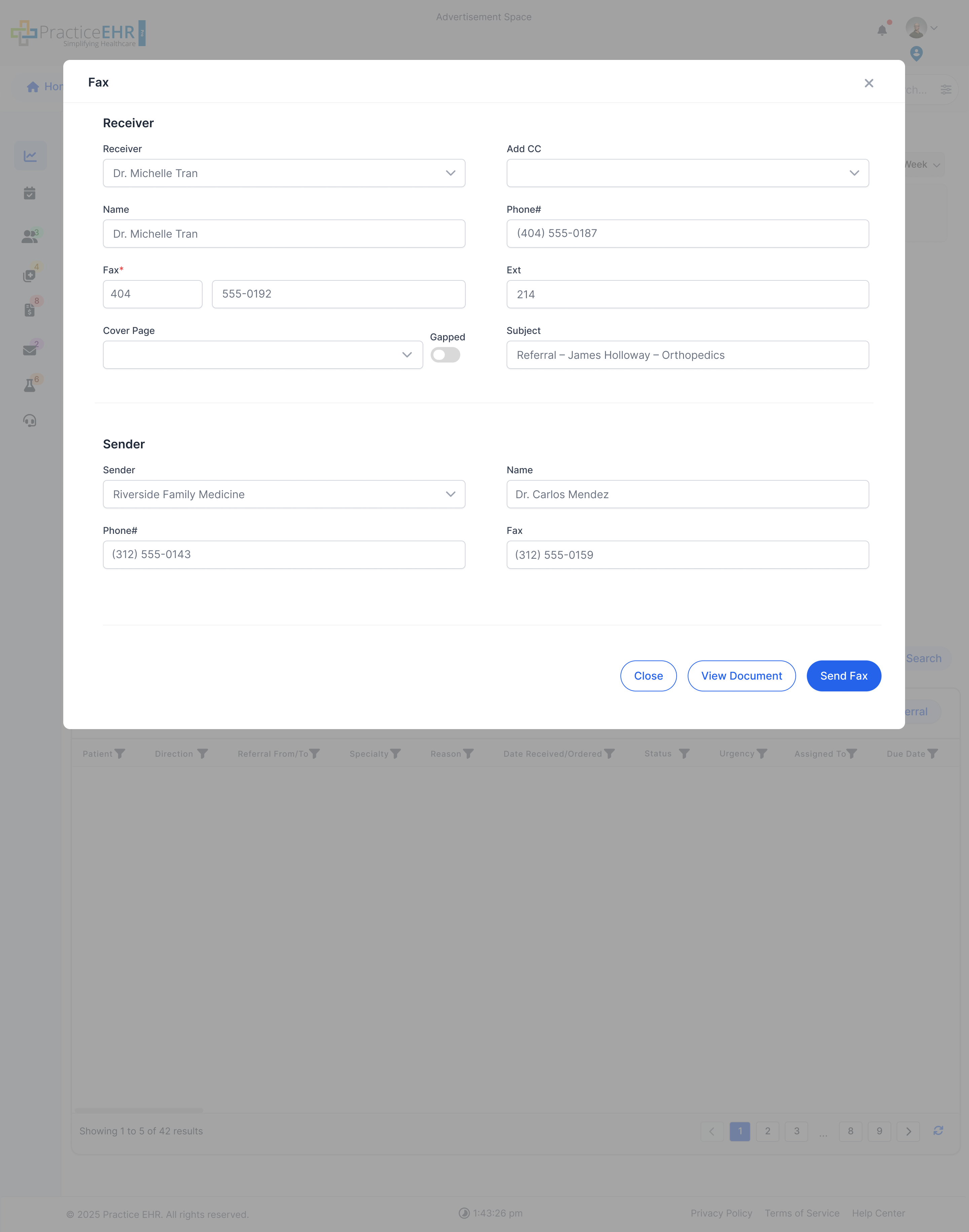
The fax modal appears when the user selects a row and clicks on the fax icon.
Autofilled from Referral Data
The following fields will be autofilled from referral data:
Receiver Section
- Source Receiver
- Name
- Fax
- Phone #
- Patient Info (default ON)
- Subject
Sender Section
- Sender
- Name
- Phone #
- Fax
Advanced Search
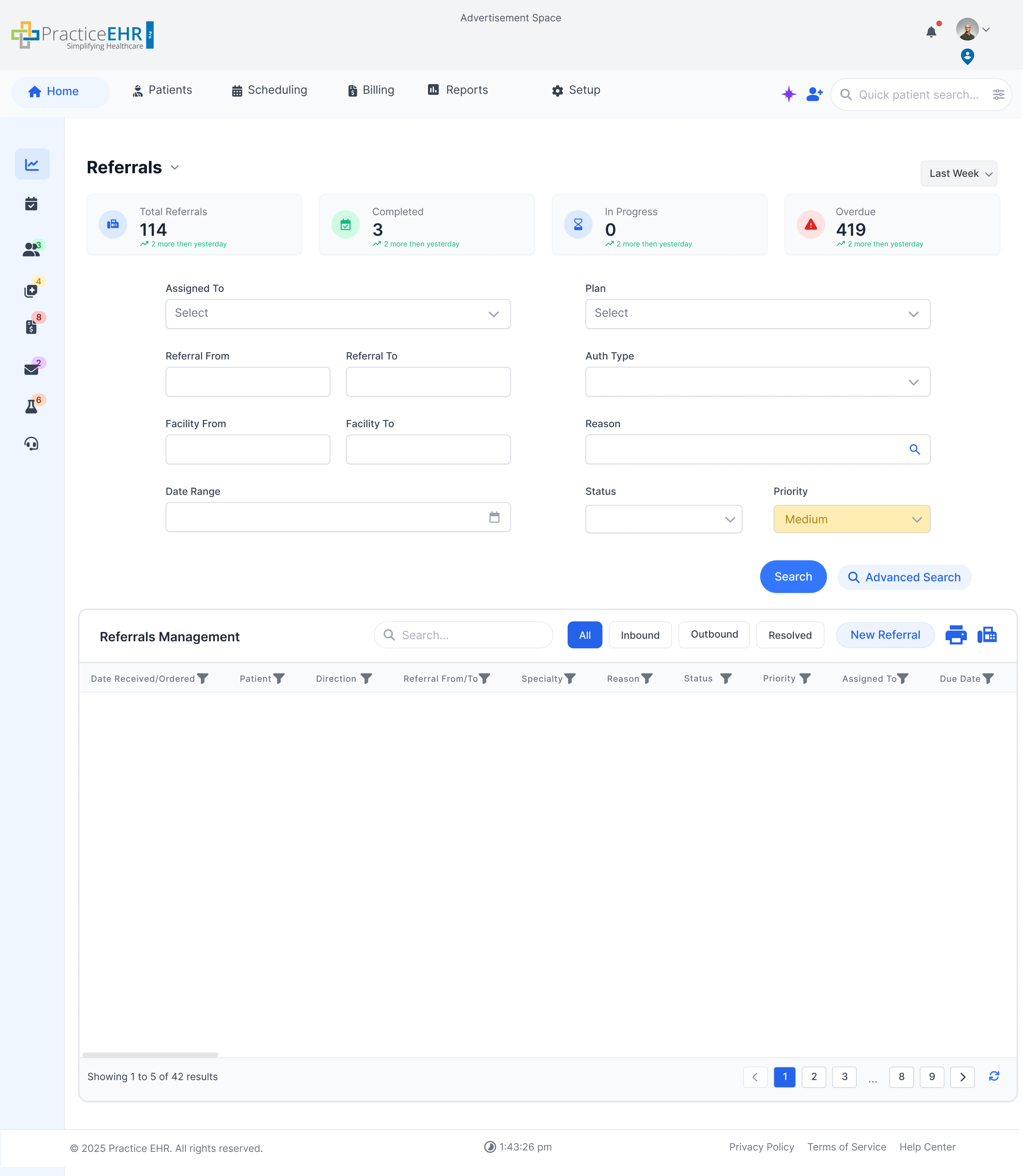
Narrow results by status, provider, date, and attributes.
Filters
- Assigned To - staff/user responsible for the referral.
- Plan - payer/plan used for the referral.
- Referral From / Referral To - referring and receiving providers.
- Auth Type - authorization category when required.
- Facility From / Facility To - originating and destination facilities.
- Status - New, In Progress, Completed, Cancelled.
- Priority - Low, Medium, High (colored chip selector).
- Date range: start and end range for the referral
Behavior
- Search button applies the current filters and refreshes the grid.
- Priority renders as a pill control; current value is highlighted.
- Active filters persist while you navigate within Referrals during the session.
Statuses and Priorities
Reference pills used for inbound and outbound referral workflow plus urgency levels.
Outbound Statuses
Priorities
New Referral
Create a referral by completing patient and provider details.
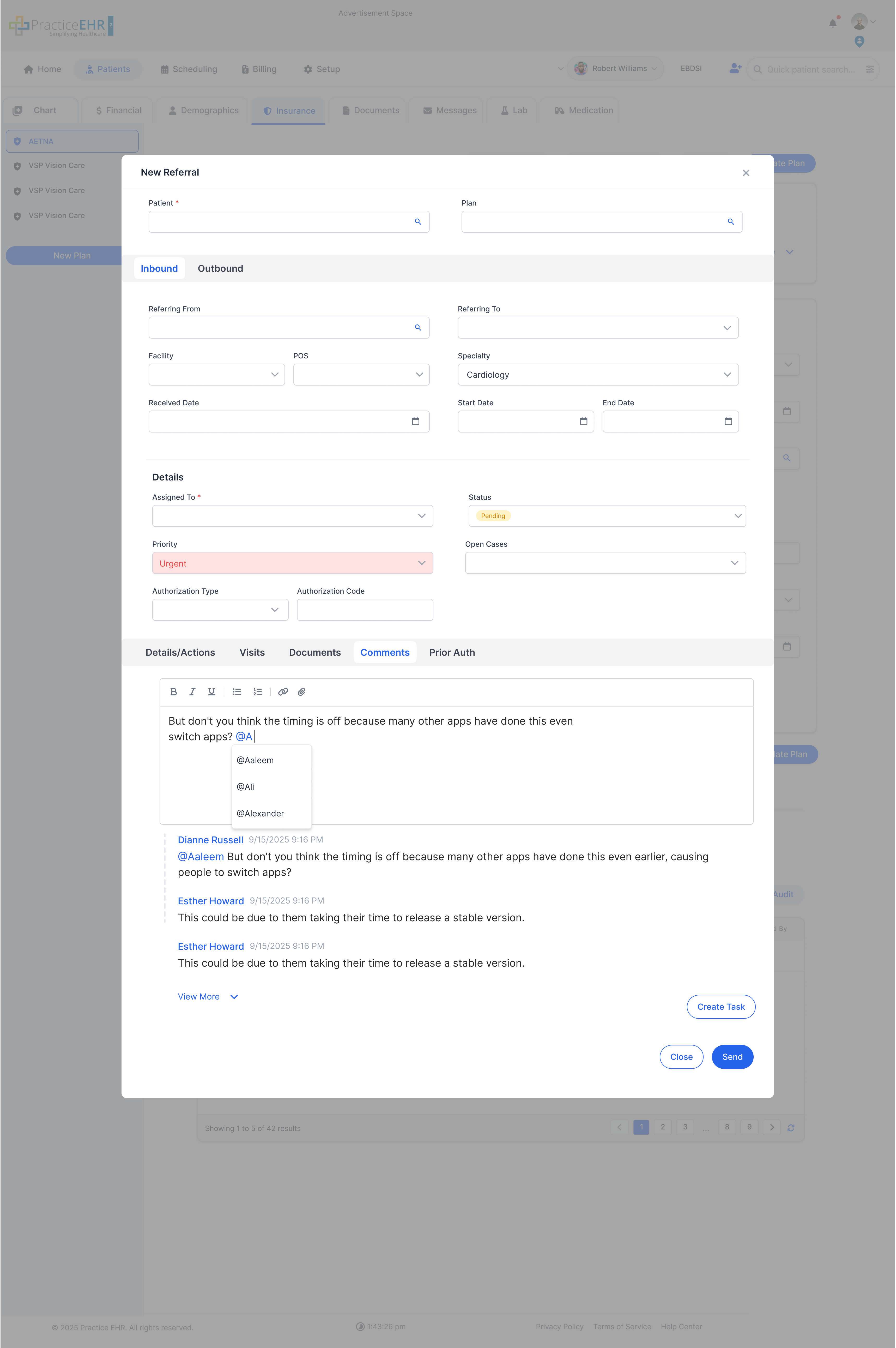
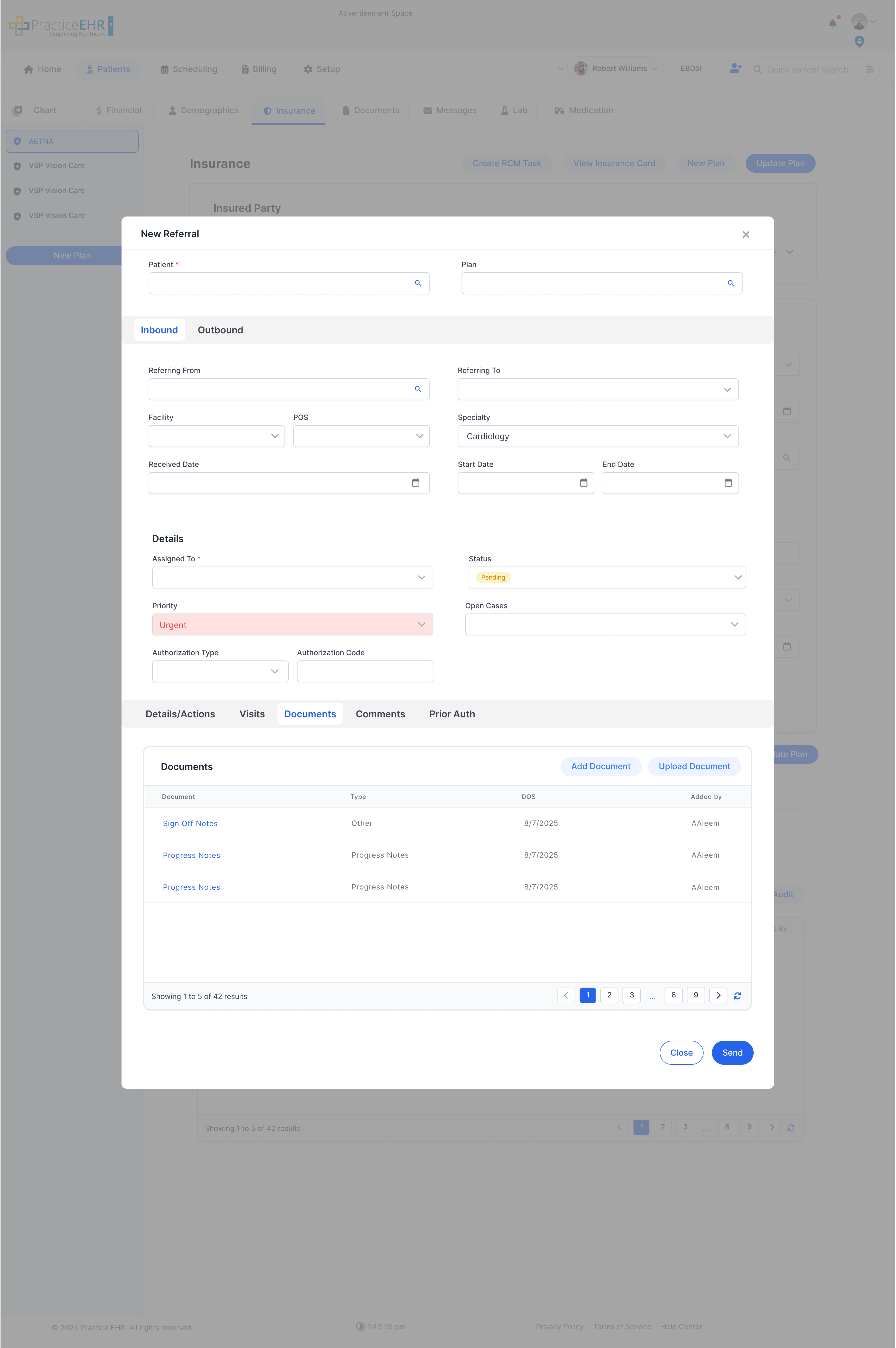
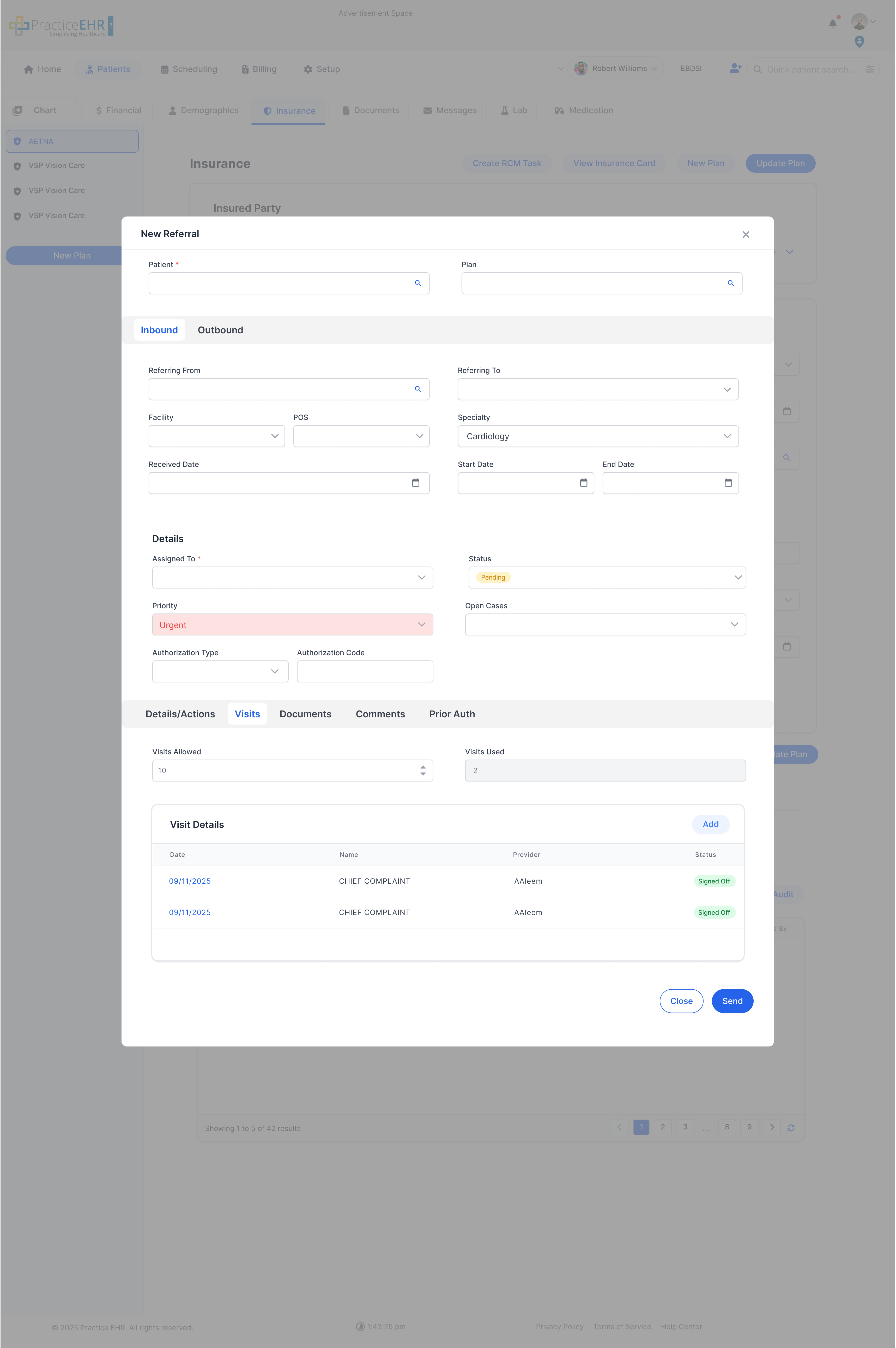
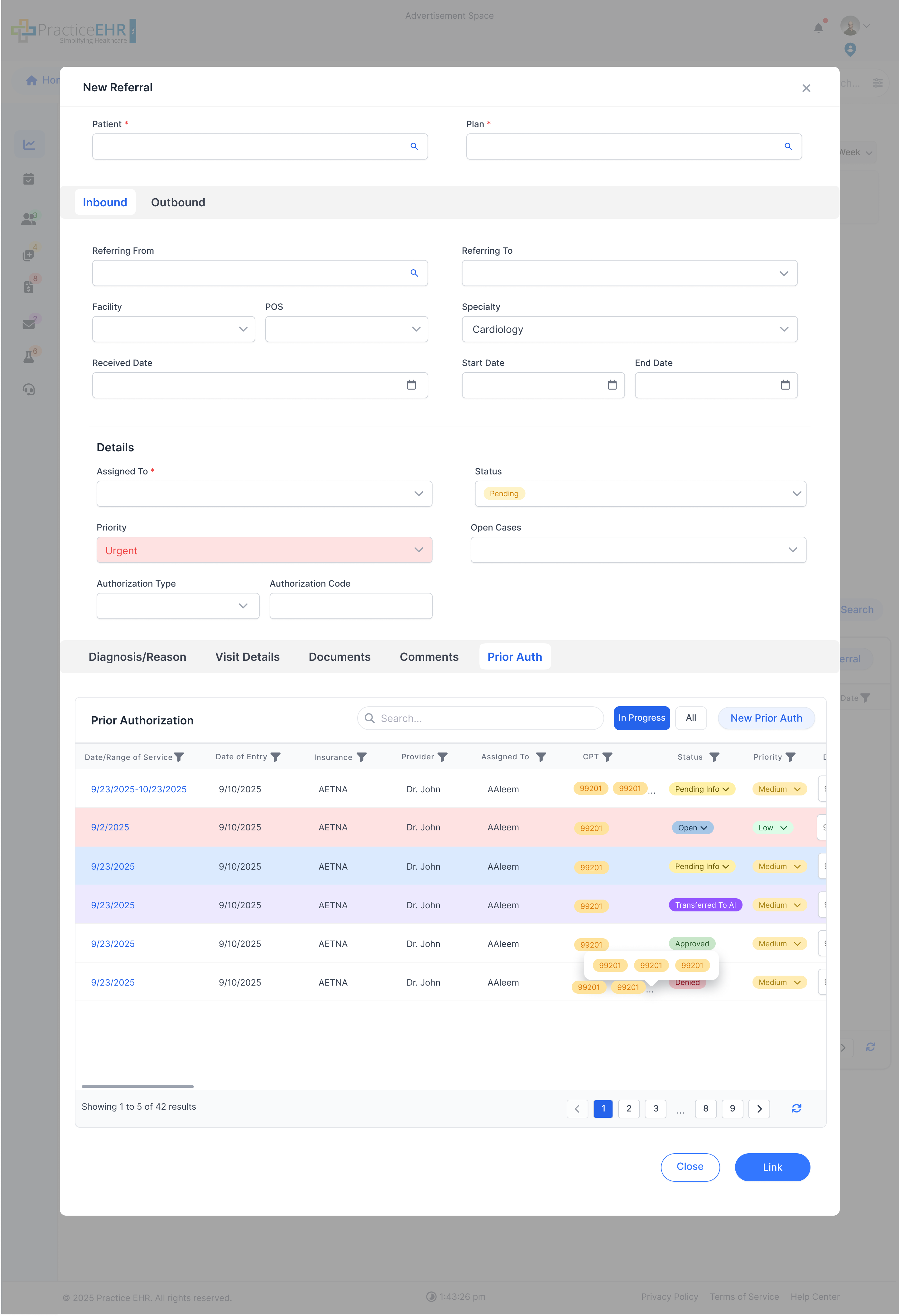
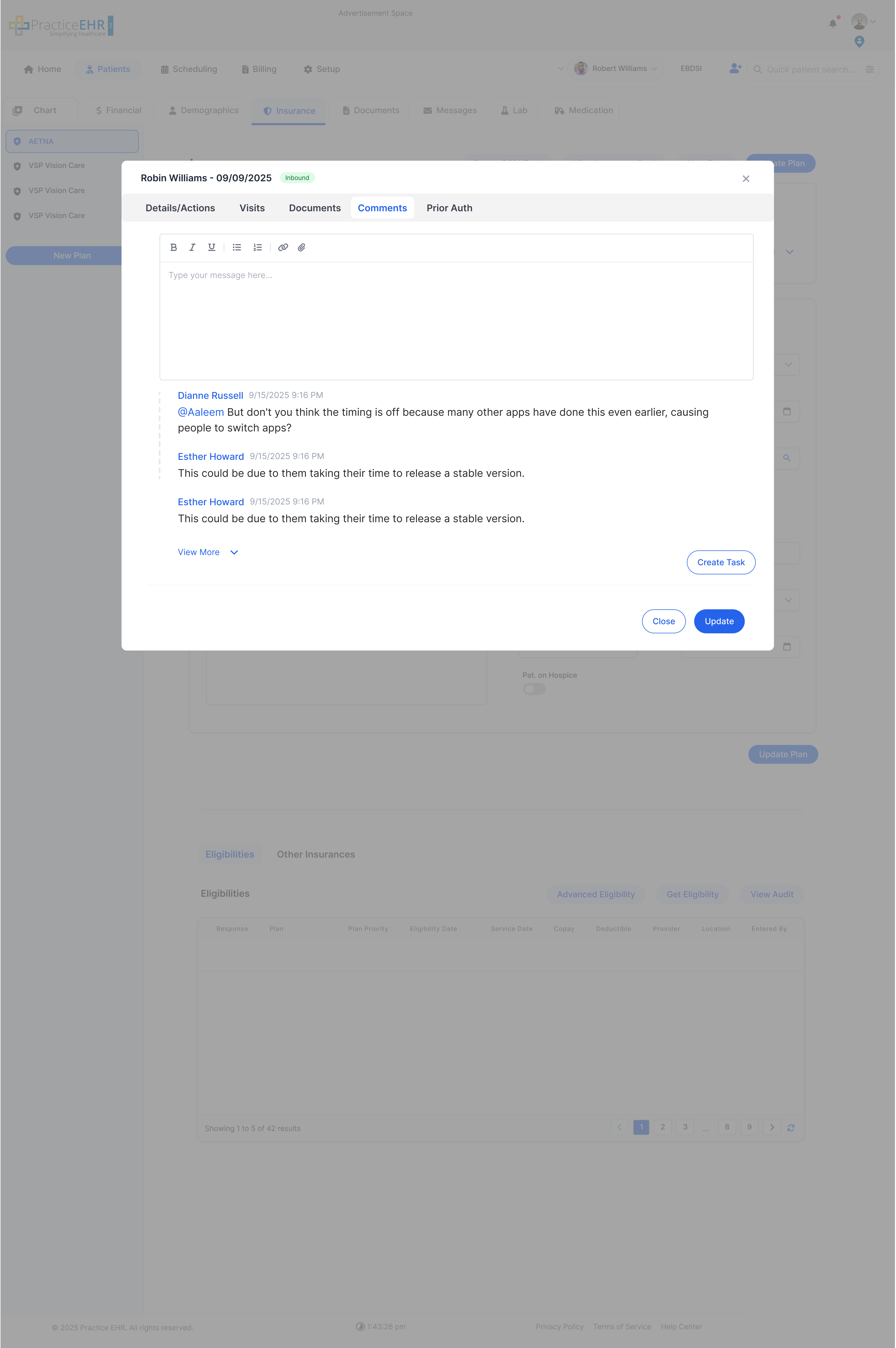
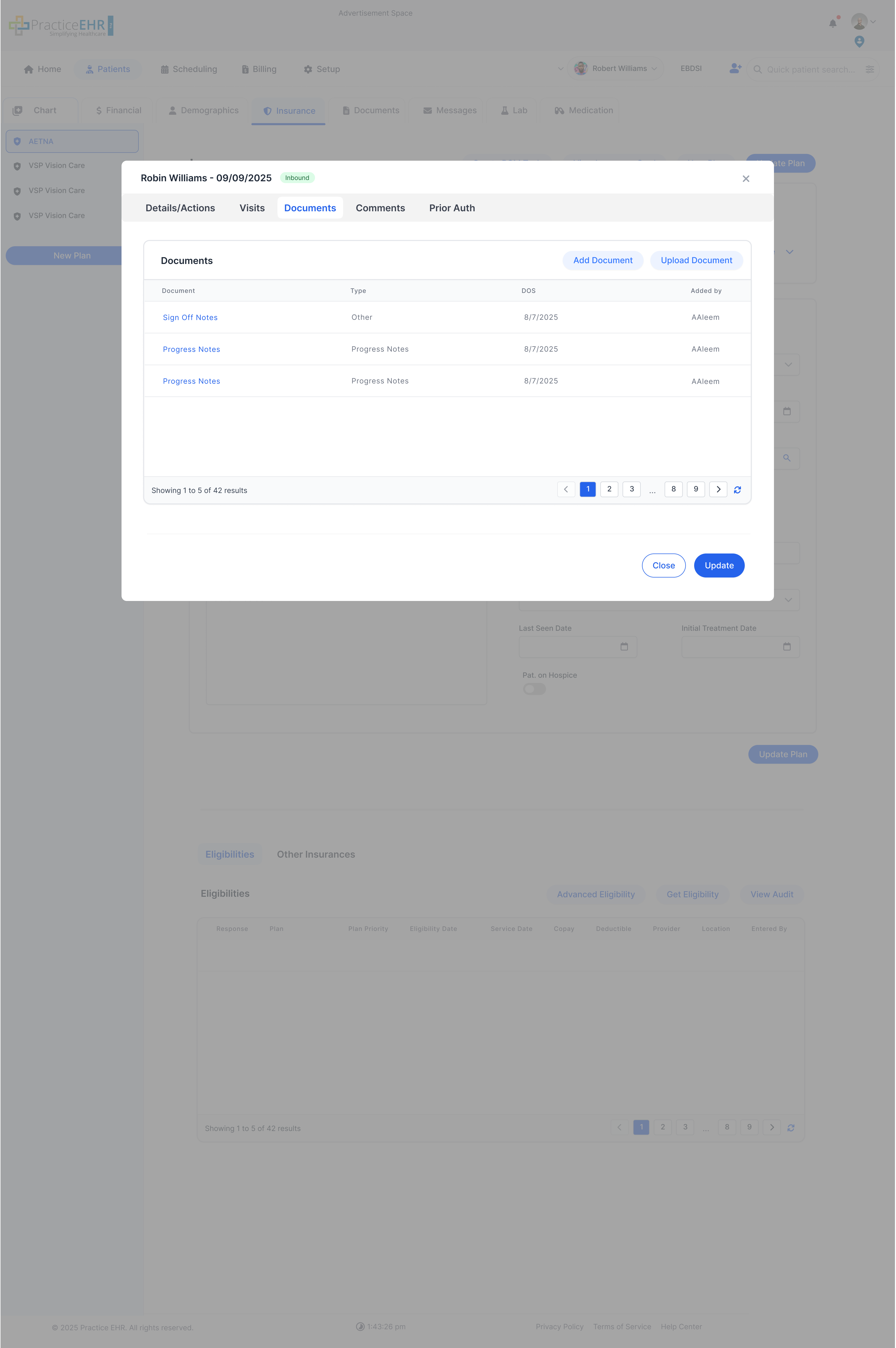
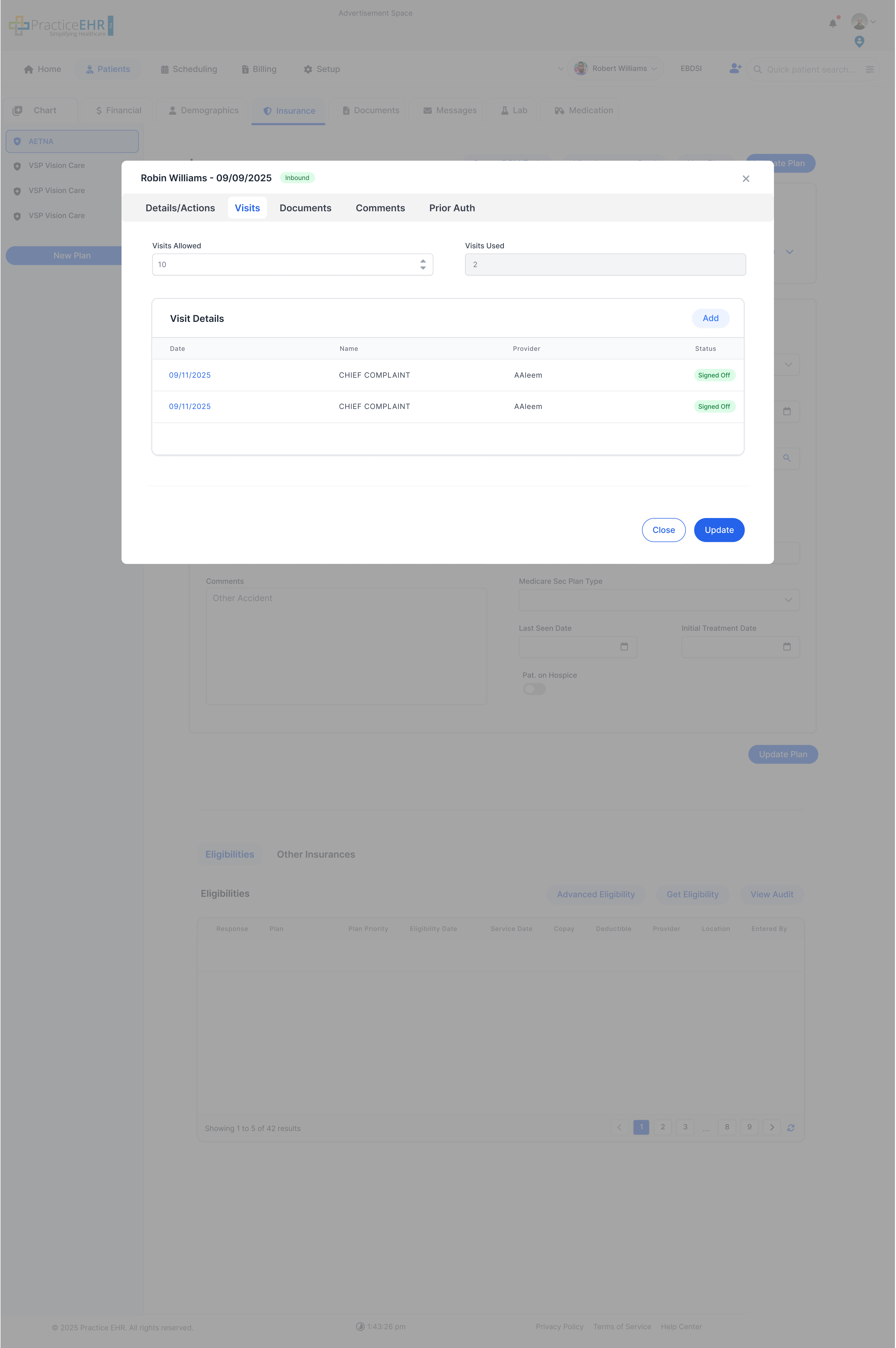
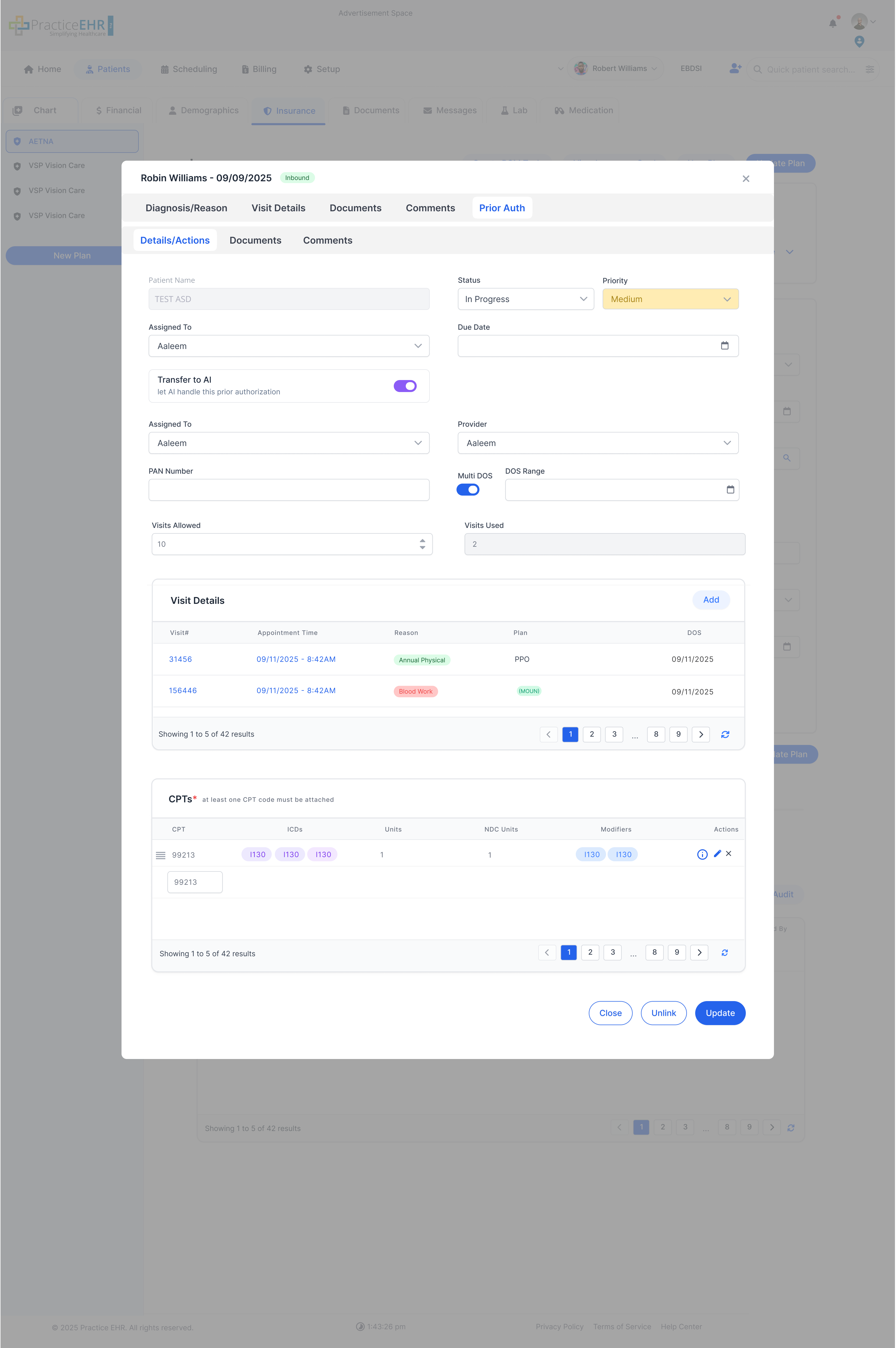
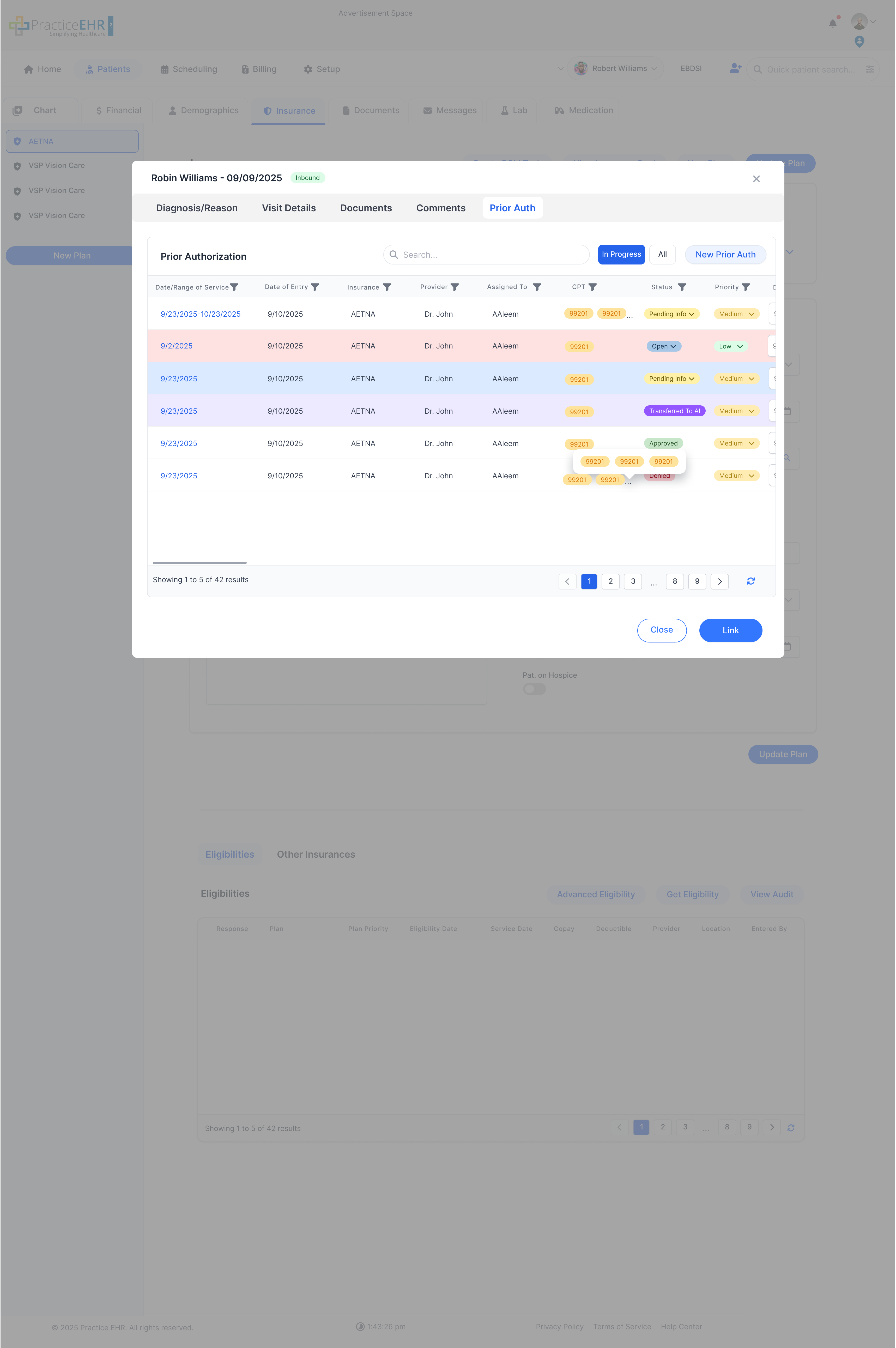
The New Referral window now includes pills for Details / Actions, Comments, Documents, Visits, and Prior Auth. The Details / Actions pill contains Inbound and Outbound tabs. Prior Auth is shown only for inbound referrals.
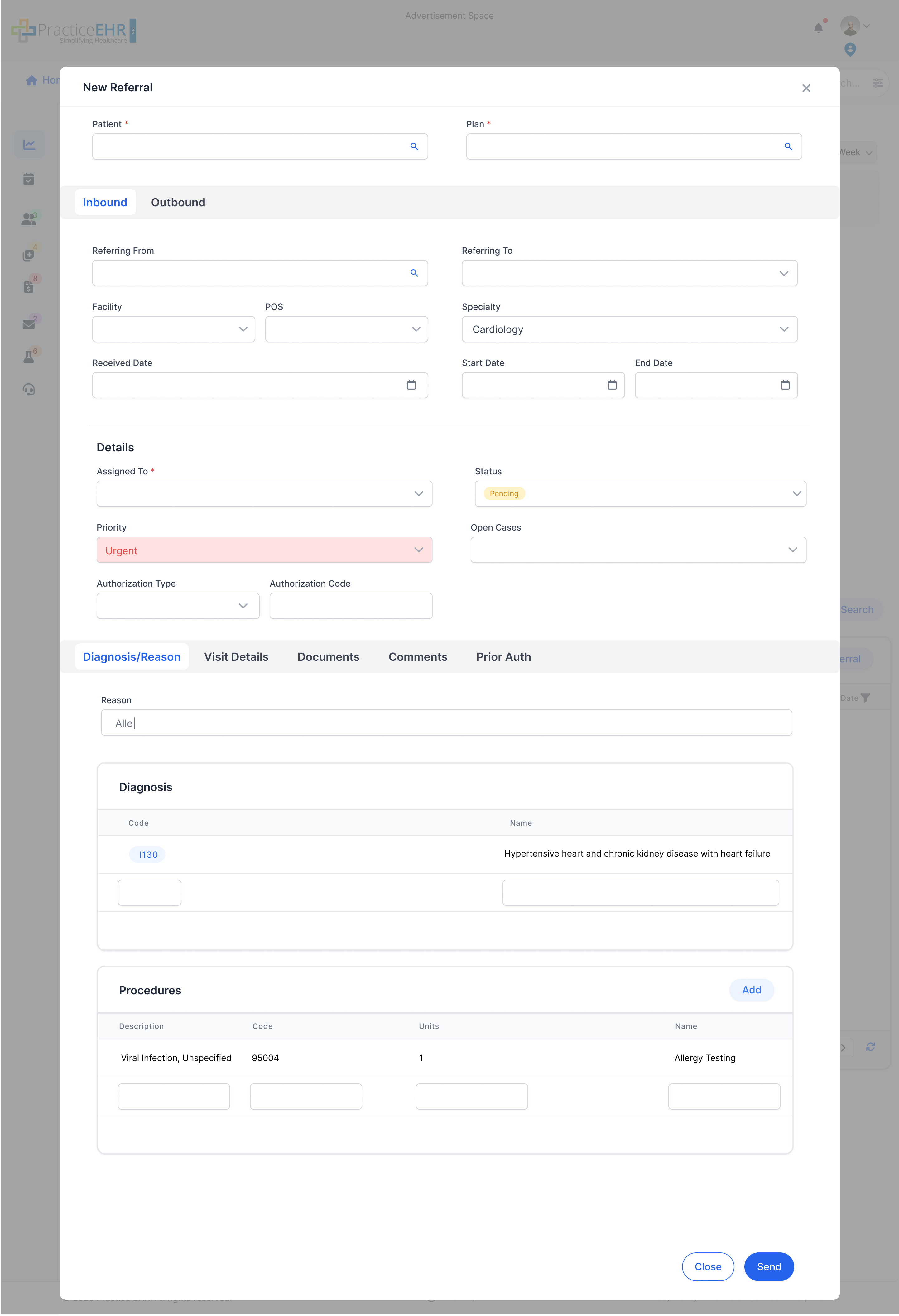
Referral Details
- Patient Name (Smart Search)*
- Plan
Notes
- The Referring To field in this window contains the dropdown of all provider
- The Location or Facility field is PEHR's standard location field
Inbound Fields
- Referring From
- Facility
- Specialty (should auto-fill if in referring provider)
- Received Date
- Start Date
- End Date
- POS
- Status
Details
- Assigned To
- Status
- Priority
- Open Cases
- Authorization Type
- Authorization Code
Patient -> Insurance
From a patient chart, the Insurance tab also includes Referrals Management.
Where to Find It
- Open a Patient -> go to the Insurance tab.
- The bottom section shows Referrals Management with "All / Incoming / Outgoing" and a New Referral button.
Note
Referrals Management is accessible both here (Patient -> Insurance) and from the standalone Referrals module; data stays in sync.
Insurance Actions
- New Plan, Update Plan, View Insurance Card, Create RCM Task.
- Eligibilities tab to review eligibility responses.
New Referral - Inputs & Behavior
- Patient - once selected, the Plan field auto-fills from the patient's insurance.
- When referral creation is launched from the Insurance section, Plan, Provider, and Location are pre-selected; users can change them if needed.
- From / To - provider, facility, and specialty for referral direction.
- Dates - Start/End, Received, Referral, Appointment.
- Assigned To - required user; Status drives workflow.
Patient Chart -> New Referral
Referrals can also be created directly from the Patient Chart. Clicking New Referral opens the same referral screen used across the app.
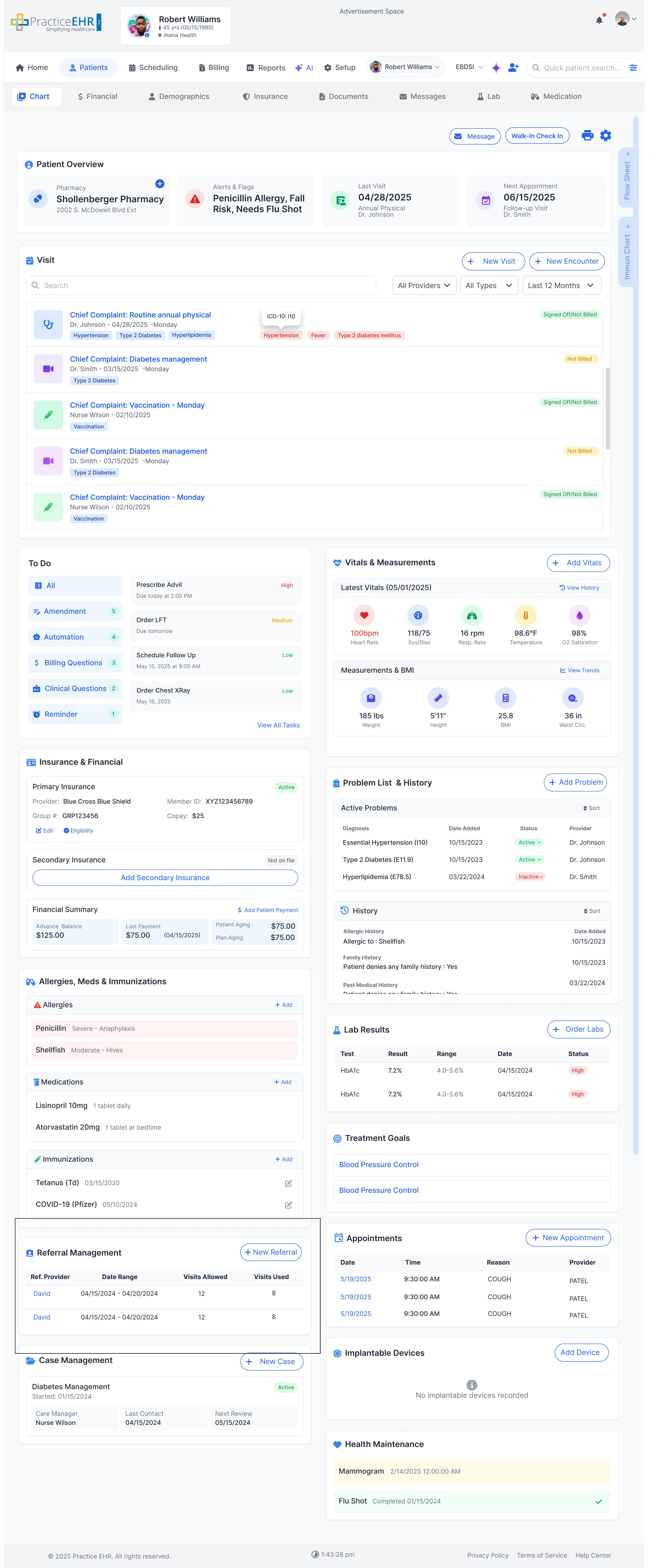
Where to Find It
- Open a Patient Chart.
- In the left column, locate the Referral Management card.
- Click New Referral to launch the referral screen.
Update Referral
The update referral window has been changed now at the top header it displays the patient name, referral date and the referral type. The Update Referral window now shows Patient Name, Referral Date, and Referral Type in the header, and is divided into multiple tabs, including Prior Auth:
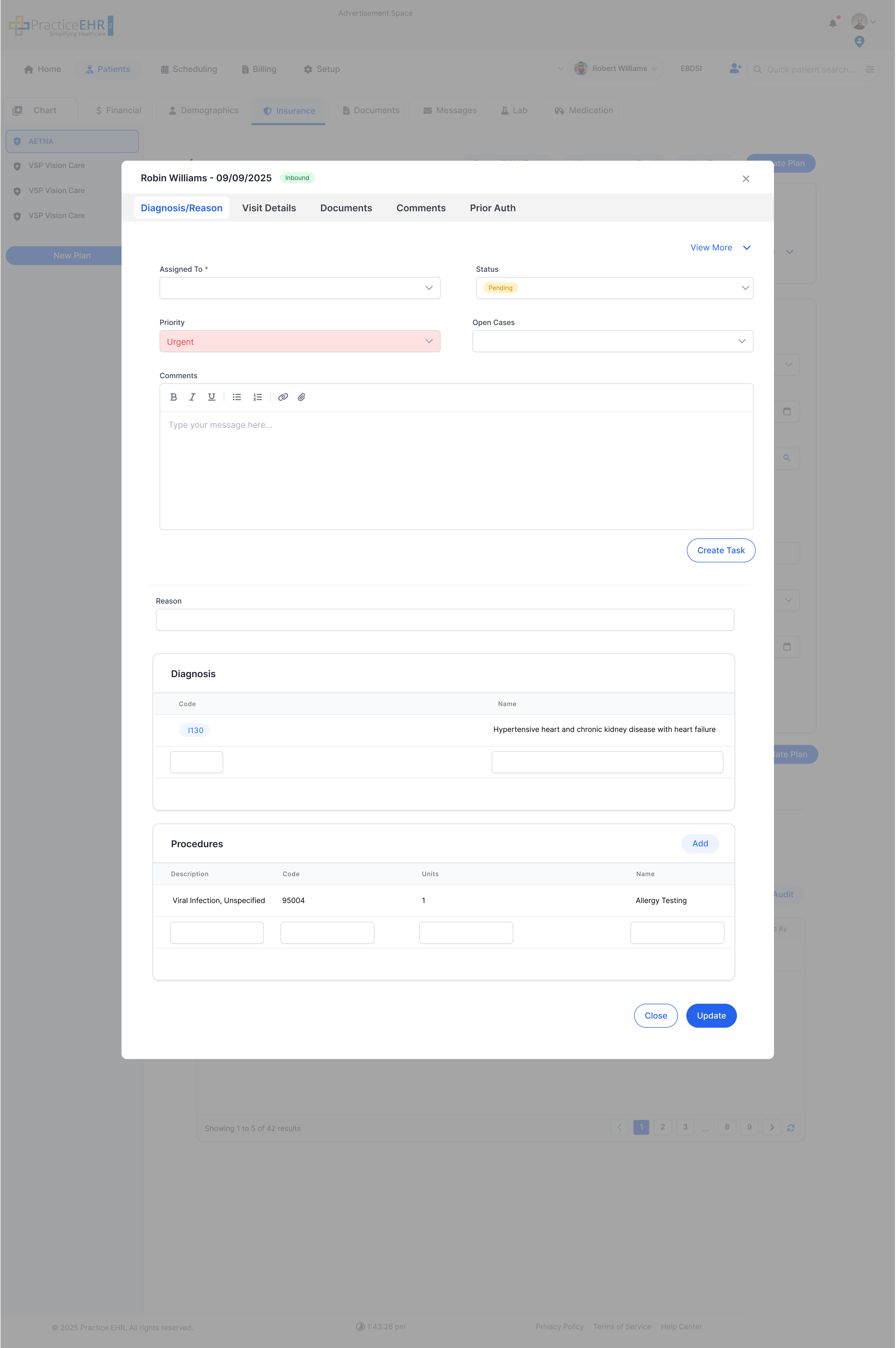
Details / Actions
Includes fixed information hidden behind a View More button.
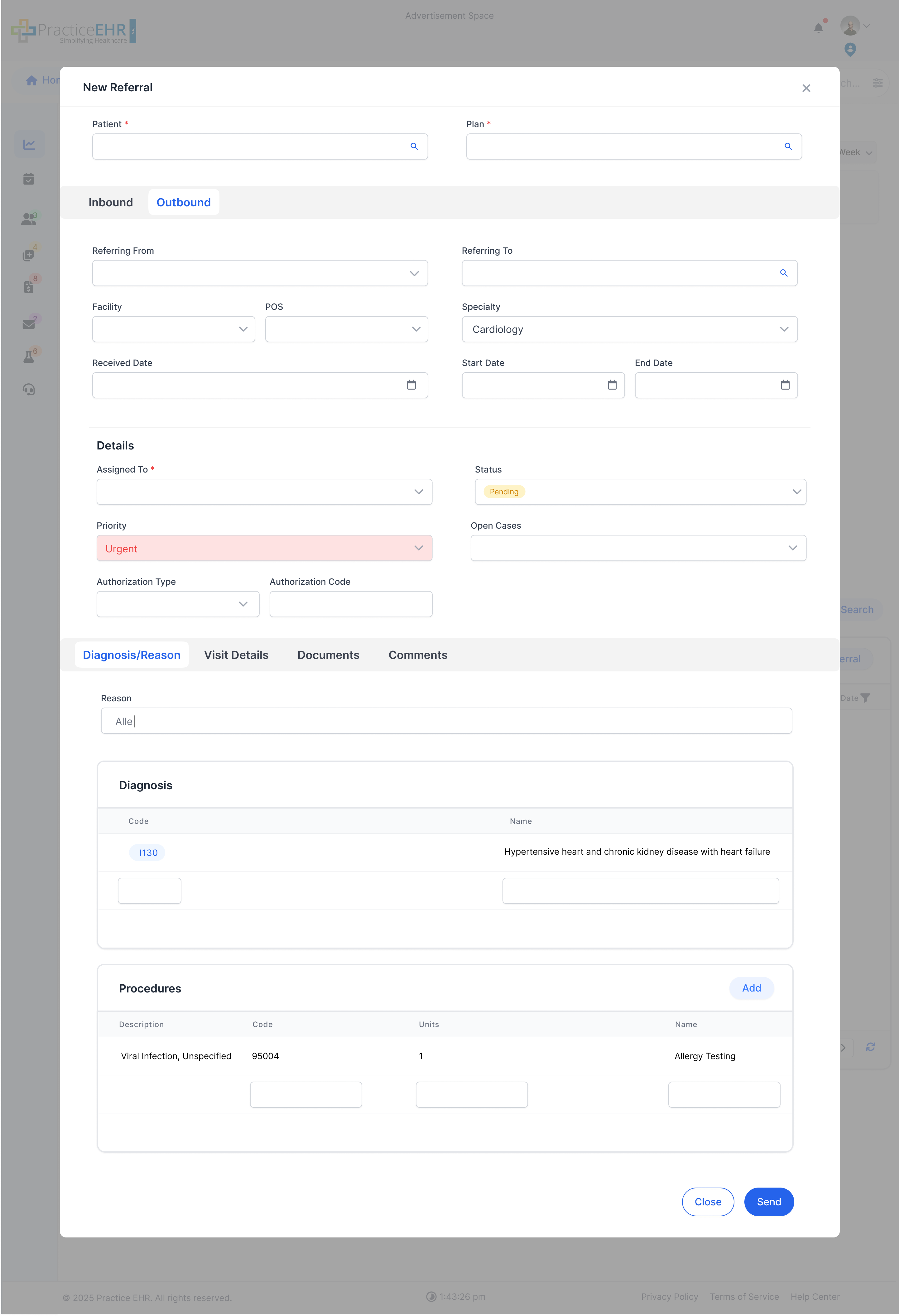
Fixed Information (Both Cases)
- Patient Name
- Plan
- Authorization Type
- Authorization Code
- Facility (for outbound, may be linked to referring provider where available)
- Specialty (auto-fills if mapped in referring provider)
- Received Date
- Start Date
- End Date
- POS
- Status
Inbound Case
- Referring From
- The Referring To field in this window contains the dropdown of all providers.
Outbound Case
- Referring To
- The Referring From field in this window contains the dropdown of all providers.