Rule Builder
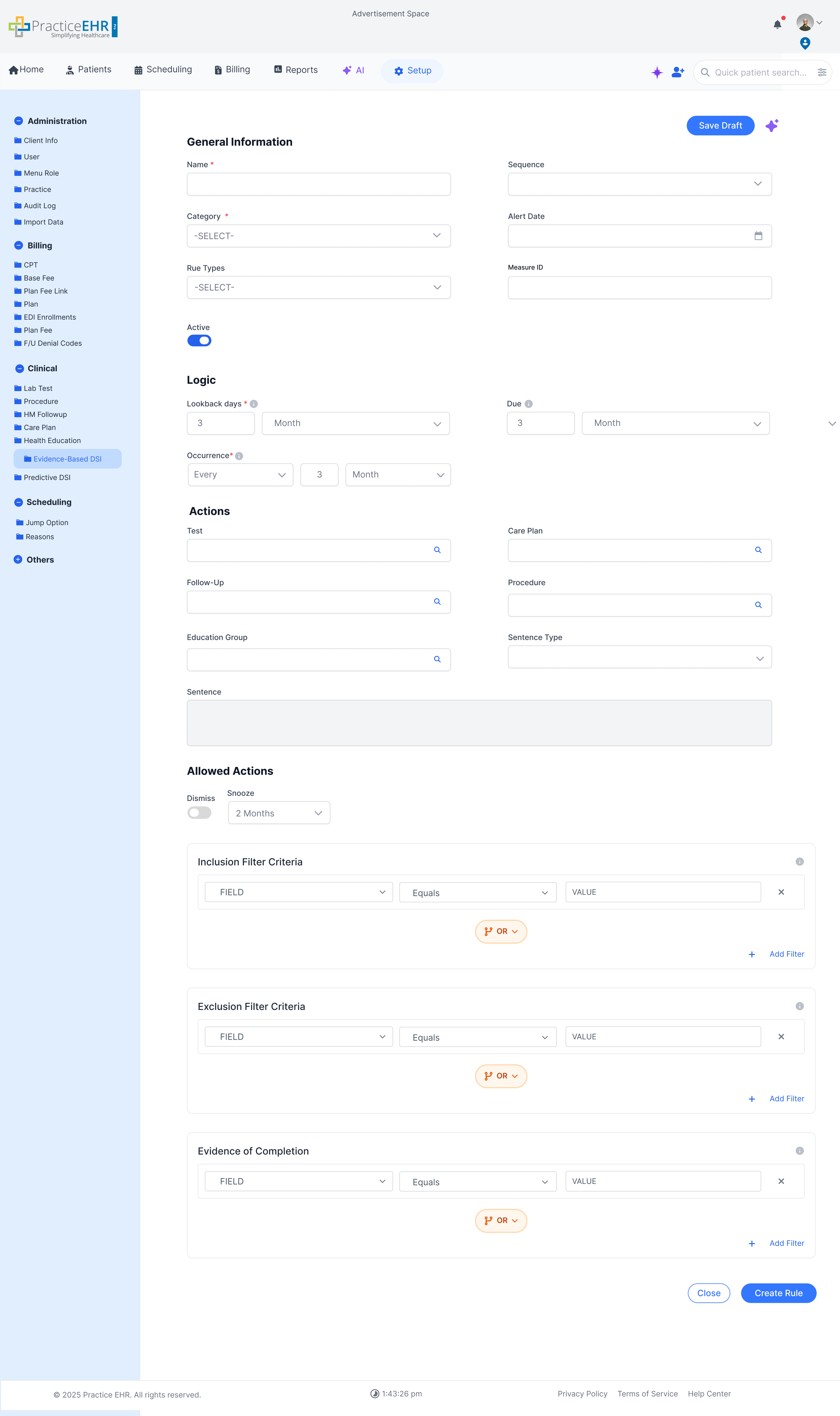
This is where teams create and maintain EBDSI rules. Each rule is built from structured, deterministic logic, with no free text and no assumptions behind the scenes.
How to get here
Go to Setup tab → Clinical → EBDSI, then open an existing rule or click New Rule.
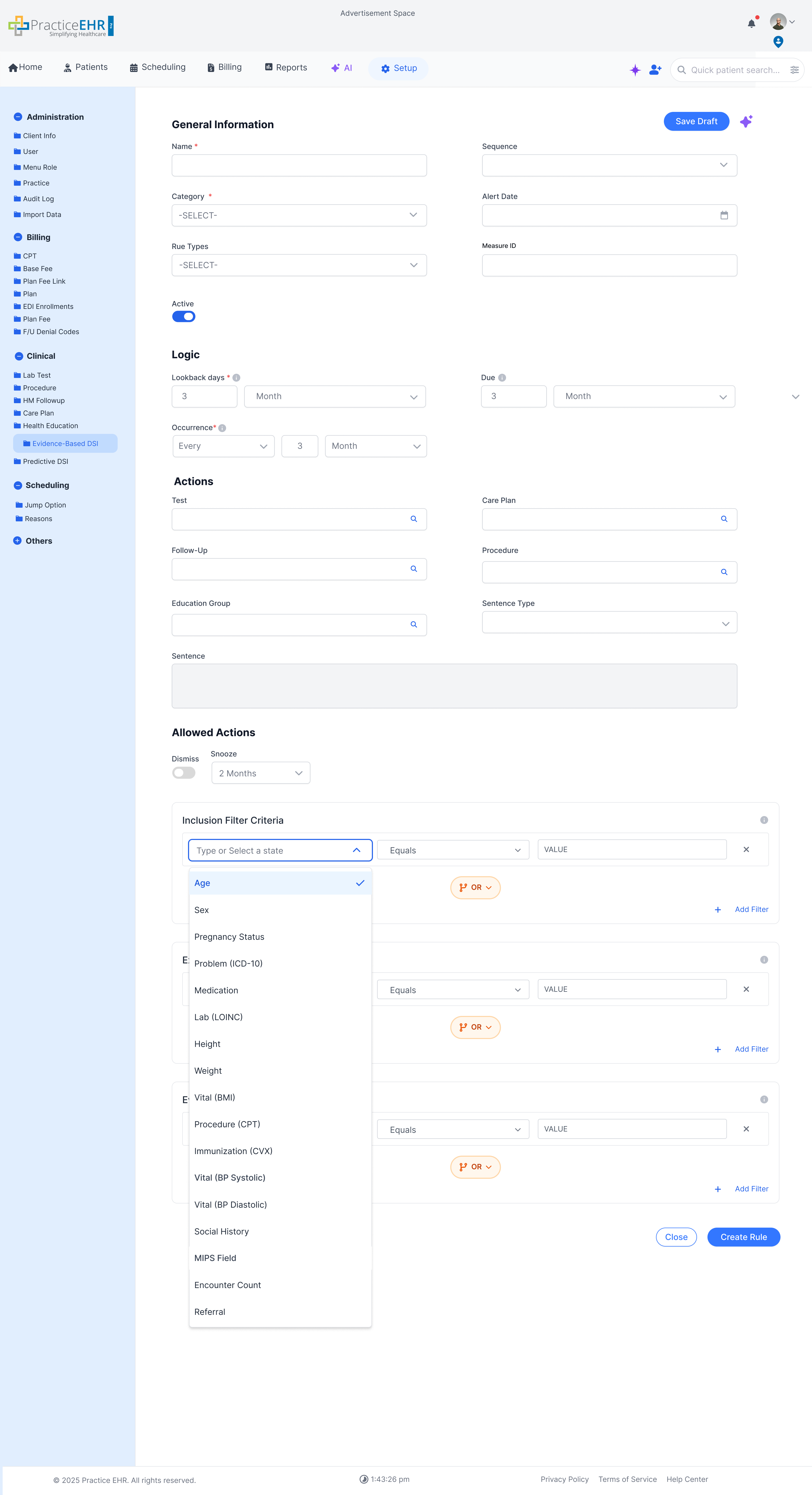
General Information - every field
- Title (Sentence Type) - Selects the clinical note type. It works with the Sentence field to control how the EBDSI item is written into the note.
- Sentence - The text template EBDSI uses when the provider accepts the item. The field stays disabled until a Sentence Type is chosen. If it stays blank, the item works as a reminder only and nothing is sent to Sentence View or the clinical note. If it is filled in, that text is inserted into the note when the item is accepted. In that case, the item can only be accepted when a visit is open.
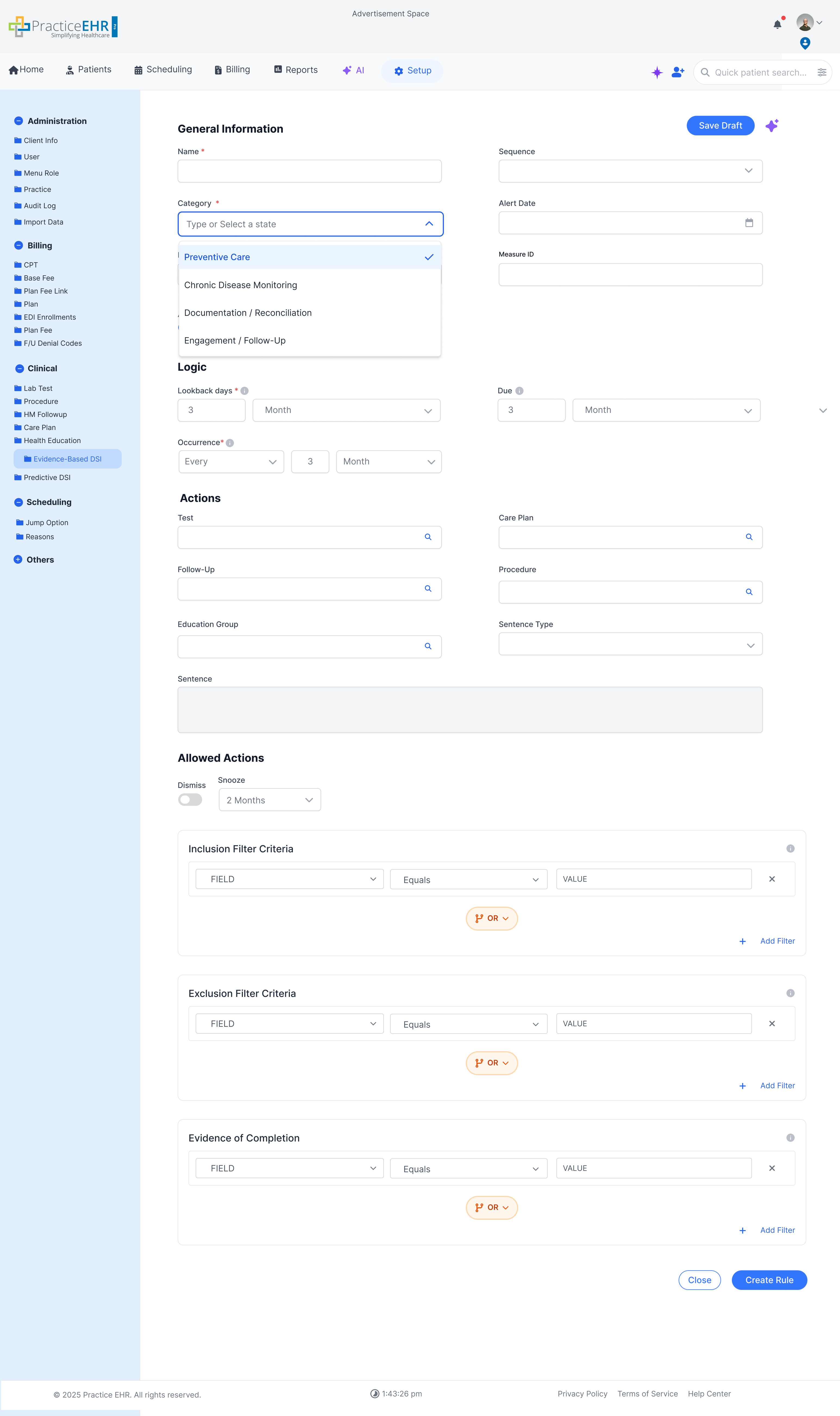
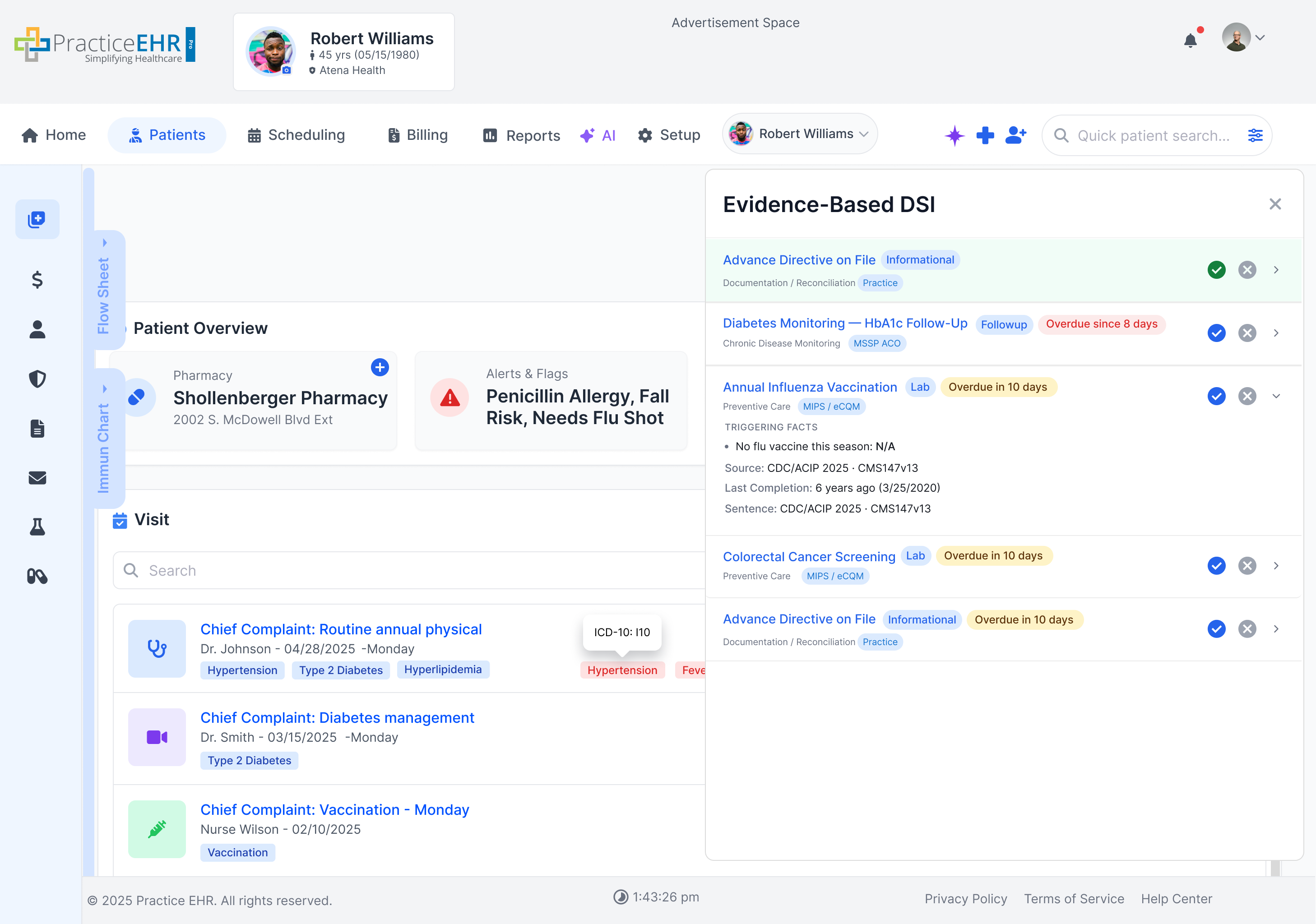
- Category - Places the rule in one of four lanes: Preventive Care, Chronic Disease Monitoring, Documentation / Reconciliation, or Engagement / Follow-Up. This controls the panel label, available actions, and priority weight.
- Alert Date - Sets the date when the alert should first appear. Use this for awareness-only rules that do not require a provider response.
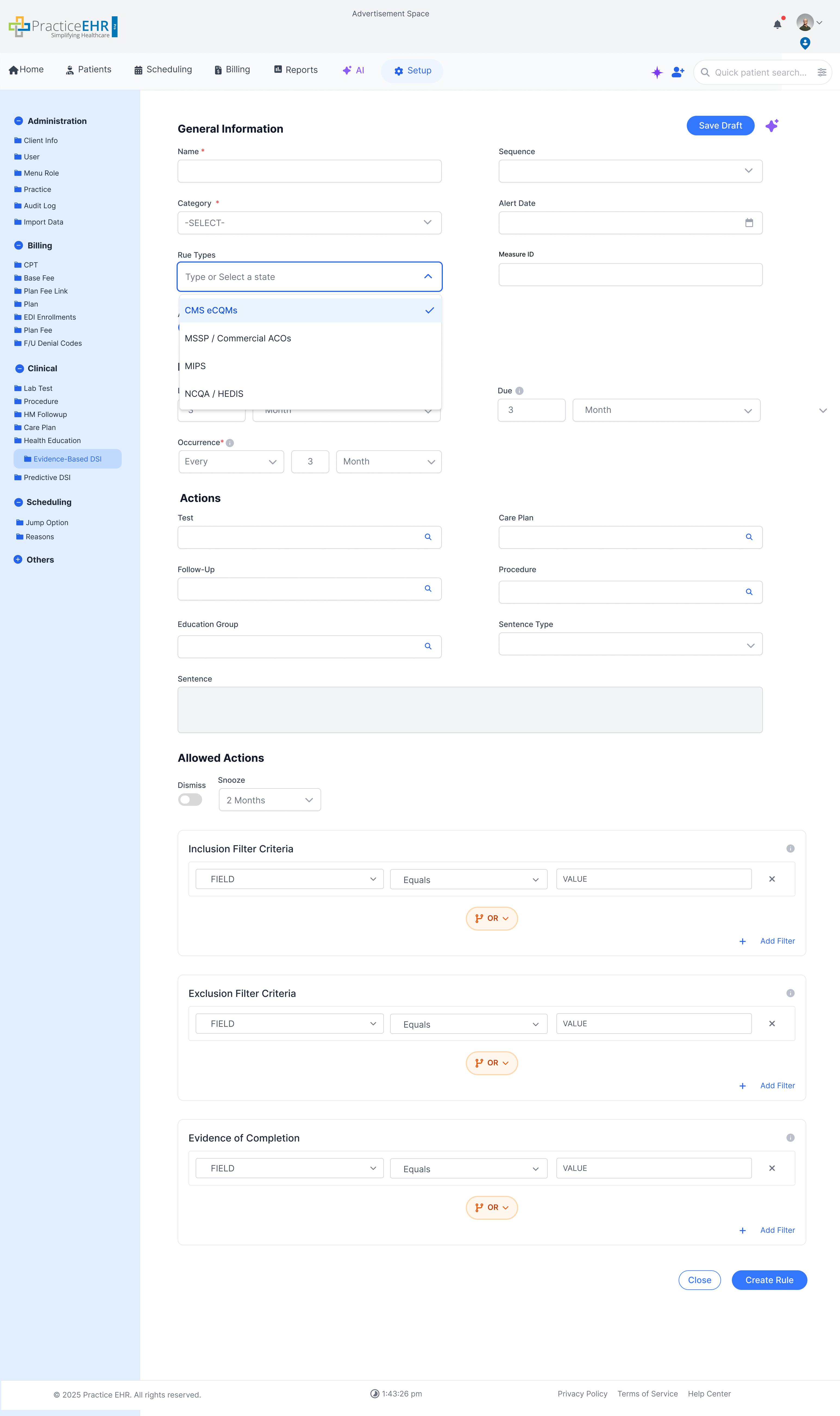
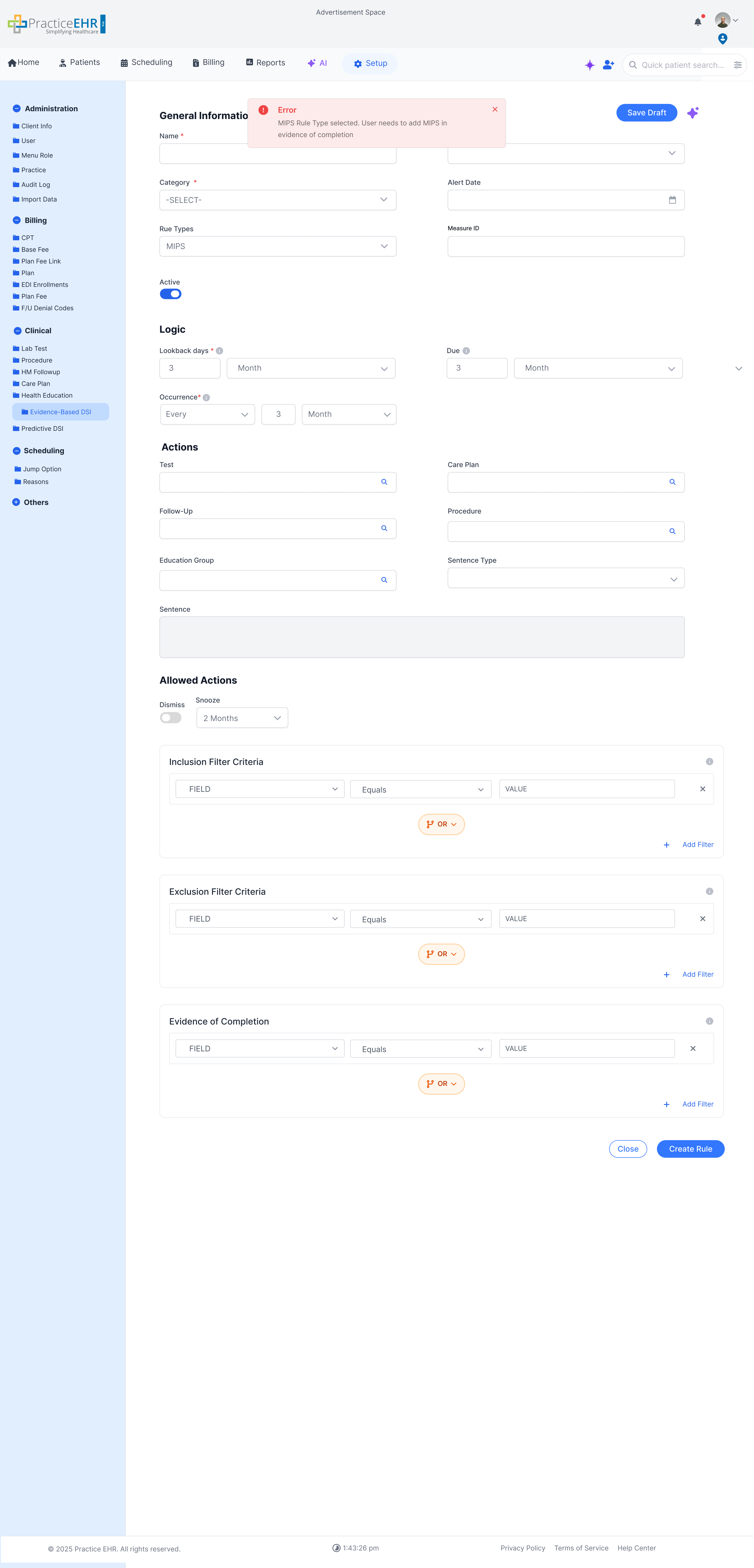
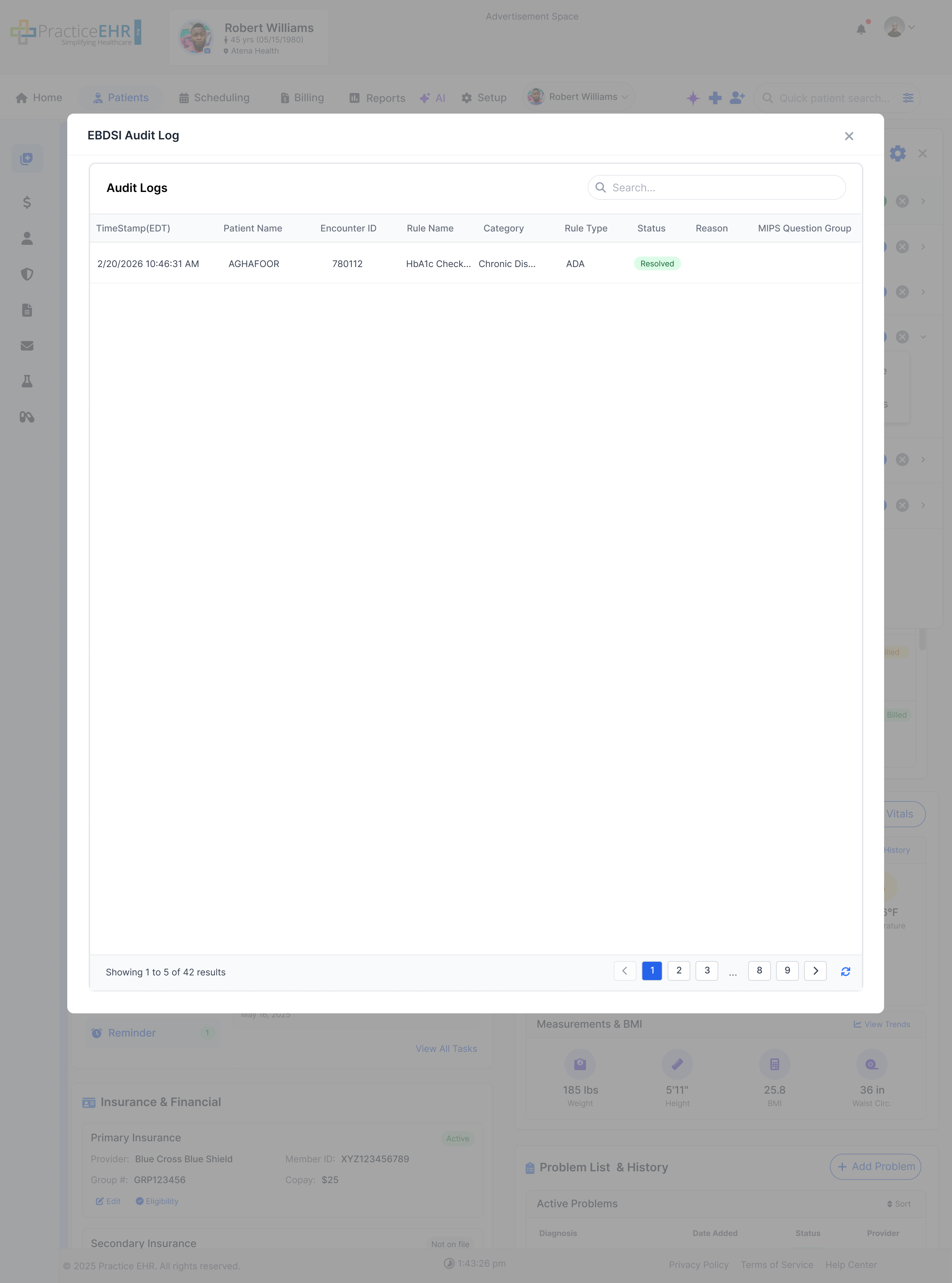
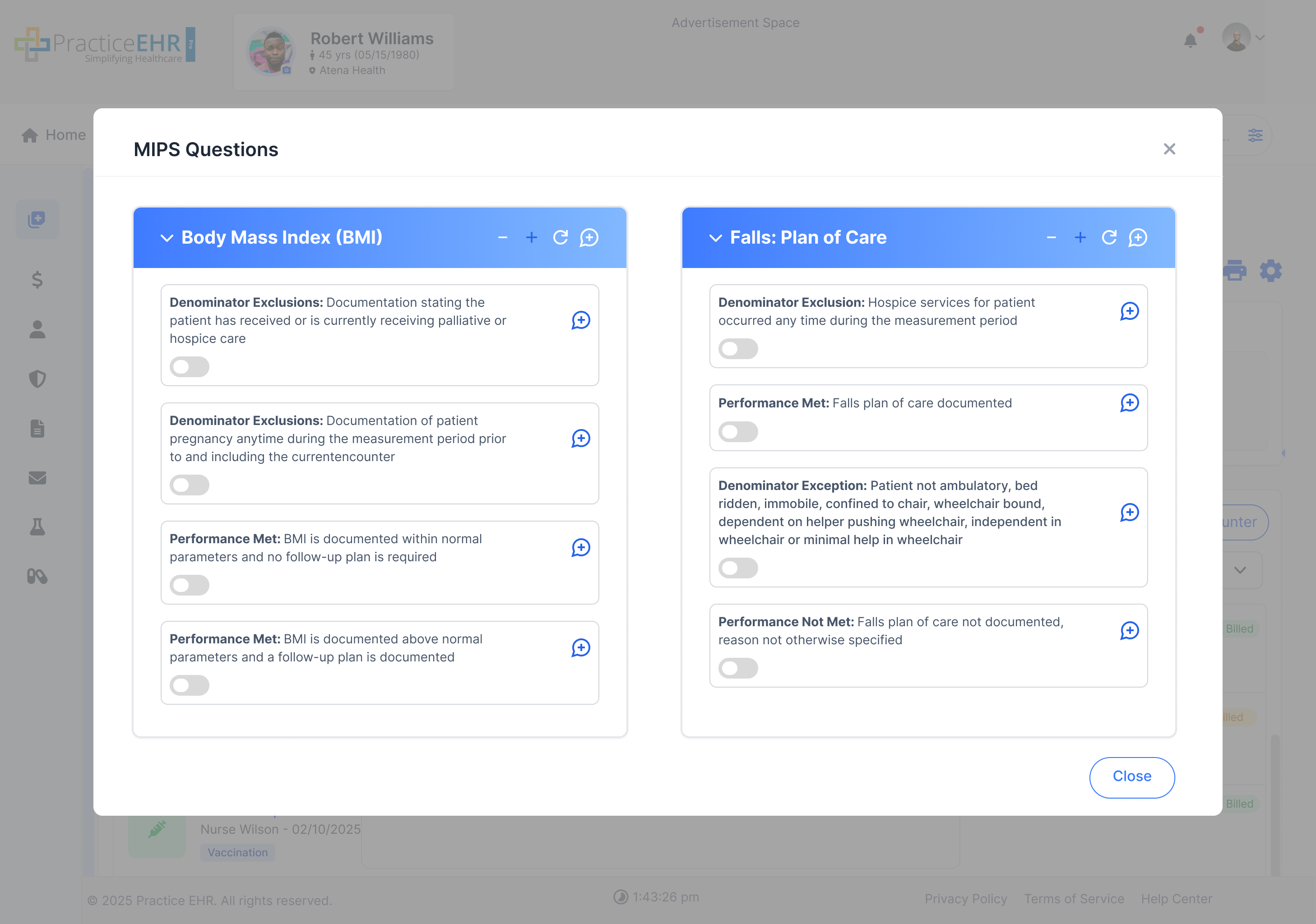
- Rule Type - Identifies the guideline family, quality program, or internal rule this item belongs to (for example, USPSTF, CMS eCQM, ADA, or an internal practice rule). It supports auditability and ACO / MIPS defensibility.
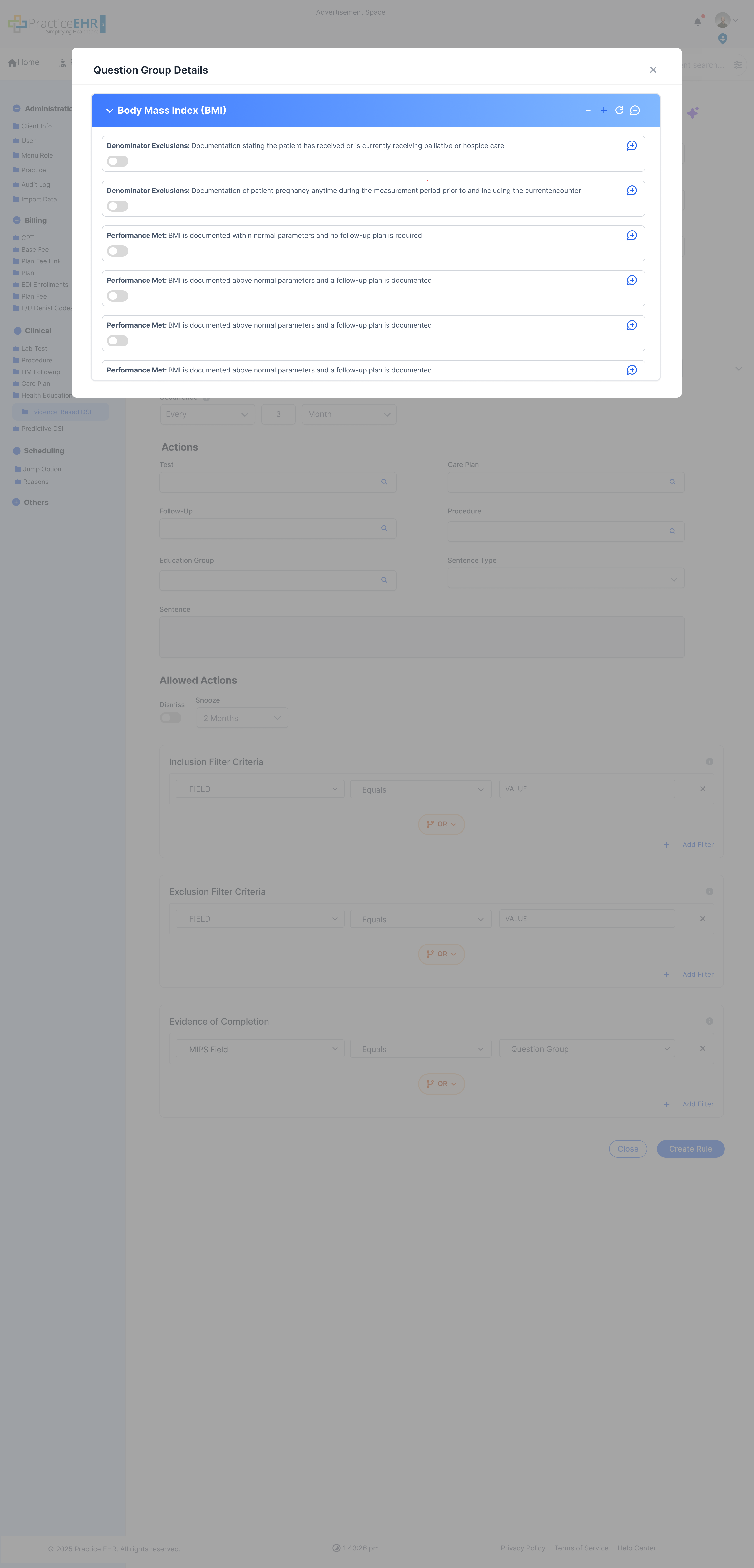
- Measure ID - Unique identifier for a quality measure (e.g., CMS130v12). Required when Rule Type is a quality program. Drives the program badge shown in the panel and links the rule to ACO / MIPS / eCQM reporting.
- Sequence - Runs automatically when an EBDSI item is accepted. For more on sequences, see Workflow Automation.
Logic - every field
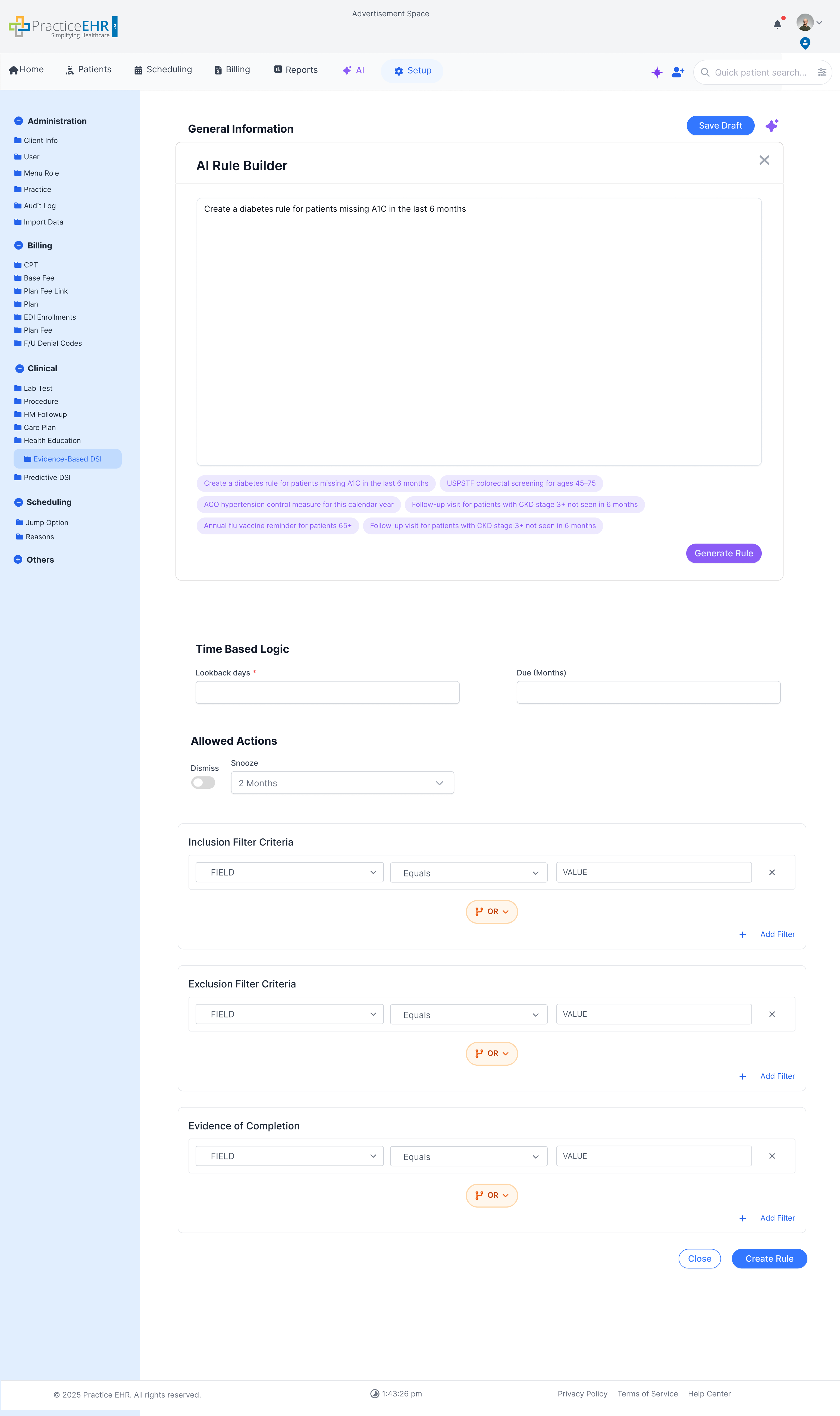
- Lookback Days - Uses two fields: one for the number and one for the duration unit (days, weeks, months, or years). A small info icon next to the field explains how Lookback works. This setting tells EBDSI how far back in the chart to search for evidence. Example: 12 + months.
- Due Months - Also uses a number field and a duration unit. The nearby info icon explains how Due works. This setting tells EBDSI when the item should become due. Due must always be greater than Occurrence. By default, if Occurrence is N, Due is set to N + 1. Users can move it later, but never to the same value or lower.
Logic now groups Lookback, Due, and Occurrence. Each setting uses a numeric value plus a duration unit such as days, weeks, months, or years. The Due rule only applies when Occurrence is set to Every; it does not apply to No-Until.
Rule: "HbA1c check for diabetic patients"
Lookback = 12 + months → "Has this patient had an HbA1c in the last 12 months?"
Due = 3 + months → If the last HbA1c was 9 months ago, the patient is already overdue because the rule expects one every 3 months.
If evidence is found within 12 months and still within the 3-month due window, the alert stays suppressed.
Info Icons In Logic
A small info icon appears next to Lookback Days, Due, and Occurrence in the Rule Builder. Hovering over it opens a tooltip that explains how each field behaves.
Tooltip design: white rounded tooltip card, soft shadow, dark text, and a small bottom pointer, matching the demo tooltip style.
Lookback Days tooltip
Due tooltip
Occurrence tooltip
Allowed Actions - every field
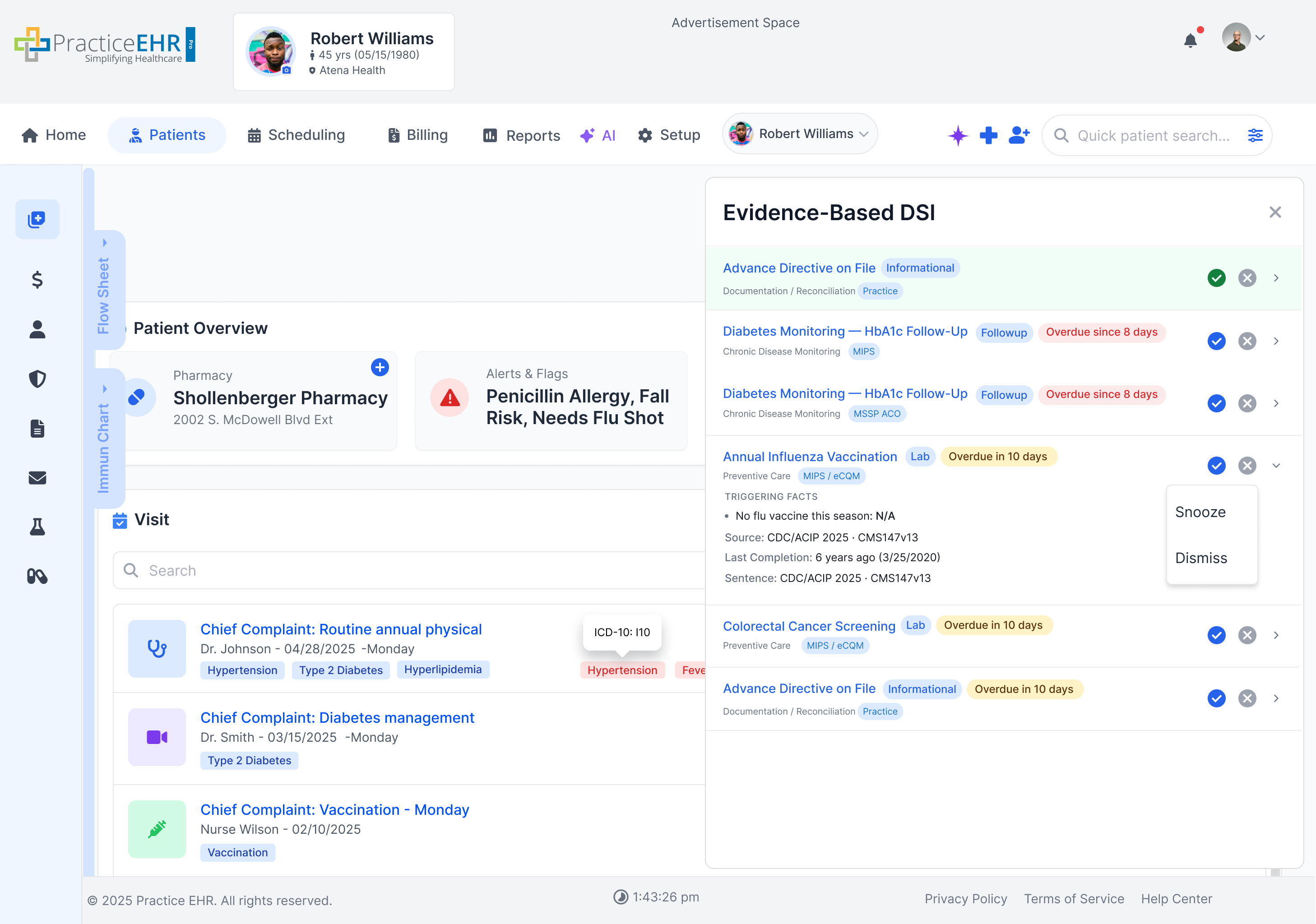
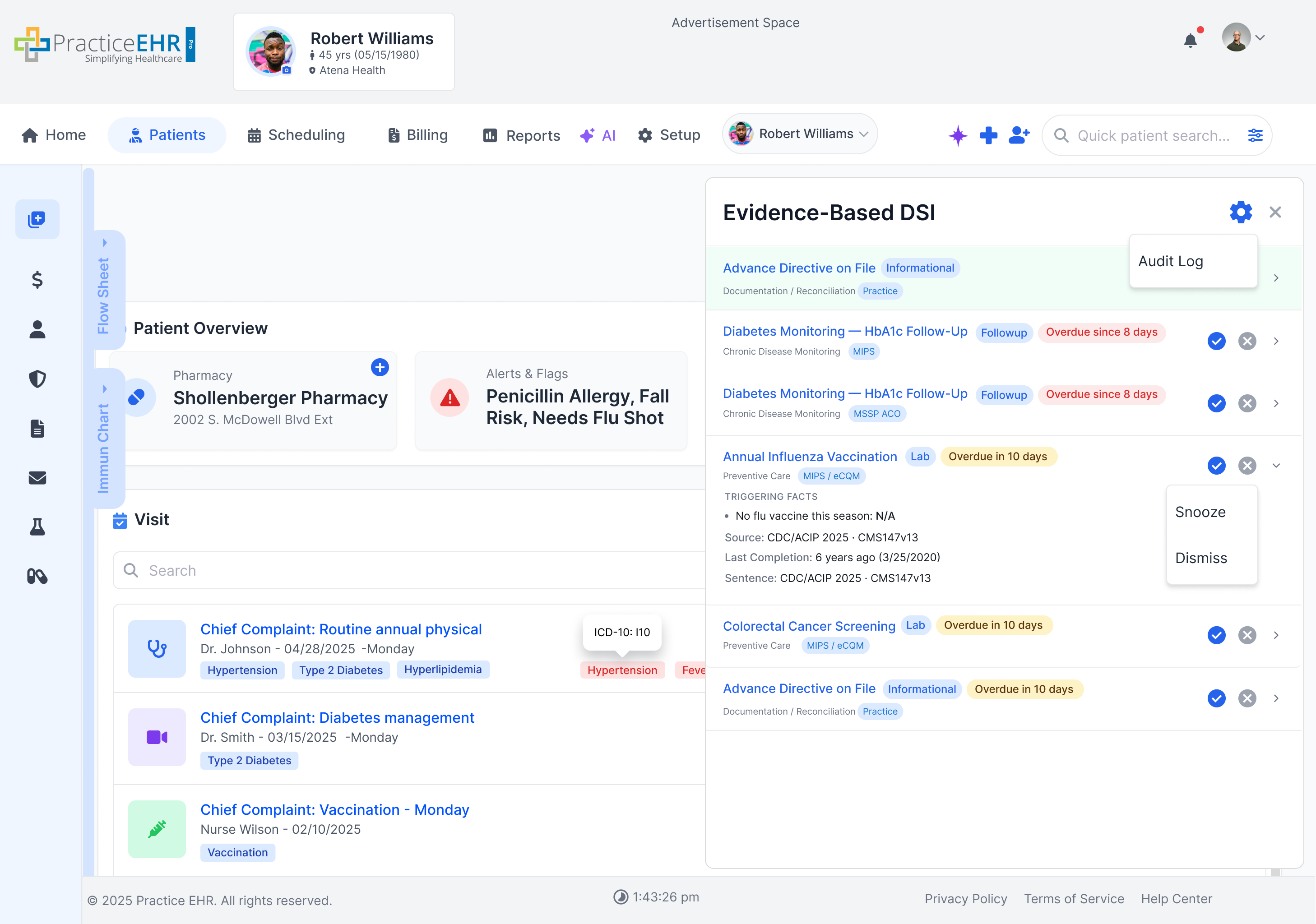
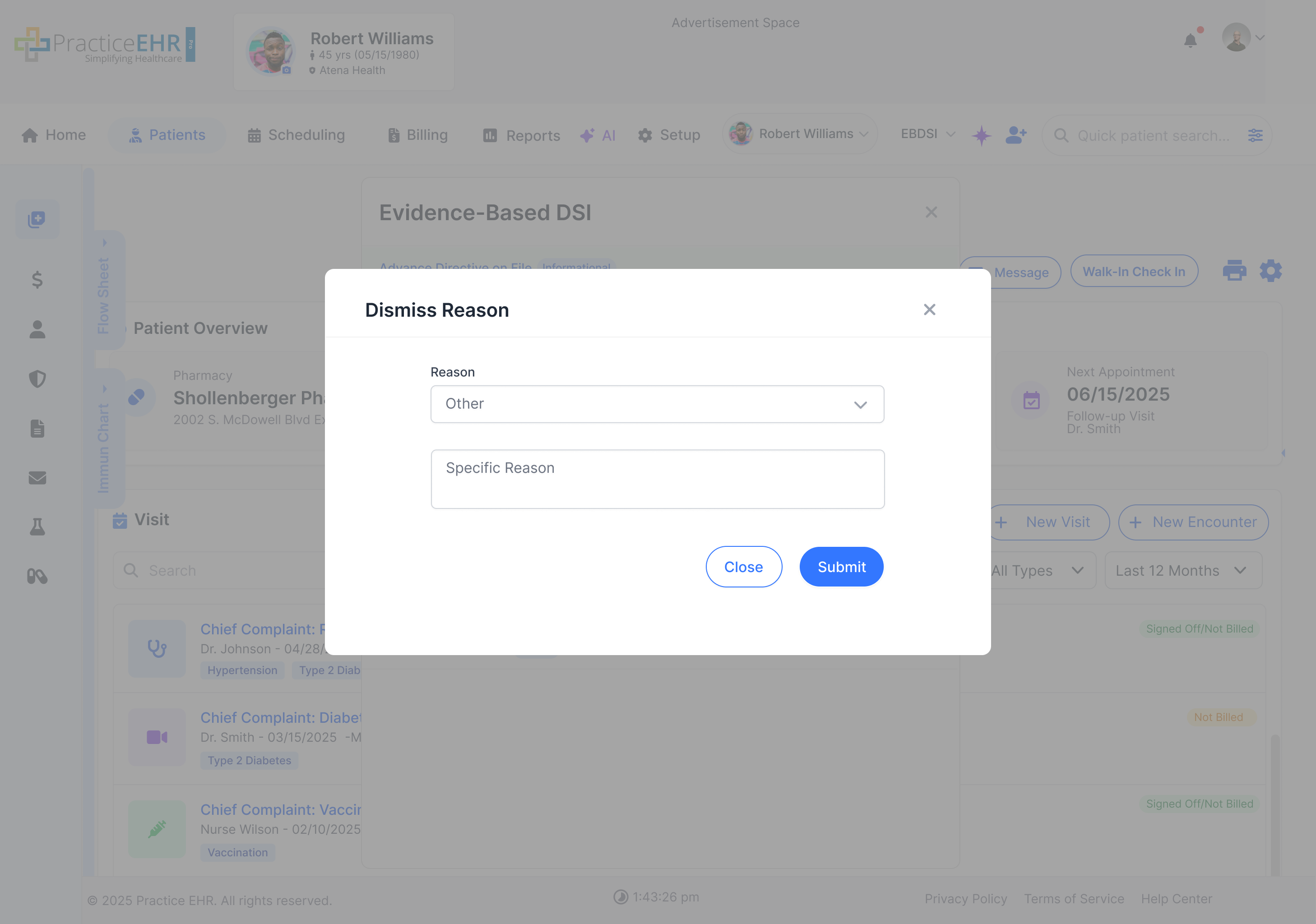
- Dismiss - Uses the X action flow. Clicking the X icon and choosing Dismiss opens a Dismiss Reason modal. After the user submits a reason, the item leaves the active list and remains available in Reports. Dismiss does not count as completion evidence, so the item can return later if the criteria match again.
- Snooze - Snooze is accessed from the same X icon menu. The user can choose 2, 6, or 12 months to hide the item temporarily. When that interval ends, the item can appear again if the criteria still match.