
Workflows (Automations) — Setup & Usage
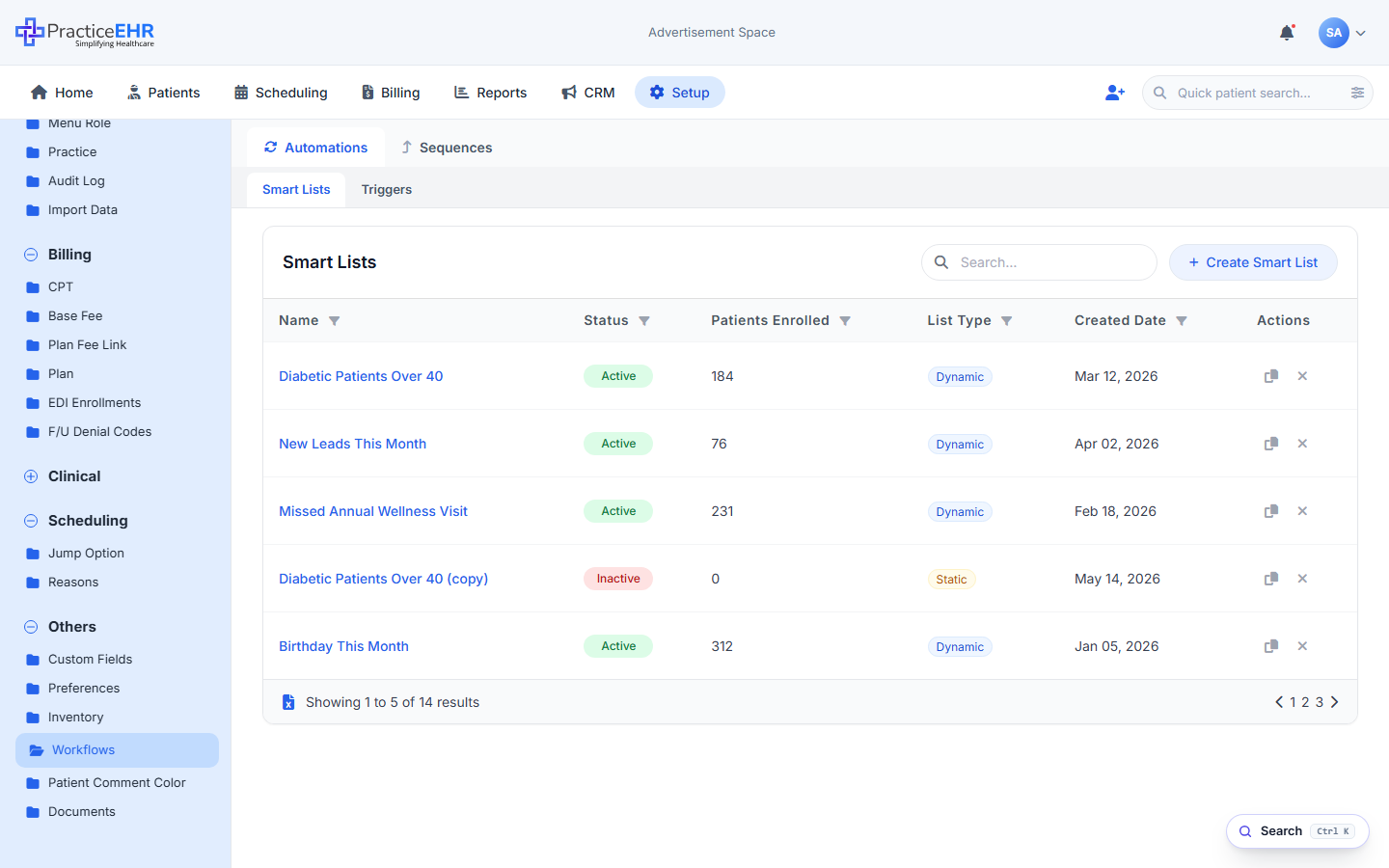
Workflows live under Setup › Others › Workflows. Inside, two top-level tabs — Automations and Sequences — sit flush against the Setup chrome. The Automations tab splits further into Smart Lists and Triggers sub-tabs.
What's inside
- Setup chrome — sits inside the Setup module sidebar (Administration, Billing, Clinical, Scheduling, Others) with Workflows highlighted under Others.
- Automations — the active top tab. Splits into Smart Lists (rule-based patient cohorts) and Triggers (the actions that run against those lists).
- Sequences — the second top tab. Targets a Plan Type instead of a Smart List; manually enroll patients into a cadence.
- Layover builder — opening any Smart List or Trigger replaces the grid with a full-screen builder flush against the sidebar (no centred modal, no backdrop).
Scope
This page documents Smart Lists (grid, layover form, KPI cards, smart-filter builder, mini patient grid), Triggers (Details + Build canvas, the five step types — Email, SMS, Task, Delay, If / then branch — analytics for Email / SMS / If-Else), Sequences (Plan Type cadence with the same canvas), and the Patient Workflow view inside the chart.
Try the live mockup
Every screenshot on this page is captured directly from a clickable HTML/CSS mockup. Open the live mockup to navigate the full flow yourself.
Open Live MockupSmart Lists
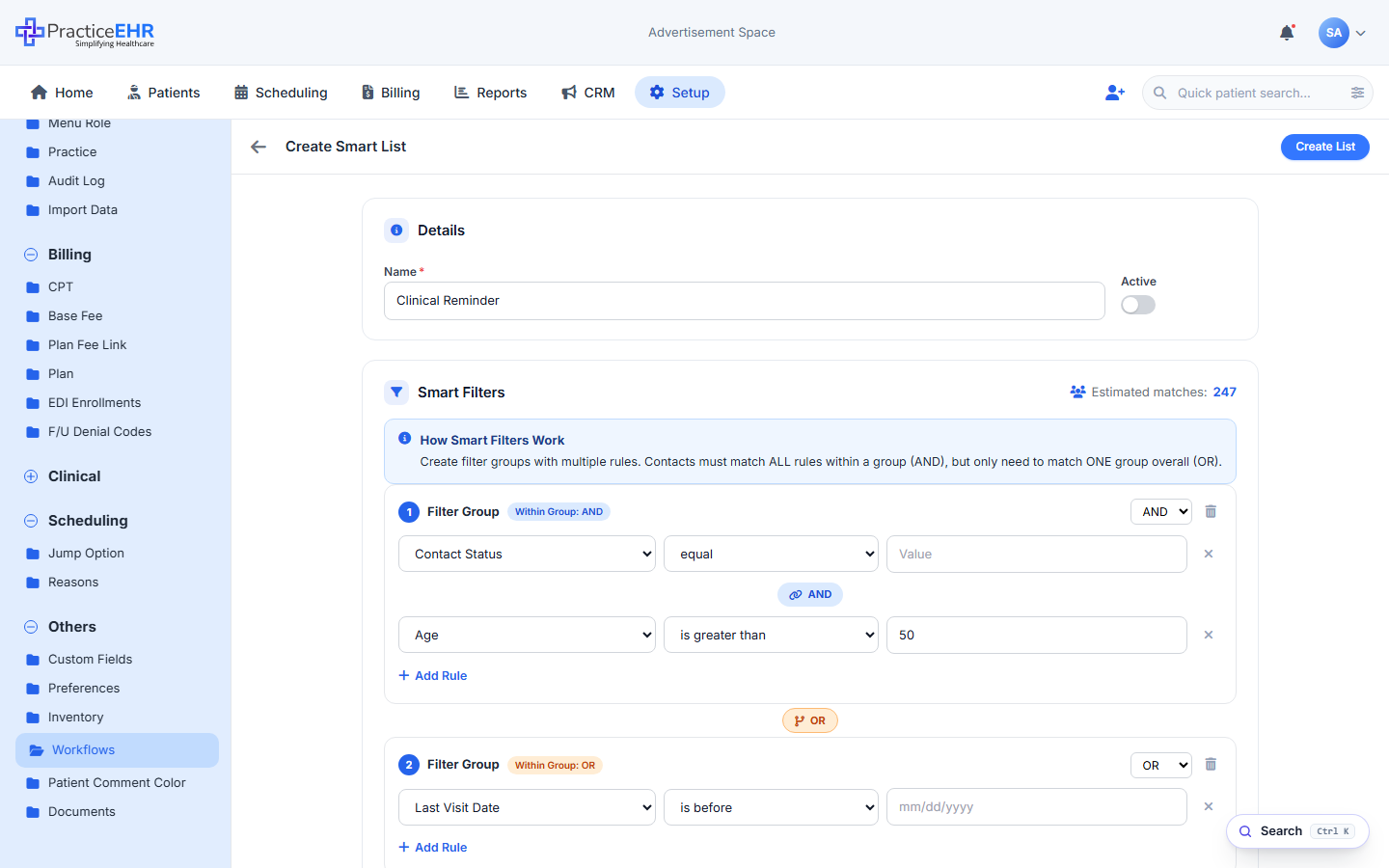
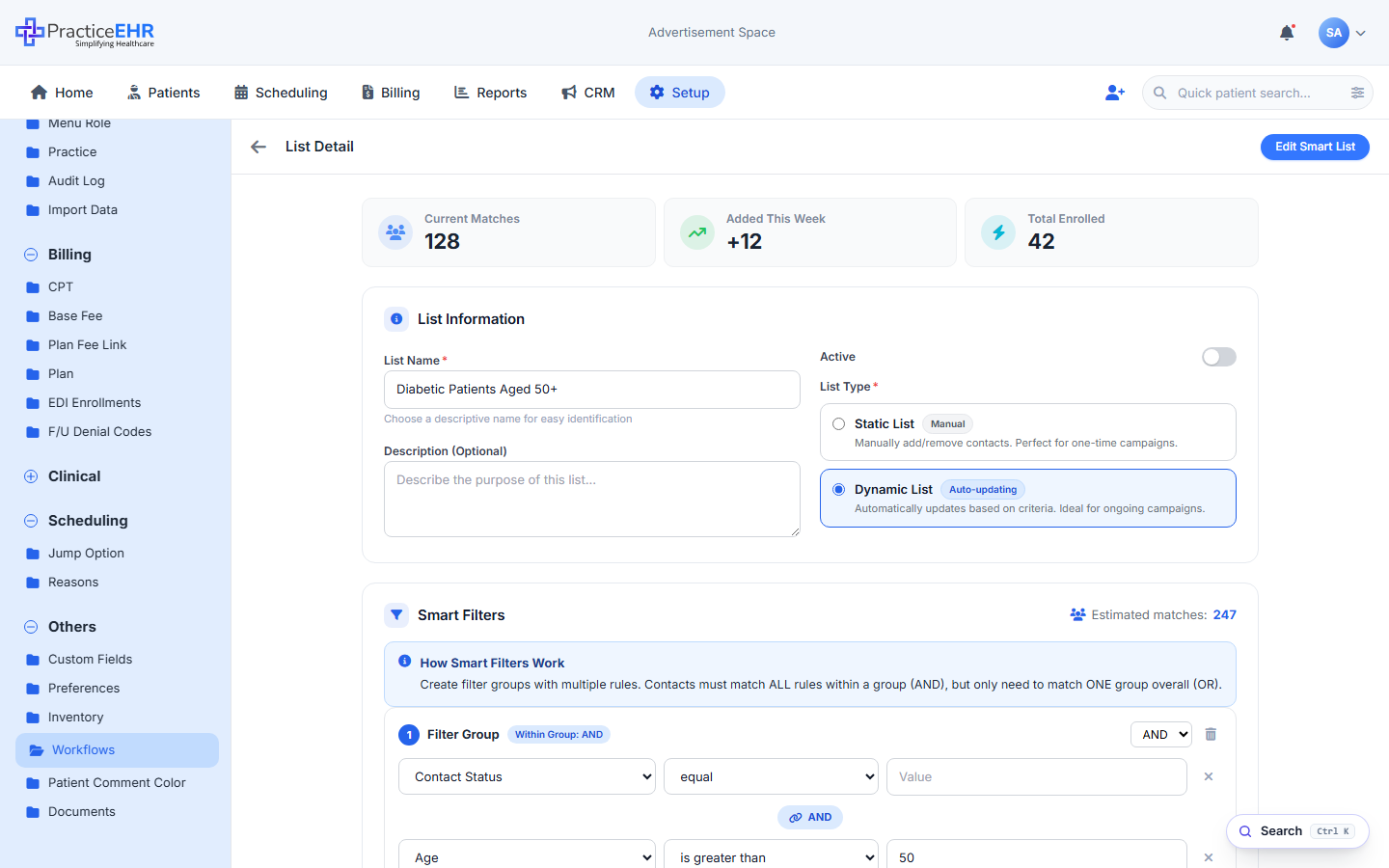
Rule-based patient cohorts that feed Triggers. Create/Detail/Edit open as a full-screen layover flush against the Setup sidebar — same chrome as the Trigger builder — with KPI cards on top, a smart-filter builder in the middle, and a mini patient grid at the bottom.
Key Features
- Smart Lists live under Setup › Others › Workflows › Automations › Smart Lists.
- Status renders as a Active / Inactive pill, matching the Triggers and Sequences grids.
- Create / Detail / Edit open as a layover view (same pattern as the Trigger builder) — not a centred modal.
- List Type: Static (manual) or Dynamic (auto-updating, default), shown as side-by-side radio cards in the layover.
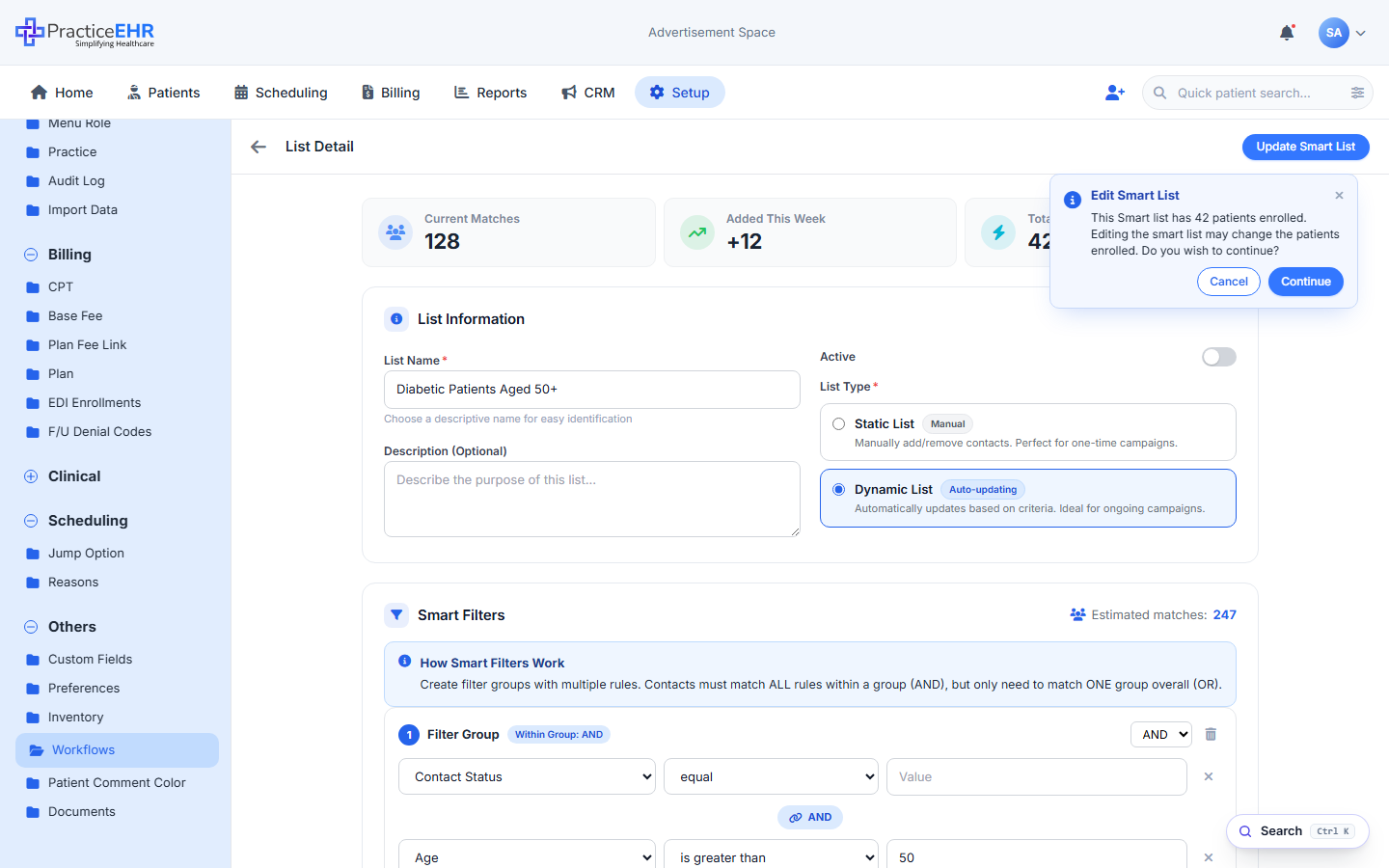
- Editing a list with enrolled patients raises a "Edit Smart List" confirmation popover before changes apply.
- Lists feed Triggers — each Trigger picks one or more Smart Lists as its audience.
Grid columns5
grid-pill style used across all grids.Header & row actions3
Details card2
Smart Filters card5
Preview (mini grid)2
Footer2
KPI strip3
List Information card4
Smart Filters recap1
Result (mini grid)3
Edit confirmation popover3
Editable fields (after Continue)5
Where to find it
Setup › Others › Workflows › Automations › Smart Lists.
Supported Smart Filter Conditions
Automation smart lists use the same documented smart-filter conditions as CRM Lists, with the appointment-status unenrollment rule available for workflow cohorts.
| Field | Supported Conditions | Value Type / Notes |
|---|---|---|
| Appointment Status | Equals / Not Equals | Status values such as In Progress; can also include unenrollment timing |
| Contact Owner | Equals / Not Equals | Multi-select user list |
| Provider | Equals / Not Equals | Multi-select user list |
| Age | Equals / Not Equals | Integer |
| Gender | Equals / Not Equals | String |
| DOB | Equals / Not Equals / Range / Rolling | Date and month conditions, including birthday logic |
| ICD | Equals / Not Equals | Multi-select smart search |
| CPT | Equals / Not Equals | Multi-select smart search |
| Medication | Equals / Not Equals | Multi-select |
| Patient Enter Date | Equals / Before / After | Date picker |
| Contact Enter Date | Equals / Before / After | Date picker |
| Last Activity | Equals / Not Equals / Before / After | Exact date range or rolling windows, including appointment, visit, email, and SMS activity |
| Status | Equals | Lead / Patient |
| SMS Subscription | Equals / Not Equals | Yes / No |
| Lead Source | Equals / Not Equals | String |
| Phone | Contains / Equals | Numeric value |
| Contains / Ends With | String |
Triggers
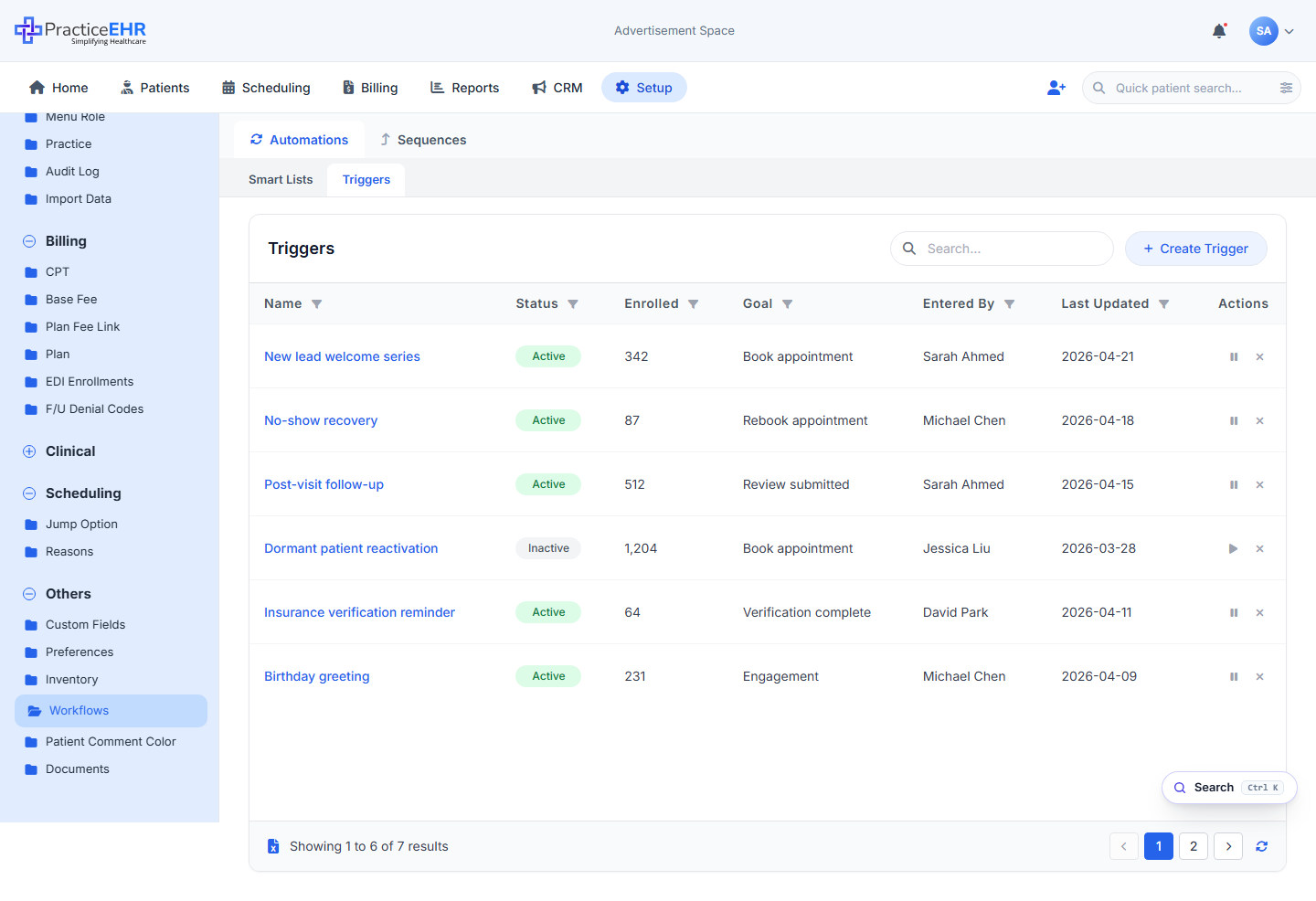
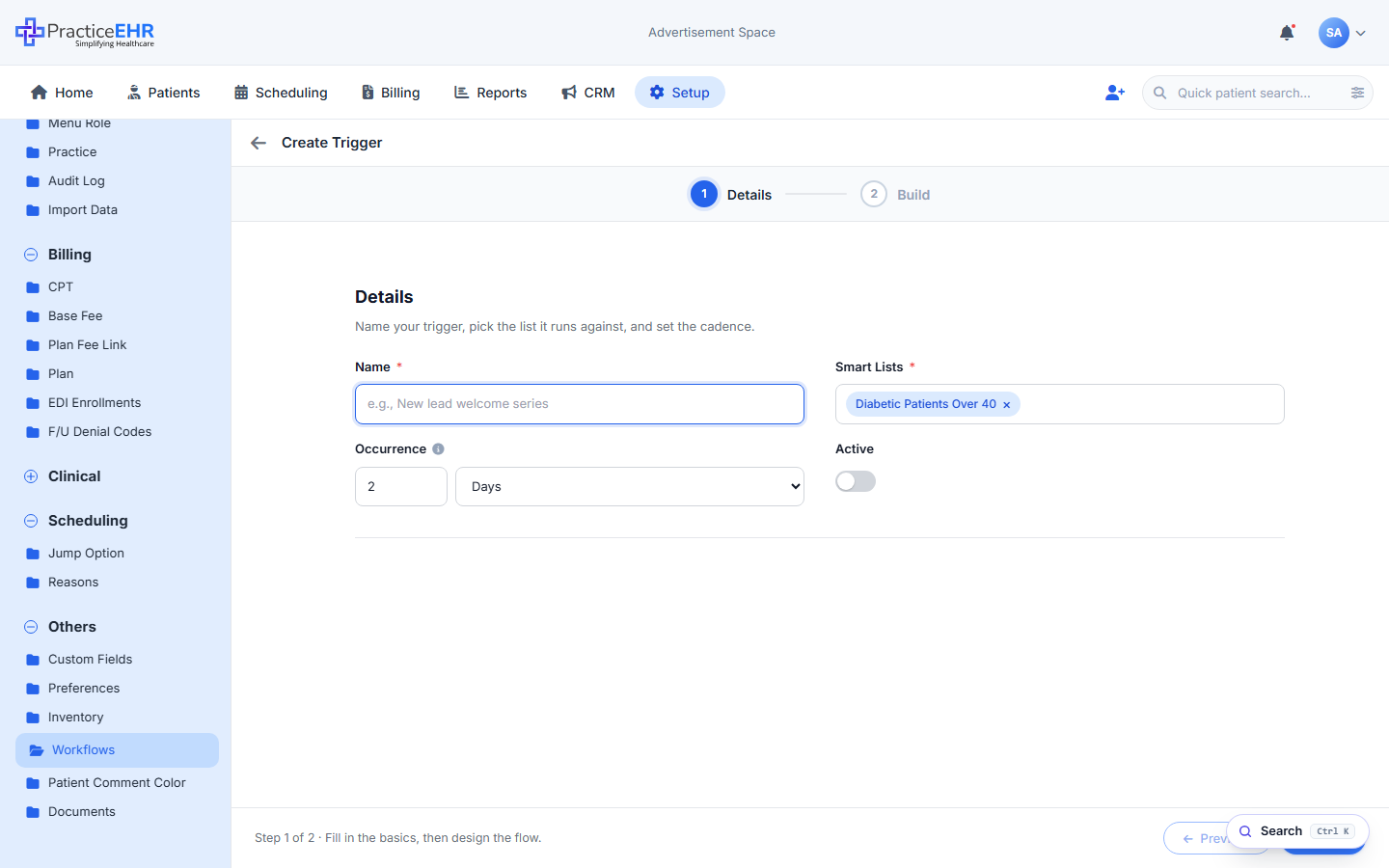
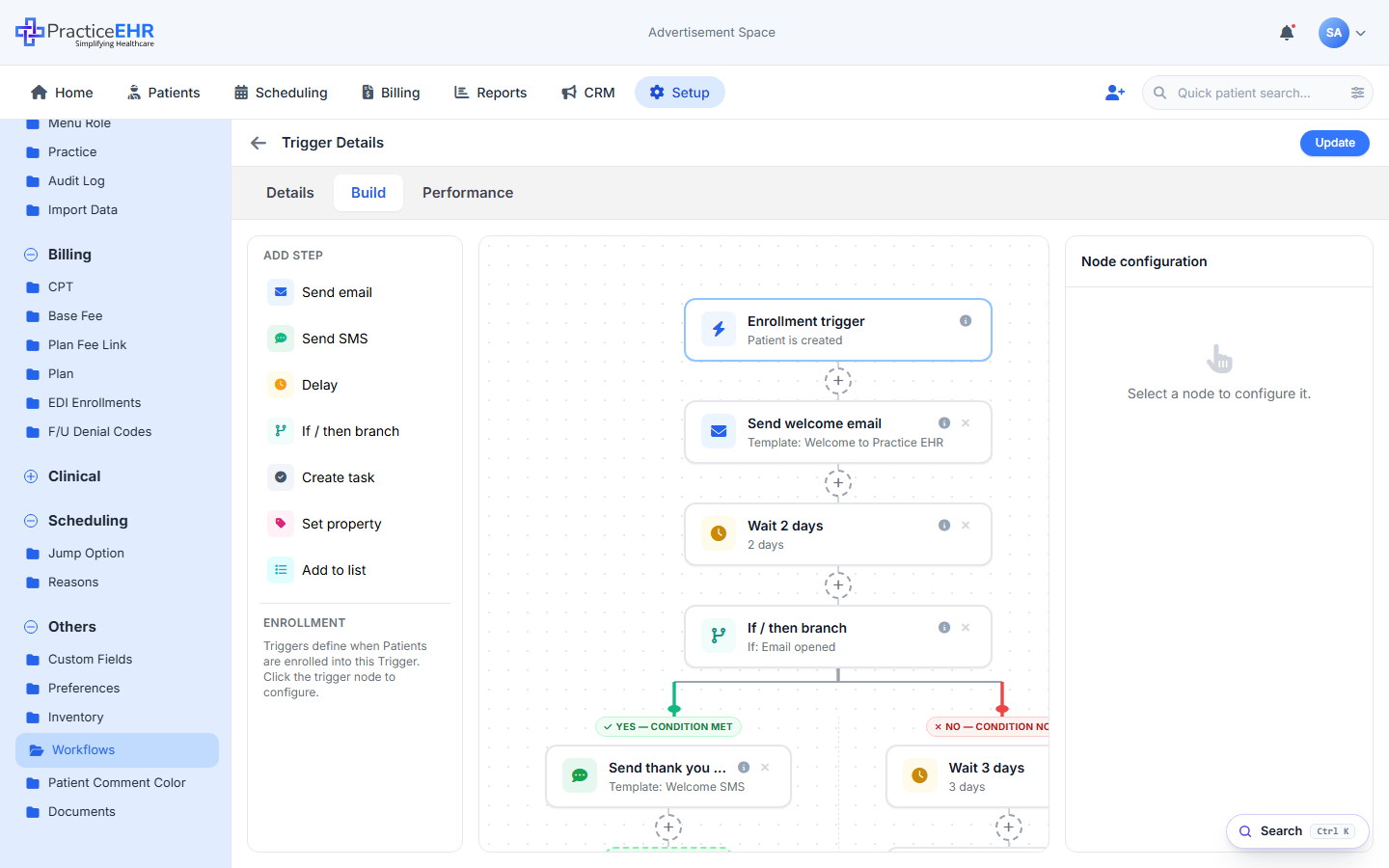
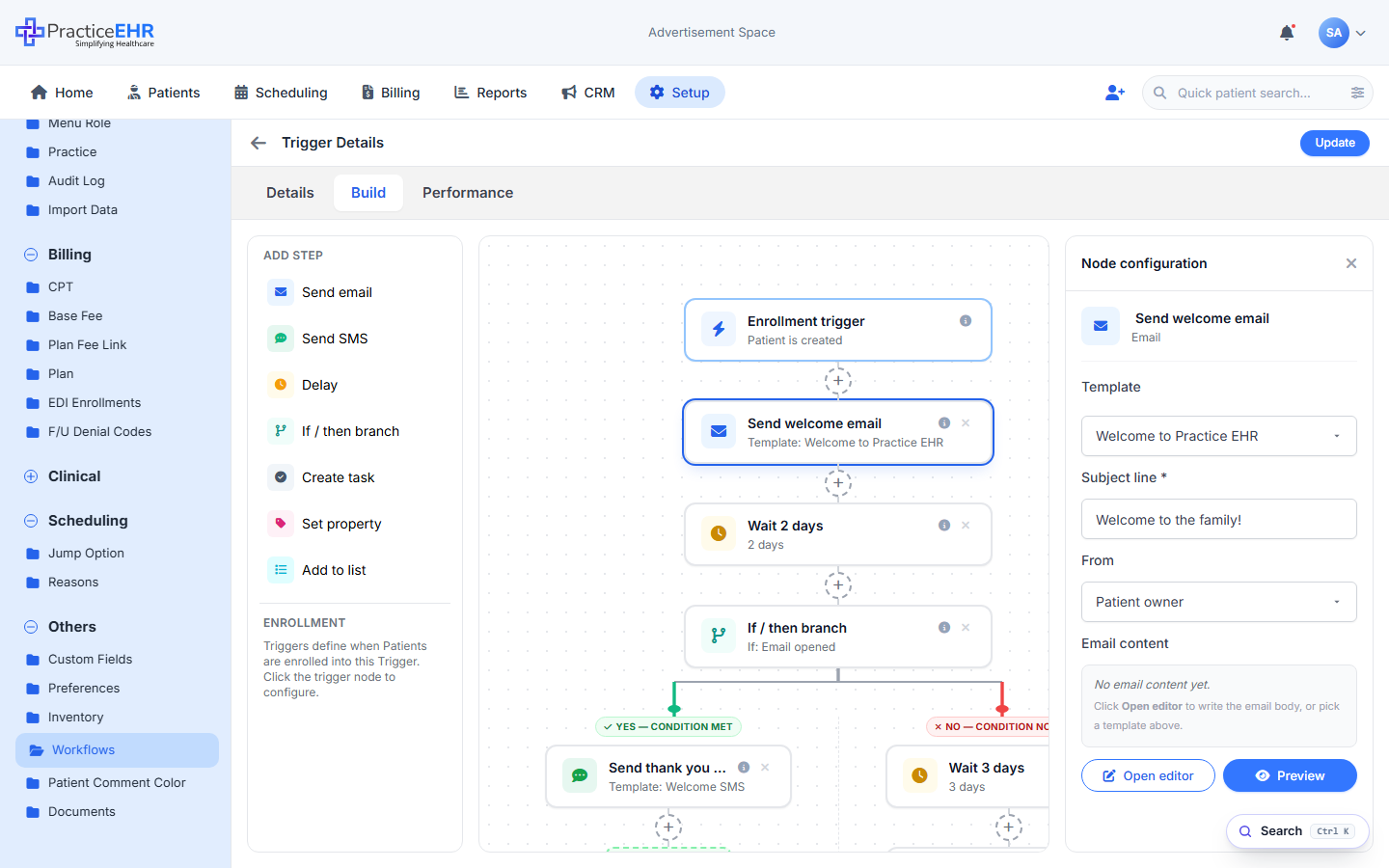
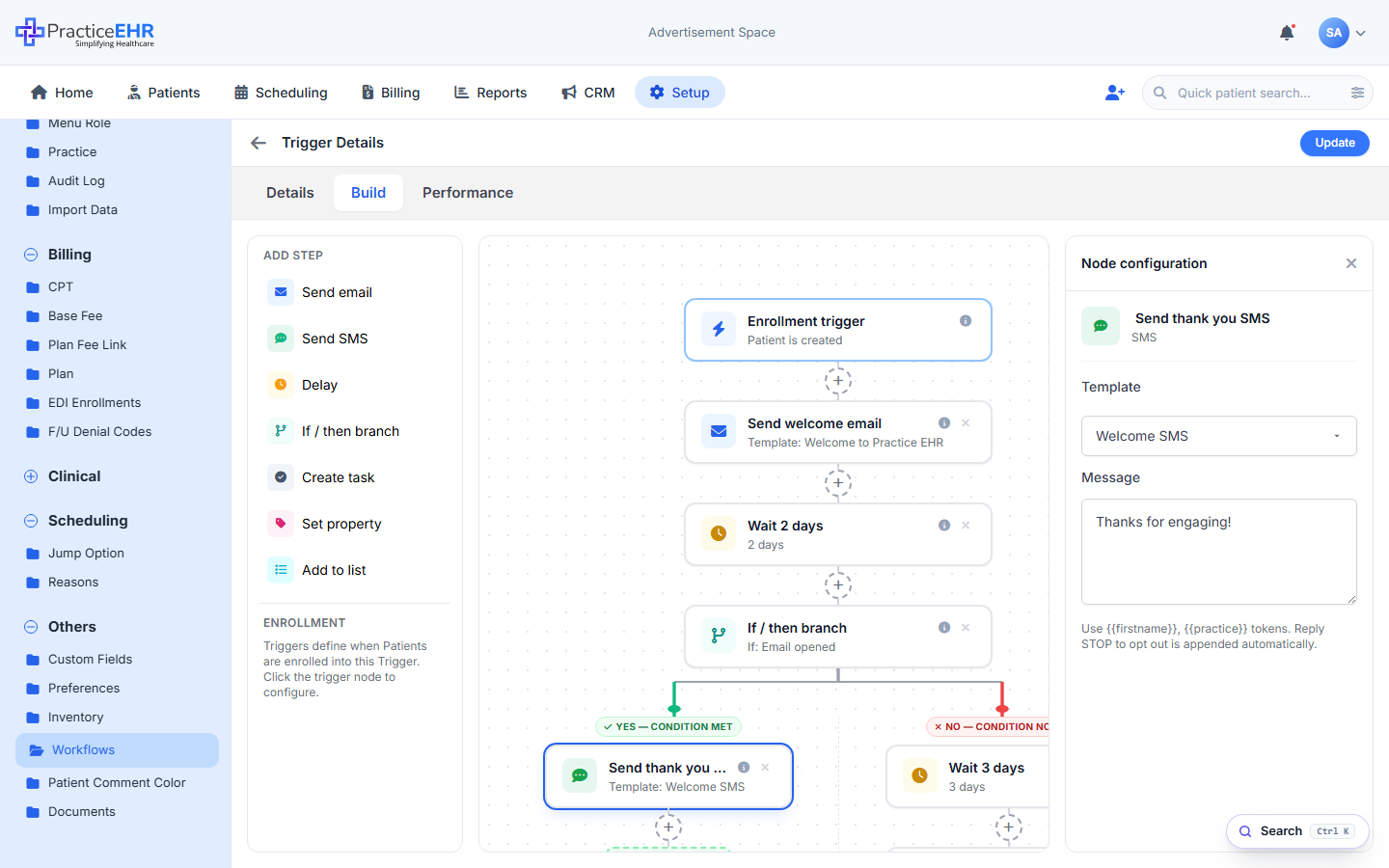
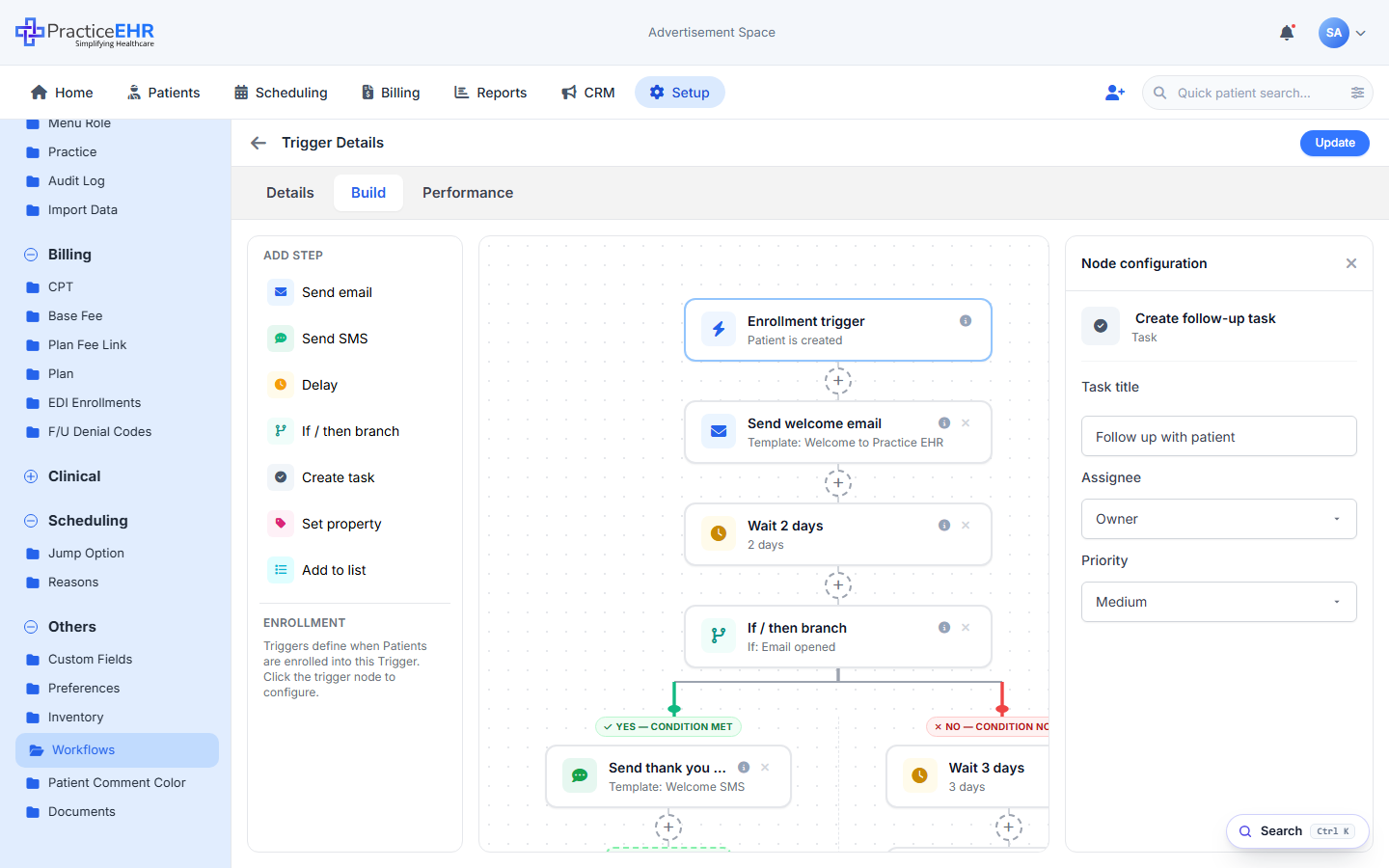
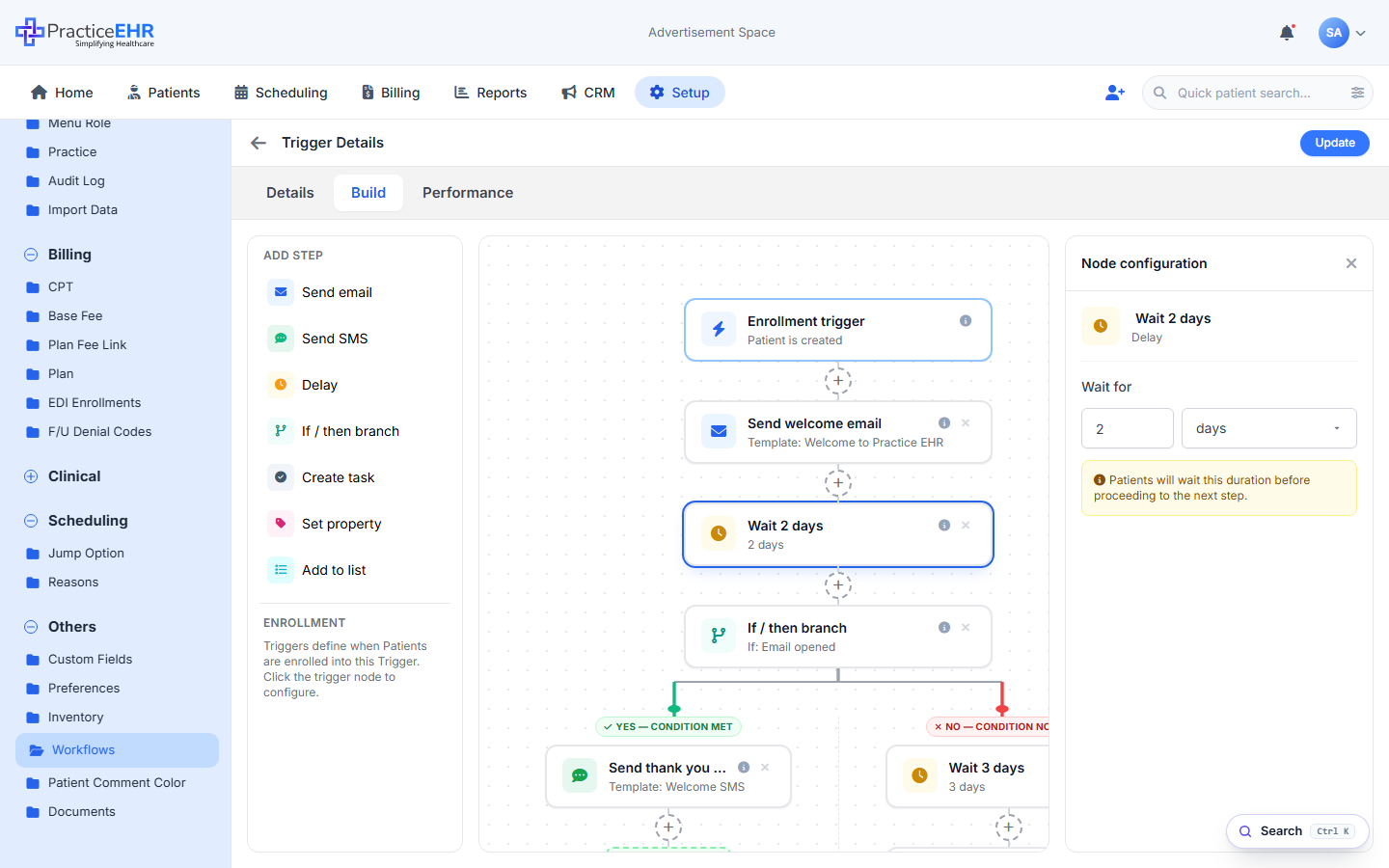
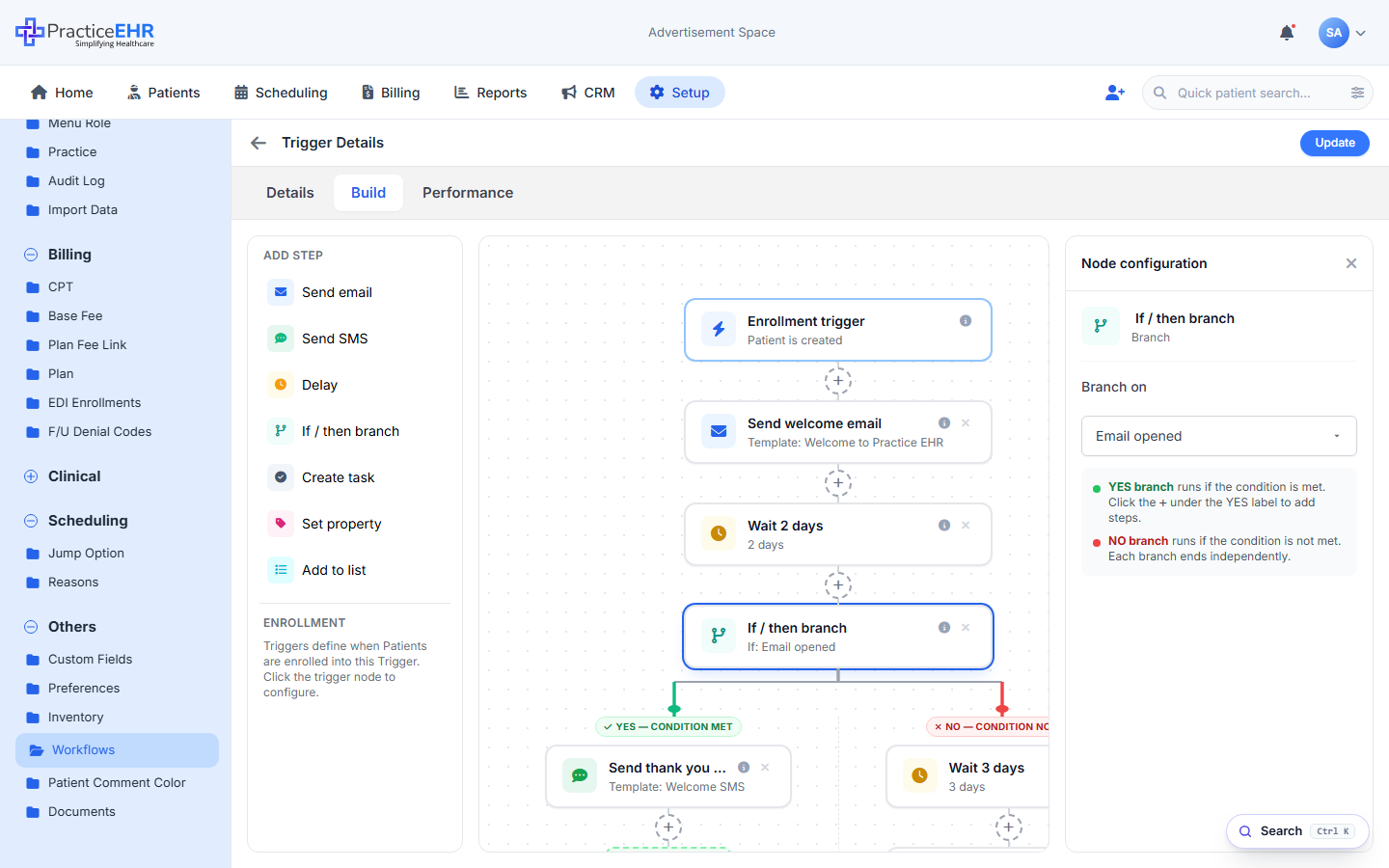
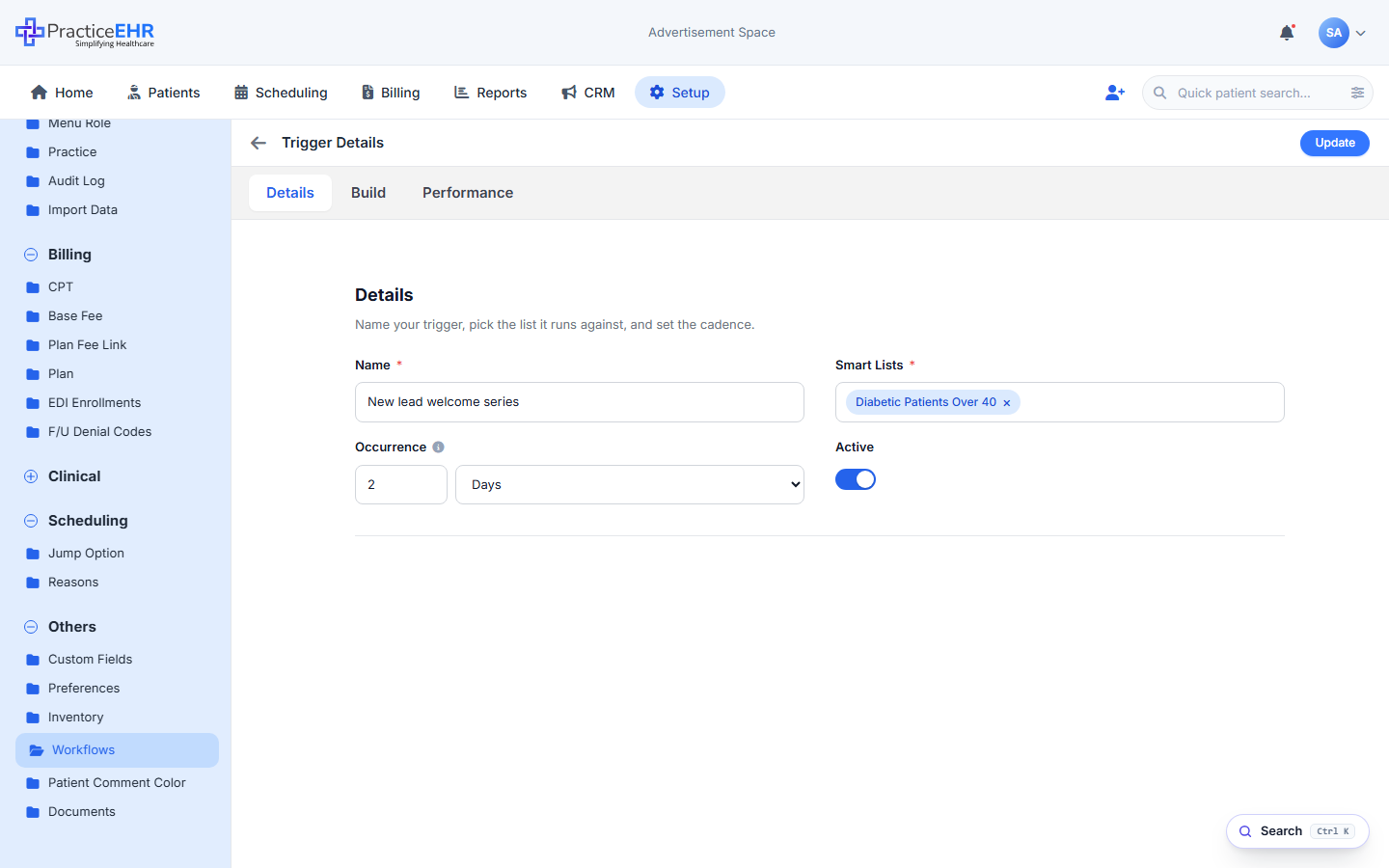
Triggers specify the actions performed on one or more Smart Lists. Create-Trigger is a two-step wizard: Details → Build. The simplified Details tab (per Figma 11635:5062) captures just Name, Smart Lists, Occurrence, and Active. The Build canvas always starts at Start of Trigger and ends at End of Trigger; selecting any node opens the Node configuration rail on the right.
Key Features
- The same builder is used to create and edit. While creating, the tabs are replaced by a 2-step wizard (Details → Build).
- Five step types can be dropped on the canvas: Send email, Send SMS, Delay, If/then branch, Create task.
- Click any step on the canvas — a Node configuration rail opens on the right. No separate pop-ups per step.
- Dashed + handles between nodes insert a new step at that exact position.
- If/then branches split into YES — condition met (green) and NO — condition not met (red); each path ends in an End of Branch marker that reconnects to End of Trigger.
Grid columns5
Header actions1
11635:5062 — only four fields: Name, Smart Lists, Occurrence, and Active. The old Goal, Description, Business hours, and Unenrollment sections have been removed.
Details fields4
2 Days, the system runs every step (Step 1 → Step 2 → Step 3) for everyone on the list today, then runs all the steps again 2 days later. New people added to the smart list get picked up on the next run.Layout (per Figma)3
Footer2
Three panes3
Node card states3
Footer2
Node configuration4
Node configuration2
{{firstname}} and {{practice}}. "Reply STOP to opt out" is appended automatically.Node configuration3
Node configuration1
Canvas rules3
Node configuration1
Branch layout3
Allowed in-branch steps4
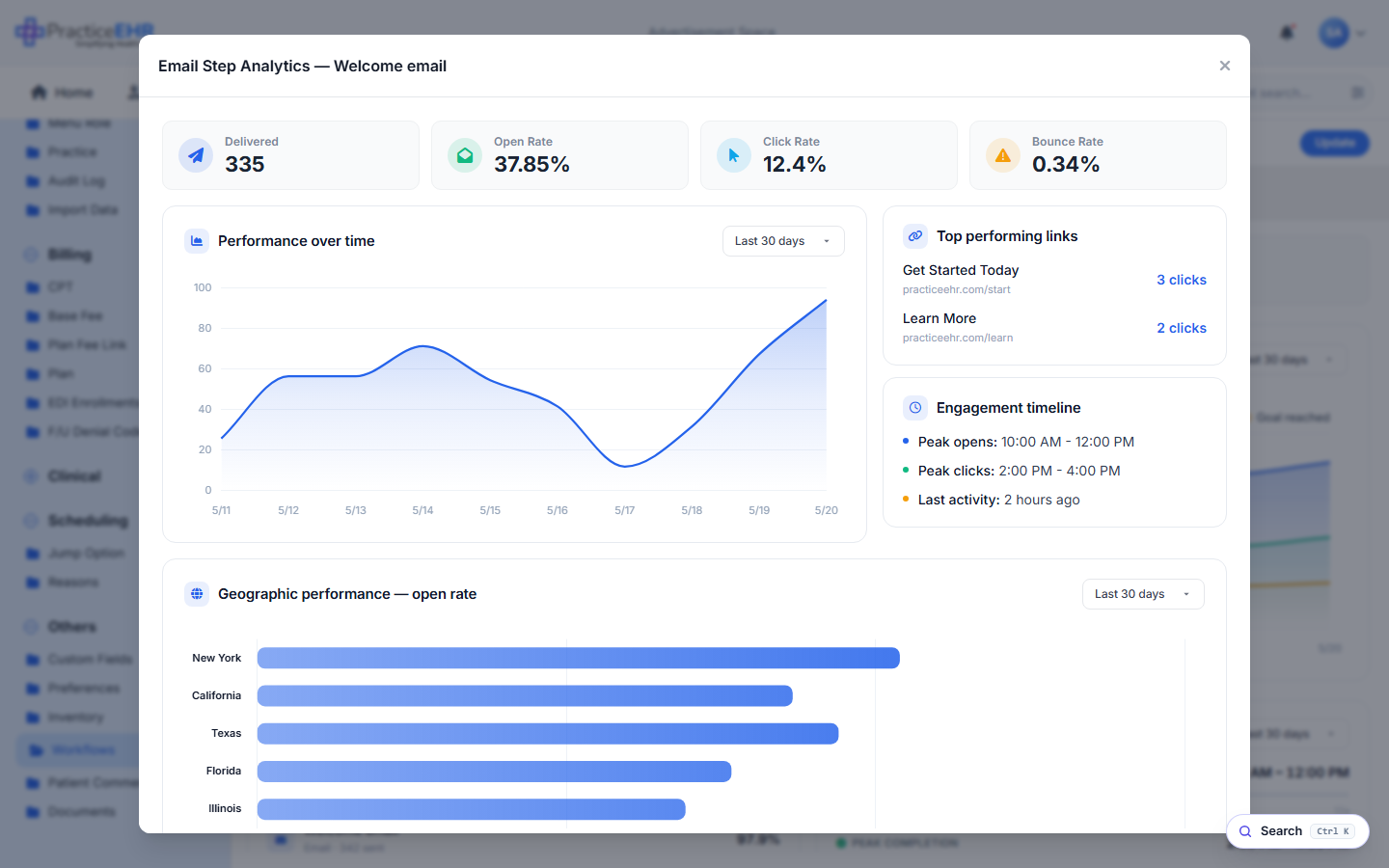
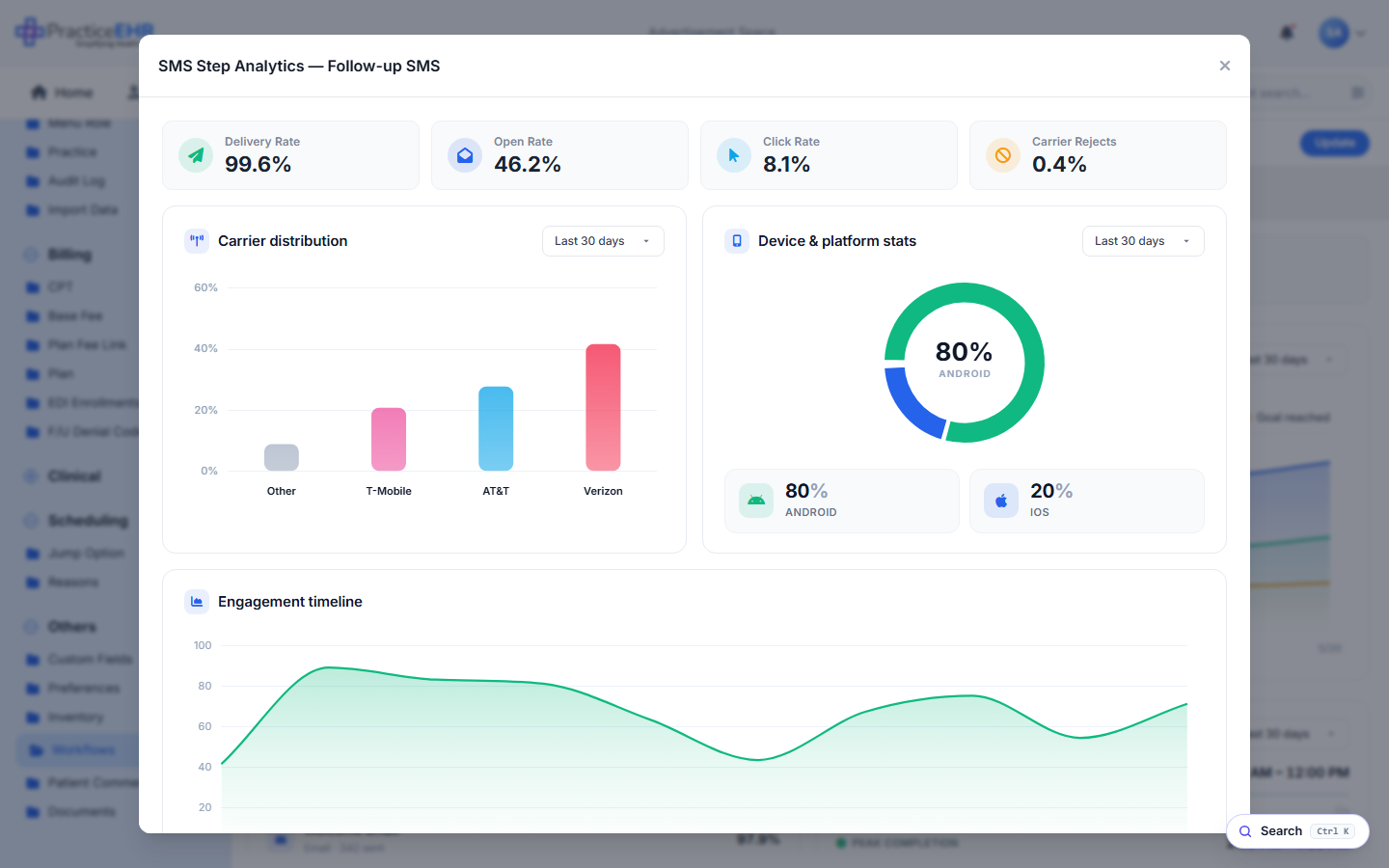
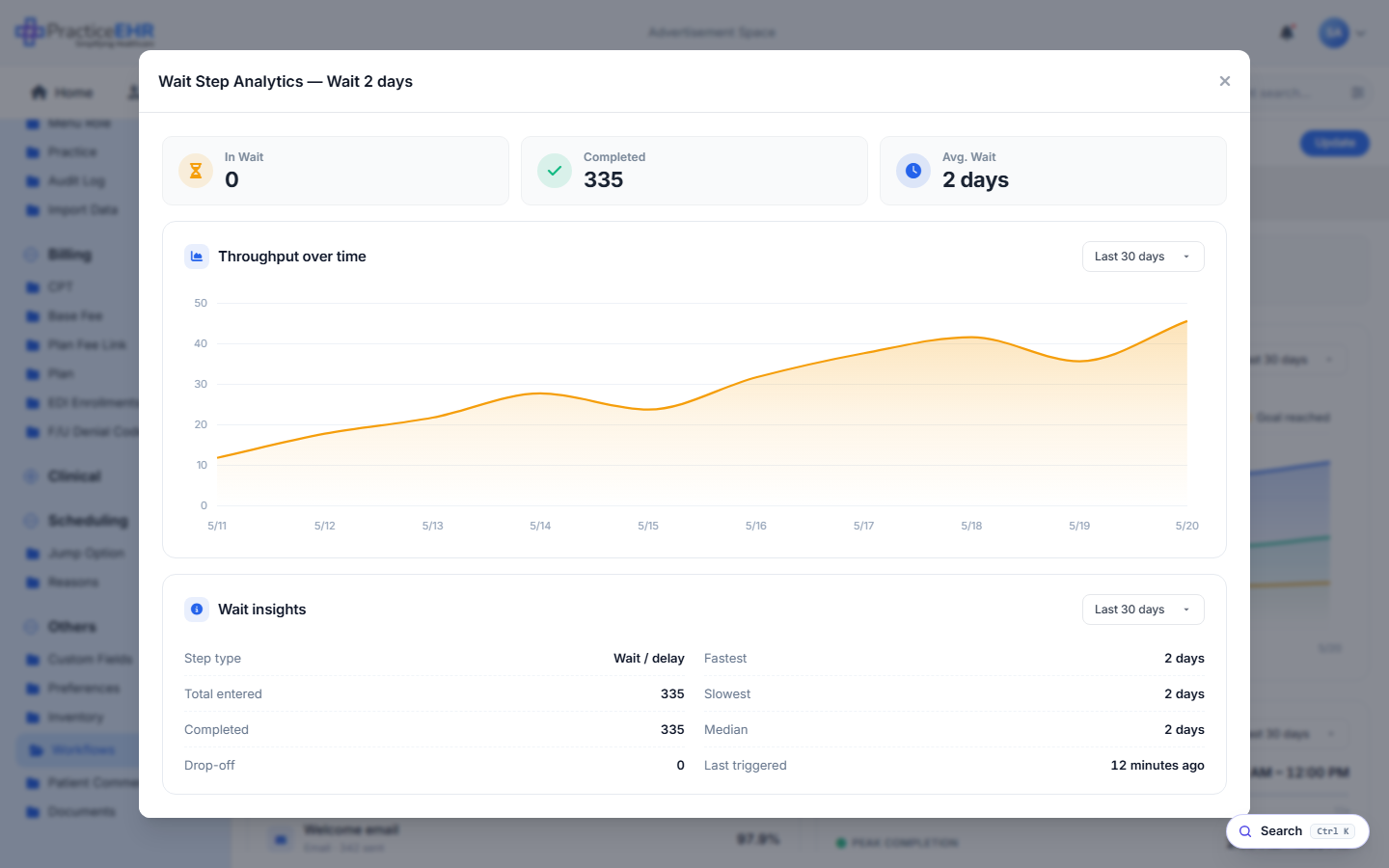
Performance statistics3
What you can do here3
Editable fields5
What you see3
What you see3
Branch split3
Where to find it
Setup › Others › Workflows › Automations › Triggers.
Patient Workflow
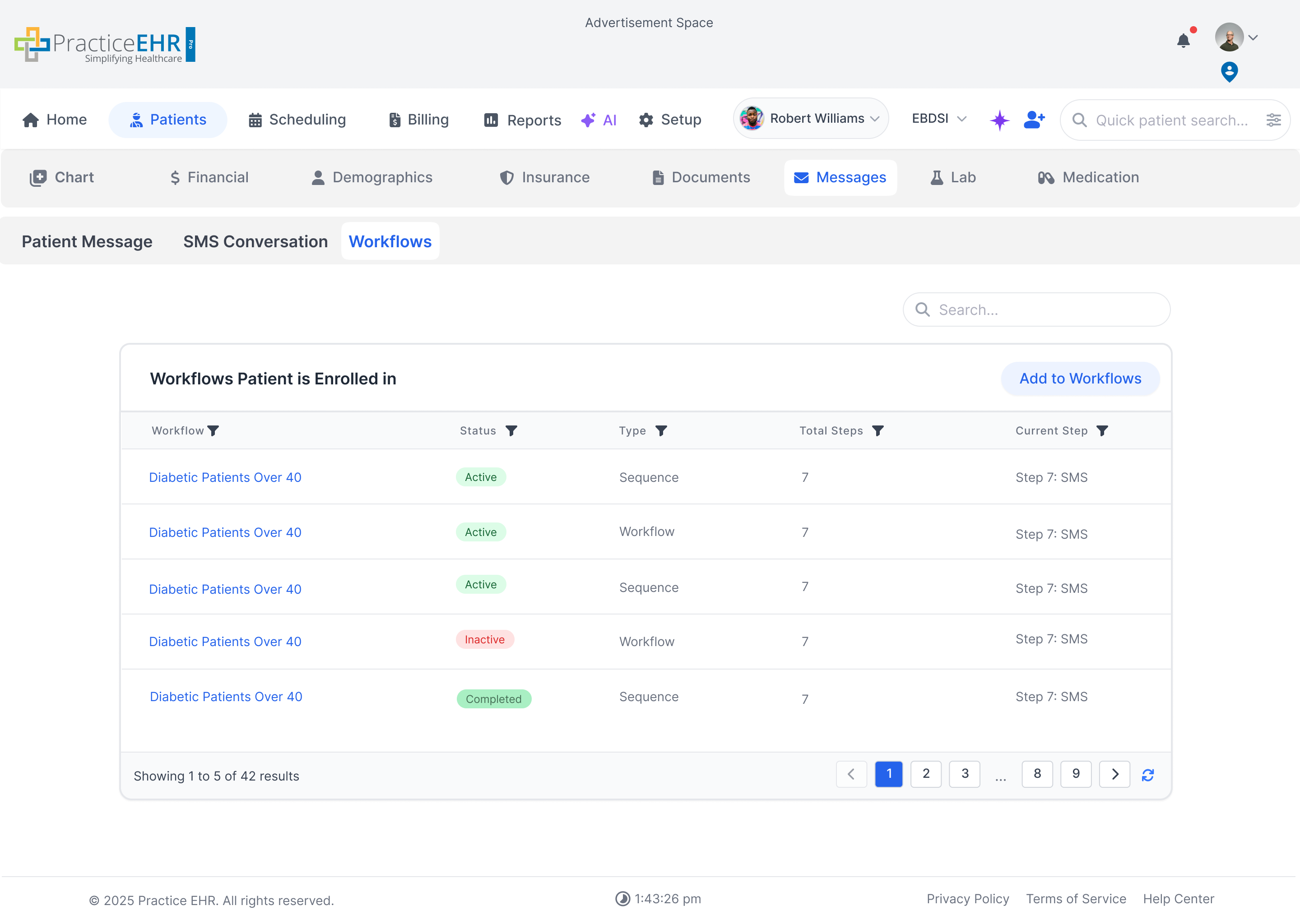
This screen appears inside the patient chart (Patients -> Messages -> Workflows). It uses the Auto Search Grid pattern to show which workflows the patient is enrolled in and lets you add them to new workflows.
Description
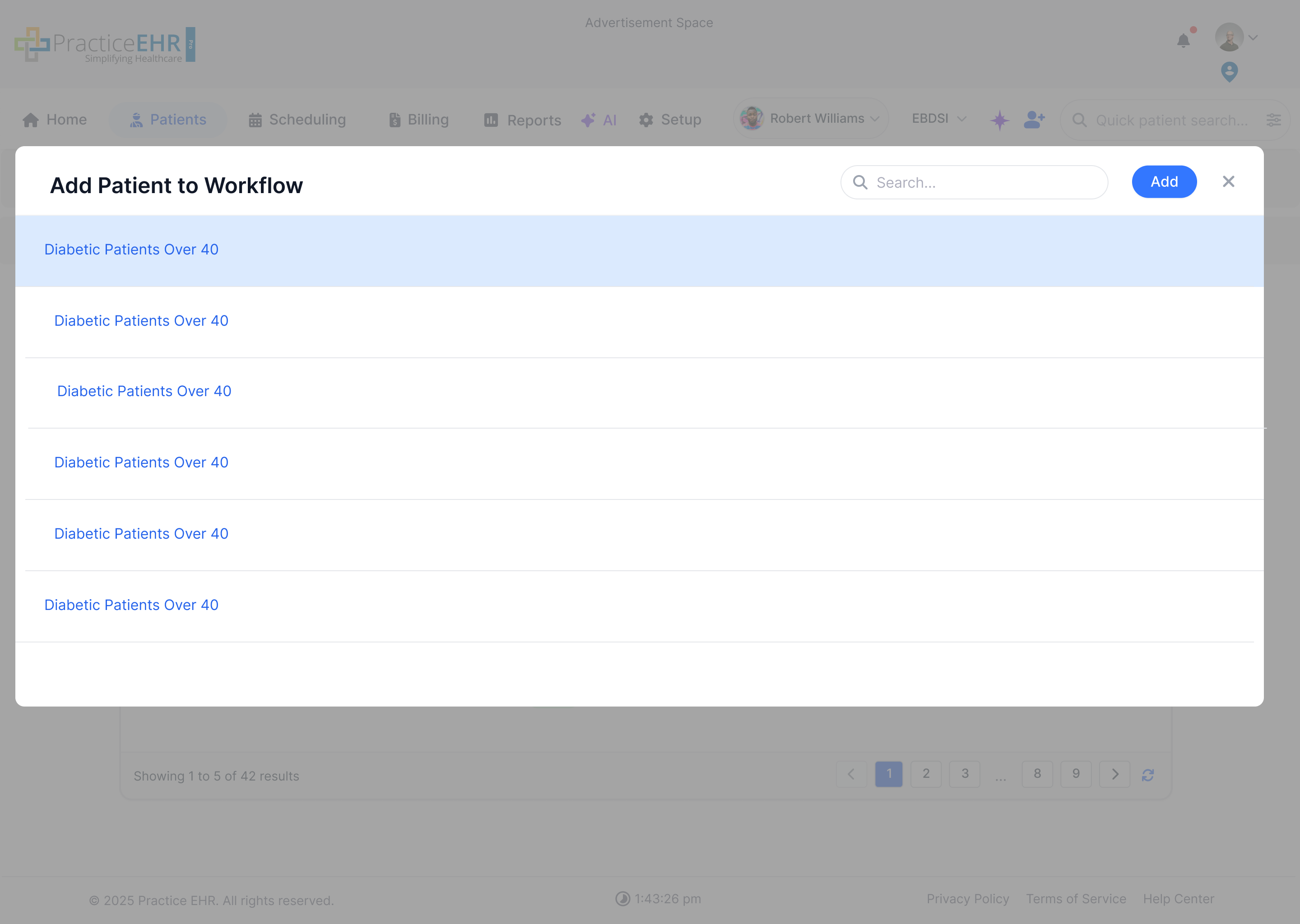
The grid lists all workflows this patient is enrolled in. Users can search, sort, and enroll the patient into additional workflows via the Add to Workflows button (opens a selection modal).
Spec
- Columns: Workflow (link), Status pill, Type (Workflow/Sequence), Total Steps, Current Step.
- Search: top-right search filters the enrolled workflows list.
- Status Pills: Active / Inactive / Completed.
- Pagination: standard footer paginator with page shortcuts and refresh.
Add to Workflows (Modal)
- Open: Click on buttonAdd to Workflows.
- Search: live-filters the available workflows in the list.
- Select + Add: pick a workflow in the list, then press Add to enroll the patient.
- Close: "X" (top-right) or outside click dismisses the modal without changes.
Sequences
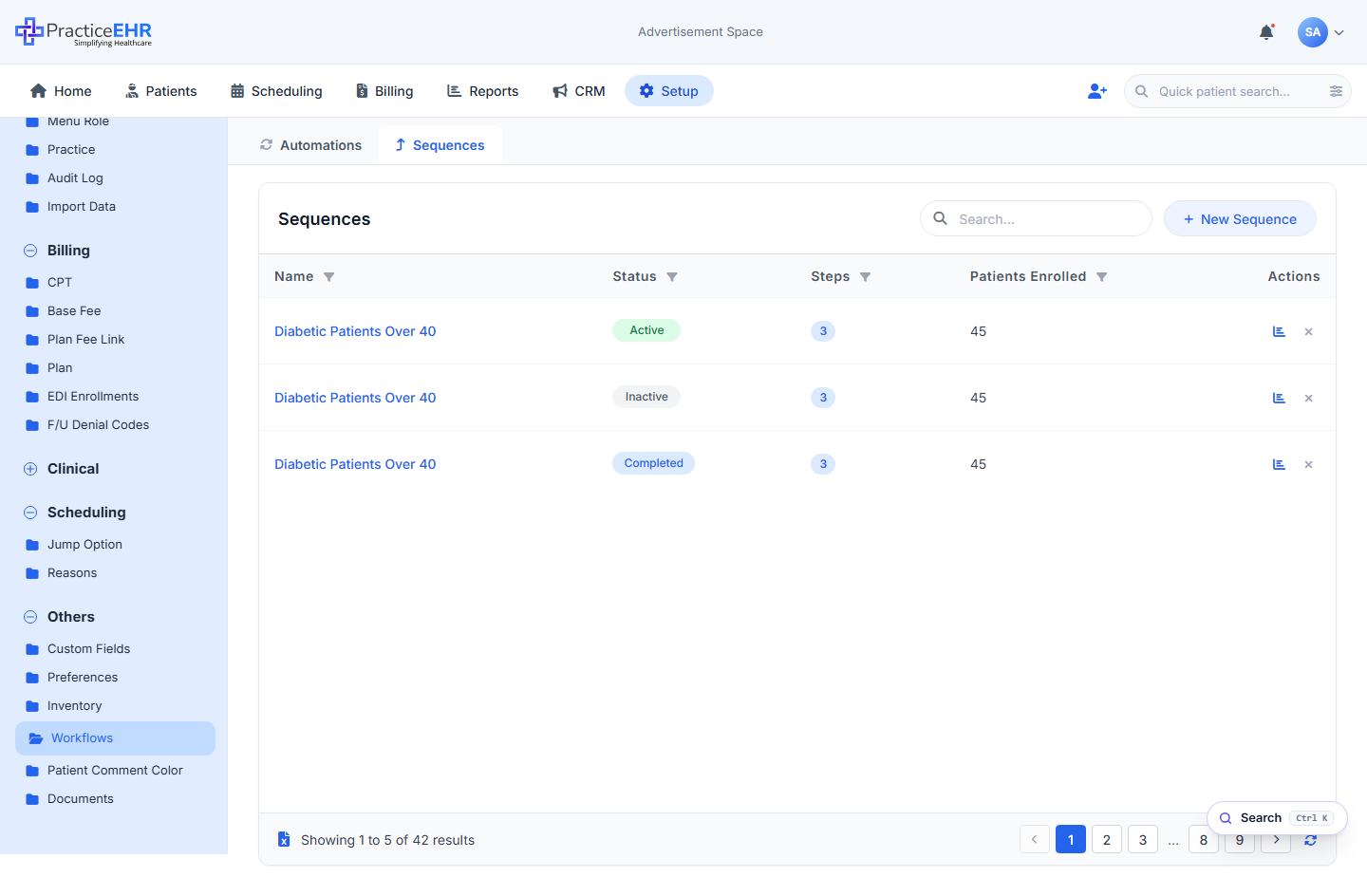
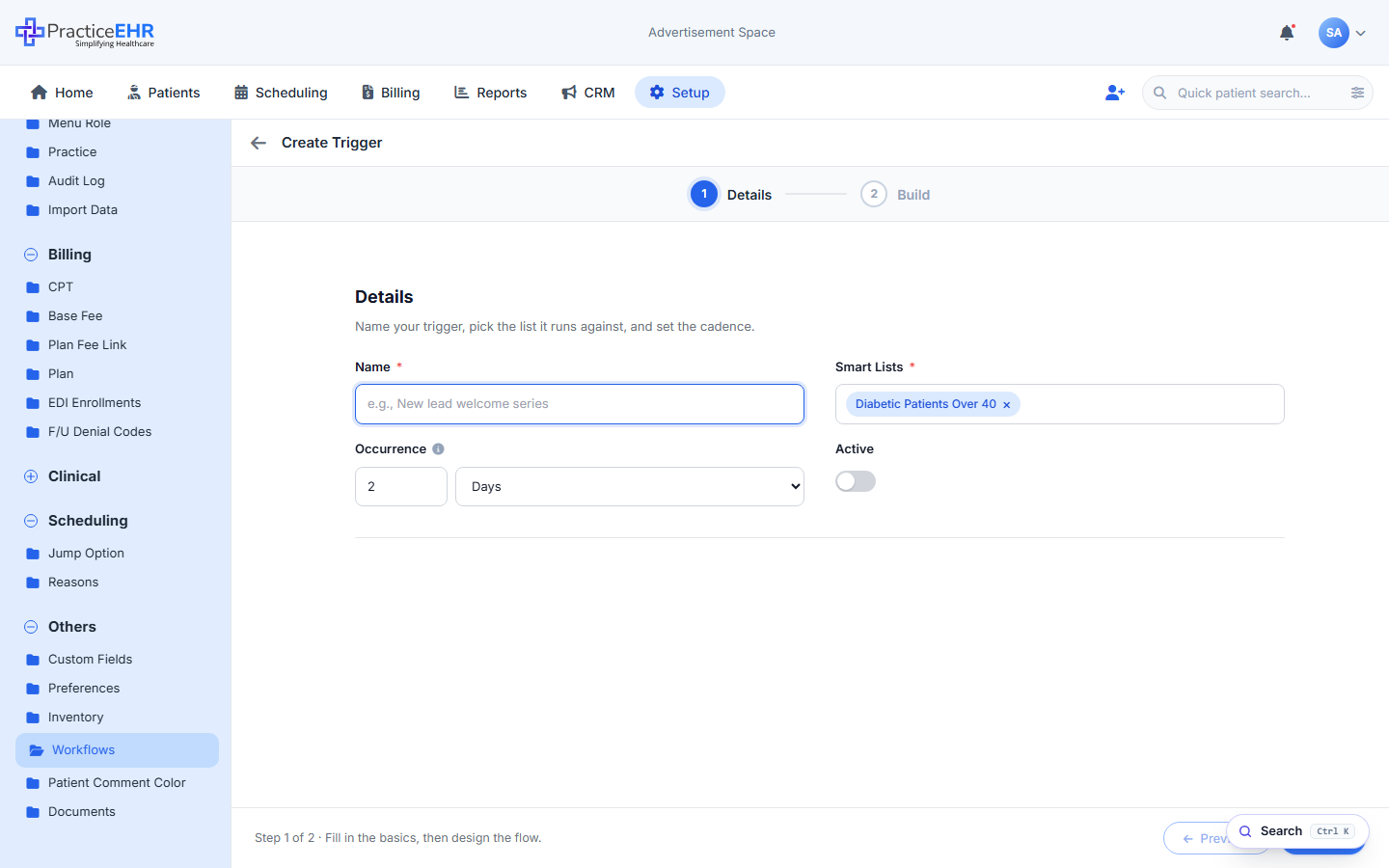
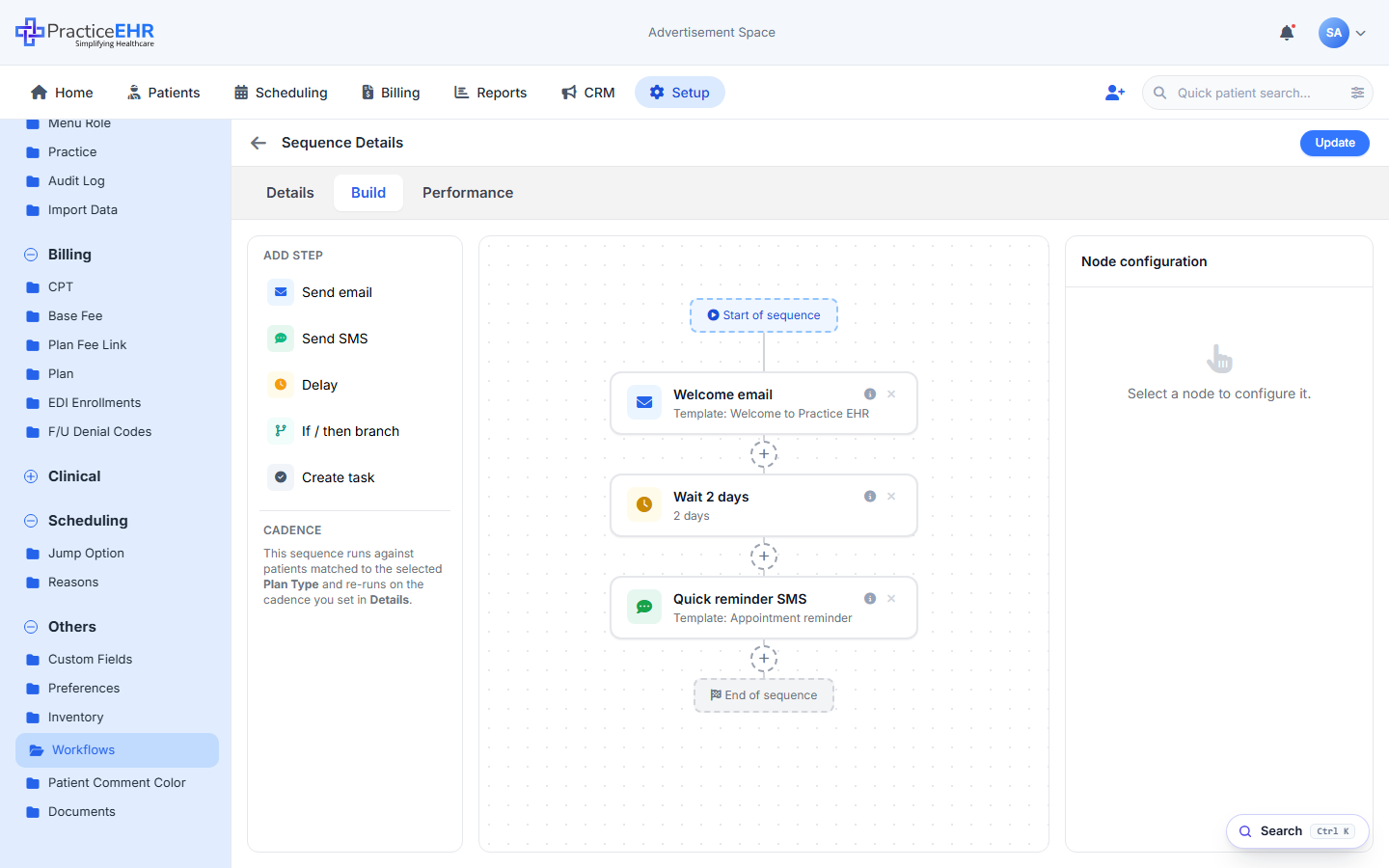
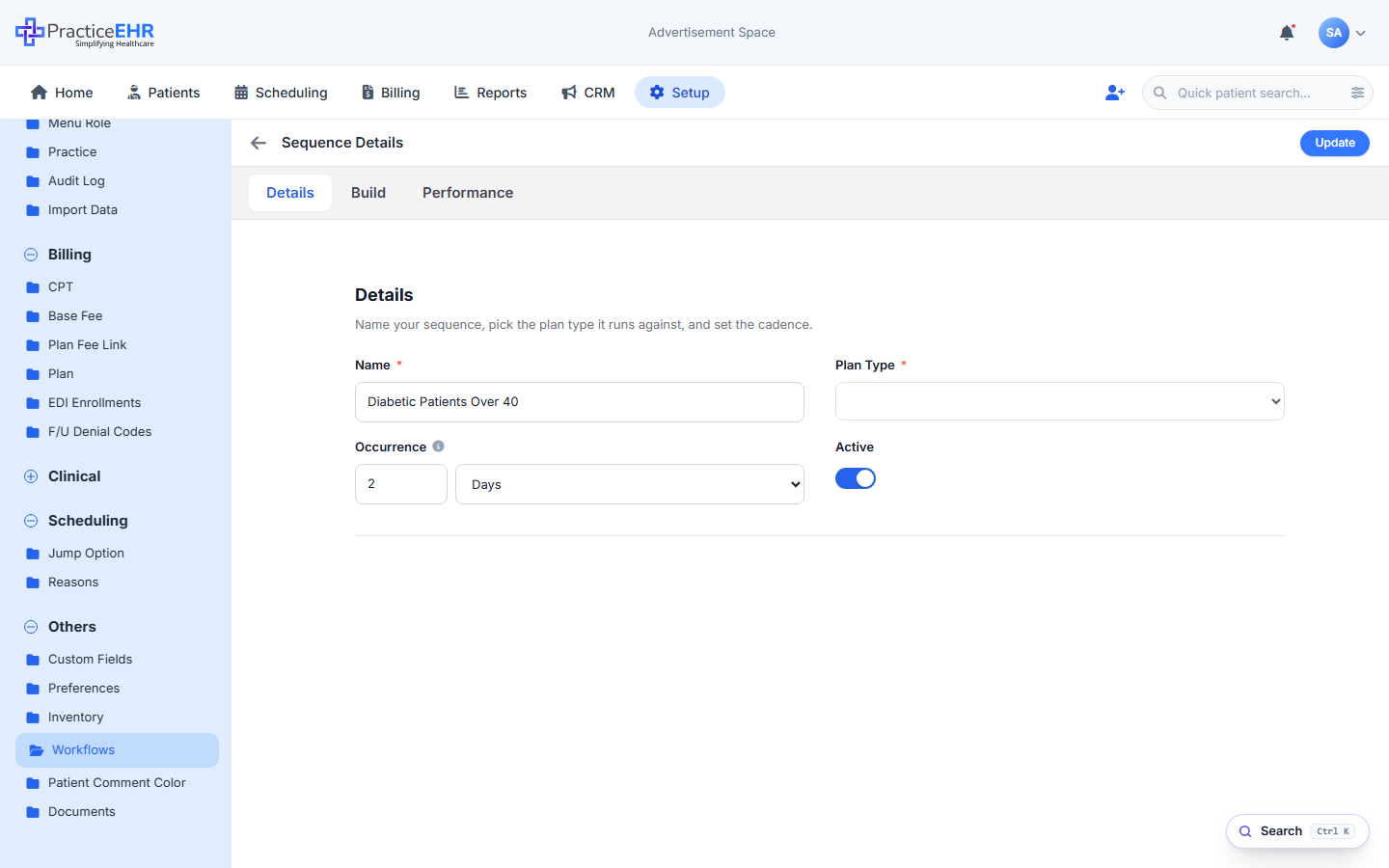
Sequences are the second top-level tab in the Workflows page (alongside Automations). The builder is identical to a Trigger — same Details/Build canvas, same node config rail, same five step types — with one swap: the audience field is Plan Type, not a Smart List. Patients are then enrolled manually. Legacy Workflows in this area have all been converted to Sequences.
Live mockup
All screens above are captured from the interactive PracticeEHR Workflow Automation mockup. Open it to click through the live UI.
Key Features
- Sequences sit under Setup › Others › Workflows › Sequences — the second top tab.
- Open in the same builder layover as Triggers — same Details + Build wizard, same canvas, same node config rail.
- Step palette: Send email, Send SMS, Delay, If/then branch, Create task.
- The Details panel reuses the Trigger Details Figma layout (
11635:5062): Name, Plan Type, Occurrence, Active. The Plan Type dropdown replaces the Trigger's Smart Lists multi-select and is locked once the sequence is saved. - Patients are enrolled manually — pick patients from the patient picker rather than letting a Smart List feed them in.
- Legacy Workflows in this module have all been converted into Sequences.
Plan Type1
Sequence details5
2 Days — runs every step today, runs them all again 2 days later, and so on. New patients added later get picked up on the next run.Empty canvas3
Canvas rules3
Node configuration4
Node configuration2
{{firstname}}, {{practice}}. "Reply STOP to opt out" appended automatically.Node configuration1
Node configuration3
Branch layout3
Patient picker3
Run status3
What you see4
Where to find it
Setup › Others › Workflows › Sequences.