
Scheduling Enhancements - Batch Schedule Builder
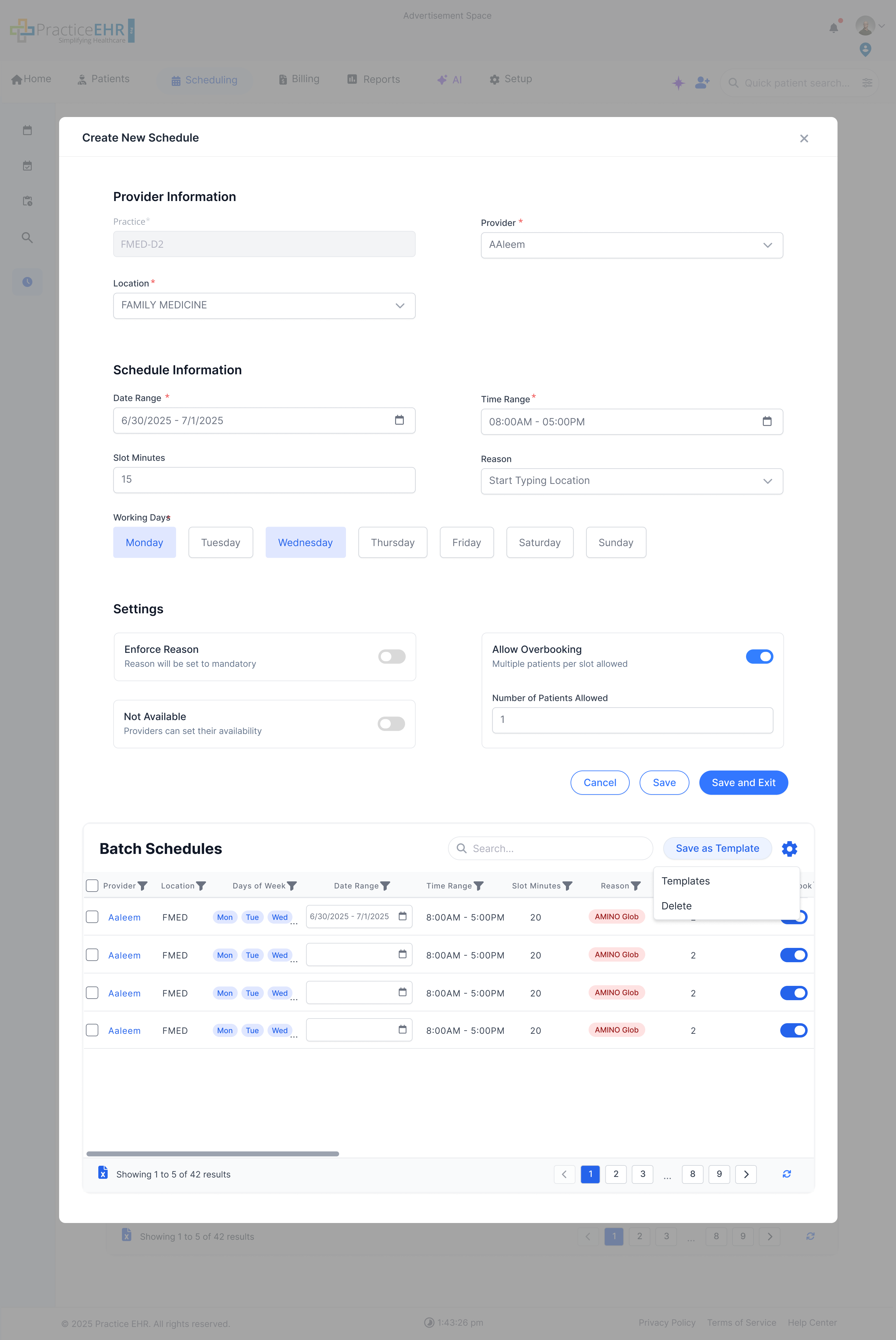
Create multiple provider schedules in one session, review in a Batch Schedules table, and save together when ready.
Single Flow
The previous Batch Schedule experience is removed. The system now follows one path: Schedule Builder -> Batch Schedules -> Save and Exit or Save as Template.
In Scope
- Batch schedule creation in Schedule Builder.
- Add vs Save and Exit behavior.
- Template creation, apply, and management.
- Full schedule deletion (slots + appointment unlink).
Save Behavior
- Add adds the schedule to the Batch Schedules table only.
- Save and Exit persists all batch schedules together.
- Save and Exit prompts for missing Date Range values.
- Schedules remain editable until Save and Exit.
Provider Hyperlink
Clicking a provider in the Batch Schedules table populates the Create New Schedule form so you can adjust and add again.
Batch Schedules Table
Review and manage schedules before saving them as a single batch.
Columns
- Select checkbox.
- Provider, Location.
- Days of Week, Days, Time Range, Slot Minutes.
- Date Range (editable field). Template-applied schedules start blank.
- Reason.
- Patients Allowed.
- Overbook Allowed.
- Enforce Reason.
- Not Available.
Gear Menu
- Delete removes only selected schedules.
- Templates opens the Templates grid.
- Checkboxes are used to delete multiple schedules at once.
Save and Exit Validation
- If any schedules are missing Date Range and you choose Save and Exit, an error highlights the rows and asks you to select Date Range for the highlighted rows.
Save as Template
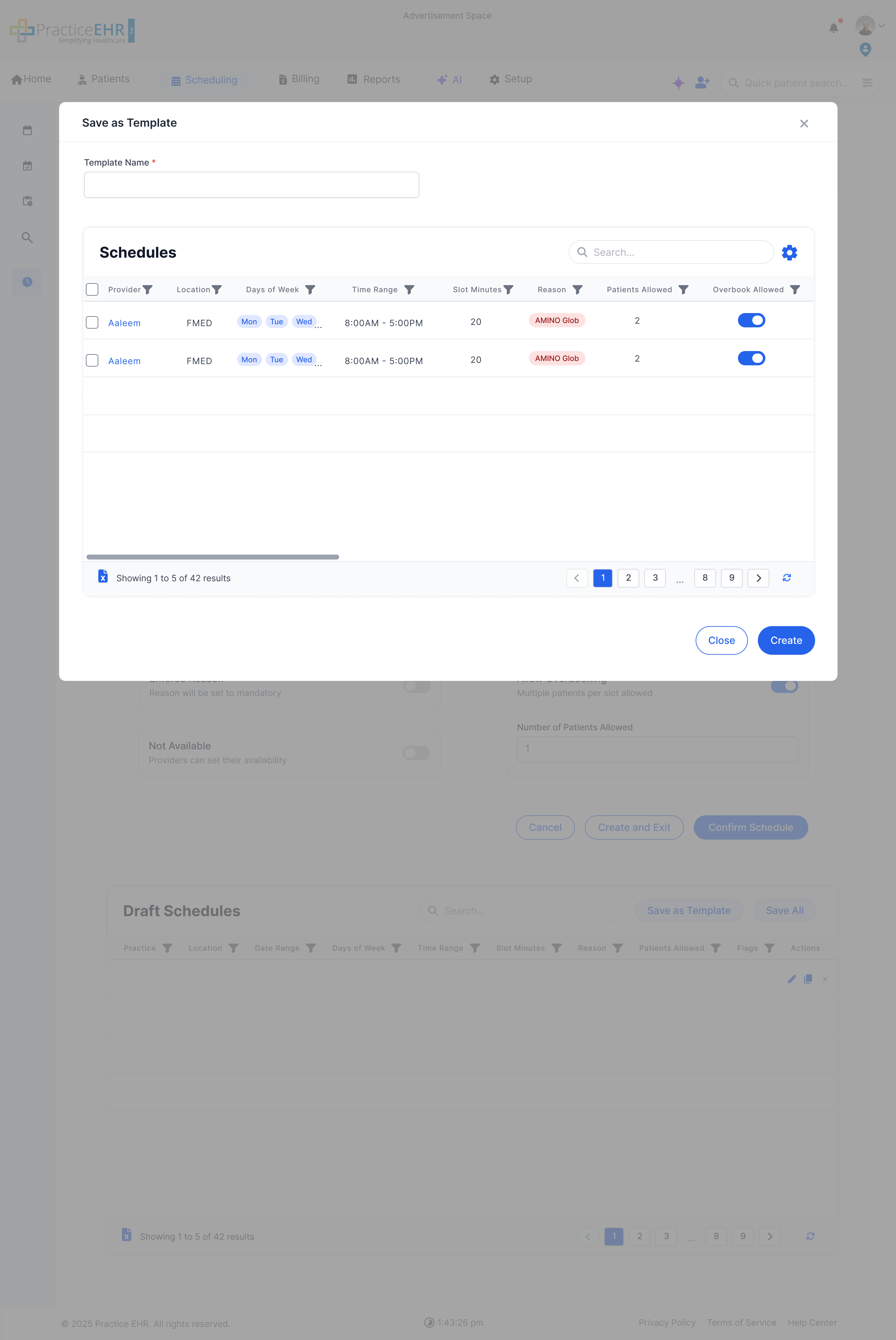
Create reusable templates that store Days per schedule and remain date-agnostic.
Template Rules
- Templates do not store Date Range values.
- Days of Week, Time Range, Slot Minutes, Reason, Patients Allowed, Overbook Allowed, Enforce Reason, and Not Available persist.
Template Grid
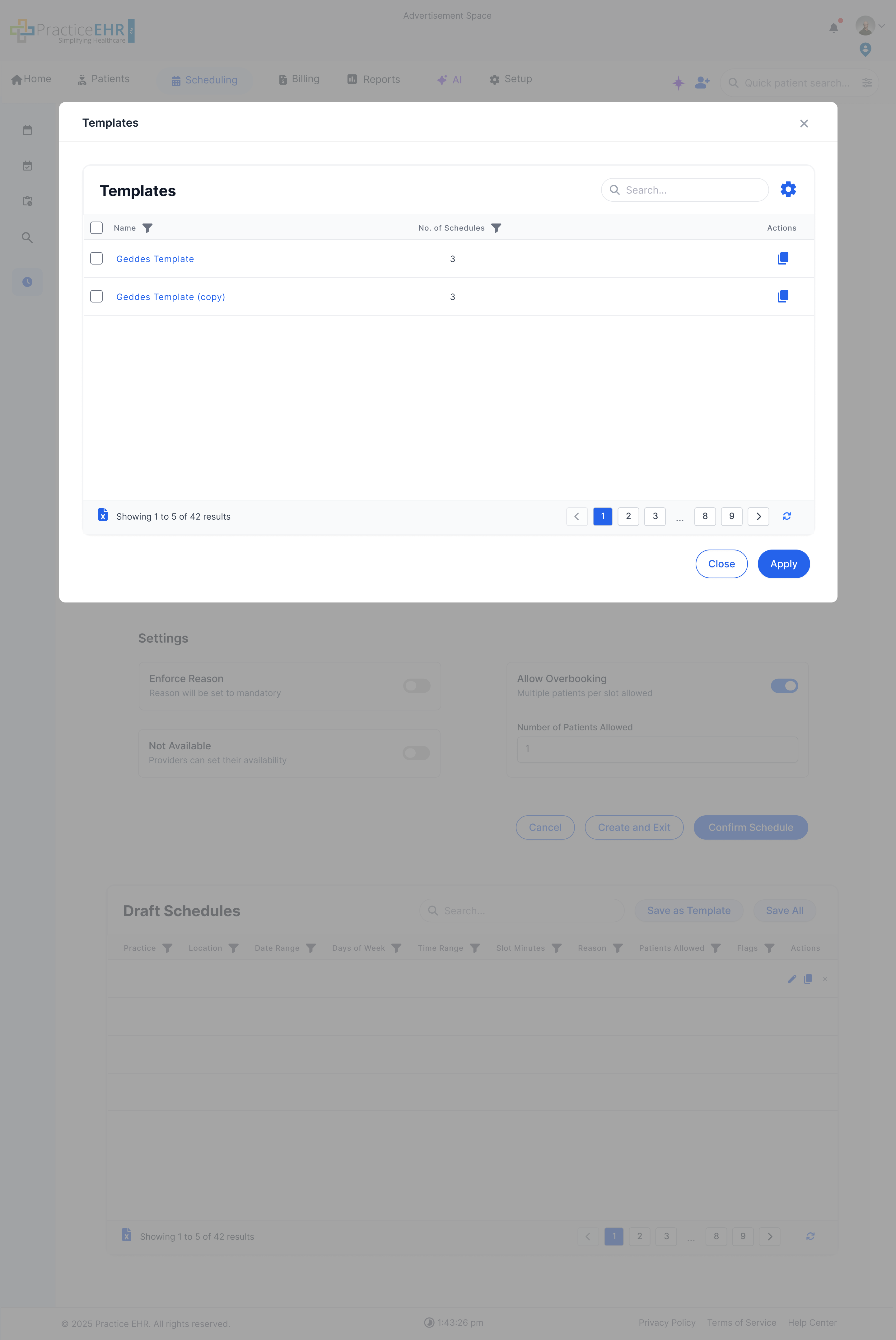
Access templates from the gear icon and manage existing entries.
Grid Columns
- Template Name (hyperlink)
- Number of Schedules
- Actions
Access
- The Templates grid opens from the Batch Schedules gear icon.
- Selecting a template name opens Template Details.
- The gear icon also includes a Delete option, letting users select single or multiple templates with checkboxes and remove them in one action.
- The Actions column includes a copy icon to duplicate templates.
Apply Flow
- You can apply one or multiple templates.
- After applying, you return to the Create New Schedule screen and the template schedules appear in Batch Schedules.
- Date Range stays empty for applied schedules and must be set in the Date Range field in the grid before Save and Exit.
Template Details
Review schedules, adjust template name, and update saved rules.
Read-Only Details
Clicking a provider hyperlink in Template Details opens Schedule Details for that specific schedule.
Updates
- Edit template name and included schedules.
- Saving persists updates to the template.