CRM TAB PHASE 1
This document outlines the complete feature breakdown, UI behavior, and workflow details for Phase 1 of the CRM implementation for PracticeEHR.
Modules in Phase 1: Dashboard, Contacts, List, Communication, and My Tasks. Sequences and Campaigns are part of Phase 2.
Dashboard
Overview cards, recent activity, and upcoming task visibility.
Contacts
Lead lifecycle, filters, smart search, and create contact flow.
Contact Detail View
Activity, notes, communication history, tasks, visits, and sequence placeholder.
Communication
Marketing email/SMS workflows from list view to detail analytics.
Templates
Email/SMS template management with favorites-first ordering.
My Tasks
Task log, create/edit behavior, and task detail workflow.
Lists
Dynamic/static list creation, smart filters, and list details.
Dashboard
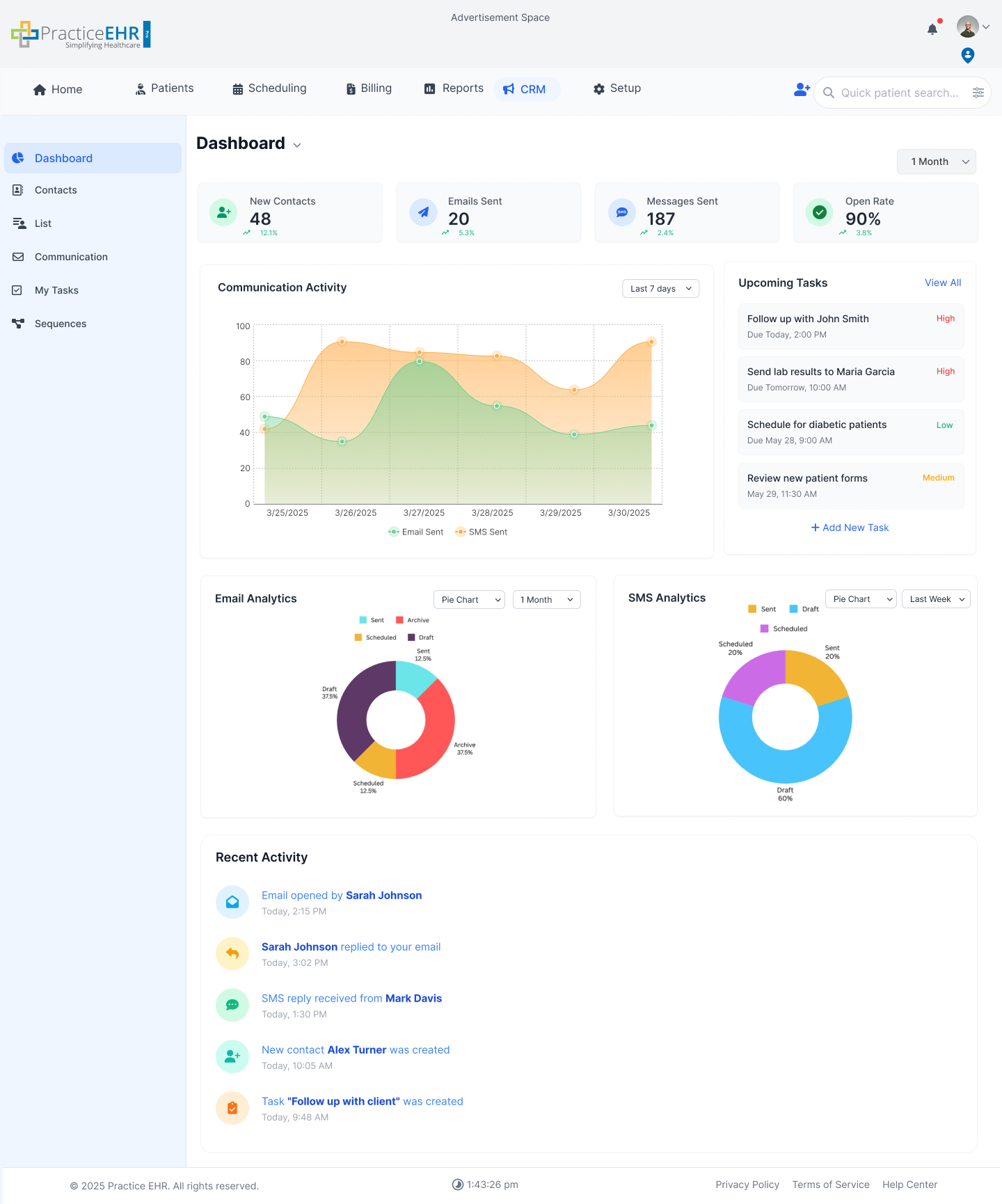
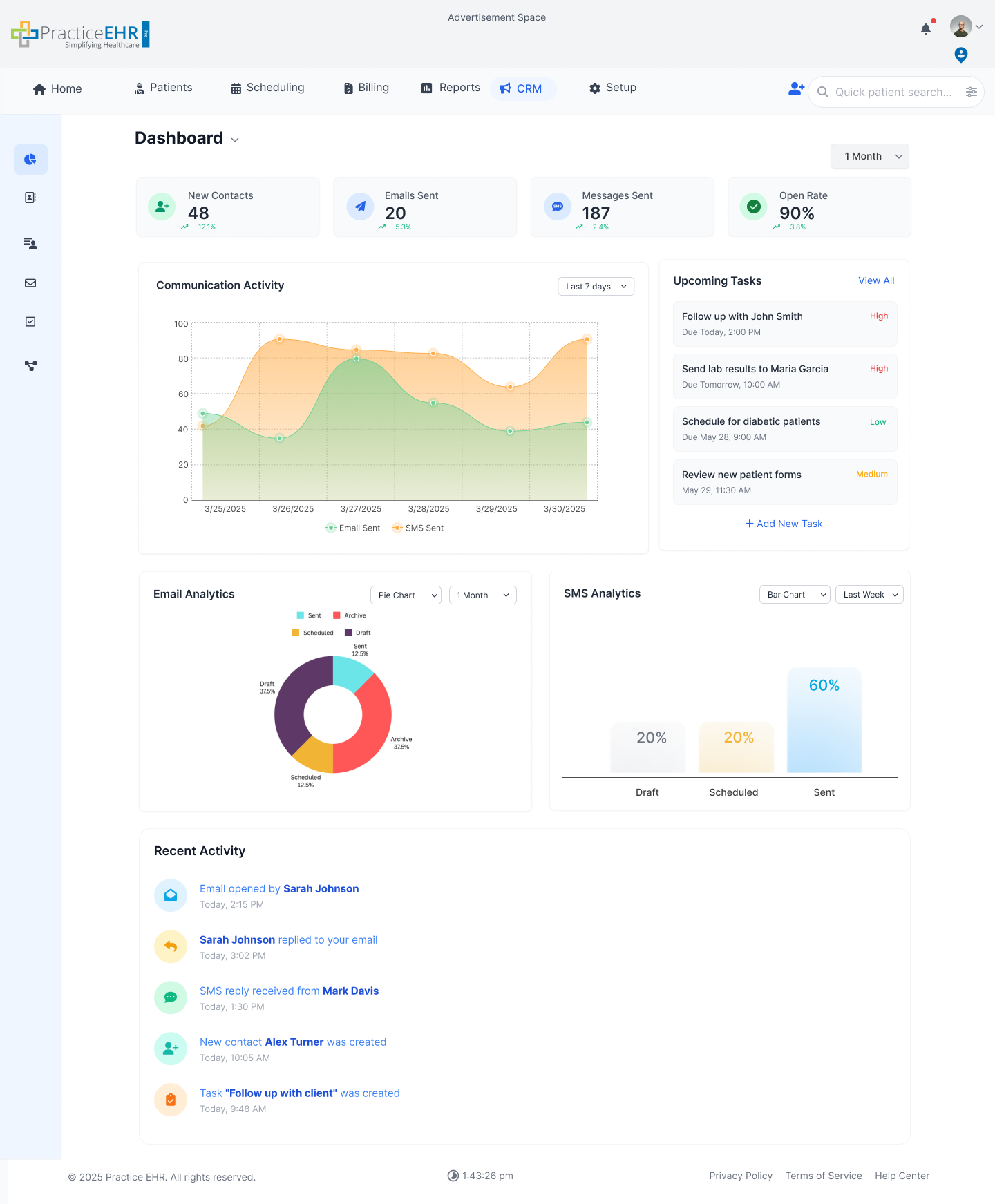
Interactive GuideThe Dashboard enables users to monitor CRM performance at a glance through key metrics, communication trends, analytics, upcoming tasks, and recent activity.
Overview
Global Date Filters
When opening the Date Range filter, the user sees rolling date options in billing KPI dropdown
- Last 7 Days (From current date to previous last 7 days)
- Last 14 Days
- Last 30 Days
- Last 90 Days
- Last 6 Months
- 1 Year
- All Time
- Custom Range (users can type or pick the From Date and To Date directly)
Note: Current Week and Last Week have been updated/removed as per latest requirements.
Recent Activity Categories
Badge Color / Icon Color mapping for activity feed categories.
- Email Open #E0F2FE / #0EA5E9
- Email Reply #FEF3C7 / #F59E0B
- SMS Reply #D1FAE5 / #10B981
- New Contact Create #CCFBF1 / #14B8A6
- Task Create #FFEDD5 / #F97316
KPI Summary Logic
- Cards: Total Contacts, New Contacts, Messages Sent, Email Sent.
- If no data exists, show 0.
- Formula: Delta % = ((Current - Previous) / Previous) * 100
- Positive = Up Arrow (Green)
- Negative = Down Arrow (Red)
- Zero = 0% (Neutral)
Communication Activity
- Comparison: Email Sent vs SMS Sent.
- Axes: X-axis (Date MM:DD:YY), Y-axis (Count).
- Default Range: Last Week.
Upcoming Tasks
- Limit: Only recent 4 tasks are visible.
- Priority Colors: High (Red), Medium (Orange), Low (Green).
- Actions: View All opens Tasks list; + Add New Task opens modal.
- Row Click: Clicking an individual upcoming task opens that task's details.
Analytics (Email + SMS)
- Chart dropdown views: Pie Chart, Bar Chart, Grid View.
- Email Legend: Sent (Light Blue), Draft (Purple), Archive (Orange), Scheduled (Yellow).
- SMS Legend: Sent (Yellow), Draft (Light Blue), Scheduled (Lt. Purple).
Contacts
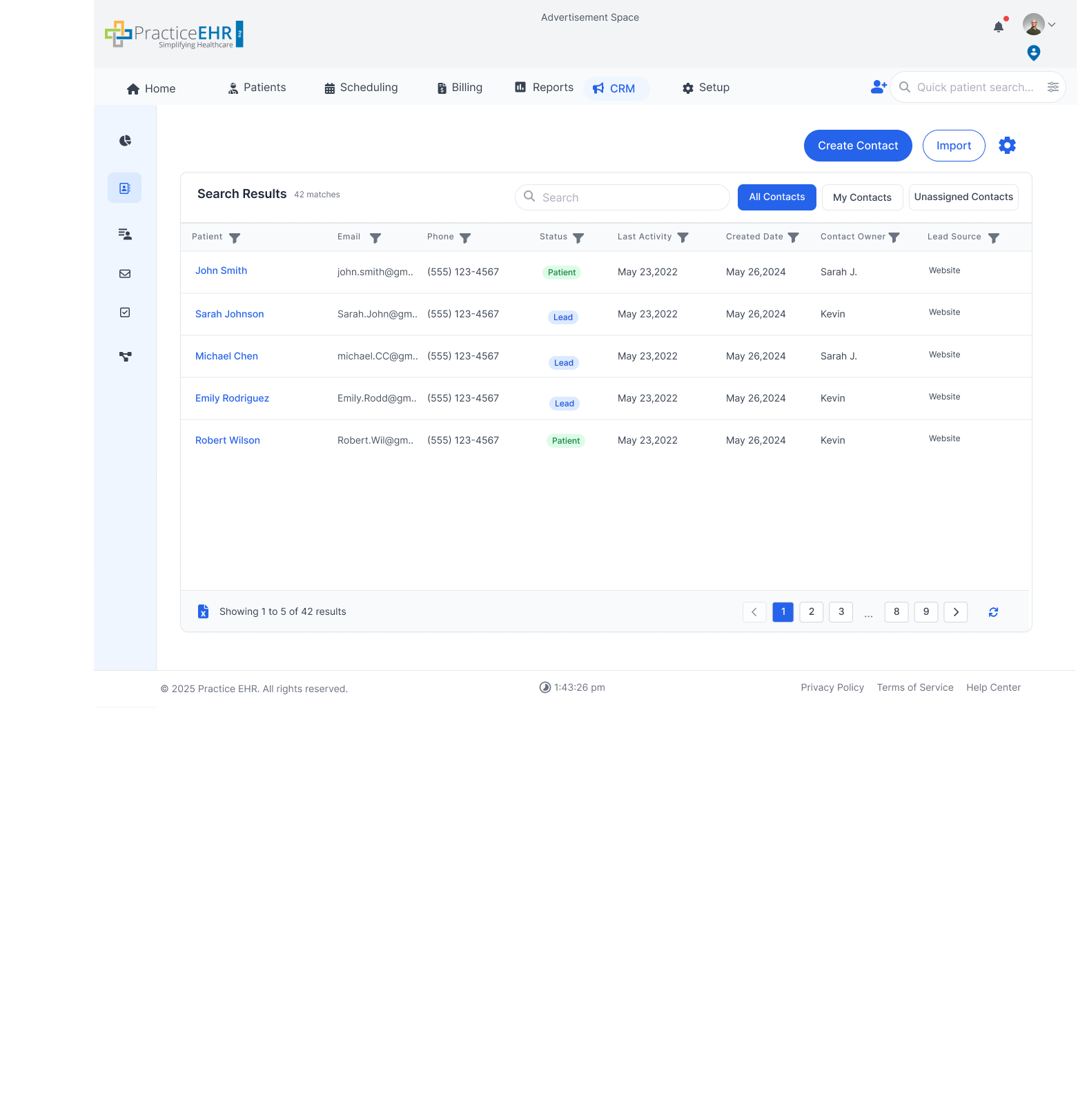
Interactive GuideThe Contact tab lists individuals added through form submissions, website inquiries, or manual entry. Each contact is treated as a lead until an appointment is booked, then converted to a patient in PracticeEHR.
Contacts List
Lifecycle and Storage
- Contact starts as a lead before appointment booking.
- After booking, contact converts to patient.
- Patient personal details are stored in Demographics.
- Uploaded files are stored in Documents.
Views and Filters
- Views: All Contacts, My Contacts, Unassigned Contacts.
- Each filter dropdown supports multi-select except dates.
- Contact Owner: user list.
- Create Date: date range picker.
- Last Activity: Today, Yesterday, Last 7 Days, Last 30 Days.
- Status: Lead, Patient.
Search and Gear Icon
- Smart search supports comma-separated or plain text values.
- Example: John Smith, 5551234567 or John Smith 5551234567.
- Search matches name, email, and phone.
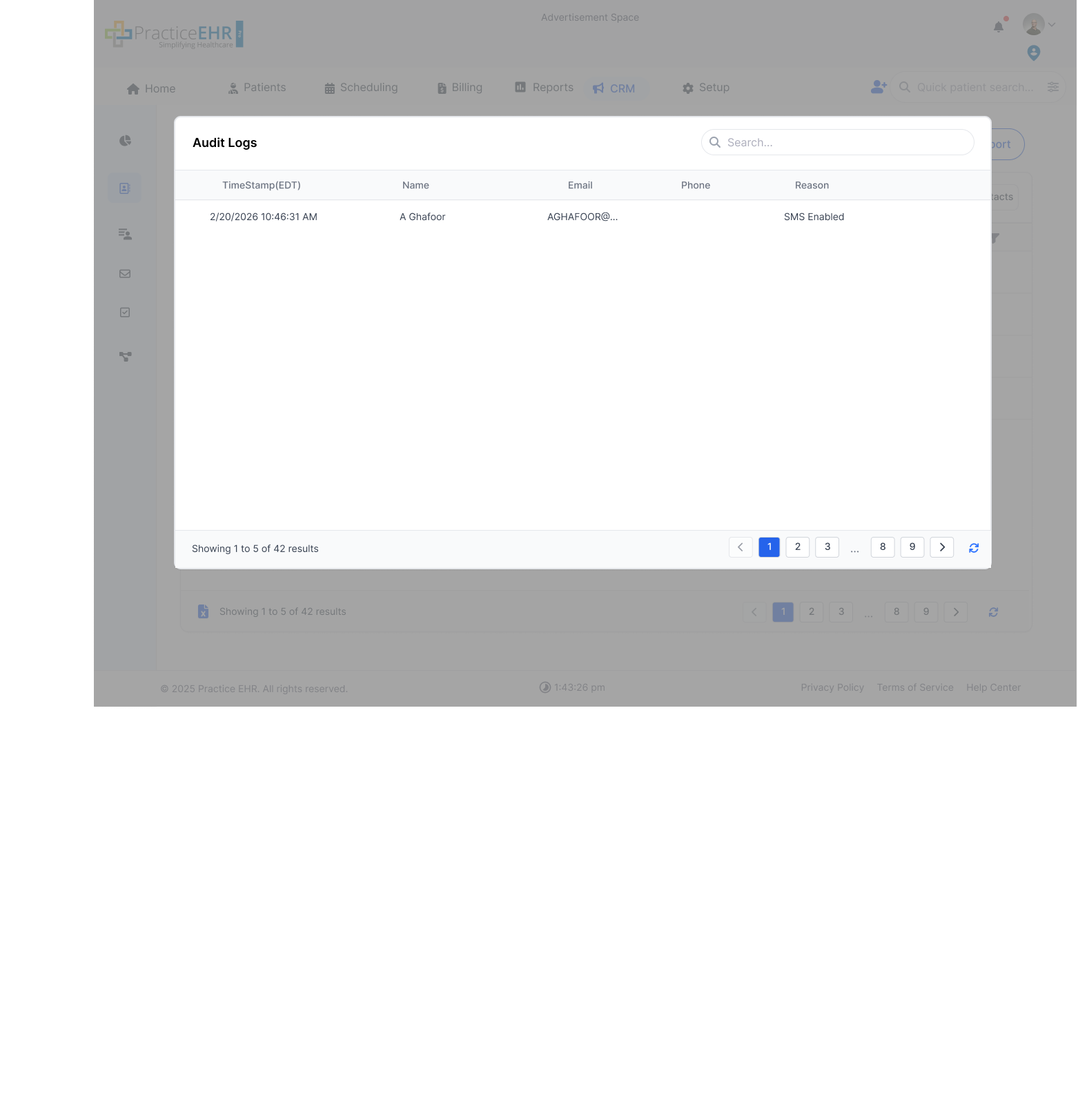
- Gear icon includes SMS consent audit log.
- Import option is also available from the gear icon menu.
- Edit Columns is planned for Phase 2.
Gear Icon Audit Log
Audit Tracking
- Audit log keeps SMS consent history.
- Accessed from the gear icon menu.
- Used for compliance review of consent changes.
Create Contact Modal
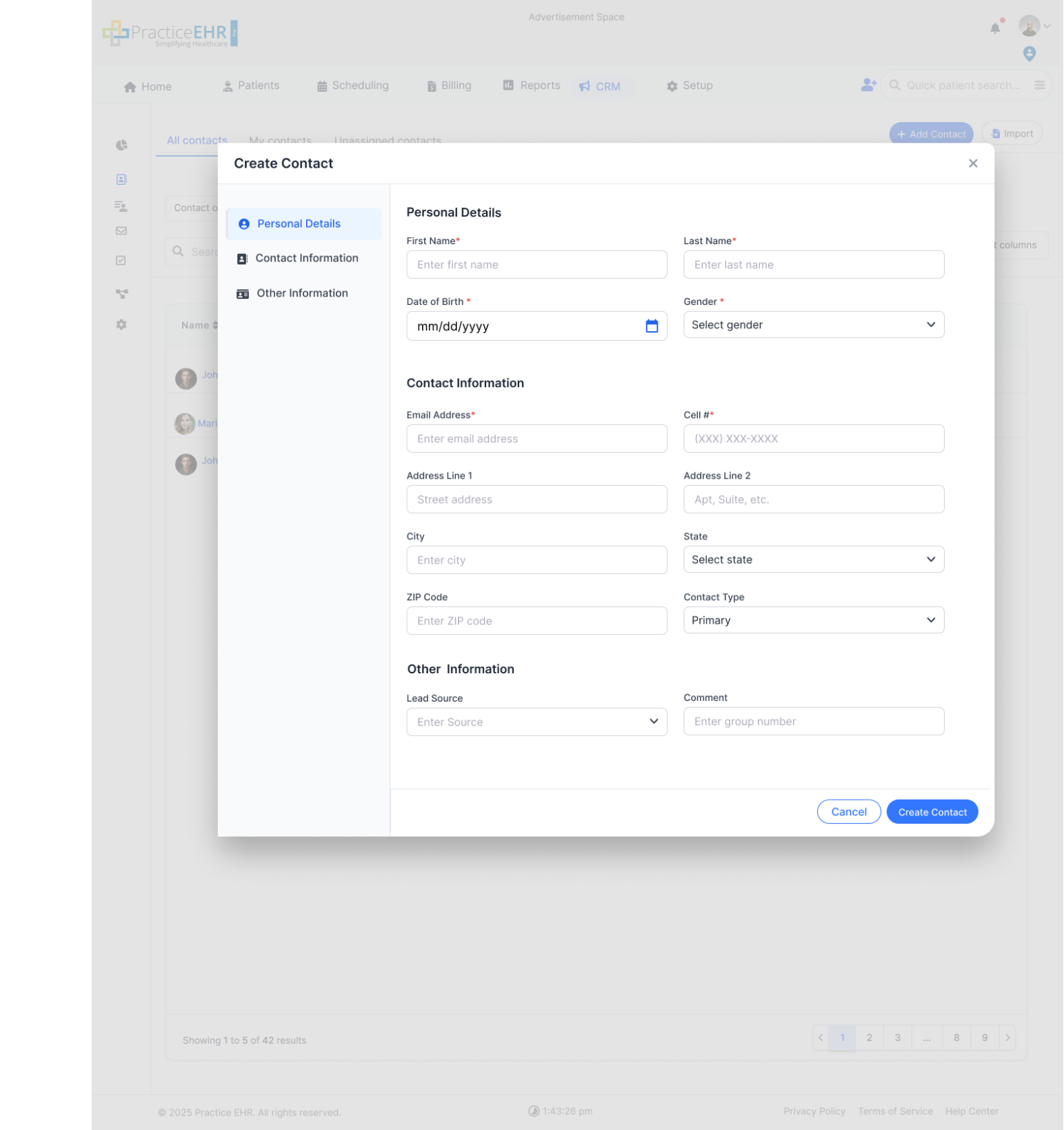
Modal Behavior
- Opened from the Create Contact action.
- Saves manually entered lead/contact details.
- Form customization is planned for Phase 2.
Contact Detail View
Interactive GuideContact detail includes editable profile fields, center workflow tabs, and collaboration records tied to a single contact.
Contact Details Window
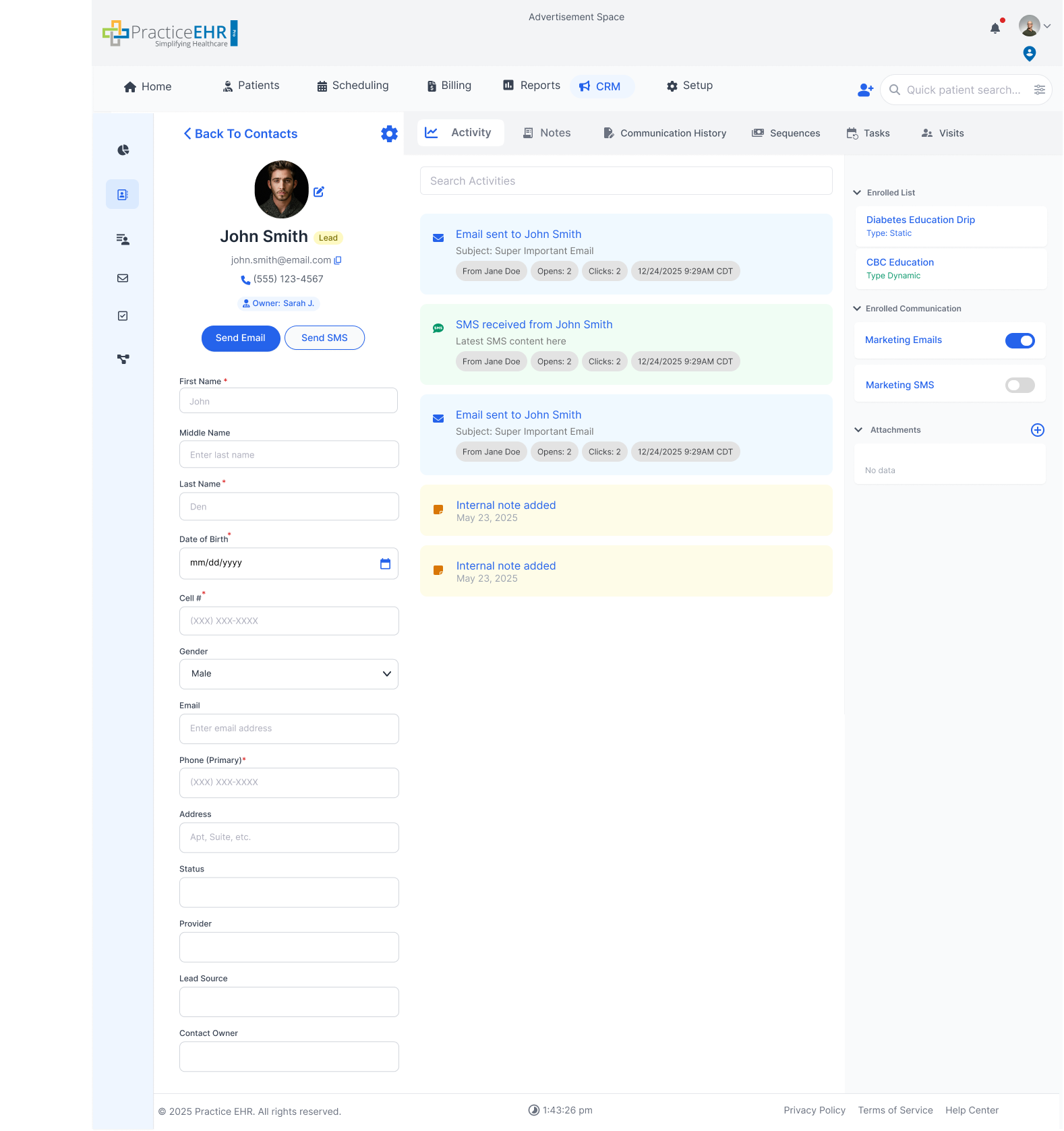
Structure
- Left panel: editable contact fields.
- Center tabs: Activity, Notes, Communication History, Tasks, Visits, Sequence.
- Smart search filters tab content live.
- Right panel items are planned for Phase 2 (lists, attachments, feedback, communication toggles).
- Past feedback also belongs to Phase 2 scope.
Notes Tab
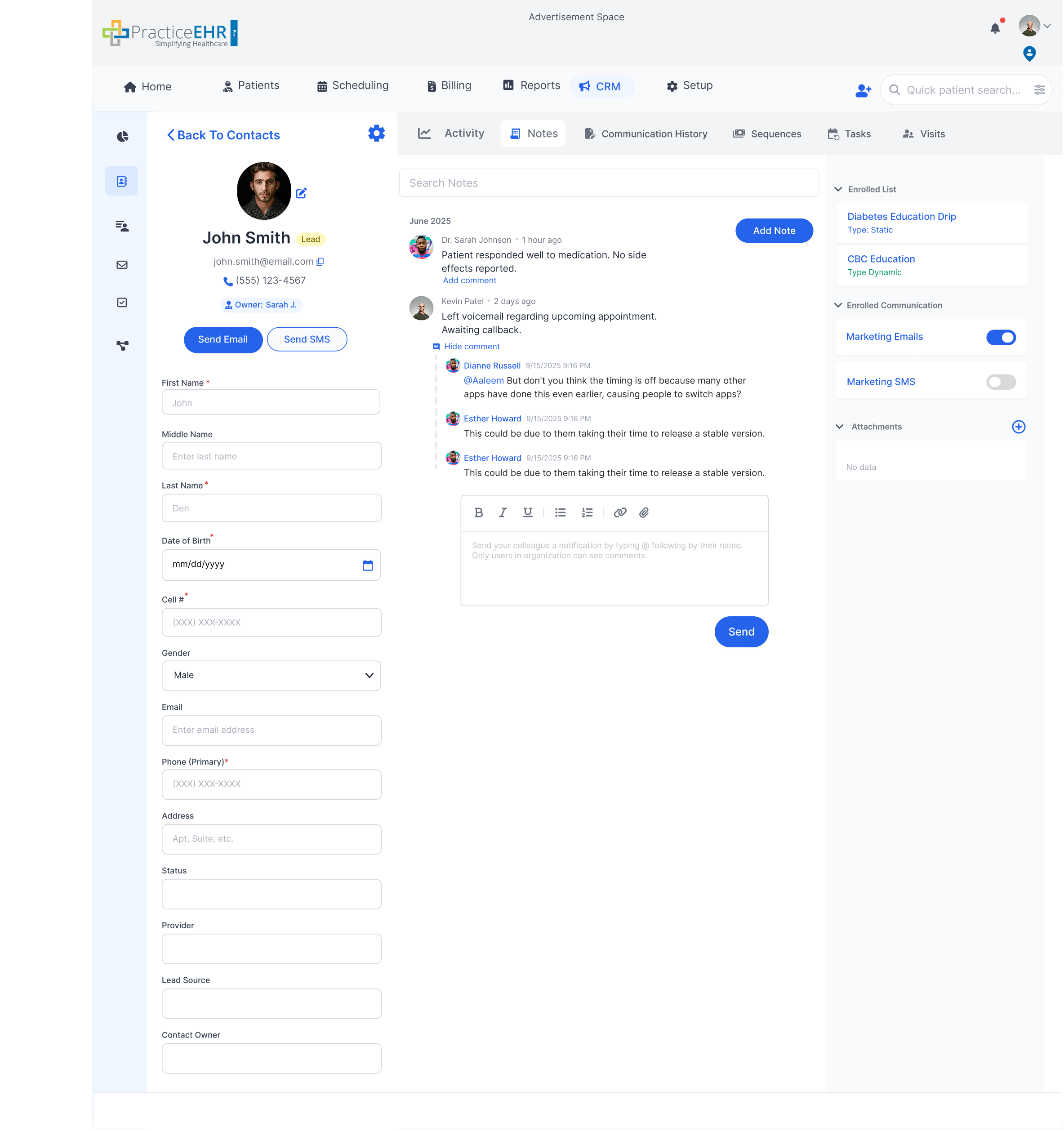
Purpose + Capabilities
- Internal notes track call summaries, meeting outcomes, updates, and reminders.
- Notes are internal-only and not visible to contacts.
- Rich text supports bold, italic, lists, and links.
- @mentions notify tagged teammates for collaboration.
- Comments support threaded internal discussions.
- Notes are indexed and searchable by keyword.
Add Note Modal
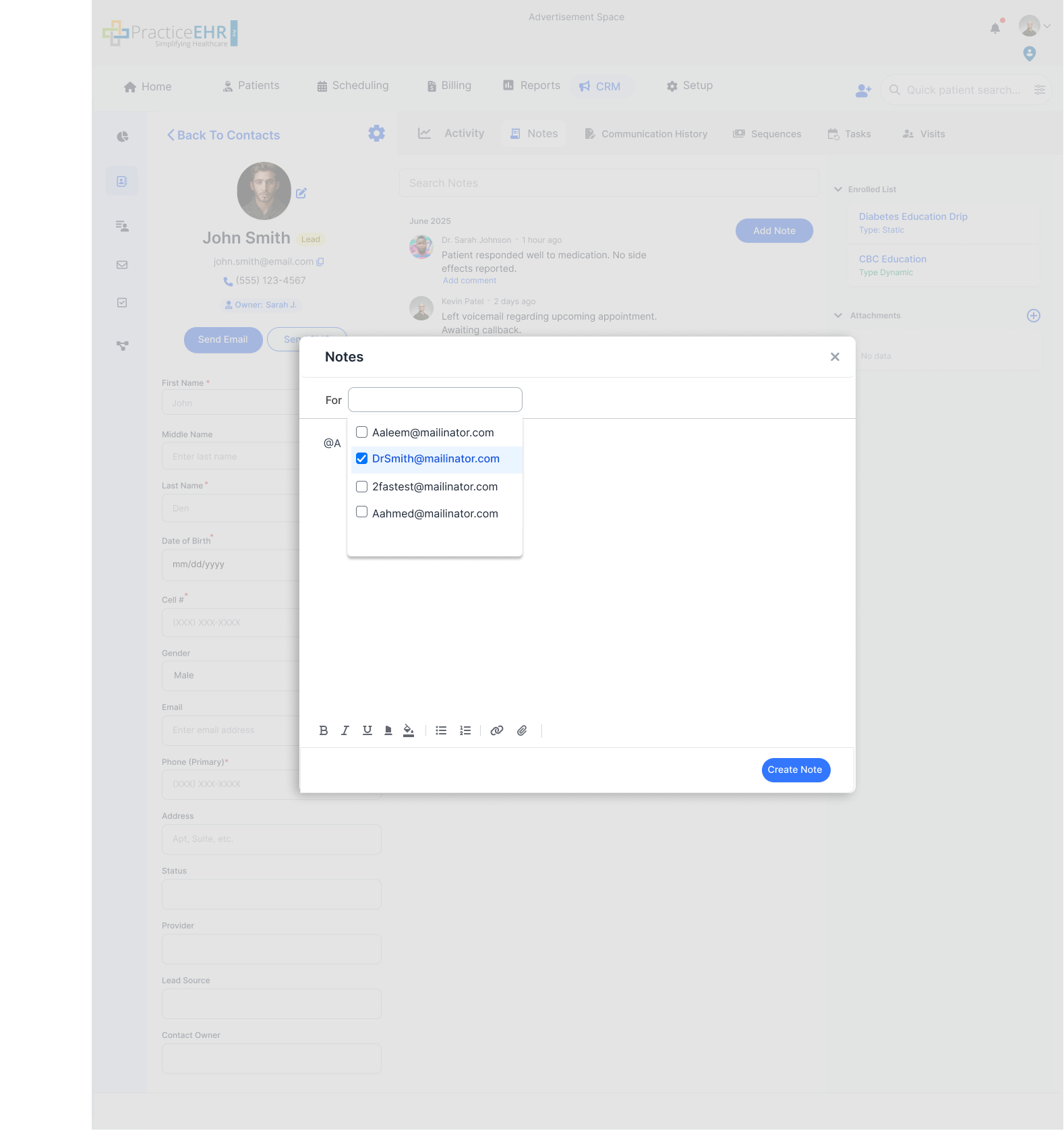
Collaboration Workflow
- Use the recipient selector to route note context to the right teammate.
- Compose structured notes with formatting and links.
- Mentions are intended for ownership handoff and action reminders.
- Submitting creates a searchable, timeline-linked record.
Communication History (within Contact)
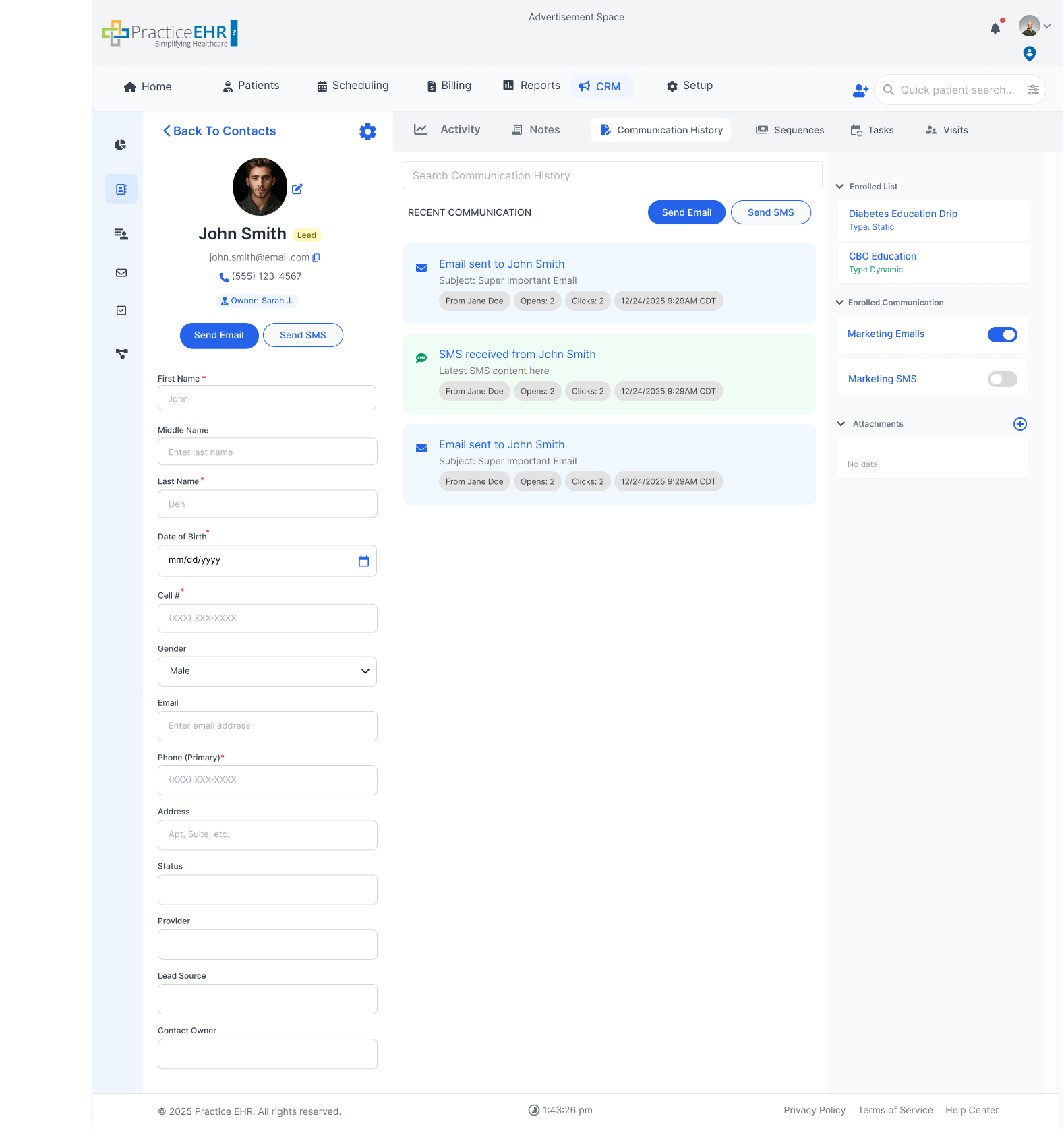
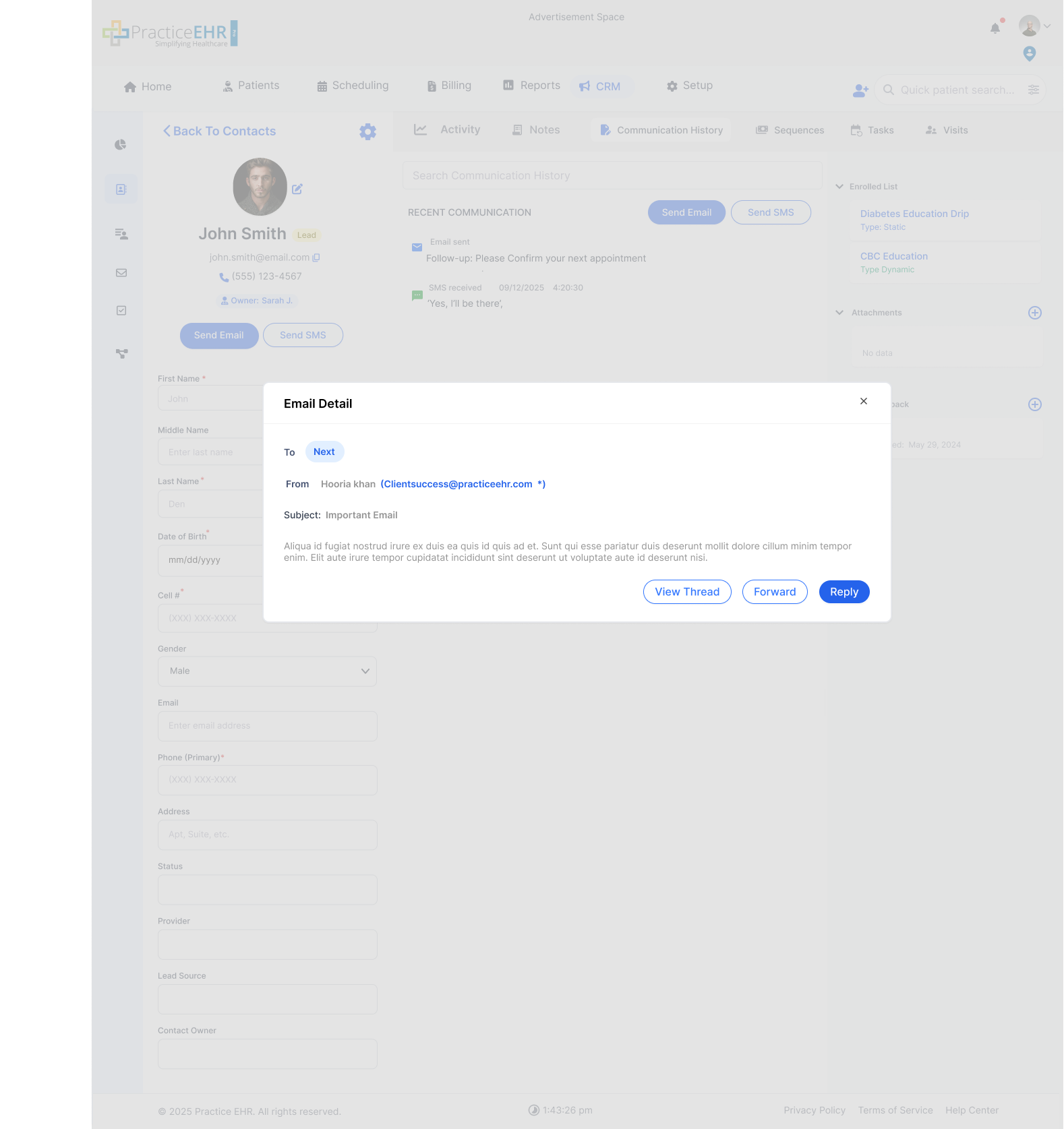
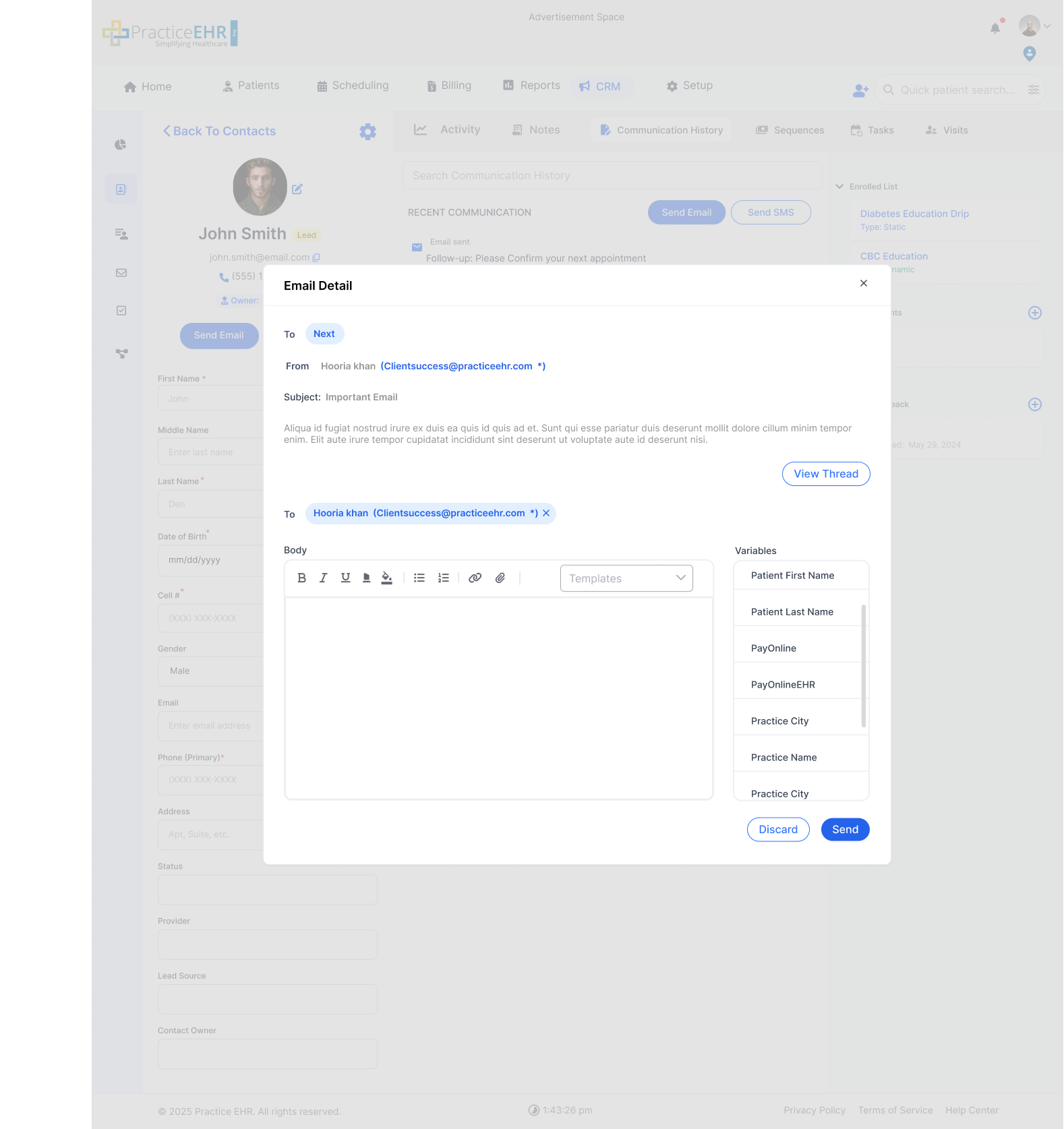
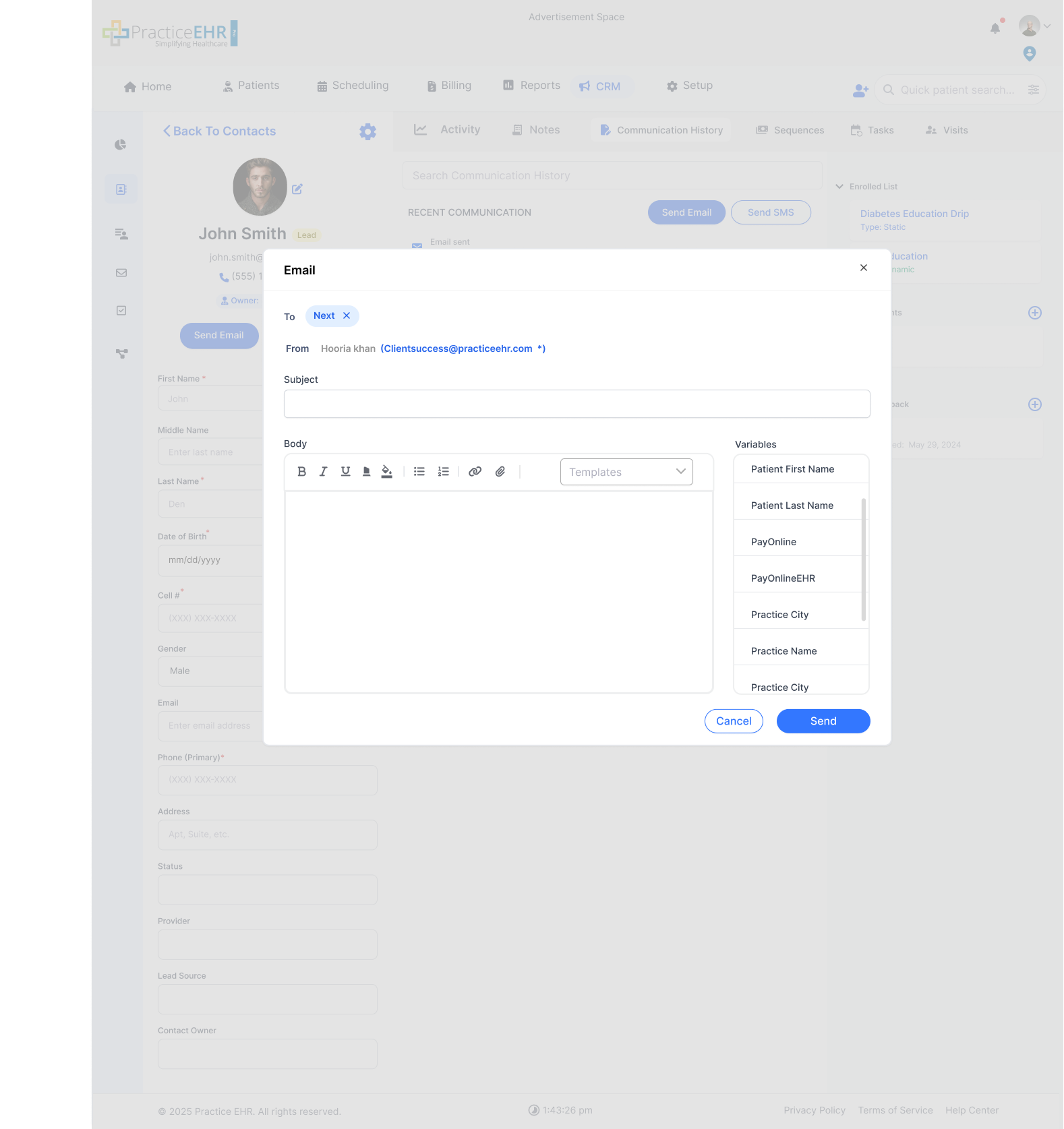
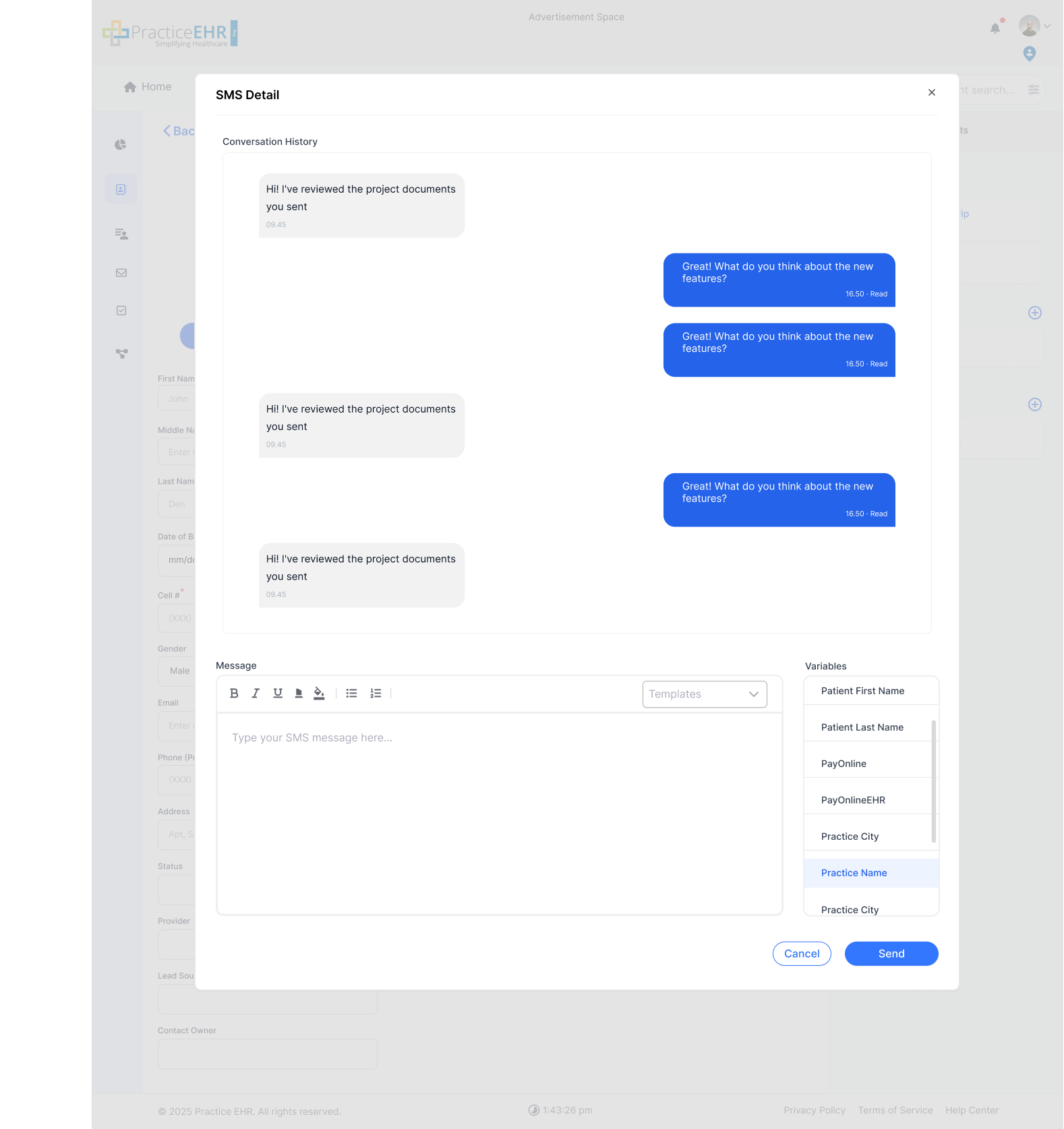
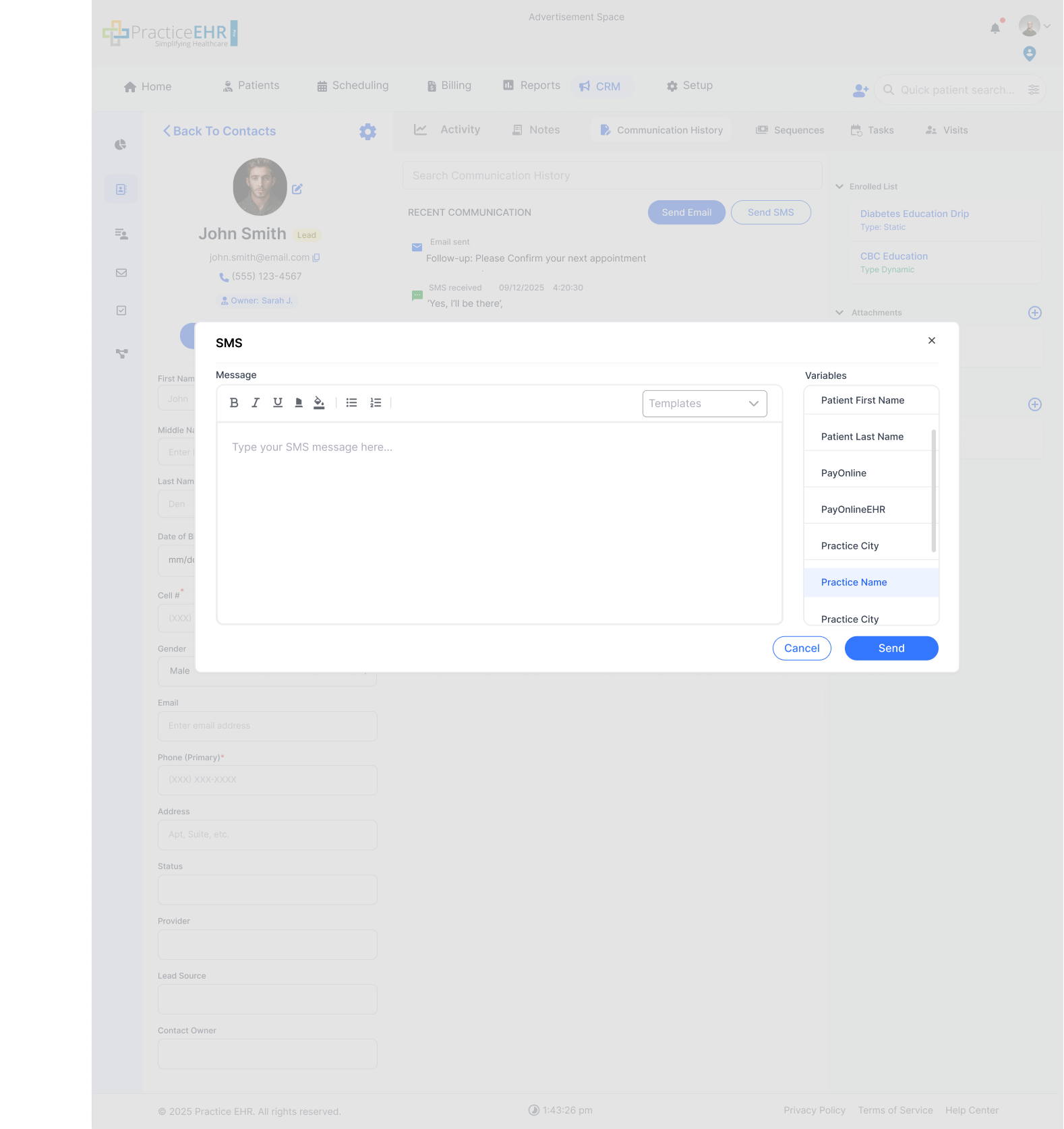
Key Features
- Chronological timeline of all email and SMS communication.
- Send Email and Send SMS actions are available in this tab.
- Message cards include content, message type, date, sender, and recipient.
- Search field filters communication content.
- Gear icon includes delete-contact option.
Sequence (Phase 2)
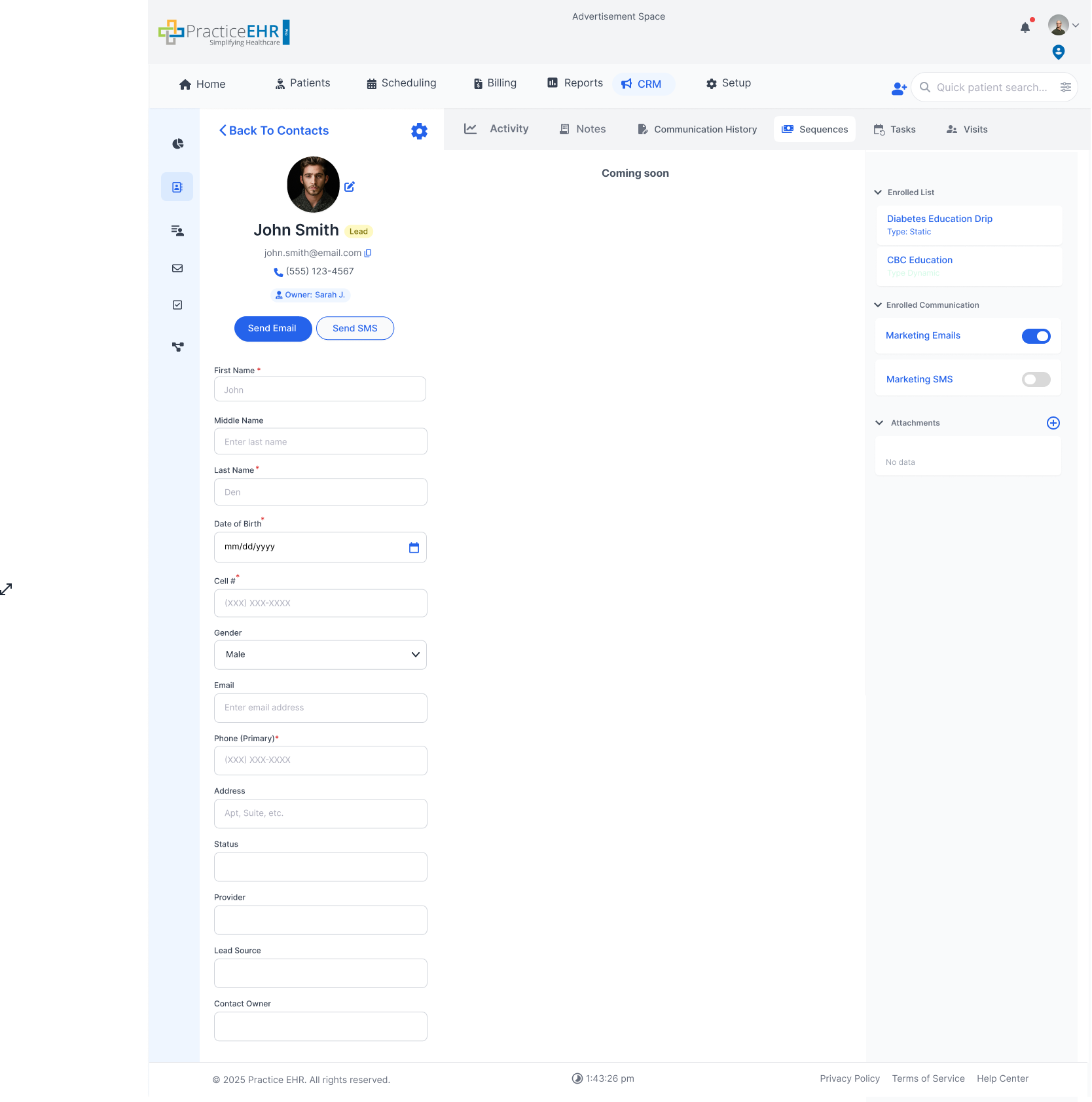
Phase Note
Sequence functionality is planned for Phase 2.
Tasks Tab (within Contact)
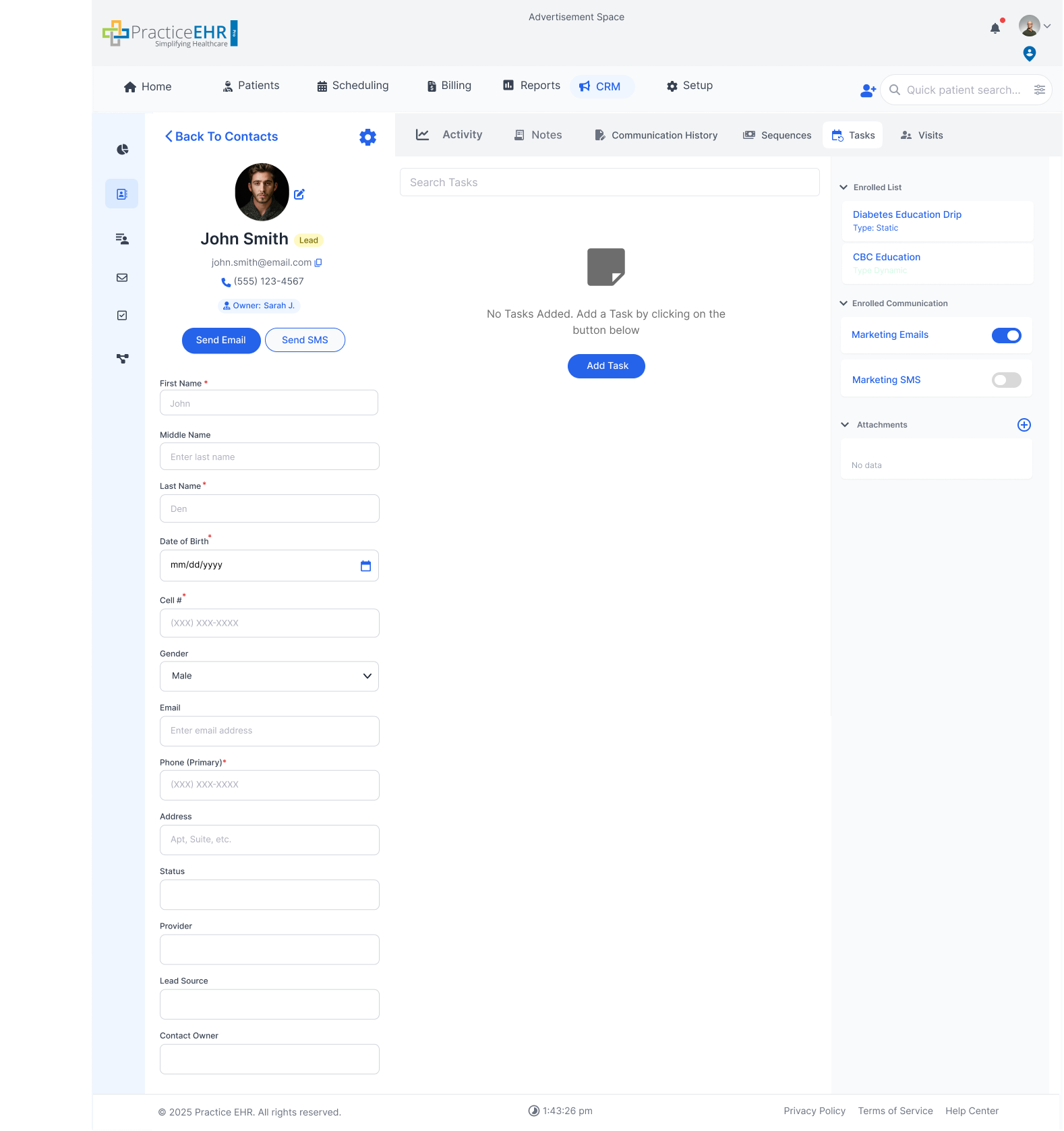
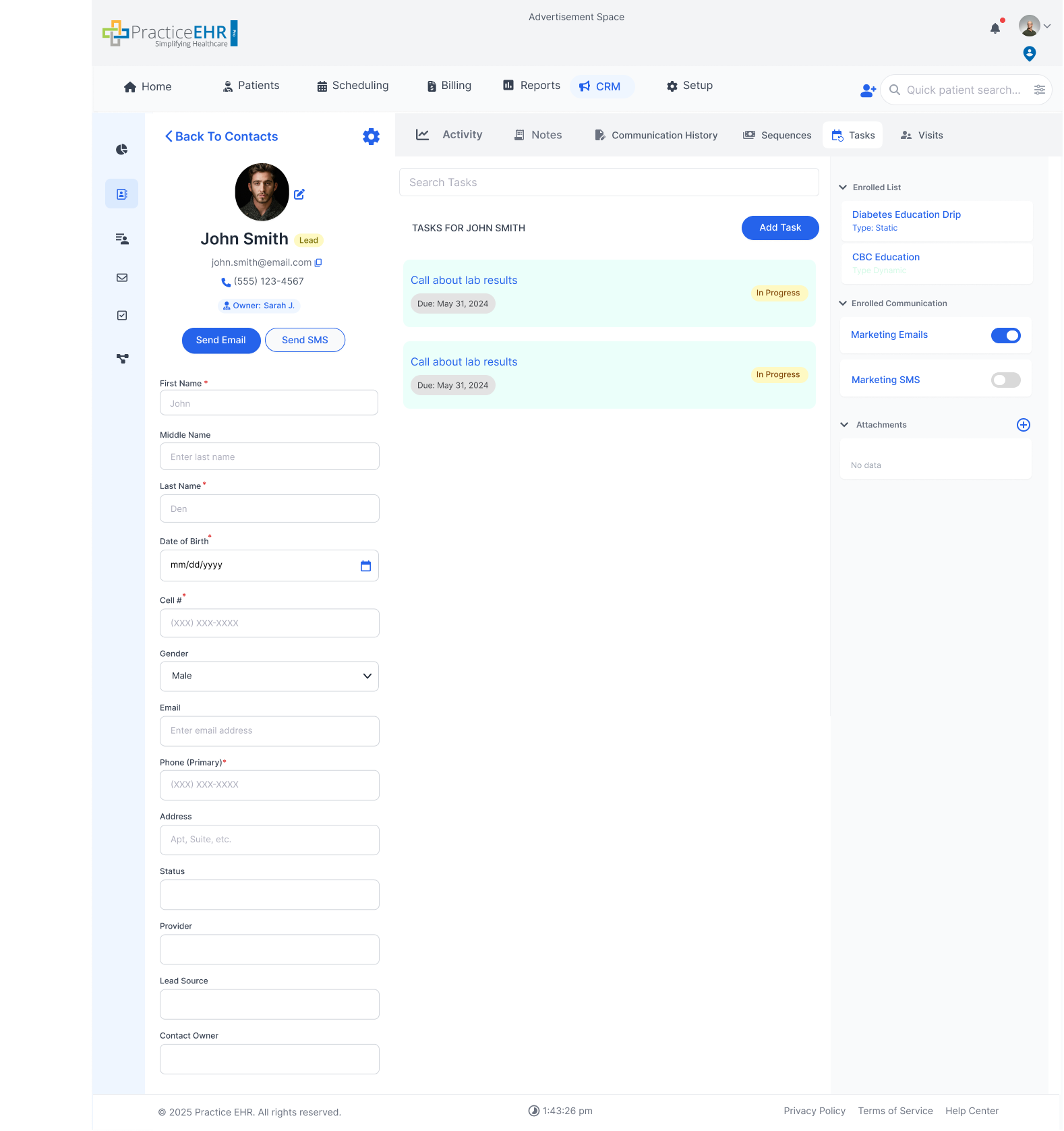
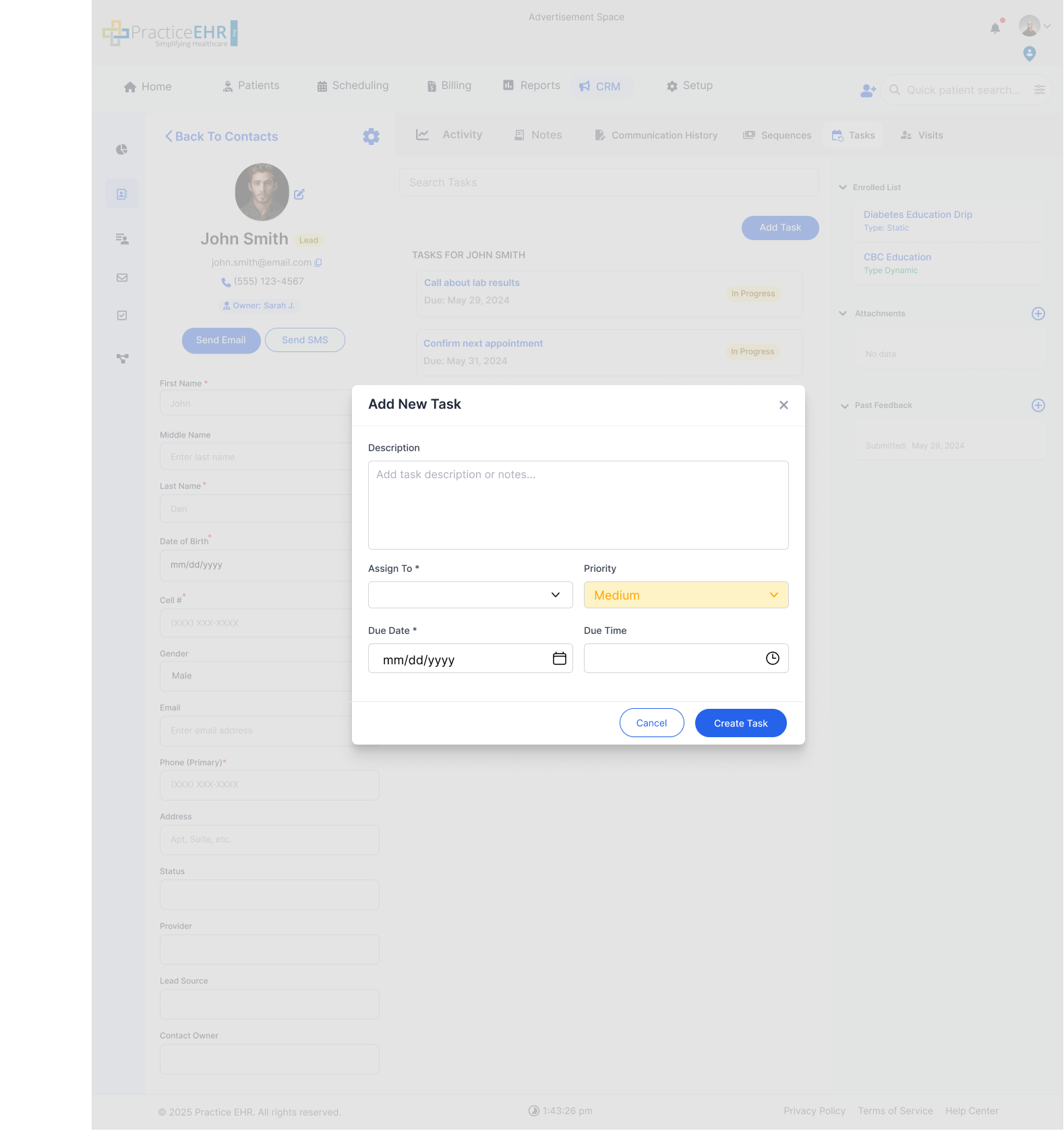
Task Rules
- Used for follow-ups, reminders, and contact-specific actions.
- Status options: Over due, In Progress, Completed.
- Task name is clickable and routes to My Tasks detail page.
Visits Tab (Contact = Patient)
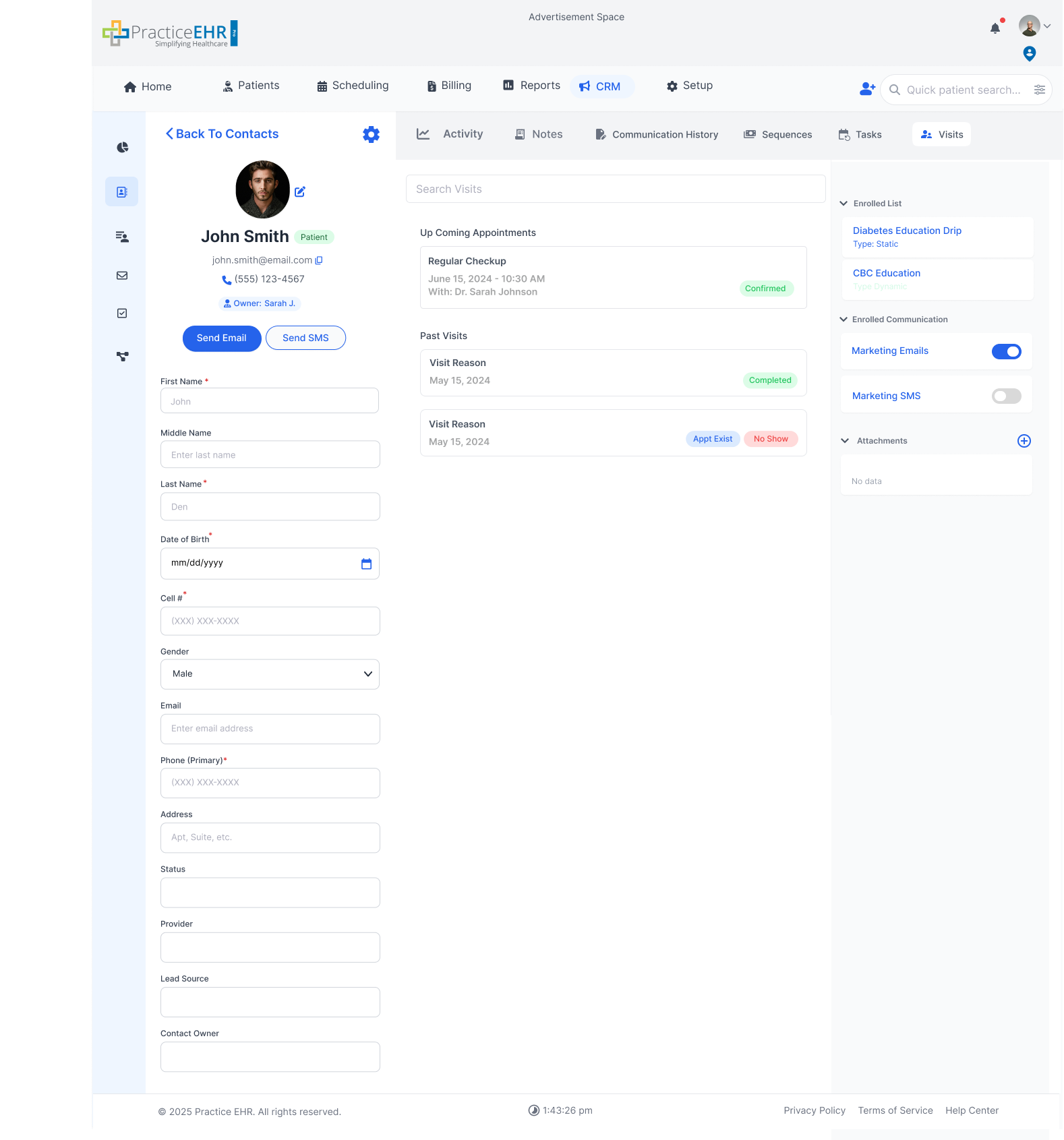
Key Features
- Visible only when the contact has converted to patient status.
- Displays past and upcoming visits.
- Clicking a visit opens the visit record in PracticeEHR.
Communication
Interactive GuideChronological view of all marketing email and SMS communication records.
Marketing Email Tab

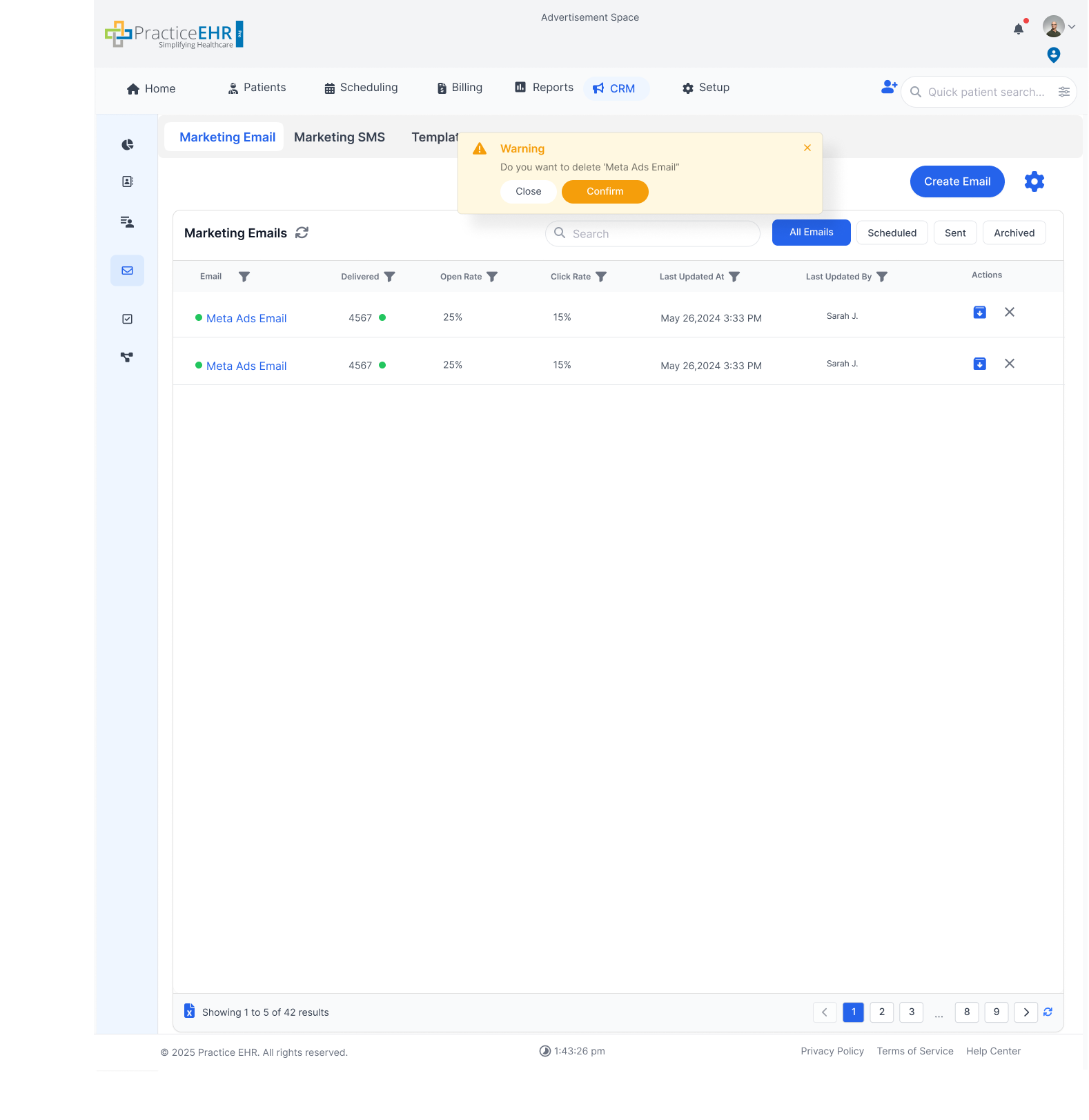
Behavior
- Chronological timeline of email records.
- On hover, user gets delete/archive actions.
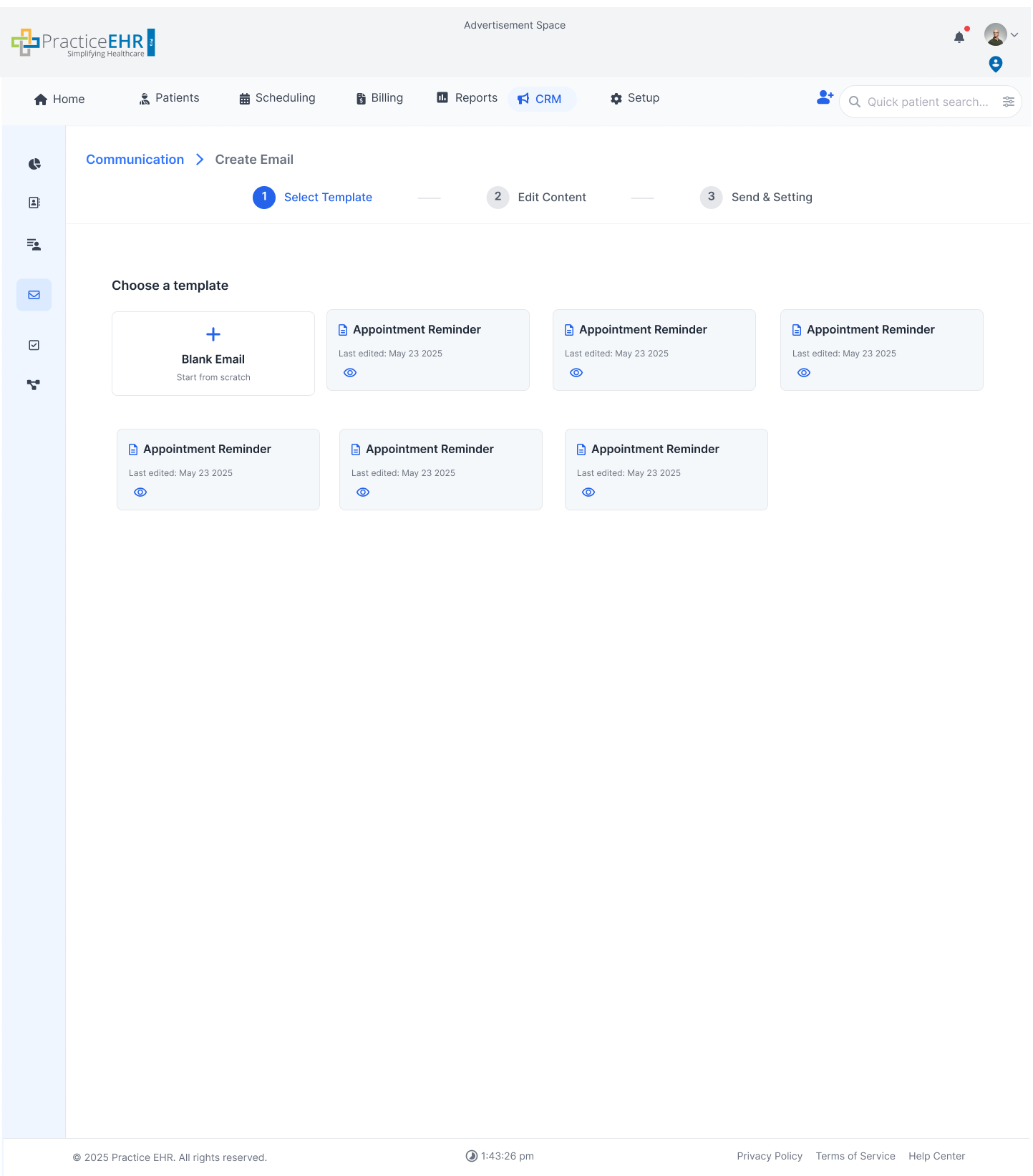
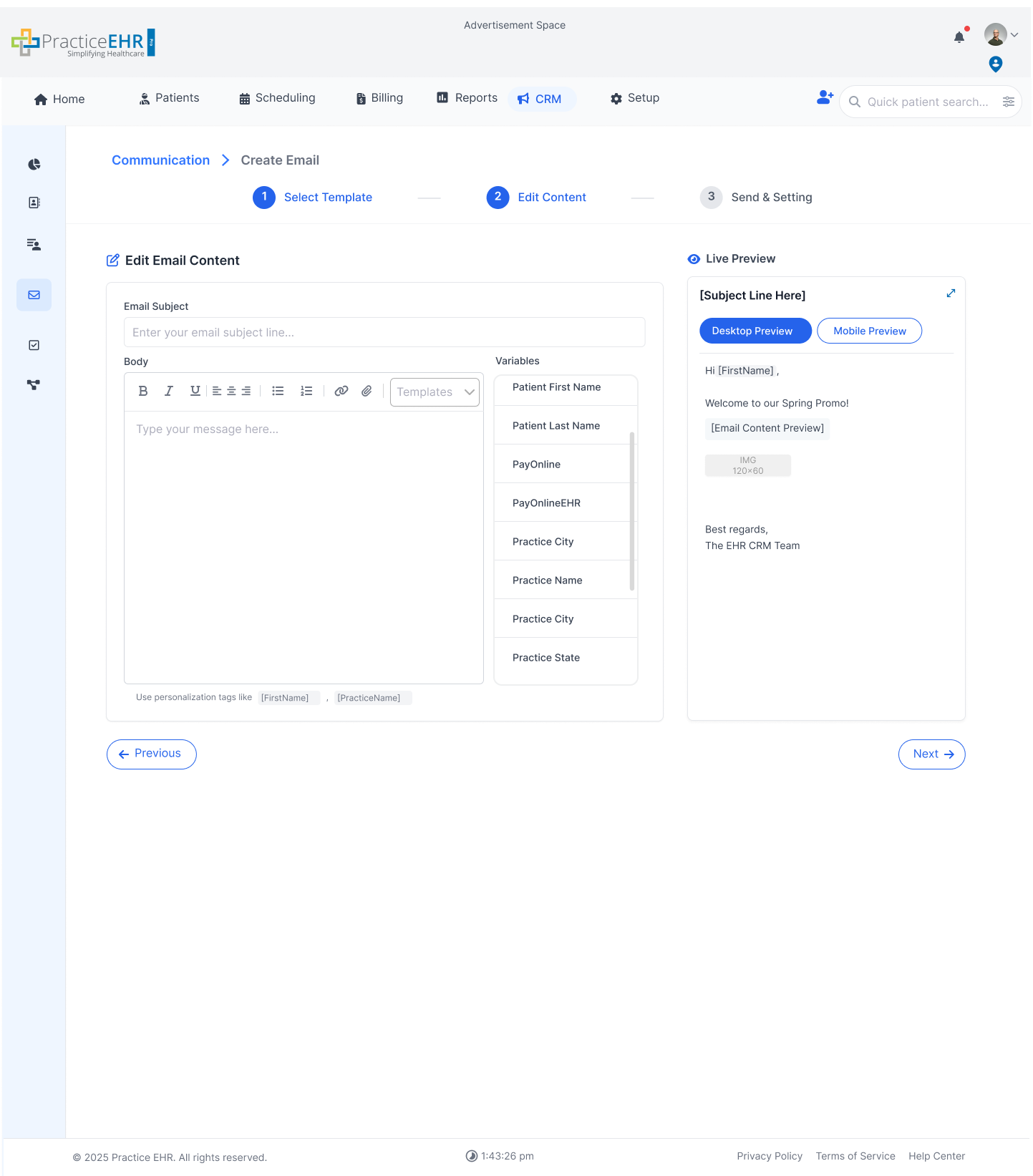
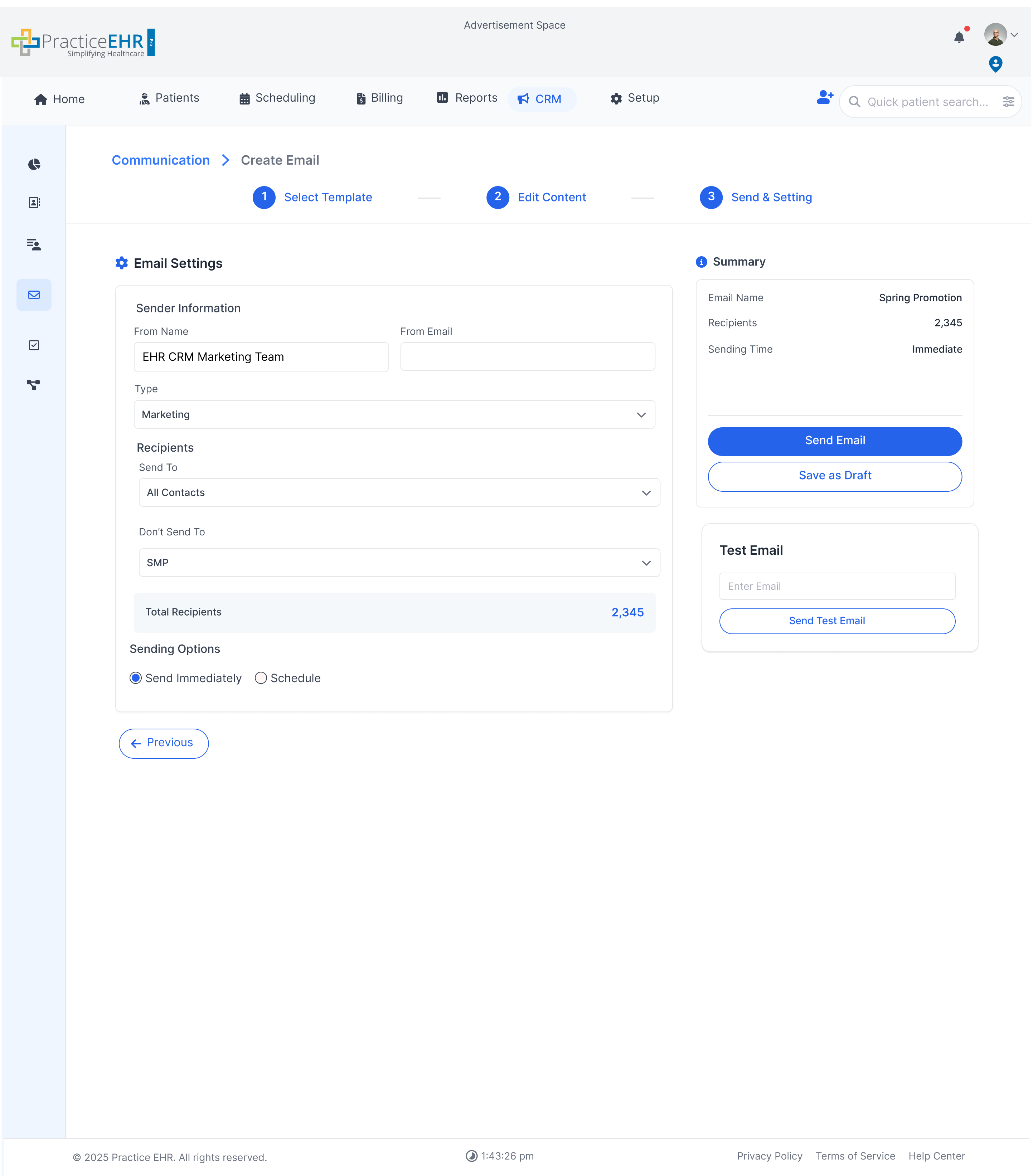
- Create Email starts the 3-step email flow.
Create Email Window
Step 1: Select Template
Step 2: Edit Content
Step 3: Send and Setting
Flow Notes
- Flow order: template selection, content editing, send settings.
- Template comes from the Templates tab or blank start.
- Personalized variables are inserted from dropdown.
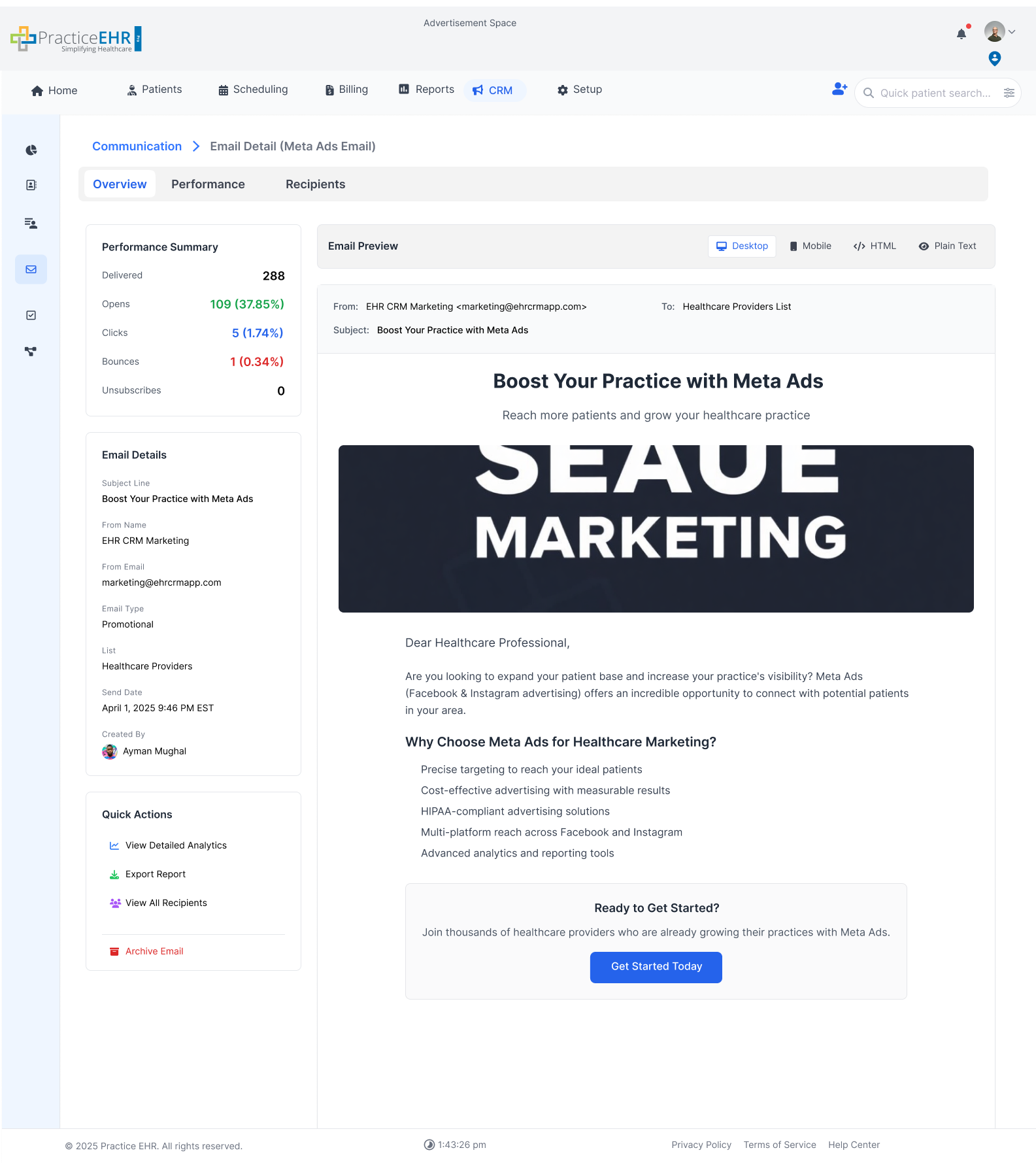
Email Detail Window
Overview
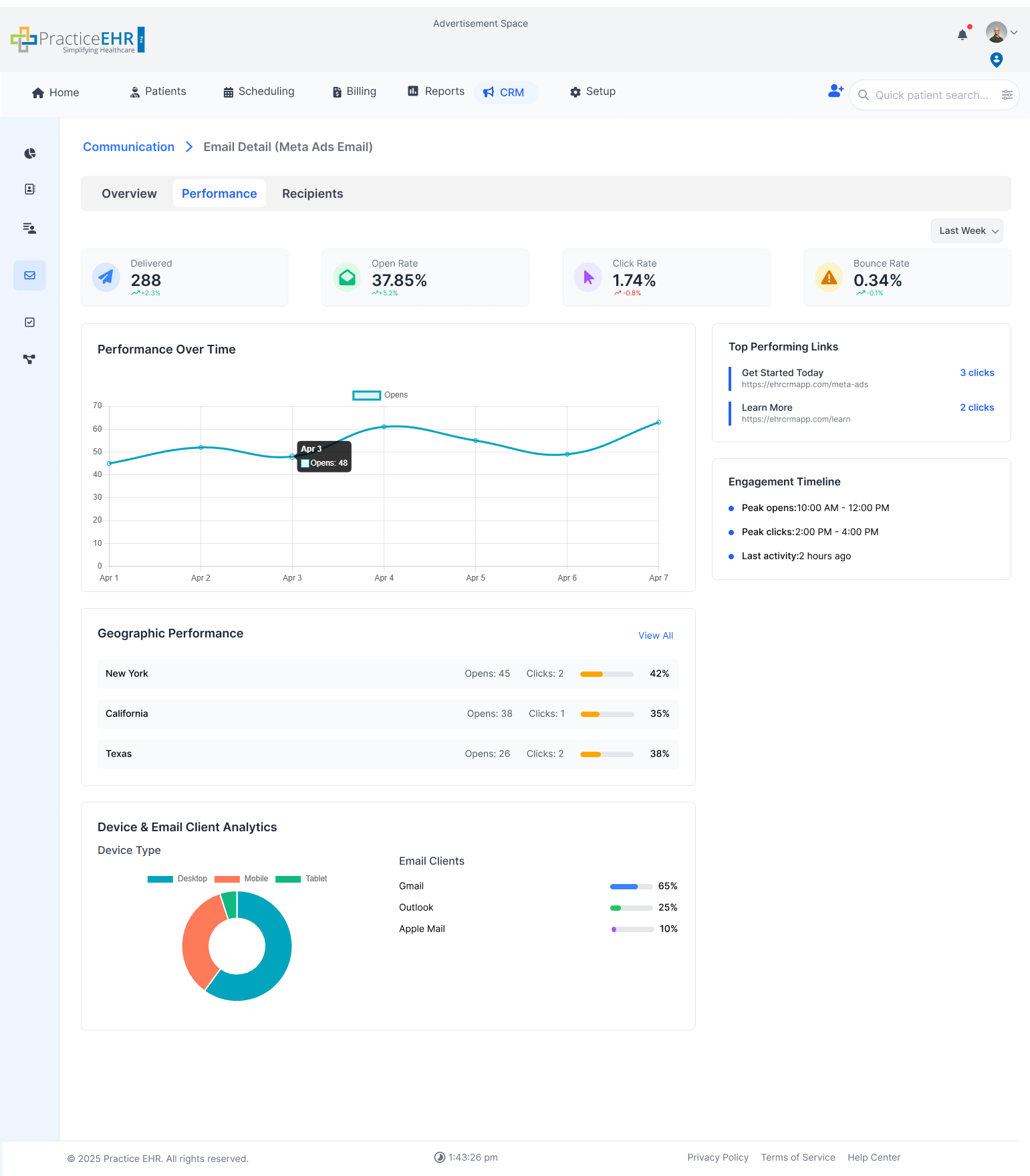
Performance
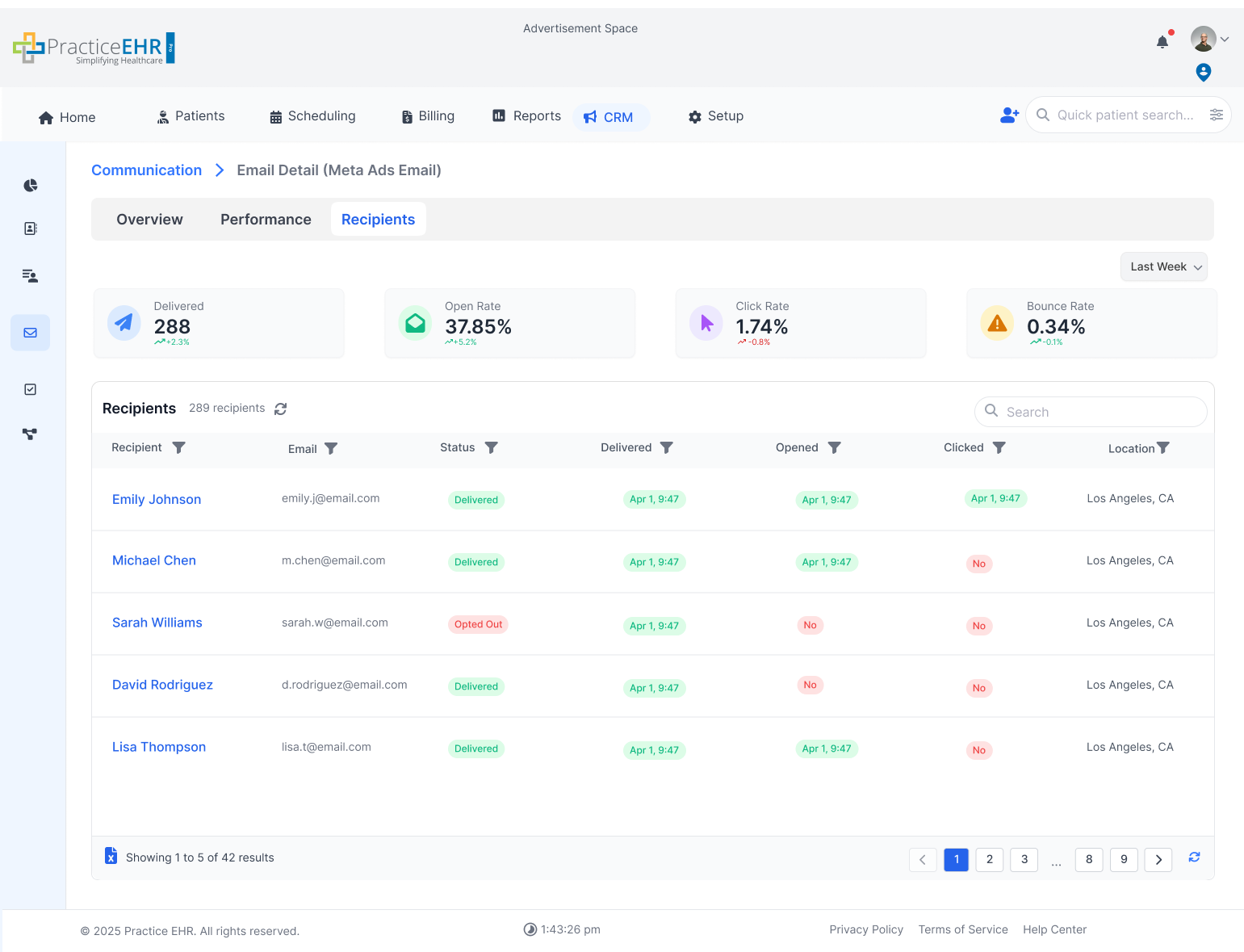
Recipients
Tab Visibility Logic
- If status is Sent, Overview, Performance, and Recipients are visible.
- If status is Draft, Scheduled, or Failed, only Overview and Recipients are shown.
- Performance is available only after successful sending.
- Clicking recipient name routes to that contact.
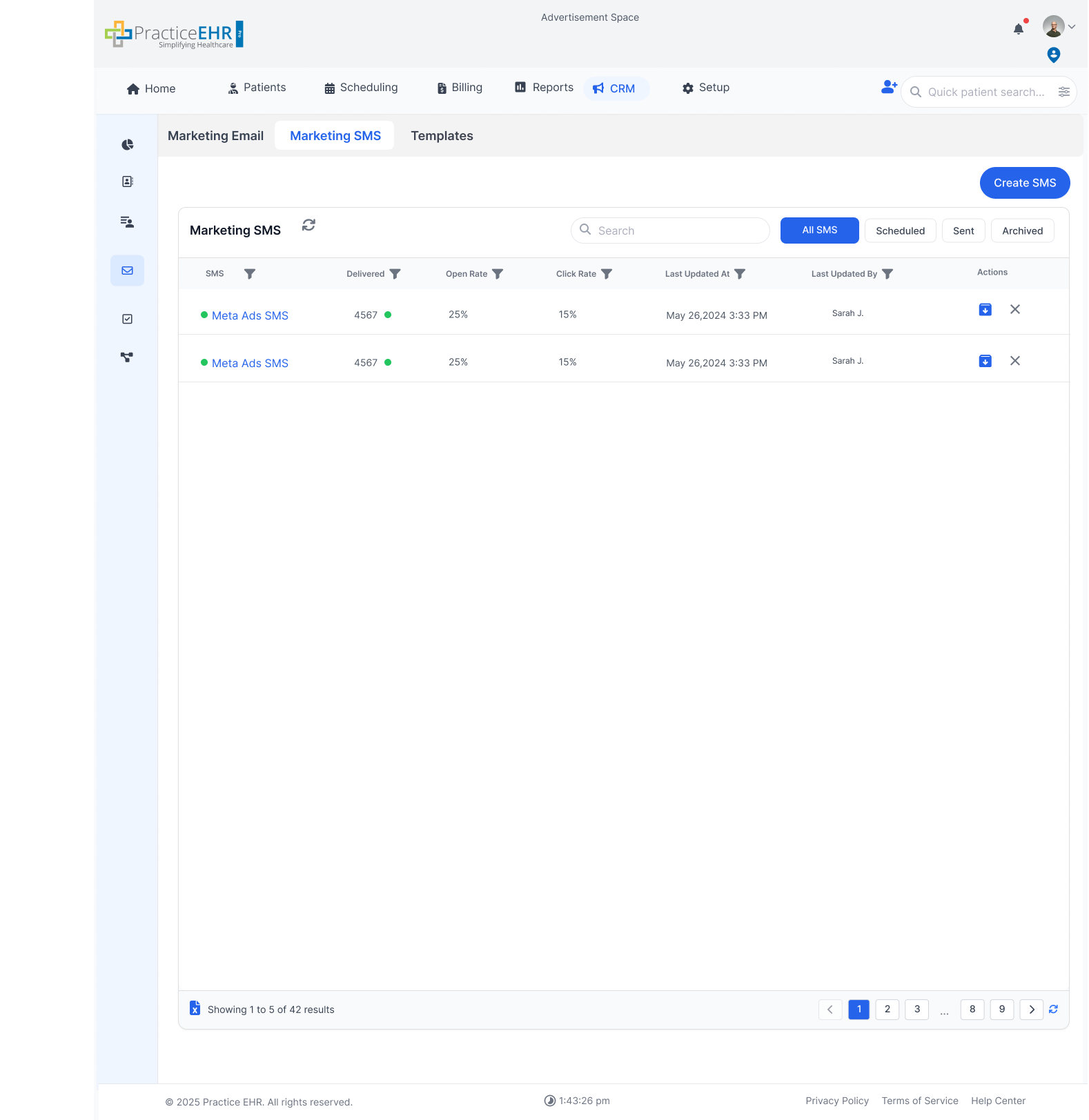
Marketing SMS
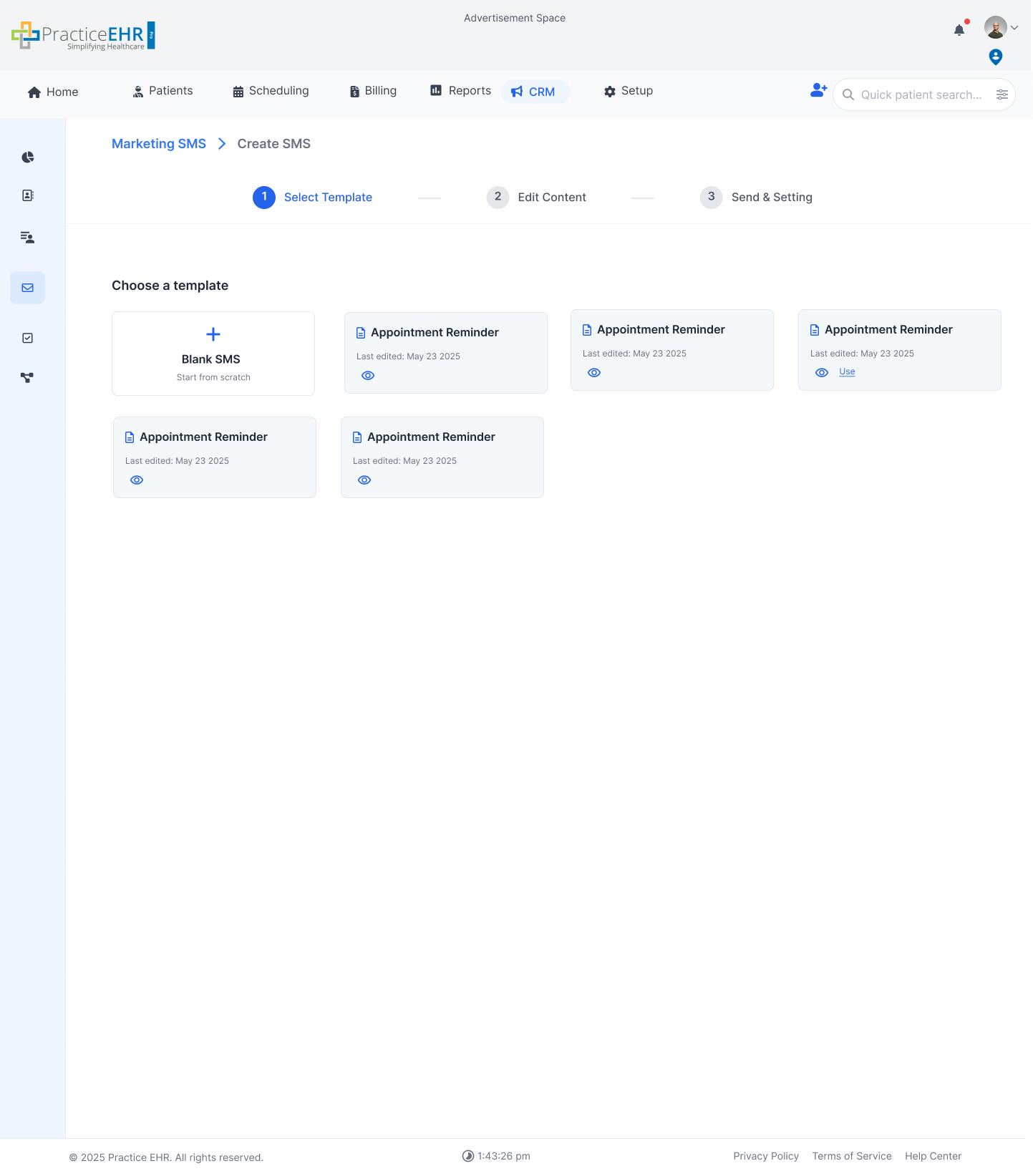
Create SMS Step 1
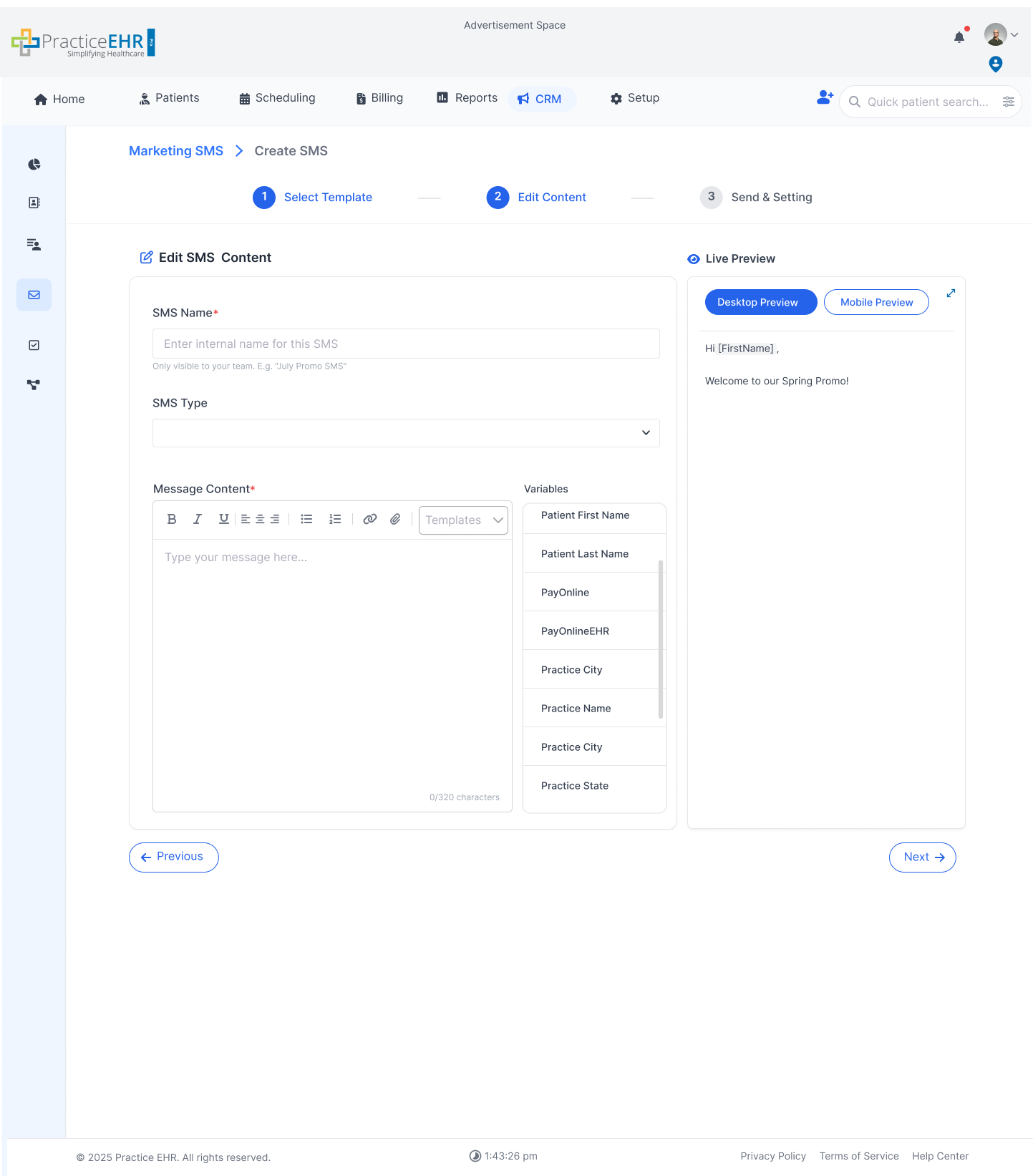
Create SMS Step 2/3
Create SMS Step 3/3
Core Behavior
- Same behavior model as marketing email.
- Create flow follows the same step-based process.
- Status-driven list management remains aligned.
Marketing SMS Detail Window
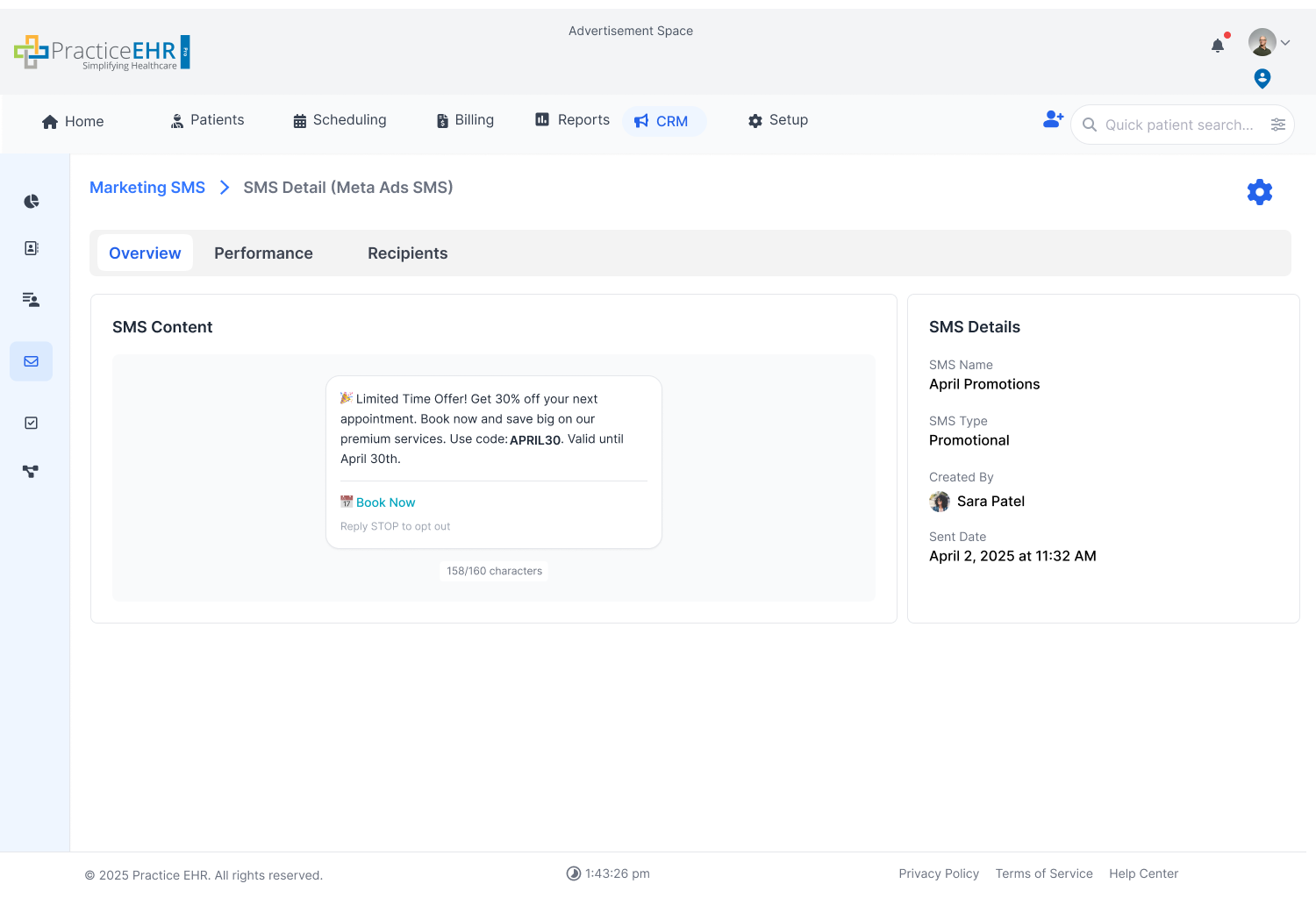
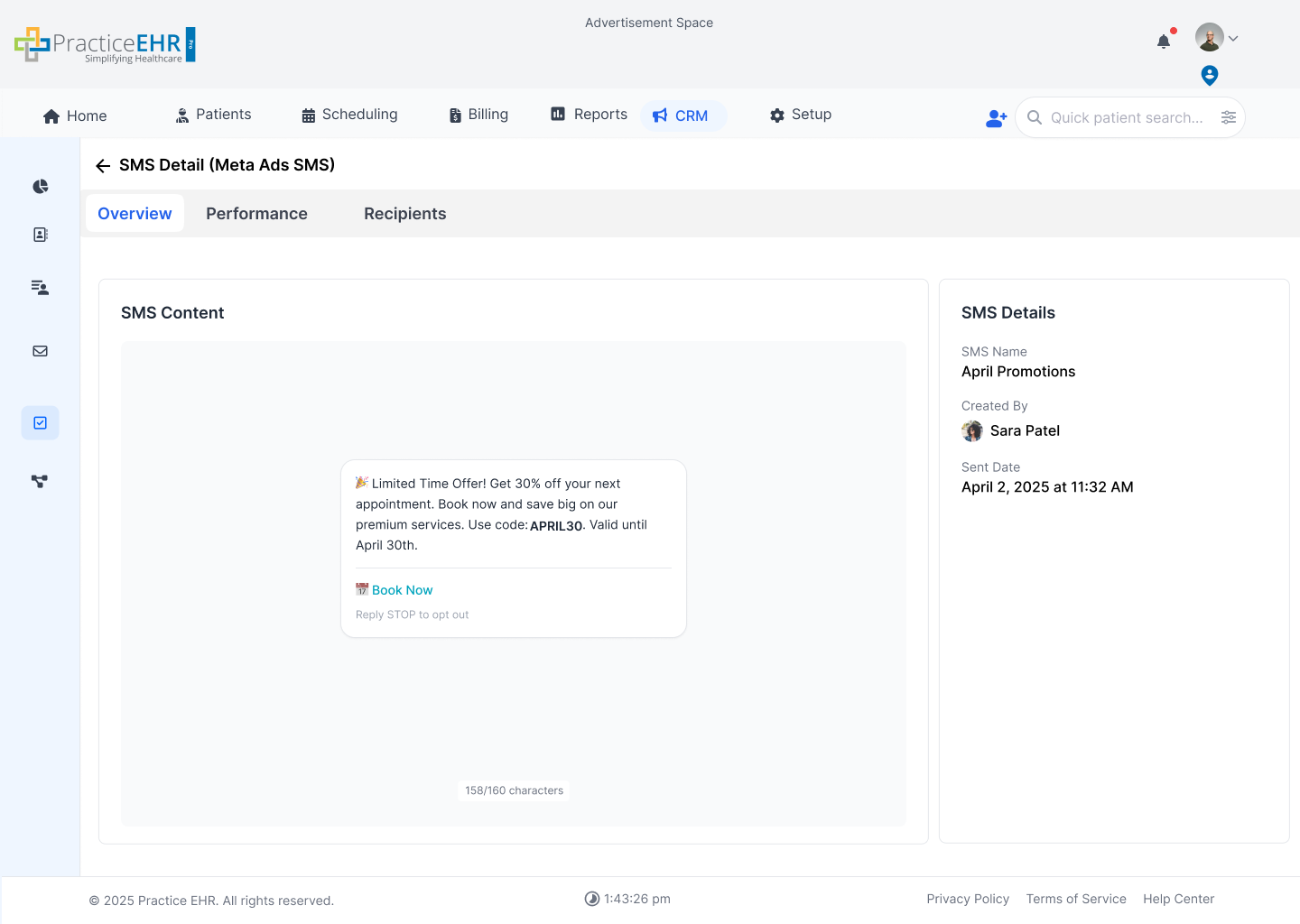
Overview
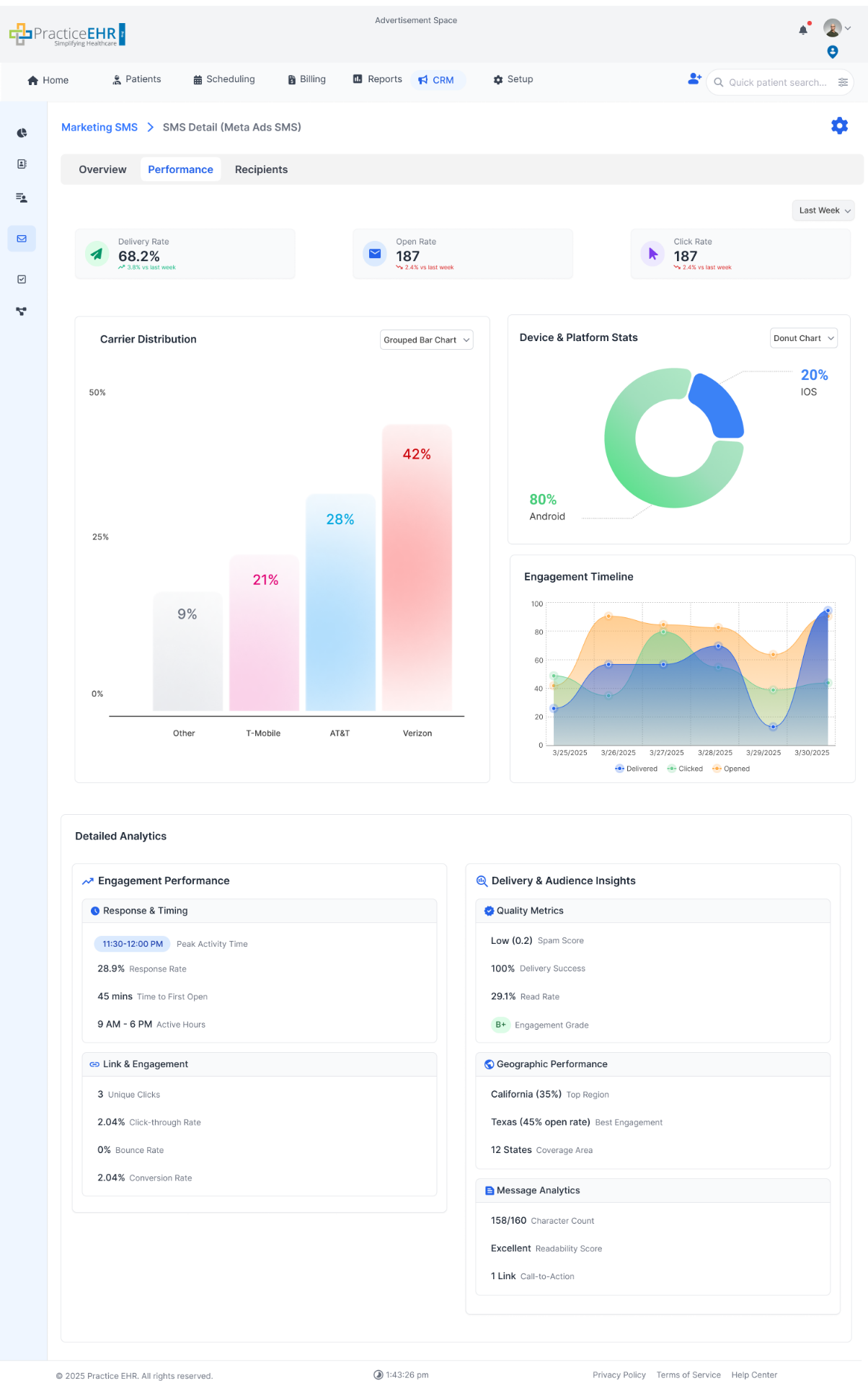
Performance
Recipients
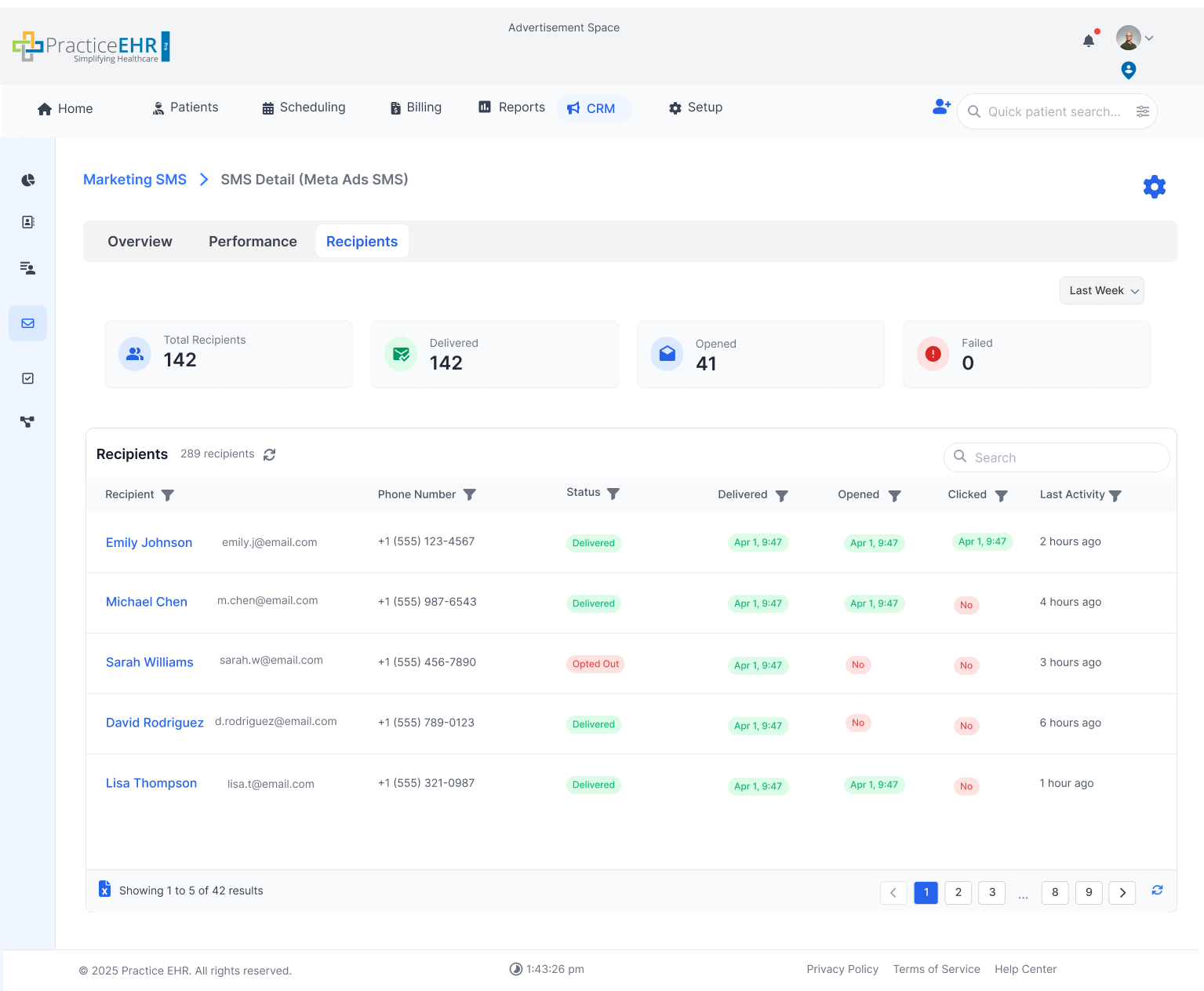
Detail Tabs
- Overview, Performance, and Recipients follow the email detail pattern.
- Performance tracks sent-message outcomes.
- Recipients view supports delivery-level follow-up.
Templates
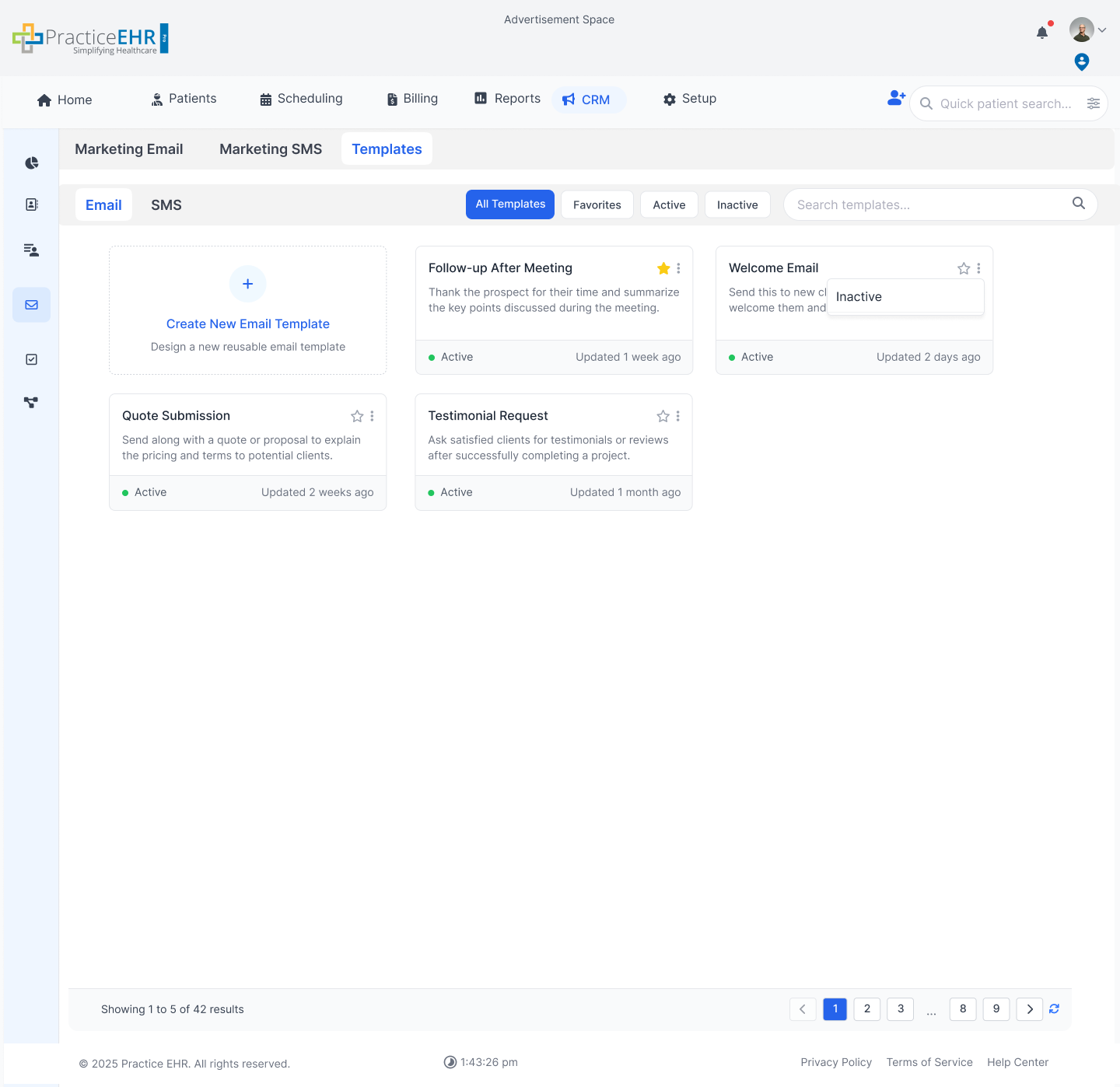
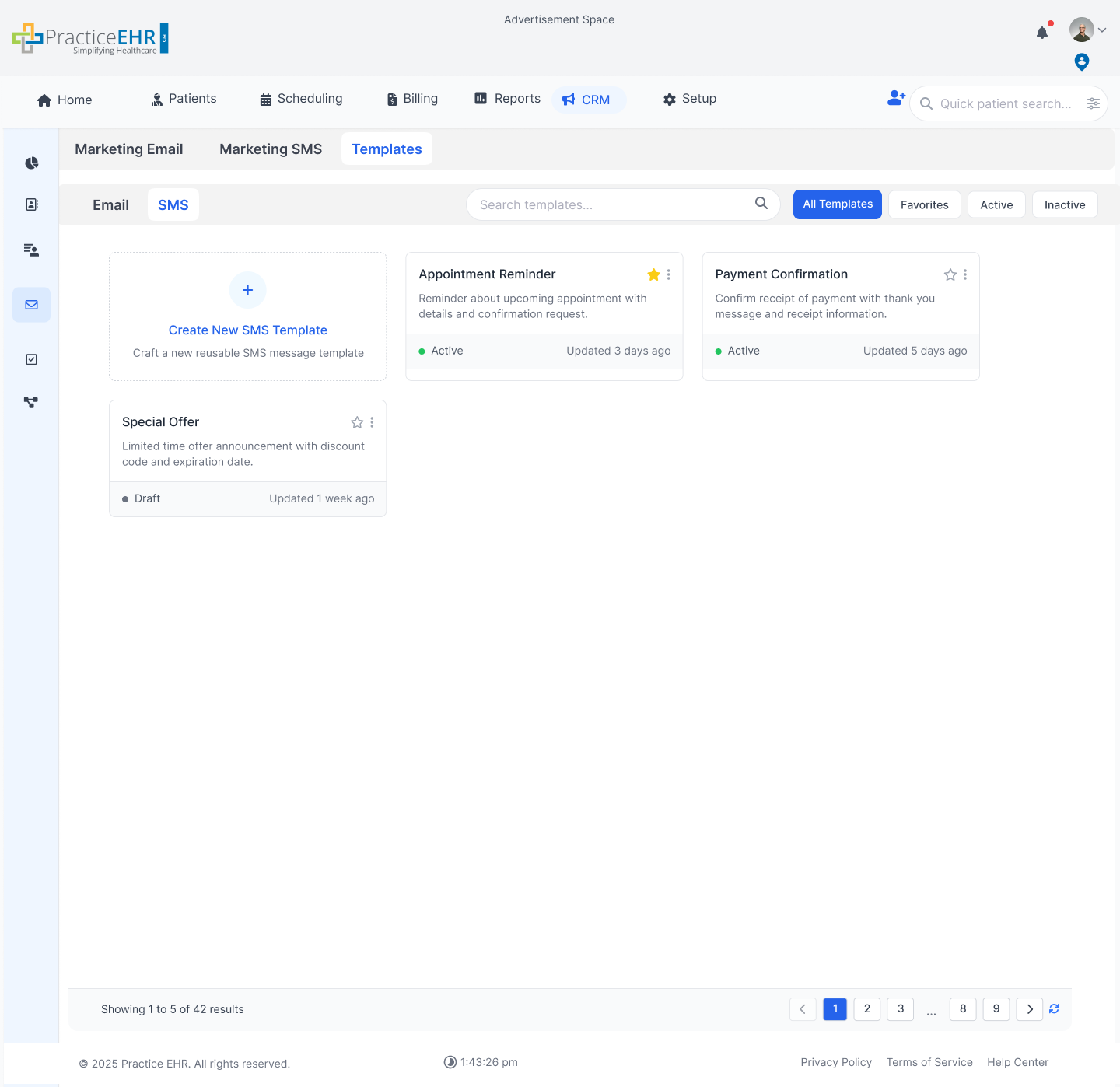
Interactive GuideUsers can design and save both email and SMS templates. Favorites are shown first and remaining templates are sorted by recently created.
Template Tab
Email Templates
SMS Templates
Template Tab Behavior
- Filter dropdown supports all, email-only, and SMS-only views.
- Starred templates appear first.
- Remaining templates are sorted by most recently created.
- Template menu includes Clone and Delete actions.
Create Email Template
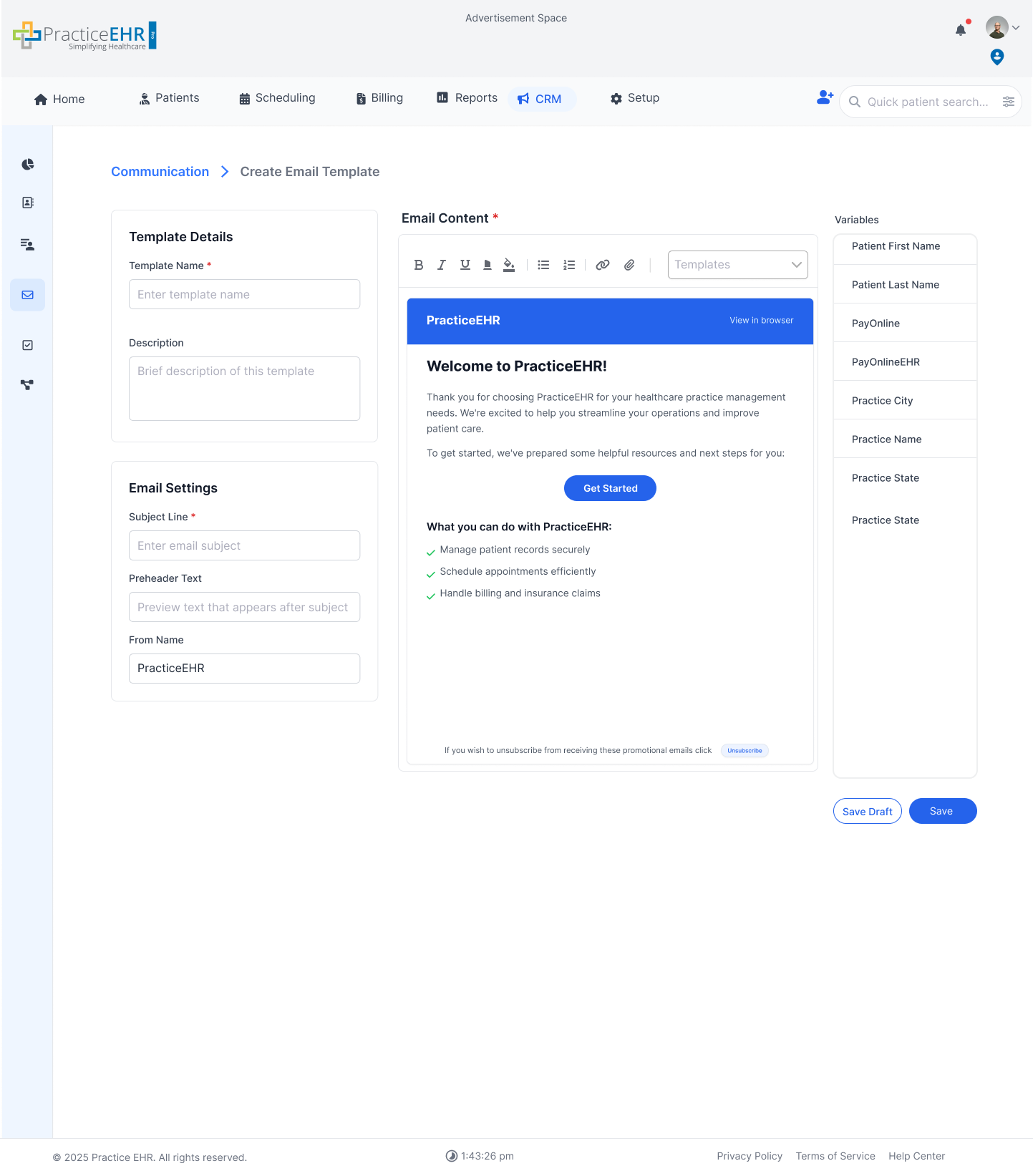
Email Template Builder
- Create reusable marketing email template content.
- Template supports reusable variables and structured content.
- Save and Save Draft actions are available.
Create SMS Template
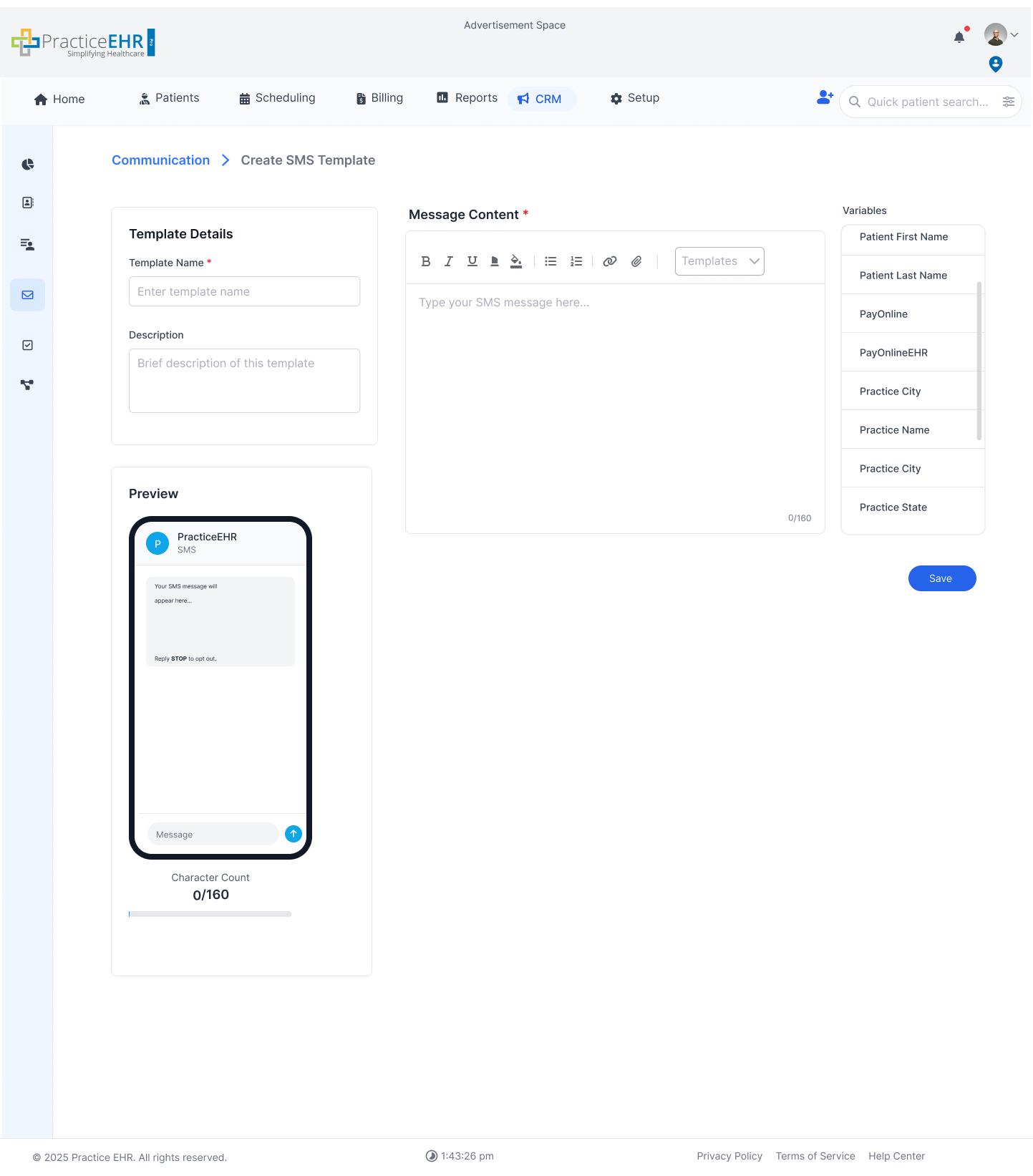
SMS Template Builder
- Build reusable SMS templates with live character tracking.
- System must include "Reply STOP to opt out" within character count.
- Save action is validation-gated when required fields are missing.
My Tasks
Interactive GuideTask log for follow-ups, reminders, and internal actions linked to contact workflows.
Tasks Grid Details
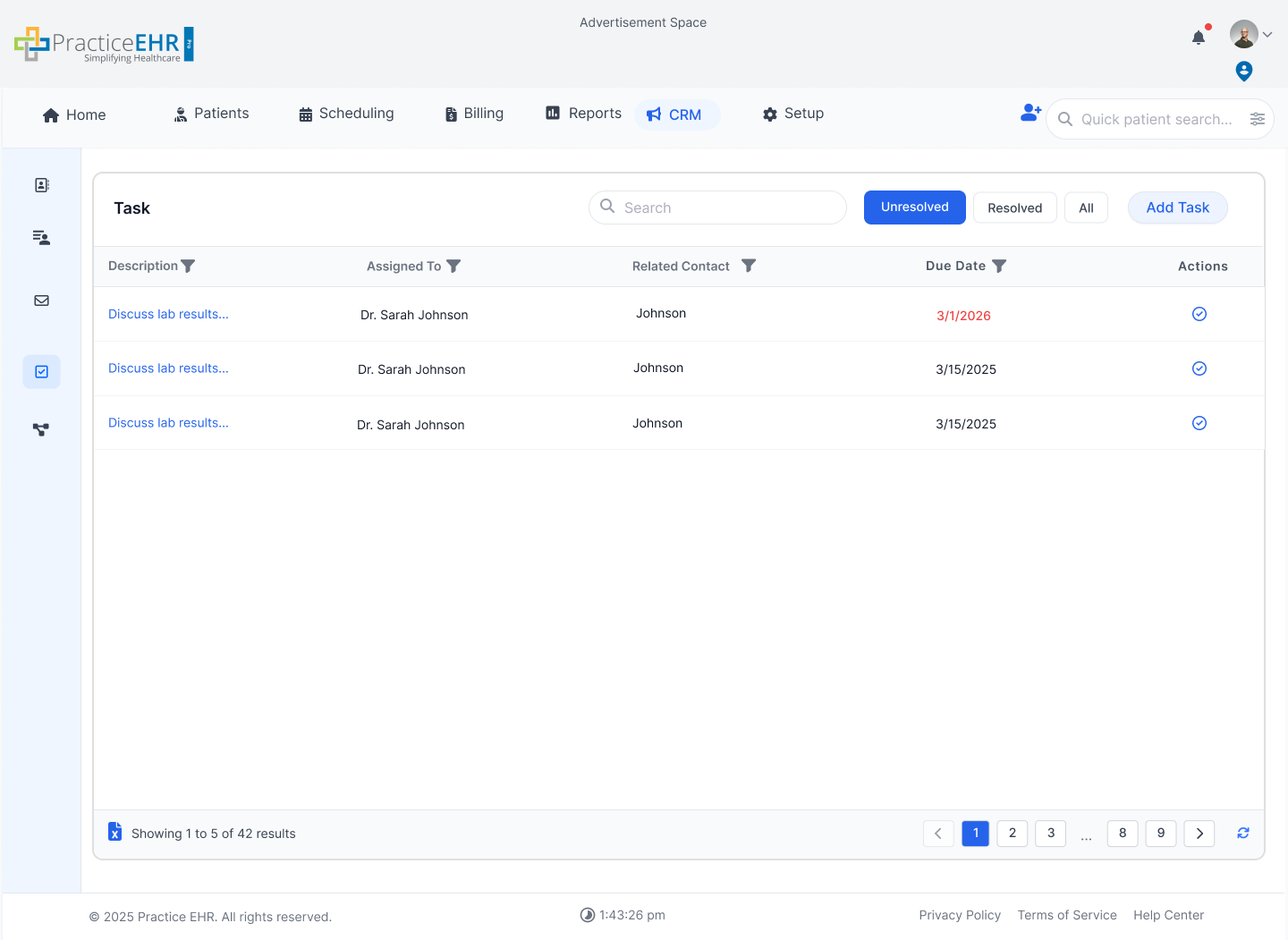
Grid Behavior
- Smart search and Add Task are primary list actions.
- Status options: Over due, In Progress, Completed.
- Task Name is clickable and opens the full task detail page.
- Green completion control marks task complete directly from grid.
Create Task Modal
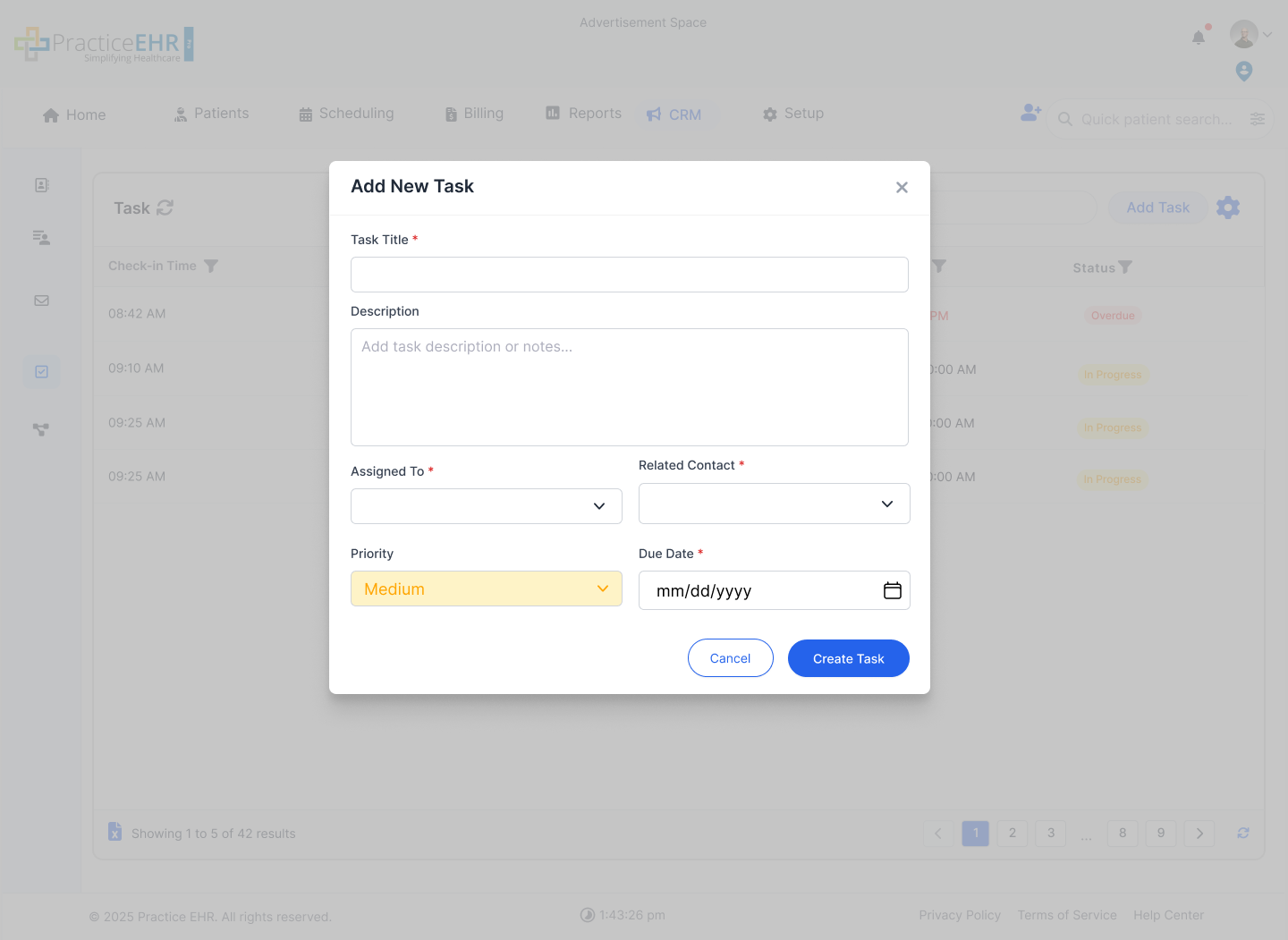
Key Features
- Same modal is used for create and edit flows.
- Captures task ownership, priority, due date/time, and description.
- Edit action reopens this modal and updates task values.
- Validation prevents incomplete task submission.
Task Details
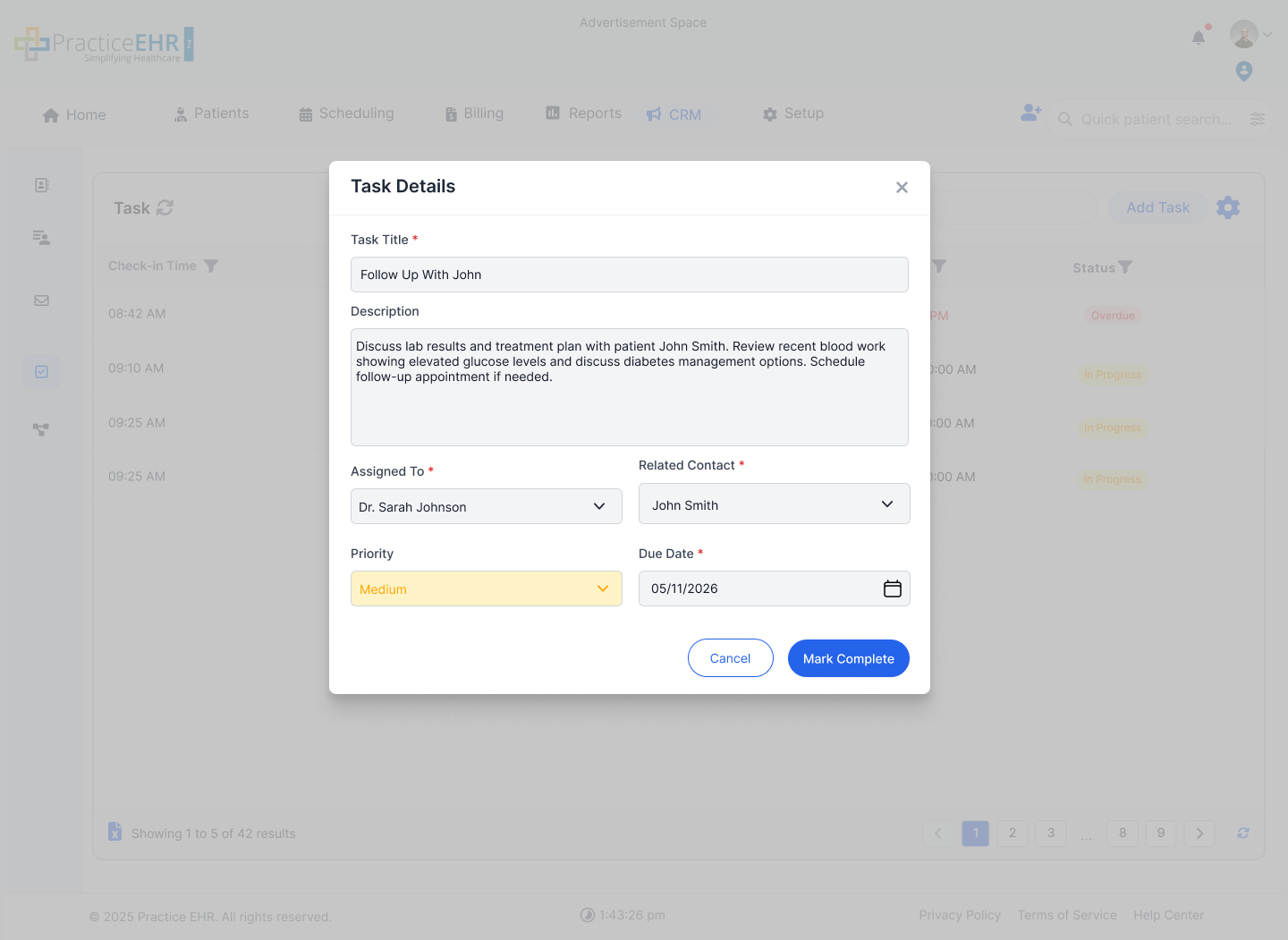
Detail Panels
- Mark Complete action is available in detail and grid contexts.
- Detail page shows status, ownership, due timing, and task description.
- Edit returns to the same modal used by create flow.
- Comments and activity context support team handoffs.
Priority Variants
The Priority dropdown is color-coded by level: Low uses green, Medium uses orange, and High uses red.
Lists
Interactive GuideLists segment contacts using rule-based filters. Users can build Dynamic lists (auto-updating) or Static lists (snapshot at creation).
Lists Grid Details
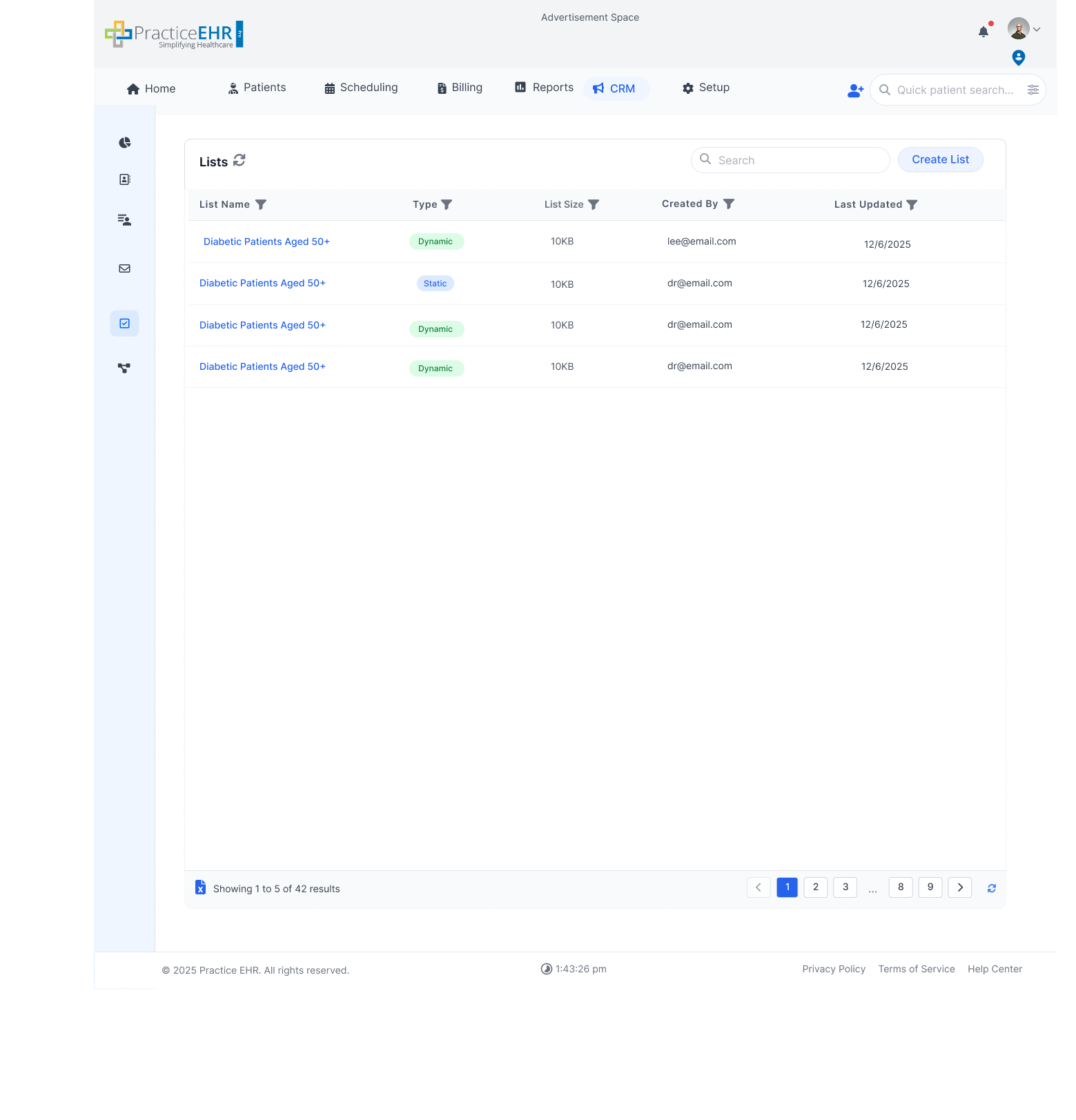
Grid + Create List Behavior
- + Create New List opens list name/description and type selection.
- Type options: Dynamic (auto-updating) and Static (snapshot).
- Filter groups enforce one logic type per group (AND or OR).
- Use multiple groups to build mixed logic structures.
- Preview count is shown before save.
- Recipient count hyperlink opens detailed recipients grid similar to SMS detail recipients view.
- List grid includes search, refresh, and pagination controls.
- Actions column: each row shows an X icon to delete the list.
- Clicking X opens a confirmation modal ("Do you really want to delete this list?") with Cancel and Delete actions.
Delete List Confirmation
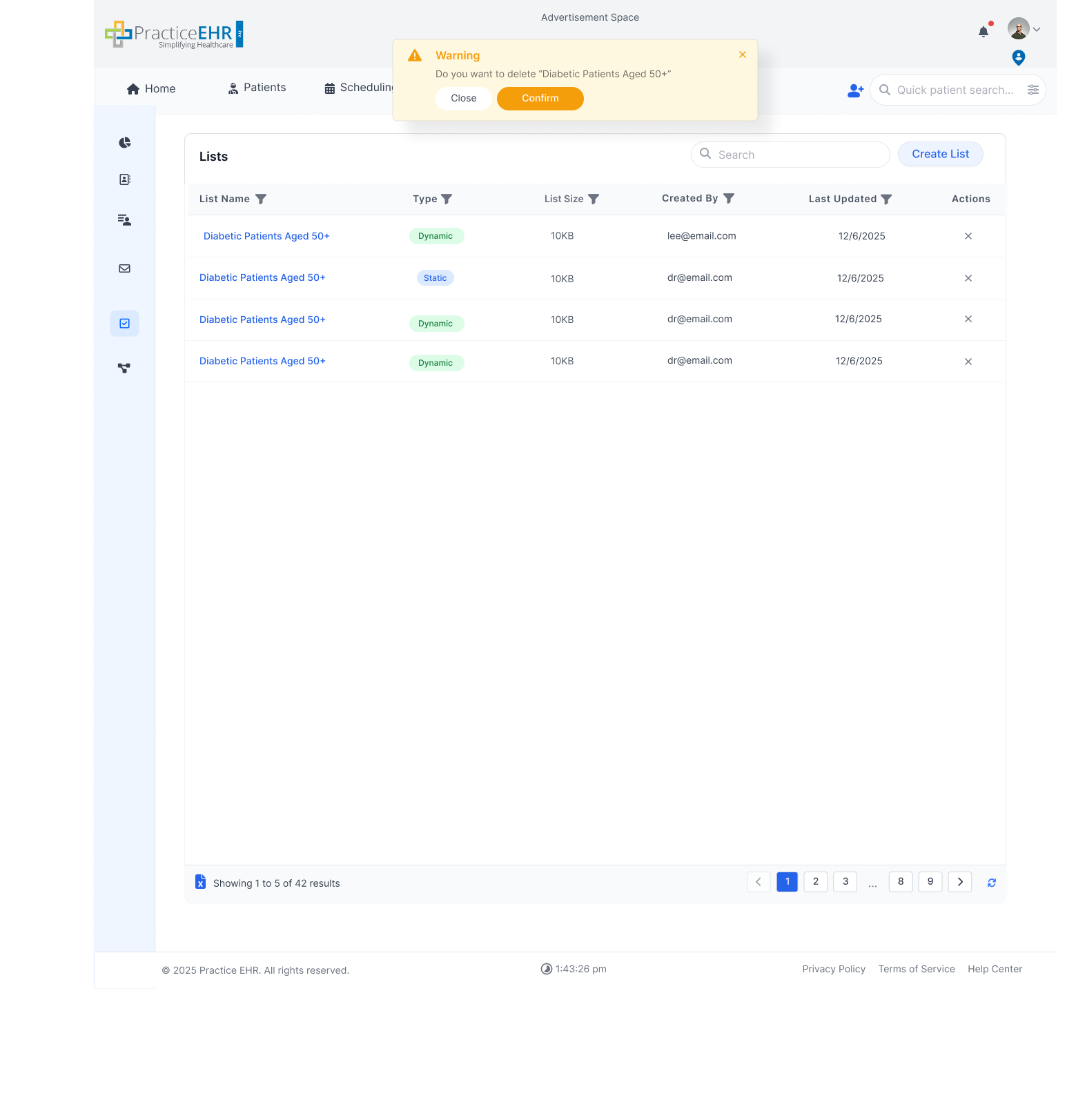
Confirmation Behavior
- Triggered from the X icon in the Actions column of the Lists grid.
- Modal prompts: "Do you really want to delete this list?"
- Cancel dismisses the modal and leaves the list intact.
- Delete permanently removes the list from the grid.
Create List (Smart Filters)
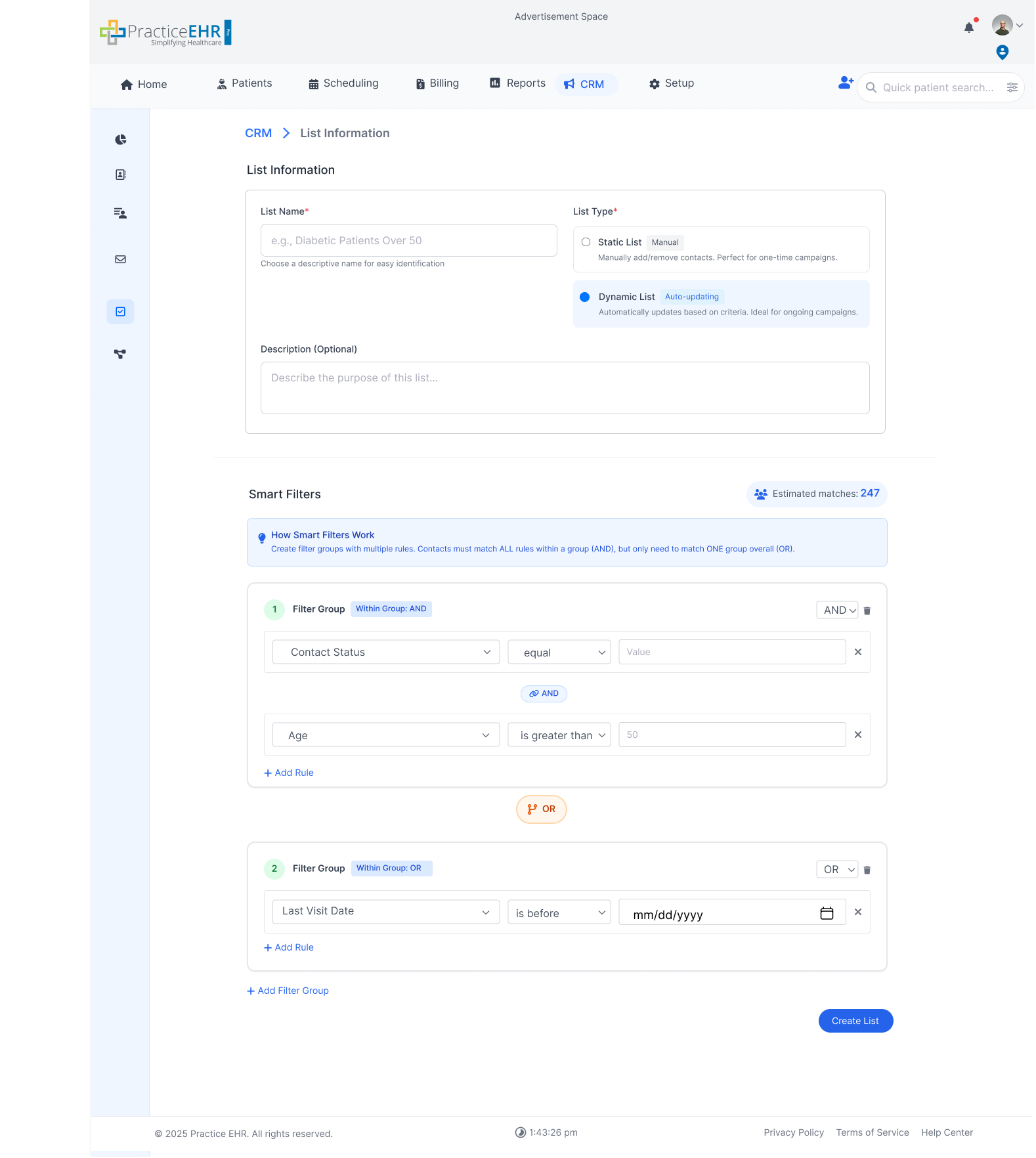
List Information
- List Name* with helper text and Description (optional).
- List Type: Static (manual) or Dynamic (auto-updating, default).
- Estimated matches updates as filters change.
Smart Filters
- Default logic for new groups is AND.
- Each group keeps one logic operator type; mix logic by adding groups.
- Each rule follows Field -> Operation -> Value.
- Every rule provides inline delete control.
- List name is required and estimated count can be zero.
| Field | Supported Operations | Value Type / Notes |
|---|---|---|
| Contact Owner | Equals / Not Equals | Multi-select user list |
| Provider | Equals / Not Equals | Multi-select user list |
| Age | Equals / Not Equals | Integer |
| Gender | Equals / Not Equals | String |
| DOB | Equals / Not Equals / Range / Rolling | Date and month conditions (including birthday logic) |
| ICD | Equals / Not Equals | Multi-select smart search |
| CPT | Equals / Not Equals | Multi-select smart search |
| Medication | Equals / Not Equals | Multi-select |
| Patient Enter Date | Equals / Before / After | Date picker |
| Contact Enter Date | Equals / Before / After | Date picker |
| Last Activity | Equals / Not Equals / Before / After | Exact date range or rolling windows; includes last appointment, visit, email, SMS |
| Status | Equals | Lead / Patient |
| SMS Subscription | Equals / Not Equals | Yes / No |
| Lead Source | Equals / Not Equals | String |
| Phone | Contains / Equals | Numeric value |
| Contains / Ends With | String |
List Detail (List Information)
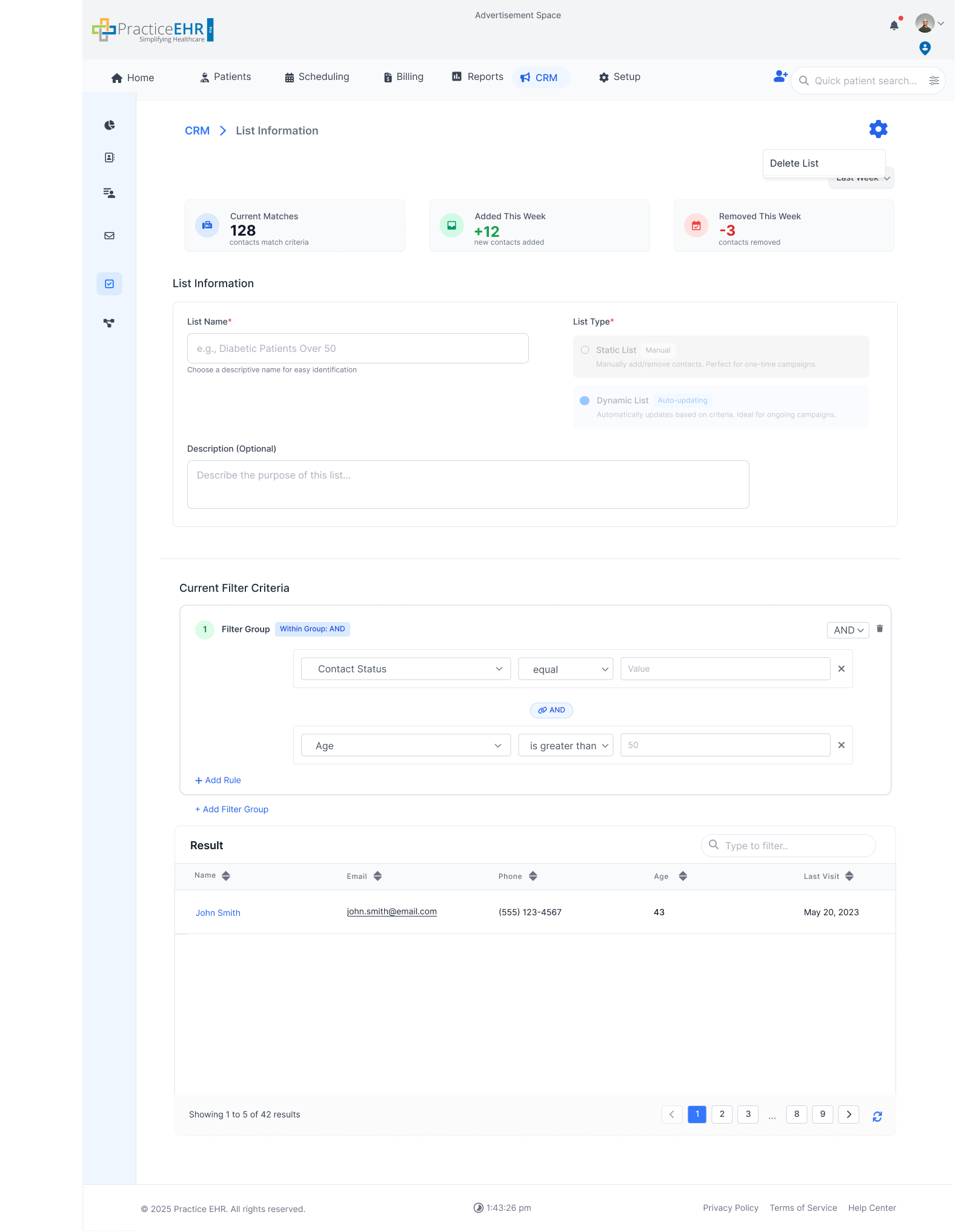
Summary + Actions
- Dynamic lists keep filter criteria editable after creation.
- Static lists lock filters and values after save.
- Detail-level actions include list management and deletion.
Results Table
- Recipient count hyperlinks to recipient-level detail grids.
- Grid rows support filtered review of matched contacts.
- Pagination and refresh keep result inspection responsive.