Letter Builder
Web-based replacement for the legacy desktop Letter Builder. Full WYSIWYG word-processor with merge fields, plus an AI Letter Assistant that drafts complete letters from chart data. Click a card to jump to that section.
Letters Grid
Setup → Clinical → Letters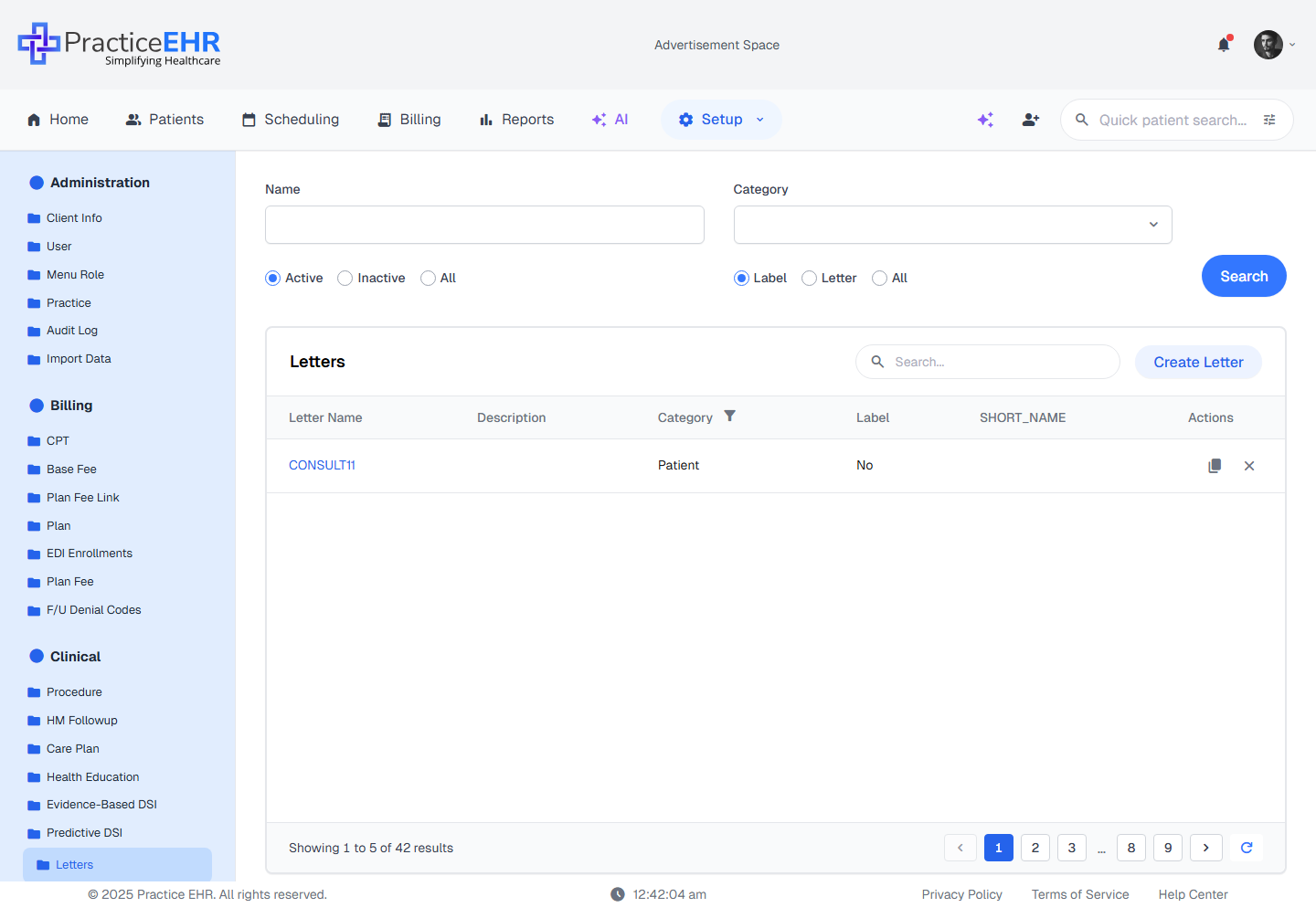
Key Features
- Landing page for the Letter Builder under Setup → Clinical → Letters.
- Filter by name, category, active status, and document type before searching.
- Click any letter name to open it directly in the WYSIWYG editor.
- Inline search in the card header filters rows in real time — no Search button click needed.
- Duplicate copies an existing letter; Delete prompts for confirmation.
Field reference
Click to expandFilter bar5
Table columns6
Footer2
Where to find it
Top nav → Setup → sidebar group Clinical → Letters.
Create Letter
2-step wizard · Setup → Clinical → LettersDetails
Capture template metadata before writing. Only the letter name is required — everything else can be filled in later from the editor.
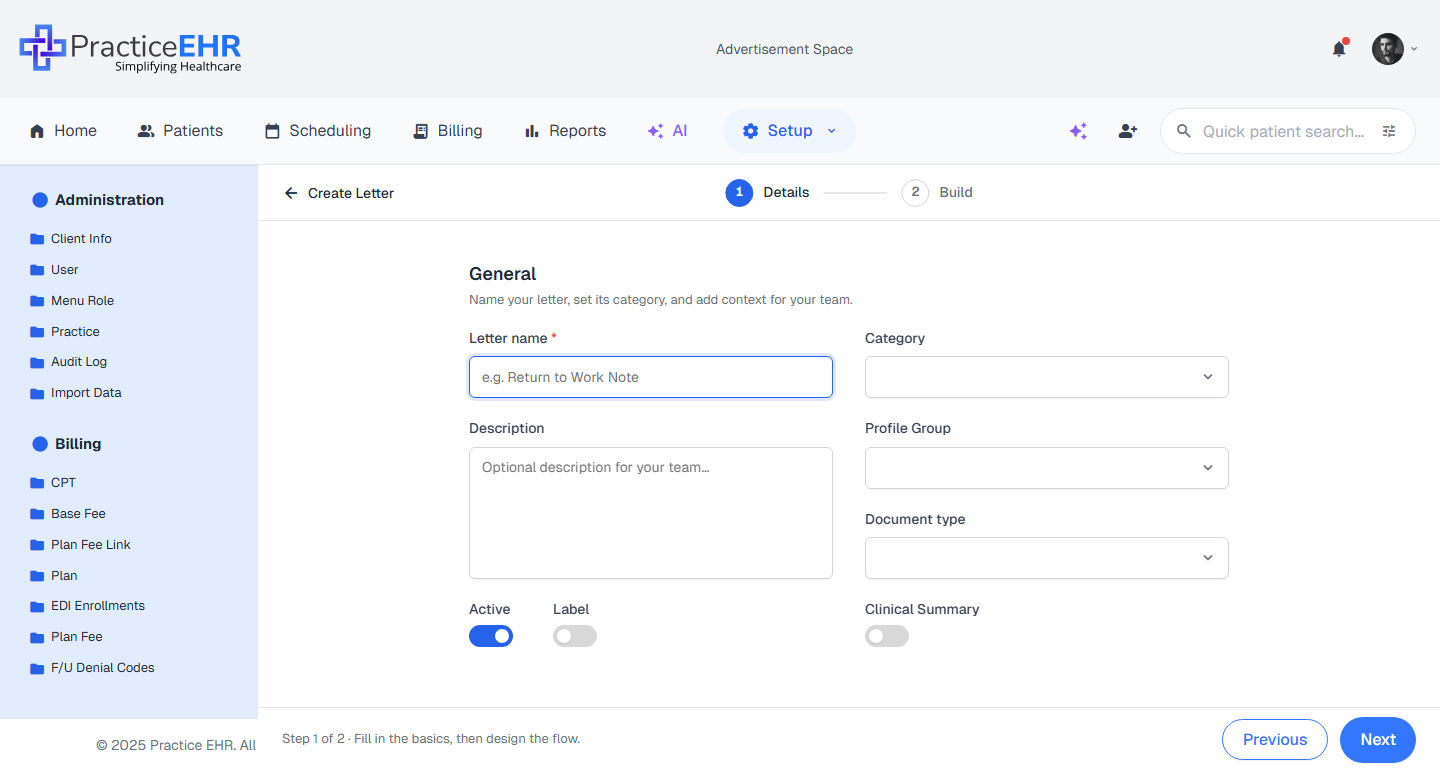
General5
Toggles3
Build
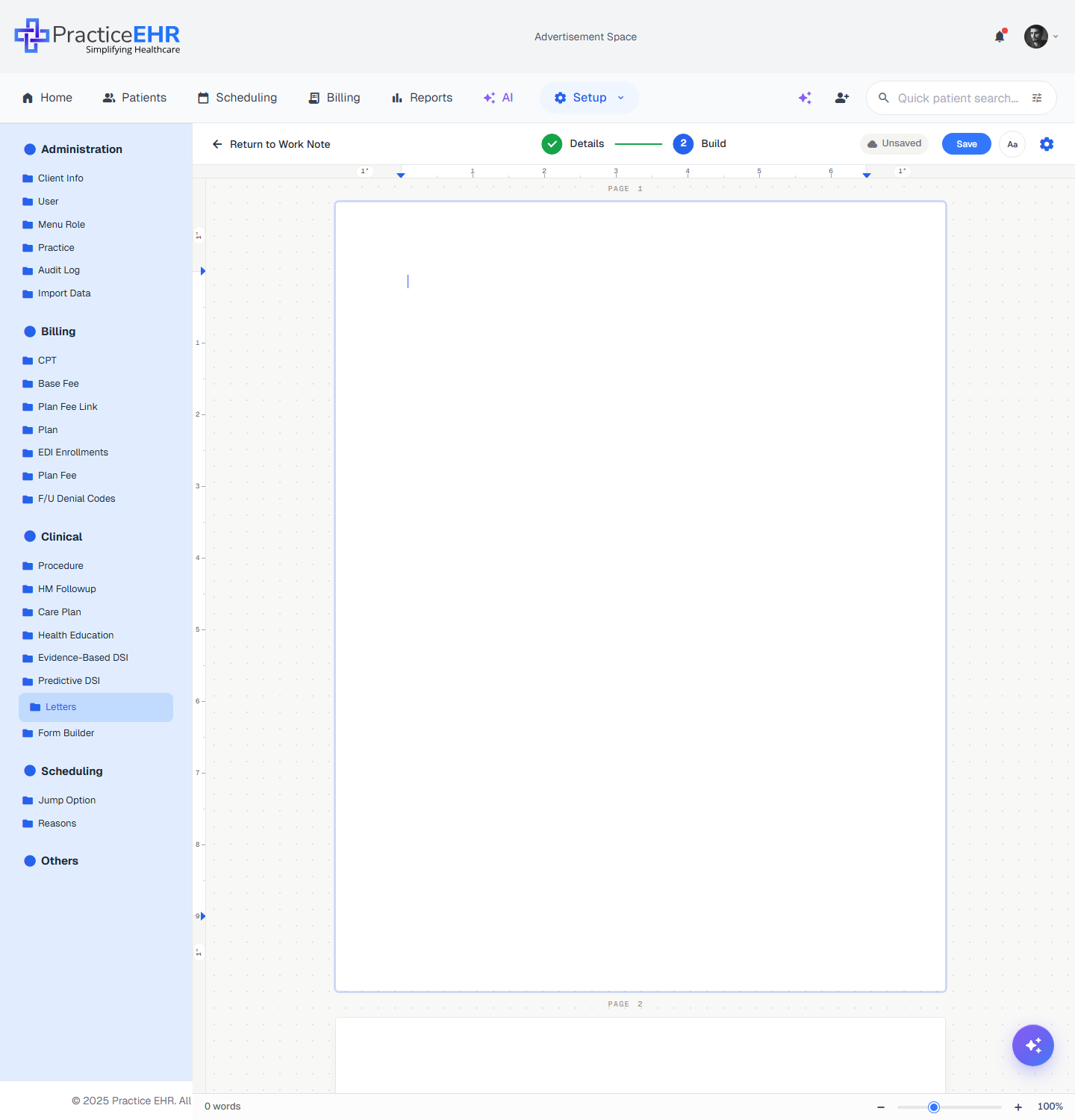
A real WYSIWYG word-processor — documents look exactly as they will print on an 8.5 × 11 in page. Switch tabs to see each part of the editor in detail.
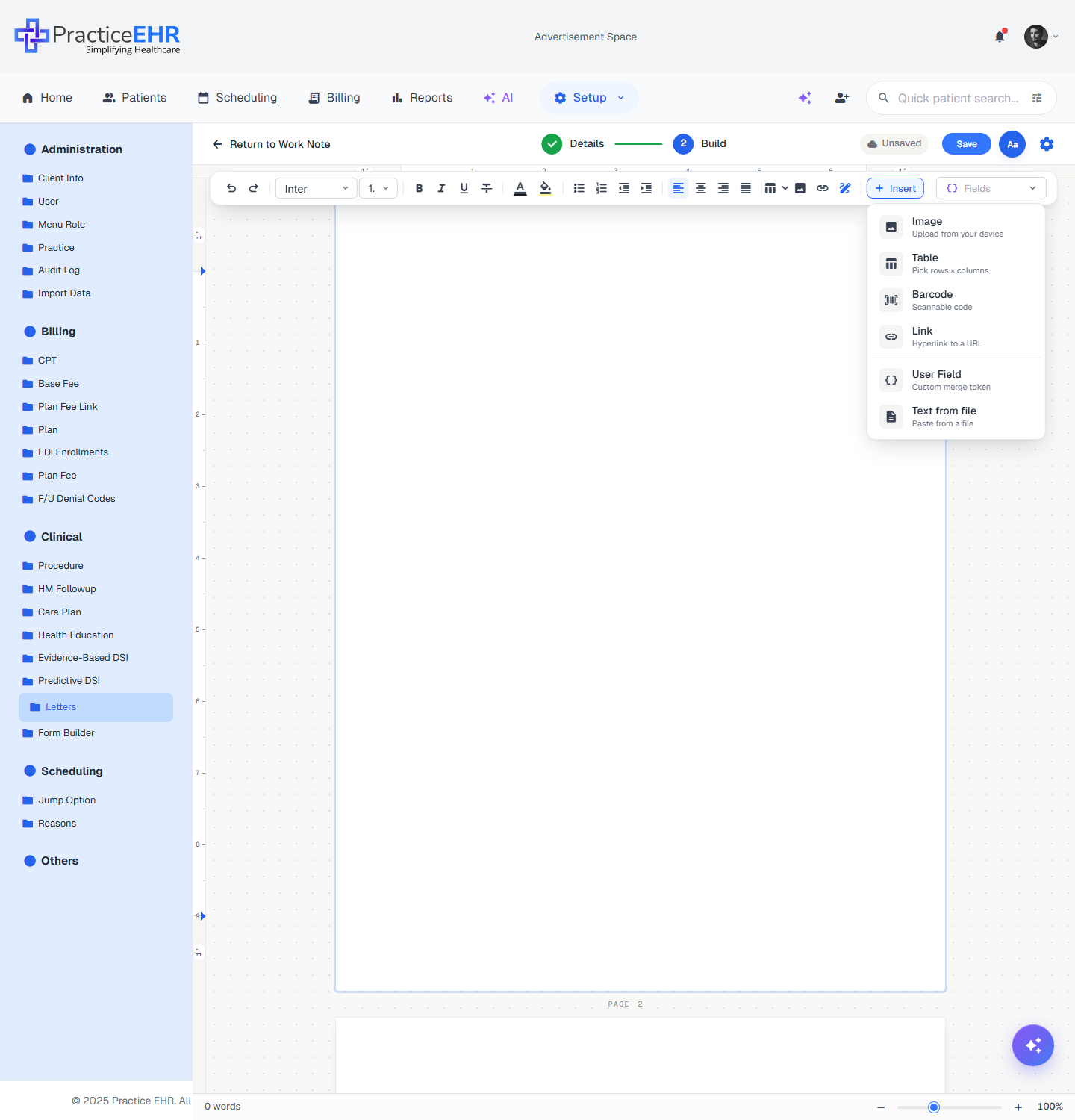
Floating text toolbar — full-width close-up

The toolbar floats as a pill at the top of the page. Toggle it open or closed with the Aa button in the top bar.
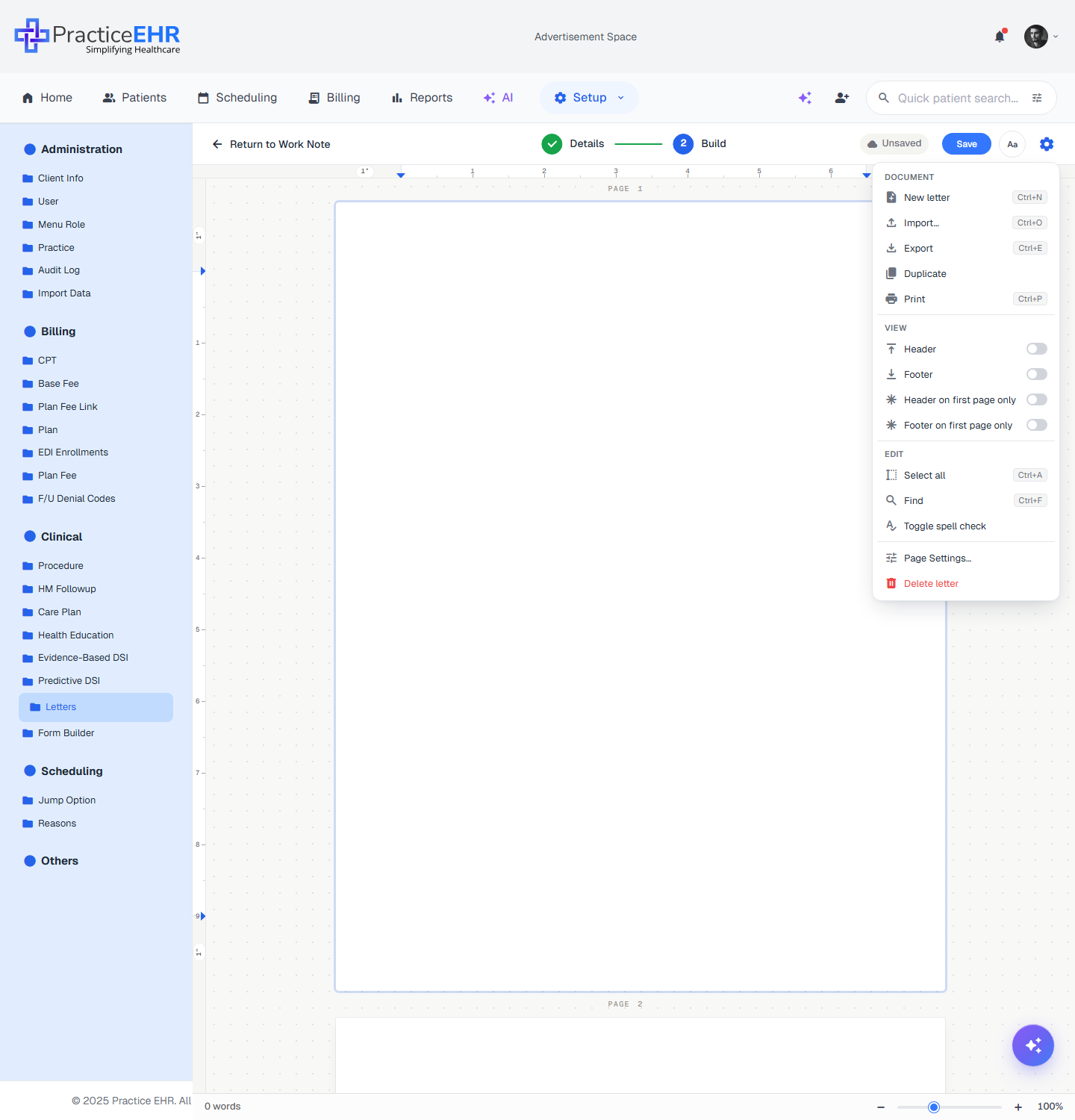
Top bar5
Document area4
Group 1 — History2
Group 2 — Font2
Group 3 — Style6
Group 4 — Lists, indent & alignment8
Group 5 — Object insert & tokens6
Insert items6
.rtf, .docx, or .html file.Document5
.rtf / .docx / .html..docx or .pdf.View4
Edit3
Page & danger2
Letter Details
Editing CONSULT11 · Setup → Clinical → LettersClicking an existing letter (here, CONSULT11) opens it in edit mode. The 2-step stepper from creation is replaced by free-navigation tabs — Details and Build — so you can switch back and forth at any time.
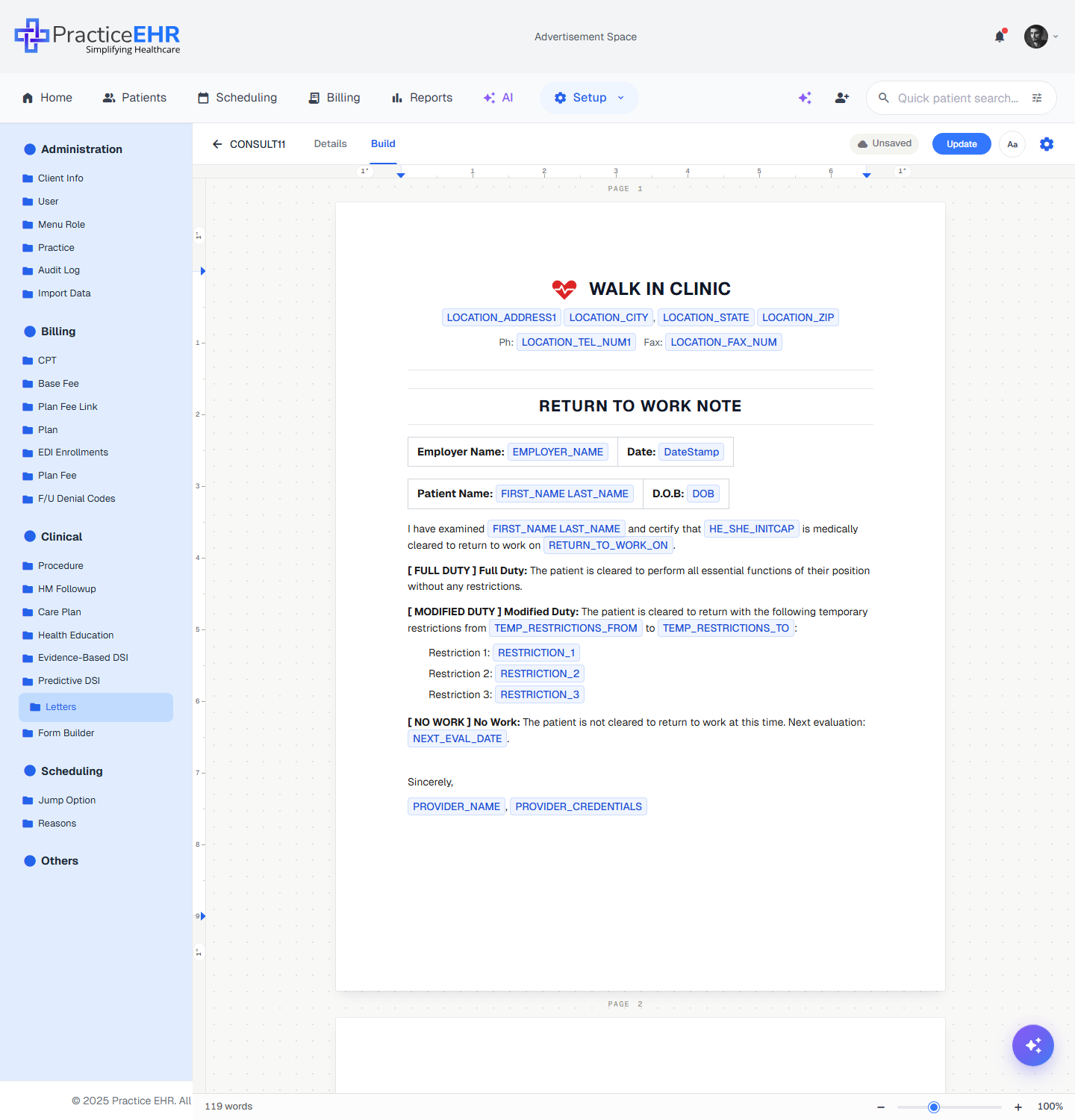
What you're looking at
- The Build tab shows the saved letter content — header, body, and footer.
- The body is pre-filled with the practice letterhead, patient/employer fields, and three duty options (Full / Modified / No Work).
- Every blue pill is a merge token — it resolves to real data when the letter is generated for a specific patient encounter.
- Header content (logo, address, phone, fax) auto-resolves from the encounter's location at generation time, not from a hard-coded snapshot.
{{variable}} names. Each token belongs to one of three tiers:
Field tiers3
FIRST_NAME, LAST_NAME, DOB, LOCATION_ADDRESS1, LOCATION_TEL_NUM1, DateStamp.EMPLOYER_NAME, RETURN_TO_WORK_ON, TEMP_RESTRICTIONS_FROM.Delivery options3
Audit & storage2
Top bar3
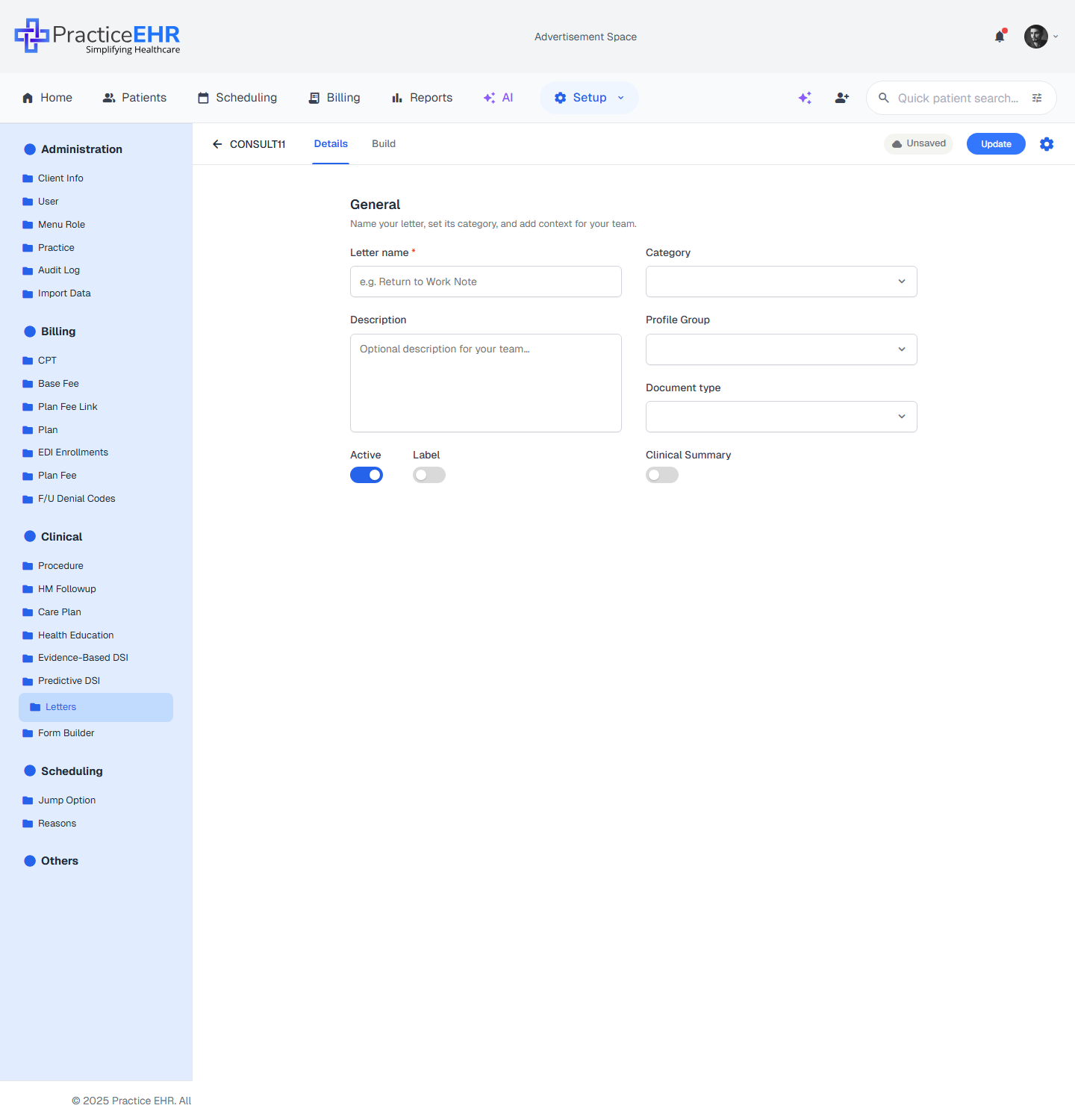
The Details tab
- Same metadata form as Step 1 — Details when creating, but pre-filled with the saved values.
- Edit the letter name, category, description, profile group, document type, or any toggle without leaving the editor.
- Changes commit when you hit Update in the top bar — the create-flow Save button is replaced by Update in edit mode.
General fields5
Toggles3
Actions2
AI Letter Assistant
Sparkles FAB · Setup → Clinical → Letters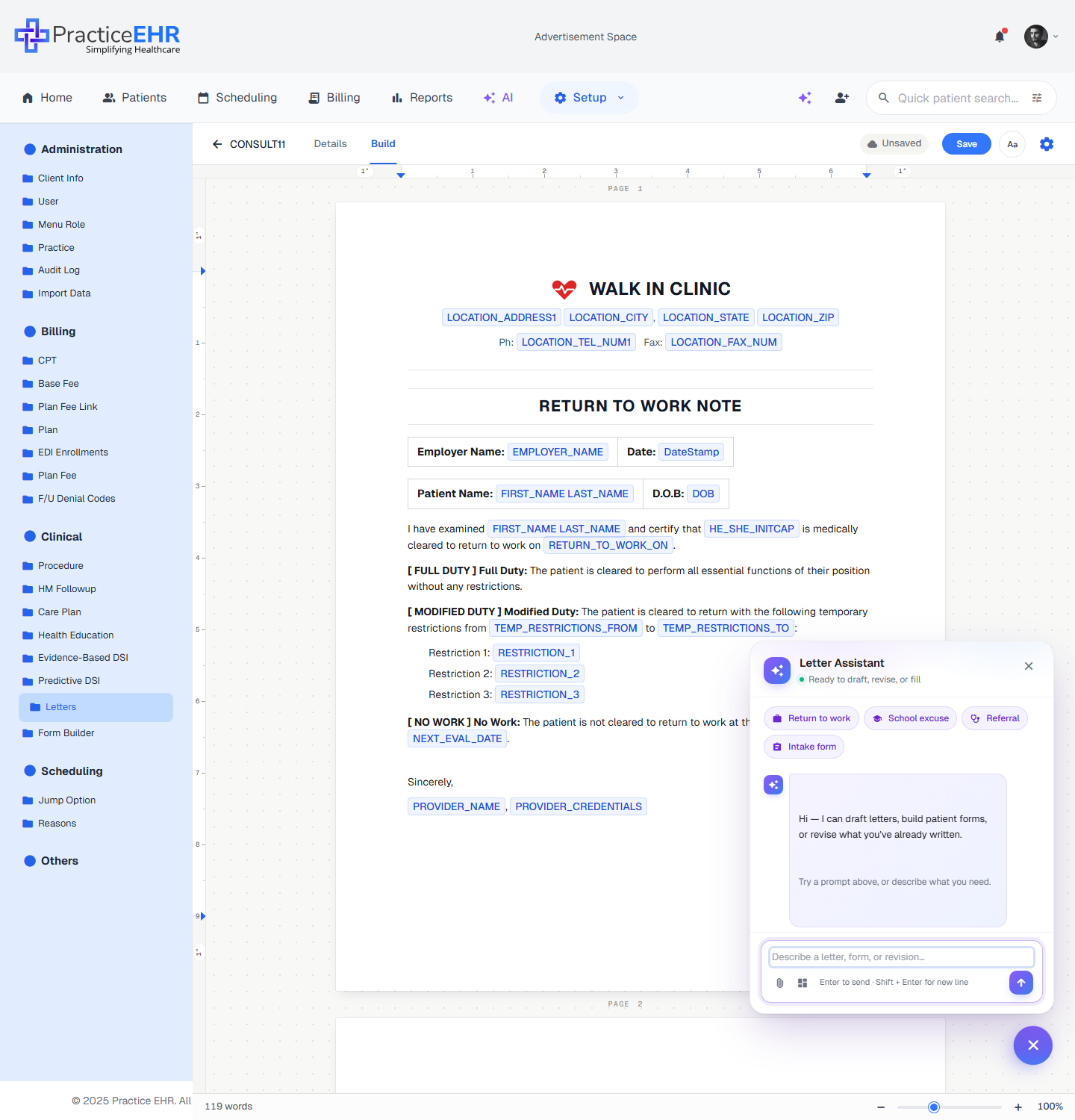
AI Letter Assistant
- The purple Sparkles FAB in the bottom-right of the editor opens the Letter Assistant chat panel.
- Pick a letter type (Referral, Appeal, Prior Auth, Work Excuse, etc.) and add a free-text prompt — the AI drafts a complete letter from chart and encounter data.
- Output is fully editable before delivery — the AI never sends or saves on its own.
- For Denial / Appeal letters, the AI auto-grounds appeal arguments in actual documented findings and pre-fills CARC/RARC, CPT, payer, and DOS from the denial record.
AI trigger entry points5
Quick-prompt suggestions3
Composer3
Migration note
All existing desktop templates, system fields, user fields, categories, and progress-note letterhead assignments carry over. The desktop editor has a 90-day sunset.