Patient Eligibility Enhancements
Overview of recent updates to the Patient Eligibility Response interface.
This document outlines recent updates to the Patient Eligibility Response interface. These changes are designed to streamline data presentation, improve navigation efficiency, and prioritize high-value information.
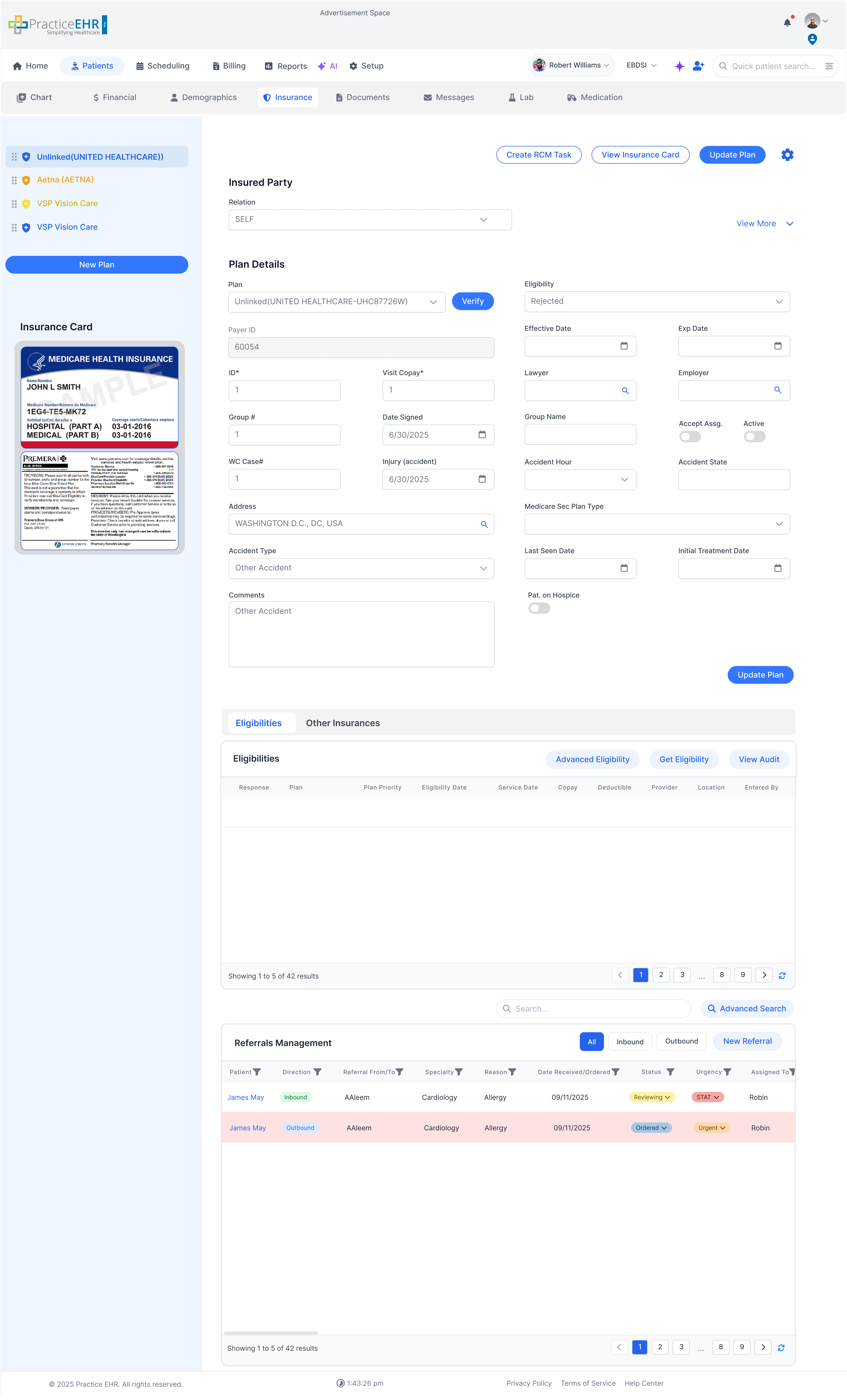
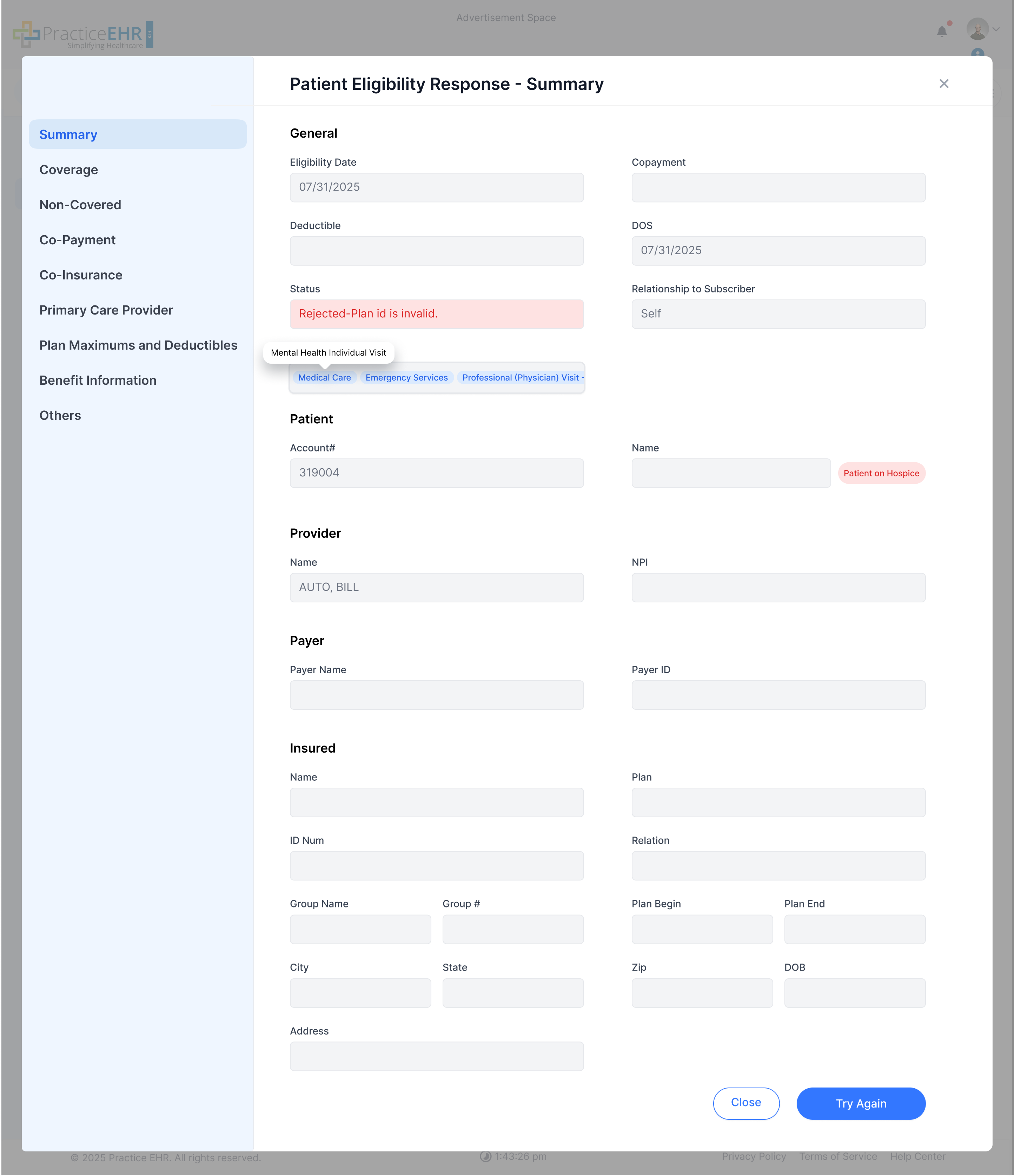
Summary
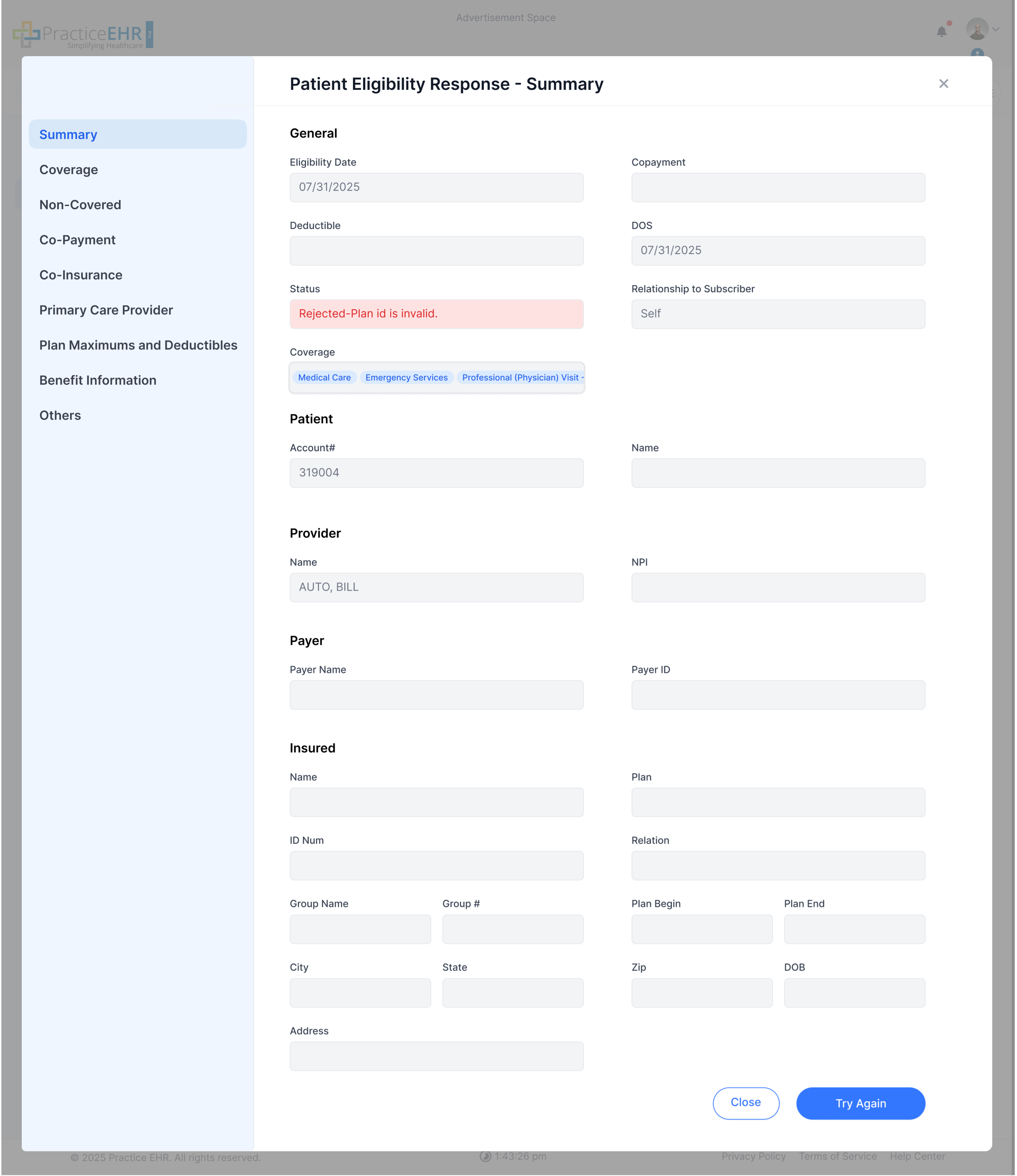
Field Updates
Following fields have been removed as they were identified as low-usage data points:
- Date of Birth (DOB)
- Address
- City, State and Zip Code in patient section
We have introduced several new disabled fields in summary:
- Coverage Service Types
- Relationship to Subscriber
- Group Name also introduced alongside with Group ID
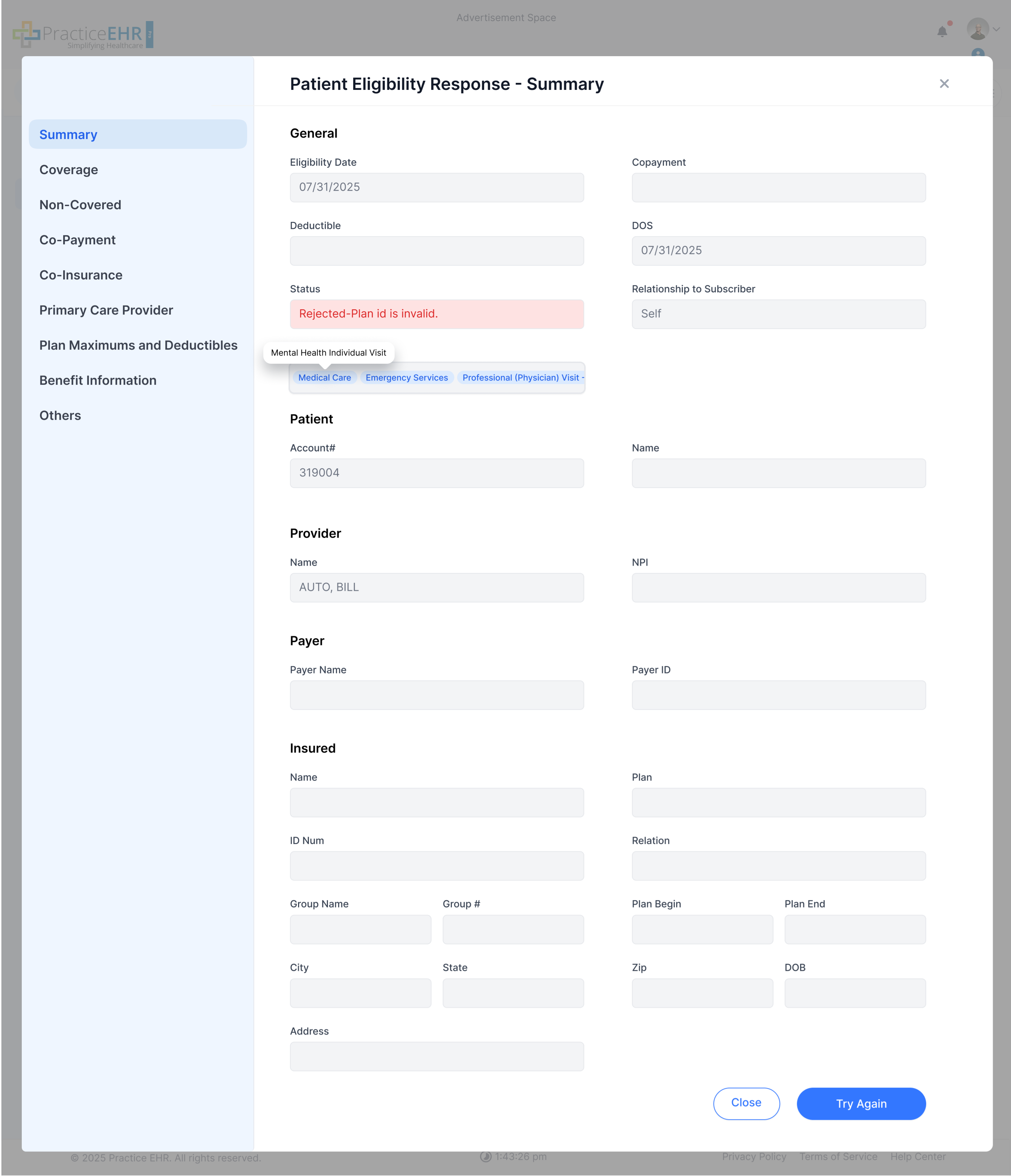
Note: When the user hovers over the coverage service field, a tooltip displays the description of that service type.
Hospice Status
If patient is hospice a red status will appear Infront of the name as "Patient in hospice".
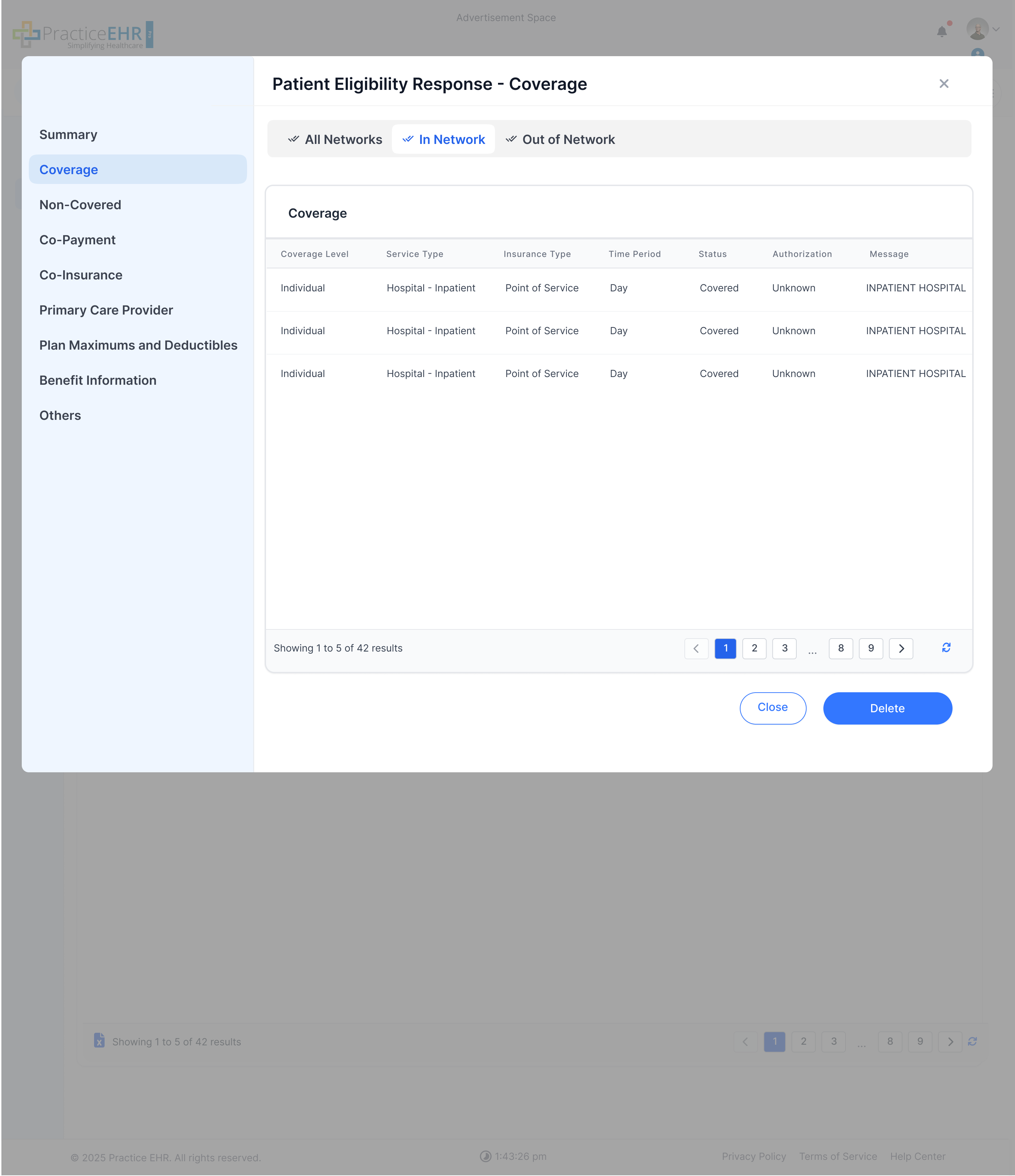
We have introduced 'All Network,' 'In Network,' and 'Out of Network' tabs. Selecting a tab filters the coverage grid to show only the relevant data.
In coverage grid we have renamed "amount" column to "Status", and previously we had active and in active as column fields which is now changed to covered and non-covered.
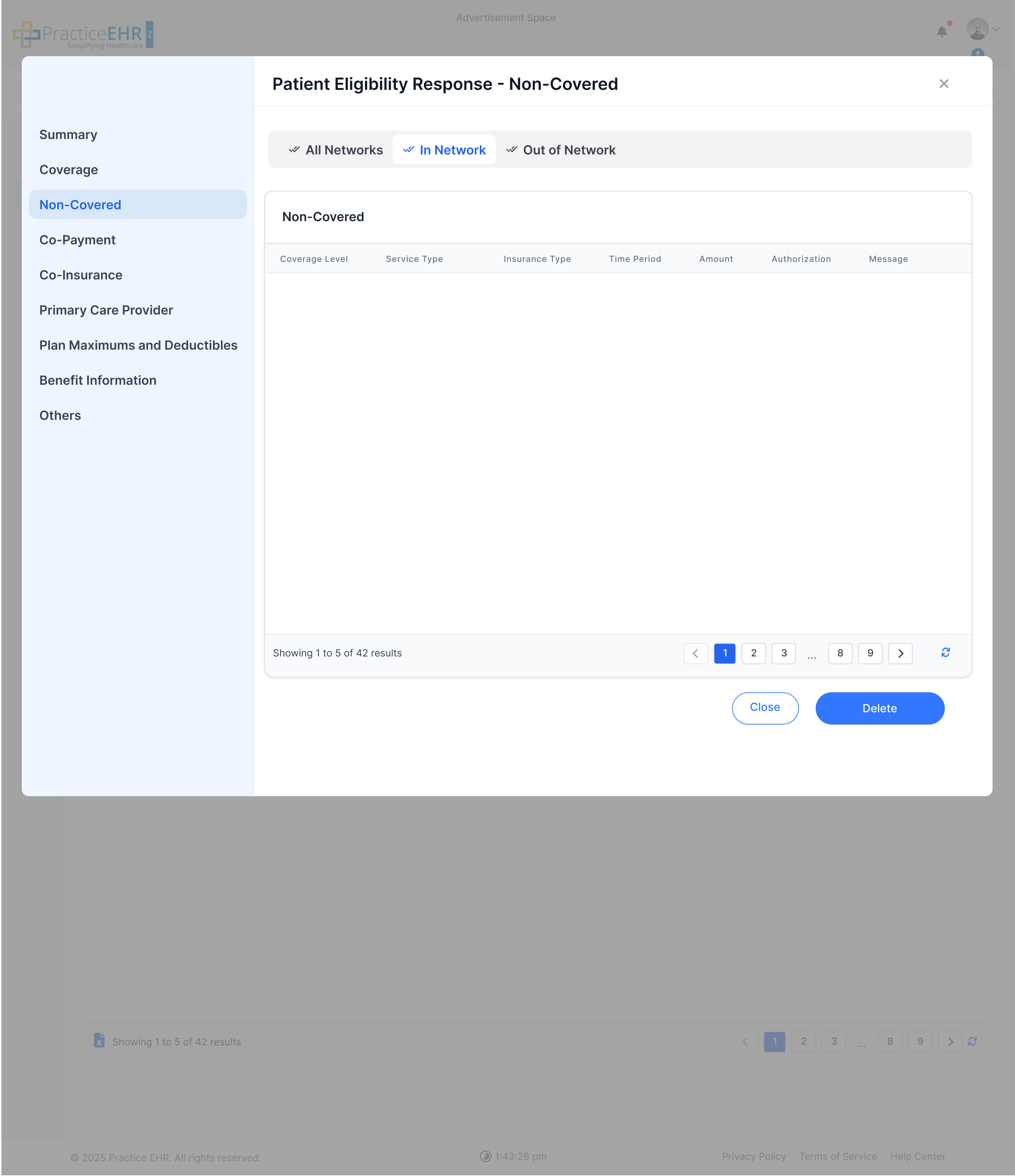
Patient Eligibility Response - Noncovered:
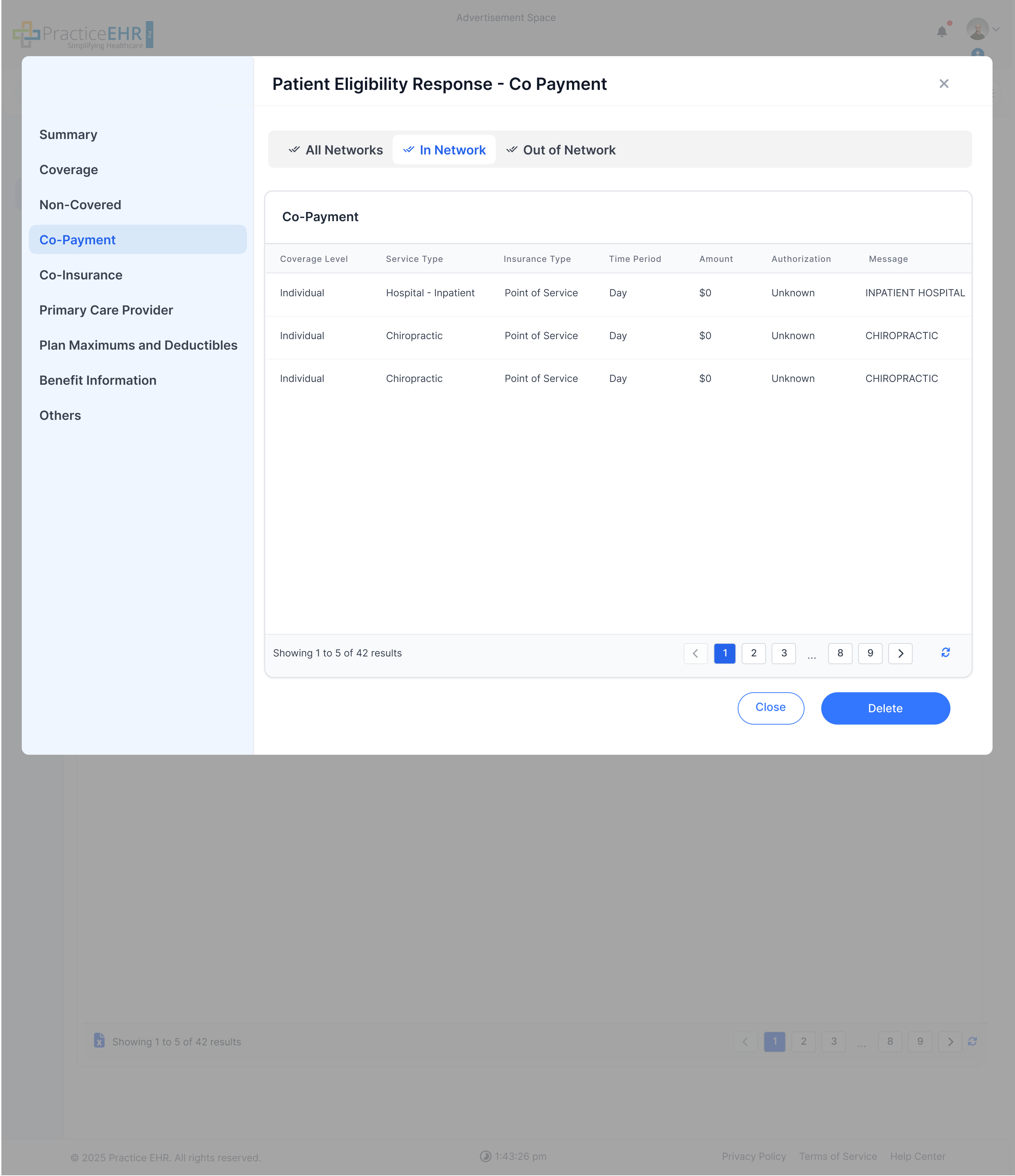
Patient Eligibility Response - Co Payment:
Automated outpatient co-pay determination
Implement deterministic co-pay logic that evaluates appointment context, Place of Service (POS), and provider specialty so the correct outpatient co-pay category is matched against the payer's 270/271 eligibility response.
Deterministic Hierarchy
PCP vs. Specialist must be resolved from assigned provider fields, and ambiguous data must fall back to Professional / Office instead of $0.
Do
- Implement a deterministic hierarchy: Appointment Type > POS > Specialty.
- Base PCP vs. Specialist logic on the patient's assigned provider fields.
- Use a conservative fallback to Professional / Office rather than $0.
- Match exactly one co-pay category to each encounter.
Don't
- Do not default to $0 if eligibility data is missing, partial, or ambiguous.
- Do not apply multiple co-pays to a single encounter.
- Do not bypass provider assignment when deciding PCP vs. Specialist.
User Story
As a Front Desk Staff / Billing Manager, I want the system to automatically calculate the applicable co-pay based on visit context and provider details, so that we can collect accurate payments at the point of service and reduce billing discrepancies.
Appointment Reason Setup
Every appointment reason must be fully typed before downstream co-pay logic can run.
Required configuration
- Appointment Type is required on Appointment Reason setup.
- Each reason must map to exactly one appointment type.
Allowed Appointment Types
Appointment Type Suppression & Overrides
Appointment type is always checked first and can short-circuit the rest of the flow.
| Appointment Type | System Action | Result |
|---|---|---|
| Preventive | Suppress co-pay | $0 |
| Global / Post-Op | Suppress co-pay | $0 |
| Urgent Care | Override downstream logic | Apply Urgent Care co-pay immediately |
| Televisit | Override downstream logic | Apply Televisit co-pay immediately |
| Standard / Problem | Continue evaluation | Move to POS logic |
POS Site Determination
For Standard / Problem visits, route the encounter by Place of Service before specialty logic is considered.
| POS Category | POS Codes | Routing Rule |
|---|---|---|
| Office / Clinic | 11, 49 | Continue to Provider Specialty logic. |
| Hospital Outpatient | 19, 22 | Apply Hospital Outpatient category. |
| Urgent / Emergency | 20, 23 | Apply Urgent / Emergency category. |
| Ambulatory Surgery | 24 | Apply ASC category. |
| Telehealth | 02, 10 | Apply Telehealth category. |
| Behavioral Health | 52, 53 | Apply Behavioral Health category. |
| Office (Generic) | 03, 04, 09, 12, 13, 14, 15, 16, 32, 33, 34 | Apply Office / Professional generic category. |
Provider Specialty & PCP Logic
This step only runs when POS resolves to Office / Clinic.
Direct Specialty Matches
- Behavioral Health
- Physical Therapy
- Chiropractic
- Urgent Care
If specialty matches one of these categories, apply that exact co-pay category.
Primary Care vs. Specialist
- Primary care specialties: Family Medicine, Internal Medicine, Pediatrics.
- Apply Primary Care co-pay when the patient's Assigned PCP is blank or matches the scheduled provider.
- Apply Specialist co-pay when a different provider is listed as the patient's Assigned PCP.
- If specialty is any other value or Other, default to the Specialist category.
Eligibility Matching & Safeguards
Once the visit category is determined, match it against the payer's 270/271 response using a strict priority order.
Match Priority
- Appointment Type Override
- Exact POS Match
- Exact Specialty Match
- Professional / Office Generic
- All / General
Fallback Rule
If the 270/271 response is missing, incomplete, or ambiguous, use Professional / Office (Generic). Never default to $0 unless the appointment type explicitly suppresses the co-pay.
Single Encounter Rule
Only one co-pay may be applied to a single encounter, even when multiple categories appear in eligibility data.
Manual Override Control
Any manual override must require a reason and log the user plus timestamp in the audit trail.
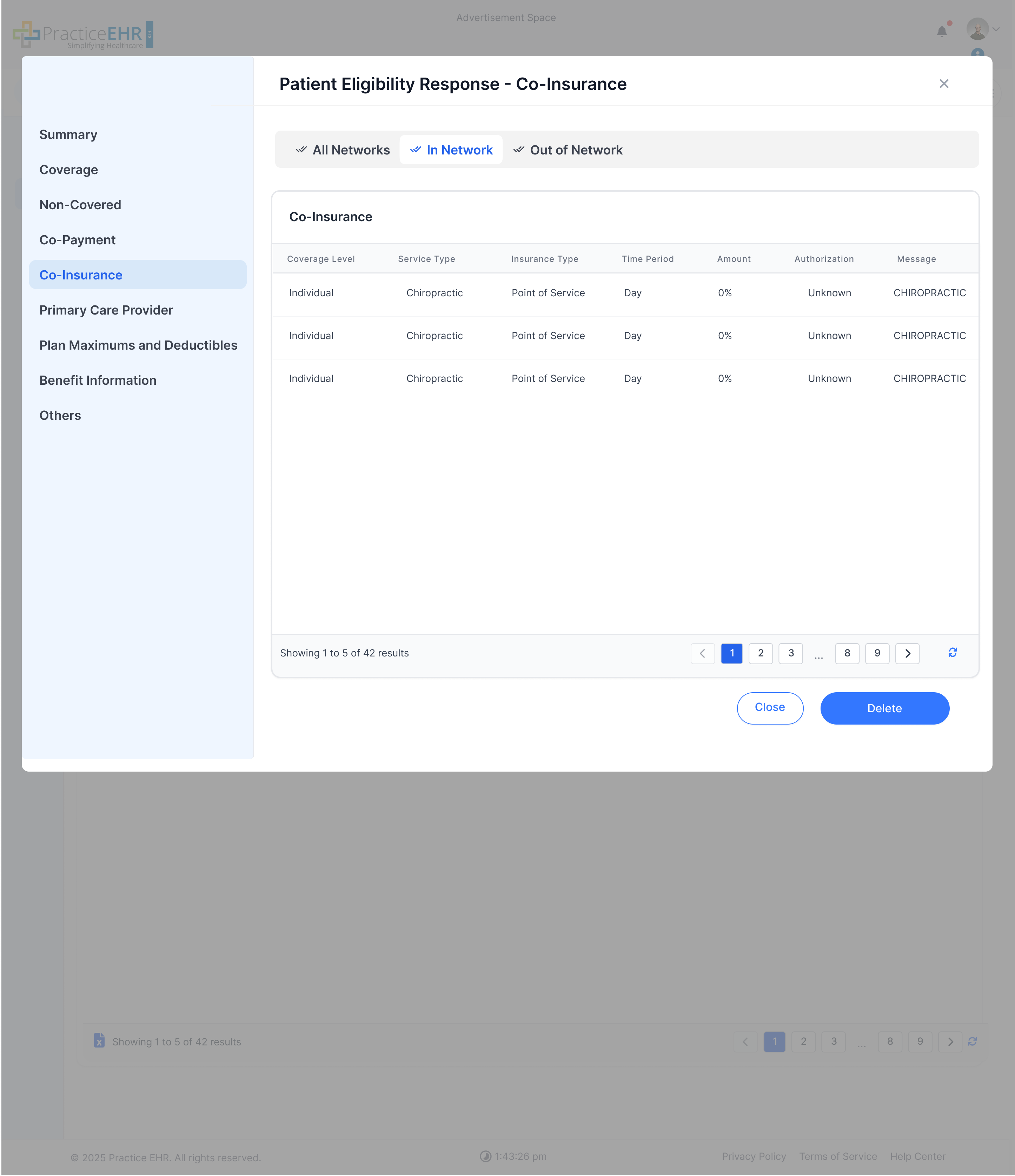
Patient Eligibility Response - Co Insurance:
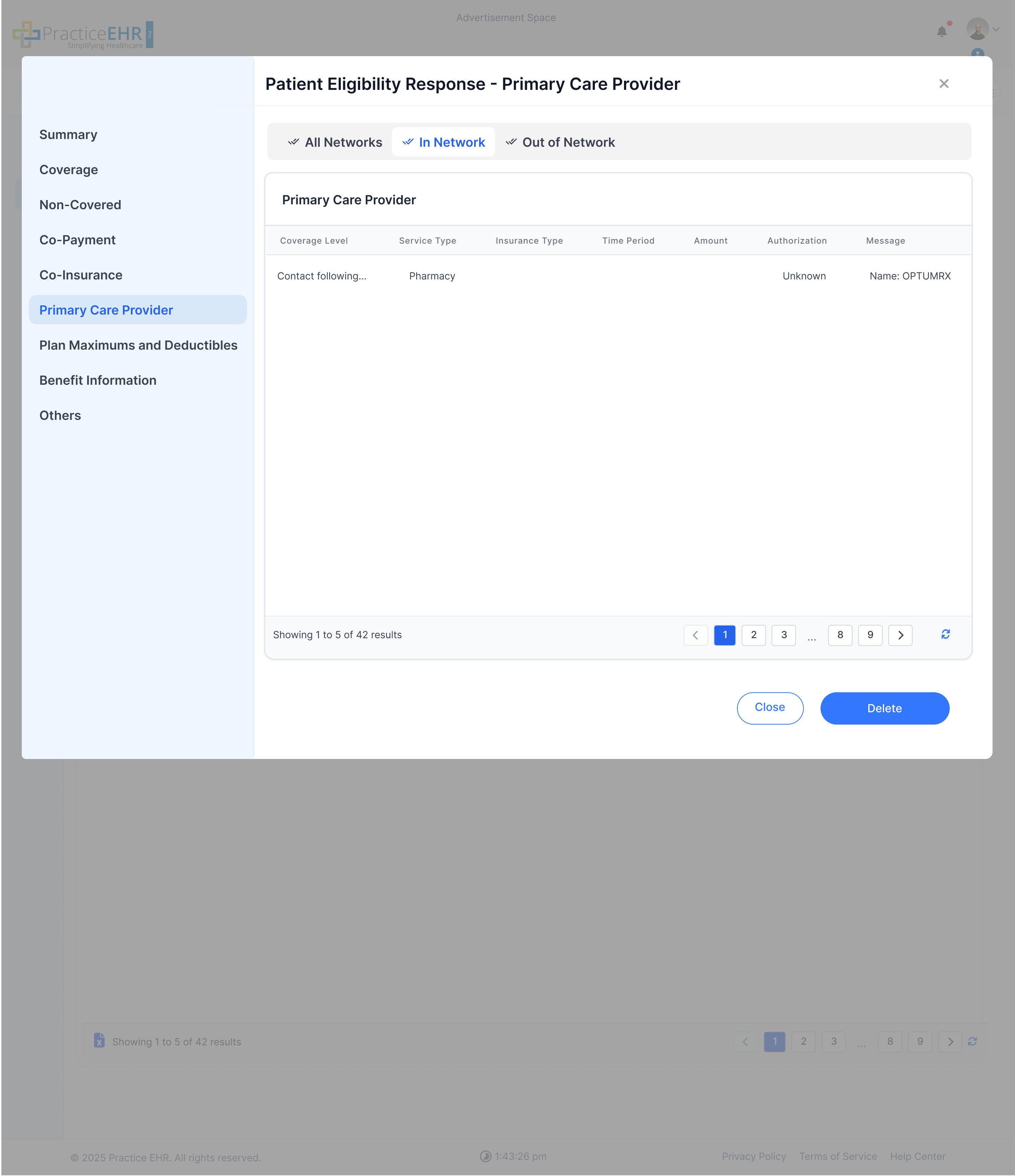
Patient Eligibility Response - Primary Care Provider:
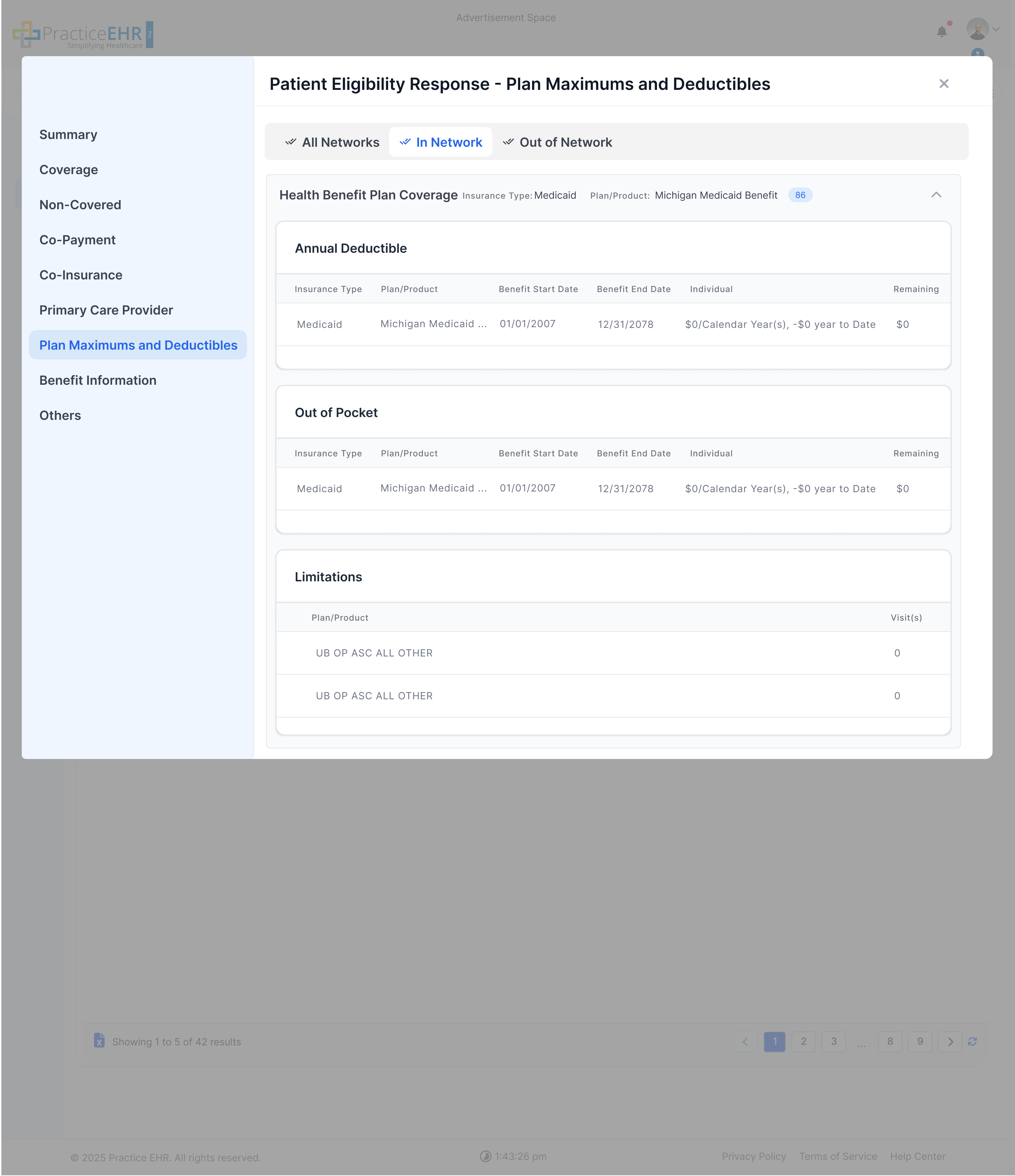
The separate tabs for Deductible, Limitations, and Out of Pocket have been removed. These fields are now grouped together within the new Plan Maximums and Deductibles window.
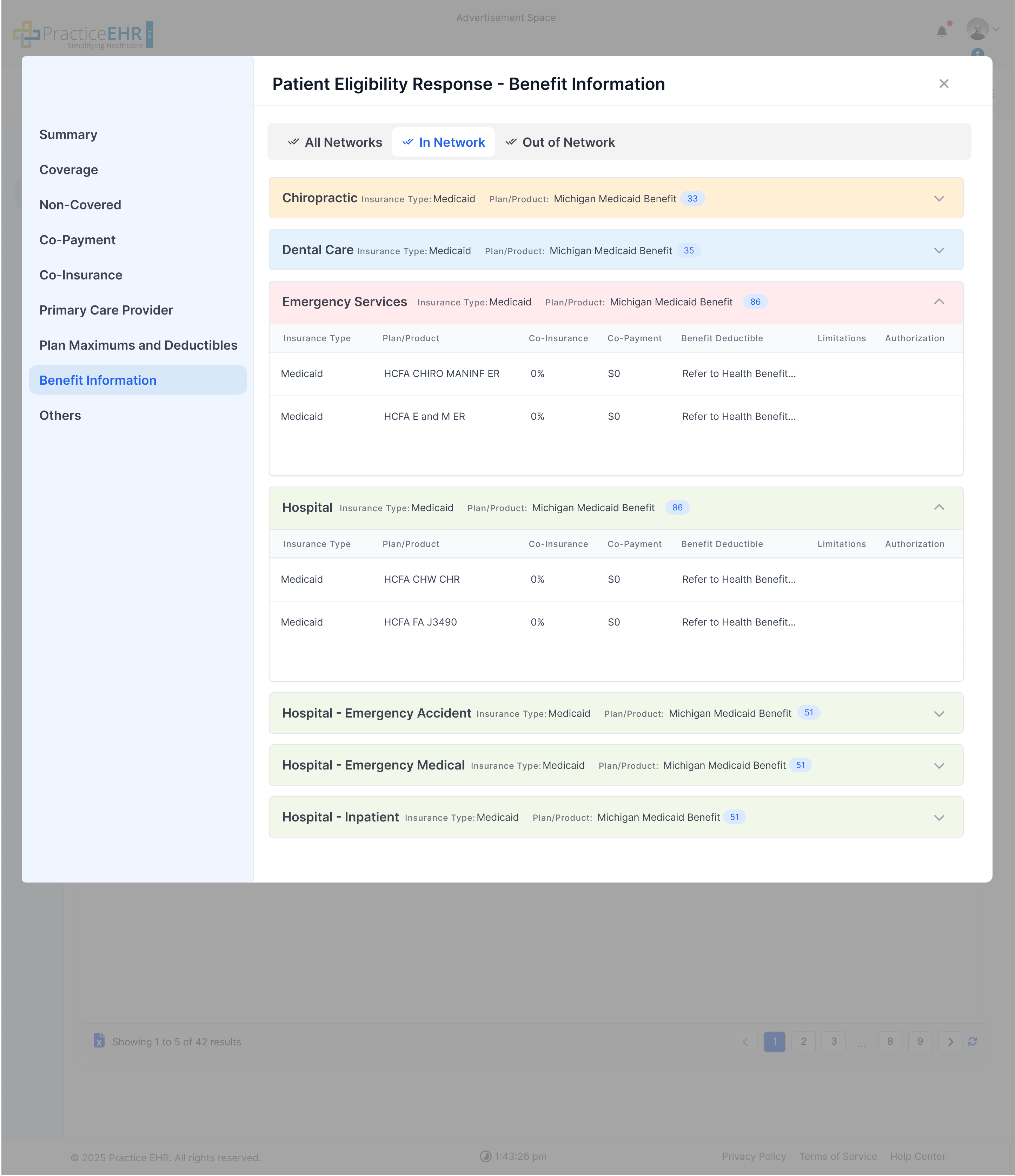
We have introduced a new Benefit Information tab. This section displays a list of all covered patient benefits as expandable cards. Opening a card reveals detailed information such as Insurance Type, Co-Pay, and Co-Insurance.
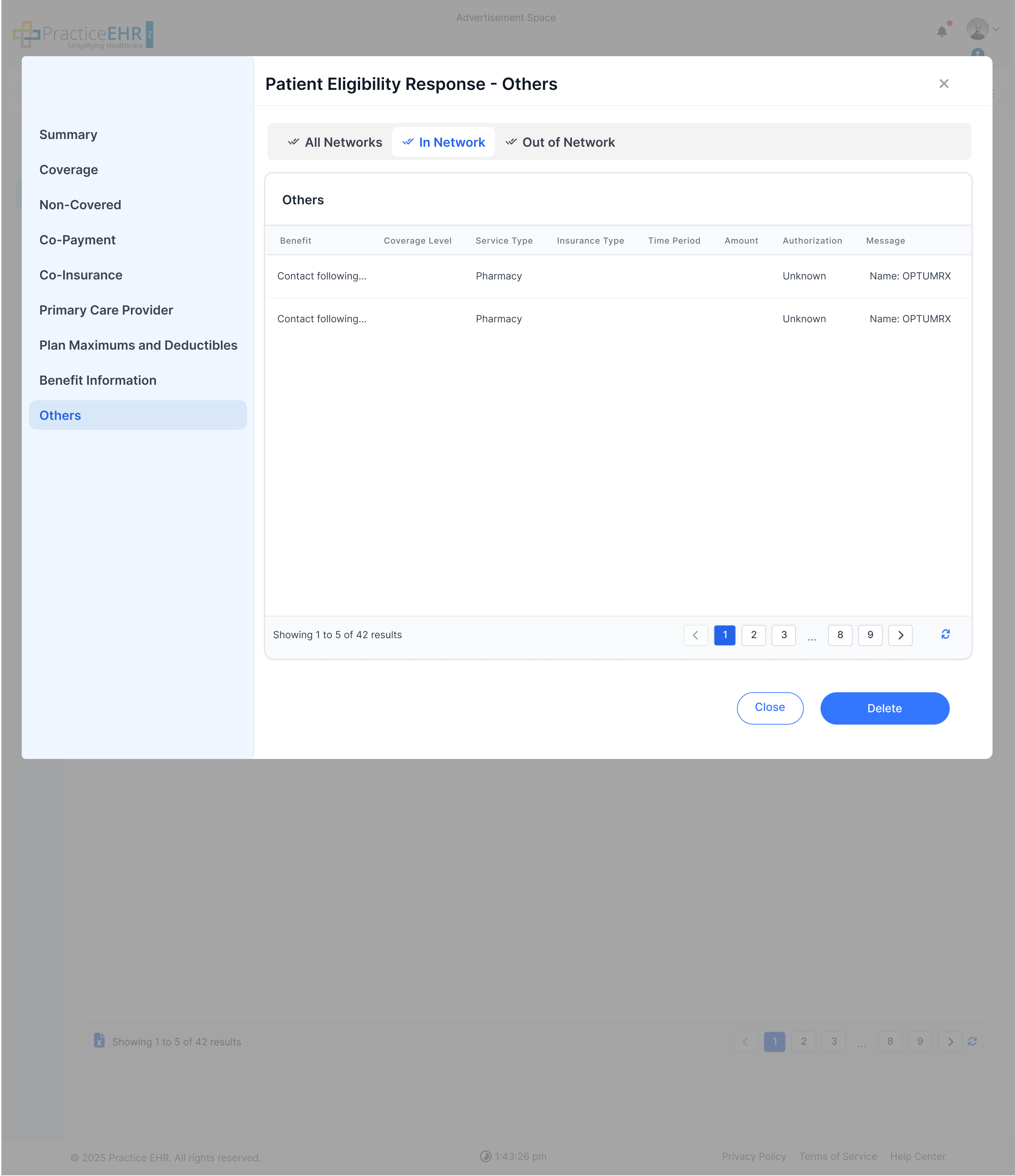
Patient Eligibility Response - Others: