CRM Phase 2
Click any link to jump to the matching screen, modal or detail state.
- Automation list (grid)
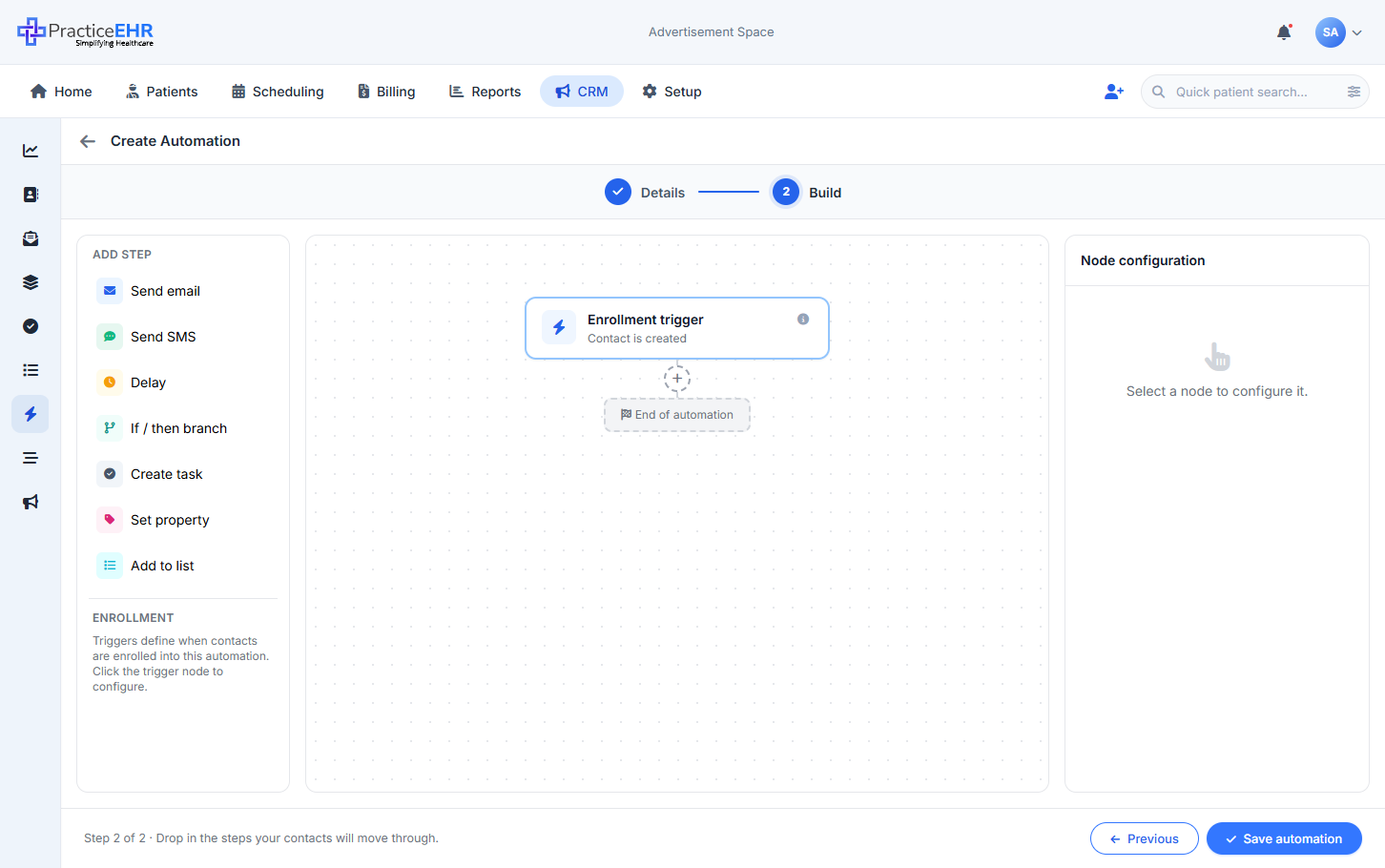
- Create automation (stepper)
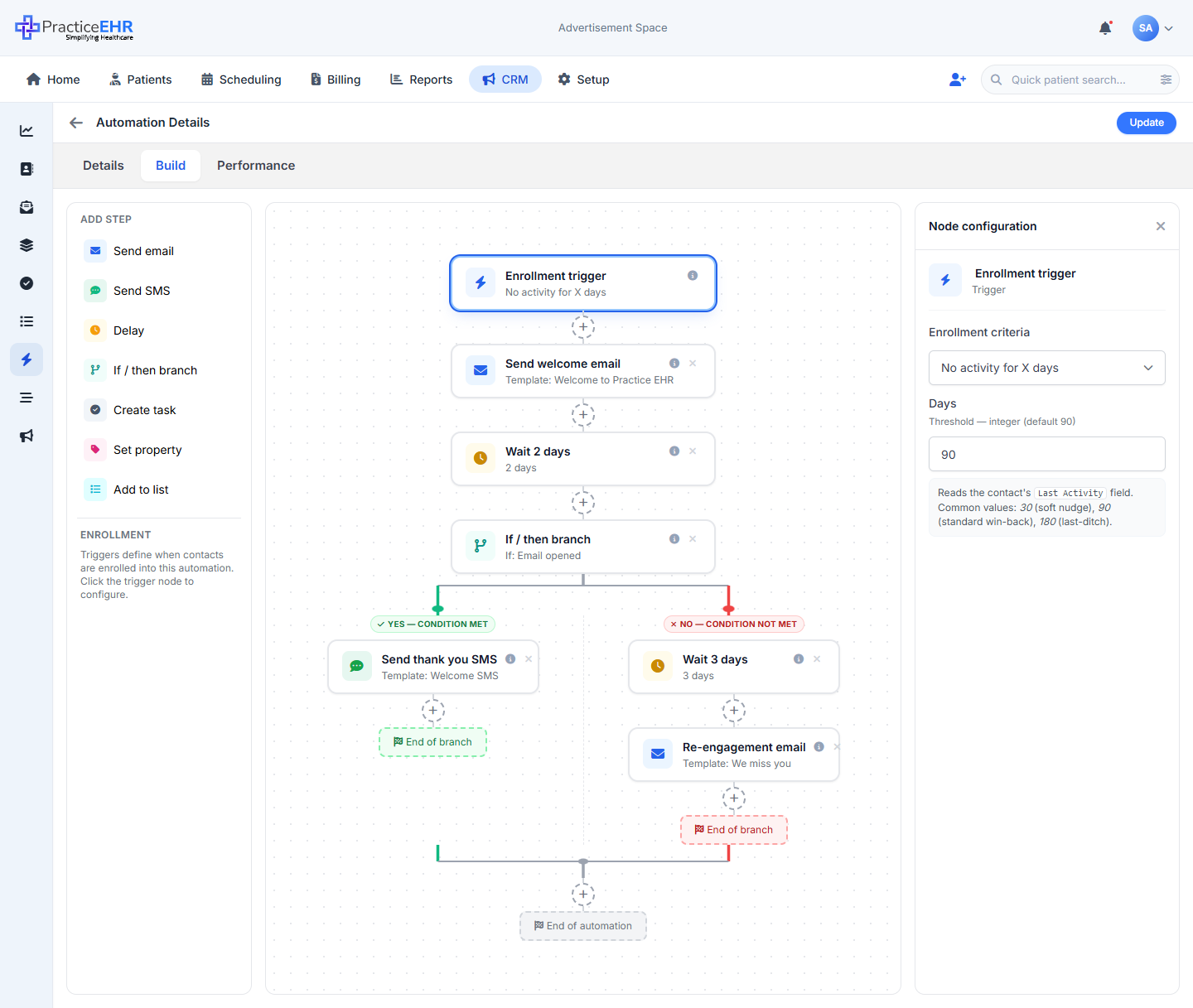
- Automation builder — Build tab
- ↪ Details tab
- ↪ Business-hours panel
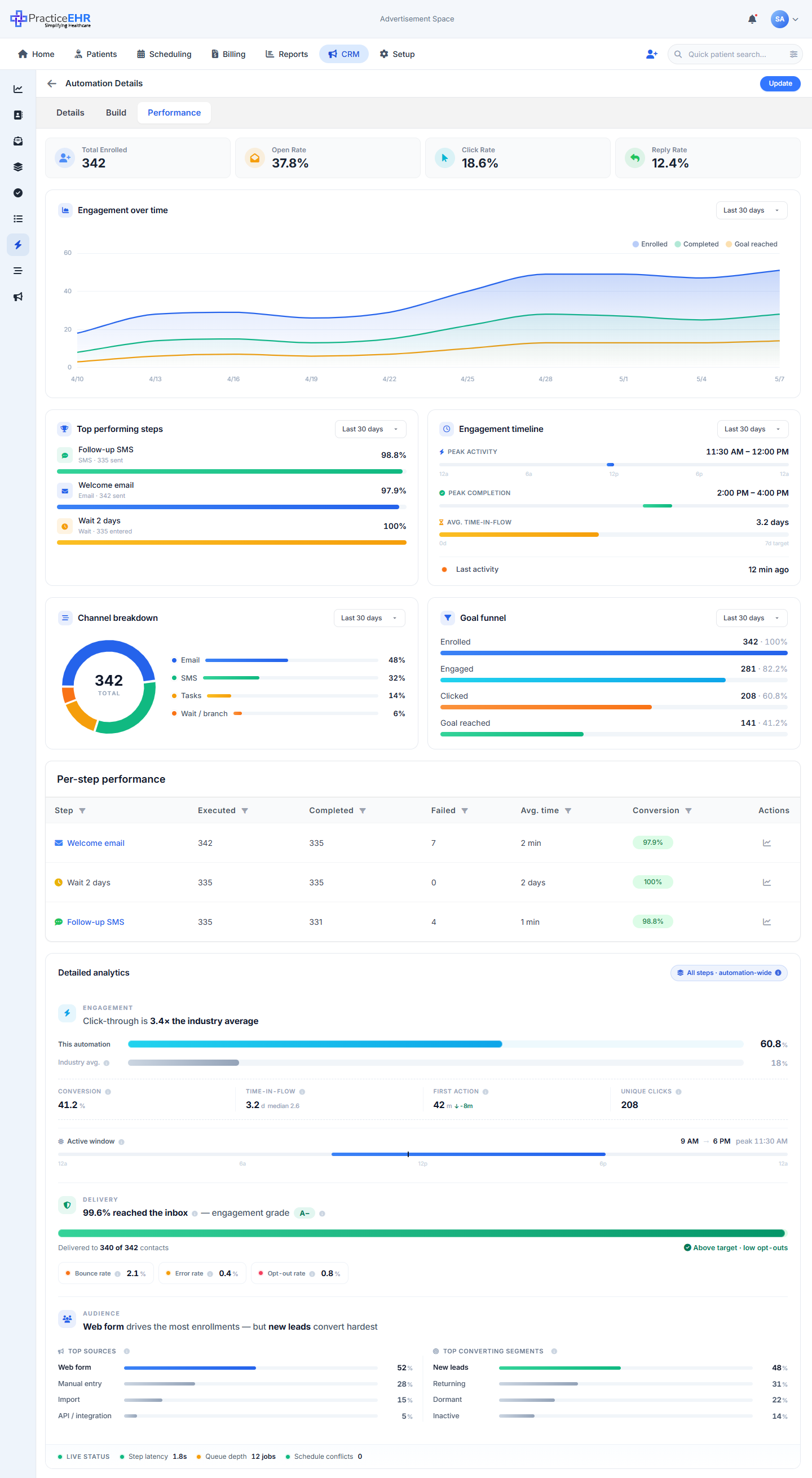
- ↪ Performance tab
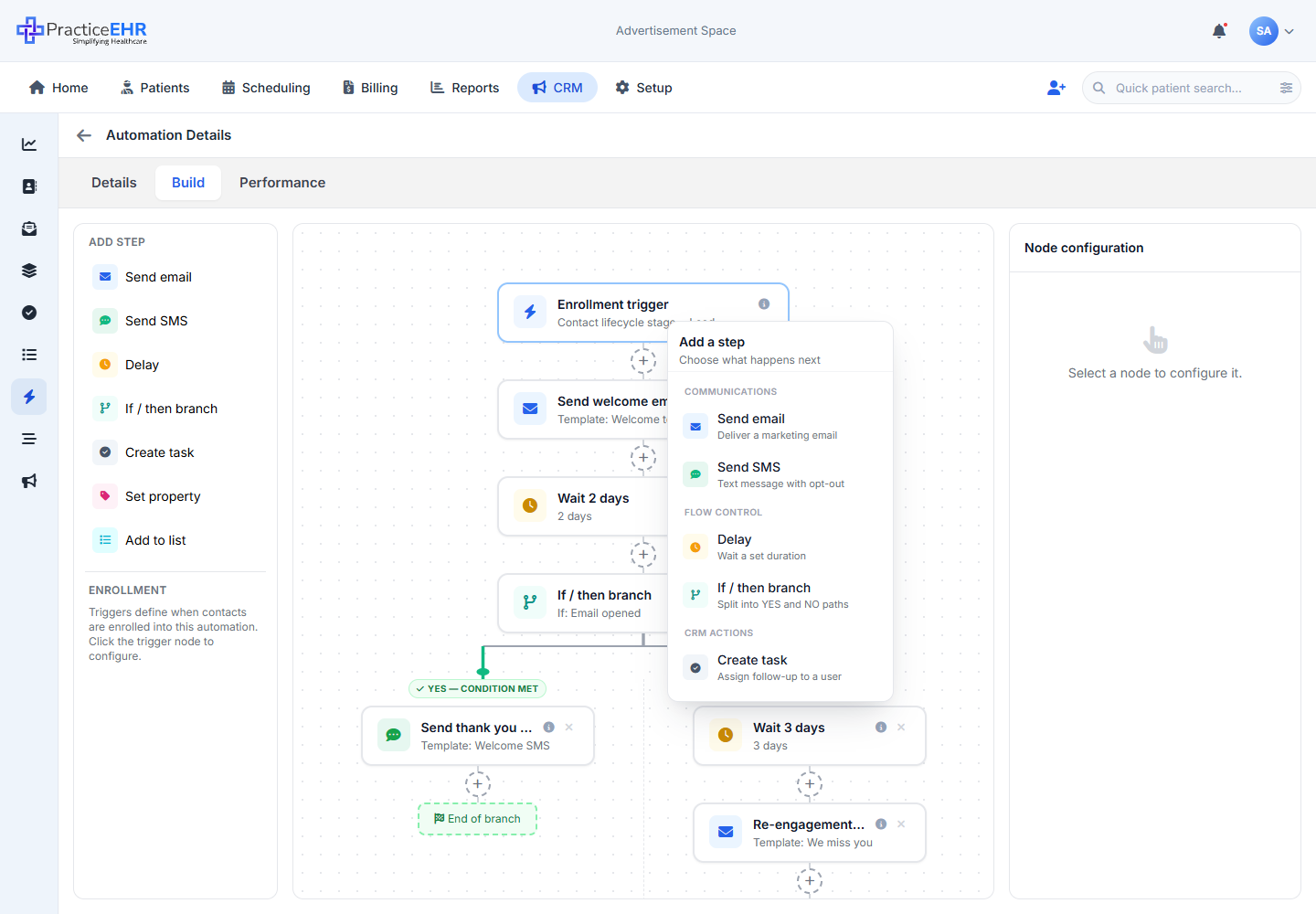
- ↪ Add-step picker popover
- Config panel — Trigger
- Trigger scenarios — all 10 criteria 11 views
- ↪ Send email
- ↪ Send SMS
- ↪ Delay
- ↪ If / then branch
- ↪ Create task
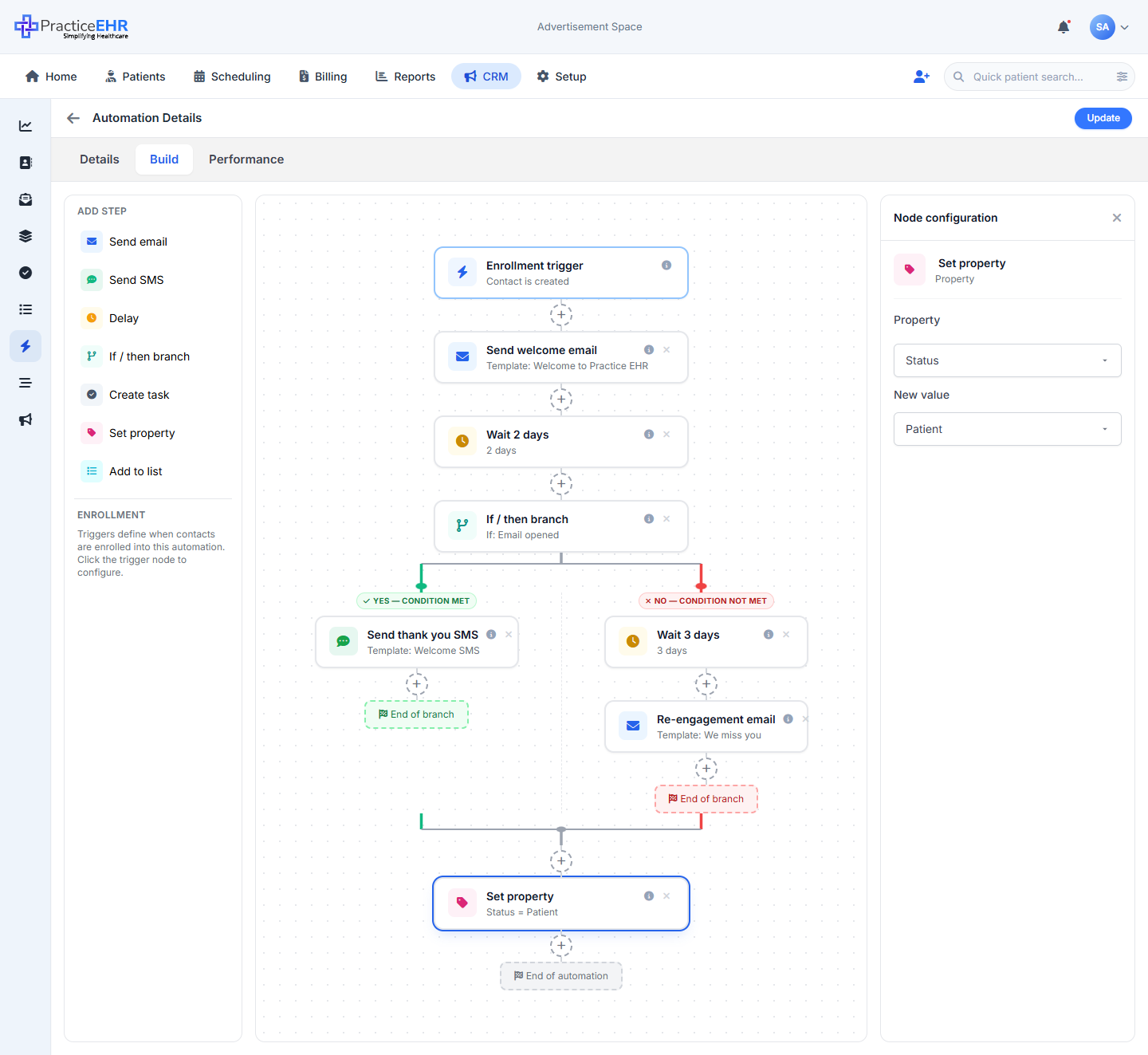
- ↪ Set property
- Set property — full property & value spec 7 props
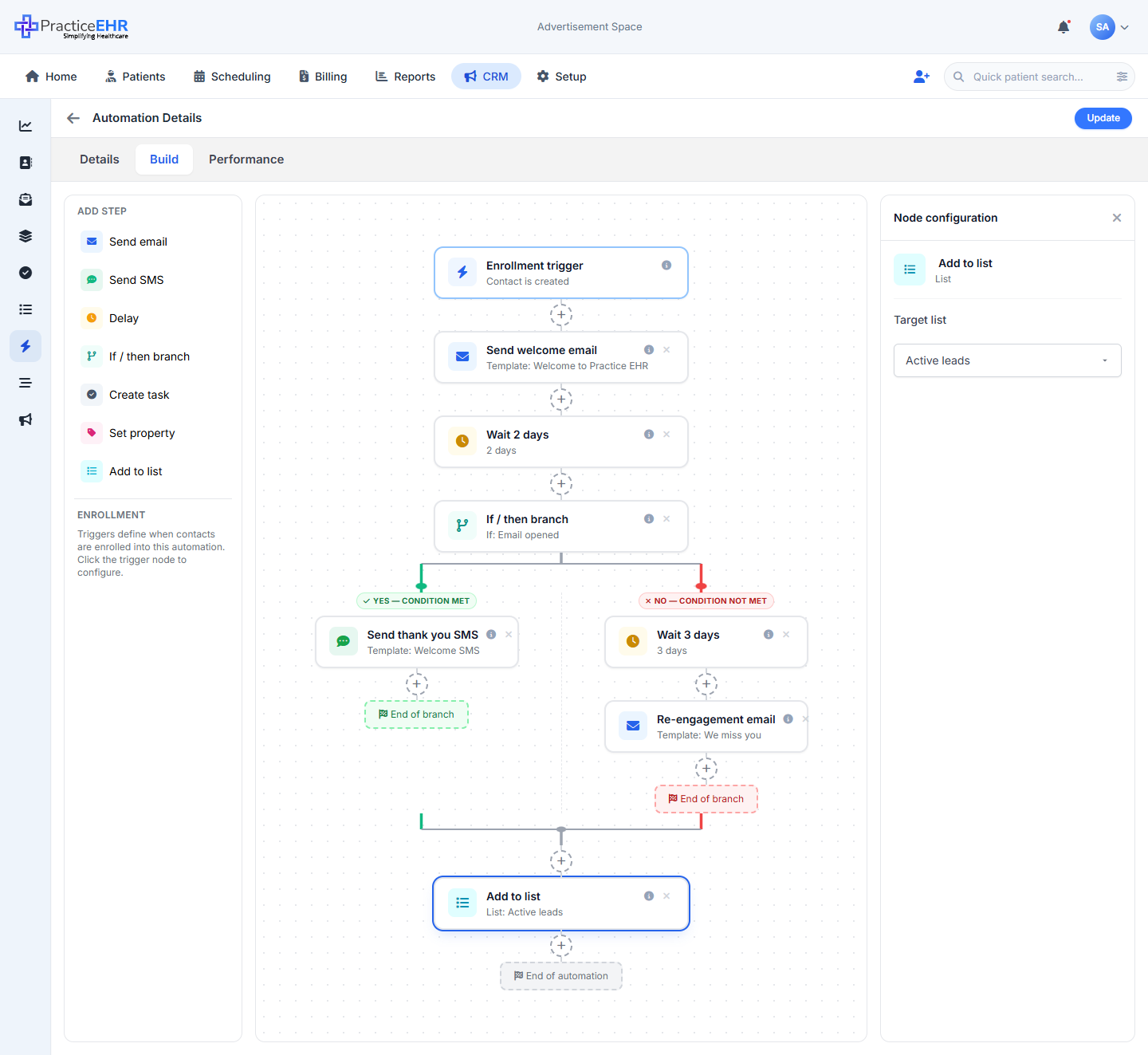
- ↪ Add to list
- Email preview modal
- ↪ Email editor modal
- Step analytics — Email
- ↪ SMS
- ↪ Wait
- Goal options
Automation List
CRM / Automation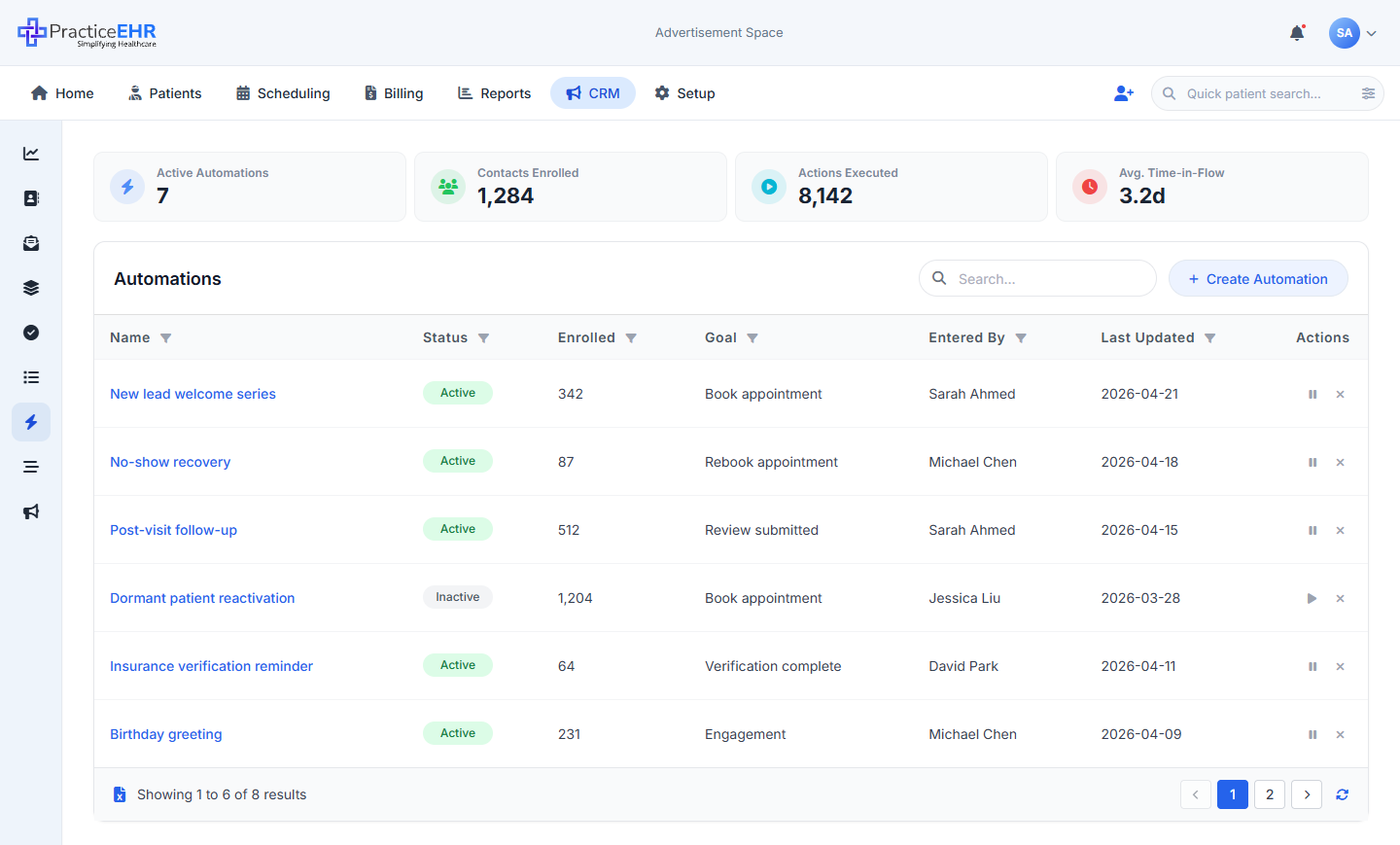
Key Features
- This is the first page you see when you click Automation in the CRM sidebar.
- Lists every automation in the practice with four headline numbers up top.
- Create Automation opens a 2-step wizard for building a new one from scratch.
- Click an automation's name to open it in the full builder where you can edit any tab freely.
Field reference
Click a section to collapseTop stat cards4
Toolbar2
Table columns7
Footer2
Where to find it
CRM sidebar › Automation (the lightning bolt icon).
Automation Builder
CRM / Automation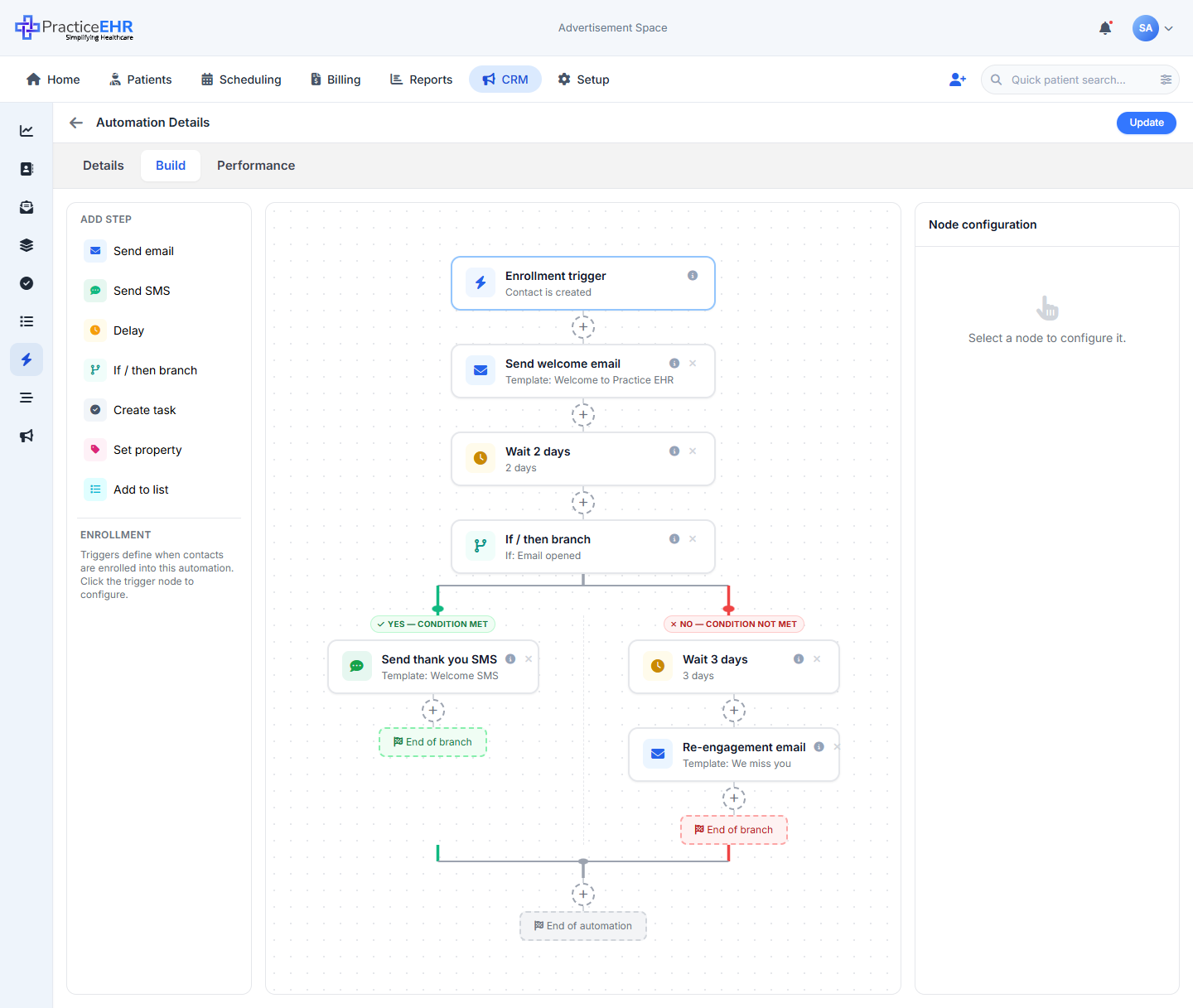
Key Features
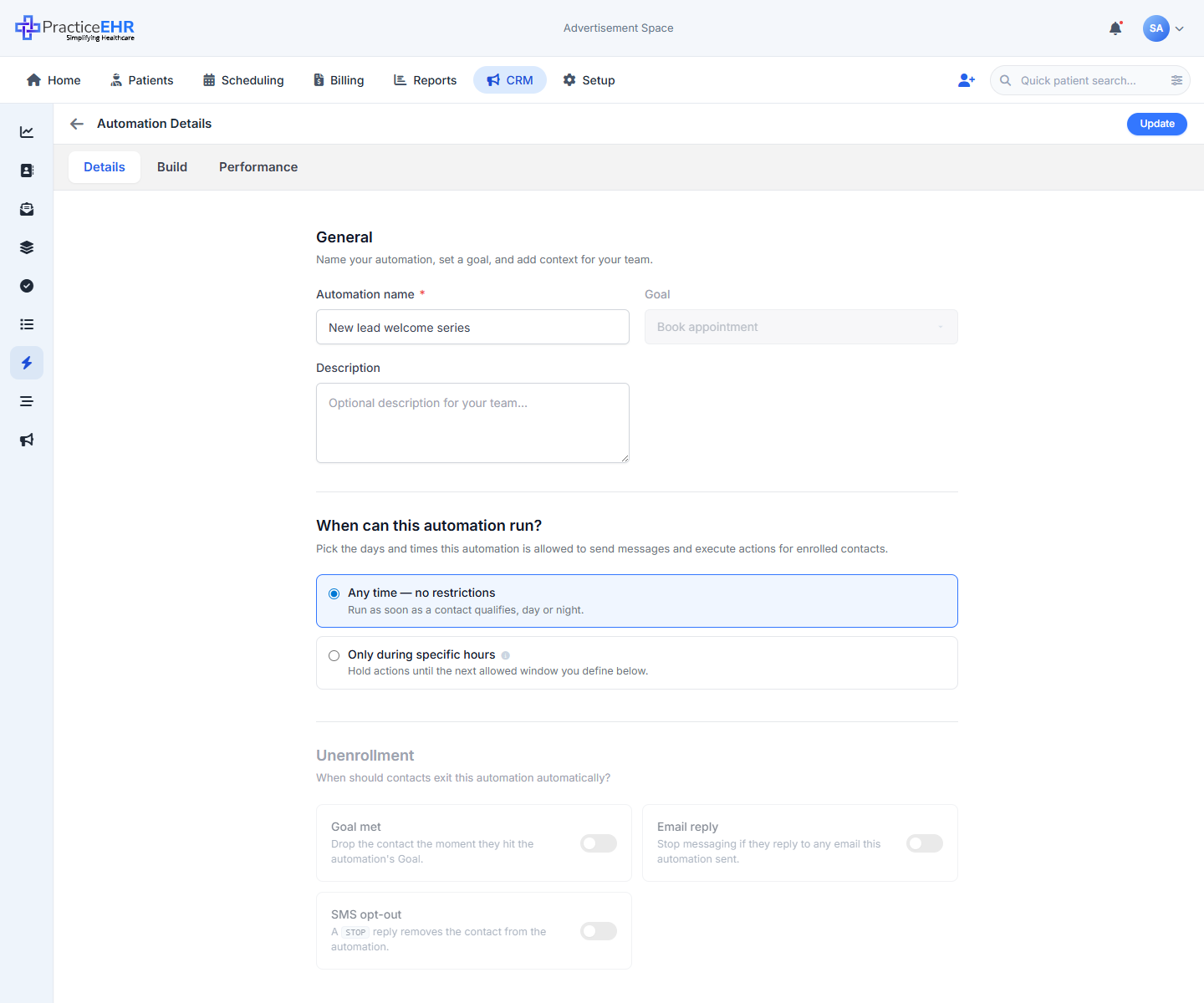
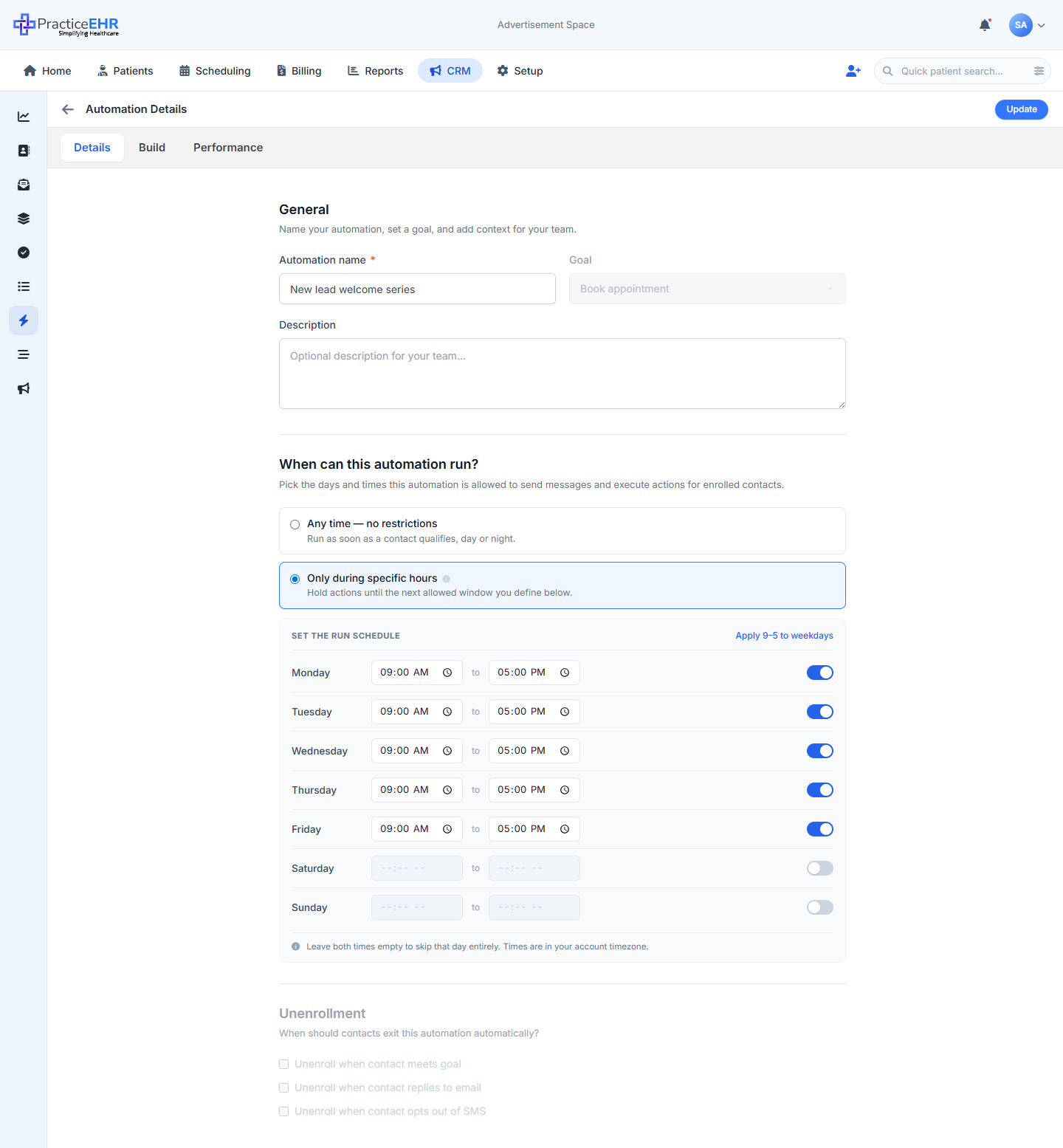
- The builder is a full-screen page with three tabs you can switch between: Details, Build and Performance.
- Whatever you type in the top-bar title also updates the Automation name field on Details, and vice versa.
- The same builder is used to create and to edit. While creating, the tabs are replaced by a 2-step wizard (Details → Build).
- The top-right Update button persists changes from any tab and returns to the list. The back arrow does the same as a fallback.
Build tab — what each part does
3 panesTop bar3
Tabs3
ADD STEP palette (left)7
Canvas (middle)5
Right panel2
Details tab — what each part does
3 sectionsGeneral3
When can this automation run?2
Unenrollment3
STOP reply removes the contact from the
automation.
Set the run schedule
Shown when "Only during specific hours" is onHeader2
Day rows7
Helper text1
Performance tab — what each part does
All numbers are for this one automationTop stat cards4
Engagement over time2
Top performing steps1
Engagement timeline4
Channel breakdown & goal funnel2
Per-step performance table2
Add-step picker
Opens from the + buttonHeader2
Communication2
Flow control2
CRM actions3
Where to find it
Clicking any automation in the list opens it in this builder. Create Automation opens the same builder but in 2-step wizard form. The builder can also open on top of a campaign detail page when you click an automation linked to that campaign.
Node Configuration Panel
CRM / Automation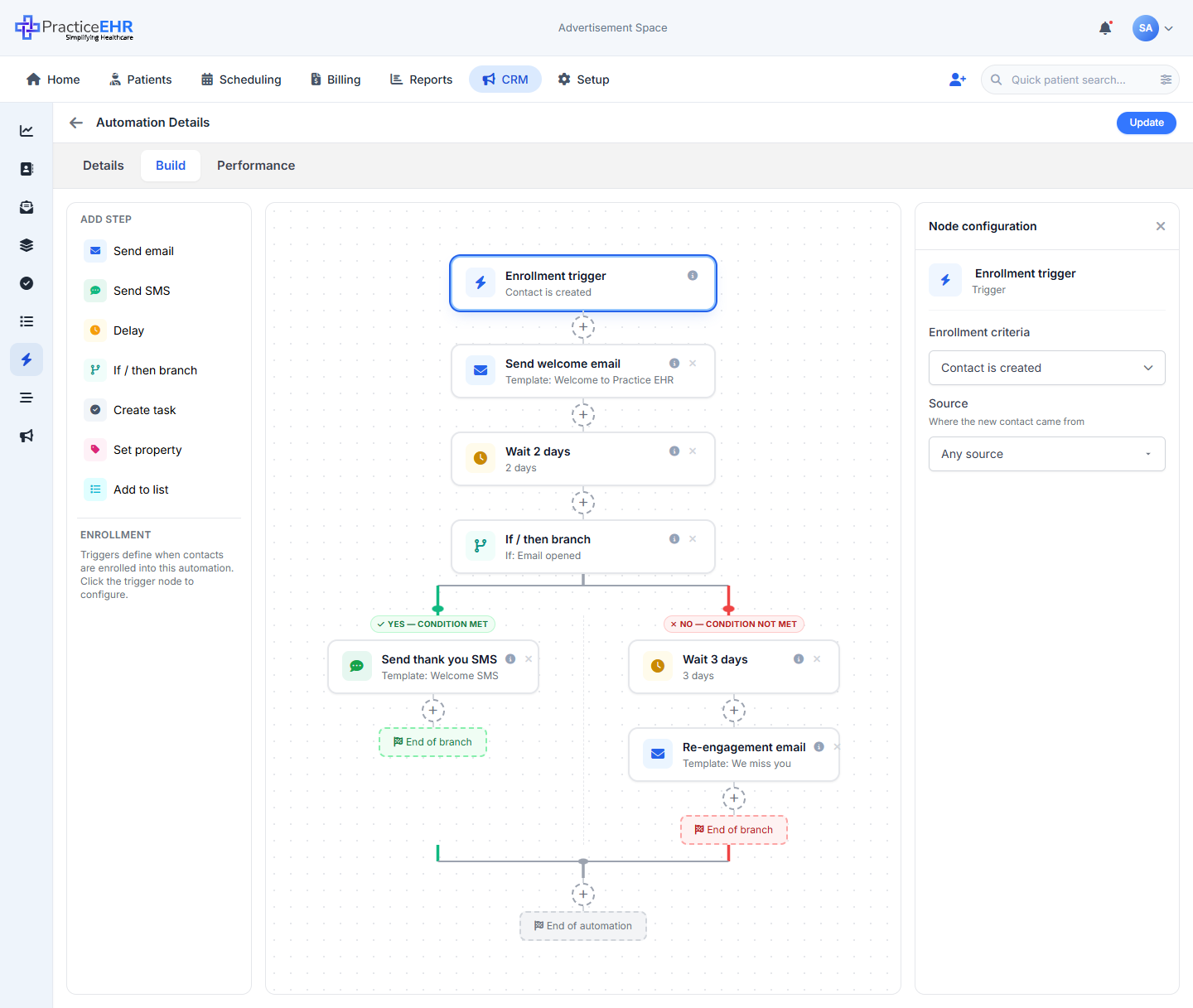
Key Features
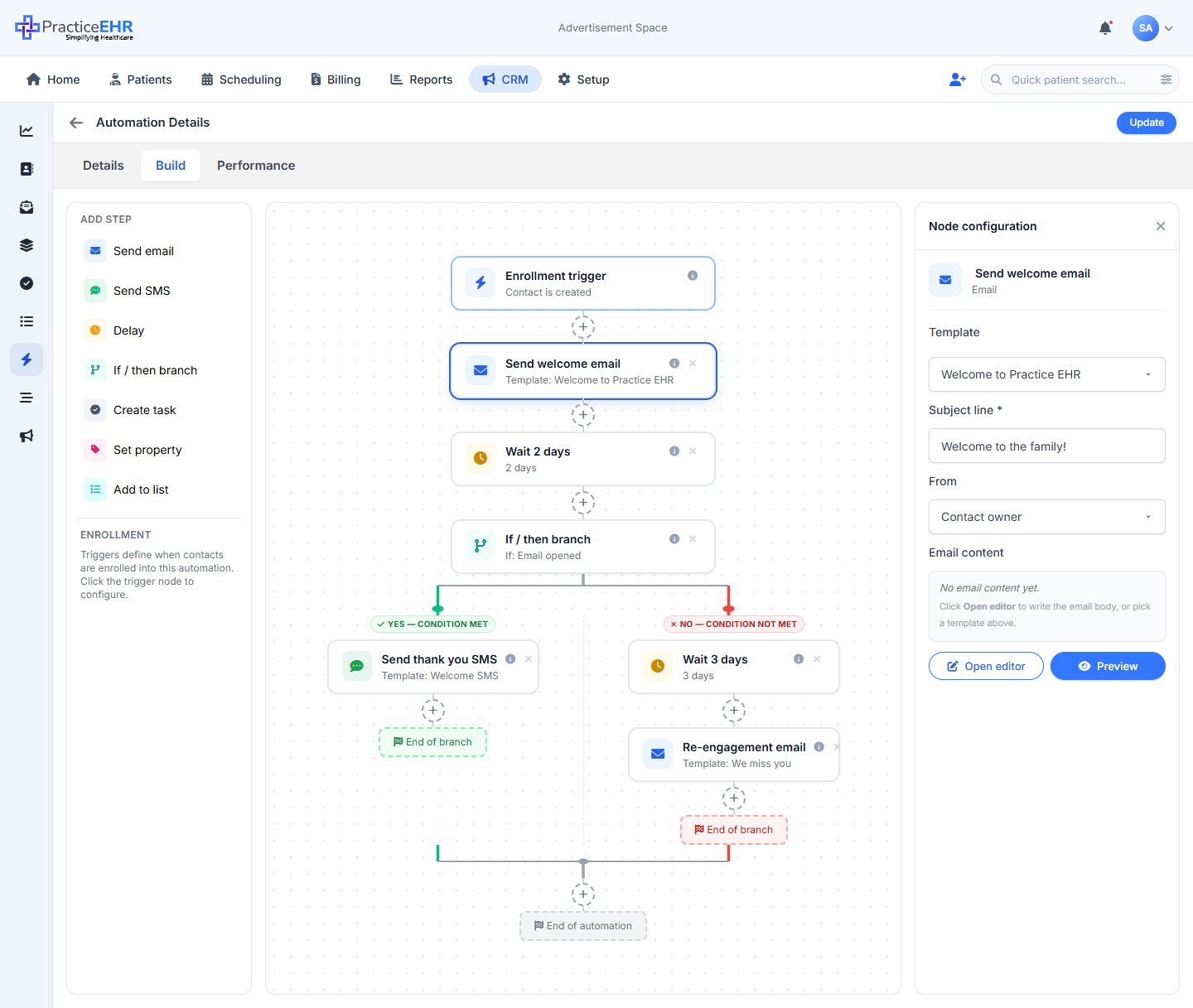
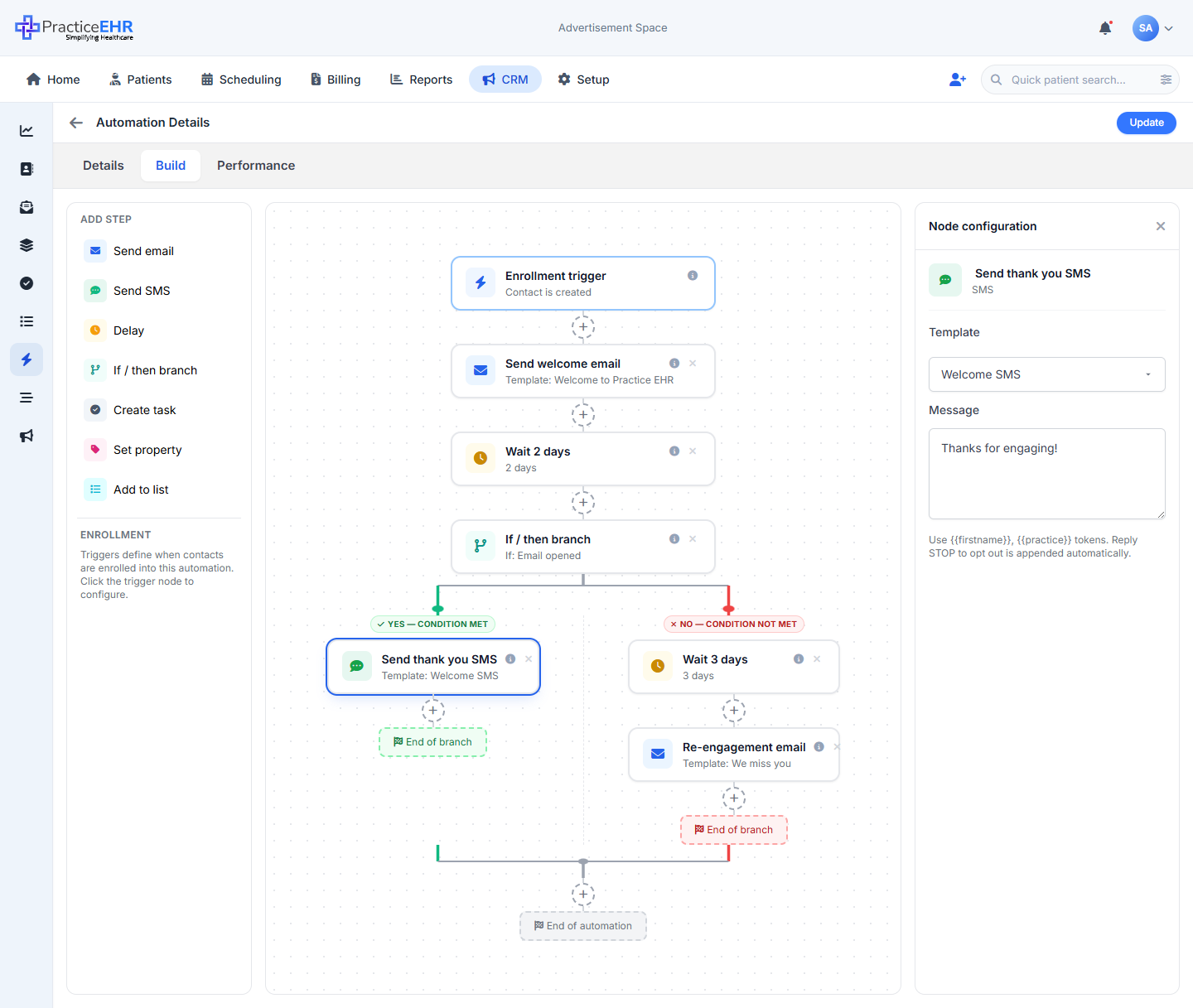
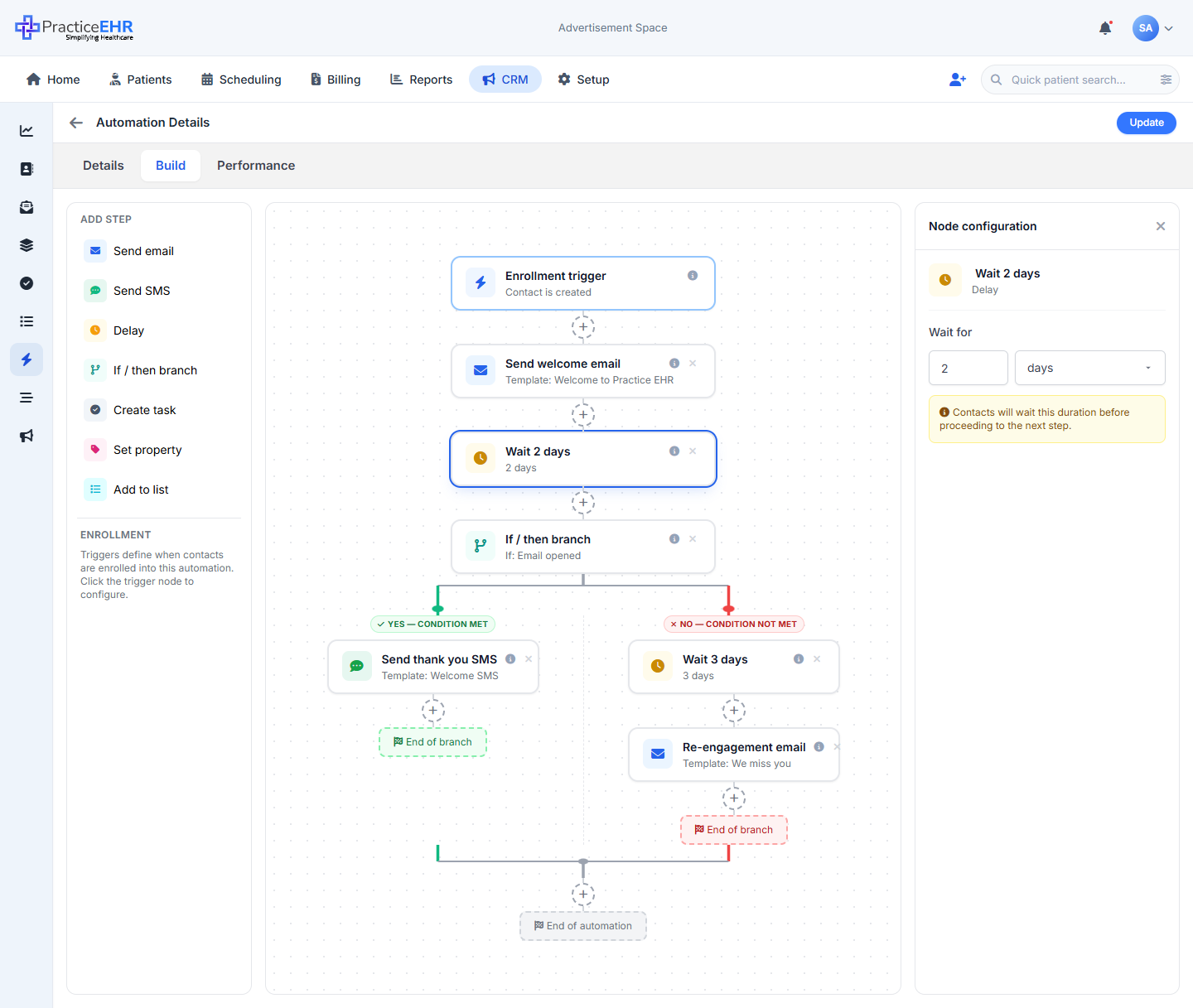
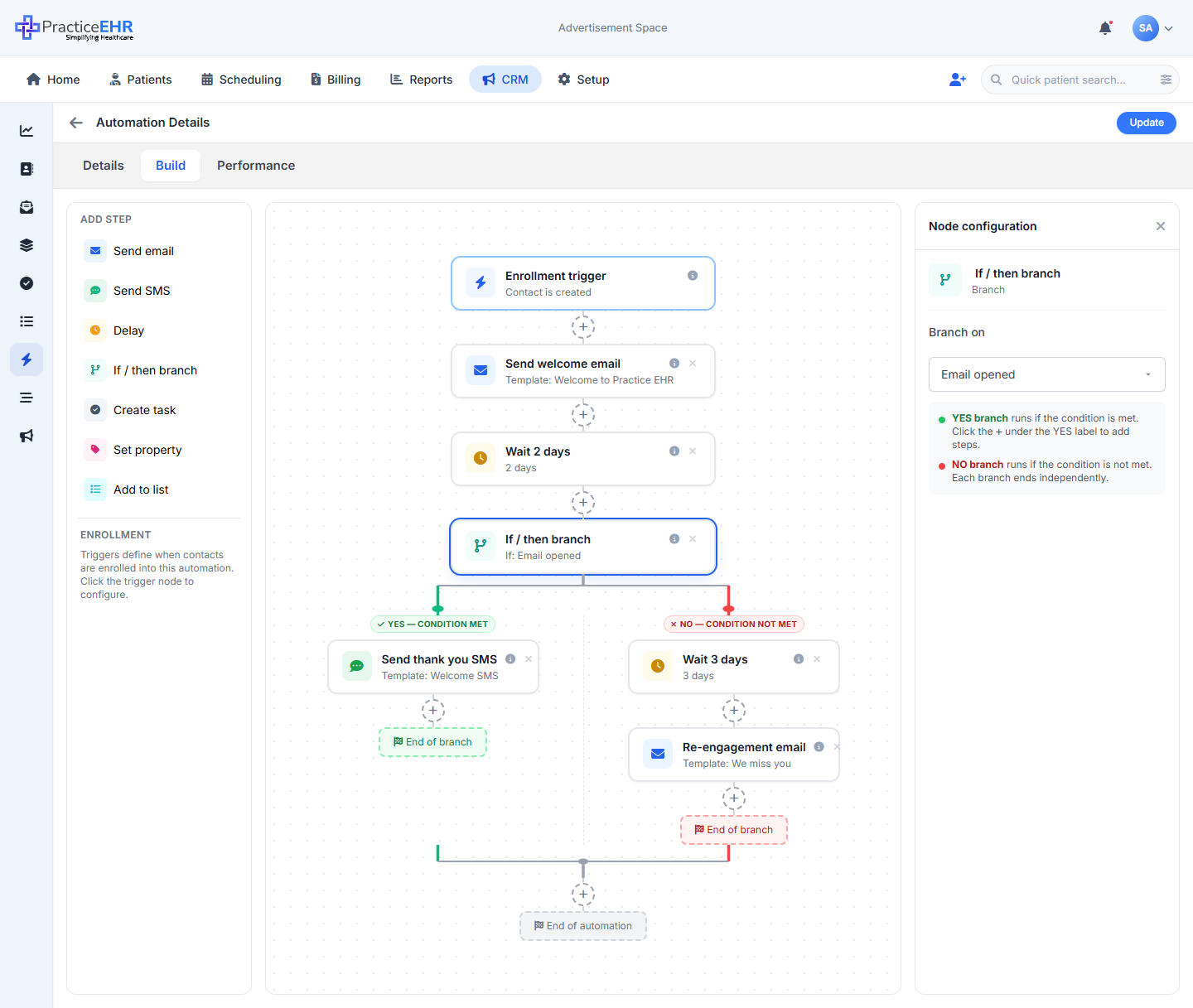
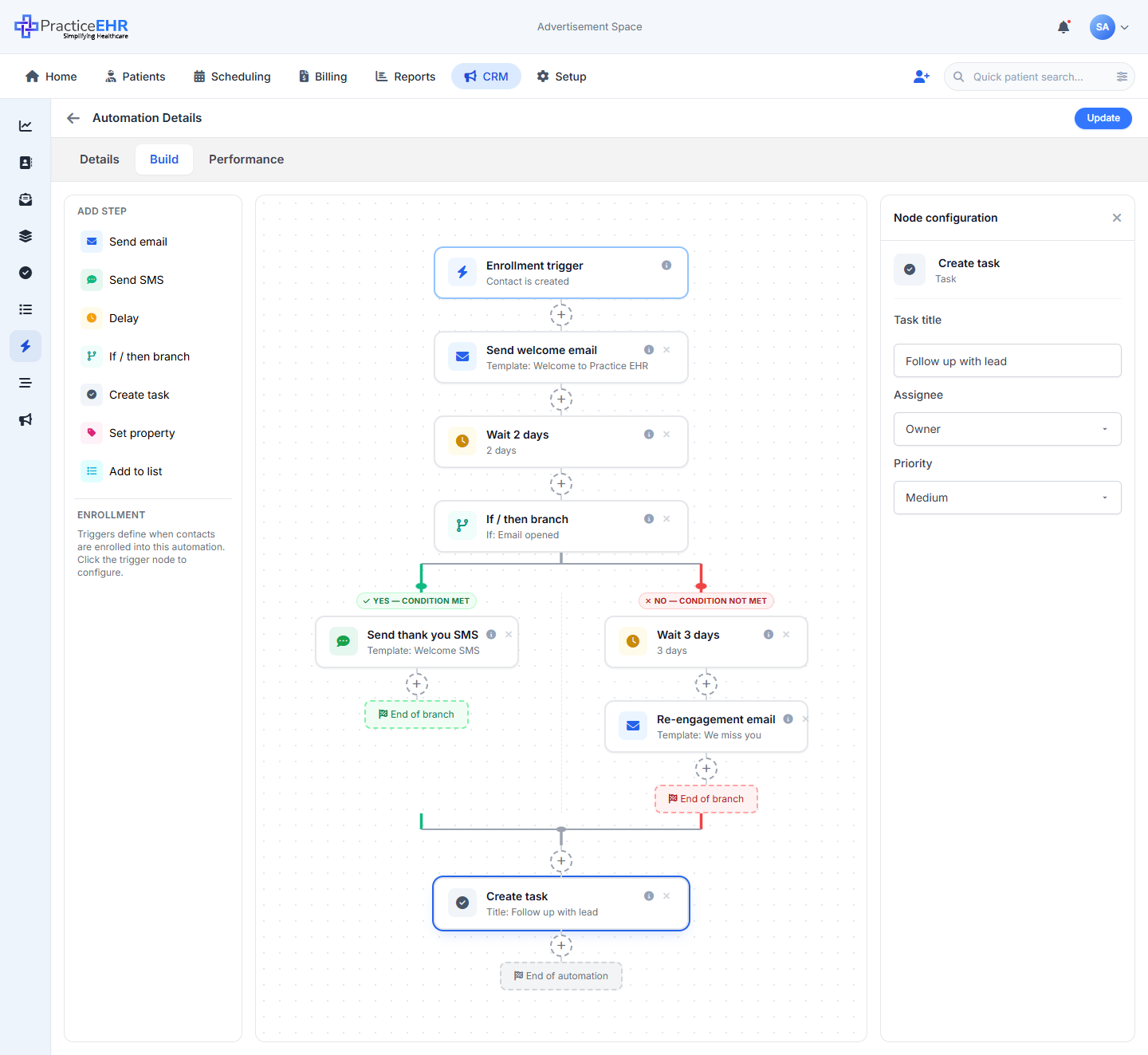
- The right rail is a single panel that swaps its fields based on the node you click.
- Click a node on the canvas and it gets a blue outline; the same fields show up here.
- The trigger node is special — every automation has exactly one and you can't delete it.
- Anything you type updates the node card on the canvas right away.
Status, Last Activity, DOB,
SMS Subscription, Lead Source — so the trigger is
reading real Phase 1 data, not a separate marketing database.
Field1
Lifecycle — "someone new shows up" or "a lead becomes a patient"2
What counts as "created": someone fills out a form on your website, the front desk types them in manually, a walk-in is added at check-in, or a row comes in via spreadsheet import. The first time PracticeEHR has ever seen this person, this trigger fires once.
When you'd use it: a "welcome series" for any new lead. Day 1: thank-you email. Day 3: "Here's how to book". Day 7: a nudge SMS if they haven't booked yet.
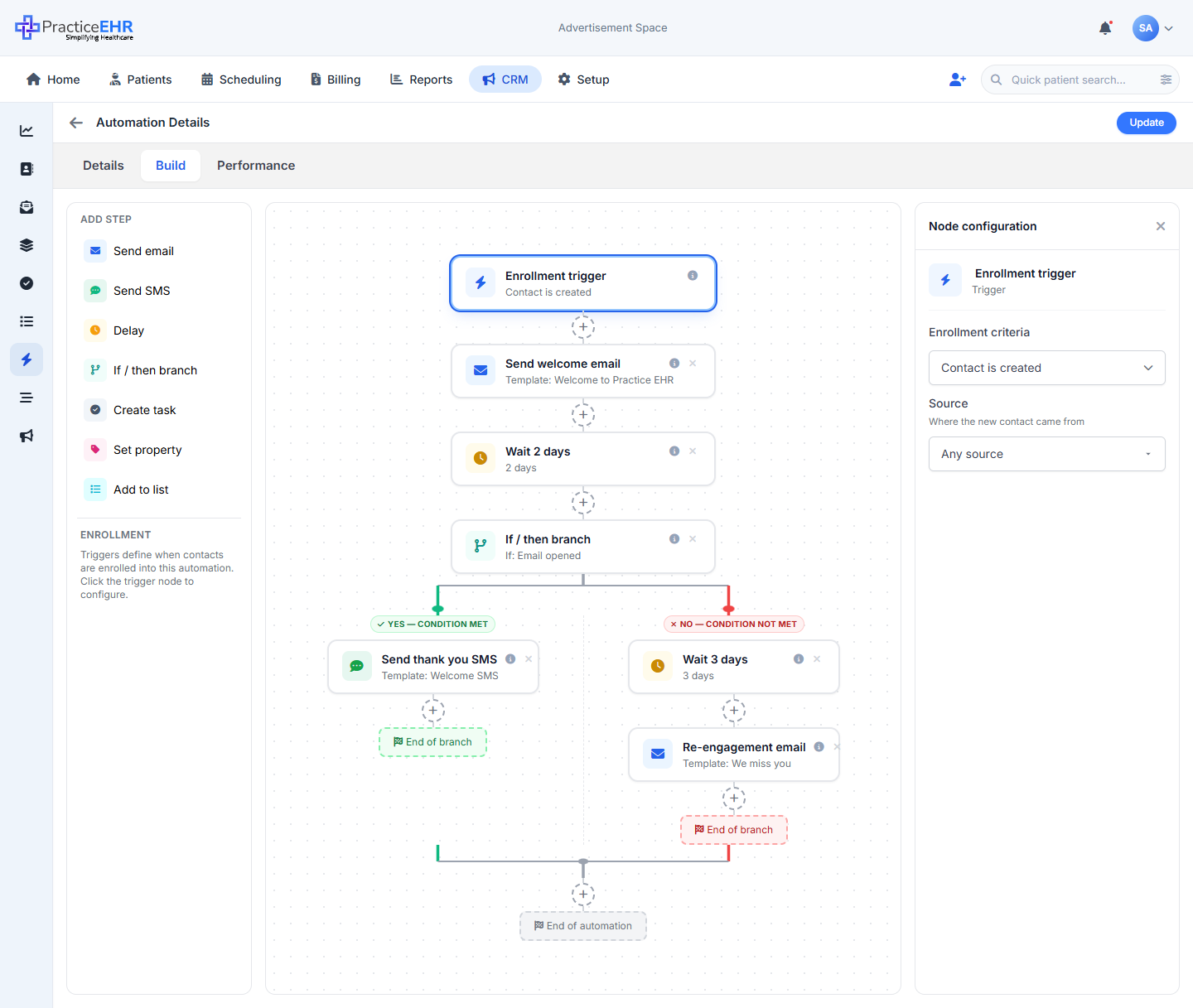
Secondary control — Source: Any source / Website form / Walk-in / Manual entry / Import. Use this to send different welcome flows depending on where the lead came from.
How PracticeEHR decides: in Phase 1, every contact has a
Status field with two values:
Lead (no appointment booked yet) and
Patient (booked at least one appointment). The system flips
this automatically the first time the contact books an appointment —
you don't have to set it manually.When you'd use it: the "first visit" experience. Send a confirmation, what to expect on the day, parking instructions, paperwork link. This is the most common conversion point in the practice.
No secondary control. The event itself is the rule.
Forms & lists — "they filled out X" or "they joined / left a group"3
When you'd use it: route intake-form leads straight into a welcome series. Or, if you have a "Request a callback" form, fire a Create-task step that drops a Call this person back task on the front desk's queue within 5 minutes.
Secondary control — Form: Any form, or pick a specific form so the automation only fires for that one (e.g. "New patient intake" vs. "Allergy questionnaire").
How they get on a list: three ways — the front desk adds them manually, an import drops them in, or a Dynamic list rule (Phase 1 Smart Filter, e.g. "All patients over 40 with diabetes") starts matching them as their data changes.
When you'd use it: "list-driven" outreach. Build a list called "Allergy season segment", then run an automation that fires whenever someone joins it — even months apart. New people sliding into the list get the same welcome flow without you doing anything.
Secondary control — List: pick the specific list to watch.
When you'd use it: offboarding flows or cleanup. If your "Active patients" list is rule-driven, anyone who falls out of it (no visit in 12 months) automatically gets pulled out of the list — this trigger lets you fire a re-engagement nudge the moment that happens.
Secondary control — List: pick the list to watch.
Properties — "a field on the contact changed"1
Which fields: the picker mirrors the Phase 1 contact schema. Common picks:
Status, Lead Source, Contact
Owner, Provider. See the Set
property reference for the full list of editable
fields.When you'd use it: "Status changed to Patient" → start the first-visit flow. "Contact Owner changed to Sarah" → fire a Slack-style task on Sarah's queue: "You just inherited this lead, here's the context."
Secondary controls — Property + New value: first pick which field to watch, then optionally narrow it to a specific value (any change vs. only when it changes to Patient, for example).
Engagement — "they interacted with a marketing message"2
Where the signal comes from: the same engagement tracking that powers the Phase 1 dashboard's Email Open activity feed entry — opens are pixel-tracked, clicks are link-wrapped. So everything you see in the activity feed is fair game for this trigger.
When you'd use it: hot-lead nudge. "They opened our newsletter twice this week" → fire a sales-style follow-up SMS. Or, simpler: anyone who clicks the Book now link in a campaign email but doesn't actually book gets a personal email from the contact owner 24 hours later.
Secondary controls — Engagement type + Email: pick what counts as "engaged" (Opened / Clicked / Either) and which email to watch (any marketing email vs. a specific one).
Important exclusion: the word
STOP doesn't count as a reply — it's an opt-out.
PracticeEHR routes that into the SMS Subscription audit log
instead so you can't accidentally text someone who's asked to leave. All
other replies ("yes please", "can you book me Tuesday",
even just "k") fire this trigger.When you'd use it: a reply is the strongest signal in messaging. Drop a Create-task step on the contact owner's queue: "<Patient> just replied — call them back." Same-day human follow-up beats any automated reply.
Secondary control — SMS: any marketing SMS, or pick a specific SMS template if you only care about replies to one campaign.
Date-based — "today is X" or "it's been too long since Y"2
How PracticeEHR knows: reads the contact's
DOB field using the same Phase 1 Smart
Filter that drives birthday lists, with rolling/birthday-month logic so it
works the same in February as in November.When you'd use it: a birthday greeting (obvious one). The less obvious one: an annual physical reminder. Most patients schedule their yearly visit close to their birthday because it's easy to remember — the trigger lets you nudge them in the right week.
Secondary control — Offset: fire 7 days before / On the day / 1 day after / 7 days after. Use the offset to time the nudge: 7 days before for "book your physical", on the day for the greeting itself.
How PracticeEHR knows: reads the
Last Activity field,
which is updated automatically every time something touches the record
— appointments, communications, list movements. Same field as the
Phase 1 Smart Filter "Last Activity older than 30 / 60 / 90
days".When you'd use it: the "dormant patient" signal — the single most valuable re-engagement trigger in healthcare CRM. The demo's "Dormant Patient Win-back" campaign is built on this trigger at 90 days.
Secondary control — Days: integer (default 90). Common values: 30 (a soft nudge), 90 (the standard win-back), 180 (a last-ditch effort before archiving).
Behind the scenes — one-time vs. repeating, dedup, and timing3
Fields4
{{firstname}}
are replaced with the patient's data.
Buttons2
Fields2
{{firstname}}
and {{practice}}. The system adds "Reply
STOP to opt out" for you.
Fields2
Helper1
Field1
How the branches behave2
Fields3
Fields2
Field1
All eight step types in one place
The palette on the left of the builder lists every step you can drop on the canvas: Send email, Send SMS, Delay, If / then branch, Create task, Set property, Add to list, plus the fixed Trigger at the top. Pick a node and the right-side panel shows just the fields that step needs.
Goal options
CRM / Automation + CampaignsGoal sets the win condition — what counts as a “conversion.” Automations and Campaigns each have their own list because they measure at different scales: an automation goal is a per-contact firing rule (did this person convert?); a campaign goal is the rollup rubric for a bundle of assets over the campaign's date range.
Automation goals (7)
Per-contact, deterministic — one firing rule each, grounded in Phase 1 fields.Book appointment
First appointment, any provider. The lead-to-Patient transition.
Status flips Lead → Patient
Rebook appointment
Existing patient creates another appointment after enrollment.
Appointments row, contact already Patient
Patient reactivation
Patient with Last Activity > 90 days records any new
activity.
Last Activity Smart Filter
Review submitted
A review record is attached to the contact (Google, internal, intake form).
Reviews table — contact link
Verification complete
Insurance verification status flips to Verified.
Insurance verification flagPatient portal activated
Contact successfully registers and activates their patient portal account.
Portal accountActive flag
Engagement
Softest goal. Any positive engagement — open, click, reply, form, page visit.
Activity-feed eventsCampaign goals (4)
Broader, thematic — the rollup rubric for a bundle of assets over the campaign's date range.Book appointment
Contacts touched by any asset in the bundle who booked an appointment during the campaign window.
Asset rollup — bookings countPatient reactivation
Dormant patients (Last Activity > 90d) who returned via
any asset during the window.
Onboarding
New patients who completed onboarding milestones (forms, intake, verification) during the window.
Onboarding milestone hitsEvent promotion
Registrations or RSVPs collected for the event during the window.
Event registration recordThree things that confuse people the first time
Read these once and the model clicks.By default, no. Hitting the Goal is a measurement event, not an exit event. The contact keeps flowing through whatever steps are left on the canvas.
An automation only ends for a contact when one of three things happens:
- Canvas completion — they reach the End of automation node by walking through every step.
- Unenroll — one of the Unenrollment toggles fires (e.g. Goal met, Email reply, SMS opt-out).
- Global opt-out — a STOP / unsubscribe at the account level.
If you want hitting the Goal to also exit the contact, that's exactly what the “Goal met” toggle in Unenrollment does. It's off by default. Turn it on for goals where continuing to send would be wasteful (most obvious: Patient reactivation — once they reactivated, more reactivation messages are noise).
Campaigns don't end per contact at all. A campaign ends when its date range closes or you mark it Inactive. Hitting the campaign's Goal doesn't change anything about the campaign's lifecycle — it just gets counted.
They're three independent dimensions. A contact can hit any combination of them — or only one.
| Count | What it measures | Where it shows |
|---|---|---|
| Enrolled | Contact joined the flow because the trigger fired. The starting line. | Top KPI · line chart's blue line · first bar of the funnel |
| Completed | Contact walked through every step and reached the End of automation node. Structural finish line. | Completion % · line chart's green line |
| Goal reached | Contact did the converting event (booked, reactivated, etc.) within the lookback. Business finish line. | Goal reached KPI · line chart's amber line · last bar of the funnel |
Concrete examples to make this stick:
- A contact gets every email and walks all the way through — Completed, but never booked. Goal not reached.
- A contact books at step 2 and the “Goal met” toggle is off — they keep getting steps 3, 4, 5. They eventually reach the end. Both Goal reached AND Completed.
- A contact books at step 2 and “Goal met” is on — they exit immediately. Goal reached, but not Completed (canvas-wise).
- A contact books 28 days after enrolling, even though they finished the canvas a week earlier — Completed first, Goal reached second. Both count, because the lookback is still open.
Exactly because it's a measurement folder. Without a Goal, you'd see opens and clicks per asset — but couldn't answer the only question that matters: did this whole effort drive the outcome?
A campaign doesn't send anything itself. It groups assets that DO send (emails, SMS, automations, sequences, lists) and rolls up their numbers. The campaign Goal is the rollup's rubric — the “converted” definition for the bundle.
Email A: 42% open rate. SMS B: 18% click rate. Automation C: 41% completion. Now what? You can't compare them or stack them — they're measuring different units. The campaign tells you nothing about ROI.
1,245 contacts were reached by any of these assets. 228 of them booked their first appointment. Conversion rate: 18.3%. One number, comparable across campaigns, tied to a real business outcome.
Goal is not a behavior switch on a campaign — it's a measurement contract. Campaigns don't “run logic”; their assets do. The Goal just tells the campaign's Converted column, the rollup chart, and any ROI panel what “won” means for THIS bundle of marketing.
Sequences have no Goal at all — on purpose. Their unit of measure is per-step engagement, not per-contact conversion.
Enrollment Trigger — All Scenarios
CRM / Automation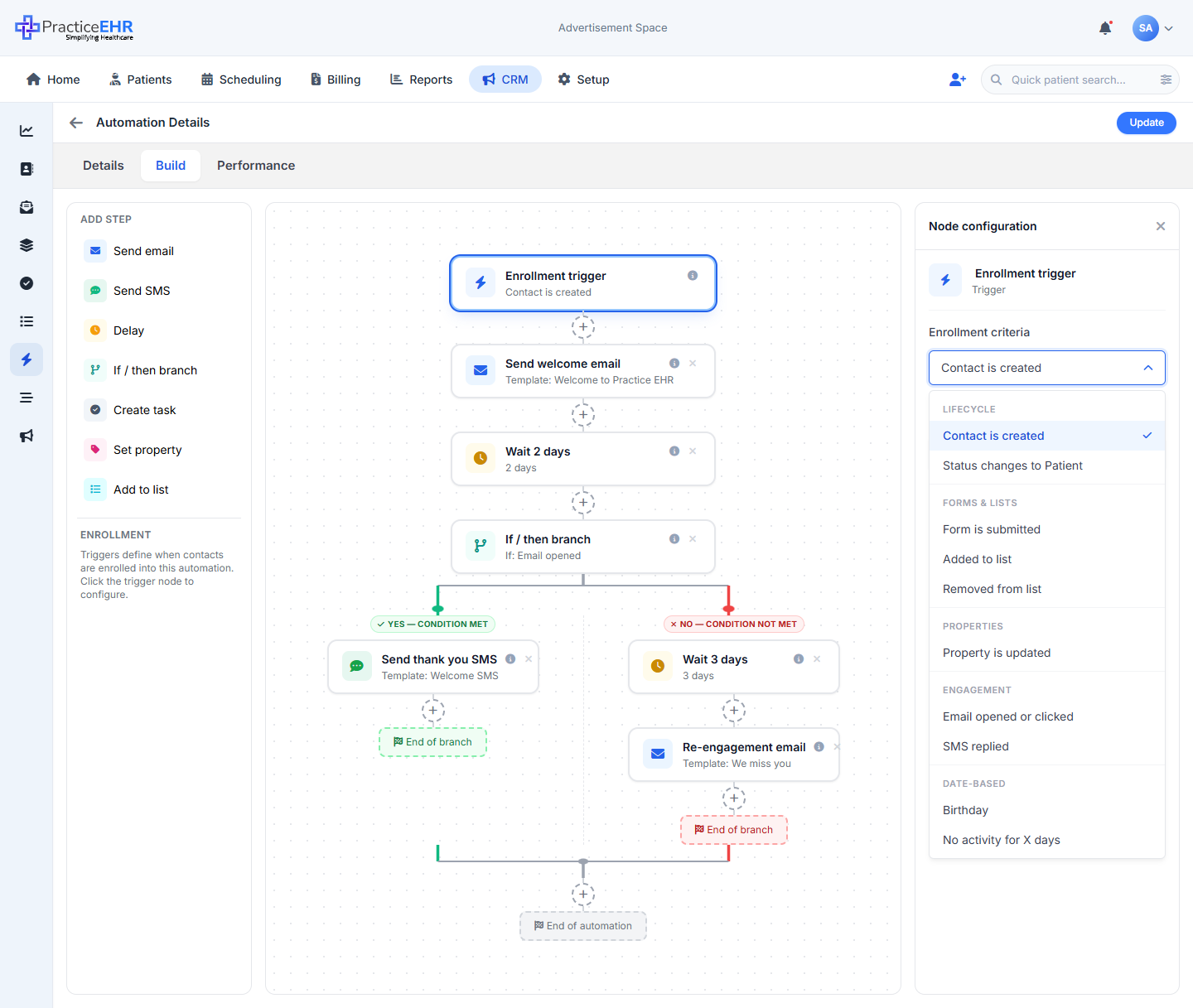
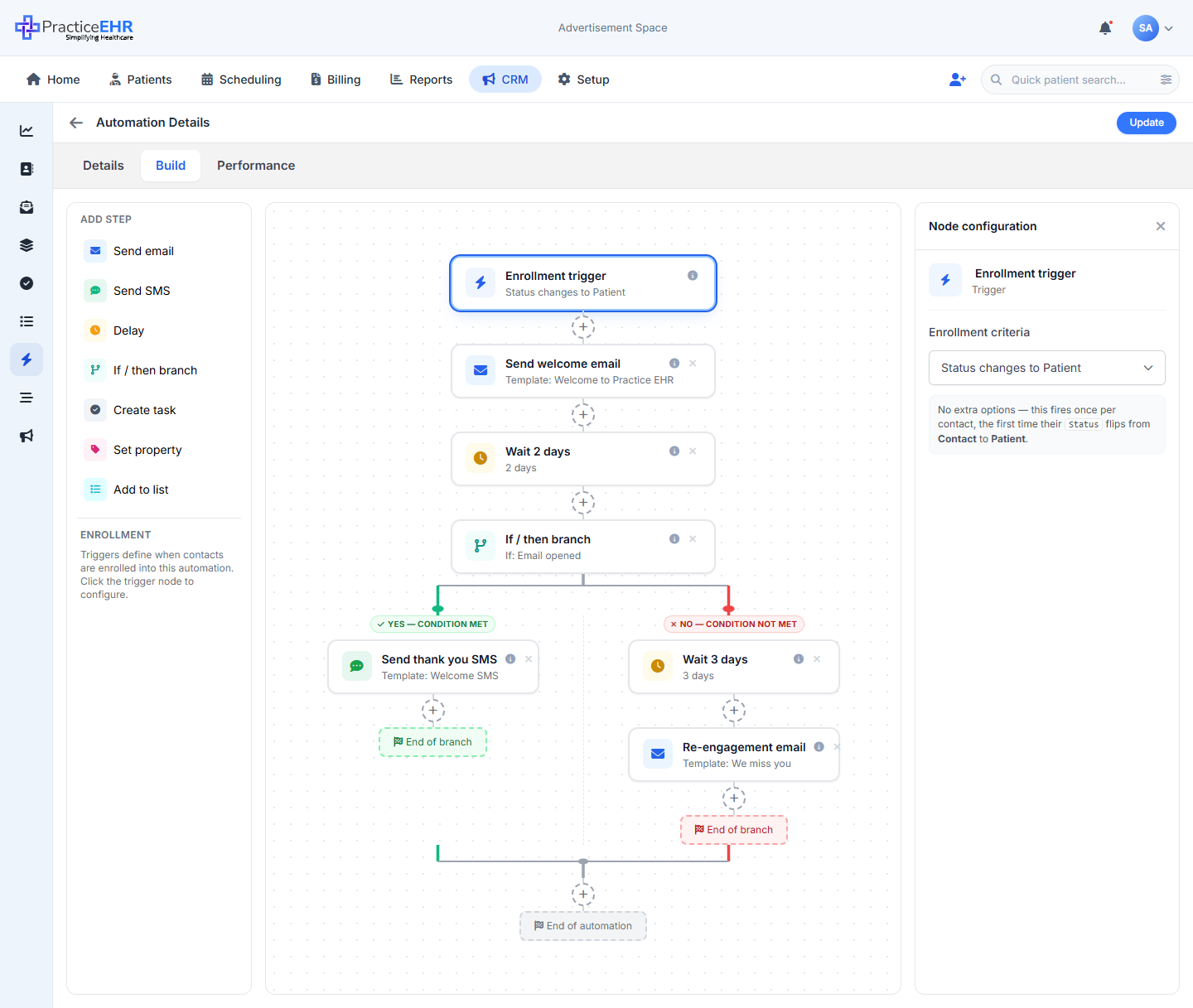
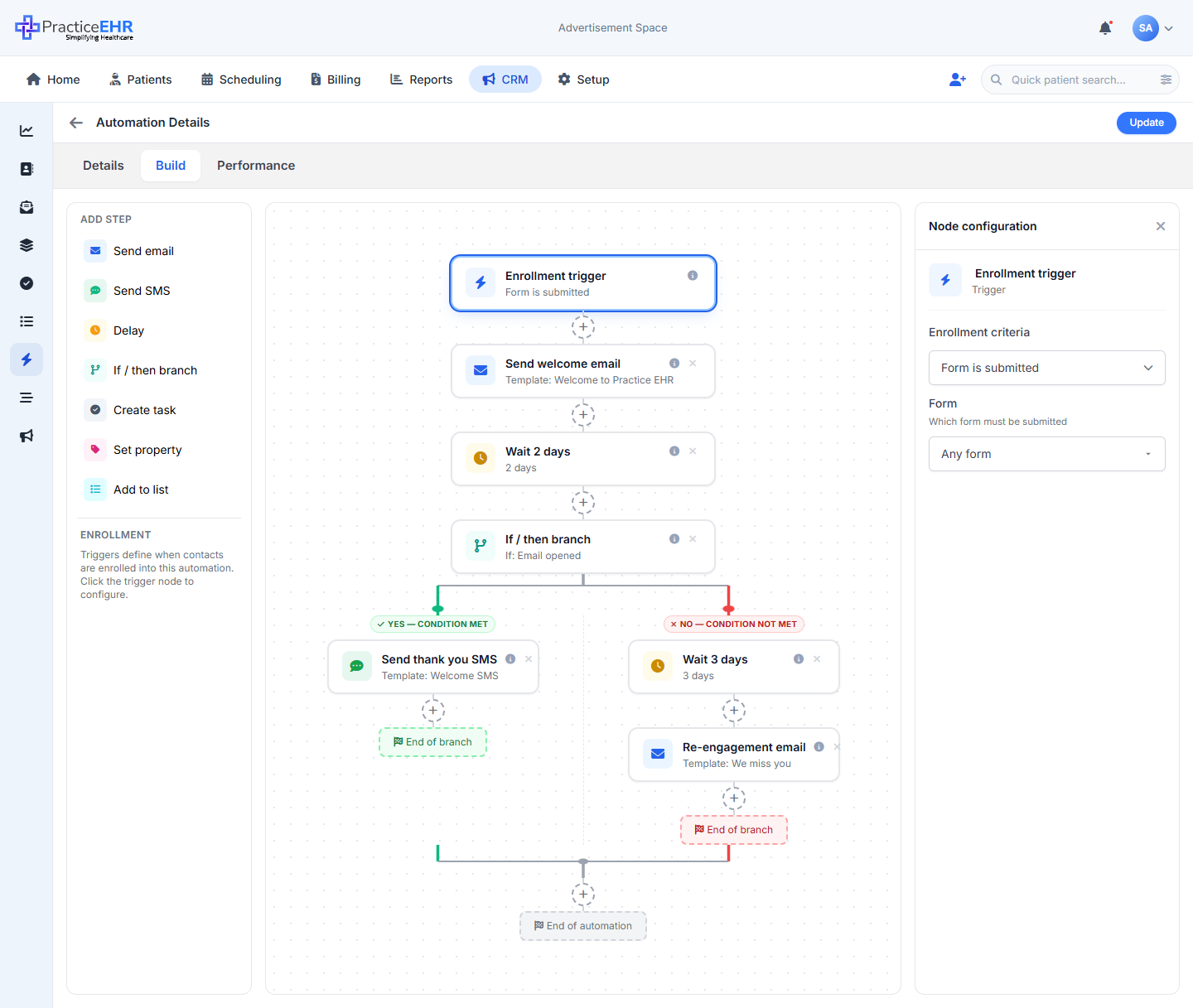
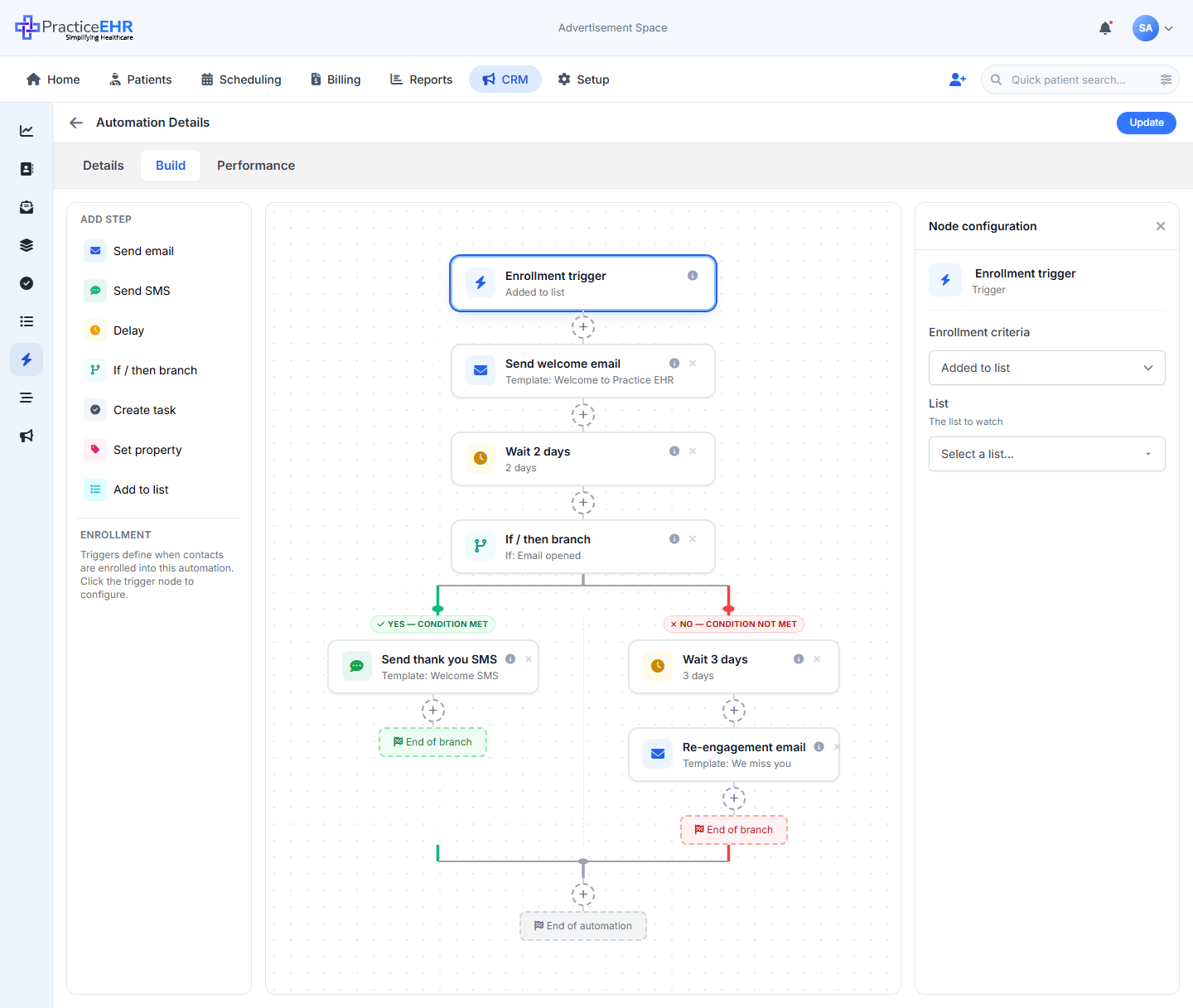
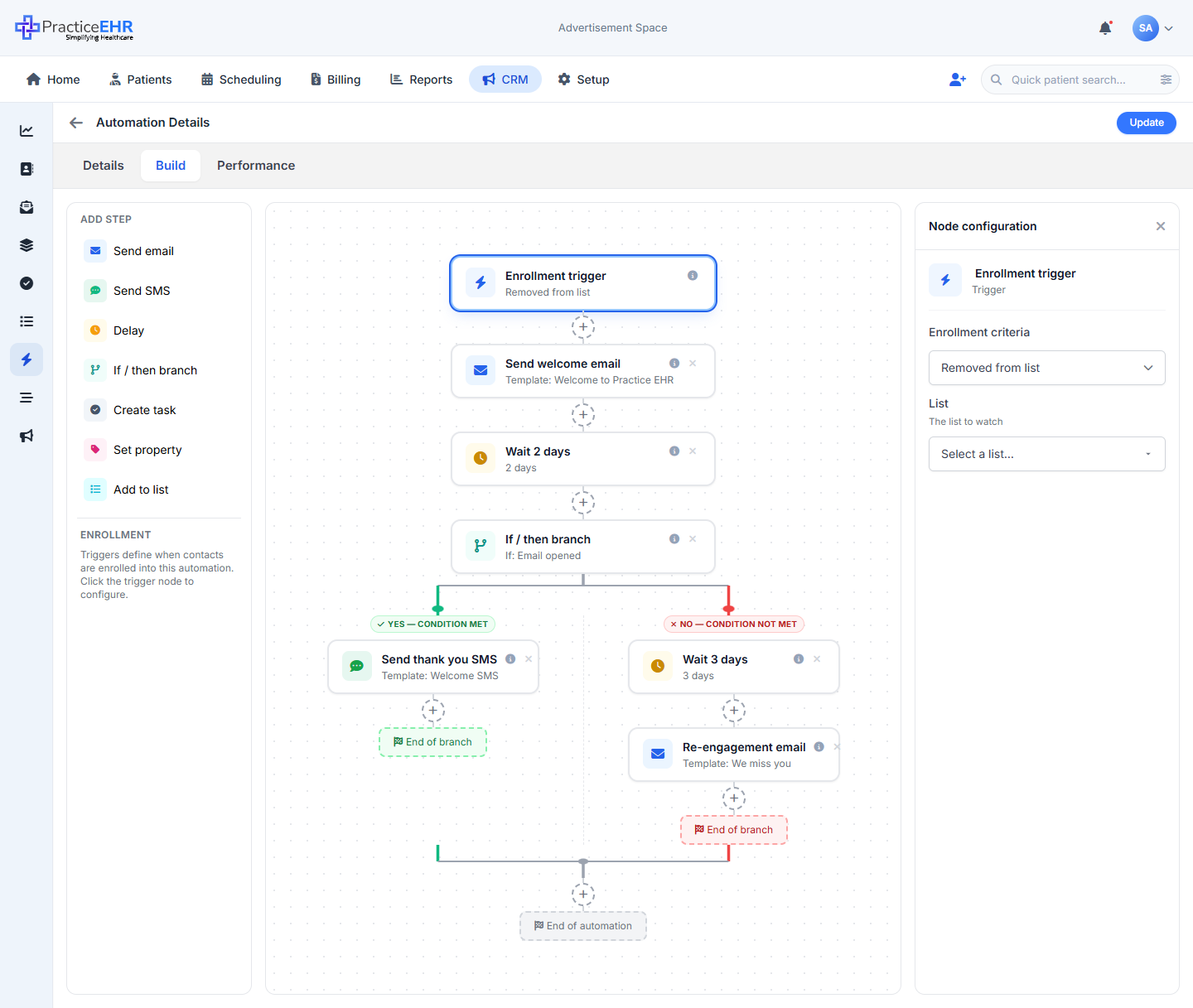
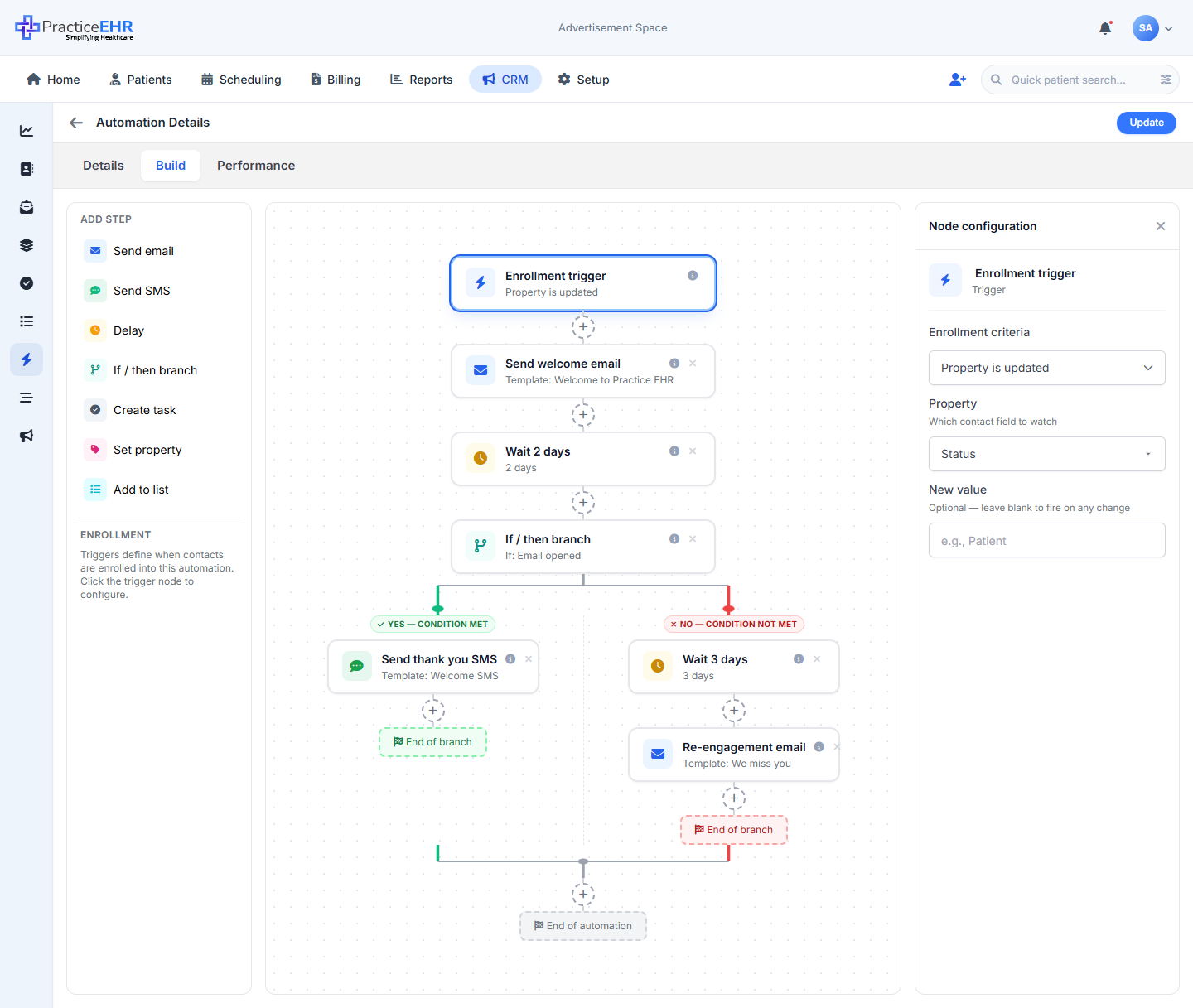
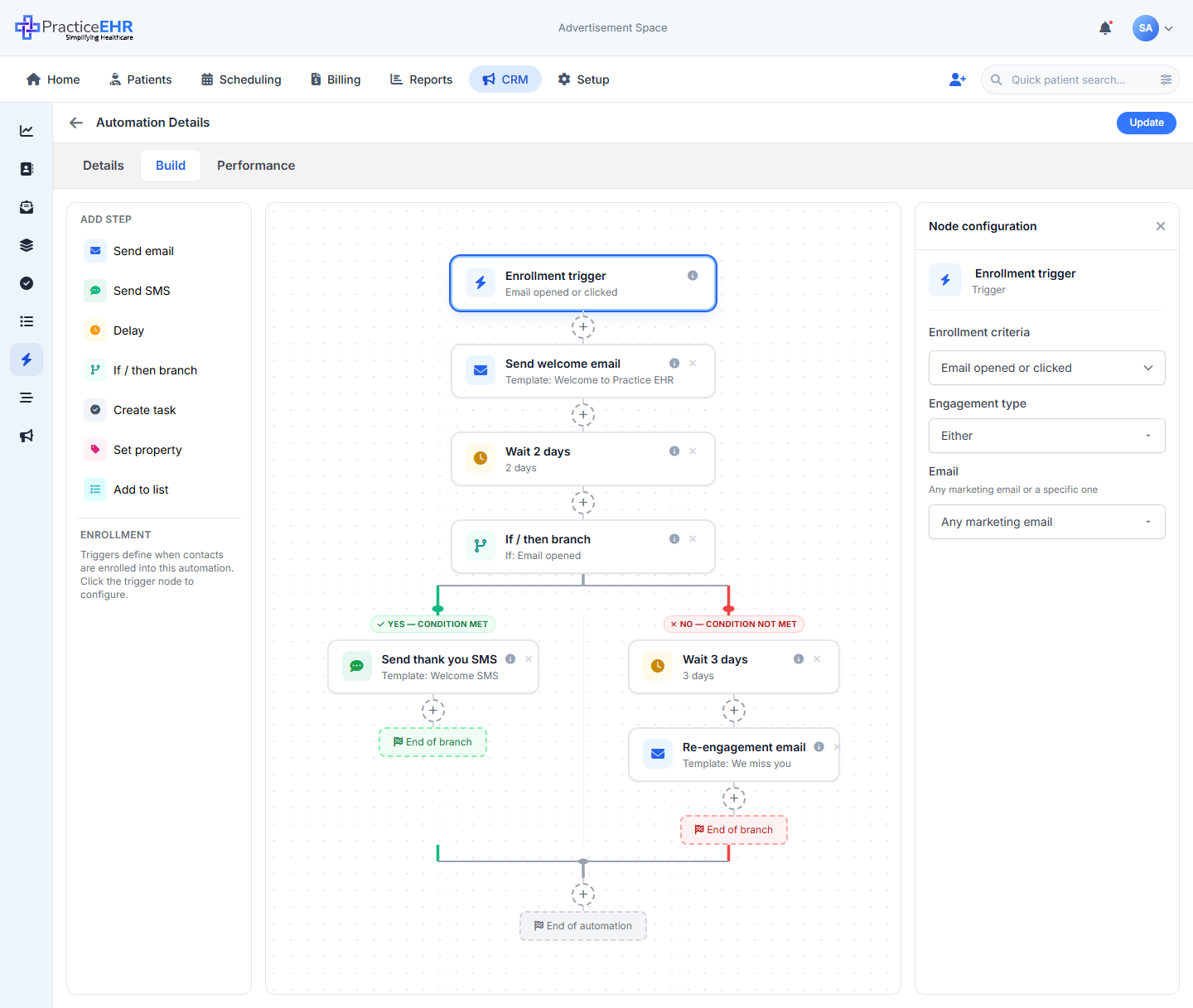
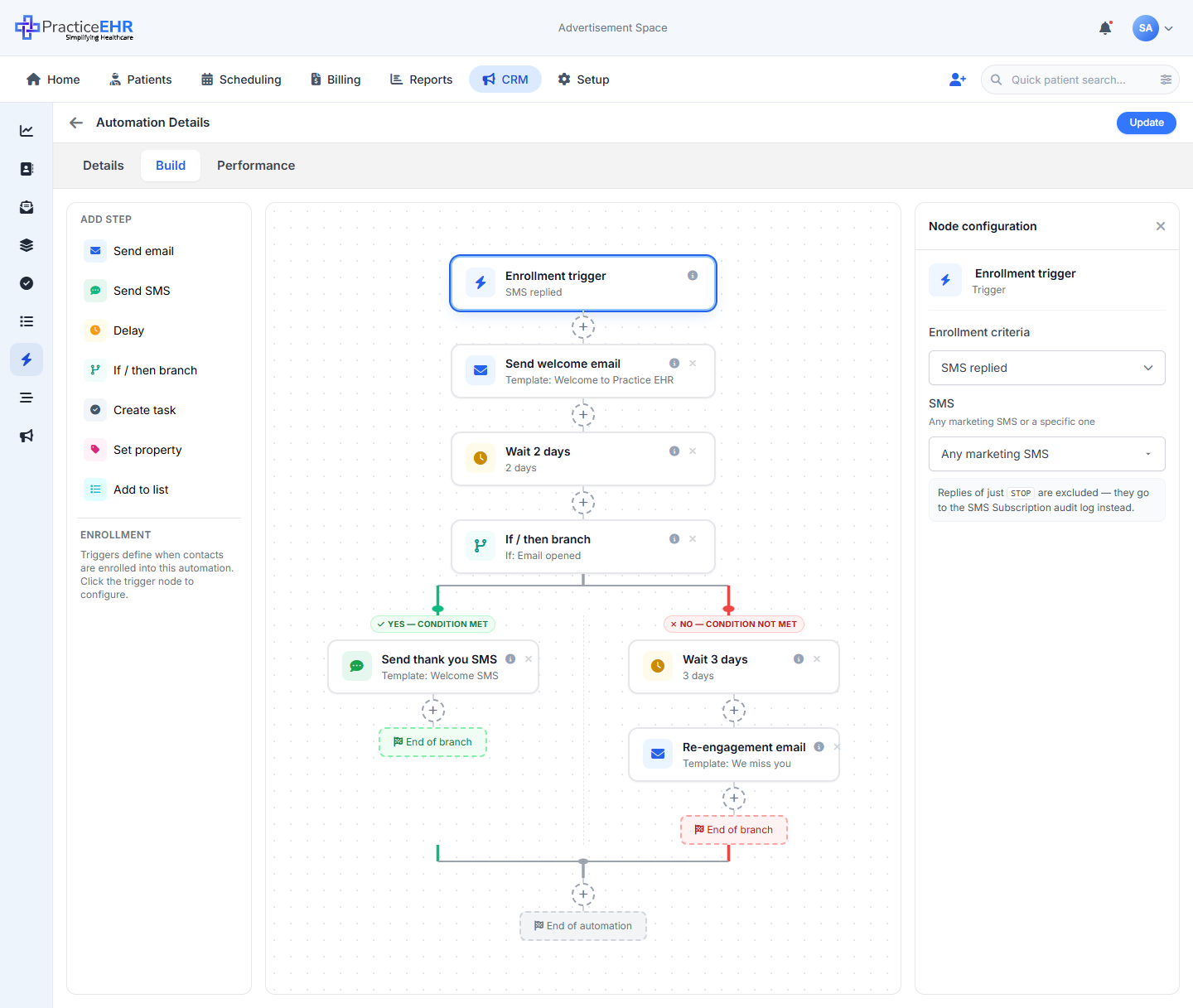
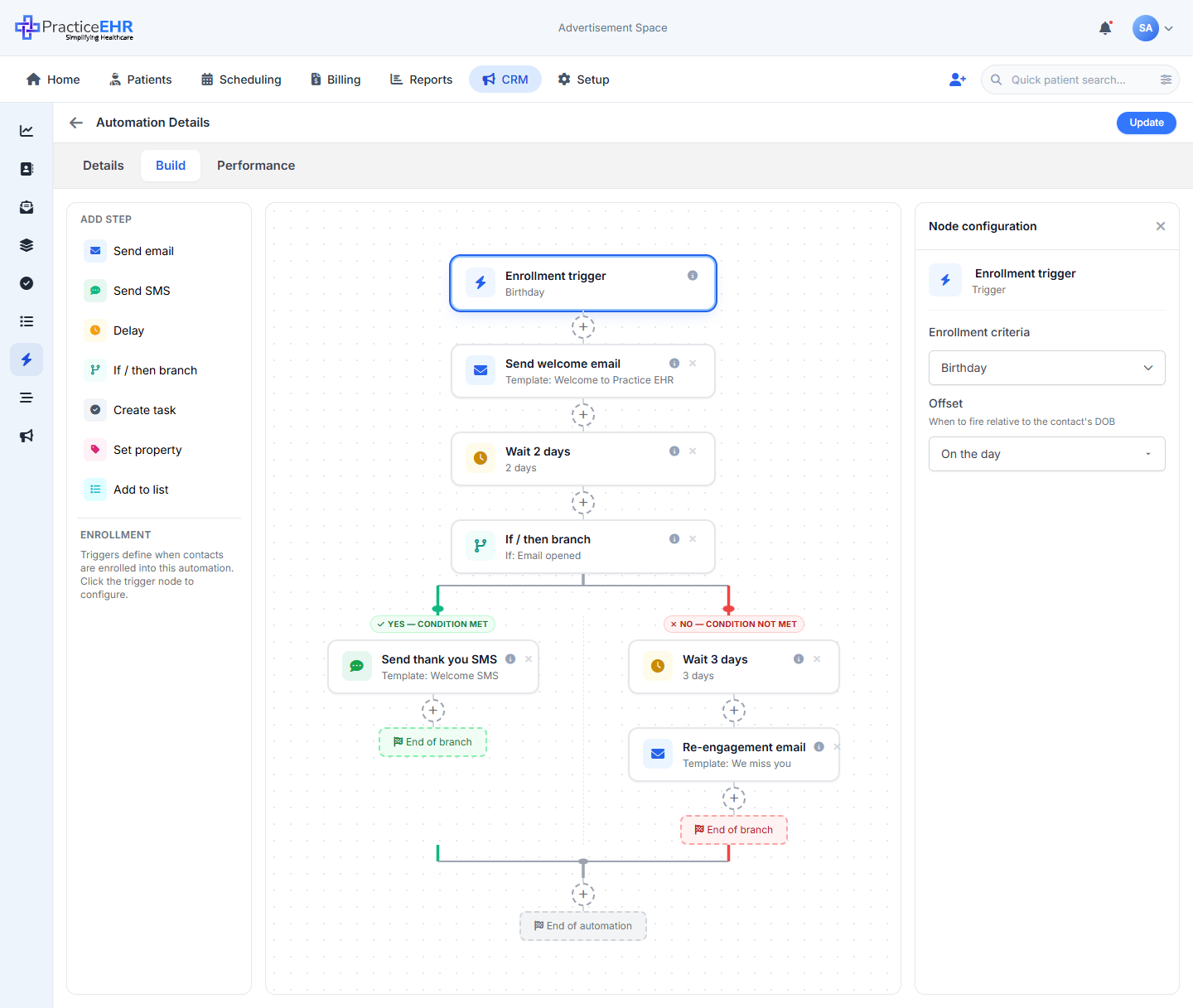
What you're looking at
- One screenshot per enrollment-trigger criteria, showing the right-rail config panel as it actually renders for each pick.
- The Enrollment criteria field is a closed-by-default dropdown. The first tab (Dropdown panel) shows it opened so you can see all ten options grouped into five themes.
- The other ten tabs each show the panel after picking that criteria — with the matching secondary control rendered below it. Different criteria need different inputs, so the panel shape is intentionally different per pick.
Status flips from
Lead to Patient. PracticeEHR auto-flips this on the
contact's first booked appointment.
STOP replies are excluded
automatically — they go to the SMS Subscription audit log instead so the trigger
never fires for opt-outs.
DOB — 7 days before /
1 day before / On the day / 1 day after / 7 days after. Use offsets to time the
nudge (7 days before for "book your physical", on the day for the
greeting itself).
Last Activity field. Common values: 30 (soft nudge),
90 (standard win-back), 180 (last-ditch).
How to get here
Open any automation, switch to the Build tab, then click the Enrollment trigger card at the top. The right rail shows the Enrollment criteria dropdown and (once you pick) the secondary control underneath.
Create Automation (Stepper)
CRM / Automation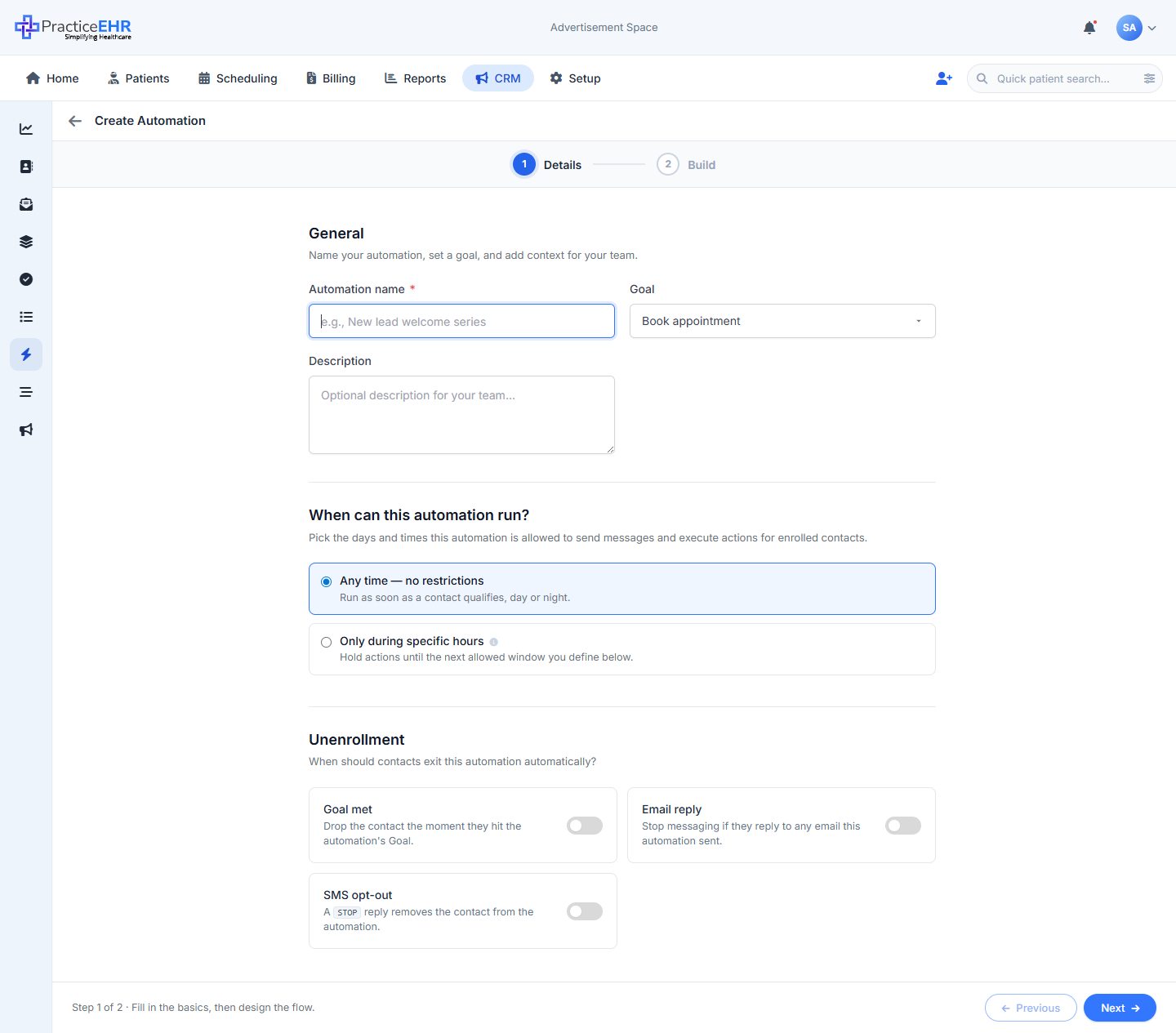
Key Features
- A 2-step wizard for building a brand-new automation. Same fields and same canvas as the regular builder, just walked through one step at a time.
- Bottom of the page has Previous and Next buttons. On the last step, Next changes to Save automation.
- The Performance tab is hidden until you save the automation for the first time.
Step rail at the top2
Form fields3
Footer3
What's on the screen3
Footer3
Wizard vs. regular builder
The wizard has the same fields and canvas as the regular builder — just guided one step at a time. The tabs at the top are replaced by a step rail. The Performance tab is hidden until the automation is saved for the first time.
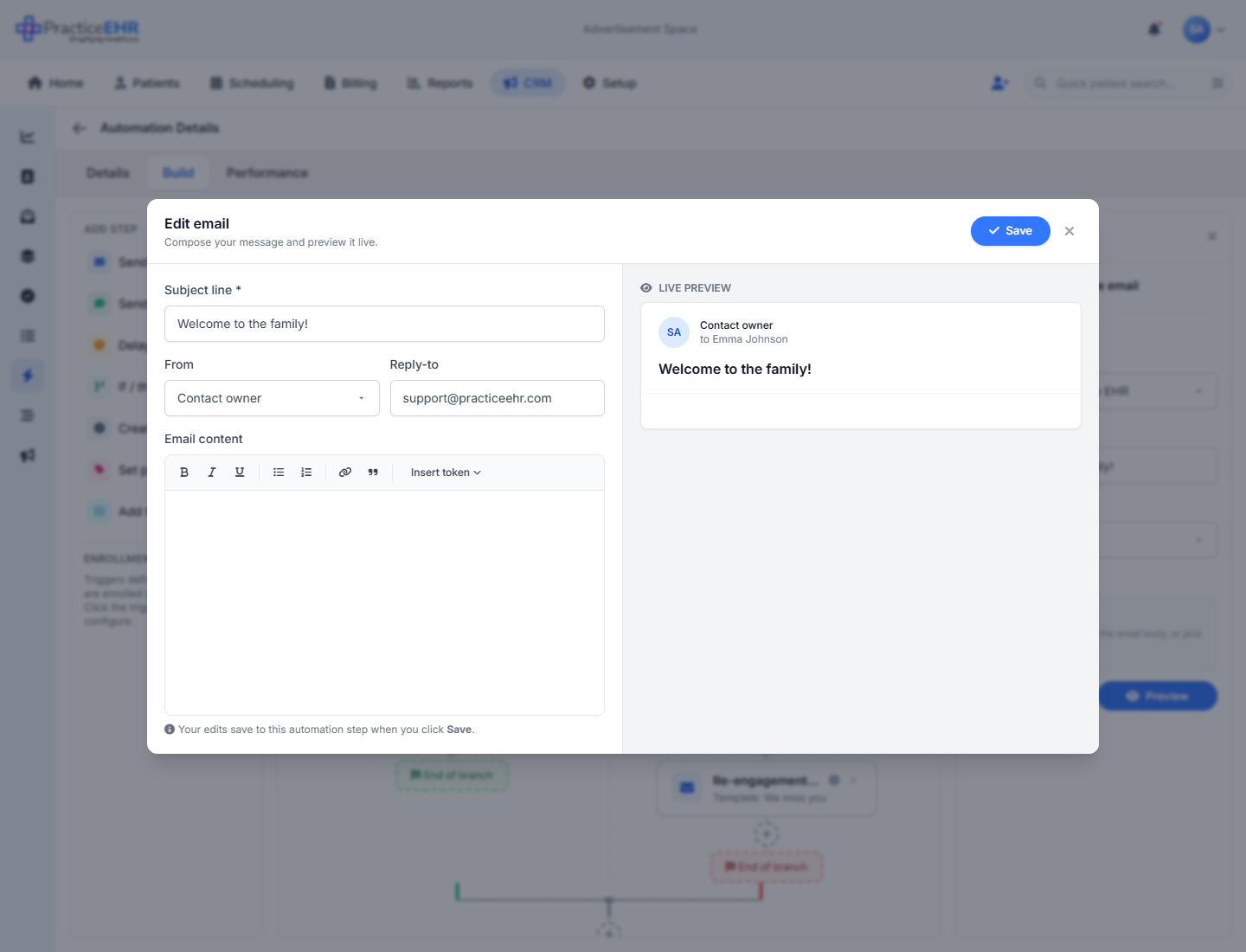
Email Preview, Editor & Step Analytics
CRM / Automation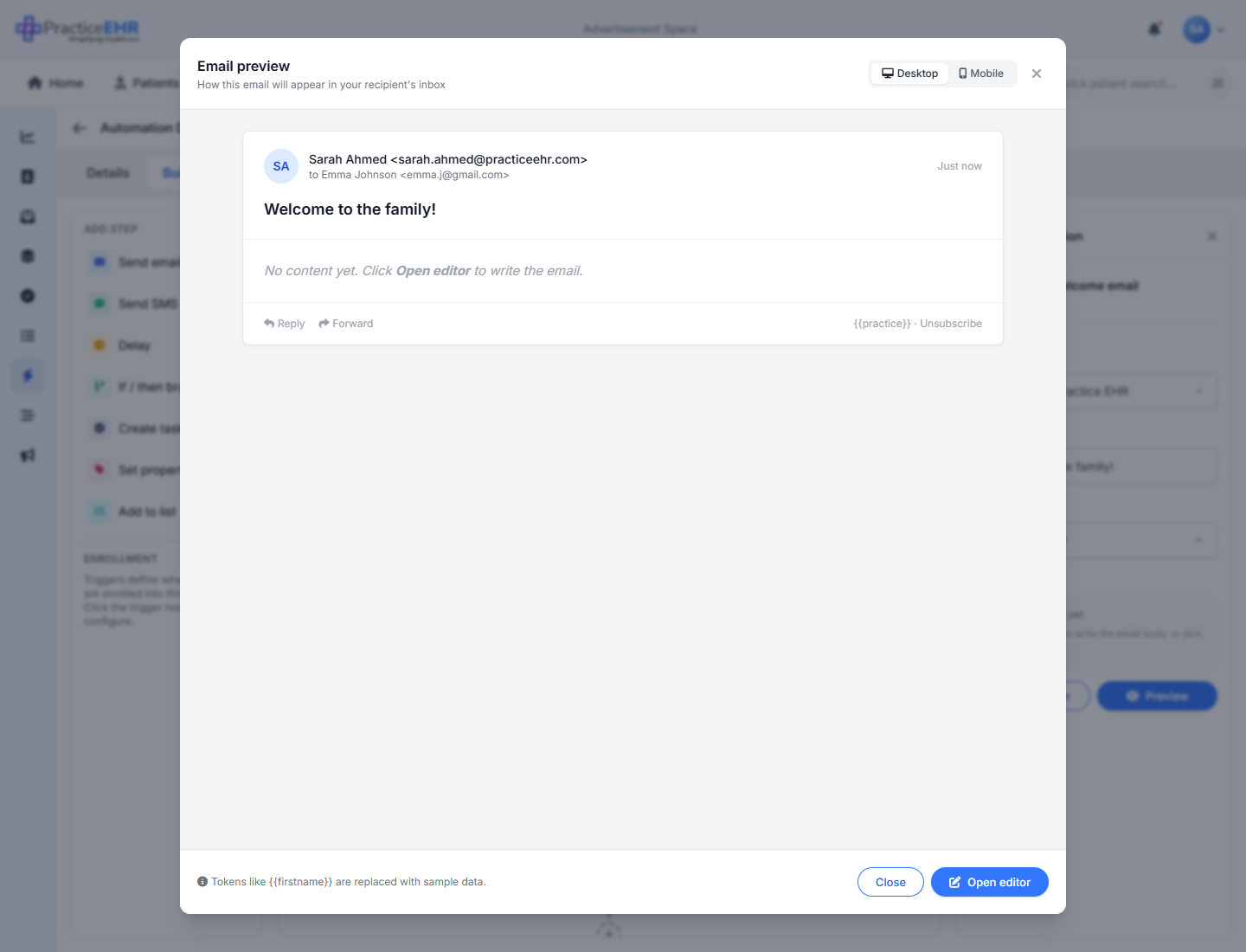
Key Features
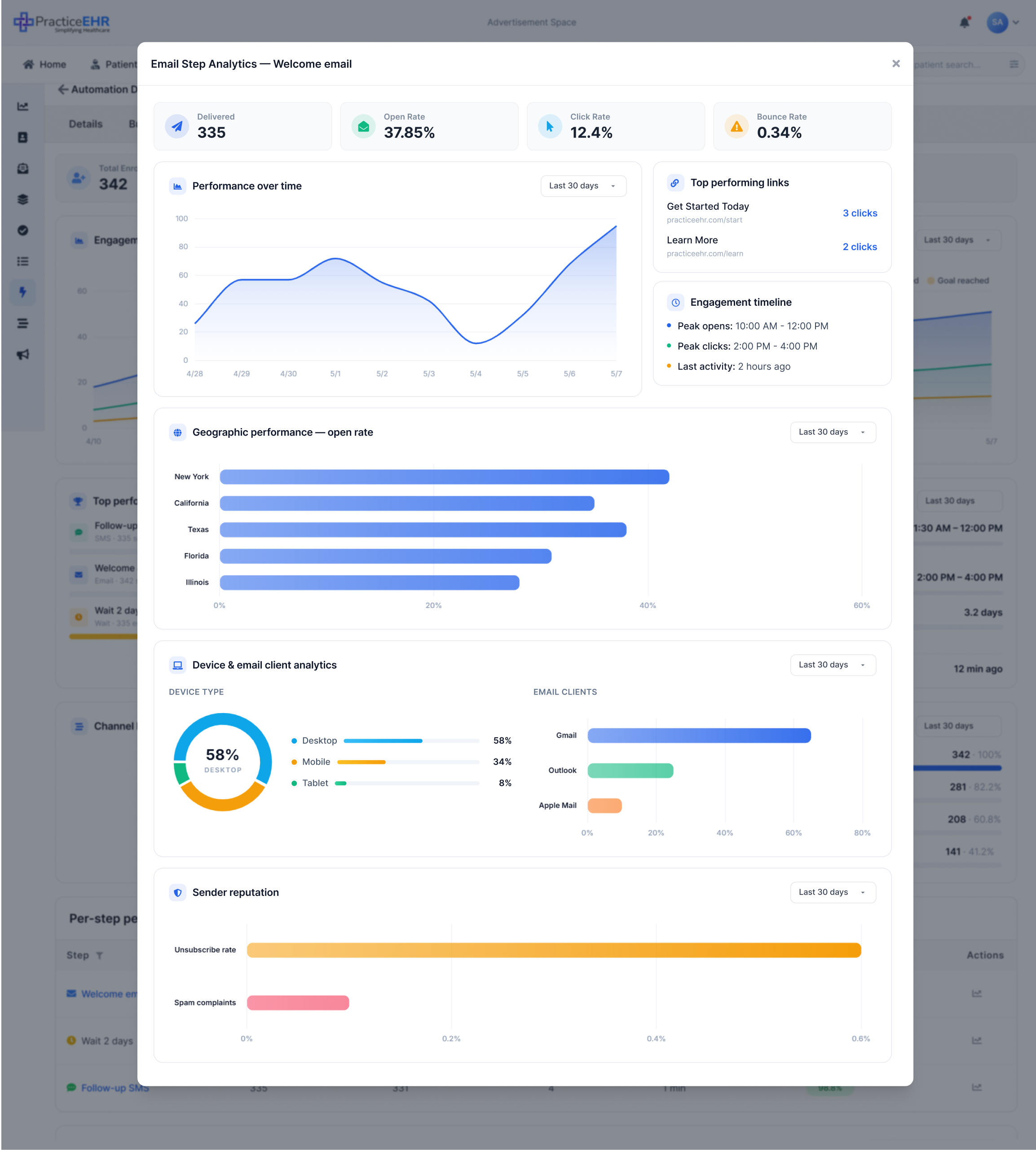
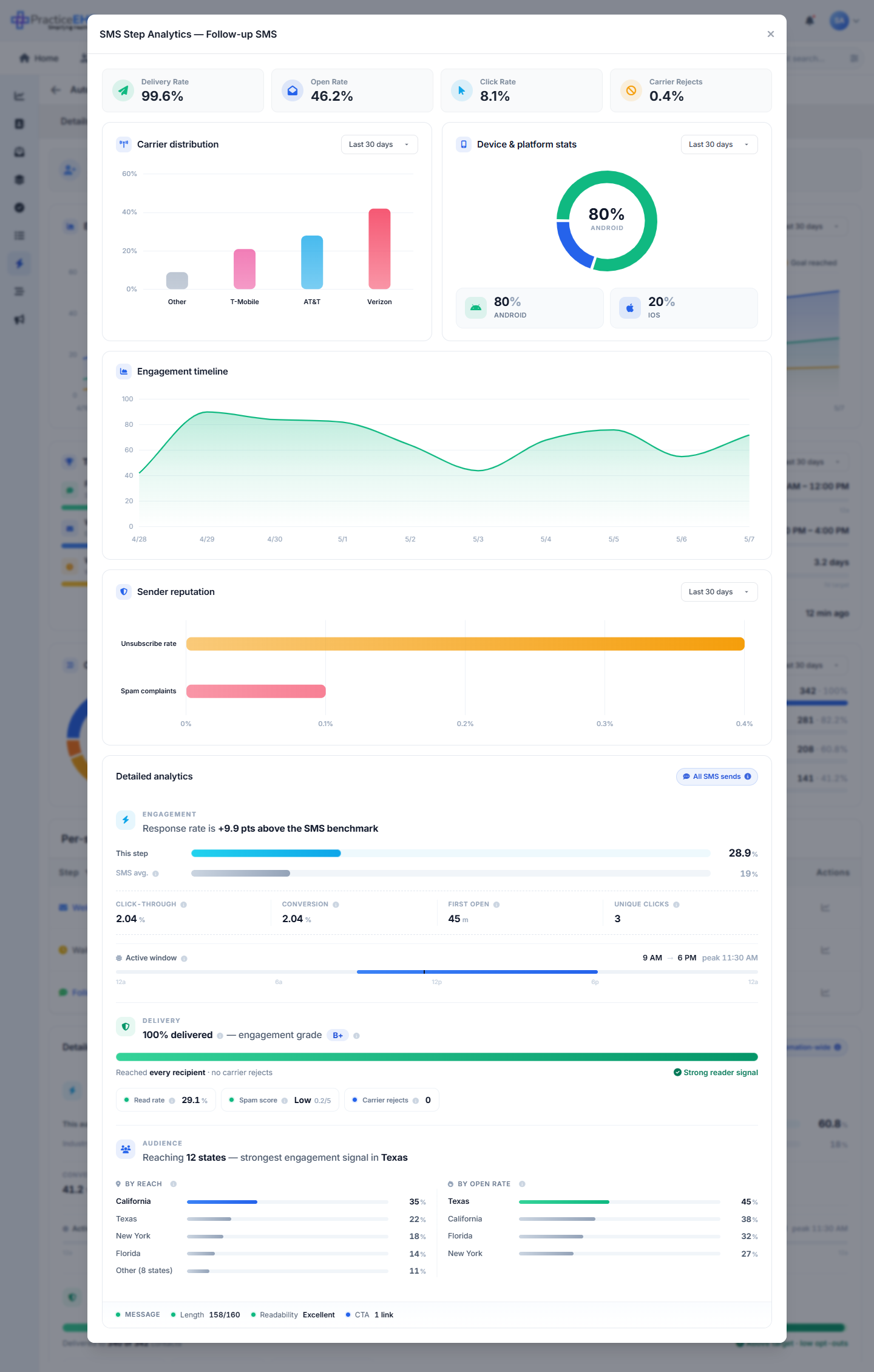
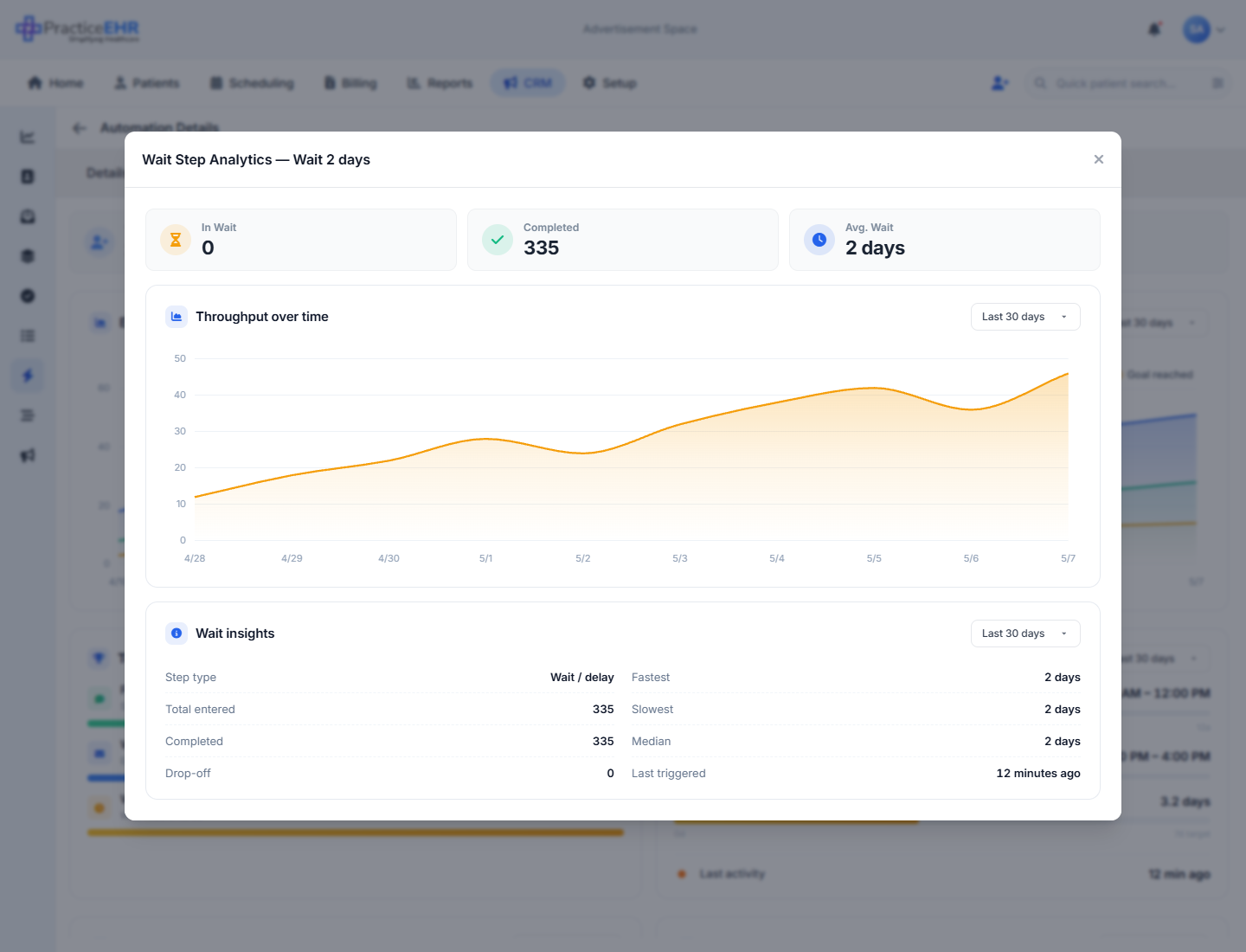
- Three pop-ups you can open from the email step in the builder: Preview, Editor and Step analytics.
- The Preview shows what the email will look like in an inbox. Click Open editor from there to jump straight into editing.
- Step analytics opens from the chart icon next to a step in the Performance tab.
{{firstname}} get replaced with sample
names so it reads like a real send.
Header3
Desktop / Mobile toggle2
Inbox preview5
Buttons2
Top fields3
support@practiceehr.com.
Editor toolbar7
{{firstname}},
{{lastname}}, {{practice}}
and {{owner}}.
Body and live preview2
Buttons2
Date range1
Top stat cards4
Charts and lists5
Sender reputation1
Date range1
Top stat cards4
Charts4
Detailed analytics block2
Top stat cards3
Charts & insights2
Where they open
Open the Preview from the Preview button on the email step's settings panel. Open the Editor from Open editor on the same panel or from the Preview pop-up. Open Step analytics from the chart icon next to any row in the per-step performance table on the Performance tab. The same modal shows different content based on the step type.
Campaigns List
CRM / Campaigns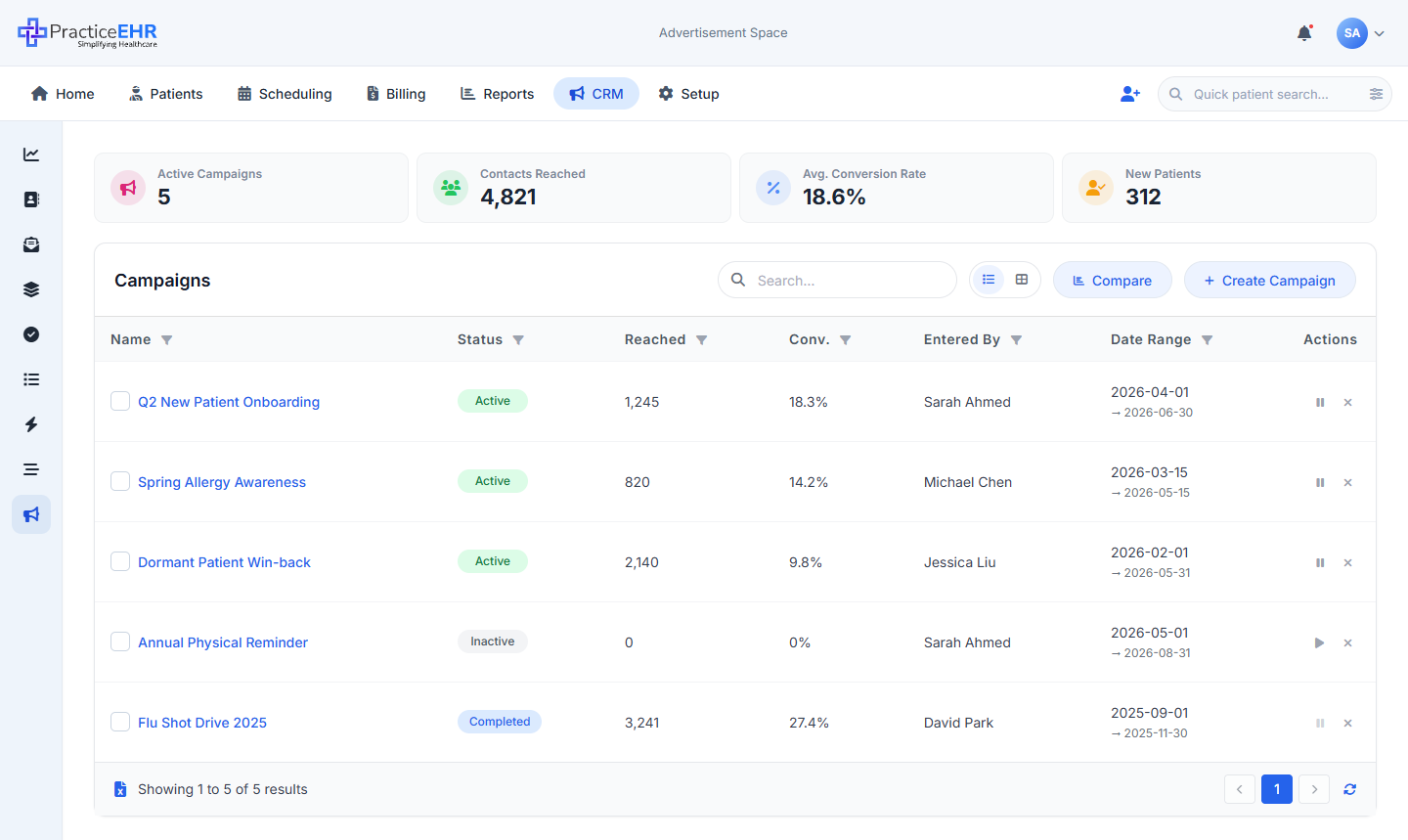
What is a Campaign?
- A Campaign is a folder. You drop a few assets into it, give it a goal, and the campaign rolls up the results from every asset in one place.
- That's all it is — a campaign doesn't send anything by itself. The assets do the sending. The campaign just groups them and shows you how the group is doing.
- Why use one? So you can answer "how is the Spring Allergy push doing?" without opening five emails, two SMS blasts and an automation one by one.
What is an Asset?
- An asset is anything you've already built in the CRM that talks to contacts. You add assets to a campaign so their numbers roll up together.
- Five kinds:
- Email — a marketing email you've drafted in the Communication tab.
- SMS — a marketing text from the same place.
- Automation — a workflow built in the Automation tab (e.g. "New lead welcome series").
- Sequence — a fixed cadence of messages run against a list (also from the Automation tab).
- List — a contact list from the Lists tab; adding it tells the campaign "these are the people we're targeting".
- Assets aren't created inside the campaign — they're picked from what already exists. Adding the same asset to two campaigns is fine; it just shows up in both roll-ups.
What does "Conversion" mean here?
- A conversion happens when a contact in the campaign hits the campaign's Goal. If no Goal is defined, conversion falls back to one thing only: a lead becoming a patient.
- The most common goal is Book appointment — and in
PracticeEHR, the moment a contact books their first appointment, the CRM flips their
Statusfrom Lead to Patient. So in plain words: a conversion is usually a lead becoming a patient. - Other goals exist too — Rebook appointment, Patient reactivation, Review submitted, Verification complete, Engagement. The campaign owner picks one when they create the campaign.
- Conversion rate = (contacts who hit the goal ÷ contacts the campaign reached) × 100. With no Goal, use lead-to-Patient conversions in the numerator instead.
What's on this page
- The first page you see when you click Campaigns in the CRM sidebar.
- Four stat cards across the top, then the campaign list itself.
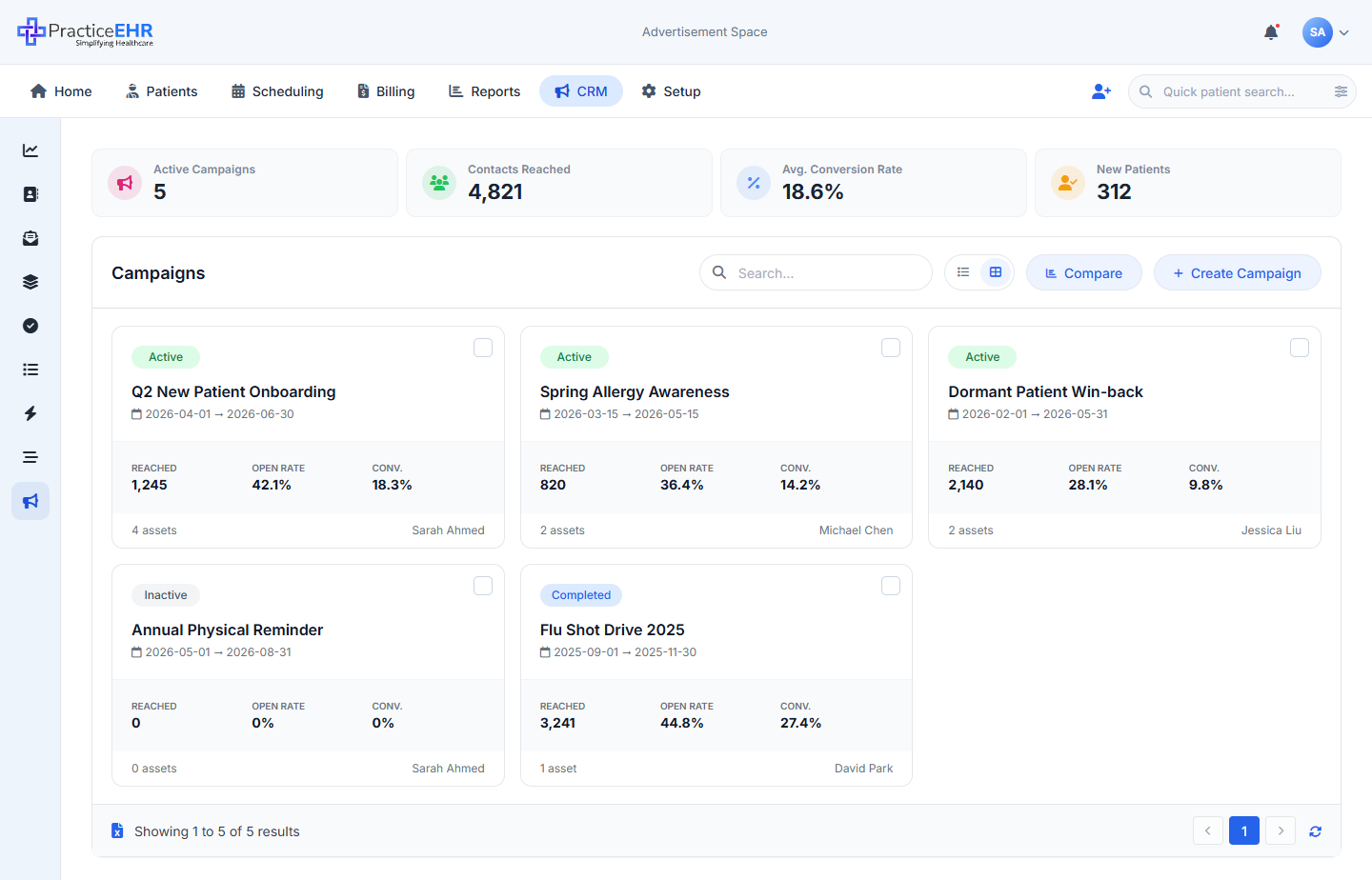
- Two ways to look at the list — Grid (a table) or Cards (tiles). Toggle in the toolbar.
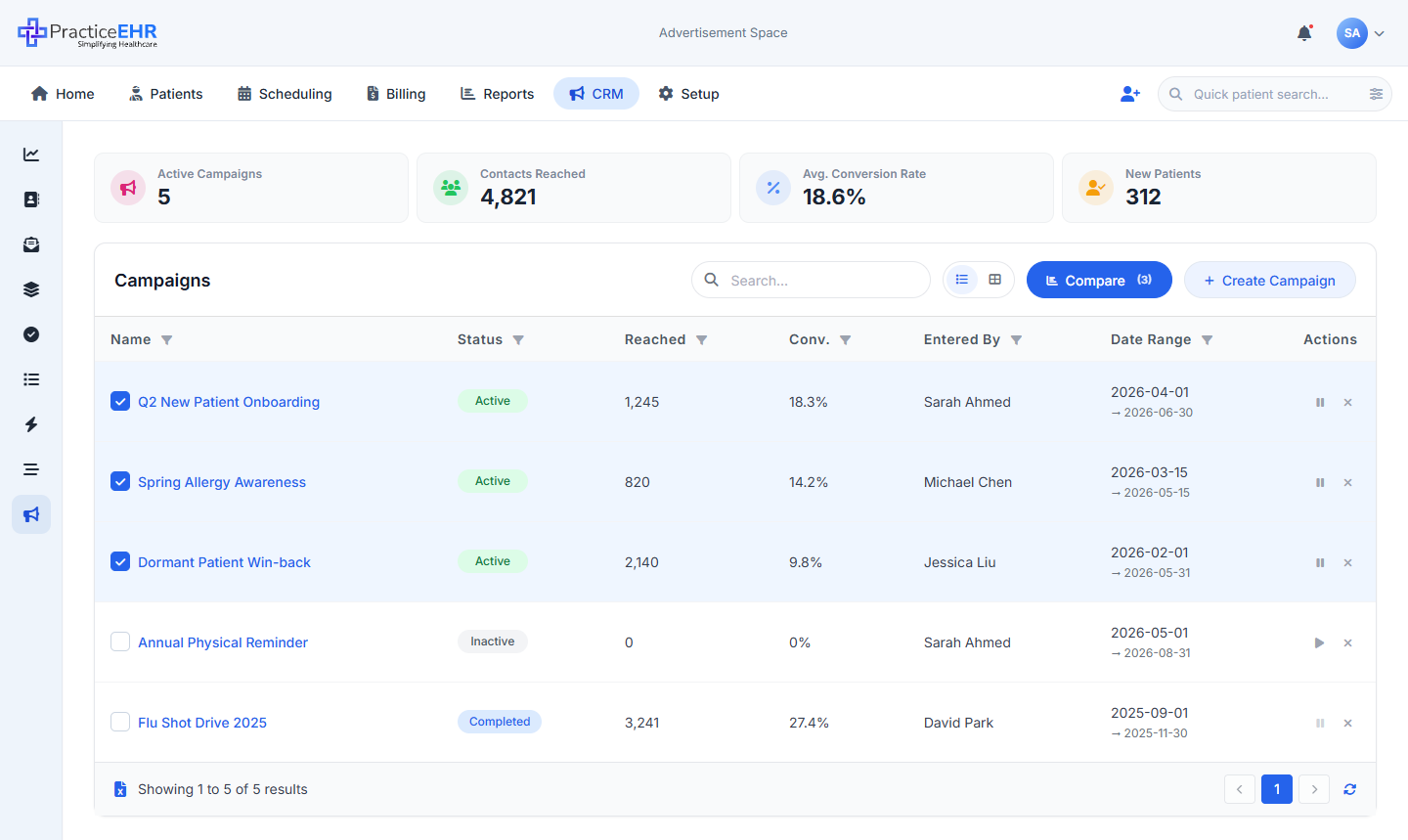
- Click Compare to pick two or more campaigns and open a side-by-side view.
Grid view — what each part does
Default viewTop stat cards4
Status
flipped from Lead to Patient. For
most campaigns the goal is "Book appointment", which means a lead became
a Patient in PracticeEHR.Status flipped from
Lead to Patient while enrolled in any
active campaign during the lookback window. Direct count of the
lead-to-Patient lifecycle event from Phase 1 — the most concrete
business outcome a campaign produces. Replaces the older "Goals Reached"
metric, which mixed booking-goals with non-booking goals (review
submitted, engagement, etc.) into one hard-to-interpret number.
Campaigns with non-booking goals still show their wins in Avg.
Conversion Rate, which is goal-agnostic.
Toolbar4
Table columns7
- Active — running right now; assets inside it are sending and goal events are being counted.
- Inactive — manually paused; nothing inside it sends until someone turns it back on. Existing analytics stay visible.
- Completed — the campaign's End date has passed. The system flips this automatically at midnight on the End date — no one has to mark it manually. Once Completed: no new sends, no new conversions counted, no edits to assets or settings. Past analytics remain visible read-only.
- Pause / Play — flips Active ↔ Inactive without leaving the page.
- × Delete — asks to confirm. Deleting a campaign doesn't delete its assets — the emails and SMS in it stay in the Communication tab.
Footer2
Cards view — what each part does
Switched from the toolbar toggleEach card7
Compare selection1
Compare flow — how it works
No mode to toggleHow clicks work2
event.stopPropagation() so the two click targets
don't fight.
Toolbar Compare button states3
What was removed3
Where to find it
CRM sidebar › Campaigns (the megaphone icon).
Compare Campaigns View
CRM / Campaigns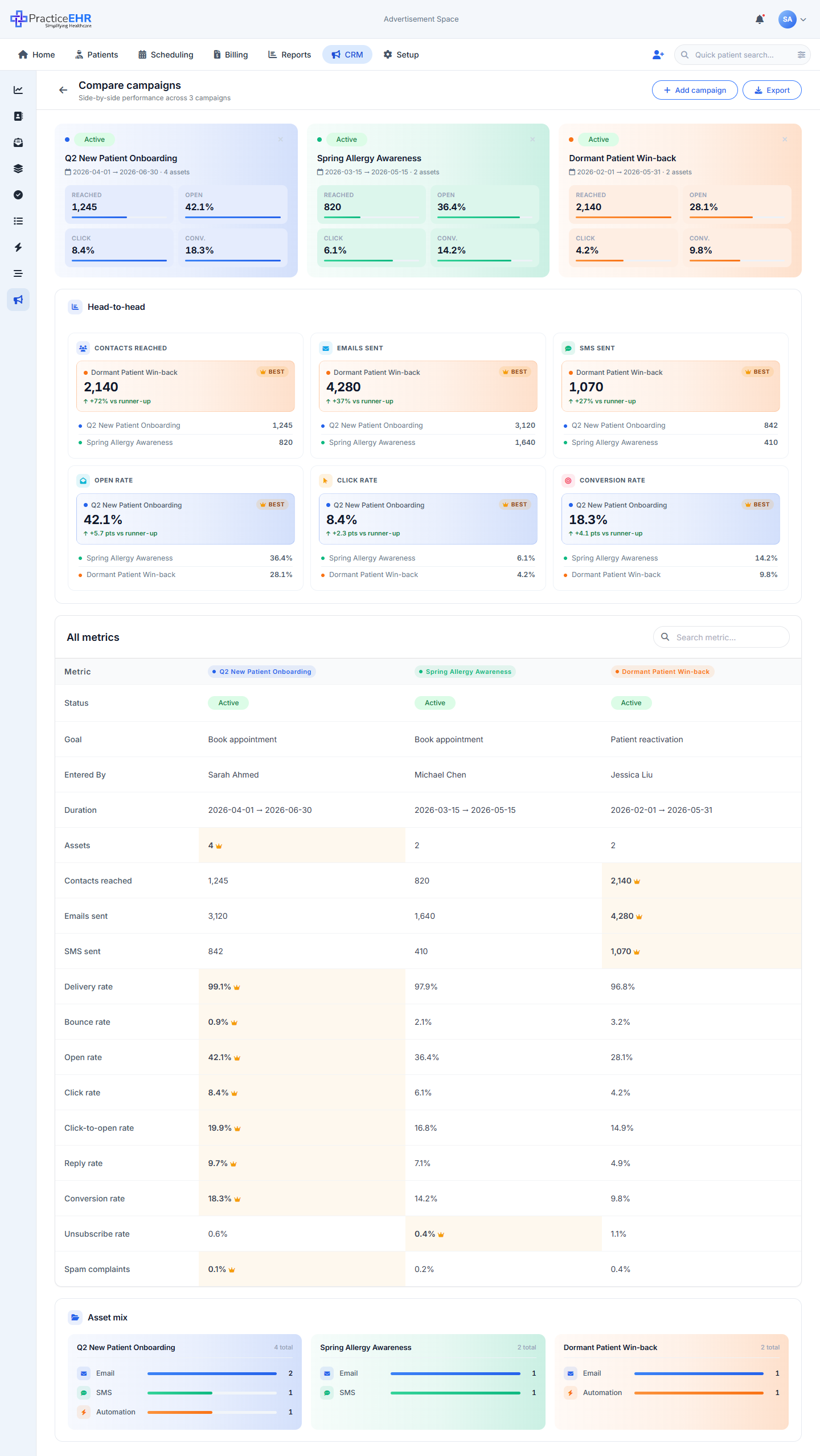
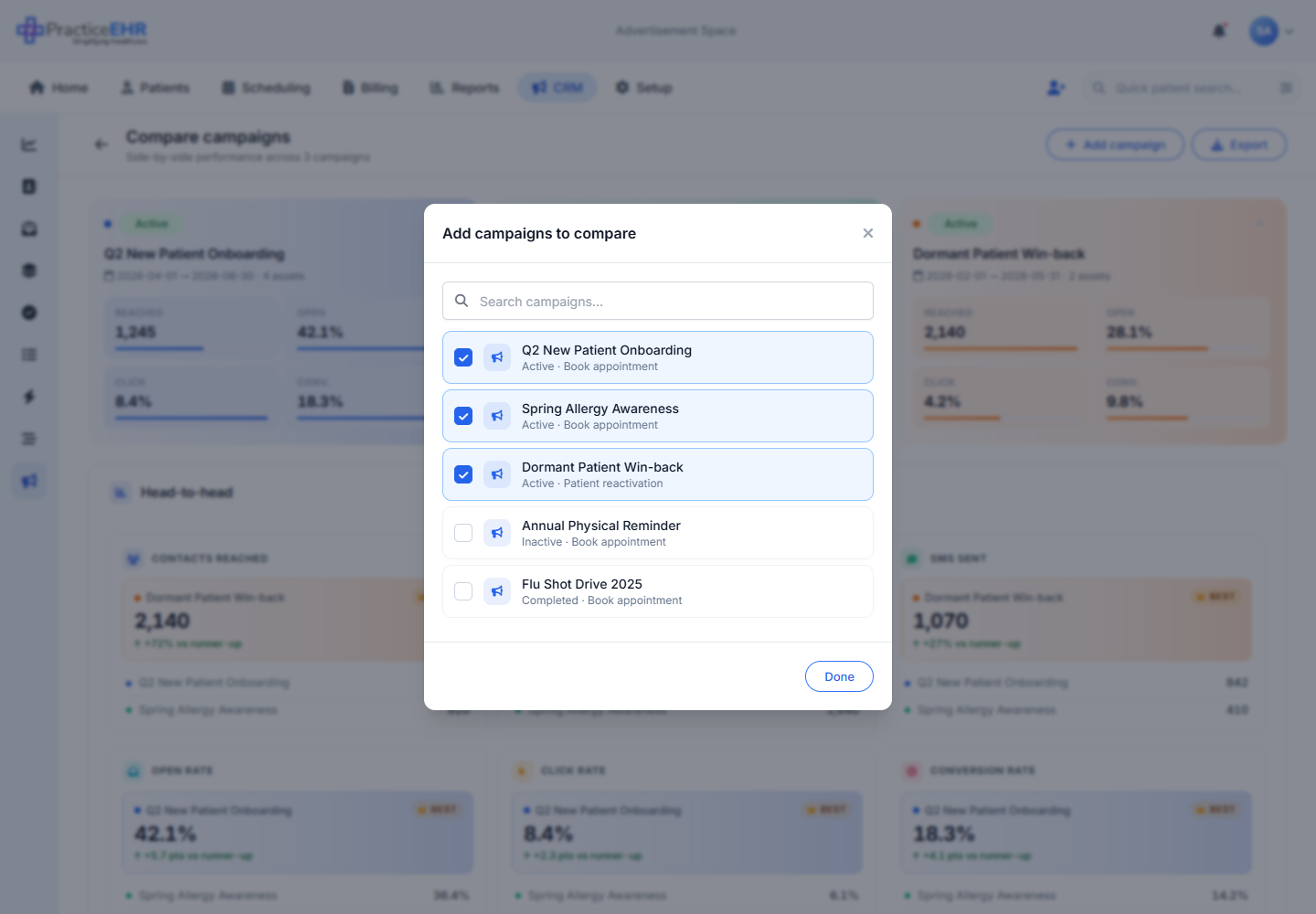
Key Features
- A full-screen view that puts two or more campaigns side by side so you can spot which one is doing best.
- The header has buttons to Add campaign (opens a picker) and Export (downloads the comparison).
- Three stacked blocks: top stat cards, head-to-head leaderboard, and a big all-metrics table at the bottom.
- The leaderboard crowns the winner of each metric with a BEST badge.
Header4
Top summary cards4
Head-to-head leaderboard3
All-metrics table3
Asset mix1
What's inside3
How to get here
Go to the Campaigns list, turn on Compare, pick two or more campaigns, then click Compare in the floating bar at the bottom. The Add campaigns picker opens from the button in this page's header.
Campaign Detail
CRM / Campaigns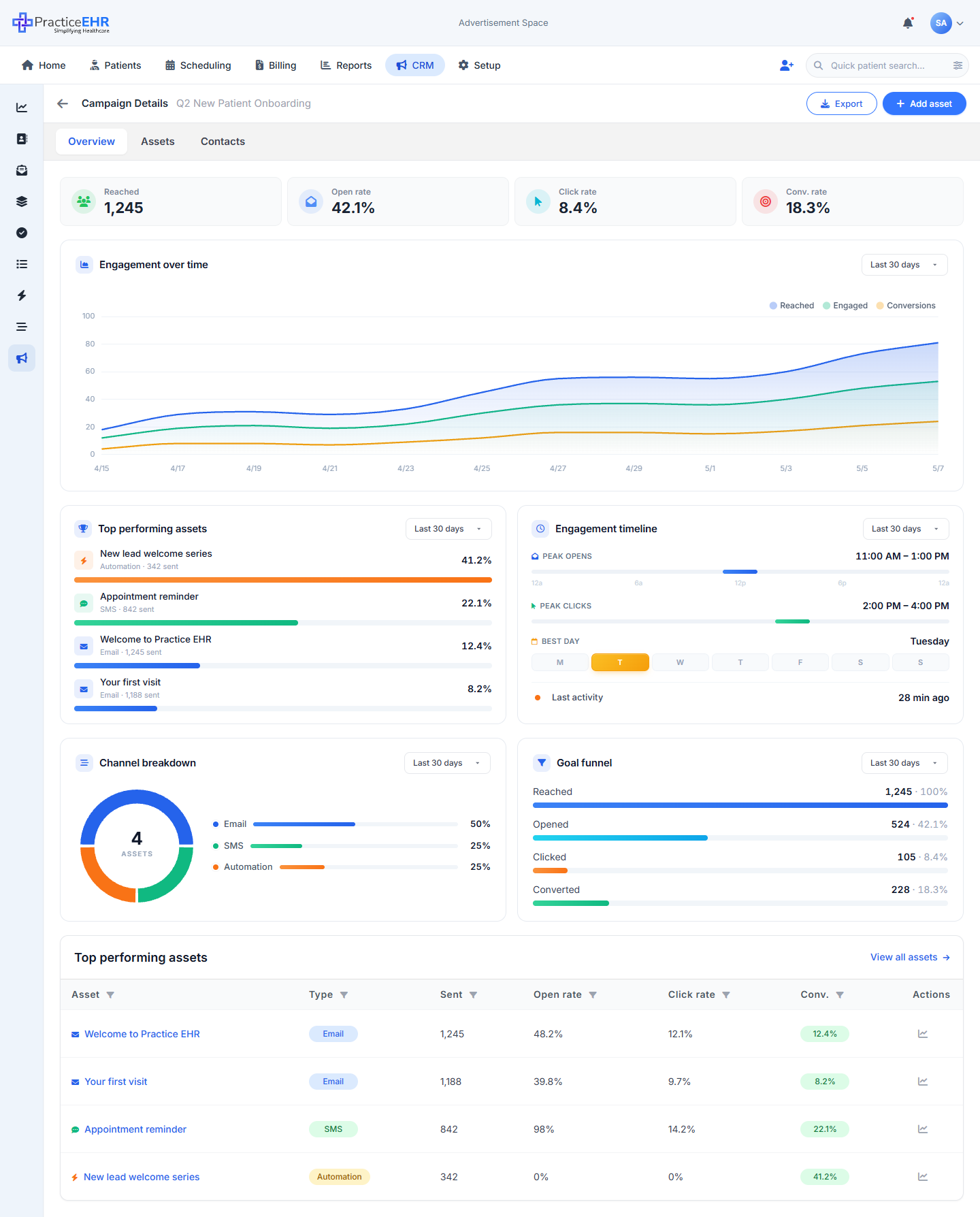
Key Features
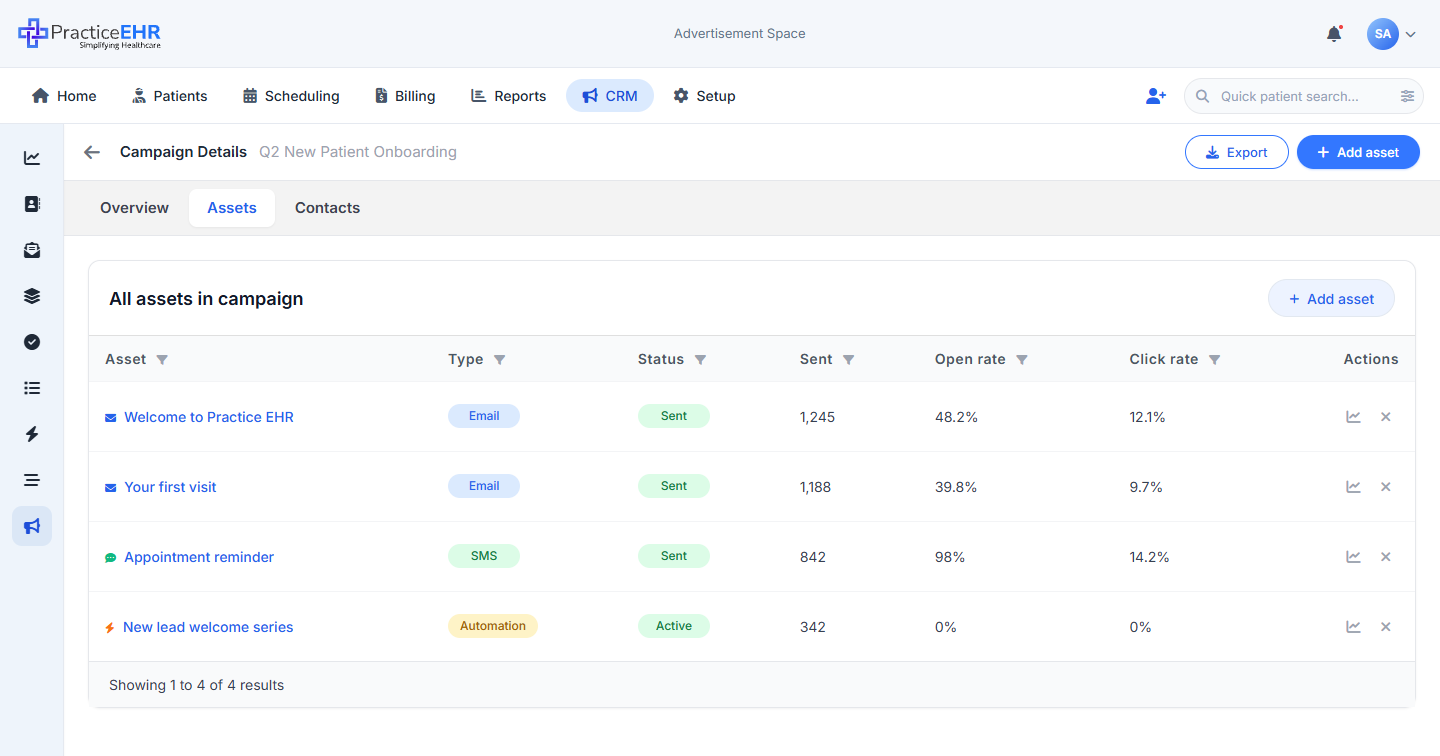
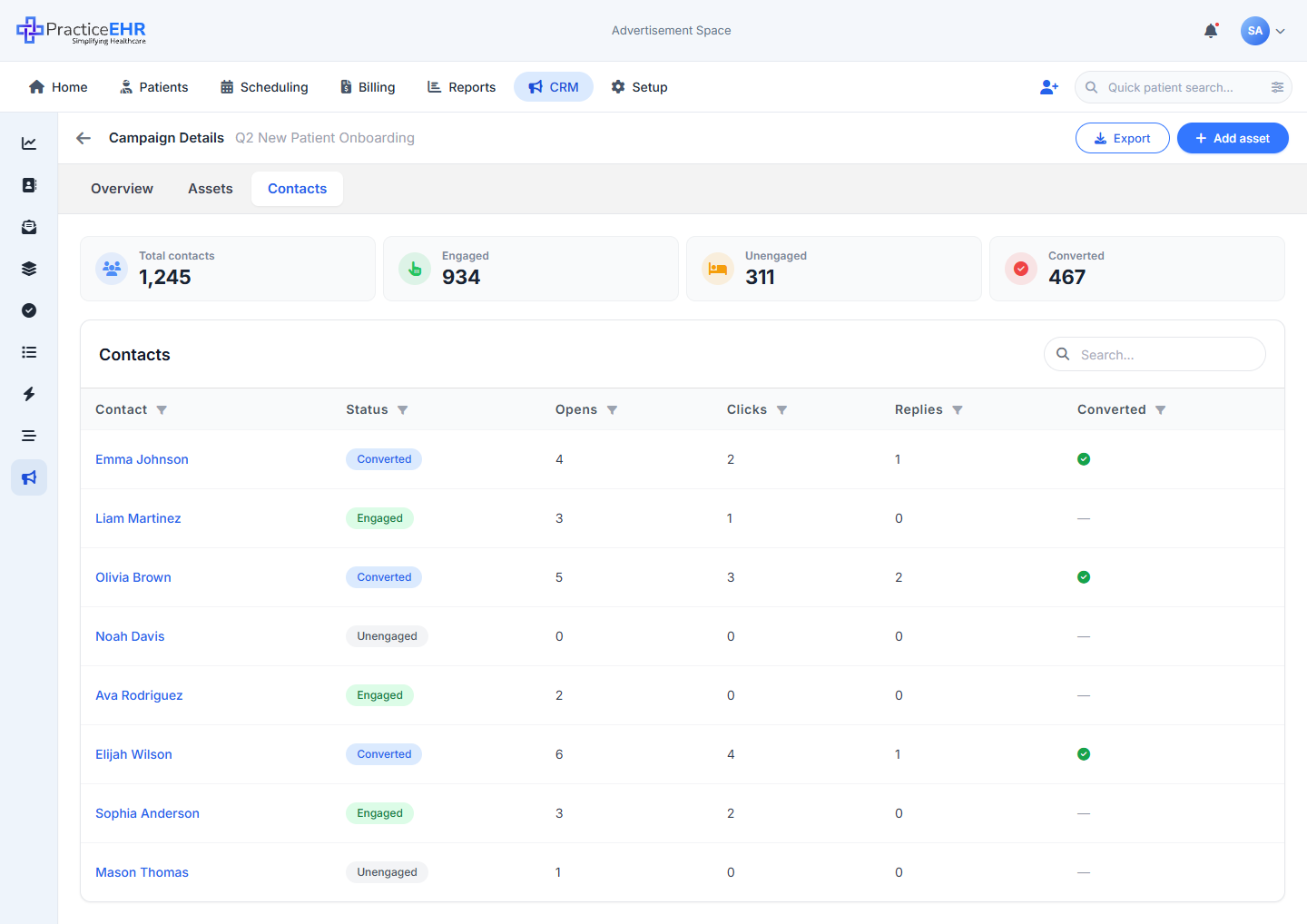
- The page you land on when you open a campaign. Three tabs: Overview, Assets and Contacts.
- The Add asset button in the top bar opens the same picker as the one inside the Assets tab.
- Everything you see is rolled up across every email, SMS, automation, sequence and list attached to the campaign.
Top bar4
Top stat cards4
Status changed
from Lead to Patient.
Engagement over time2
Top performing assets1
Engagement timeline3
Header2
Table columns7
Footer1
Top stat cards4
Contacts table7
Asset type tabs3
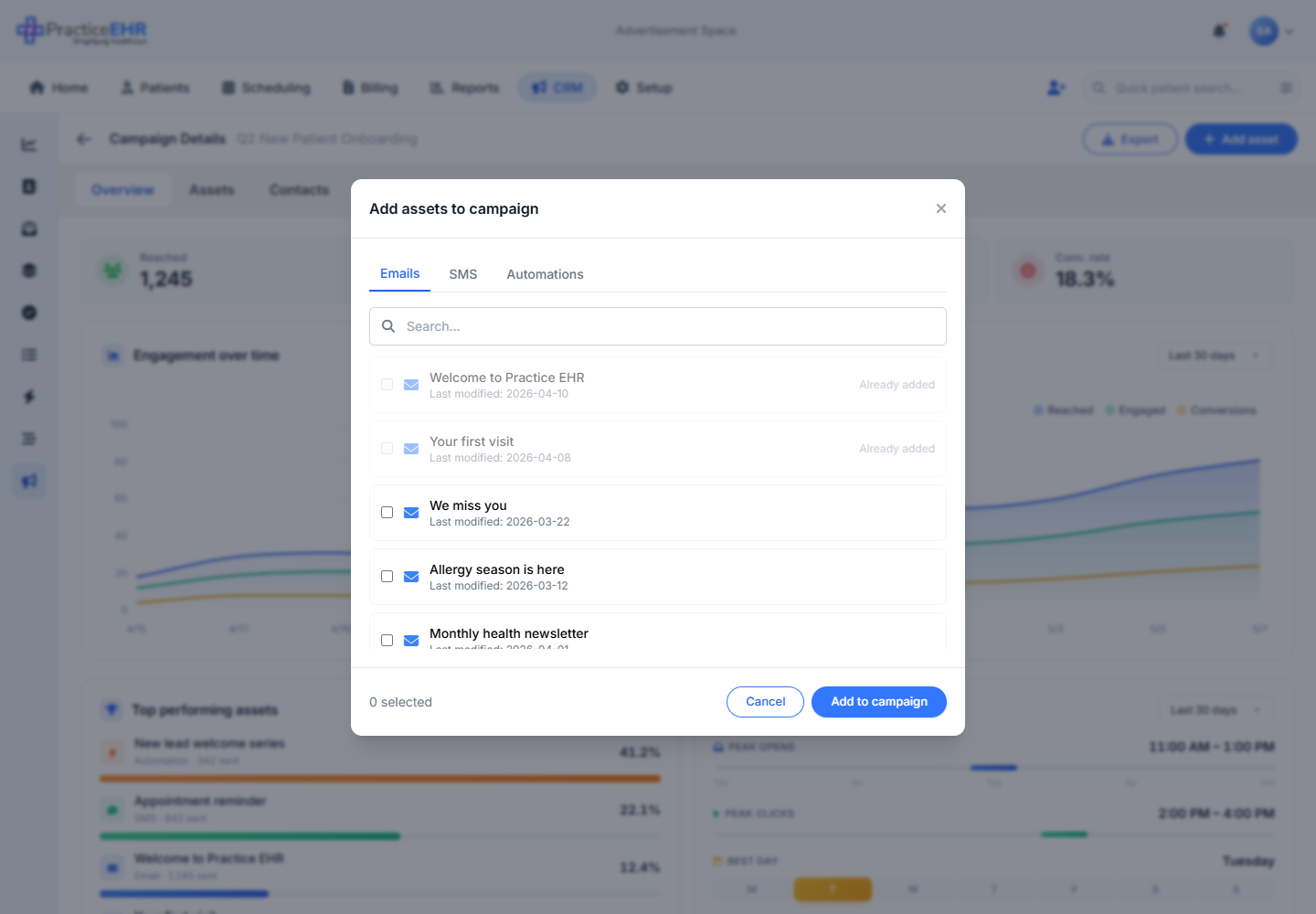
Picker2
Footer3
How to get here
Click any row on the Campaigns list (grid or cards). The detail page opens in the same window. Use the back arrow at the top to return to the list.
Asset Analytics
CRM / Campaigns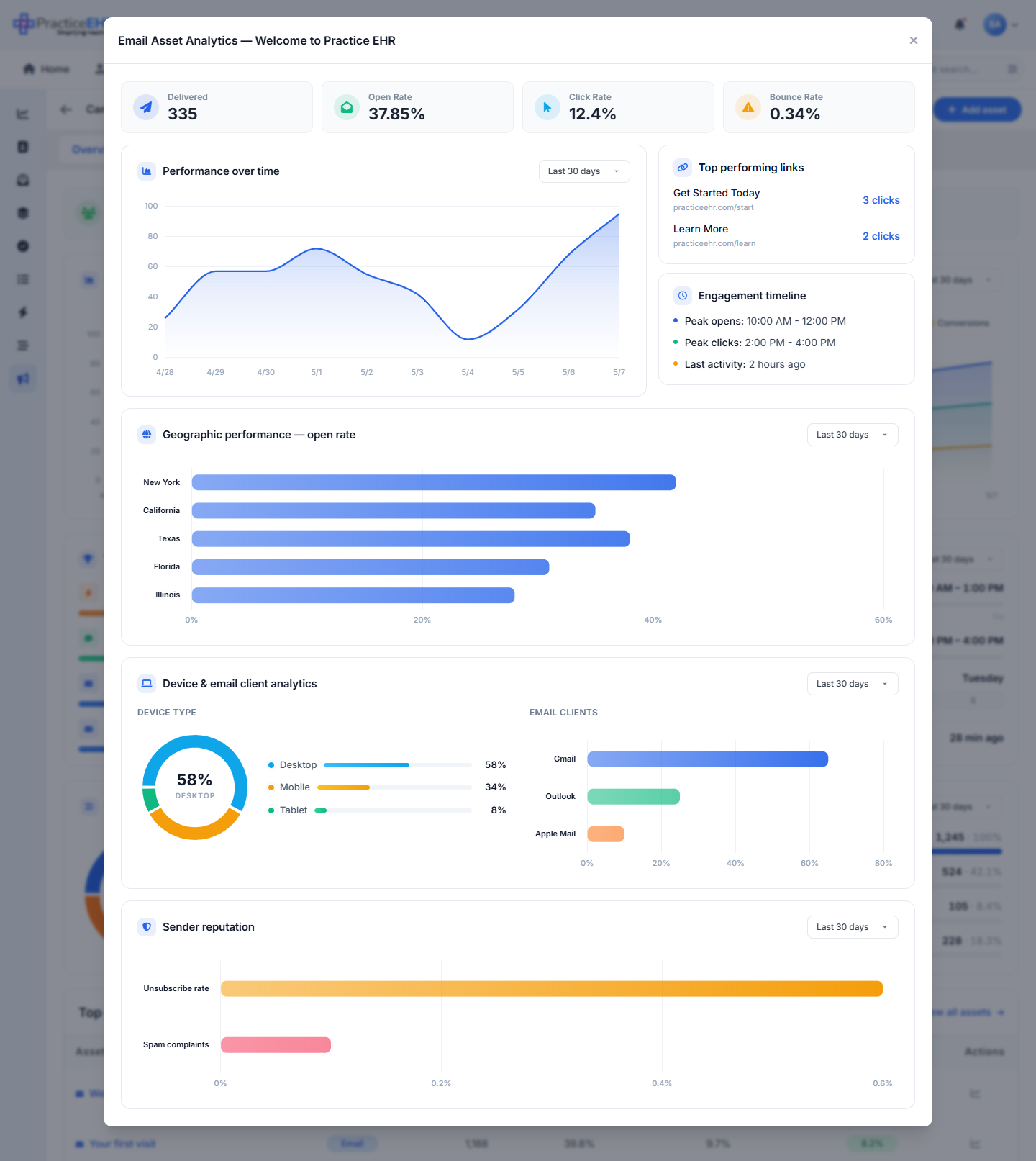
Key Features
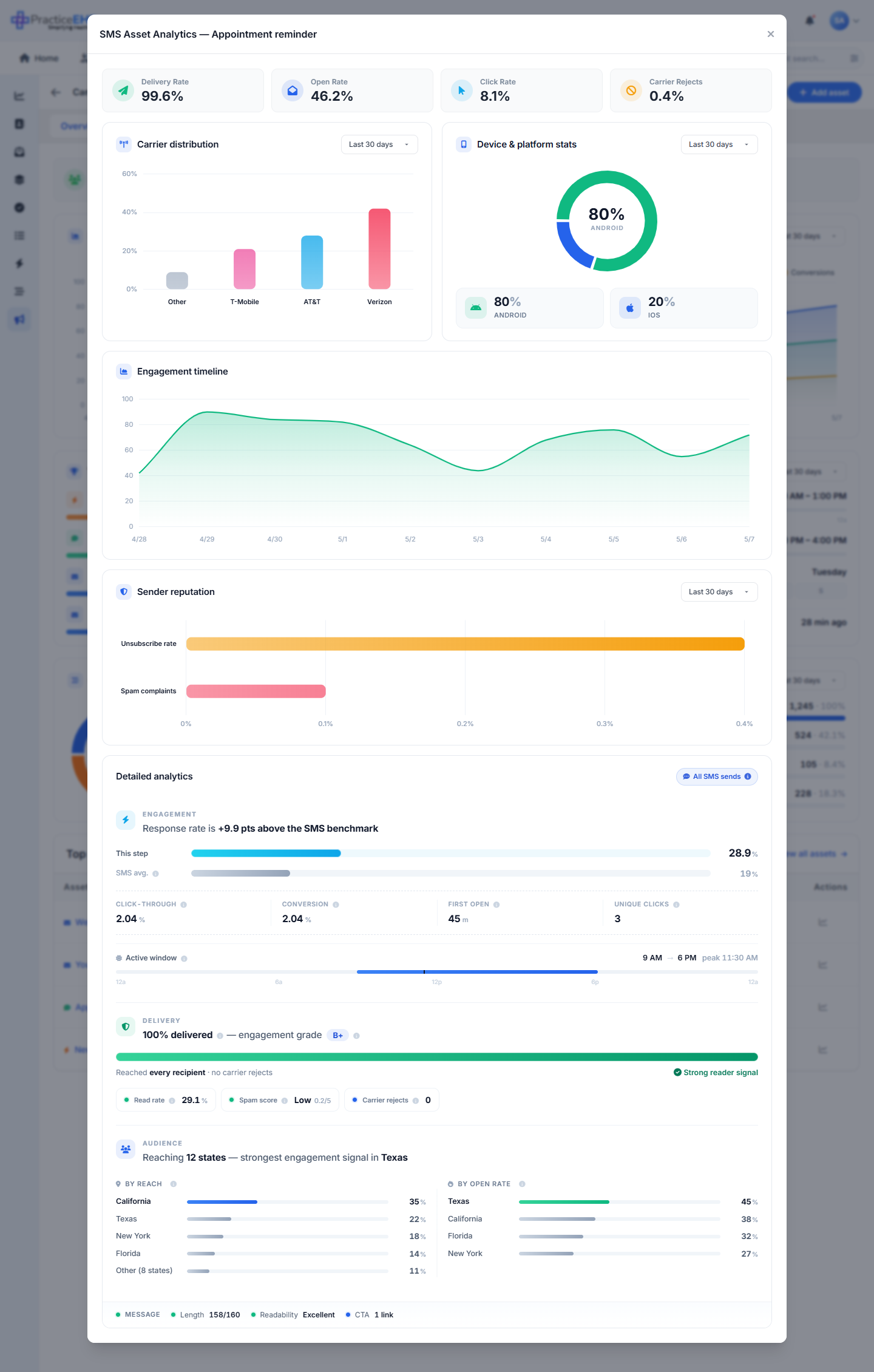
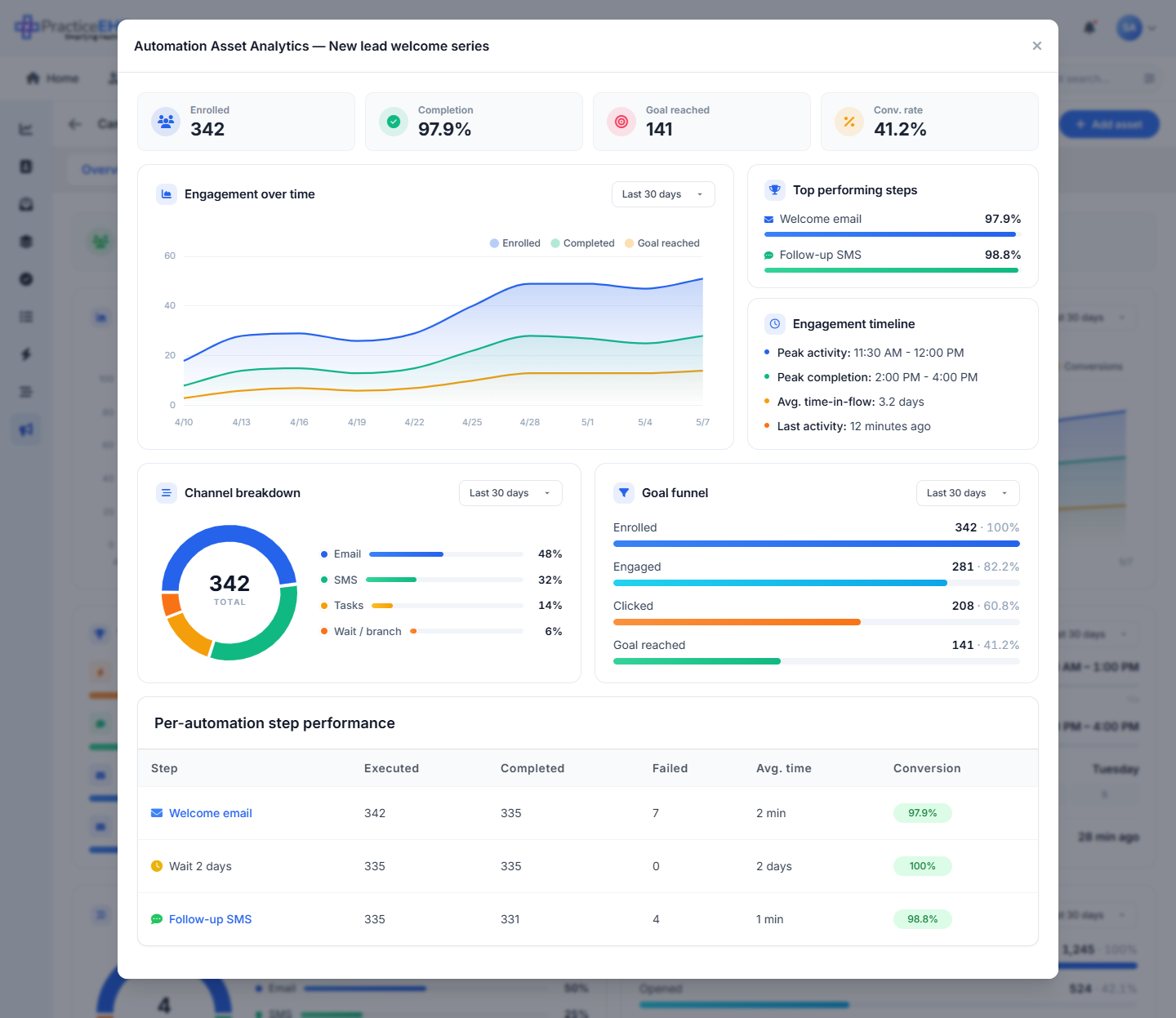
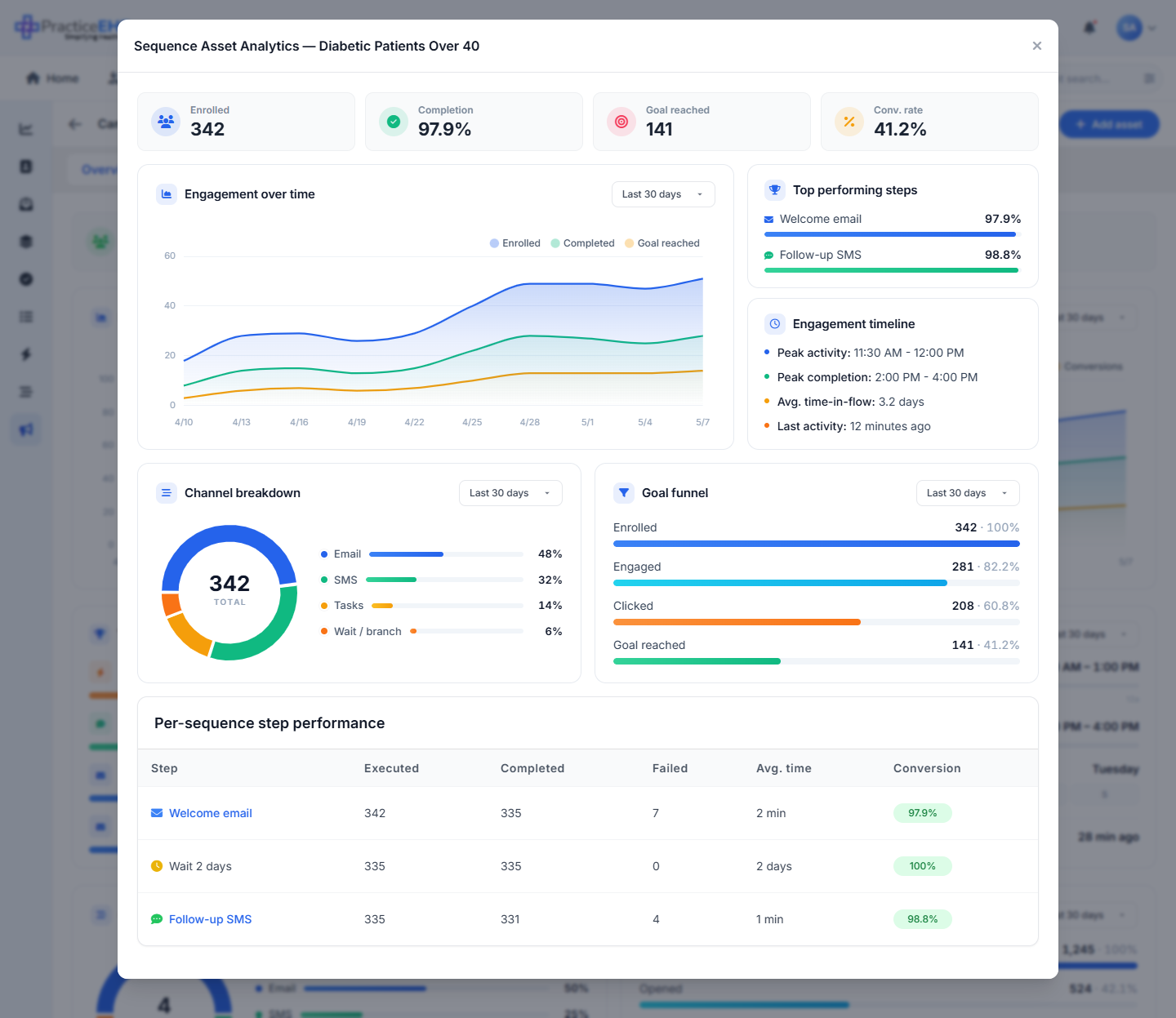
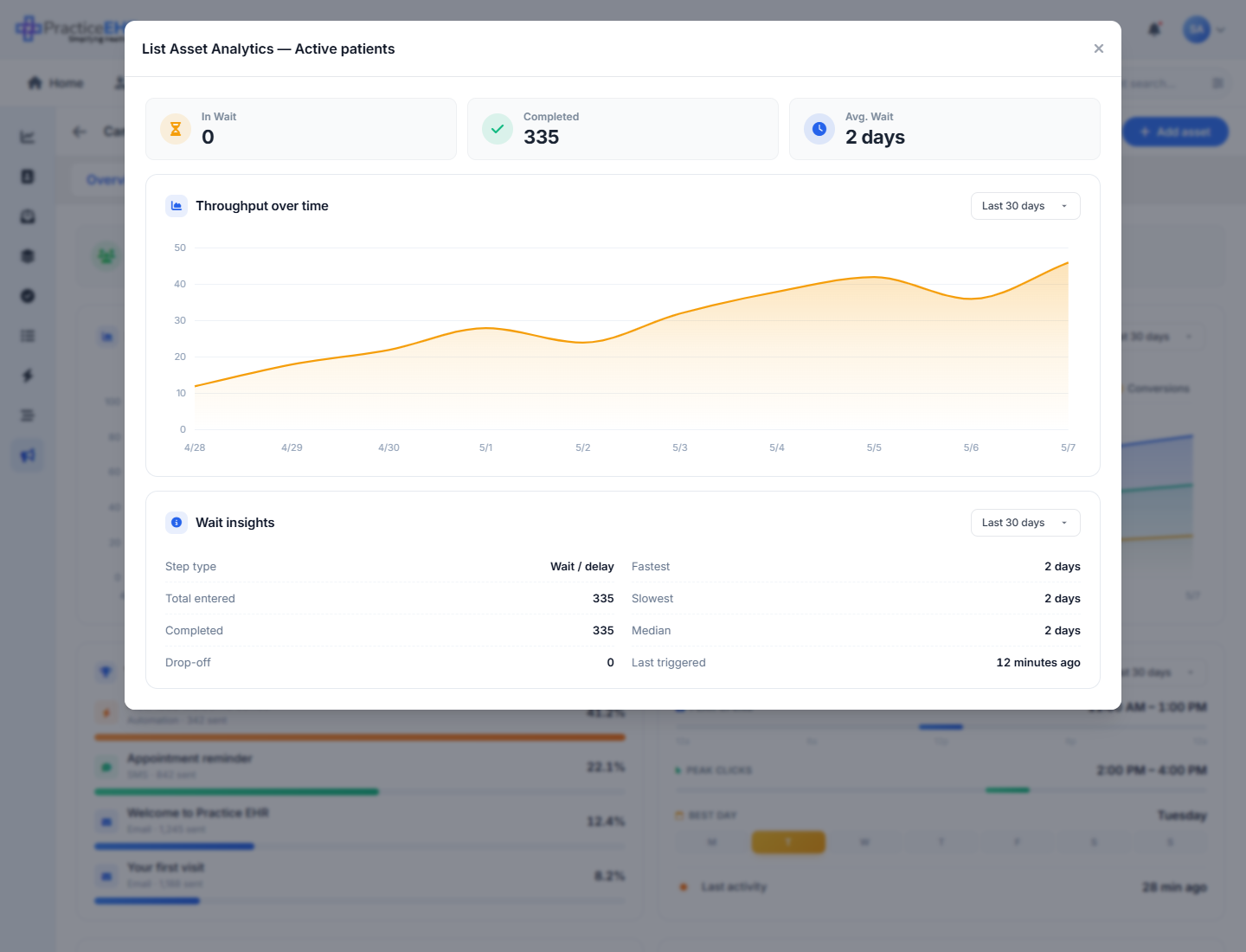
- A pop-up that opens when you click the chart icon next to any row in the campaign's Top performing assets list or the full Assets tab.
- Same shell every time, but the contents change to fit the asset type. Email and SMS get the deep send-by-send view; automation and sequence get a mini performance dashboard; lists get a simpler view.
- Title follows a consistent pattern: <Type> Asset Analytics — <name> — e.g. Email Asset Analytics — Welcome to Practice EHR, Automation Asset Analytics — New lead welcome series. (Same modal also serves automation step-level analytics, where the title prefix swaps to <Type> Step Analytics.)
- Lets you check on a single asset without leaving the campaign.
What you'll see5
What you'll see4
What you'll see5
What you'll see4
What you'll see2
How to get here
Open any campaign, go to Overview or Assets, then click the chart icon next to a row. The pop-up matches the asset type (email, SMS, automation, sequence or list).
Create Campaign (Layover)
CRM / Campaigns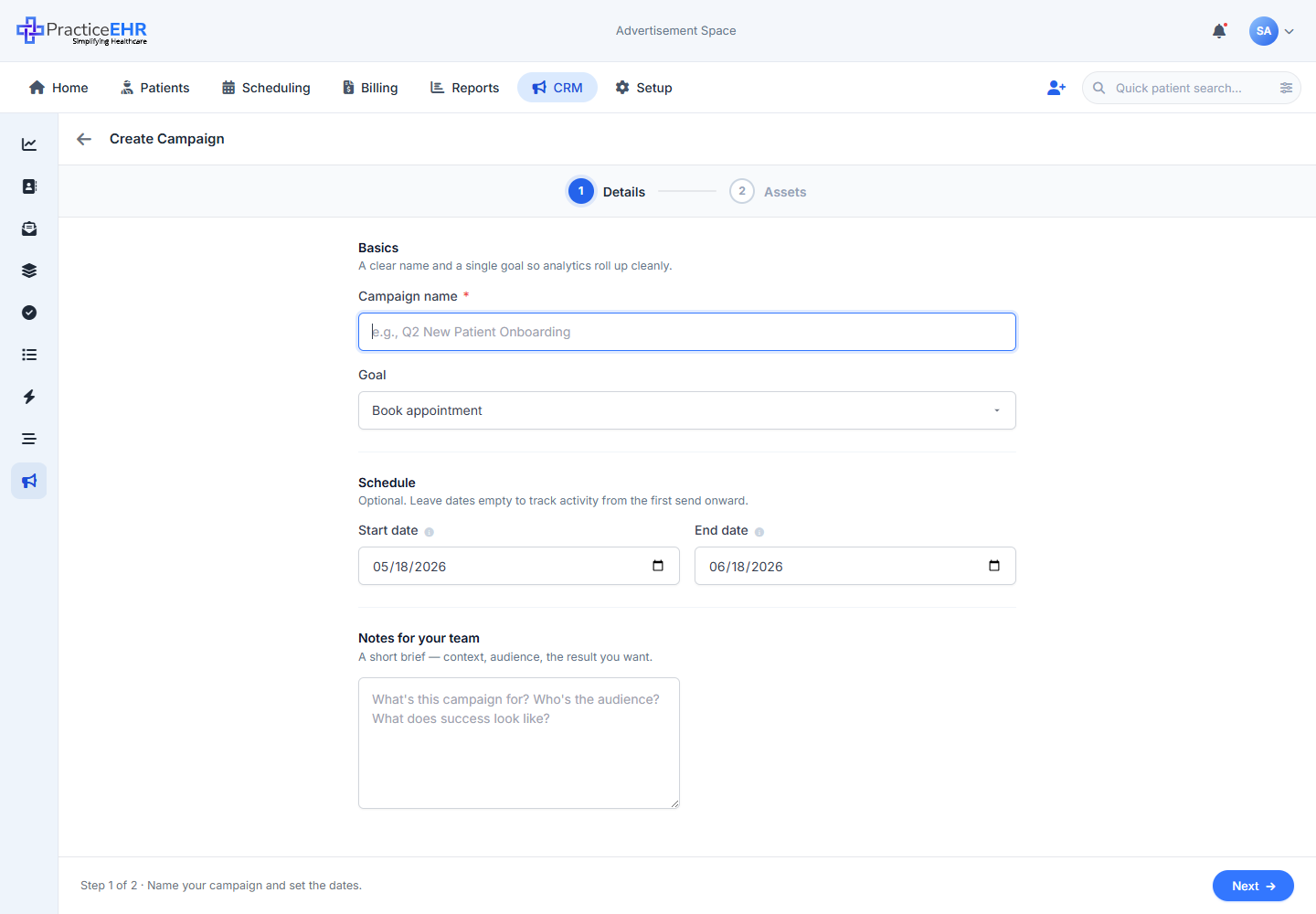
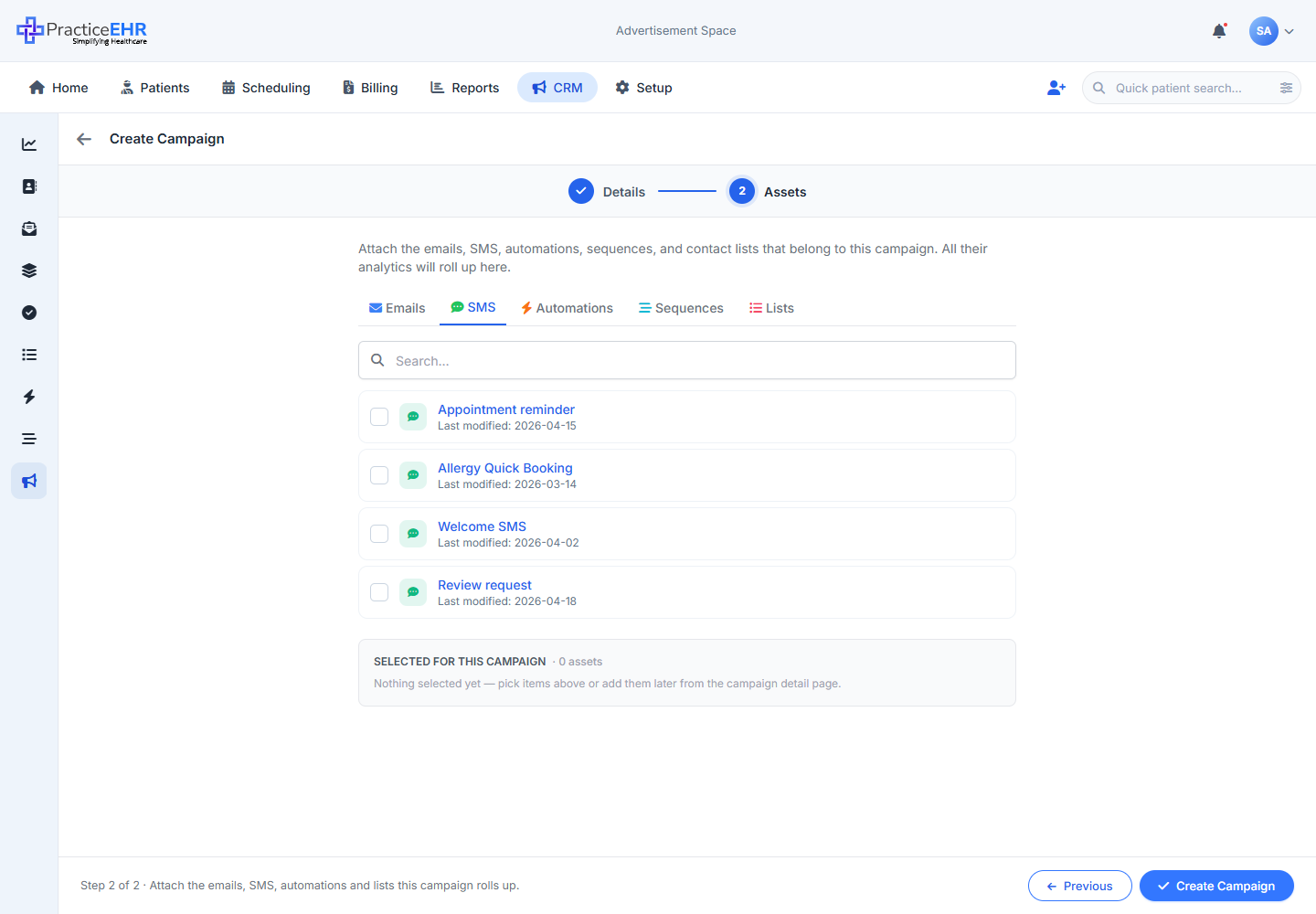
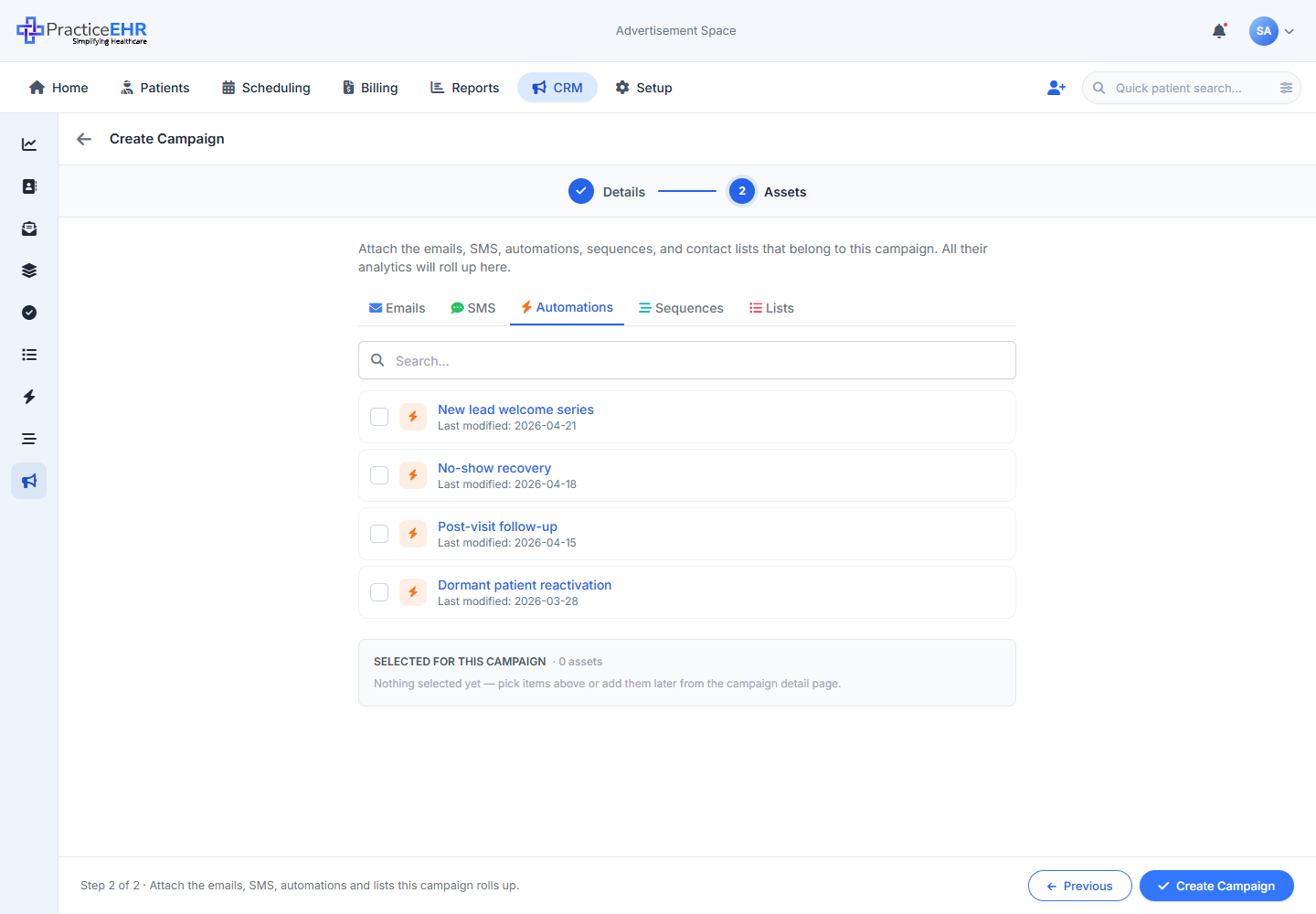
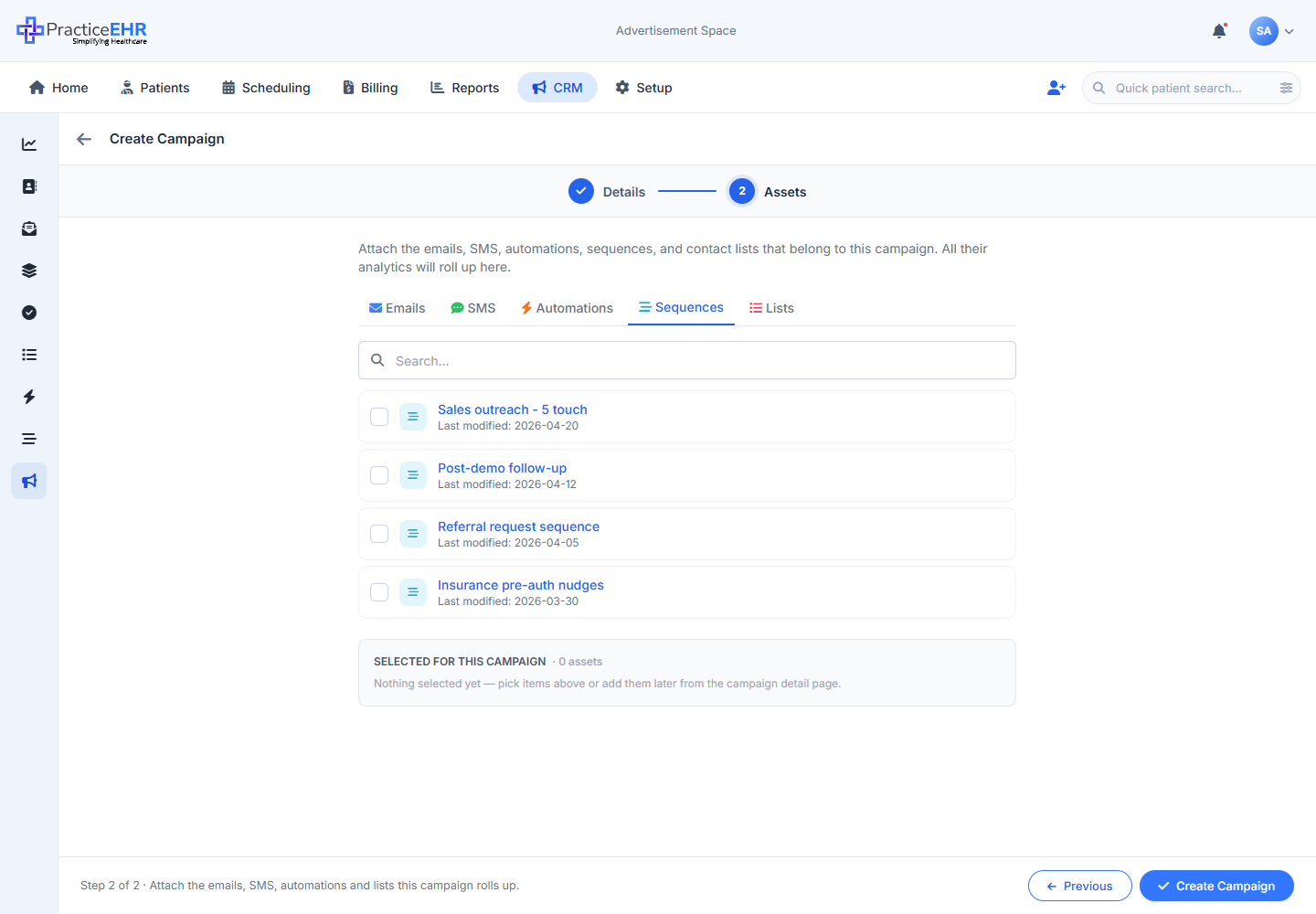
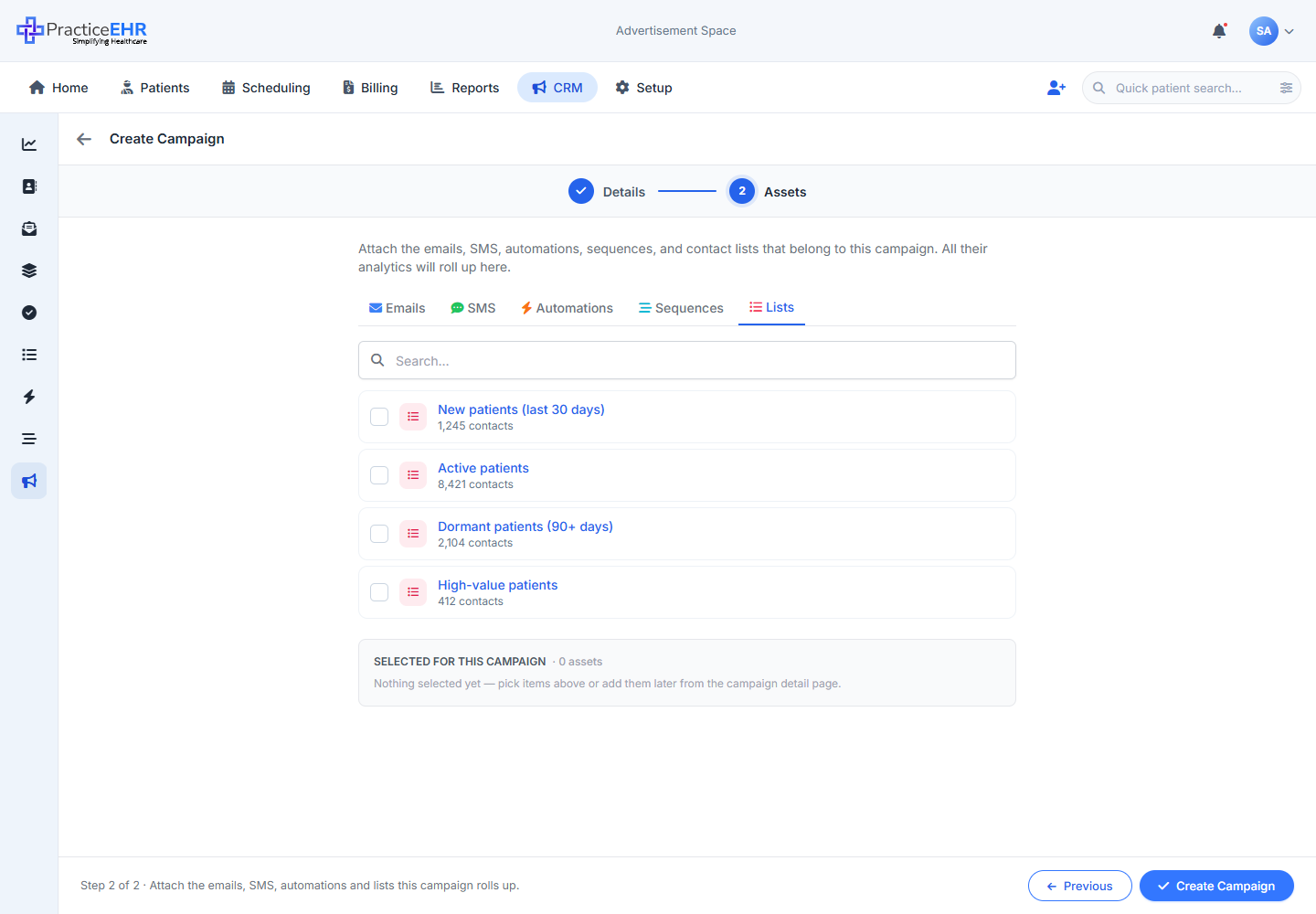
Key Features
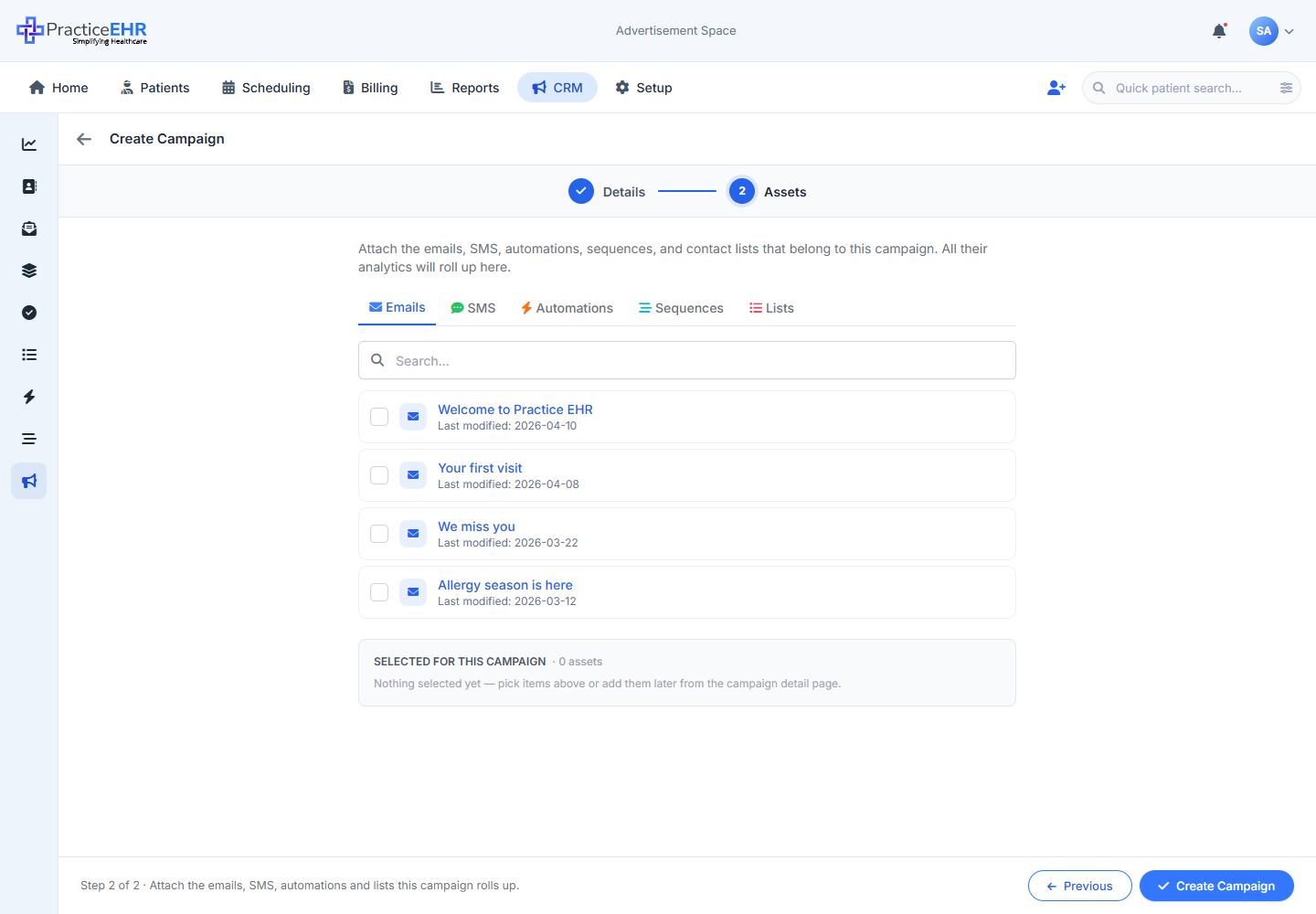
- A 2-step full-screen layover: Details first, then Assets. Matches the Create Automation / Create Sequence pattern — no modal-backdrop, the page slides over the campaigns list.
- Step 2 has five tabs — Emails, SMS, Automations, Sequences, Lists — each with its own picker.
- Whatever you pick on each tab stays selected when you switch tabs. Picks show up as chips in the Selected for this campaign strip.
- The bottom button changes from Next to Create campaign on the last step.
Layover header2
Step rail2
Section — Basics2
Section — Schedule2
i
info-tooltip that reads: "The date the campaign begins tracking
activity. Must be earlier than the end date. If left empty, analytics
will roll up from the earliest activity recorded on this campaign's
assets." Optional.
i info-tooltip that reads: "The date the campaign stops
tracking activity. Must be later than the start date. If left empty, the
campaign stays active indefinitely until you manually mark it
Inactive." Optional.
Section — Notes for your team1
Date validation3
start < end ruleValidationmin = current start, start picker's max = current
end. Live, no save needed.
Footer2
Asset-type tabs5
Picker3
Footer3
SMS library (sample data)4
Automation library (sample data)4
Row contents3
Sequence library (sample data)4
Row contents2
List library (sample data)6
Row contents2
How to get here
Click + Create Campaign in the toolbar of the campaigns list. The Create page slides over as a full-screen layover (flush against the sidebar) — the same pattern used by Create Automation and Create Sequence. Hit the back arrow in the header to return to the list.
Sequences List
CRM / Sequences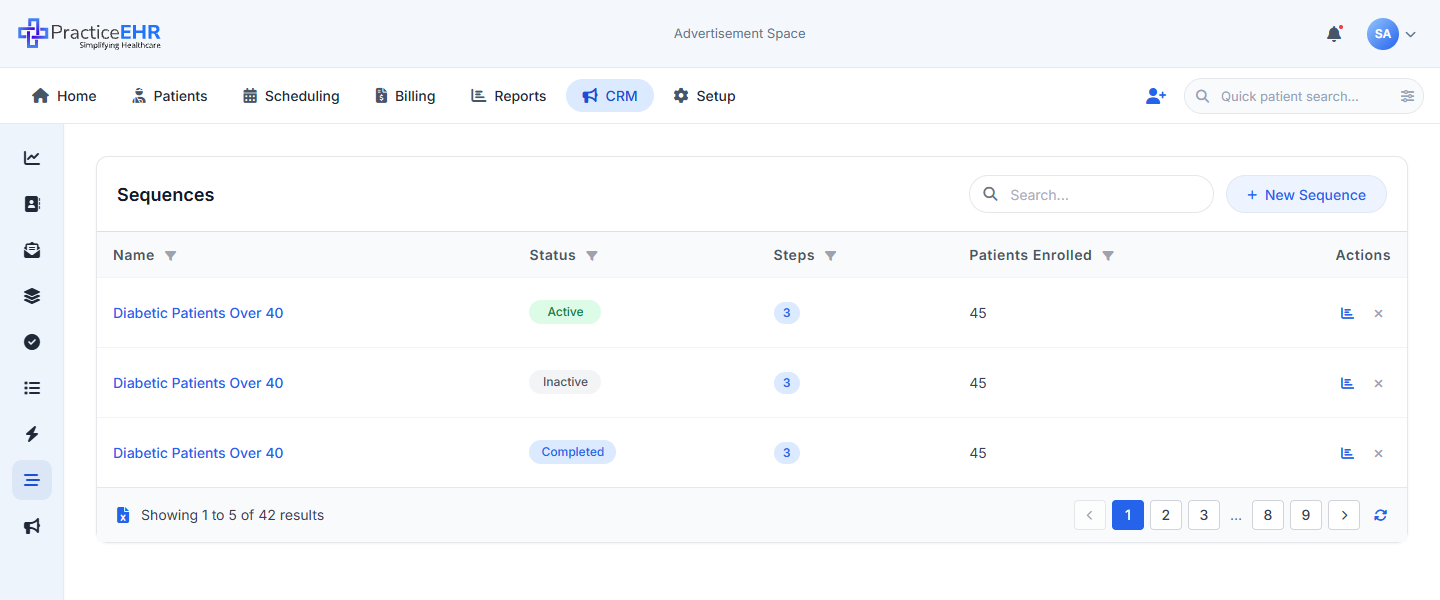
Key Features
- The first page you see when you click Sequences in the CRM sidebar.
- Lists every sequence in the practice. Click a row to open it in the builder; click the chart-bar icon to jump straight to its Performance tab.
- + New Sequence opens the 2-step create stepper (Details → Build).
- Unlike Campaigns, this list has no KPI strip and no Cards view — just a clean table. Sequences are operational tools, so the headline numbers live on each sequence's own Performance tab.
Field reference
Click a section to collapseToolbar2
Table columns5
- Active — running; the sequence is looping on its Occurrence cadence.
- Inactive — paused; nothing inside sends until someone flips it back on.
- Completed — one-off run that finished its full pass through the list.
- Chart-bar — opens the sequence directly on its Performance tab.
- × Delete — asks to confirm. Deleting a sequence does not delete its target list or its email/SMS templates — those stay in the Lists / Communication tabs.
Footer2
Where to find it
CRM sidebar › Sequences (the people-group icon).
Sequences
CRM / Phase 2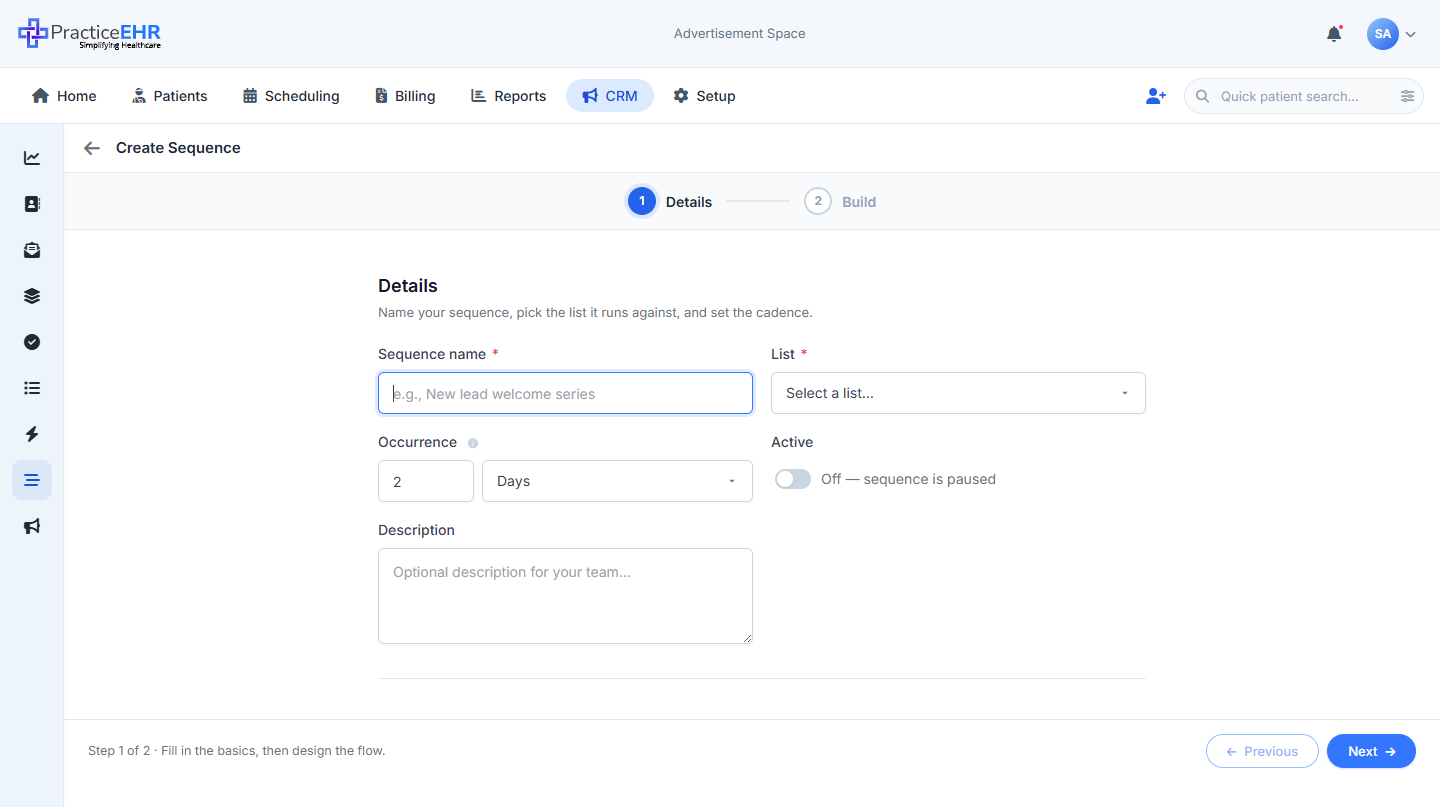
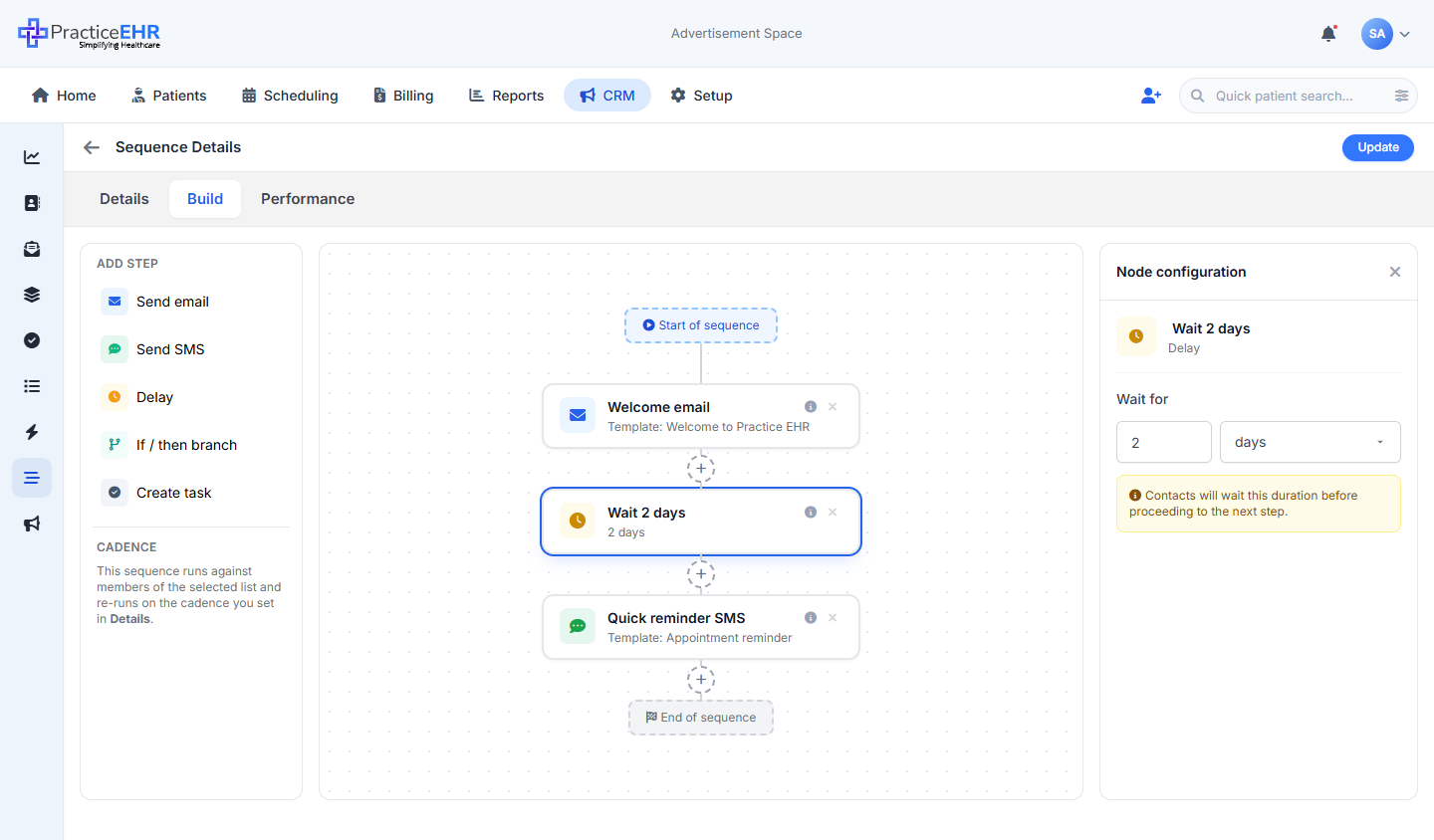
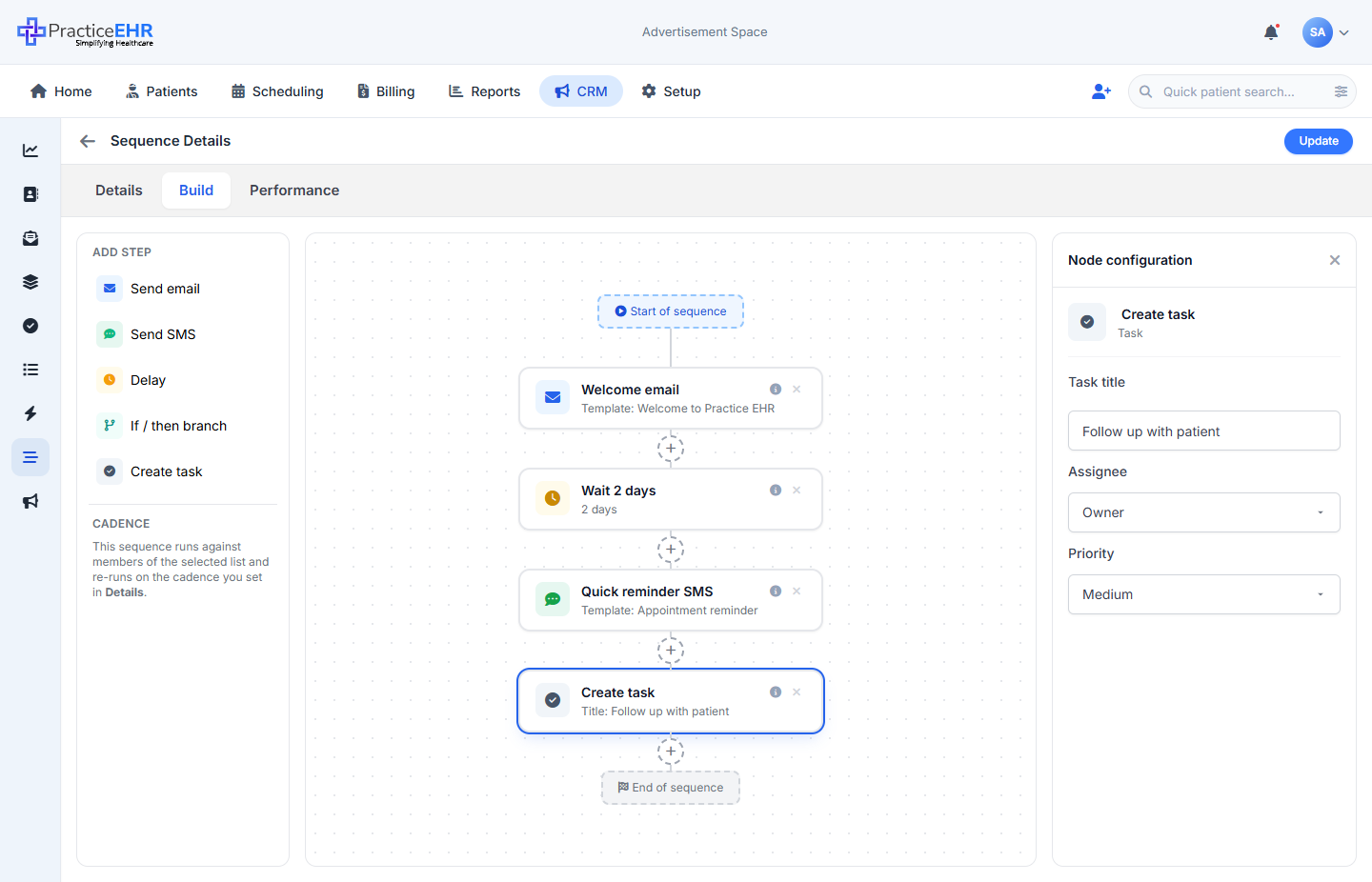
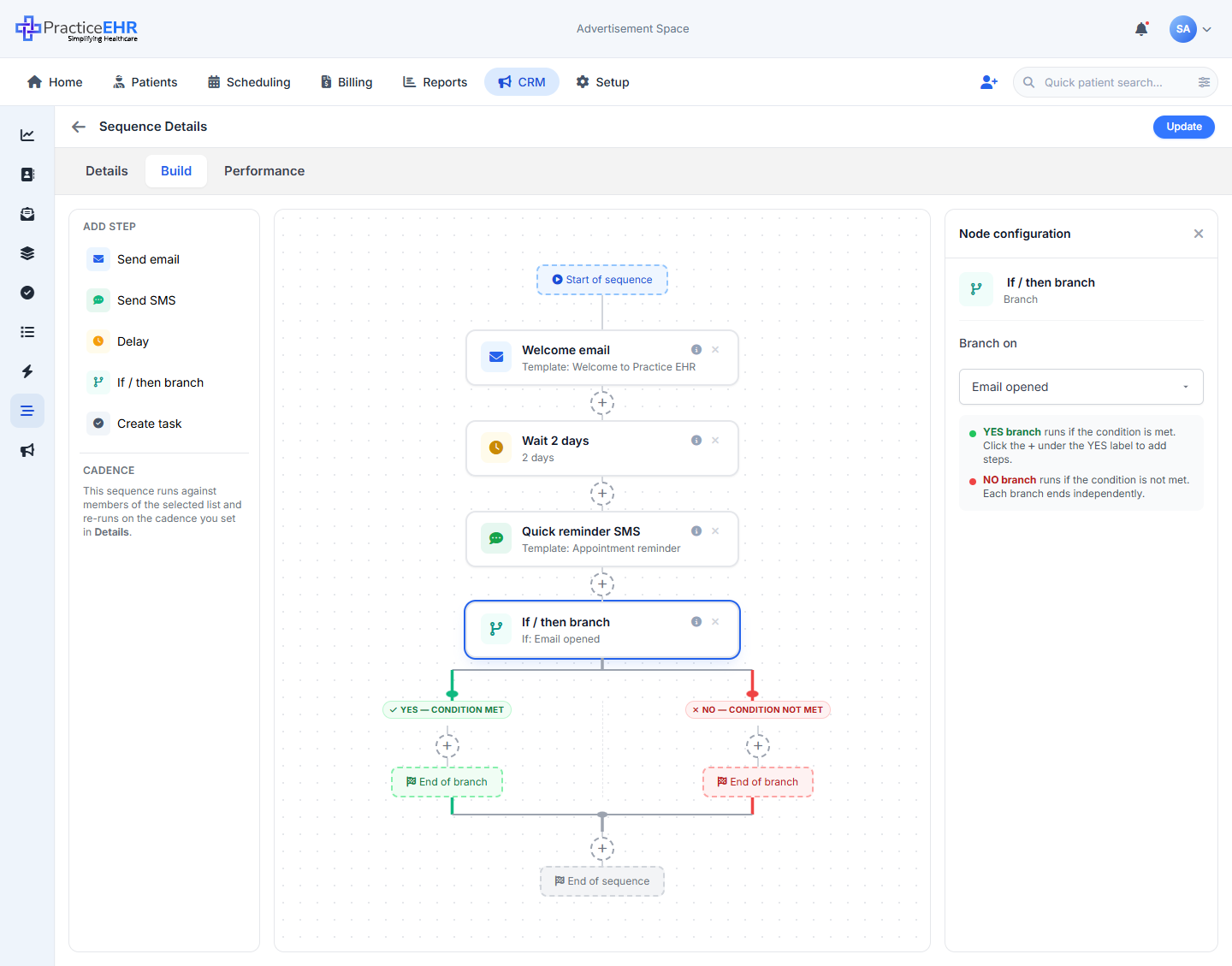
Key Features
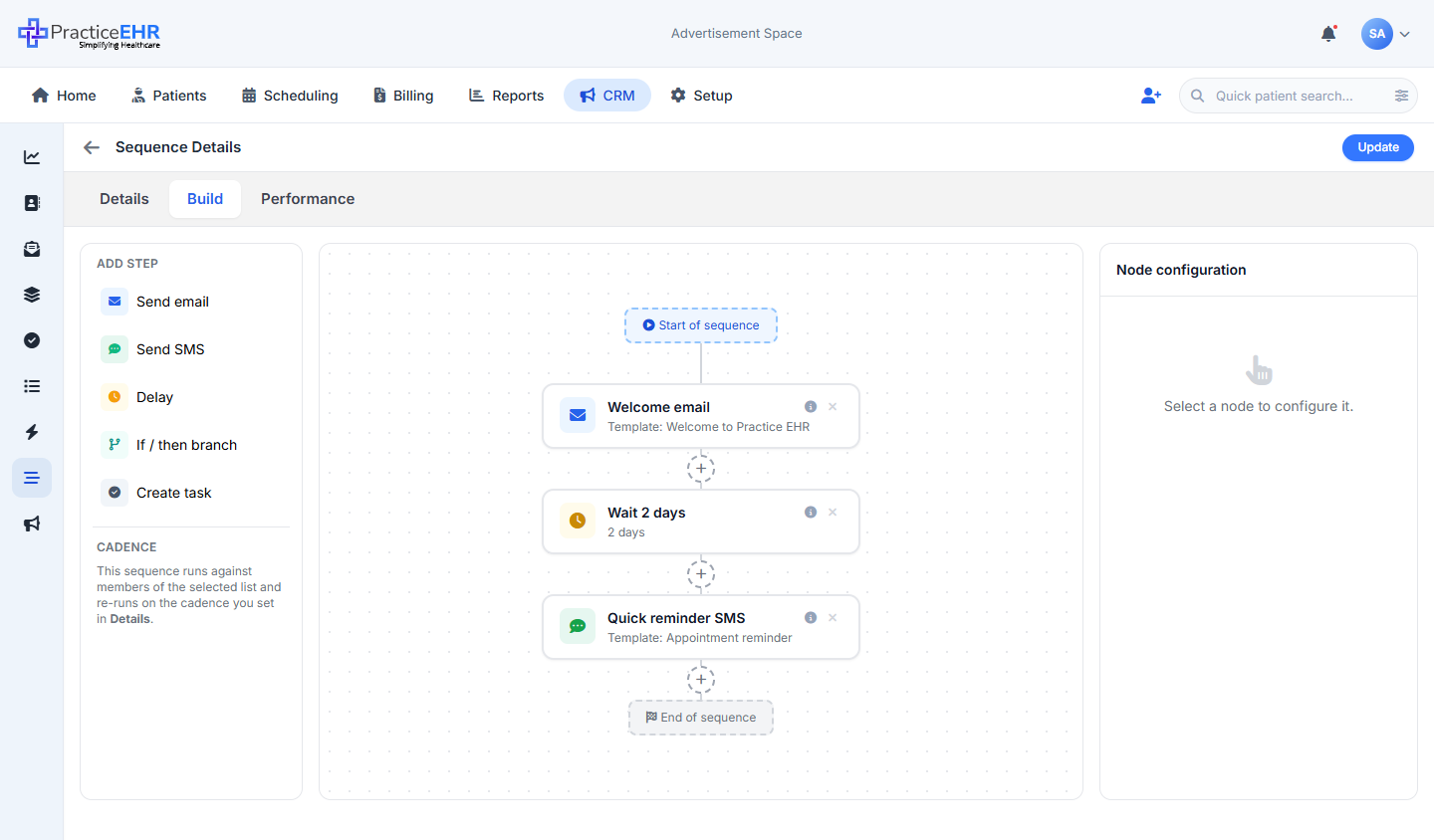
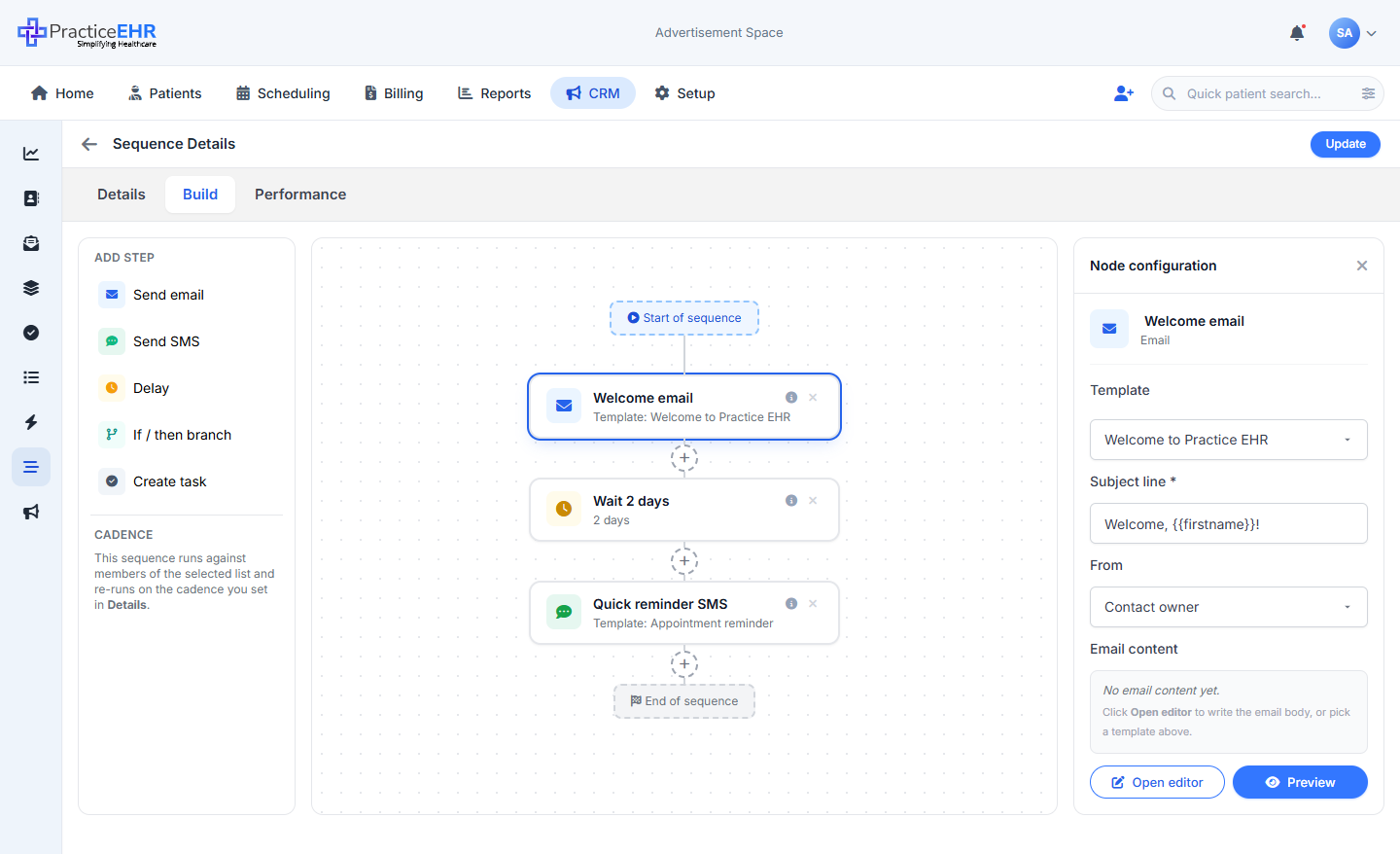
- Sequences open in the same builder as automations — the page header just reads Sequence Details instead of Automation Details.
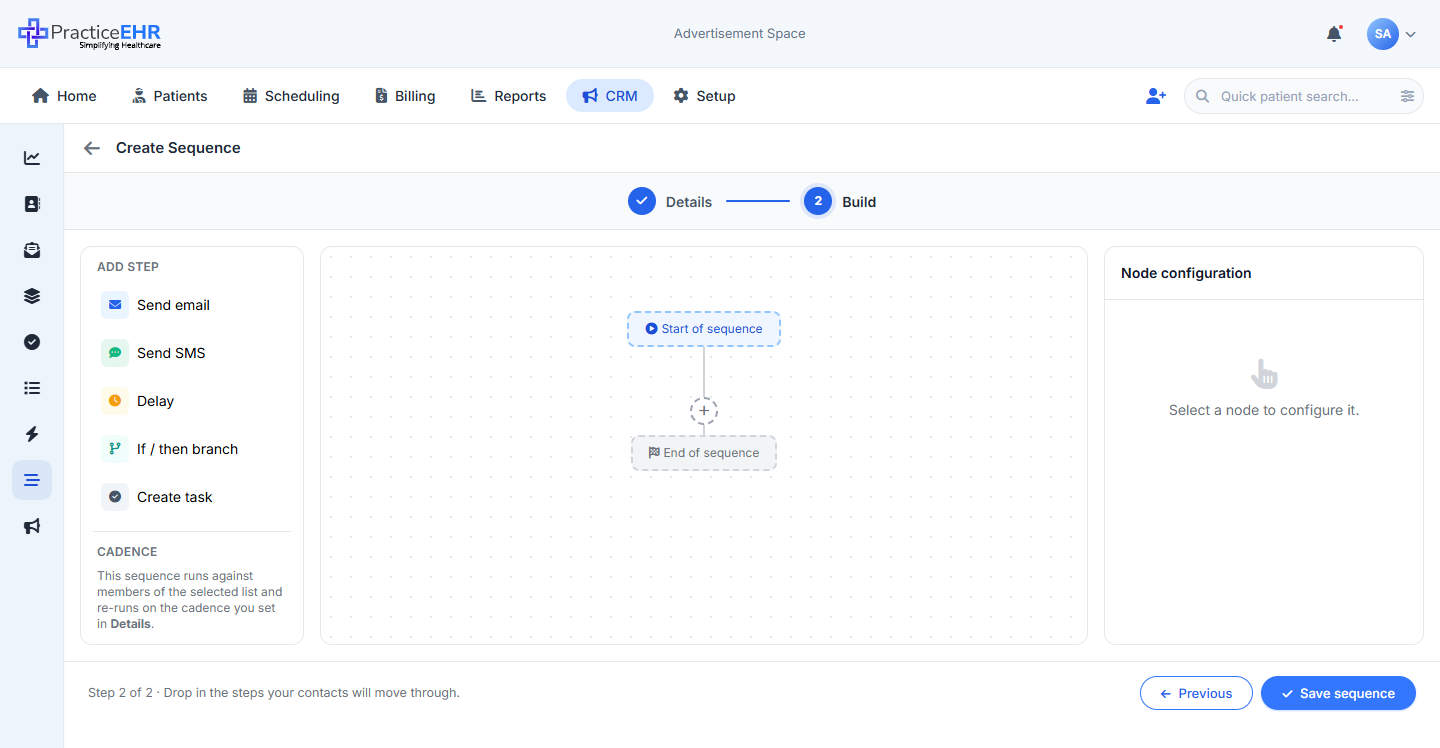
- Creating a new sequence walks you through 2 steps: Details first, then Build (the canvas).
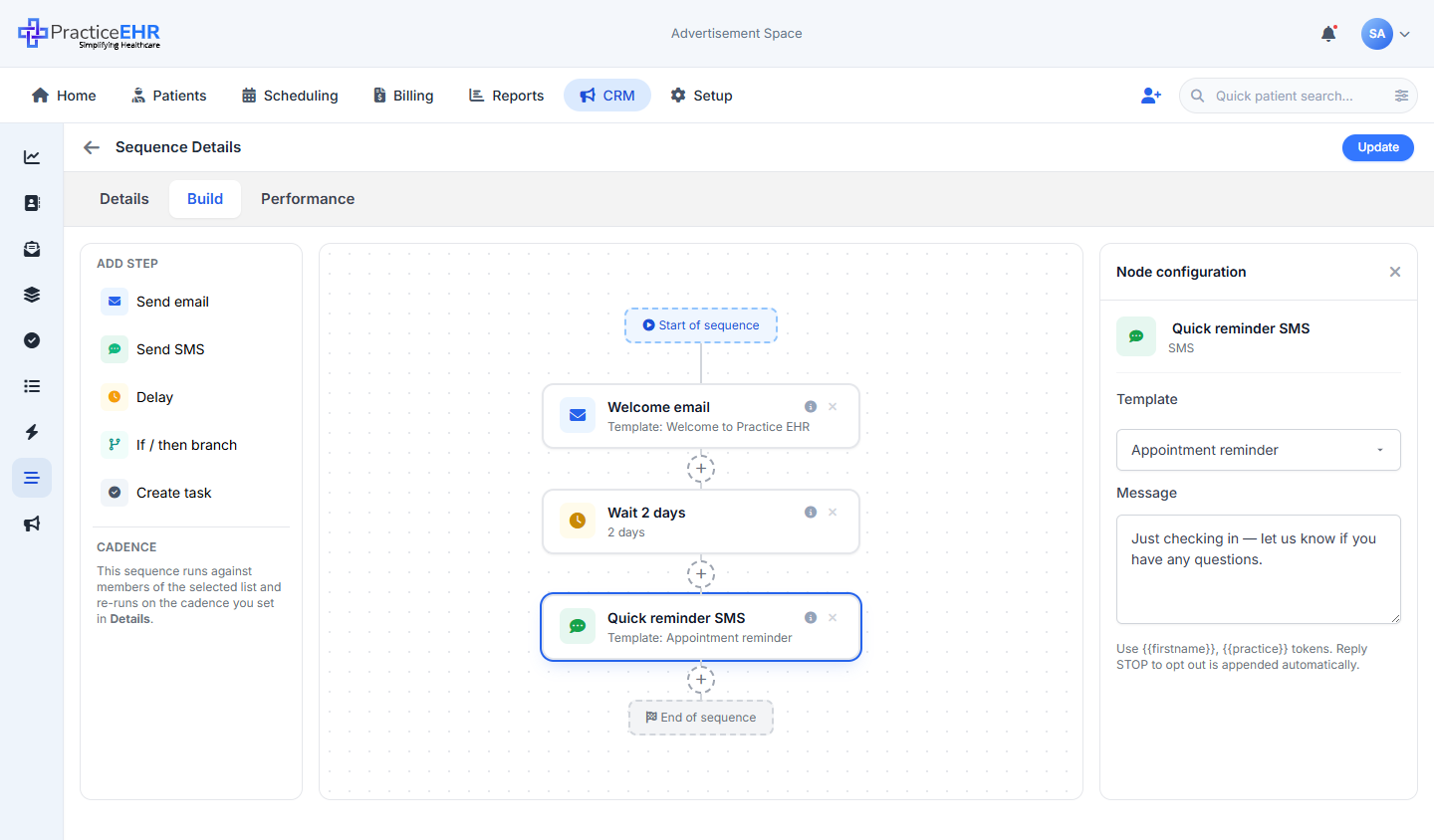
- Five step types you can drop on the canvas: Send email, Send SMS, Delay, If / then branch, Create task.
- Click any step on the canvas and a settings panel opens on the right. No separate pop-ups for each step type.
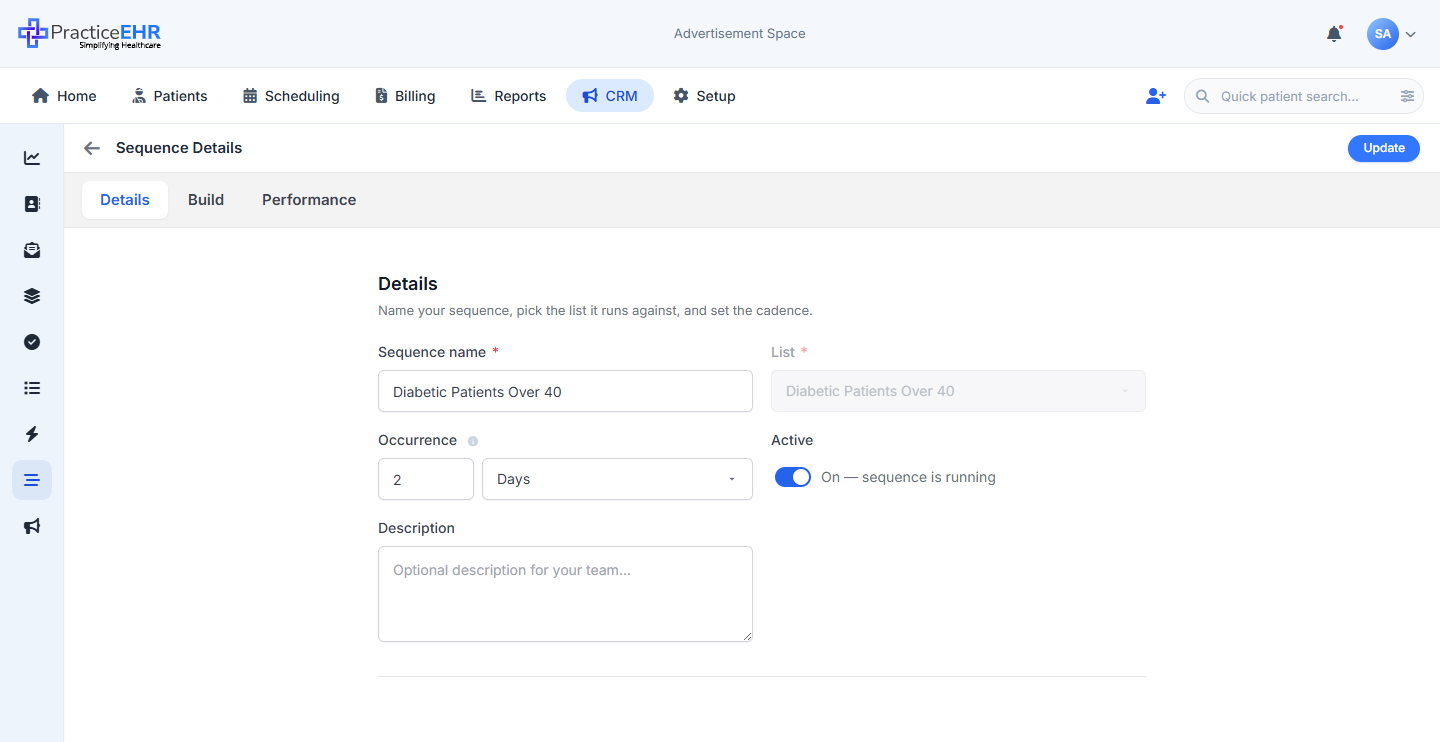
- The Details tab adds three fields just for sequences: pick a List (who gets the messages), set a repeat schedule (how often it runs again), and an Active on/off toggle.
- The little helper note on the left switches from Enrollment (for automations) to a short note about the schedule (for sequences). Everything else looks identical.
Details — Create + Sequence Details
Settings panel2 Days and today the
system runs every step in the sequence (Step 1 → Step 2 → Step 3 →
…) for every contact on the list. 2 days later it runs all the steps again. 2
days after that, again. New people added to the list get picked up on the next run. Same
definition shown in the i tooltip next to the field in the live mockup.
Details5
2 Days,
today the system runs every step (Step 1 → Step 2 → Step 3) for
everyone on the list. 2 days later it runs all the steps again. 2 days after
that, again. New people added to the list get picked up on the next run.
Stepper rail2
Footer2
Empty canvas3
Hint & footer3
Palette — ADD STEP5
fa-envelope. Inserts an Email node and
selects it.
fa-comment-dots. Inserts an SMS node.
fa-clock. Inserts a wait step.fa-code-branch. Splits the canvas into
YES / NO branches.
fa-clipboard-check. Inserts a task step.
Node anatomy3
Schedule note (left side)1
Sequence Details — existing sequence (edit mode)
After saveWhat's different from the create stepper4
<select> — greyed out,
non-interactive. The previously-picked list is shown for reference. To
change it, recreate the sequence.
How to get here2
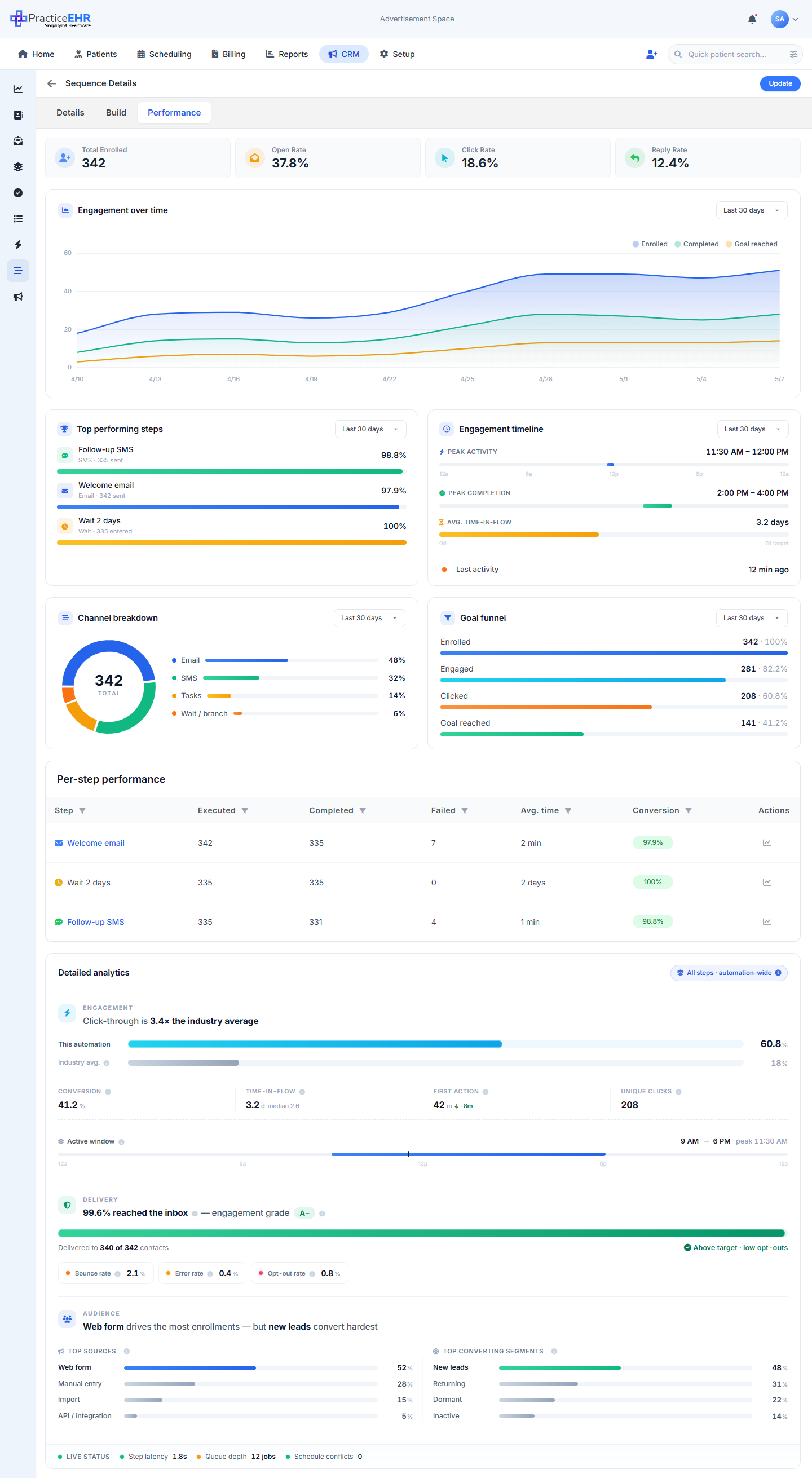
Performance tab
Only on existing sequencesKPI strip4
Engagement over time2
Top performing steps1
Per-step performance table2
Detailed analytics3
Email config4
{{firstname}}.
Action buttons2
SMS config2
{{firstname}}, {{practice}}). Helper text reads
"Use {{firstname}}, {{practice}} tokens. Reply STOP to opt out is
appended automatically."Wait for2
Helper1
Task config3
Branch config1
Branch behaviour2
Branch + button1
How is this different from an automation?
It's the same builder — same step list, same canvas, same branching. The only differences are:
- The Details tab asks for a List, a repeat schedule (how many days/weeks between runs) and an Active toggle — instead of a trigger.
- The left helper says "This sequence runs on the schedule you set in Details" instead of the trigger note.
- The page title reads Sequence Details and the create-stepper Save button reads Save sequence. The header Update action on existing records is the same compact button as on automations.
If you've used the automation builder, you already know how to use this.