Card Views — Home Grids
Every Home tab grid now offers a card view alongside its classic table view.
Cards group records by status, surface key fields at a glance, and keep the page readable on
smaller screens. Click any link below to jump to the matching grid.
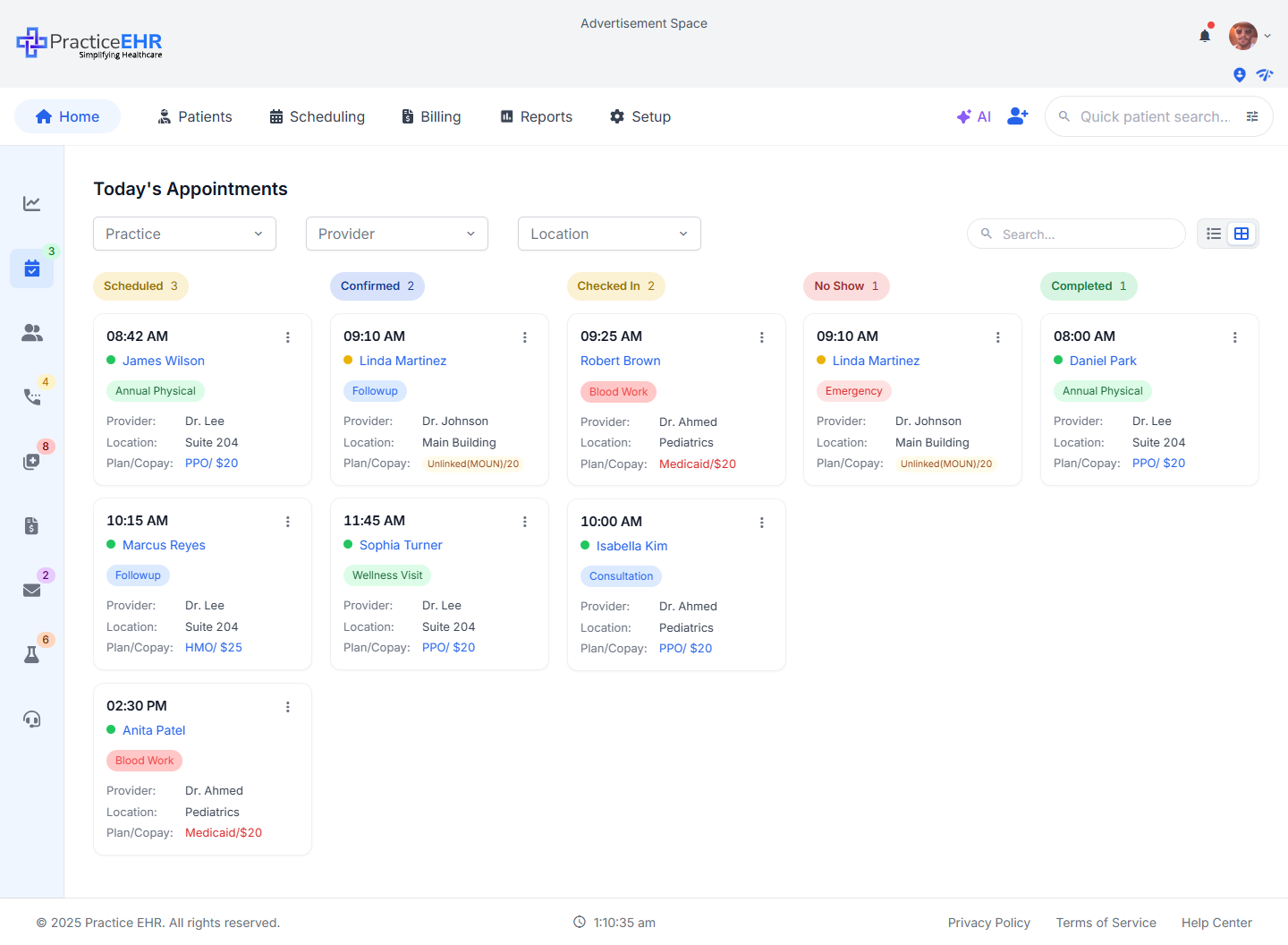
Today's Appointments — Card View
Home / Today's Appointments
Key Features
- Appointments are grouped into vertical columns by status: Scheduled, Confirmed, Checked-In, No Show, Completed.
- Each card surfaces appointment time, patient, type, provider, location, and plan/copay.
- The 3-dot menu on every card exposes the same row actions available in the table view.
- The same filters (Practice / Provider / Location) and search apply in both views.
When to use it. The card view is useful when staff want a glanceable, status-grouped picture of the day's schedule rather than a long table to scroll.
Card fields6
Appointment timeRead-only
Top-left on every card.
PatientLink
Opens the patient chart.
Appointment typePill
Color-coded pill — Annual Physical, Followup, Blood Work, etc.
ProviderText
Rendering provider for the visit.
LocationText
Room or suite — e.g. Suite 204, Pediatrics.
Plan / CopayText
Color emphasis for unlinked or self-pay plans.
Status columns5
ScheduledGroup
Booked appointments not yet confirmed.
ConfirmedGroup
Patient has confirmed attendance.
Checked InGroup
Patient has arrived at the practice.
No ShowGroup
Patient missed the appointment.
CompletedGroup
Visit completed.
Where to find it
Home tab › Today's Appointments › view-toggle (top-right of grid).
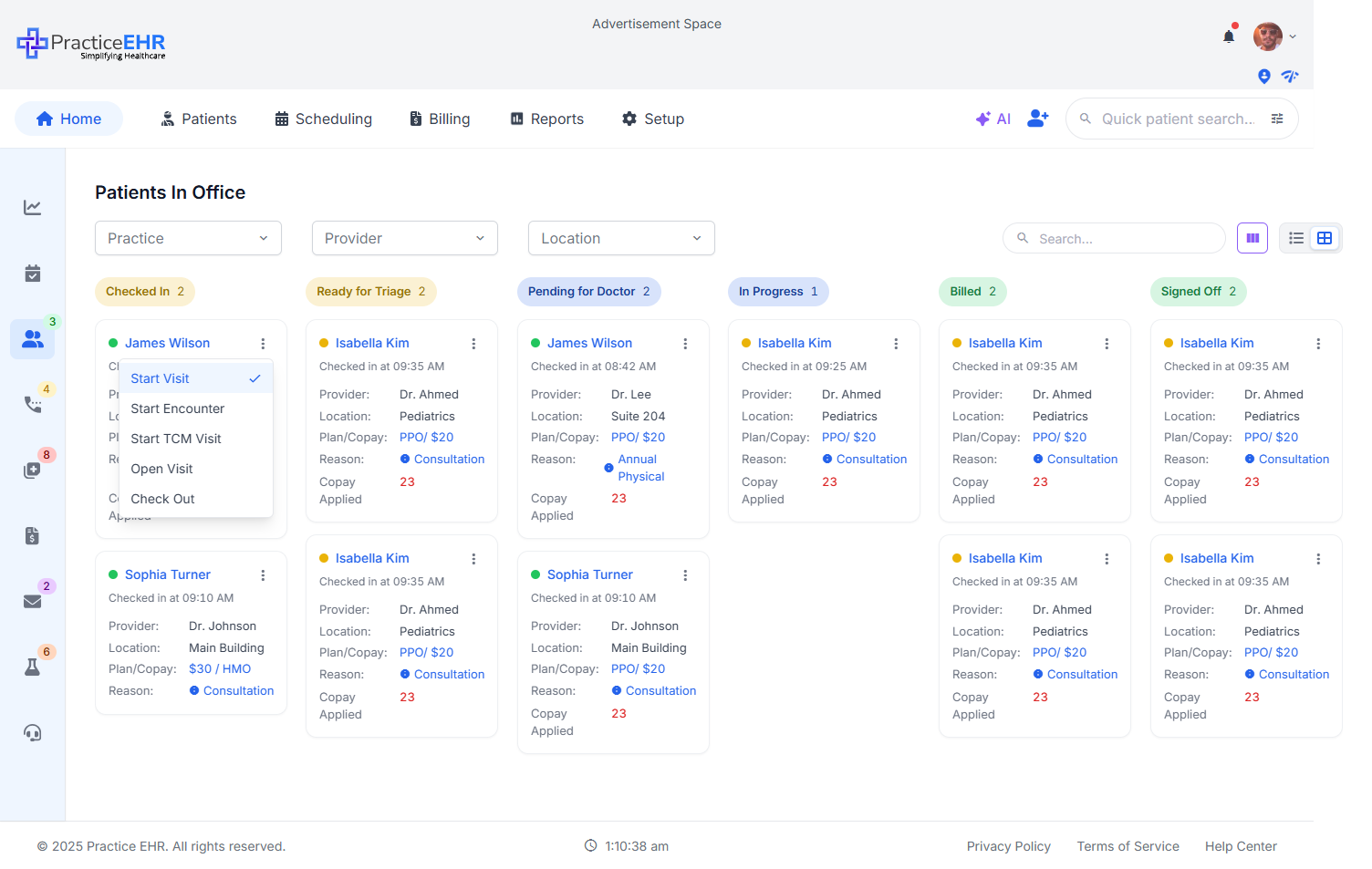
Patients In Office — Card View
Home / Patients In Office
Key Features
- Real-time view of patients who are currently in the office.
- Cards group patients by their room or workflow status.
- Each card shows arrival time, patient, provider, and current status pill.
- Useful for front desk to quickly see who's where without scanning a table.
Card fields5
Arrival timeRead-only
When the patient checked in.
PatientLink
Opens the patient chart.
ProviderText
Rendering provider.
ReasonPill
Visit reason / appointment type.
Current statusPill
Waiting / In Room / With Provider / Ready to Check-out.
Where to find it
Home tab › Patients In Office › view-toggle.
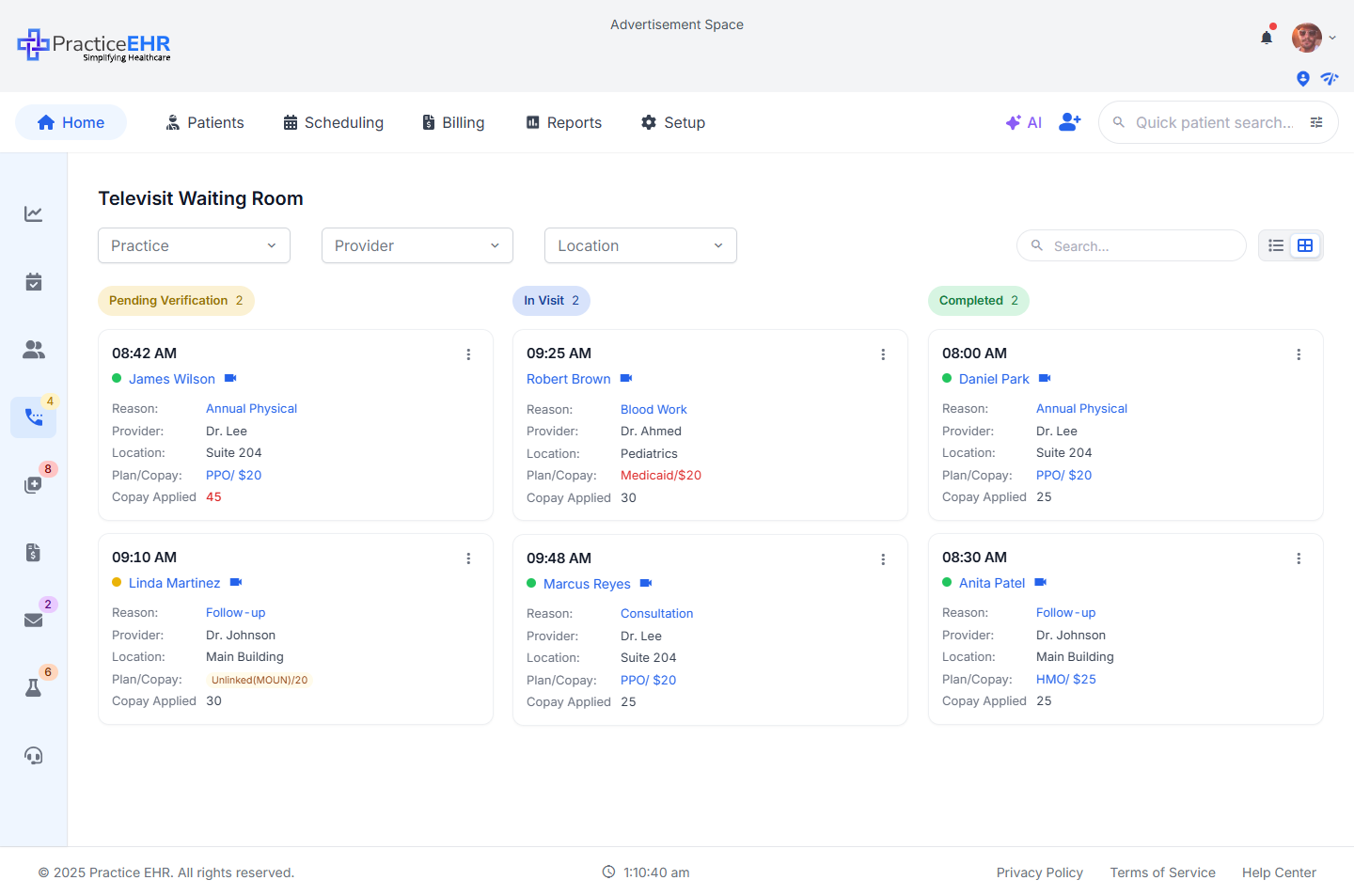
Televisit Waiting Room — Card View
Home / Televisit
Key Features
- Lists patients waiting to join a virtual visit.
- Shows wait duration so providers can prioritize the longest-waiting patient.
- Join action launches the televisit directly from the card.
Card fields5
PatientLink
Opens the patient chart.
Appointment timeRead-only
Scheduled televisit start time.
Wait timeCounter
How long the patient has been in the waiting room.
ProviderText
Provider assigned to the televisit.
JoinAction
Launches the virtual visit.
Where to find it
Home tab › Televisit Waiting Room › view-toggle.
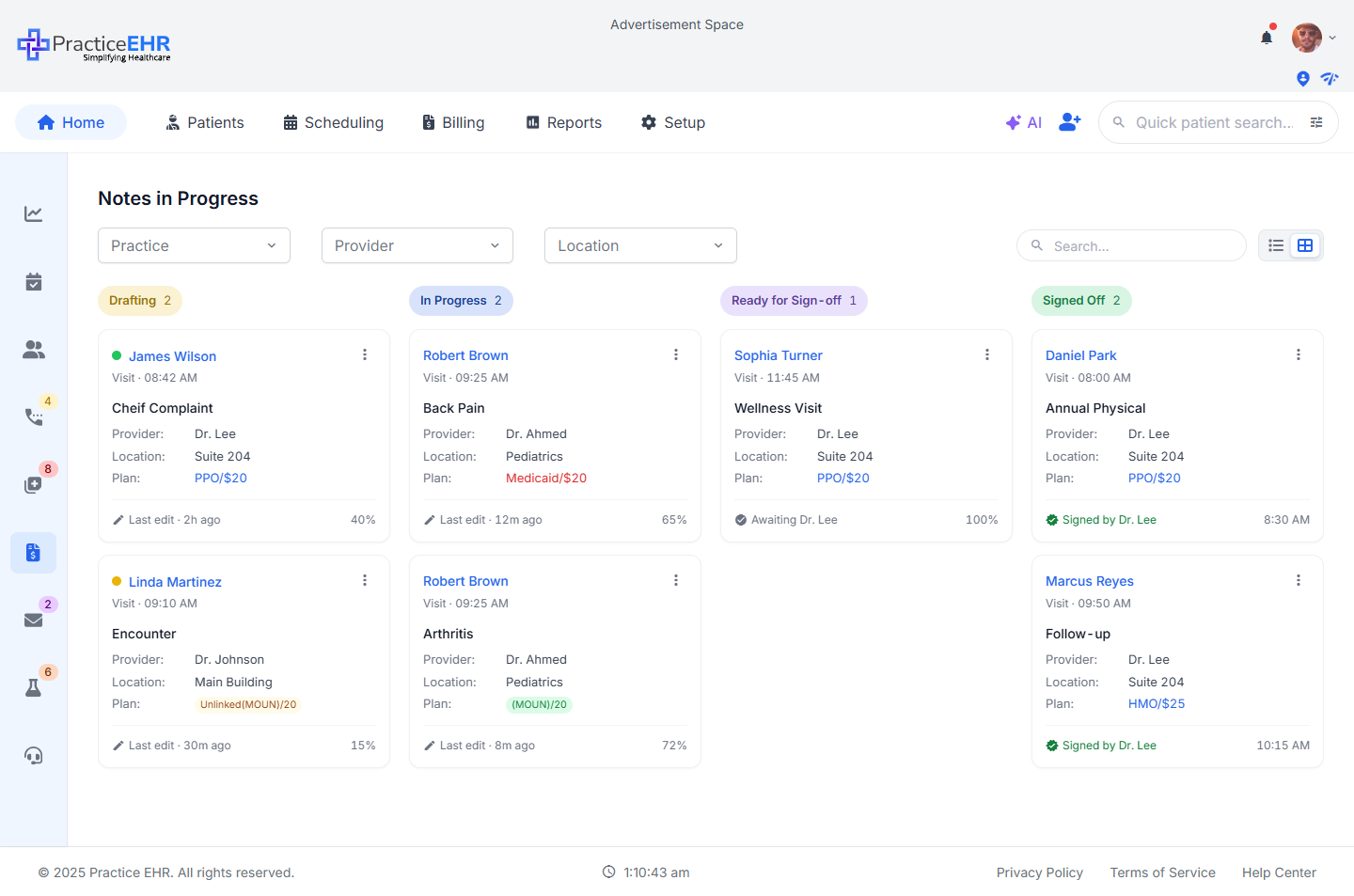
Notes In Progress — Card View
Home / Notes
Key Features
- Surfaces encounter notes that are still being drafted.
- Shows last-edited timestamp so providers can pick up where they left off.
- Template badge identifies which note template is in use.
Card fields5
PatientLink
Opens the encounter note in edit mode.
Date of serviceRead-only
DOS for the encounter.
TemplatePill
Note template in use.
Last editedTimestamp
Most recent save time.
Where to find it
Home tab › Notes In Progress › view-toggle.
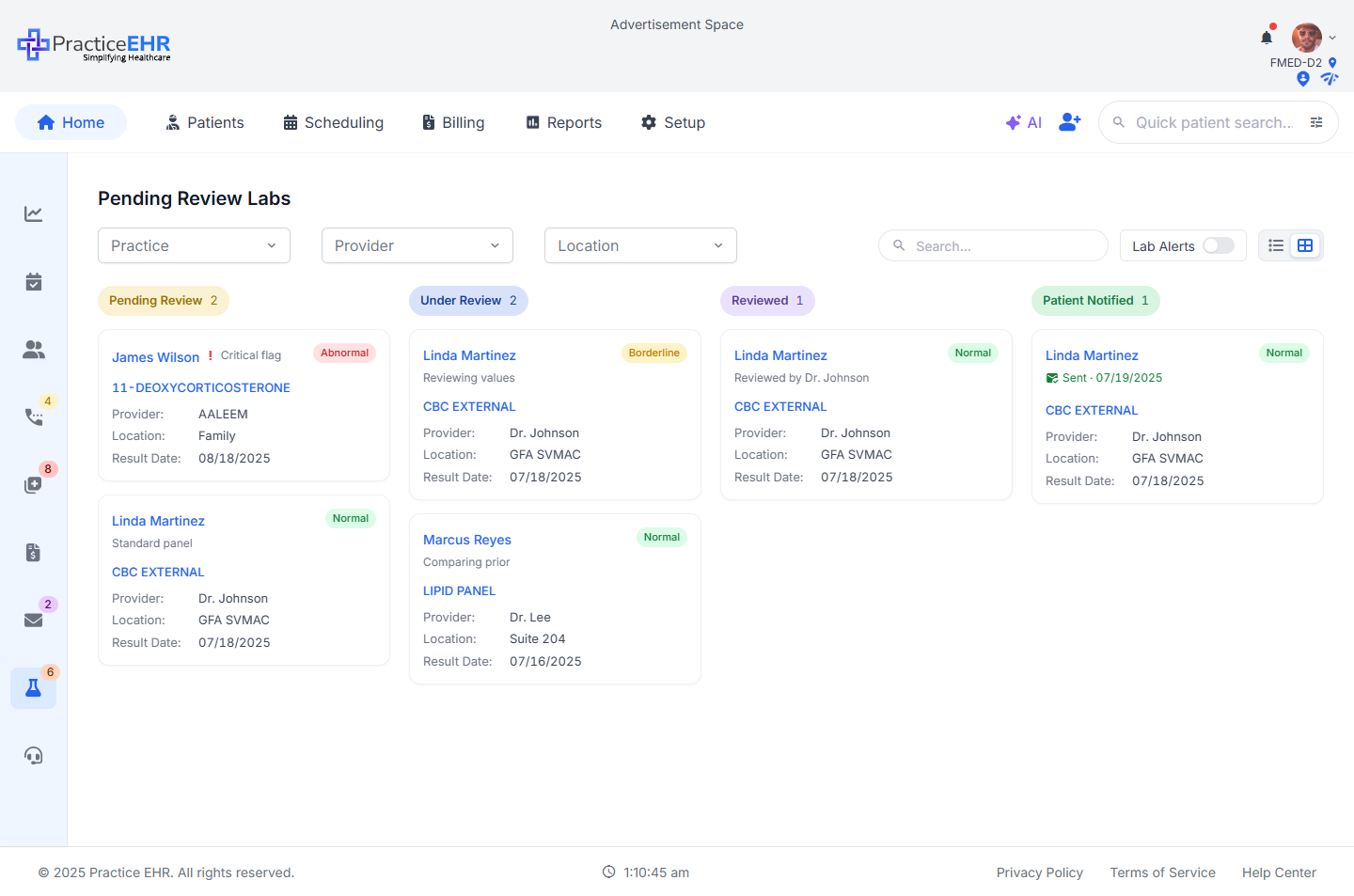
Pending Review Labs — Card View
Home / Labs
Key Features
- Lab results inbox grouped by abnormal flag and priority.
- Color emphasis on out-of-range values draws the eye to action items first.
- Quick Review action signs off the result without leaving the card.
Card fields5
PatientLink
Opens the lab result detail.
Test nameText
e.g. CBC, Lipid Panel, A1C.
ReceivedDate
When the result was received from the lab.
FlagPill
Normal / Abnormal / Critical.
ReviewAction
Sign off on the result.
Where to find it
Home tab › Pending Review Labs › view-toggle.
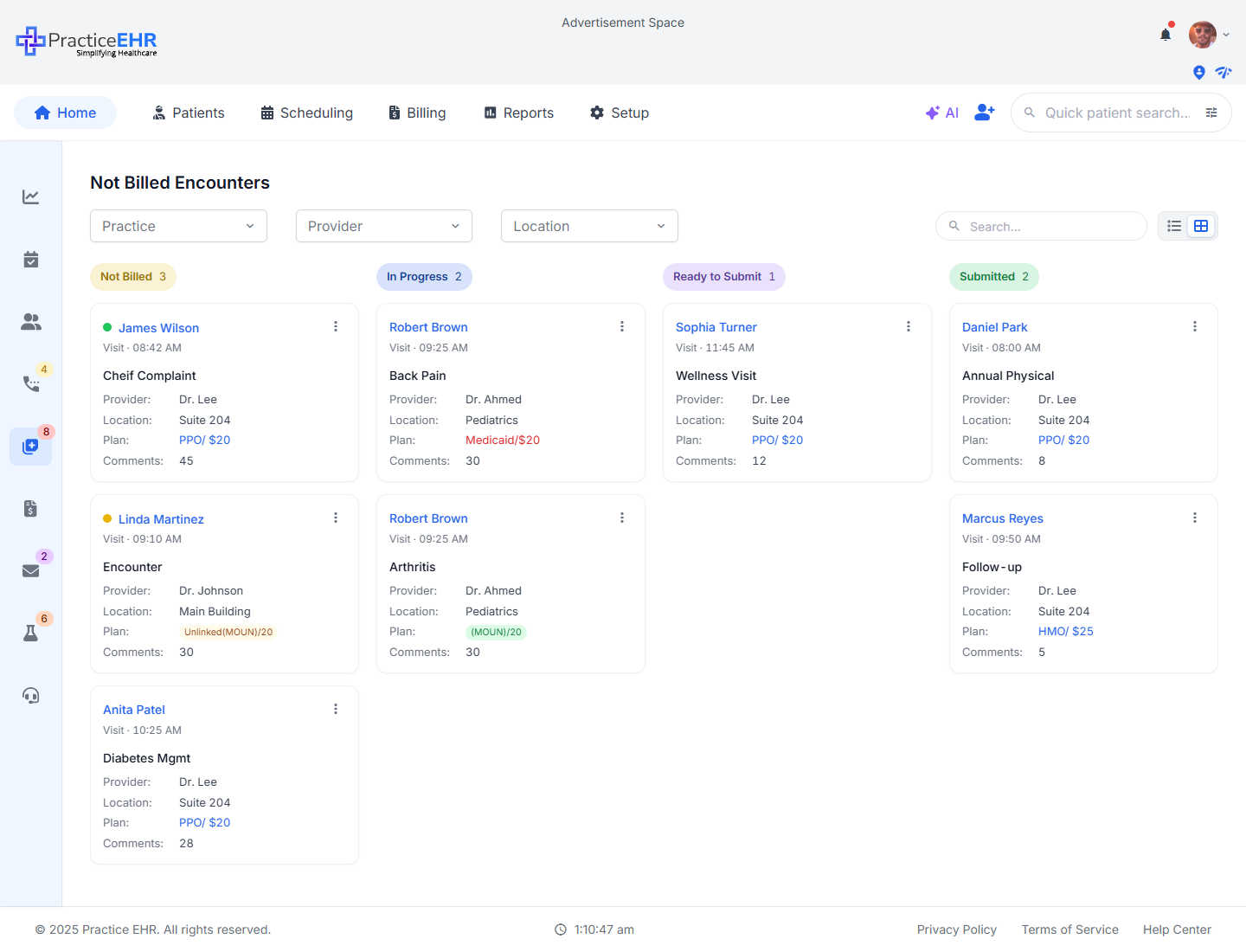
Not Billed Encounters — Card View
Home / Billing
Key Features
- Encounters closed by the provider but not yet billed.
- Age in days helps billers prioritize the oldest unbilled visits first.
- Charge total previews the dollar amount at risk.
Card fields5
PatientLink
Opens the encounter detail.
Date of serviceDate
Visit DOS.
AgeDays
Days since DOS — emphasized as it grows.
ProviderText
Rendering provider.
ChargesCurrency
Sum of charges on the encounter.
Where to find it
Home tab › Not Billed Encounters › view-toggle.
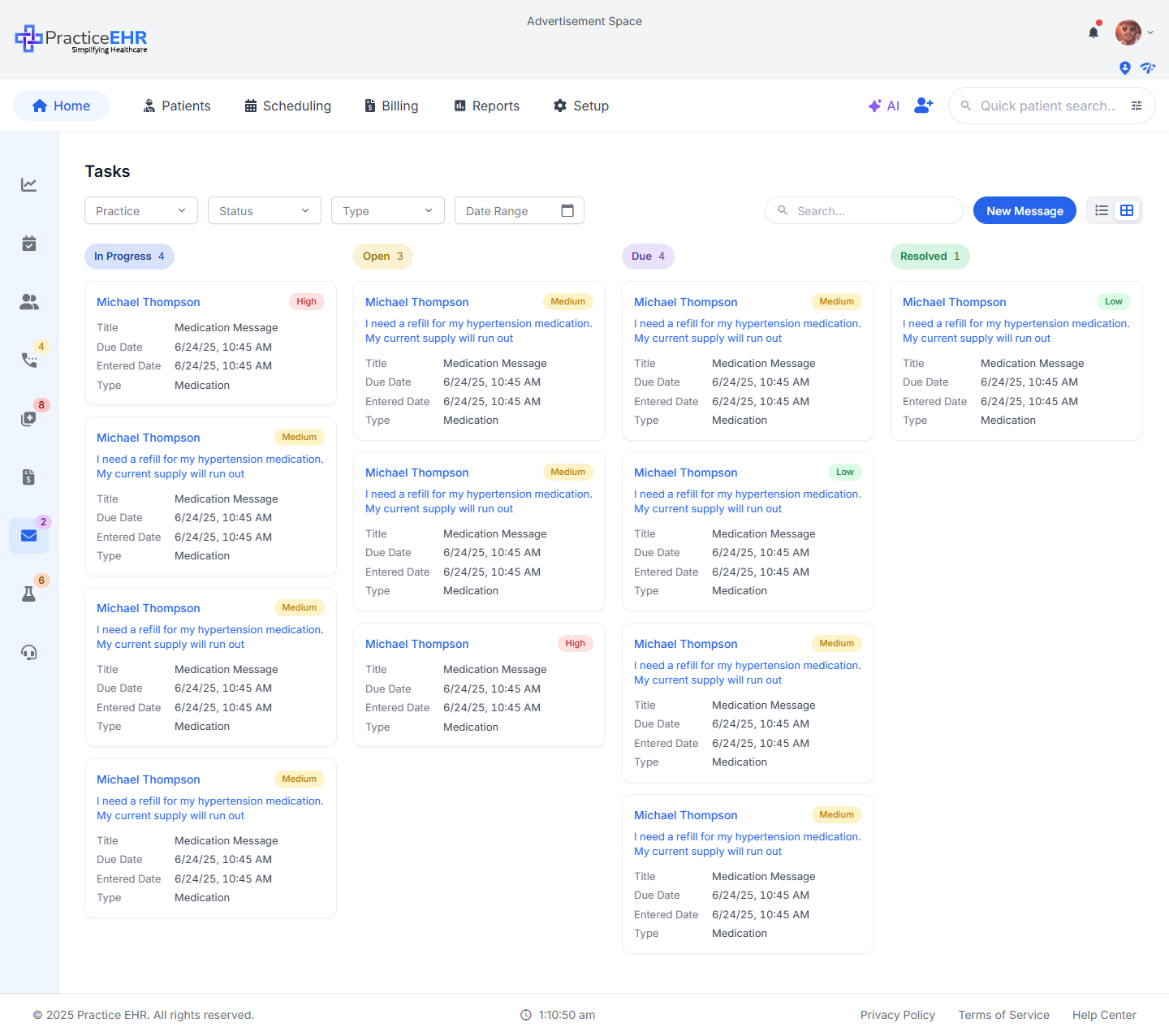
Tasks — Card View
Home / Tasks
Key Features
- Tasks assigned to the current user grouped by status: Open, In Progress, Waiting, Done.
- Each card shows title, due date, priority pill, and source (patient or workflow).
- Overdue tasks get a red emphasis on the due-date badge.
Card fields5
Task titleLink
Opens the task detail.
Due dateDate
Red emphasis when overdue.
PriorityPill
Low / Medium / High / Urgent.
SourceLink
Patient or workflow the task is tied to.
AssigneeText
Owner of the task.
Where to find it
Home tab › Tasks › view-toggle.
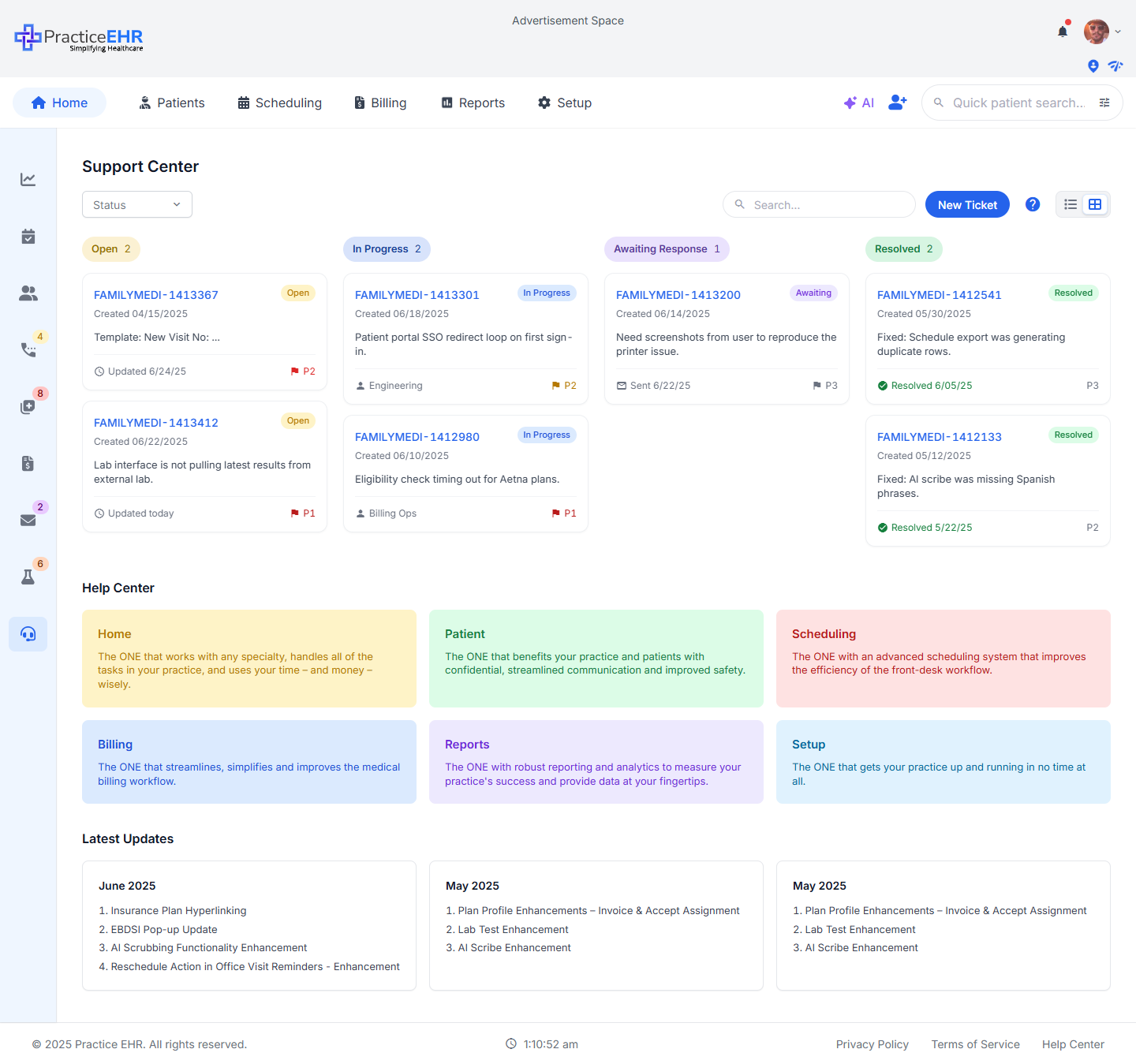
Support Center — Card View
Home / Support
Key Features
- Practice-level support tickets and announcements from the EHR vendor.
- Cards are color-coded by ticket status and announcement severity.
- Opening a card jumps into the full ticket thread or announcement detail.
Card fields5
SubjectLink
Opens the ticket or announcement detail.
TypePill
Ticket / Announcement / Outage / Tip.
StatusPill
Open / In Progress / Resolved.
PostedDate
When the entry was posted.
OwnerText
Support agent handling the ticket.
Where to find it
Home tab › Support Center › view-toggle.