Appeal Management
Phase 2 module that sits under Billing alongside Plan Followup. Billing staff triage appeals, update status, attach evidence, comment, audit, and send appeal letters through the embedded Letter Builder. Click a card to jump to that section.
One-to-one with Plan Followup.
Every Plan Followup has exactly one appeal, and every appeal is tied to exactly one Plan Followup.
Appeals are auto-created from their Plan Followup, so patient, payer, visit, DOS, provider, location, balance, and reason stay aligned with the source visit.
Appeals Management Worklist
Billing → Appeal Management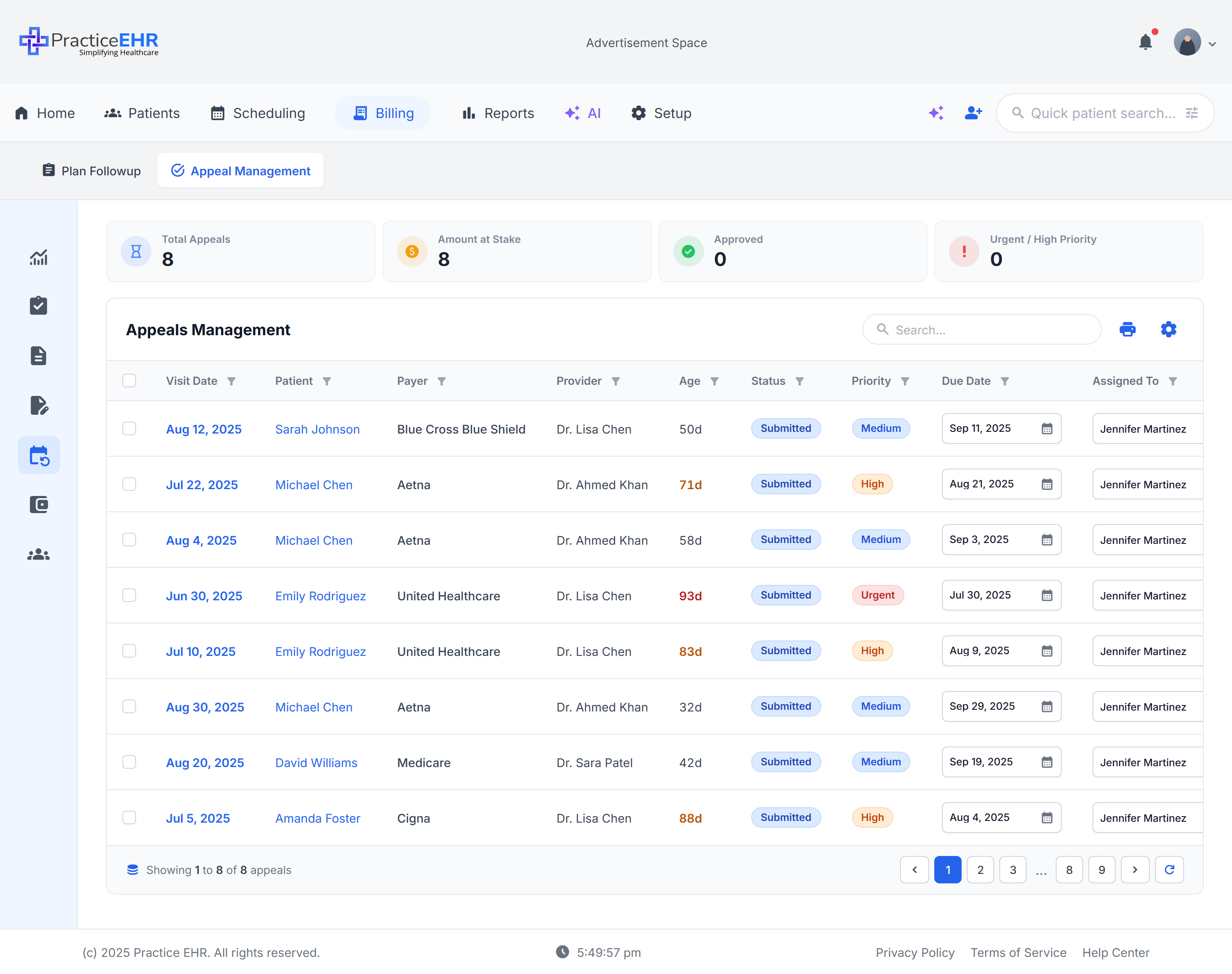
Key Features
- Sibling tab to Plan Followup under Billing — focused appeal queue with one row per appealed visit.
- Four KPI cards above the table summarize Total Appeals, Amount at Stake, Approved, and Urgent / High Priority.
- Inline Search in the table header filters rows in real time — no Search button click needed.
- Column-header filter icons allow per-column inline filtering.
- Due Date is editable directly in the grid; overdue values are emphasized in red with day count.
- Clicking a patient row opens the Appeal Details modal; clicking Visit # opens the linked Plan Followup.
Field reference
Click to expandKPI cards4
Total AppealsCount
Total appeals currently in the queue.
Amount at StakeCurrency
Sum of plan balances across all open appeals.
ApprovedCount
Appeals whose status has been moved to Approved.
Urgent / High PriorityCount
Sum of appeals flagged as Urgent or High priority.
Table columns10
Visit DateSortable
Original date of service from the linked Plan Followup.
PatientLink
Click the patient row to open the Appeal Details modal.
PayerText
Insurance payer on the appealed visit.
ProviderText
Rendering provider on the original visit. Optional column.
AgeDays
Days since DOS. Visually emphasized as the value grows — for example 71d, 93d.
BalanceCurrency
Plan balance at risk for this appeal. Optional column.
StatusPill
Submitted, Under Review, Info Needed, Approved, Partially Approved, or Denied.
PriorityPill
Urgent, High, Medium, or Low — color-coded pills.
Due DateInline edit
Editable date directly in the grid. Overdue rows display a red badge with the overdue day count.
Assigned ToText
Staff member responsible for the appeal. Optional column.
Worklist toolbar4
SearchInput
Filters the visible appeal rows as you type.
PrintIcon
Print the current worklist view.
Settings (gear)Menu
Opens the bulk-action menu — see Selection & Actions.
PaginationButtons
Previous / next, page numbers, and refresh.
Visit # link1
Visit #Link
Inside the Appeal Details modal the visit number is rendered as a hyperlink that opens the Plan Followup details modal.
Where to find it
Top nav → Billing → tab Appeal Management (sibling tab to Plan Followup).
Selection & Actions
Worklist → Gear menu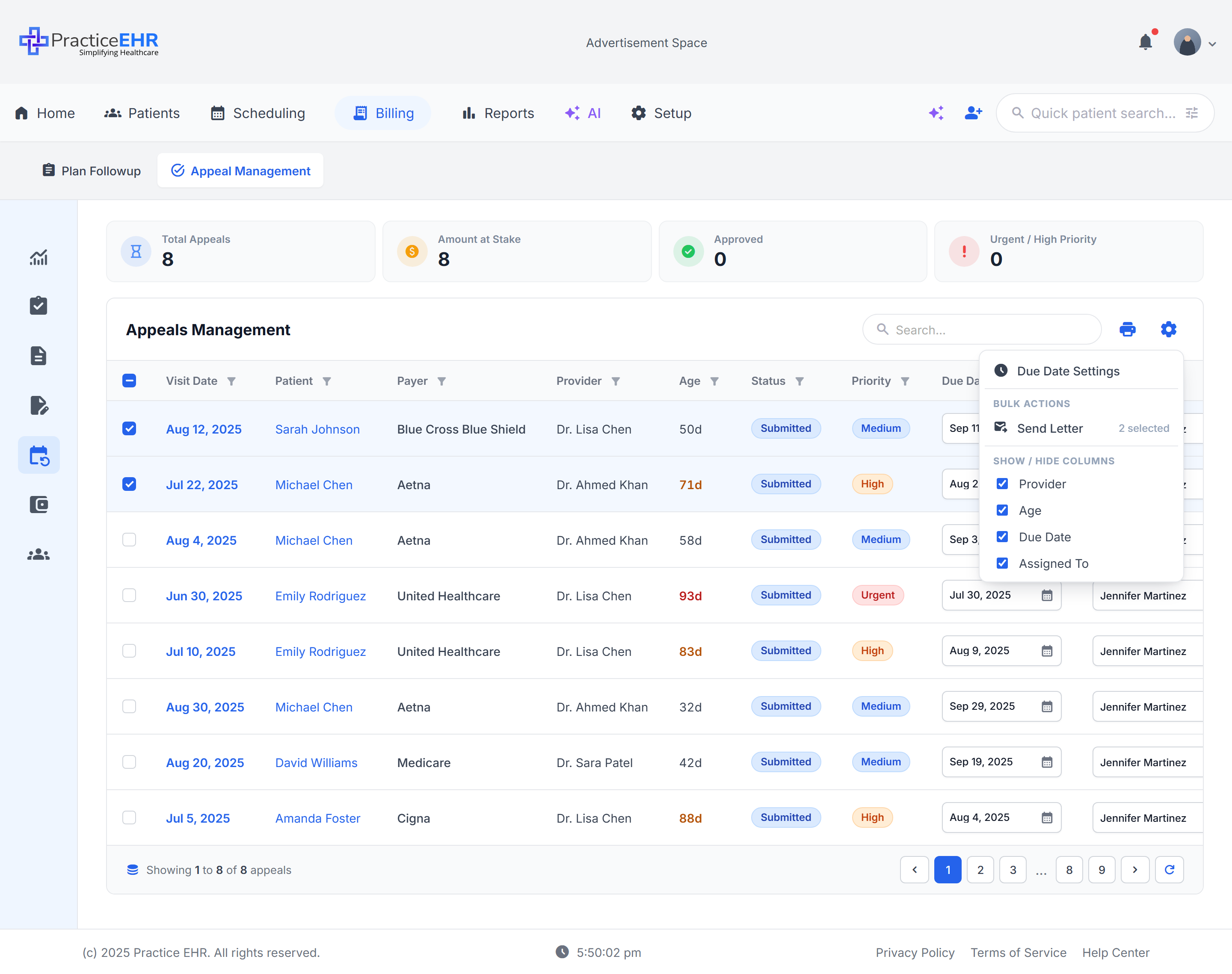
Key Features
- Tick row checkboxes to stage one or more appeals for a bulk action.
- Click the gear icon in the table toolbar to open the bulk-action menu.
- Send Letter shows the selected count inline (e.g. 0 selected) so staff know exactly how many appeals will be bundled.
- Column toggles add or remove Provider, Age, Balance, Due Date, and Assigned To from the grid.
- Selection state survives sort and search — the staged rows stay queued until the action runs.
Bulk letter packet. For a clean letter packet, select related appeals (same patient or payer) before clicking Send Letter. The dialog summarizes the included appeals before staff continue into Letter Builder.
Field reference
Click to expandBulk actions2
Send LetterAction
Opens the appeal letter flow for the selected rows. The button reads "Send Letter 0 selected" until rows are checked.
Due Date SettingsDialog
Opens the payer-level Due Date Settings modal (see card 4).
Show / hide columns5
ProviderToggle
Show or hide the rendering provider column.
AgeToggle
Days since DOS.
BalanceToggle
Plan balance at risk.
Due DateToggle
Editable due-date column with overdue badges.
Assigned ToToggle
Owning staff member for the appeal.
Selection behavior3
Row checkboxToggle
Stages one appeal for the next bulk action.
Header checkboxToggle
Selects every row in the current page of results.
Selection persistenceBehavior
Selected rows remain staged after search, sort, or pagination until the action runs or staff clear the selection.
Where to find it
Worklist table toolbar → gear icon (next to the print icon).
Appeal Details Modal
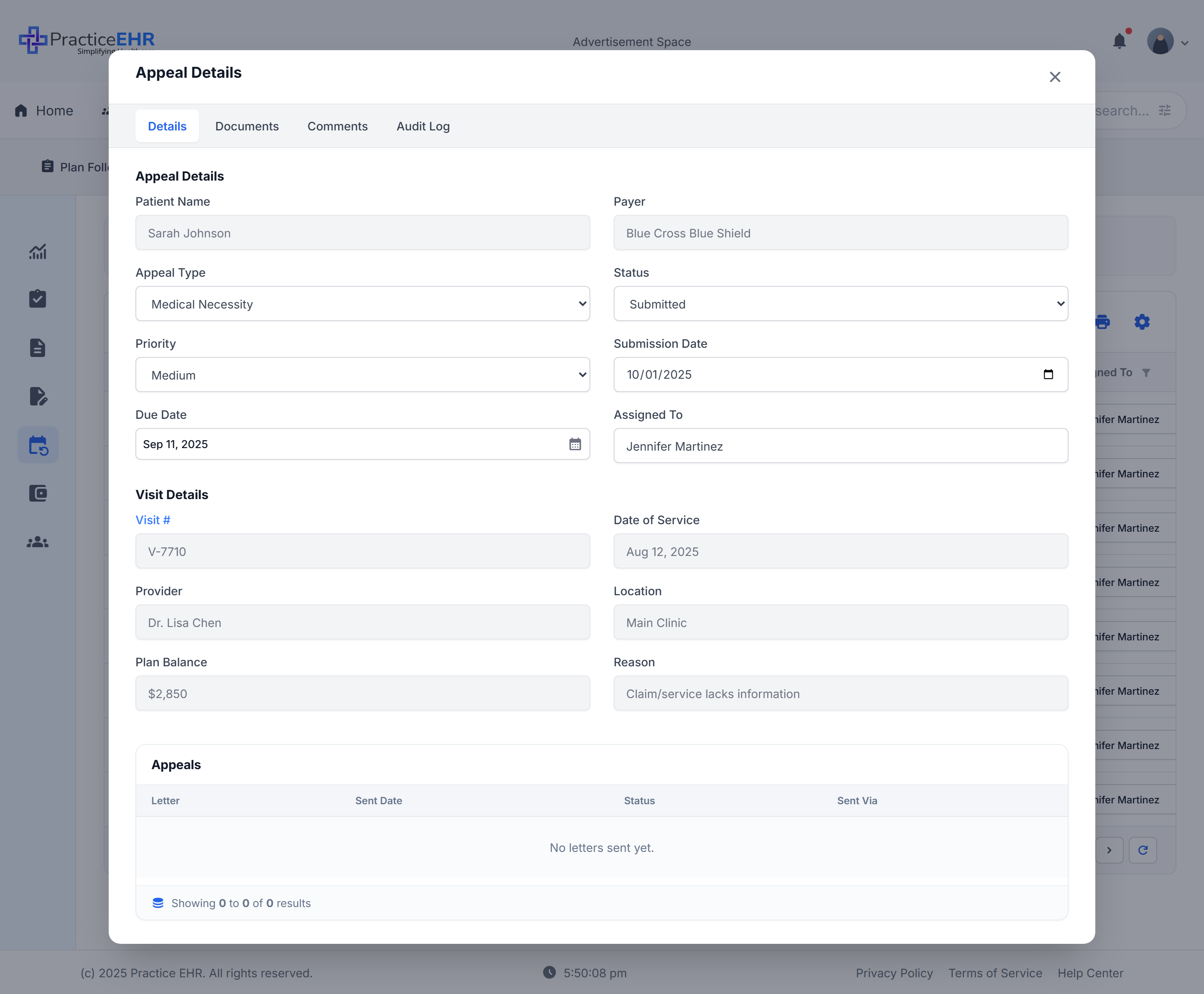
Click any row · Worklist → Appeal DetailsOpening a row launches a modal over the worklist. The modal exposes five tabs — Details, Documents, Comments, Audit Log, and Appeals (Letter Builder) — so staff can change appeal handling, manage evidence, collaborate, audit, and send letters without losing the Plan Followup source context.
What you're looking at
- The Details tab combines editable appeal workflow fields on the left with read-only visit context below.
- Patient and payer come from the linked Plan Followup and cannot be retyped here.
- A Primary / Secondary / Tertiary toggle lets staff inspect each payer level's balance and claim context for the same visit.
- The footer Appeals grid shows letters sent for this appeal (empty until the first letter is generated from the Appeals tab).
Source of truth. A new appeal must start by picking a Plan Followup. That ensures patient, payer, visit, DOS, provider, location, balance, and reason all stay aligned with the original visit.
Appeal fields8
Patient NameRead-only
From the linked Plan Followup.
PayerRead-only
Insurance payer on the appealed claim.
Primary / Secondary / TertiaryToggle
Switch payer level for the same visit to inspect different claim and balance context.
Appeal TypeDropdown
Medical Necessity, Coding Correction, Timely Filing, Authorization, or COB / Other.
StatusDropdown
Submitted, Under Review, Info Needed, Approved, Partially Approved, or Denied.
PriorityDropdown
Urgent, High, Medium, or Low. Drives the worklist priority pill color.
Submission Date · Due DateDate
Editable operational dates. Due Date can also be edited inline in the worklist.
Assigned ToDropdown
Staff owner of the appeal — drives the Assigned To worklist column.
Visit details5
Visit #Link
Hyperlink that opens the Plan Followup details modal for the source visit.
Date of ServiceRead-only
Visit DOS — used by the appeal due-date rule and the letter payload.
Provider · LocationRead-only
Original visit rendering provider and service location.
Plan BalanceCurrency
Amount at risk for the appeal — feeds the Amount at Stake KPI.
ReasonText
Denial / follow-up reason carried over from the Plan Followup.
Appeals (footer grid)5
LetterLink
Letter name — opens the generated document.
Sent DateDate
When the appeal letter went out.
StatusPill
Delivery status of the generated letter.
Sent ViaChannel
Print / Fax / Patient Portal.
ActionsIcons
Open or remove the letter; activity logs to the audit trail.
What you're looking at
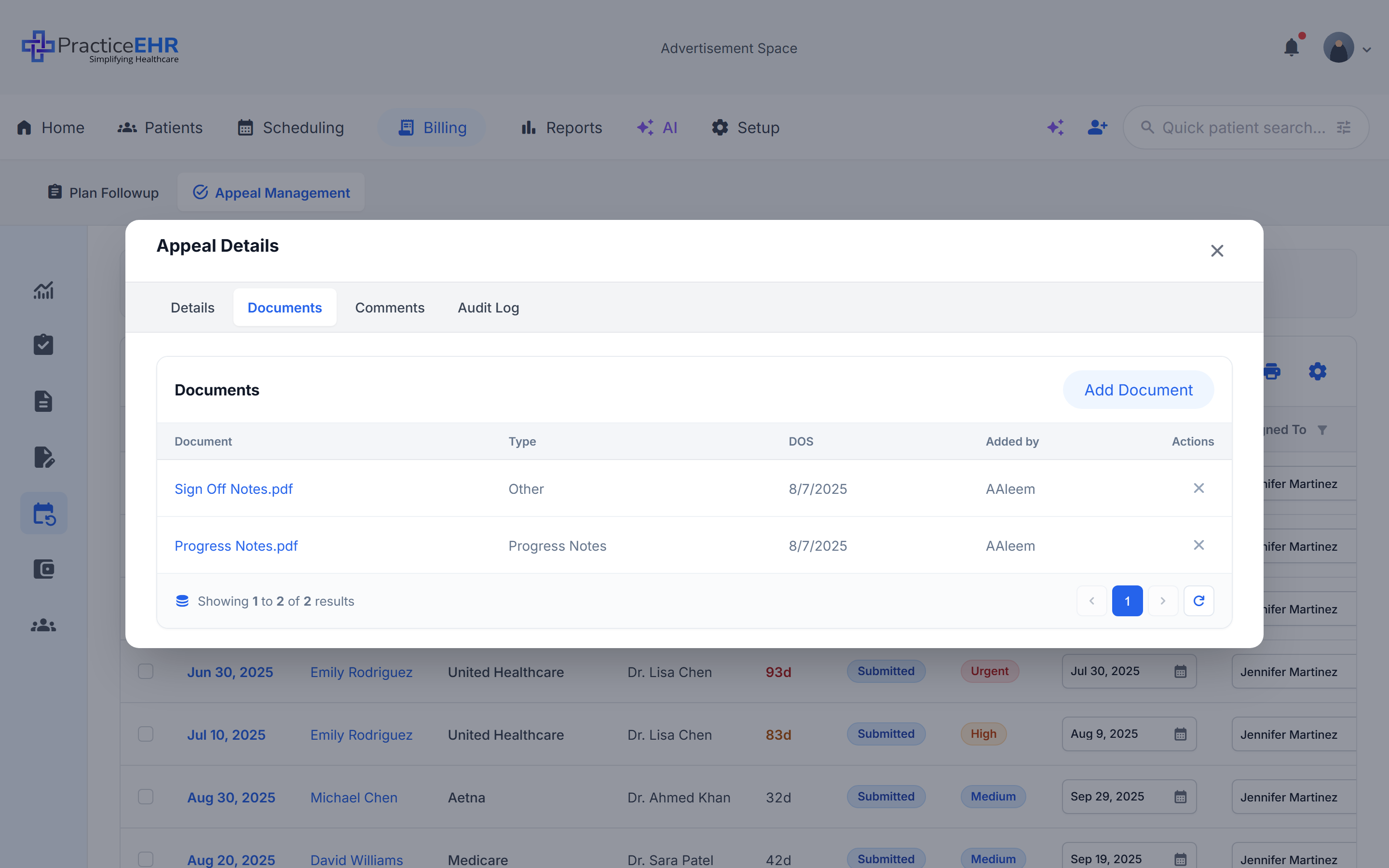
- The Documents tab keeps supporting evidence attached to the appeal — progress notes, sign-off notes, EOBs, and other PDFs.
- Each row shows Document, Type, DOS, Added by, and a row Actions column.
- Add Document in the section header opens a file picker.
- Removing a document writes an entry to the Audit Log.
Type inference. Common file names auto-set the Type field — for example
Progress Notes.pdf → Progress Notes, Sign Off Notes.pdf → Other, and EOB filenames map to EOB.
Grid columns5
DocumentLink
File name — click to open the PDF in a viewer.
TypeInferred
Auto-set from common names: Progress Notes, EOB, Other. Editable.
DOSDate
Date of service carried from the document or the appeal.
Added byUser
Initials of the user who uploaded the file.
ActionsIcon
× removes the document and writes to the Audit Log.
Document behavior4
Add DocumentButton
Opens a file picker. Accepts the prototype's standard upload types.
PaginationButtons
Previous / next, page numbers, refresh — matches the worklist footer.
Result counterText
"Showing 1 to N of M results".
Audit on removeBehavior
Deleting a document creates an audit event recorded under Audit Log.
What you're looking at
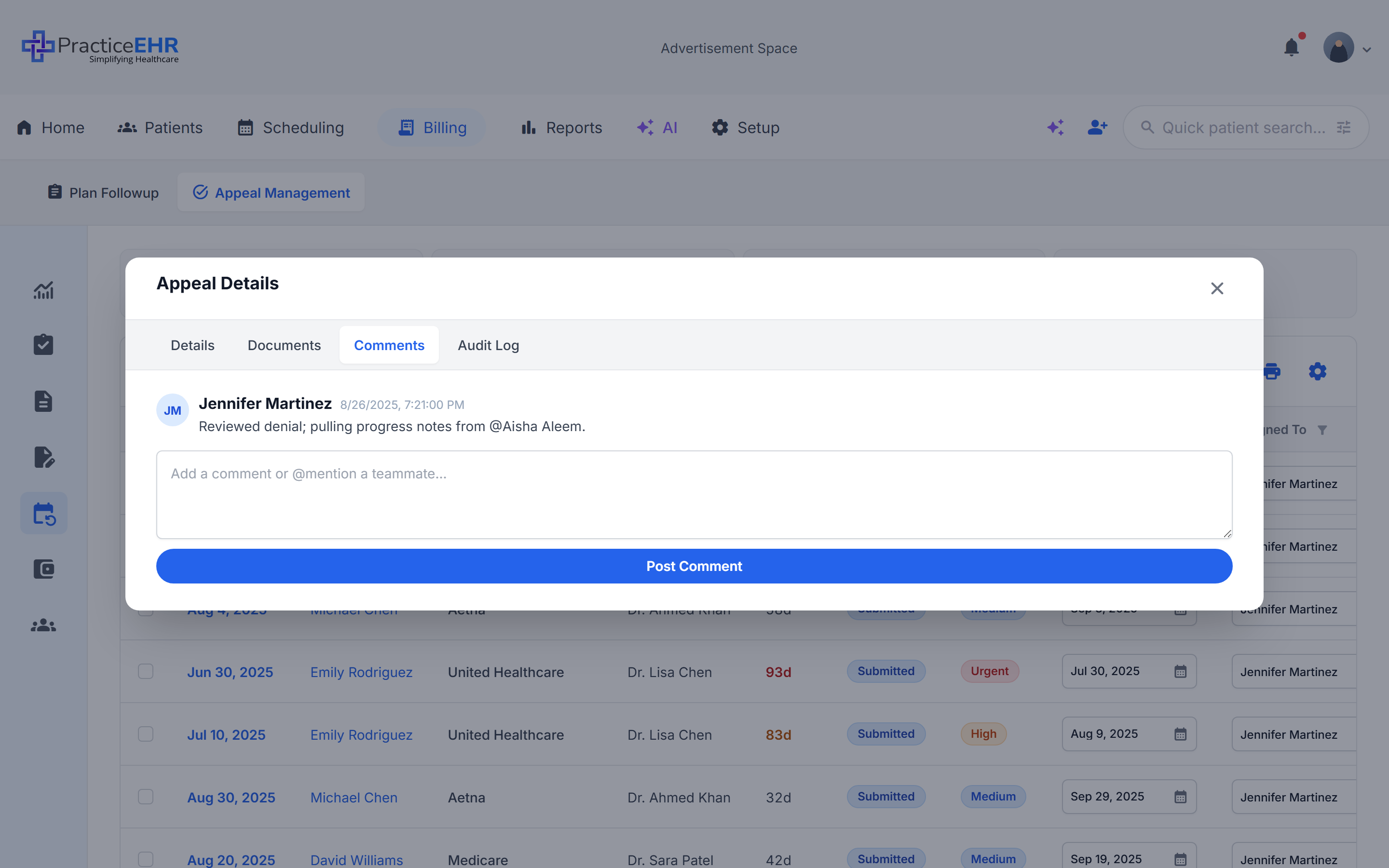
- Comments are a chronological staff conversation attached to the appeal.
- Each comment shows the author avatar, name, and timestamp, followed by the message body.
- The composer supports
@mentionhandles so a teammate gets pulled into the appeal context. - Post Comment commits the message to the linked Plan Followup comment thread — reopening the appeal shows the same thread.
Shared thread. Comments on an appeal post to the same thread as its linked Plan Followup, so handoffs between billing and Plan Followup staff stay in one place.
Comment item4
AvatarInitials
Circle with the author's initials (e.g. JM).
AuthorName
Full name of the staff member.
TimestampDate / time
Local date and time the comment was posted.
BodyText
Free-text message.
@ handles render as inline mentions.Composer2
Add a comment or @mention…Textarea
Compose the next comment. Use
@ to pull a teammate in.Post CommentButton
Saves the comment to the linked Plan Followup thread.
What you're looking at
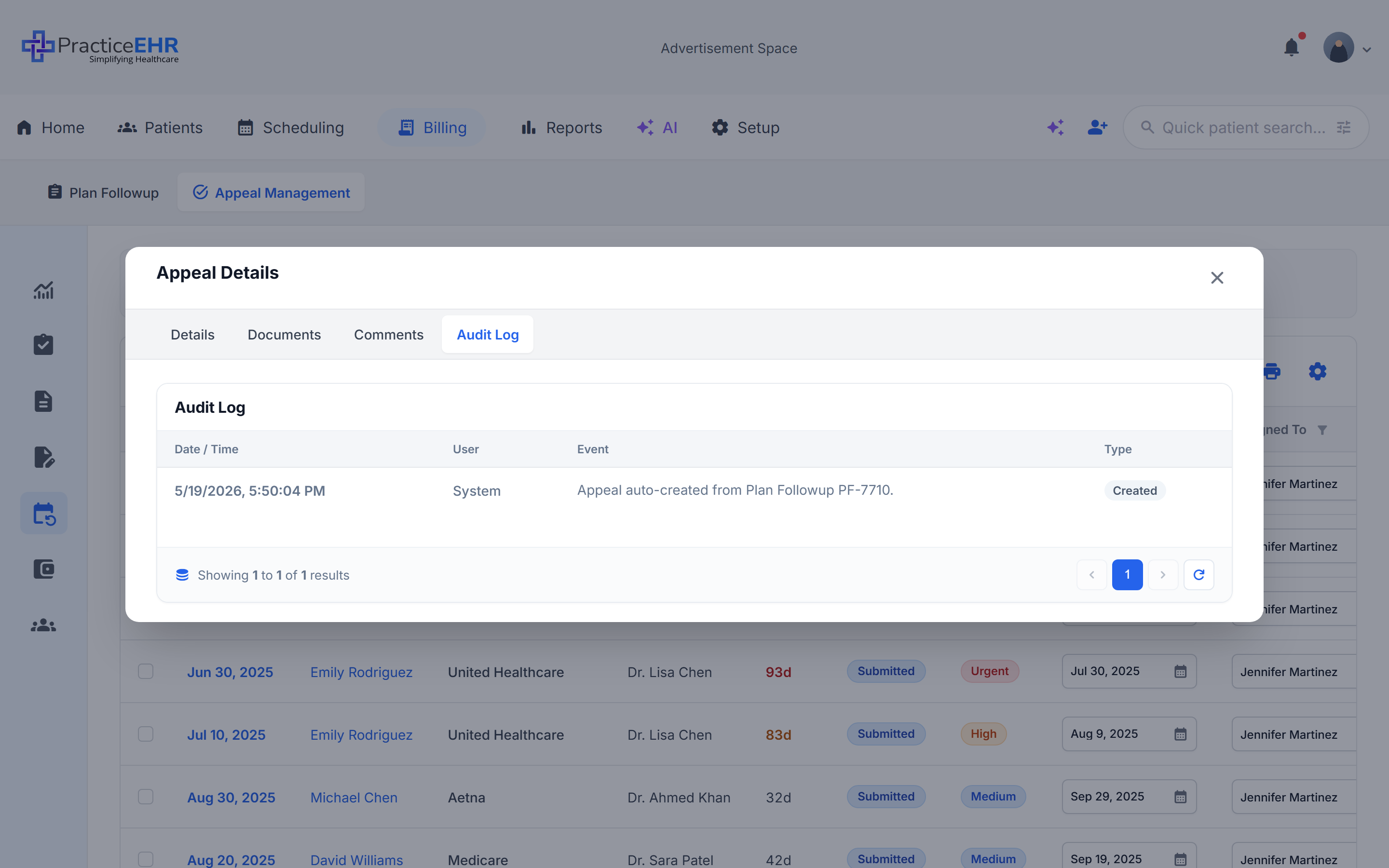
- The Audit Log captures system and user activity for the appeal so changes remain traceable during review.
- Every meaningful state change writes a row — appeal creation, status edits, document add / remove, due-date changes, and letter events.
- Columns: Date / Time, User, Event, and Type.
- System-generated entries are stamped with the user System.
First entry. When an appeal is auto-created from a Plan Followup, the first audit row is a Created event like "Appeal auto-created from Plan Followup PF-7710."
Audit columns4
Date / TimeTimestamp
Local timestamp of the activity.
UserName
Staff member who triggered the change, or System for automated events.
EventText
Plain-language description of what happened.
TypePill
Created, Updated, Comment, Document, Due Date, Letter.
Logged events6
Appeal createdCreated
First row, auto-emitted on appeal creation.
Detail editsUpdated
Status, Priority, Appeal Type, Assigned To, Submission Date.
Due-date changesDue Date
Inline grid edits and bulk re-applies from Due Date Settings.
Document add / removeDocument
Uploads and deletes on the Documents tab.
Comment postedComment
New comments on the appeal thread.
Letter eventsLetter
Letter saved, sent, or removed from the Appeals tab.
What you're looking at
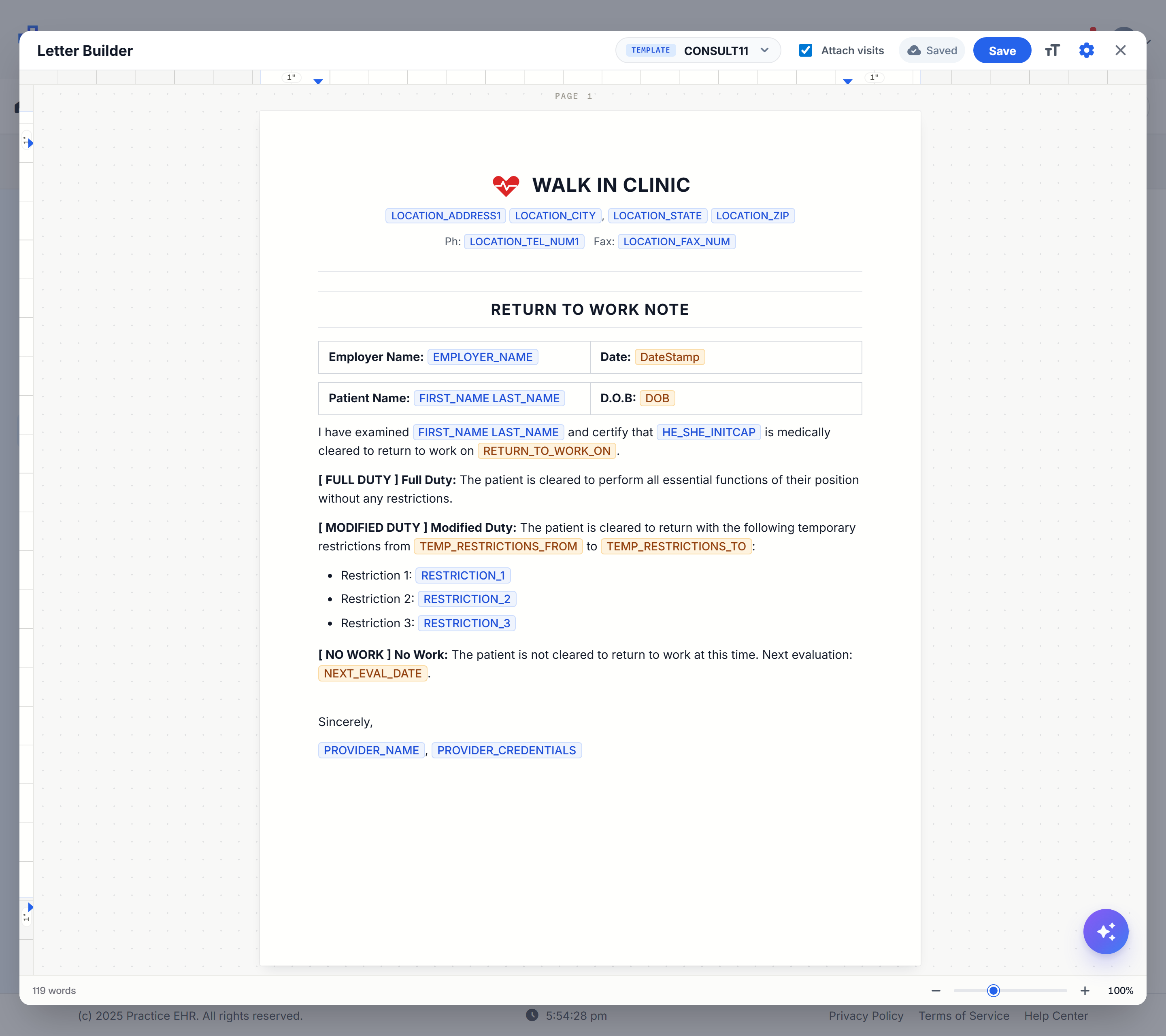
- The historical Letters section has been renamed Appeals, and it now embeds the full Letter Builder inside the modal.
- The header carries the standard Letter Builder controls — template picker, save status, formatting toggle, Save, and the gear menu.
- The Attach visits checkbox in the embed header replaces the legacy Send Appeal Letter dialog — it attaches visit context to the letter packet in one click.
- Clicking Save persists the letter and adds it to the Appeals grid in the footer of the Details tab.
Unified letter workflow. Whether the letter is launched from the bulk Send Letter action on the worklist or from inside a single appeal, it runs through this same embedded Letter Builder so merge fields, save behavior, and the Appeals grid stay consistent.
Embed header5
Letter Builder titleLabel
Identifies the embedded surface.
Template pickerDropdown
Pick a saved letter (e.g. CONSULT11) as a starting point.
Attach visitsCheckbox
Replaces the legacy Send Appeal Letter modal — attaches visit context to the letter packet.
Save status · Aa toggleIndicators
Cloud chip (Unsaved / Saving… / Saved) and the Aa toolbar toggle from Letter Builder.
SaveButton
Saves the letter and immediately surfaces it in the Appeals grid on the Details tab.
Editor canvas3
Page canvasEditable
Real 8.5 × 11 in page — exactly as in Letter Builder. Merge tokens (e.g.
FIRST_NAME, LOCATION_ADDRESS1, DOB) render as blue pills.ToolbarHidden by default
Click Aa to reveal the floating text toolbar.
Word count + zoomStatus
Bottom bar matches Letter Builder — live word count and zoom slider.
Save behavior3
Appeals grid updateAuto
A new row appears in the footer Appeals grid immediately on Save.
Audit logLetter
A Letter-type audit row is written for save and delivery events.
Production notePrototype
Final integration should persist letter references and rendered PDFs back to each included appeal.
Due Date Settings
Gear menu → Due Date Settings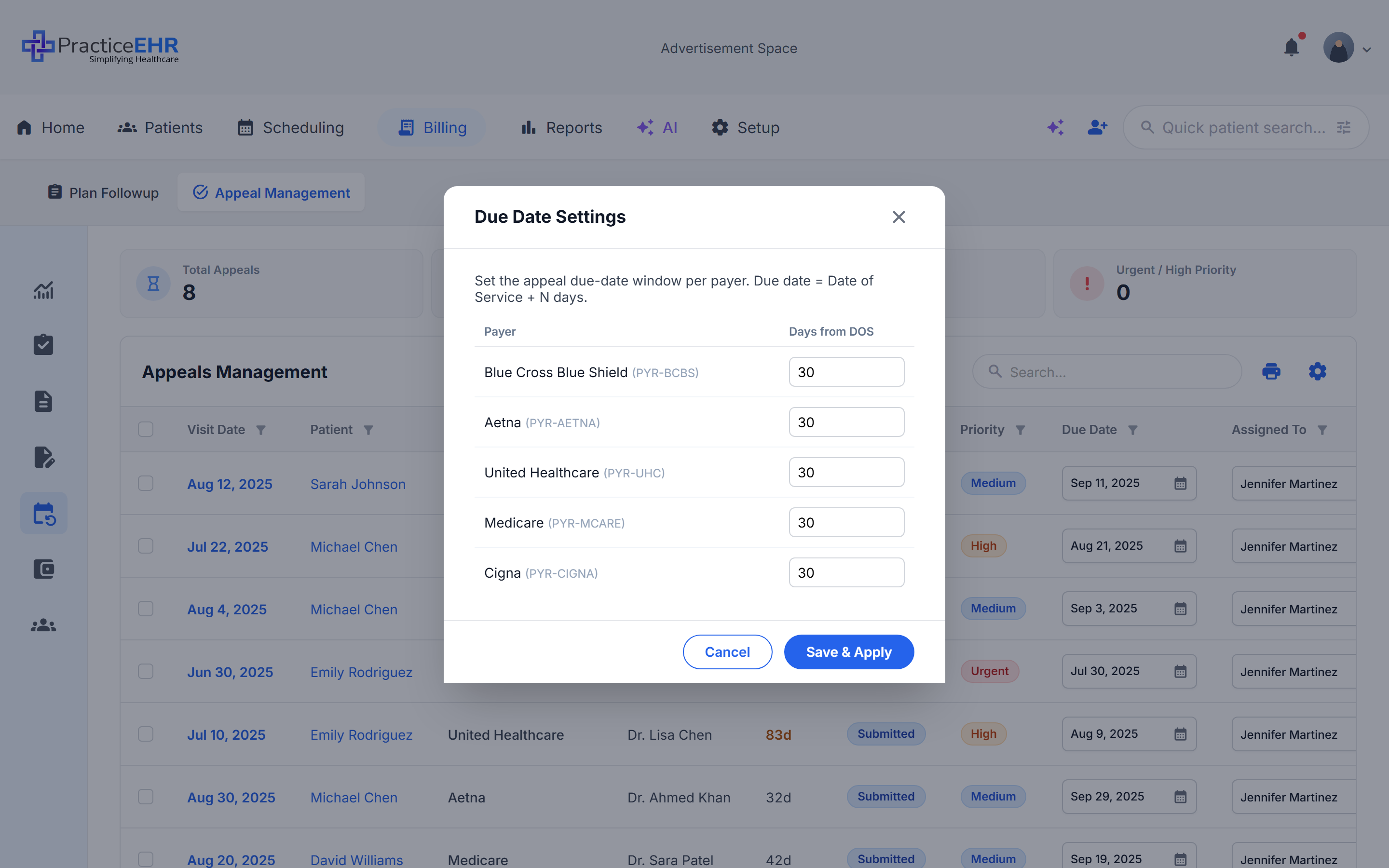
Key Features
- Sets the appeal due-date window per payer.
- The rule is simple: Due Date = Date of Service + N days.
- One row per payer currently present in the appeal dataset.
- Save & Apply stores the rules, recalculates due dates on every matching appeal, and refreshes the worklist.
- Each recalculation writes a Due Date entry to the appeal's Audit Log.
Prototype note. Payer due-date rules are stored in browser
localStorage for this prototype. Production should persist rules server-side per practice or configuration scope.
Field reference
Click to expandRule rows2
PayerLabel
Payer display name plus a payer code in muted text (e.g. Blue Cross Blue Shield
PYR-BCBS).Days from DOSNumber
Whole number of days added to the visit DOS to produce the appeal due date.
Footer actions2
CancelButton
Closes the dialog without saving.
Save & ApplyButton
Stores the rules, recalculates due dates on matching appeals, refreshes the worklist, and records a due-date audit event per appeal.
Worklist impact3
Due Date columnRefresh
All affected rows reflect the new due dates after Save & Apply.
Overdue badgeAuto
Rows past the new due date show the red "Nd overdue" badge under the date.
Audit trailDue Date
A Due Date audit row is written on each affected appeal.
Where to find it
Worklist → table gear icon → Due Date Settings.